If you own an Apple Watch but aren’t sure which model or series it is, don’t worry—there are several quick and reliable ways to find out. Whether you need this information for troubleshooting, selling, upgrading, or buying accessories, this guide will walk you through all the easiest methods.
Method 1: Check on Your Apple Watch (Fastest Way)
You can identify your Apple Watch directly from the device:
- Press the Digital Crown to open the Home Screen
- Open the Settings app
- Tap General → About
- Look for:
- Model Name (e.g., Apple Watch Series 8)
- Model Number
- Case Size
This is the most accurate and up-to-date way to identify your Apple Watch.
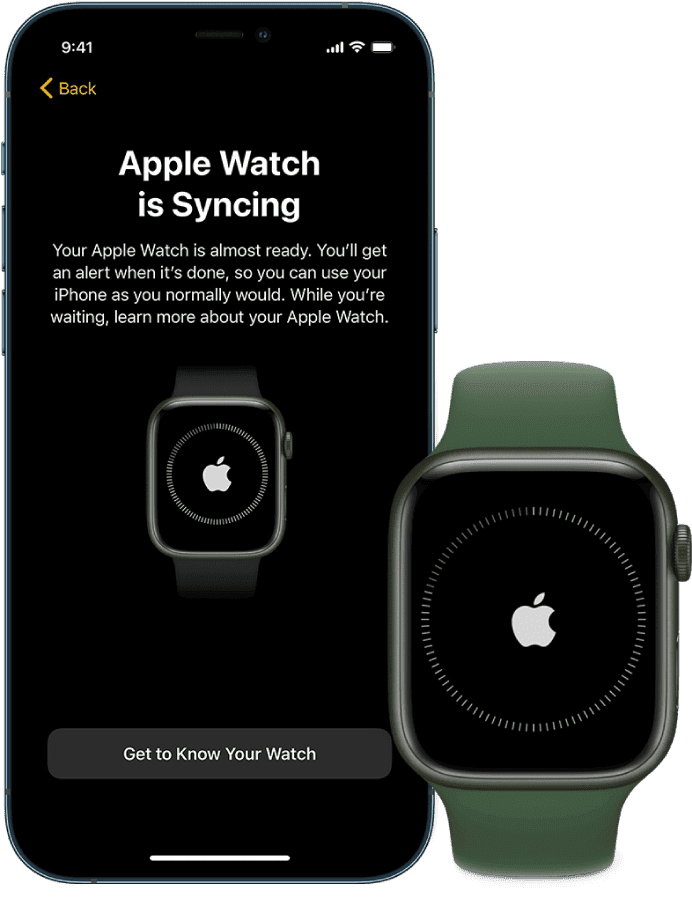
Method 2: Use the iPhone Paired With Your Apple Watch
If your Apple Watch is paired with an iPhone:
- Open the Watch app on your iPhone
- Tap General → About
- Check the Model Name, Series, and Case Size
This method is especially useful if your watch screen isn’t working.
Method 3: Check the Model Number (Detailed Identification)
Apple Watch model numbers can tell you exactly which version you have.
How to Find the Model Number
- On your watch or iPhone, go to Settings / Watch app → General → About
- Tap the Model Number once to reveal the “A” model number (e.g., A2093)
Match It on Apple’s Website
Search the model number on Apple’s official support pages to identify:
- Series (Series 3, 4, 5, SE, Ultra, etc.)
- GPS or GPS + Cellular
- Case material (aluminum, stainless steel, titanium)
- Region
Method 4: Look at the Back of the Apple Watch Case
On the back of the watch, you’ll find engraved text that includes:
- Apple Watch series
- Case size (e.g., 44mm, 45mm)
- Material
- Whether it’s GPS or Cellular
Example:
“Apple Watch Series 7 45mm Aluminum GPS”
This method works even if the watch won’t turn on.
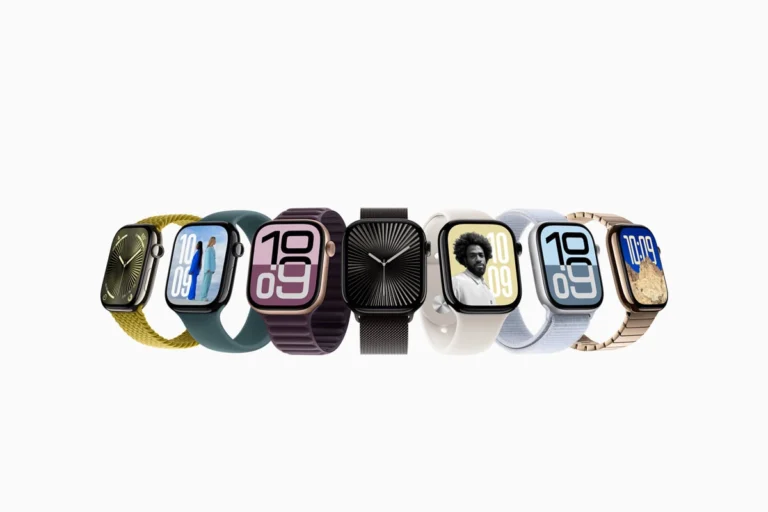
Method 5: Identify by Design and Features
If you can’t access settings, you can still narrow it down by physical features:
Key Visual Clues
- Always-On Display: Series 5 and newer (except SE 1st gen)
- Larger edge-to-edge screen: Series 4 and newer
- Flat edges: Series 7, 8, 9, and SE (2nd gen)
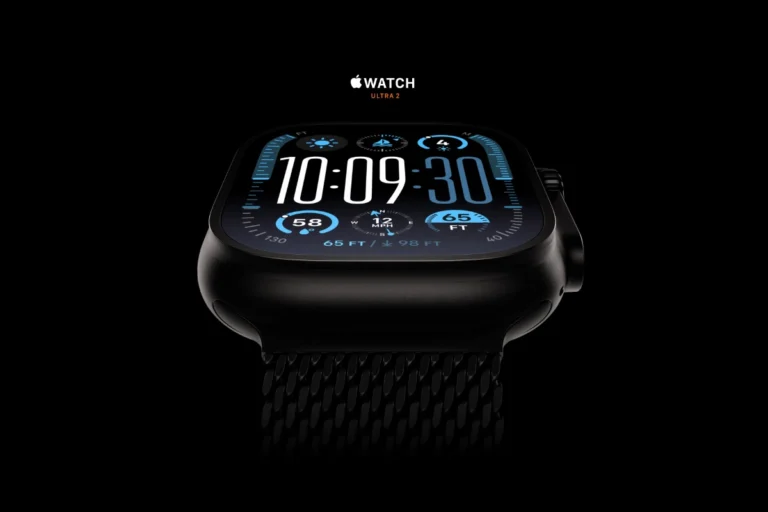
- Orange Action Button: Apple Watch Ultra or Ultra 2
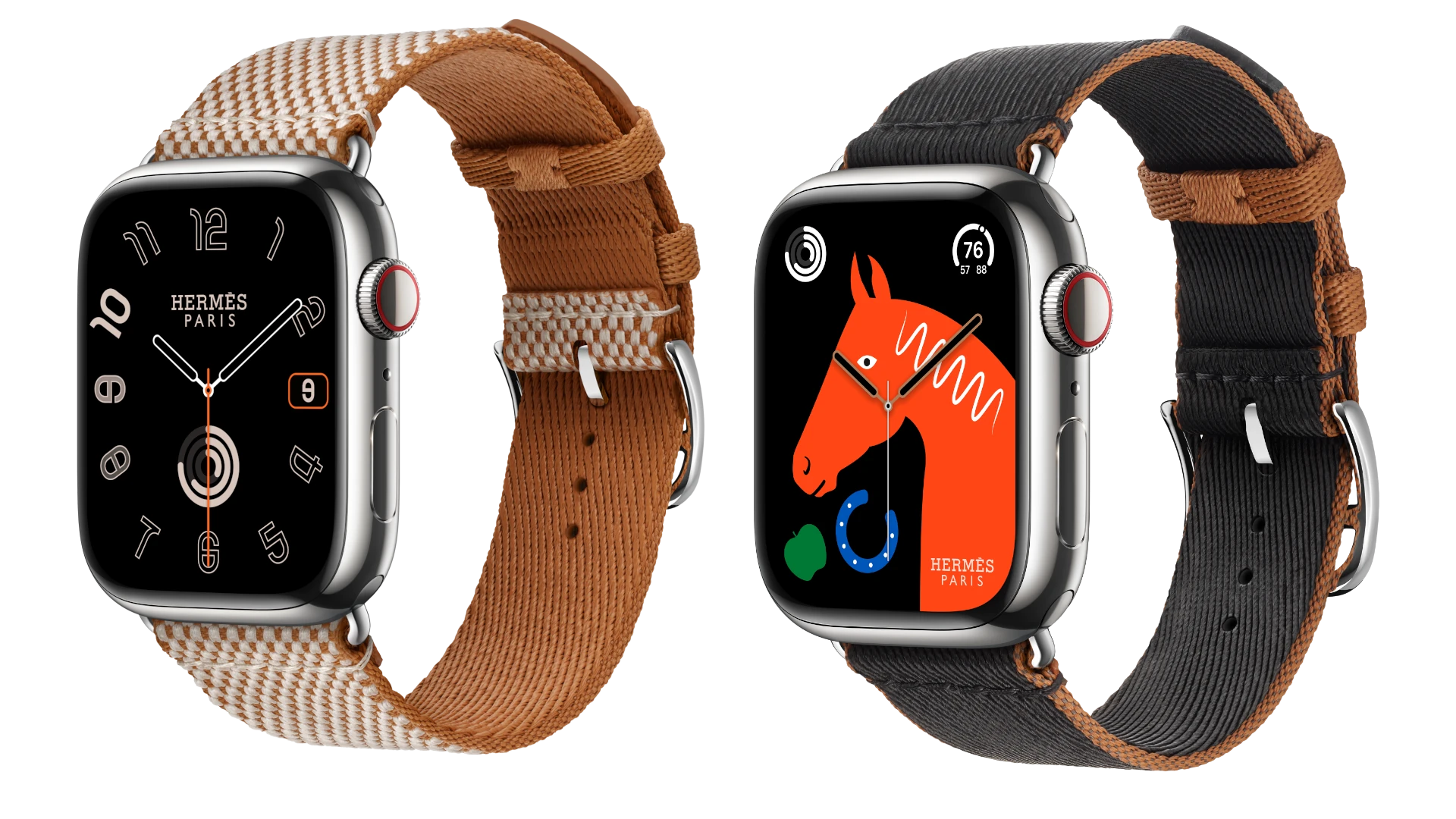
- Digital Crown with red ring: GPS + Cellular models
Apple Watch Series Quick Reference
| Series | Release Year | Notable Features |
|---|---|---|
| Series 3 | 2017 | Rounded screen edges |
| Series 4 | 2018 | Larger display, ECG |
| Series 5 | 2019 | Always-On Display |
| Series 6 | 2020 | Blood Oxygen sensor |
| SE (1st Gen) | 2020 | Budget-friendly |
| Series 7 | 2021 | Larger screen, fast charging |
| Series 8 | 2022 | Temperature sensing |
| SE (2nd Gen) | 2022 | Faster chip |
| Series 9 | 2023 | Double Tap gesture |
| Ultra / Ultra 2 | 2022 / 2023 | Rugged design, Action Button |
Method 6: Check Your Apple ID Device List
If your Apple Watch is signed in to your Apple ID:
- Go to Settings on your iPhone
- Tap your Apple ID name
- Scroll to see all connected devices
- Tap your Apple Watch to view its model details
Why Knowing Your Apple Watch Model Matters
Knowing your Apple Watch model helps you:
- Buy the correct watch bands and cases
- Check software compatibility
- Determine trade-in or resale value
- Access the right repair or replacement options
Final Thoughts
Finding out which Apple Watch you have is easy once you know where to look. The quickest method is checking Settings → General → About, but even a powered-off watch can be identified by its engraved case or design features.
If you still can’t identify your model, Apple Support or an Apple Store can help using the serial number.
Once you know your Apple Watch model, you’ll be better prepared to make upgrades, accessories, and support decisions with confidence.