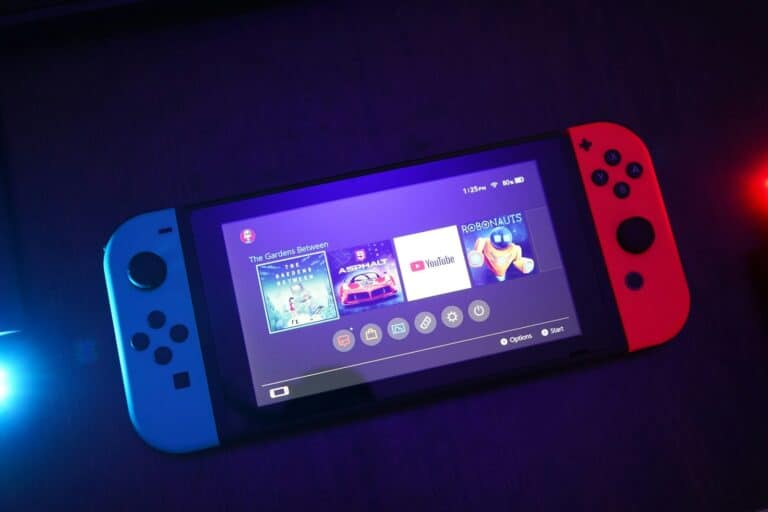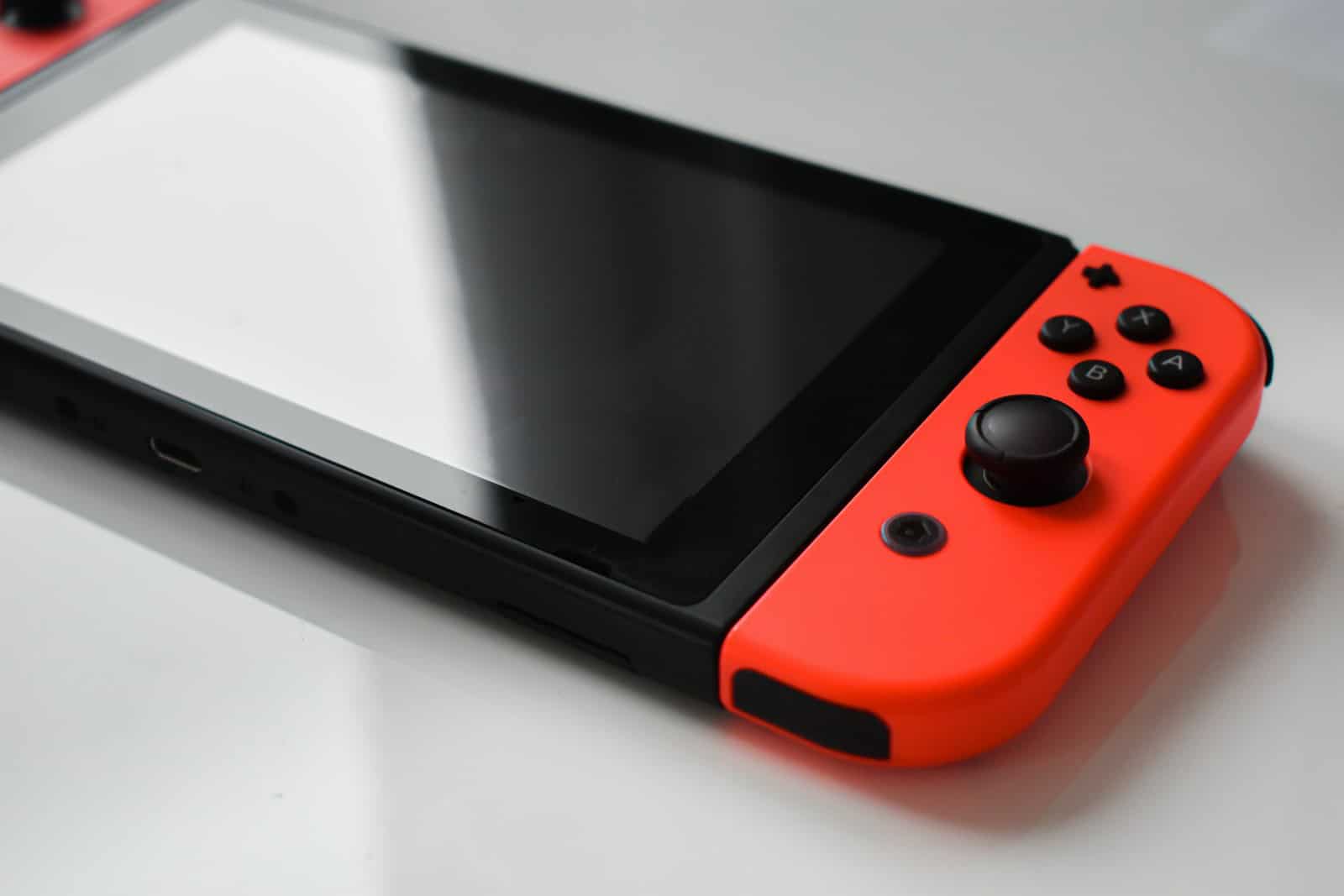
Is your Nintendo Switch giving you trouble with the SD card? You’re not alone. Many Switch owners face this frustrating issue when their console suddenly stops recognizing their microSD card. To fix a Nintendo Switch not detecting an SD card, first power off your console completely, then gently remove and reinsert the card, ensuring it clicks into place properly.
If you’re still having problems, don’t worry. The issue could be as simple as dust in the card slot or as complex as formatting problems. Sometimes the card itself might be damaged or incompatible with your Nintendo Switch. Before rushing to buy a new microSD card, there are several troubleshooting steps you can try at home.
Getting your Switch to recognize your microSD card again means you can continue downloading games and storing screenshots without interruption. Most detection issues can be resolved with a few simple steps that don’t require technical expertise or special tools.
Nintendo Switch Not Detecting SD Card: How to Fix It
If your Nintendo Switch isn’t detecting an SD card, it can prevent you from downloading games, updates, screenshots, and videos. This is a fairly common issue and is usually caused by card compatibility problems, formatting errors, or minor system glitches. This guide walks you through step-by-step solutions to get your SD card working again.
Check SD Card Compatibility
Not all SD cards work with the Nintendo Switch.
The Switch supports:
- microSD
- microSDHC
- microSDXC (up to 2TB)
Note: microSDXC cards require a system update to function properly.
If your card is an SD adapter (full-size SD), it will not work directly in the Switch.
Power Off and Reinsert the SD Card
Improper insertion is a common cause.
- Turn off the Nintendo Switch completely (not Sleep Mode).
- Remove the SD card cover (behind the kickstand).
- Take out the SD card.
- Reinsert it until it clicks into place.
- Turn the Switch back on.
Check System Settings > Data Management to see if the card is detected.
Restart the Nintendo Switch
A simple reboot can fix detection issues.
- Hold the Power button for 3 seconds.
- Select Power Options > Restart.
- After restarting, check if the SD card appears.
Update the Nintendo Switch System
Outdated software may cause SD card issues.
- Go to System Settings > System.
- Select System Update.
- Install any available updates.
- Restart the console.
This is especially important for microSDXC cards.
Check the SD Card for Damage
Inspect the card carefully:
- Look for cracks, bends, or scratches
- Clean the metal contacts gently with a dry, lint-free cloth
- Try the card in another device (PC, phone, or camera)
If the card isn’t detected elsewhere, it may be defective.
Format the SD Card (If Necessary)
Formatting can fix file system errors, but it will erase all data.
Format Using the Nintendo Switch
- Go to System Settings > System.
- Select Formatting Options.
- Choose Format microSD Card.
- Confirm and wait for the process to finish.
Format Using a Computer (Advanced)
- Use FAT32 for microSDHC
- Use exFAT for microSDXC
After formatting, reinsert the card into the Switch.
Try a Different SD Card
If possible:
- Test a different known-compatible microSD card
- Use a reputable brand (SanDisk, Samsung, Kingston)
If another card works, your original SD card may be faulty.
Check for Physical Slot Issues
If no SD card is detected:
- Inspect the SD card slot for dust or debris
- Avoid inserting objects into the slot
- If the slot appears damaged, professional repair may be required
When to Contact Nintendo Support
Contact Nintendo Support if:
- Multiple SD cards aren’t detected
- The SD card slot appears damaged
- The console fails to recognize any card after all troubleshooting steps
This may indicate a hardware issue.
Final Thoughts
When your Nintendo Switch isn’t detecting an SD card, the issue is usually related to compatibility, formatting, or software glitches. By checking card support, updating your system, and properly formatting the card, you can resolve most problems quickly.
Key Takeaways
- Power cycling your Nintendo Switch and properly reinserting the microSD card solves most detection issues.
- Cleaning the card and slot can remove debris that prevents proper connection and card recognition.
- Format your microSD card to the correct file system if other solutions fail to restore functionality.
Understanding Nintendo Switch Storage
The Nintendo Switch has specific storage capabilities that affect how many games you can download and play. Knowing these details helps you make informed decisions about expanding your storage.
Types of Compatible SD Cards
Your Nintendo Switch supports certain types of microSD cards to expand storage beyond the internal memory. The console works with microSDHC and microSDXC cards, which are the most common formats available today.
MicroSDHC (High Capacity) cards range from 4GB to 32GB. These are good for casual gamers with fewer digital titles.
MicroSDXC (Extended Capacity) cards offer 64GB to 2TB of space. Nintendo officially recommends these cards for users with large game libraries. Most players choose cards between 128GB and 512GB for the best balance of price and storage.
Speed class also matters. Look for cards with UHS-I support and transfer speeds of at least 60-100 MB/s for optimal performance.
Official Storage Specifications
The Nintendo Switch comes with limited internal storage. The standard and OLED models include 32GB of built-in memory, while the Switch Lite also offers 32GB.
However, not all this space is available for games. The system software takes approximately 6GB, leaving you with only about 26GB for actual game downloads.
Most modern Switch games require between 5-15GB each, with some larger titles needing 20GB or more. For example:
- The Legend of Zelda: Breath of the Wild – 13.4GB
- Mario Kart 8 Deluxe – 6.9GB
- Animal Crossing: New Horizons – 6.2GB
When your microSD card isn’t being recognized, you’re limited to this internal storage, which can quickly fill up.
Gameplay Experience and Storage
Your storage capacity directly affects your gaming experience on the Switch. With limited storage, you’ll face frequent game deletions and reinstalls.
Digital games load slightly faster from internal memory compared to microSD cards. However, the difference is minimal with high-quality cards. Load times typically increase by only 2-3 seconds when using a good microSD card.
Many players prefer digital games for convenience, but they require more storage space. Physical game cartridges need less storage since most game data runs directly from the cart. Some physical games still require partial downloads or updates.
Save data is always stored in the console’s internal memory (not on microSD cards) to protect your progress. This design means even if your Switch stops reading your SD card, your game progress remains safe.
Troubleshooting SD Card Detection Issues
When your Nintendo Switch isn’t detecting your microSD card, several common issues might be causing the problem. Solving the issue typically involves checking the physical condition of both the card and slot, as well as ensuring your system software is up to date.
Initial Checks for Detection Failure
If your Nintendo Switch doesn’t recognize your microSD card, start with these basic checks:
Power off completely – Don’t just put the Switch to sleep. Hold the power button for 3 seconds, select “Power Options,” then “Turn Off.”
Remove and reinsert the card – Take out the microSD card and carefully insert it again. Make sure it clicks into place properly.
Try a different card – If available, test another microSD card to determine if the issue is with the card or the console.
Check card format – Connect the card to a computer and verify it’s formatted as FAT32 (for cards 32GB or smaller) or exFAT (for larger cards).
Your microSD card should be properly inserted with the label facing outward when the Switch is held upright.
Dealing with Dirt and Debris
Physical contamination is a common reason for SD card detection failures:
Inspect the microSD card slot:
- Look for visible dust, lint, or foreign objects inside the slot
- Use a flashlight to better see inside the small opening
- Never insert any metal objects into the slot
Clean carefully:
- Use compressed air to gently blow away debris (hold the can upright)
- A soft, dry toothbrush can gently sweep away visible particles
- Avoid liquid cleaners which can damage your console
The Nintendo support page recommends checking both the slot and the card’s metal contacts for any dirt or debris that might interfere with the connection.
System Updates and SD Card Compatibility
Software compatibility issues can prevent proper SD card detection:
Update your system software:
- Go to System Settings on your Nintendo Switch
- Select “System”
- Choose “System Update”
Check card compatibility:
- Nintendo Switch supports microSD, microSDHC, and microSDXC cards
- Cards larger than 64GB require system version 4.0.0 or later
- Some counterfeit cards may appear larger than they actually are
If your system shows the card is not readable, try connecting it to a computer to check for errors. Use built-in disk checking tools or third-party software to scan for issues.
Occasionally, a system update might be required to recognize newer cards. Always purchase microSD cards from reputable sellers to avoid counterfeit products that might cause detection problems.
Formatting and File Systems
The right file system can make all the difference when your Nintendo Switch isn’t detecting your SD card. Most SD card issues stem from formatting problems that are simple to fix once you understand them.
Understanding File System Formats
The Nintendo Switch supports two main file systems: FAT32 and ExFAT. Each has its advantages and limitations you should know about.
FAT32 is the older, more compatible format that works with nearly all devices. It’s supported by the Nintendo Switch without requiring any system updates. The main drawback is its 4GB file size limit, which means you can’t transfer large game files.
ExFAT is the newer format that allows for larger file sizes with no practical limits for Switch games. However, your Switch may need a system update to recognize ExFAT cards. If your console is running older software, this could be why it’s not detecting your card.
Many microSD cards come pre-formatted as ExFAT, especially larger capacity cards (64GB and above). This is why some cards work immediately while others don’t.
How to Format Your SD Card
Before formatting, back up any existing data on your card. Formatting erases everything!
To format your microSD card for the Switch:
- Remove the card from your Switch (power off first)
- Insert it into your computer using a card reader
- Choose the correct file system (FAT32 recommended for best compatibility)
- Use your operating system’s formatting tool or a third-party application
For cards larger than 32GB, you may need special tools to format as FAT32 since some operating systems only offer ExFAT for larger cards.
After formatting, reinsert the card into your powered-off Switch, then turn it on. Your Switch should now detect the properly formatted card.
Formatting on Windows
Windows provides built-in tools to format your microSD card, though with some limitations.
Step-by-step Windows formatting process:
- Insert your microSD card into your computer
- Open File Explorer and locate your card
- Right-click on the card and select “Format”
- Select “FAT32” for the file system (for cards 32GB or smaller)
- Click “Start” and wait for the process to complete
For cards larger than 32GB, Windows won’t offer FAT32 as an option. You’ll need to use third-party tools like “guiformat” or “SD Card Formatter” to format larger cards as FAT32.
After formatting, safely eject the card before removing it from your computer. Insert it into your powered-off Switch, and then turn on your console to test if it’s now being detected properly.
Data Management and Transfer
When your Nintendo Switch isn’t detecting your SD card, understanding how to manage and transfer your data becomes essential. Proper data management helps prevent loss of games and saves while troubleshooting card issues.
Managing Downloadable Software
The Nintendo Switch stores downloadable software in two locations: the system memory and your microSD card. When your card isn’t being detected, you may need to check where your games are installed.
To view your storage allocation:
- Go to System Settings
- Select Data Management
- Choose “Manage Software”
You’ll see which games are on system memory versus the microSD card. If your card isn’t being detected, games stored there won’t appear in your menu.
Consider moving essential games to system memory temporarily while fixing card issues. The internal storage is limited (32GB on standard Switch, 64GB on OLED), so prioritize games you’re currently playing.
Quick Tip: Some game data splits between system memory and the microSD card. Save data is almost always stored in system memory by default, not on the card.
Transferring Data Between Multiple MicroSD Cards
If your current microSD card is failing, you may need to transfer your data to a new card. This process requires a computer with a card reader.
To transfer between cards:
- Turn off your Switch completely
- Remove the problematic microSD card
- Insert it into your computer
- Copy all contents to a folder on your computer
- Insert the new microSD card into your computer
- Format it (if new) using FAT32 file system
- Copy all data from your computer to the new card
The Nintendo Switch requires specific formatting for microSD cards to work properly. Cards larger than 32GB might need special formatting tools since Windows often defaults to exFAT.
Avoid selective copying – the system needs all files in their original structure to recognize your games.
Backup and Restore Procedures
Regular backups help prevent data loss when card issues occur. Nintendo Switch doesn’t have an automated backup system for microSD card data.
For manual backups:
- Game Data: Copy all card contents to your computer monthly
- Save Data: Subscribe to Nintendo Switch Online for cloud saves
- Screenshots/Videos: These can be copied to your computer or shared to social media
If your microSD card suddenly stops working, having a recent backup means you won’t lose your downloaded games and can quickly restore to a new card.
Important: You cannot simply copy a backup to a different Switch console. Games are tied to the purchasing account and console. Screenshots and videos will transfer, but games require redownloading on the new system.
For corrupted cards, try recovery software on your computer before giving up on the data completely.
Enhancing Performance and Usability
Once your Nintendo Switch recognizes your SD card, you can take steps to improve your overall gaming experience. Proper SD card selection and management can significantly boost load times and expand your storage options.
Choosing Cards with Optimal Speed
For the best Nintendo Switch experience, select microSD cards with the right specifications. Nintendo officially recommends UHS-I (Ultra High Speed Phase I) cards for optimal performance. Look for cards with higher read/write speeds, typically measured in MB/s.
Speed ratings to consider:
- Class 10: Minimum for basic functionality
- U1 or U3: Better for faster loading times
- V30 or higher: Premium performance
Cards from reputable brands like SanDisk, Samsung, and Lexar tend to offer more reliable performance. While 32GB cards may suffice for casual gaming, consider 128GB or larger if you download many games.
The Switch supports microSD cards up to 2TB, though cards above 1TB can be expensive. Balance your budget with your storage needs when making your selection.
Improving Gameplay through Storage Solutions
Managing your microSD card storage efficiently can significantly enhance your gaming experience. Digital games installed on your microSD card may load slightly slower than those on the internal storage.
Consider these storage strategies:
- Install frequently played games on internal storage
- Move larger games you play less often to the microSD card
- Delete unused game data and reinstall when needed
To transfer games between storage locations:
- Go to System Settings
- Select Data Management
- Choose “Move Data Between System/microSD Card”
Periodically check for corrupted data that might cause performance issues. If games start loading slowly, restart your Switch with a power cycle occasionally to clear the system cache.
Storing Screenshots and Gameplay Clips
Your Nintendo Switch allows you to capture memorable gaming moments with the dedicated screenshot button. These files are stored on your system memory by default but can quickly fill up space needed for games.
To change your screenshot storage location:
- Go to System Settings
- Select Data Management
- Choose “Save Data/Screenshots and Videos”
- Select “Manage Screenshots and Videos”
- Choose your preferred storage location
Higher capacity cards give you more freedom to save high-quality gameplay clips. The Switch captures 30-second video clips in compatible games, which require approximately 10-30MB of storage space per clip.
You can also transfer your media to a computer by:
- Turning off your Switch
- Removing the microSD card
- Inserting it into your computer’s card reader
- Copying files from the “Nintendo/Album” folder
This preserves precious memories while freeing up space for more gaming adventures.
Advanced Solutions and Tools
When basic fixes don’t resolve SD card detection issues in your Nintendo Switch, specialized software tools can help diagnose and repair deeper problems. These advanced solutions can often recover data and restore functionality to problematic cards.
Using Minitool Partition Wizard for Diagnostics
Minitool Partition Wizard is a powerful software tool that can help you troubleshoot MicroSD card problems that your Nintendo Switch can’t fix on its own. This utility provides comprehensive diagnostic capabilities beyond what’s possible through the Switch interface.
To use Minitool Partition Wizard with your MicroSD card:
- Insert your card into a computer using a card reader
- Download and install Minitool Partition Wizard
- Launch the program and select your MicroSD card from the disk map
- Check for partition errors using the “Check File System” feature
- Verify if the card is formatted with the correct file system (FAT32)
The software can detect hidden partitions, formatting issues, and file system errors that might prevent your Switch from reading the card. You can also use it to safely reformat stubborn cards without risking data loss.
Identifying and Repairing Bad Sectors
Bad sectors on your MicroSD card can prevent your Nintendo Switch from reading it properly. These damaged areas of storage can develop over time through normal wear and tear or manufacturing defects.
You can check for bad sectors using Minitool Partition Wizard’s “Surface Test” feature. This scans your entire card and maps out any problematic areas. Red blocks in the results indicate bad sectors.
If bad sectors are found, you have two options:
- Soft repair: The software can attempt to mark these areas as unusable so the system avoids them
- Full format: Performing a low-level format might recover some bad sectors but will erase all data
For cards with numerous bad sectors, replacement is often the best solution. Using a card with bad sectors risks game save corruption and system crashes.
Frequently Asked Questions
Nintendo Switch SD card issues can be frustrating but often have simple solutions. Here are the most common questions and fixes for when your Switch won’t detect your SD card.
What steps should be followed to troubleshoot a Nintendo Switch that is not recognizing an SD card?
First, power off your Nintendo Switch completely (not just sleep mode). Remove the SD card and reinsert it firmly until you hear a click.
Check if the card is properly seated in the slot. Sometimes the card may appear inserted but isn’t making proper contact.
If that doesn’t work, try the card in another device to verify it’s functioning correctly. Sometimes the issue is with the card itself, not your Switch.
How can the micro SD card slot of a Nintendo Switch be cleaned properly?
Look for any visible dirt or debris in the slot before attempting to clean it. This is a common cause of reading issues.
Use compressed air in short bursts to blow out any dust from the SD card slot. Hold the Switch with the slot facing downward so debris falls out rather than further in.
Never use liquids or insert objects like cotton swabs into the slot as they can damage the internal connectors or leave behind fibers.
What are the common compatibility issues with SD cards on the Nintendo Switch?
The Nintendo Switch requires microSD, microSDHC, or microSDXC cards. Cards larger than 64GB need to be formatted to the correct file system.
Counterfeit SD cards often cause problems – if you purchased a suspiciously cheap high-capacity card, it might be fake and unreliable.
Speed class matters too. While any class works technically, UHS-I cards with transfer speeds of 60-95 MB/s provide the best performance for game loading.
How can an SD card be correctly formatted for use with a Nintendo Switch?
For cards 64GB or smaller, the Switch typically handles formatting automatically. For larger cards, you’ll need to format them to FAT32.
Windows doesn’t natively support FAT32 formatting for cards over 32GB, so you may need to use third-party formatting tools.
After formatting, insert the card into your Switch, which will install any necessary files. Always back up your data before formatting any storage device.
What is the process for repairing or replacing a faulty SD card reader in a Nintendo Switch?
If you’ve determined the card reader is faulty, you have two options: warranty repair or professional service.
For Switch units under warranty, contact Nintendo Support to arrange a repair. The process typically takes 2-3 weeks in total.
For out-of-warranty repairs, Nintendo will charge a fee, or you can use a third-party repair service. Note that DIY repairs will void any remaining warranty.
Why does my Nintendo Switch display a message that the micro SD card has been removed, and how can I fix it?
This error often indicates a loose connection between the card and reader. The card may be slightly out of position or the reader may have connection issues.
Try removing and reinserting the card firmly. If the message appears intermittently, this strongly suggests a problem with the card reader itself.
You can also try using a different SD card to determine if the issue is with the card or the Switch. If multiple cards show the same problem, your Switch likely needs repair.