Accidentally deleting important text messages can be frustrating. Fortunately, iPhones offer ways to recover deleted messages. Users can find and restore deleted messages in the Messages app under the “Recently Deleted” folder for up to 30-40 days after deletion. This feature, available in iOS 16 and later versions, provides a simple solution for retrieving important conversations.
For those using earlier iOS versions or needing to recover messages deleted more than 40 days ago, other options exist. These include restoring from an iCloud or iTunes backup, or using third-party recovery software. Each method has its own steps and requirements, but they can be effective in retrieving lost messages.
Where to Find Deleted Messages on iPhone (2026 Guide)
Accidentally deleted a text message on your iPhone? Don’t panic — in many cases, you can recover deleted messages if you act quickly.
This guide explains where to find deleted messages on iPhone, how long they’re stored, and what to do if they’re permanently deleted.
📱 Can You Recover Deleted Messages on iPhone?
Yes — if they haven’t been permanently removed yet.
Since iOS 16, Apple added a “Recently Deleted” folder in the Messages app. Deleted texts stay there for up to 30–40 days before being permanently erased.
If that window has passed, recovery depends on backups.
✅ Method 1: Check the “Recently Deleted” Folder (Easiest Way)
This is the first place to look.
How to Find Deleted Messages:
- Open the Messages app.
- Tap Filters (top-left corner).
- If you don’t see it, tap the back arrow until you do.
- Tap Recently Deleted.
- Select the conversation or messages.
- Tap Recover.
- Confirm Recover Messages.
✅ Messages return to your main inbox.
⏳ Messages stay here for up to 40 days, depending on your settings.
✅ Method 2: Restore from an iCloud Backup
If the message is not in “Recently Deleted,” you may recover it from an older backup.
⚠️ This requires erasing your iPhone first.
Step 1: Check If You Have a Backup
Go to: Settings > [Your Name] > iCloud > iCloud Backup
Check the date of your last backup.
If the backup was created before you deleted the message, you can restore it.
Step 2: Restore from Backup
- Go to Settings > General > Transfer or Reset iPhone
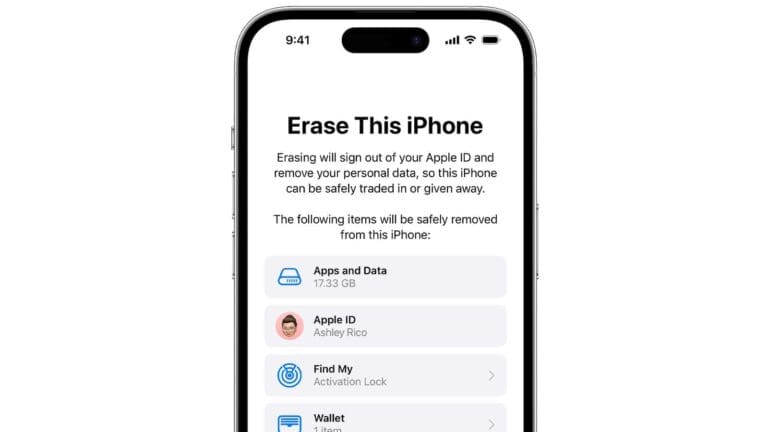
- Tap Erase All Content and Settings
- During setup, choose Restore from iCloud Backup
- Select the correct backup
⚠️ This replaces current data with the backup data.
✅ Method 3: Restore from a Mac or PC Backup
If you backed up using Finder or iTunes:
On Mac (macOS Catalina or newer):
- Connect iPhone to Mac
- Open Finder
- Select your device
- Click Restore Backup
On Windows (or older macOS):
- Open iTunes
- Click your device
- Select Restore Backup
Again, choose a backup created before deletion.
✅ Method 4: Check iCloud Messages Sync
If you use Messages in iCloud, messages are synced across devices.
Check:
- iPad
- Mac
- Another Apple device
If the message wasn’t deleted everywhere, you may still find it there.
❌ What If the Message Is Permanently Deleted?
If:
- It’s not in Recently Deleted
- You have no backup
- It’s been over 40 days
Then recovery is very unlikely.
Apple does not store message history once permanently deleted.
Be cautious of third-party apps claiming guaranteed recovery — many are unreliable.
📊 Quick Recovery Overview
| Method | Works If | Difficulty | Data Loss Risk |
|---|---|---|---|
| Recently Deleted | Within 40 days | Easy | None |
| iCloud Backup | Backup exists before deletion | Medium | Yes |
| Mac/PC Backup | Local backup exists | Medium | Yes |
| Other Apple Device | Not deleted everywhere | Easy | None |
🔒 How to Prevent Message Loss in the Future
✅ Turn on iCloud Backup
- Settings > [Your Name] > iCloud > iCloud Backup
✅ Enable Messages in iCloud
- Settings > [Your Name] > iCloud > Show All > Messages
✅ Back up regularly to a Mac or PC
✅ Avoid deleting entire conversations accidentally
⏳ How Long Do Deleted Messages Stay on iPhone?
- Recently Deleted folder: Up to 30–40 days
- After that: Permanently deleted
- Backup retention: Until overwritten by a new backup
✅ Final Thoughts
If you’re wondering where to find deleted messages on iPhone, start with the Recently Deleted folder — it’s the fastest and easiest solution.
If that doesn’t work, check for an iCloud or computer backup made before the deletion.
The sooner you act, the better your chances of recovery.
Key Takeaways
- Deleted messages are recoverable from the “Recently Deleted” folder in the Messages app
- iCloud and iTunes backups can restore older deleted messages
- Third-party software offers additional recovery options for permanently deleted texts
Understanding Where iPhone Stores Deleted Messages
iPhone users can find their deleted messages in the Recently Deleted folder within the Messages app. This feature was introduced in iOS 16 and later versions.
To access the Recently Deleted folder:
- Open the Messages app
- Tap “Edit” in the top-left corner
- Select “Show Recently Deleted”
Messages remain in this folder for 30-40 days before permanent deletion. Users can recover or permanently delete messages during this period.
iCloud also plays a role in message storage. If Messages in iCloud is enabled, deleted messages sync across devices. This feature ensures consistency across all Apple devices linked to the same Apple ID.
It’s important to note that older iOS versions may not have the Recently Deleted folder. In such cases, users might need to rely on iCloud backups or third-party recovery tools to retrieve deleted messages.
For those concerned about privacy, Apple encrypts messages in iCloud. This provides an additional layer of security for sensitive conversations, even after deletion.
Methods to Recover Deleted Messages
Apple offers built-in options and third-party solutions to retrieve deleted text messages on iPhones. These methods vary in complexity and effectiveness.
Retrieving from Backup
iCloud and iTunes backups provide reliable ways to recover deleted messages. Users can restore their entire iPhone from an iCloud backup by going to Settings > General > Reset > Erase All Content and Settings. After the reset, they can choose to restore from an iCloud backup during setup.
For iTunes backups, users connect their iPhone to a computer with iTunes installed. They select their device in iTunes, click “Restore Backup,” and choose the most recent backup containing the deleted messages.
It’s important to note that restoring from a backup replaces all current data on the iPhone. Users should create a new backup before proceeding with this method to avoid losing recent information.
Using Third-Party Applications
Several third-party apps offer message recovery services for iPhones. These applications use advanced algorithms to scan the device’s storage and retrieve deleted texts.
Popular options include Dr.Fone, PhoneRescue, and Tenorshare UltData. Users download these apps on their computer, connect their iPhone, and follow the software’s instructions to recover deleted messages.
Third-party apps often provide more flexibility than native backup options. They allow users to preview and selectively recover specific messages without restoring the entire device. However, the effectiveness of these apps can vary, and some may require payment for full functionality.
Steps for Recovering Messages Without a Backup
Recovering deleted messages on an iPhone without a backup can be challenging but not impossible. There are methods for direct recovery from the device and options for non-iOS users.
Direct Recovery from iPhone
The iPhone’s Recently Deleted folder offers a simple way to retrieve messages deleted within the last 30 days. Users can access this folder by opening the Messages app and tapping “Filters” in the top-left corner. From there, select “Recently Deleted” to view recoverable messages.
To restore messages:
- Select the desired conversations
- Tap “Recover” in the bottom-right corner
- Confirm by tapping “Recover Messages”
This method restores entire conversations, not individual texts. For messages deleted over 30 days ago, third-party recovery software may help. These tools scan the iPhone’s storage for remnants of deleted data.
Recovery Options for Non-iOS Users
Android users face different challenges when recovering deleted messages. Unlike iPhones, most Android devices lack a built-in recovery folder for messages. Third-party apps offer potential solutions:
- SMS Backup & Restore: Regularly backs up messages, allowing recovery if set up before deletion
- Dr. Fone: Scans Android devices for deleted data, including texts
- PhoneRescue: Supports both iOS and Android, offering recovery options for various data types
These apps may require root access for full functionality. Users should research and choose reputable apps to avoid security risks. For best results, stop using the device immediately after message deletion to prevent data overwrite.
Managing and Preventing Future Message Loss
Effective strategies exist to safeguard iPhone messages and minimize the risk of accidental deletion. These approaches involve utilizing iCloud storage and adjusting iPhone message settings.
Using iCloud for Message Storage
iCloud offers a reliable solution for backing up and syncing iPhone messages. Users can enable Messages in iCloud by going to Settings > [Apple ID] > iCloud > Messages. This feature stores messages securely in the cloud, allowing access across all Apple devices.
iCloud backups provide an additional layer of protection. To set up automatic backups, users should ensure their iPhone is connected to Wi-Fi and a power source. Navigate to Settings > [Apple ID] > iCloud > iCloud Backup and toggle on iCloud Backup.
Regular backups are crucial. Users can manually initiate a backup by tapping “Back Up Now” in the iCloud Backup menu. This action creates a current snapshot of all iPhone data, including messages.
Exploring iPhone Message Settings
iOS 16 introduced new message management features. Users can now filter unknown senders by going to Settings > Messages > Filter Unknown Senders. This helps organize conversations and reduces the risk of accidentally deleting important messages.
Message filtering options allow users to sort messages into known and unknown sender categories. This separation makes it easier to manage and retain important conversations.
Users can customize message retention periods. In Settings > Messages > Keep Messages, options include 30 days, 1 year, or Forever. Selecting a longer retention period reduces the likelihood of permanent message loss.
Enabling read receipts and message effects can help users track important conversations. These features are found in Settings > Messages. By turning them on, users can better manage their message history.
Frequently Asked Questions
Recovering deleted text messages on an iPhone can be challenging, but several methods exist depending on the situation. These approaches range from using built-in features to third-party software solutions.
How can one retrieve deleted text messages on an iPhone without a backup?
iPhone users can check the Recently Deleted folder in the Messages app. This feature stores deleted messages for up to 30 days. To access it, open Messages, tap Edit, then Show Recently Deleted. Select the desired messages and tap Recover.
If the messages aren’t in the Recently Deleted folder, third-party data recovery software might help. These tools scan the iPhone’s storage for deleted data. However, success rates vary, and using such software carries risks.
What methods are available to recover permanently deleted text messages on an iPhone?
Restoring from an iCloud or iTunes backup is the most reliable method. Users can erase their iPhone and restore it from a backup that includes the deleted messages. This process replaces all current data with the backup’s contents.
For messages deleted after the last backup, contacting the cellular provider might help. Some carriers store text message logs for a limited time. This option’s availability depends on the provider’s policies.
Is there a way to access and unhide hidden deleted messages on an iPhone?
iPhones don’t have a built-in feature to hide messages. If messages appear hidden, check message filters. Go to Messages, tap Filters, and ensure all categories are visible. Look for any accidentally activated Do Not Disturb settings for specific contacts.
What steps should be taken to retrieve deleted text messages on an iPhone 13?
The process for iPhone 13 is similar to other models. First, check the Recently Deleted folder in Messages. If unsuccessful, restore from an iCloud or iTunes backup. Ensure the backup is from before the messages were deleted.
If no suitable backup exists, consider using third-party recovery software. These tools can sometimes retrieve deleted data directly from the iPhone’s storage.
Can you recover deleted text messages on an iPhone 11, and if so, how?
iPhone 11 users can recover deleted messages using the same methods as other models. Check the Recently Deleted folder first. If the messages aren’t there, restore from a backup or use recovery software.
Regular backups are crucial. Set up automatic iCloud backups or perform manual backups to iTunes to increase recovery chances.
Where can one locate the ‘recently deleted’ folder for messages on an iPhone?
The Recently Deleted folder is in the Messages app. Open Messages and tap Edit in the top-left corner. Then tap Show Recently Deleted. This folder stores deleted messages for up to 30 days.
If you don’t see this option, your iPhone might be running an older iOS version. Update to the latest iOS to access this feature.