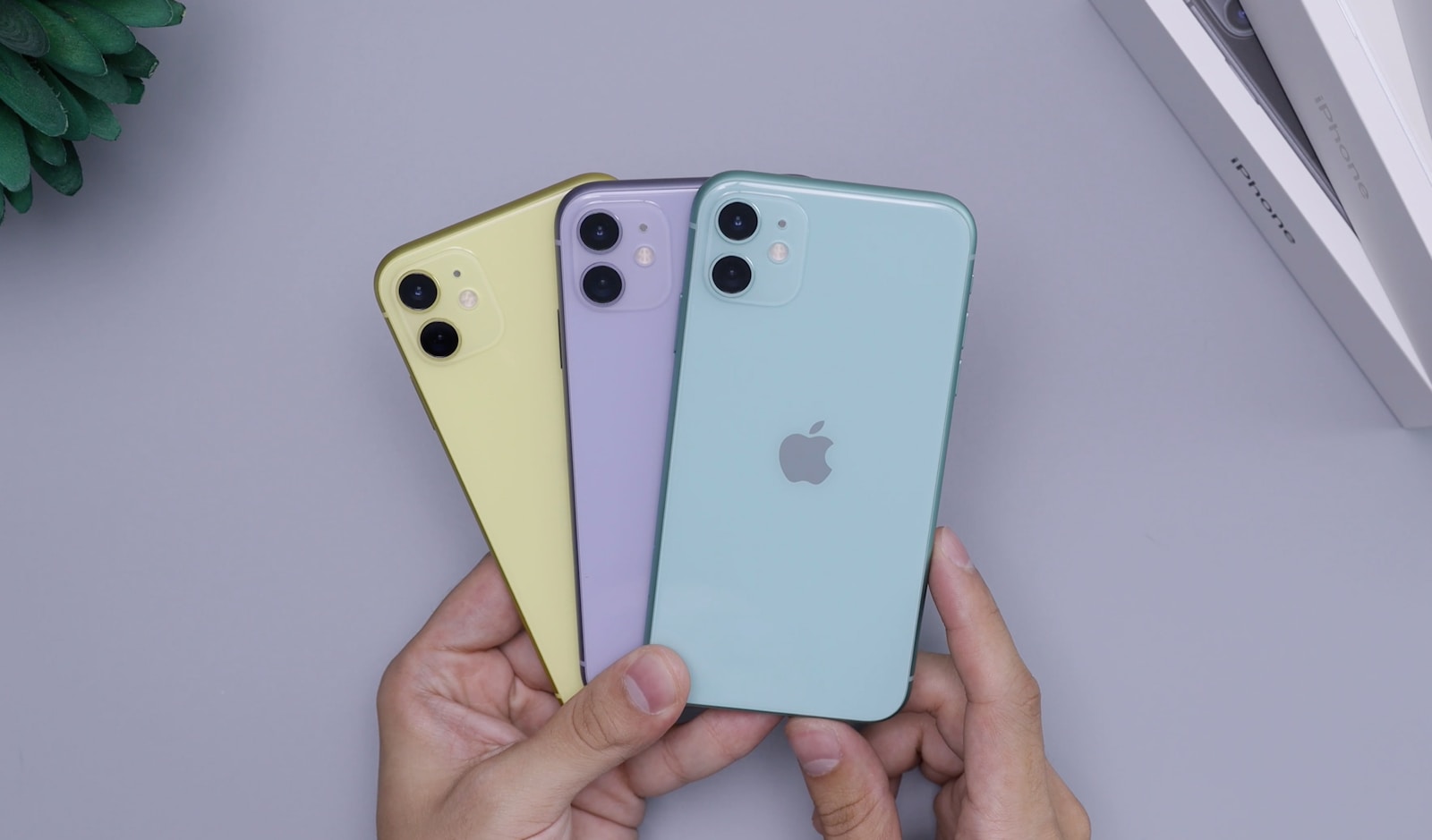
An iPhone 11 freezing or becoming unresponsive can be frustrating, especially when the screen won’t respond to taps or the power button seems useless. Fortunately, Apple built in a simple way to force restart your iPhone—even when it’s completely frozen. Here’s a clear, step-by-step guide to help you get your iPhone 11 working again.
What to Do When Your iPhone 11 Is Frozen
If your iPhone 11:
- Won’t respond to touch
- Is stuck on an app, loading screen, or Apple logo
- Won’t turn off normally
You’ll need to perform a force restart (also called a hard reset). This does not erase your data—it simply forces the phone to reboot.
How to Force Restart iPhone 11
Follow these steps quickly and in order:
- Press and release the Volume Up button
- Press and release the Volume Down button
- Press and hold the Side (Power) button
Keep holding the Side button until you see the Apple logo, then release it.
⏱️ This usually takes about 10–15 seconds.
Important Tips
- Don’t hold the volume buttons—just press and release them quickly.
- Keep holding the Side button even if the screen goes black.
- Release only when the Apple logo appears.
If you release too early, the phone may not restart and you’ll need to try again.
What If the iPhone 11 Still Won’t Restart?
If a force restart doesn’t work, try these additional steps:
1. Charge Your iPhone
Plug your iPhone into a charger and let it charge for at least 15–30 minutes, then try the force restart again.
2. Use a Computer (Recovery Mode)
If the phone is still frozen:
- Connect your iPhone to a Mac or PC
- Open Finder (Mac) or iTunes (Windows)
- Force restart the iPhone but keep holding the Side button until the Recovery Mode screen appears
- Choose Update (not Restore) when prompted
This reinstalls iOS without deleting your data.
Why Does an iPhone 11 Freeze?
Common causes include:
- App crashes or bugs
- iOS software glitches
- Low storage space
- Overheating
- Running outdated iOS versions
Keeping your apps and iOS updated can reduce future freezes.
Will a Force Restart Delete Data?
No. A force restart does not erase:
- Photos
- Apps
- Messages
- Settings
It’s safe and designed specifically for situations when the phone is unresponsive.
When to Get Help
If your iPhone 11 freezes frequently or won’t turn back on after multiple attempts:
- Contact Apple Support
- Visit an Apple Authorized Service Provider
There may be a hardware or deeper software issue that needs professional repair.
Final Thoughts
Knowing how to restart your iPhone 11 when it’s frozen can save you time and stress. A force restart is quick, safe, and effective in most cases. If freezing becomes a regular problem, checking for software updates or getting professional support is the next best step.
With these steps, you’ll be prepared the next time your iPhone 11 stops responding.