Taking screenshots on your LG phone is a simple process that can help you save important information, share funny moments, or report technical issues. Whether you have a newer model like the LG Stylo 6 or an older device, the basic methods remain consistent across most LG smartphones. You can capture a screenshot on LG phones by pressing the Power and Volume Down buttons simultaneously, using QuickMemo+, or asking Google Assistant to take a screenshot for you.
The button method is the most universal way to take screenshots on LG devices. Just hold down the Power button (usually on the back or right side of your phone) and the Volume Down button at the same time. You’ll see a quick animation and hear a camera shutter sound when the screenshot is captured. For those who find this method tricky, LG offers alternative options like QuickMemo+ that make the process even easier.
Screenshot on LG Phone
Taking a screenshot on an LG phone is quick and useful for saving information, sharing content, or troubleshooting issues. Most LG devices support multiple screenshot methods, including button combinations and built-in tools.
How to take a screenshot (standard method):
- Press and hold Power + Volume Down
- Hold for about 1–2 seconds
- Screen will flash and save the image
Alternative methods:
- Use Capture+ (LG’s built-in screenshot tool)
- Access from notification panel or quick settings
- Use gesture controls (on supported models)
Where screenshots are saved:
- Gallery app
- Screenshots folder
Tips:
- Edit or crop immediately after capturing
- Use scrolling screenshots for long pages
- Free up storage if screenshots fail to save
Key Takeaways
- Press the Power and Volume Down buttons simultaneously to capture a screenshot on any LG smartphone.
- Use QuickMemo+ as an alternative screenshot method when the button combination is difficult to press.
- Screenshots are automatically saved to your Gallery app where you can edit, share, or delete them as needed.
Understanding the Basics of Screenshots
Taking screenshots on your LG phone is a simple yet powerful feature that can enhance your digital communication and productivity. Screenshots capture exactly what you see on your screen as an image.
What Is a Screenshot?
A screenshot is a digital image that shows the exact contents of your phone’s screen at a specific moment. Think of it as taking a photo of whatever is displayed on your screen.
When you capture a screenshot on your LG device, the phone saves this image to your gallery or photos app. Screenshots preserve everything visible on your screen—websites, conversations, maps, or apps.
Most LG phones offer multiple ways to take screenshots:
- Physical buttons: Pressing power and volume down simultaneously
- QuickMemo+: Using LG’s built-in screen capture tool
- Gestures: On some models, you can use hand gestures
- Voice commands: Using Google Assistant
Screenshots are saved as image files (usually PNG or JPG format) that you can view, edit, share, or delete like any other photo.
Benefits of Taking Screenshots
Screenshots offer numerous practical advantages in your daily phone use. They help you save important information without needing to write it down or remember it.
When shopping online, you can capture product details and prices for later comparison. For troubleshooting, taking screenshots of error messages helps technical support understand your issue better.
Screenshots also enhance communication by allowing you to:
- Share exact visual information with others
- Capture confirmation numbers for purchases
- Save digital receipts
- Document conversations
- Create visual instructions for others
In professional settings, phone screenshots can document important information from emails, capture meeting details, or save digital business cards you encounter.
They’re also useful for remembering social media content, saving maps directions, or recording gaming achievements that might disappear.
Preparing to Take a Screenshot on LG Phones
Before capturing a screenshot on your LG device, it’s important to understand which models support this feature and locate the necessary buttons on your phone. Most LG phones use a similar method involving physical buttons located on the device.
Supported LG Models
Most LG smartphones support screenshot functionality, including popular models like the LG G3, LG G6, LG K51, and LG 5G smartphones. The screenshot feature works across the entire LG lineup, from budget-friendly options to premium flagship devices.
Older models like the LG G3 use the same screenshot method as newer phones, showing how consistent LG has kept this feature over the years. If you’ve upgraded from another LG phone, you’ll find the process familiar.
The LG G6 specifically includes additional screenshot options beyond the standard button method, including QuickMemo+ for more advanced screen capture features.
Required Physical Buttons
To take a screenshot on most LG phones, you’ll need to use two specific buttons: the power button and the volume down button. On many LG models, these buttons are positioned in unique locations compared to other smartphone brands.
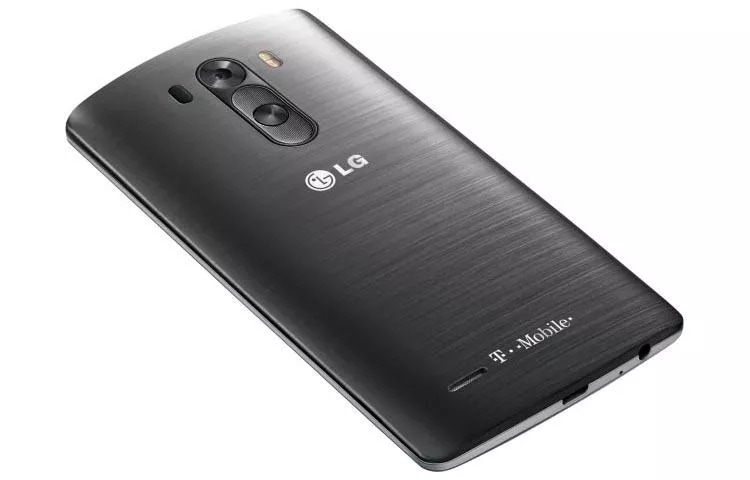
The power button is often found on the back of the phone in older models like the LG G3, though newer models may have it on the side. This button is sometimes labeled as the Power/Lock Key.
The volume down key is typically located on the back or left edge of your device, depending on your specific model. On the LG G6, for example, the volume buttons are on the left side of the phone.
Make sure both buttons are functioning properly before attempting to take a screenshot. If either button is damaged, you might need to use alternative screenshot methods.
Step-by-Step Guide to Taking a Screenshot
Taking screenshots on your LG phone is simple with several methods available. Each option offers a quick way to capture what’s on your screen for sharing or saving important information.
Using Key Combinations
The most universal way to take a screenshot on your LG phone is by using the physical buttons. This method works on all LG models including newer 5G smartphones.
To take a screenshot with buttons:
- Navigate to the screen you want to capture
- Press and hold the Power button and Volume Down button simultaneously for 1-2 seconds
- Release both buttons when you see the screen flash or hear a capture sound
You’ll see a small preview of your screenshot appear briefly. Your screenshot will be saved automatically to your Gallery or Photos app. This physical button method is reliable when other options aren’t available.
If you have difficulty with timing, try pressing the Power button slightly before the Volume Down button while still holding both.
Using QuickMemo+ Feature
LG’s QuickMemo+ is a built-in app that offers more than just screenshot capabilities. It allows you to add notes and drawings to your captures.
To use QuickMemo+:
- Pull down the status bar by swiping down from the top of your screen
- Tap the QuickMemo+ icon in the Quick Settings bar
- Your screen will be captured immediately
- Use the drawing tools to annotate if needed
- Tap the save icon when finished
QuickMemo+ is particularly useful when you need to highlight specific information on your screen. You can choose different pen colors and styles to mark important details.
The app saves your annotated screenshots to both the Gallery and the QuickMemo+ app for easy access later.
Using Capture+
Capture+ is another screenshot tool available on many LG models that provides additional editing options after taking your screenshot.
To use Capture+:
- Pull down your notification panel twice to reveal the full Quick Settings menu
- Tap the Capture+ icon (it may appear as a pencil or note icon)
- Your screen will be captured
- You can then edit, crop, or annotate the image
- Tap Save when finished
For some content, you might want to capture more than what’s visible on screen. On newer LG phones, after taking a screenshot, tap Capture more at the bottom of the preview to scroll and include additional content.
Capture+ also lets you share your screenshot immediately through messaging apps, email, or social media without having to open your Gallery first.
Managing and Editing Your Screenshot
After taking a screenshot on your LG phone, you have several options for editing and sharing the image. The Gallery app provides tools to crop, annotate, and enhance your screenshots before sending them to others.
Accessing the Gallery App
To find your screenshots, open the Gallery app on your LG phone. You’ll typically see a dedicated “Screenshots” album or folder that contains all your captured images. If you’ve just taken a screenshot, you can also tap the thumbnail that appears briefly in the corner of your screen to open it directly.
Some LG models organize screenshots in the “Screenshots” folder within the main Gallery view. If you don’t see a dedicated album, check the “Albums” tab and look for the Screenshots folder there.
Your screenshots are automatically saved with a date and time in the filename, making them easy to identify when browsing through your images.
Editing Tools within the Gallery
When viewing a screenshot in the Gallery app, tap the Edit icon (usually a pencil symbol) to access editing tools. LG phones offer several ways to edit a screenshot, including:
- Crop – Resize the image to focus on important information
- Draw – Add annotations, circles, or arrows to highlight key areas
- Text – Insert text boxes to add explanations
- Filters – Apply visual effects to enhance readability
The QuickMemo+ feature on LG phones provides additional editing capabilities. This tool allows you to write directly on the screen with your finger and add more detailed annotations.
After editing, remember to tap Save to preserve your changes. Most LG phones save edited screenshots as new files, keeping your original intact.
Sharing Your Screenshots
LG phones make it easy to share your screenshots with others. After viewing or editing your screenshot, tap the Share icon (usually looks like a connected dots symbol).
You’ll see a menu with different sharing options including:
- Messaging apps (SMS, WhatsApp, Telegram)
- Social media platforms
- Cloud storage services
- Bluetooth
You can also share directly from the Gallery app without opening the screenshot first. Simply long-press the screenshot thumbnail, tap “Share,” and select your preferred sharing method.
For frequent sharing, LG phones remember your recently used apps, making them appear first in the sharing menu for quicker access.
Troubleshooting Common Screenshot Issues
Taking screenshots on your LG phone should be simple, but sometimes you might run into problems. Button combinations or software issues are usually the culprits when screenshot functionality stops working.
Dealing with Unresponsive Buttons
If the standard volume down + power button combination isn’t working on your LG phone, try these solutions:
- Check button functionality – Test each button individually to ensure they work properly
- Clean button areas – Remove dirt or debris that might interfere with button response
- Try alternative methods:
- Look for screenshot options when holding the power button alone
- Use Quick Settings in the notification panel
- Set up Home Touch Button combinations
For LG V20 users specifically, you can enable the Capture button by going to Settings > Display > Home Touch Buttons > Button Combination. Then drag the “Capture” button into your active buttons.
Resolving Software Conflicts
Software issues often prevent screenshots from working properly. Here’s how to address them:
First, check for any known issues with your current Android version. LG phones might have specific bugs after system updates.
If you recently installed an app before screenshot problems began, try uninstalling it. Some apps can conflict with system functions.
Try these additional fixes:
- Restart your phone to clear temporary glitches
- Rename your screenshot folder using a file manager app
- Check if you’re using Incognito mode in Chrome, which blocks screenshots
- Update your system to the latest version
For persistent issues, consider backing up your data and performing a factory reset as a last resort.
Optimizing Screenshot Storage and Organization
Taking screenshots on your LG phone is easy, but managing them effectively can save you storage space and help you find them quickly. Good organization methods will keep your valuable screen captures accessible when needed.
Utilizing Internal Storage
Your LG phone’s internal storage is the default location for screenshots. To check how much space your screenshots are using, go to Settings > Storage and look at the Images category. Screenshots are automatically saved to the DCIM/Screenshots or Pictures/Screenshots folder.
You can move screenshots to a microSD card if your LG model supports external storage. This frees up internal memory for apps and system files. To do this:
- Open Files or File Manager app
- Navigate to your screenshots folder
- Select images you want to move
- Tap the Menu icon (three dots)
- Choose Move and select your SD card location
Some screenshot apps offer compression options to reduce file sizes without noticeable quality loss.
Organizing Screenshots in the Gallery
Your LG’s Gallery app has powerful tools to keep screenshots organized. Create dedicated albums by tapping the + icon in the Albums tab. Name them according to purpose like “Work,” “Recipes,” or “Shopping Ideas.”
Use the save icon (usually a bookmark symbol) in Gallery to mark important screenshots as favorites. This creates a quick-access collection of your most needed images.
Try using Google Photos alongside your LG Gallery to automatically categorize screenshots. It can identify text, objects, and even create suggested collections.
To prevent screenshot clutter, set a regular cleanup routine:
- Review weekly and delete unneeded screenshots
- Move important ones to named albums
- Back up essential screenshots to cloud storage
You can also manage app screenshots more efficiently by creating specialized folders for different applications or purposes.
Advanced Screenshot Features and Tips
LG phones offer several advanced screenshot options beyond the basic button combinations. These features let you capture exactly what you need and customize how your screenshots work.
Exploring Screenshot Apps for Android OS
If you want more control over your screenshots, third-party apps can expand your capabilities. Apps like QuickMemo+ come pre-installed on many LG phones and offer advanced editing features.
You can draw on screenshots, crop them precisely, or add text annotations before saving. This makes explaining things to friends or highlighting important information much easier.
For even more functionality, consider downloading dedicated screenshot apps from the Google Play Store. These apps often include features like:
- Scrolling screenshots (to capture long webpages)
- Screenshot scheduling
- Cloud storage integration
- Advanced editing tools
Some apps even let you bypass restrictions on taking screenshots in certain apps, though this doesn’t work in all situations.
Customizing Screenshot Settings
Your LG phone offers several ways to personalize how you take and manage screenshots. To make capturing screens easier, you can enable gesture-based screenshots in your settings.
The palm swipe feature lets you capture a screenshot by swiping the edge of your hand across the screen. This is particularly useful when pressing buttons simultaneously is difficult.
You can also customize where screenshots are saved by:
- Opening your Gallery app
- Locating the Screenshots folder
- Using the “Move to” option to change the storage location
For better image quality, check if your phone offers high-resolution screenshot options in the advanced settings. Some LG models let you adjust the format (PNG vs. JPG) and compression level to balance quality and file size.
Experiment with these settings to find what works best for your needs and storage limitations.
Frequently Asked Questions
LG phones offer several methods to capture screenshots depending on your model and preferences. These techniques range from button combinations to using built-in software options.
What are the steps to take a screenshot on an older LG mobile device?
Older LG devices typically use the classic button combination method. Press and hold the Power button and Volume Down button simultaneously for 1-2 seconds.
When successful, you’ll see a brief animation or hear a camera shutter sound, and the screenshot will be saved to your gallery.
Some older models might require pressing the Power and Home buttons together instead. Check your specific model’s manual if the standard method doesn’t work.
How can one capture a screen on an LG phone using the rear-button configuration?
LG’s unique rear-button design requires slightly different techniques. On phones with rear buttons, press both the Power/Lock Key and the Volume Down Key simultaneously.
Both buttons are located on the back of the phone. Hold them for about 2 seconds until the screen flashes.
This method works on models like the LG G3, G4, and similar devices with the distinctive rear button layout.
What is the method for taking screenshots on the LG G6 smartphone?
The LG G6 offers multiple screenshot methods. The primary way is pressing the Power button and Volume Down button simultaneously until you see the screen flash.
Alternatively, you can use QuickMemo+ by pulling down the notification shade and tapping the QuickMemo+ icon.
You can also use Google Assistant by saying “Ok Google, take a screenshot” when your G6 is set up for voice commands.
How does one perform a screen capture on the LG Stylo 6?
For the LG Stylo 6, press and hold the Power button and Volume Down button simultaneously for about 2 seconds. You’ll see a brief animation and hear a camera shutter sound.
The Stylo 6 also offers the QuickMemo+ option. Swipe down from the top of the screen to access the notification panel and tap the QuickMemo+ icon.
After taking the screenshot with either method, you can immediately edit or share it using the options that appear on screen.
What troubleshooting actions should be taken if the screenshot function is not working on an LG phone?
If screenshots aren’t working, restart your phone first as this resolves many temporary issues. Press and hold the Power button, then select Restart.
Check if the buttons are functioning properly individually. If either the Power or Volume buttons are damaged, try an alternative method like QuickMemo+ or Google Assistant.
Ensure you have enough storage space available. Clear cache or uninstall unused apps if needed to free up space for screenshots.
What is the procedure for taking a screenshot on the LG G7 ThinQ?
On the LG G7 ThinQ, press the Power and Volume Down buttons simultaneously for 1-2 seconds. You’ll see a screenshot animation and the image will be saved to your gallery.
The G7 ThinQ also supports the QuickMemo+ feature. Simply pull down the notification shade and tap the QuickMemo+ icon to capture your screen.
For hands-free operation, set up Google Assistant and say “Ok Google, take a screenshot” when you want to capture what’s on your screen.