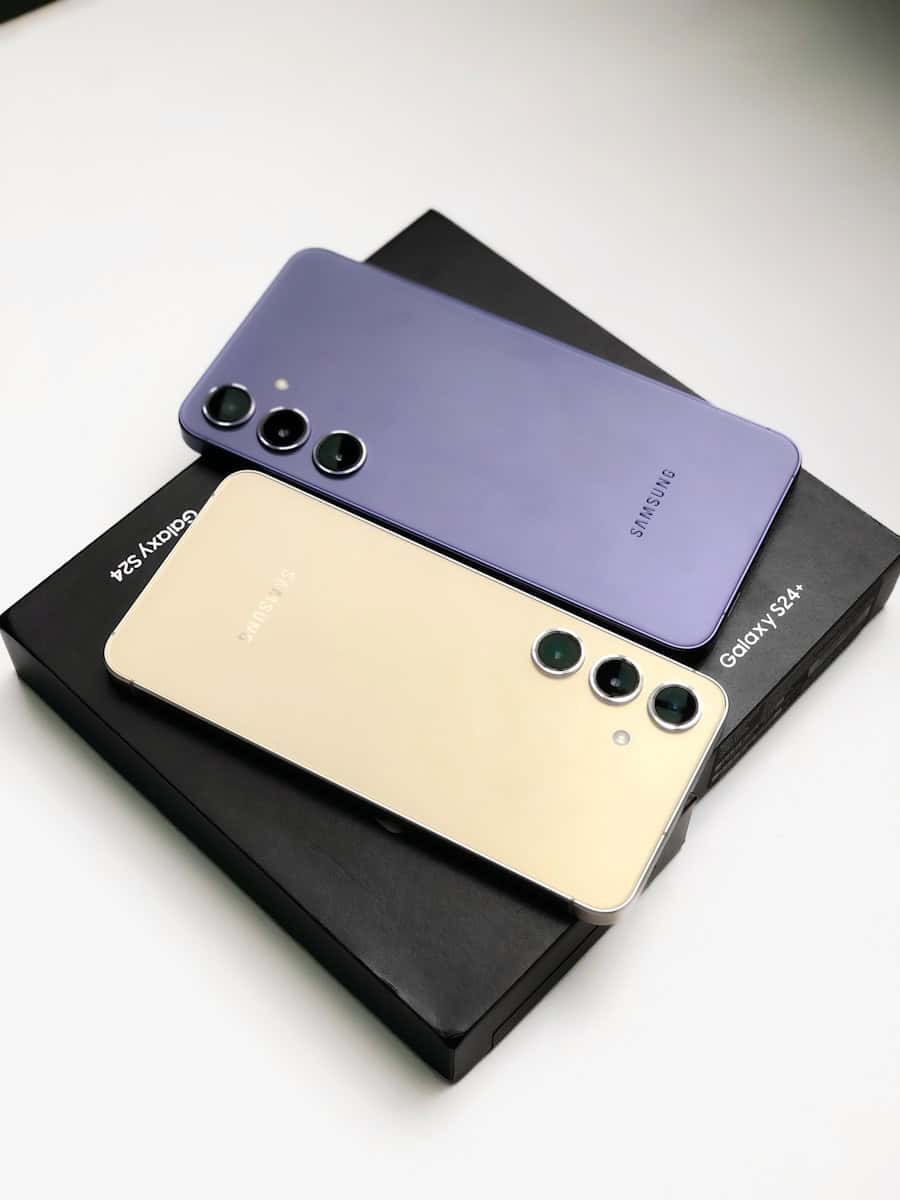
Dealing with a Samsung Galaxy S24 that’s losing power quickly can be frustrating, especially when you expect top-tier performance from a premium device. Many users have reported their S24 batteries draining abnormally fast, sometimes losing several percentage points per hour even with minimal use. The most effective solutions include checking which apps are consuming power, adjusting display settings, and managing background processes to extend your battery life significantly.
Battery issues often appear shortly after purchasing a new Galaxy S24 or after system updates. This doesn’t necessarily indicate a hardware defect – sometimes it’s a calibration issue that can be resolved by letting the battery fully discharge and then recharging to 100% a few times. Simple adjustments like reducing screen brightness and turning off battery-intensive features like Always On Display, which can drain up to 2% per hour, can make a noticeable difference in daily usage.
How to Fix a Samsung Galaxy S24 That’s Dying Fast
If your Samsung Galaxy S24 battery is draining faster than expected, you’re not alone. Even with a powerful processor and smart optimization, certain settings, apps, and habits can cause rapid battery loss. This guide walks you through proven fixes to extend your Galaxy S24’s battery life.
1. Check Battery Usage by Apps
Some apps consume more power than they should.
Steps:
- Open Settings
- Tap Battery and device care
- Select Battery
- Tap Usage since last charge
✅ Look for apps using excessive power and:
- Force close them
- Limit background activity
- Uninstall unused apps
2. Enable Power Saving Mode
Samsung’s Power Saving Mode can significantly reduce battery drain.
How to turn it on:
- Go to Settings > Battery and device care > Battery
- Tap Power saving
- Enable it and customize options like:
- Limit CPU speed
- Reduce brightness
- Turn off Always On Display
3. Reduce Screen Brightness & Refresh Rate
The display is one of the biggest battery consumers.
Adjust Brightness
- Turn on Adaptive brightness
Settings > Display > Adaptive brightness
Lower Refresh Rate
- Go to Settings > Display
- Tap Motion smoothness
- Select Standard (60Hz) instead of Adaptive
📉 This can noticeably extend battery life.
4. Disable Always On Display (AOD)
Always On Display is useful but drains battery over time.
Turn it off or schedule it:
- Go to Settings > Lock screen
- Tap Always On Display
- Turn it off or set a schedule
5. Turn Off 5G When Not Needed
5G consumes more power than LTE in weak signal areas.
Steps:
- Go to Settings > Connections > Mobile networks
- Tap Network mode
- Select LTE/4G/3G (auto connect)
✅ Switch back to 5G when needed.
6. Put Unused Apps to Sleep
Samsung automatically manages apps, but manual control helps.
Steps:
- Go to Settings > Battery and device care > Battery
- Tap Background usage limits
- Add apps to:
- Sleeping apps
- Deep sleeping apps
🚫 Avoid adding messaging or essential apps here.
7. Update Software & Apps
Battery drain issues are often fixed in updates.
- Settings > Software update > Download and install
- Update apps via Galaxy Store and Google Play Store
8. Turn Off Unused Features
Disable features you don’t actively use:
- Bluetooth
- Location services
- Nearby device scanning
- NFC
- Wi‑Fi scanning
📍 You can manage these in Settings > Connections and Location.
9. Check for Battery‑Draining Widgets & Live Wallpapers
- Remove unnecessary widgets
- Switch to a static wallpaper
- Avoid third‑party live wallpaper apps
10. Restart or Reset App Preferences
Restart
- Power off your phone once every few days
Reset App Preferences (Safe Option)
- Go to Settings > Apps
- Tap Menu (⋮) > Reset app preferences
✅ This won’t delete data but resets background limits and permissions.
11. Check for Hardware or Battery Defects
If your Galaxy S24 still drains rapidly:
- Test battery life in Safe Mode
- Visit Samsung Members app for diagnostics
- Contact Samsung Support or visit a service center
⚠️ A faulty battery may need replacement.
Quick Battery‑Saving Tips
✔ Use dark mode
✔ Close unused apps
✔ Avoid extreme temperatures
✔ Use original or certified chargers
Final Thoughts
A fast‑draining Samsung Galaxy S24 is usually caused by apps, settings, or network usage—not a defective battery. Applying the steps above should noticeably improve your battery life within a day or two.
Key Takeaways
- Identifying power-hungry apps through the Device Care section helps target the specific causes of battery drain on your Galaxy S24.
- Adjusting display settings like brightness and sleep timeout can significantly extend battery life without compromising user experience.
- Battery calibration and managing background activities are essential maintenance tasks that improve overall power efficiency.
Understanding Battery Life in Smartphones
Battery performance is a critical aspect of smartphone usability. Modern devices like the Samsung Galaxy S24 balance power-hungry features with energy management systems to deliver adequate daily performance.
Factors Influencing Battery Health
Several key factors affect how long a smartphone battery lasts throughout the day. Screen brightness significantly impacts battery consumption—higher brightness settings drain battery faster. Background apps continue to use power even when not actively used.
Network connectivity also plays a crucial role. Phones searching for signals in areas with poor reception use more power. GPS, Bluetooth, and location services are notable power consumers when active.
Temperature affects battery efficiency too. Smartphones operating in very hot or cold environments experience faster battery depletion.
Usage patterns matter significantly. Heavy gaming, video streaming, and camera use demand more power than checking emails or browsing websites.
Battery health deteriorates over time. After hundreds of charging cycles, maximum capacity gradually decreases, resulting in shorter usage times between charges.
Samsung Galaxy S24 Battery Specifications
The Samsung Galaxy S24 comes equipped with a lithium-ion battery designed for all-day use. The standard S24 features a 4,000mAh capacity battery, while the S24+ and S24 Ultra offer larger 4,900mAh and 5,000mAh batteries respectively.
Samsung incorporates an adaptive battery feature that learns usage patterns over time. During the first 1-2 weeks of use, the phone calibrates to individual habits, which may initially cause faster battery drain before optimizing.
The device supports fast charging technology, reaching approximately 50% charge in about 30 minutes with compatible chargers. Wireless charging capabilities are also included but charge at a slower rate.
Users experiencing rapid battery depletion can check battery usage statistics in the Device Care section under Settings. This tool identifies which apps consume the most power.
Regular software updates from Samsung often include battery optimization improvements, making it important to keep the device updated.
Common Causes of Fast Battery Drain
Many Samsung Galaxy S24 users experience frustrating battery drain issues that can leave their devices dead by mid-day. Understanding what causes this rapid power depletion is the first step toward solving the problem.
Software Issues Impacting Battery Longevity
Software problems often contribute significantly to battery drain on the S24 series. Recent updates may introduce bugs that cause the device to use more power than necessary. Background data usage from apps can silently deplete battery reserves.
The Always On Display feature, while convenient, consumes nearly 2% of battery per hour on some S24 Ultra models – significantly higher than previous generations. This adds up to almost 50% battery loss in a 24-hour period just from this feature alone.
Improper battery calibration can also mislead the system about actual battery levels. Some users report success after letting the device completely discharge and then fully recharging it several times to reset the calibration.
GPS and Background App Impact on Battery Drain
Location services represent one of the biggest power consumers on any smartphone. The S24’s constant GPS usage, especially with “always ON location” settings, rapidly depletes battery life. Apps that continuously track location in the background are particular culprits.
Background App Offenders:
- Social media applications
- Navigation services
- Weather apps
- Fitness trackers
- Food delivery services
Each app running location services can consume 1-3% of battery per hour. Reviewing app permissions and reducing background activity can significantly extend battery life.
The S24’s powerful processor enables impressive multitasking but also means background processes can consume substantial power without the user’s knowledge.
Battery’s Age and Usage Patterns
While the S24 series is relatively new, battery health can deteriorate based on usage patterns. Fast charging, while convenient, generates more heat which can accelerate battery degradation over time.
Screen brightness represents one of the largest battery drains. Many users keep their displays at maximum brightness, not realizing the significant power impact. Reducing display brightness can add hours to battery life.
Battery drain is also affected by how frequently the device connects to networks. Poor signal areas force the phone to boost its radio power, significantly increasing battery consumption. The S24’s advanced 5G capabilities can drain batteries faster when constantly searching for stronger signals.
High-performance gaming and processor-intensive applications also impact battery longevity substantially.
Optimizing Your Samsung Galaxy S24 for Better Battery Life
Battery drain issues on the Galaxy S24 can be frustrating, but several optimization techniques can significantly extend your phone’s daily usage time. These simple adjustments can help prevent your S24 from dying quickly throughout the day.
Adjusting Settings to Maximize Battery Performance
One of the most effective ways to improve battery life is managing your display settings. Reducing display brightness significantly decreases power consumption. Users should consider enabling adaptive brightness to automatically adjust based on surroundings.
The Always On Display feature is convenient but can drain approximately 2% of battery per hour on the S24 Ultra, which is higher than previous models. Disabling this feature or limiting its use can preserve battery life.
App management is crucial for battery optimization. Users should:
- Put unused apps into deep sleep mode
- Check battery usage statistics to identify power-hungry applications
- Disable background data for non-essential apps
- Uninstall rarely used applications that may run in the background
The Role of Airplane Mode in Conserving Power
Airplane mode serves as a powerful tool for conserving battery life in situations where connectivity isn’t essential. When activated, this feature disables all wireless communications including cellular, Wi-Fi, and Bluetooth connections.
In areas with poor signal, the smartphone constantly searches for better reception, significantly draining the battery. Using airplane mode in these scenarios prevents unnecessary battery depletion.
Strategic use of airplane mode during specific times can extend battery life:
- While sleeping (if not expecting important calls)
- During meetings or movies
- In areas known to have poor reception
- When battery is critically low and charging isn’t immediately available
Users can also consider a middle-ground approach by turning off mobile data while keeping Wi-Fi enabled, which consumes less power than cellular connections.
Benefits of Regular Software Updates
Samsung regularly releases software updates that often include battery optimization improvements. These updates fix bugs that might cause excessive battery drain and introduce new power-saving features.
The Galaxy S24 series has received several updates since launch specifically addressing battery performance issues. Installing these updates is simple—users can check for them in Settings > Software Update > Download and install.
One advantage of Samsung’s update approach is the introduction of AI features that help manage battery consumption. These intelligent systems learn usage patterns and optimize power distribution accordingly.
Updates also include security patches that protect against malware, which can run processes in the background and drain battery. By keeping the device updated, users benefit from:
- Patched software vulnerabilities
- New battery optimization algorithms
- Improved system stability
- Enhanced performance without sacrificing battery life
Troubleshooting Charging Issues
When your Galaxy S24 battery drains quickly, charging problems may be contributing to the issue. Identifying whether the problem lies with your charger, cable, or the device itself can help resolve battery drain issues.
Diagnosing Fast Charging Problems
Start by checking if your S24 is actually fast charging. Go to Settings > Battery and device care > Battery > More battery settings and verify fast charging is enabled. Many users report that their devices show “Cable charging” instead of “Fast charging” when connected.
Try using different charging cables and adapters to identify if your current equipment is causing the problem. Some S24 users have discovered that only original Samsung chargers deliver proper fast charging.
Check your charging port for lint or debris that might be interfering with the connection. Use a wooden toothpick to gently clean the port if necessary.
Test charging your phone in safe mode to determine if apps are interfering with the charging process. Power off your phone, then press and hold the power button and volume down to boot into safe mode.
Assessing Battery and Charger Health
Monitor your charging patterns using the Device Care section. Check which apps are using battery while charging and consider force stopping power-hungry applications.
Try a complete battery calibration by letting your S24 battery drain completely until it shuts down, then charge it to 100% without interruption. Some users found this fixed their drain issues.
Check the temperature of your device while charging. Excessive heat during charging indicates a potential problem with either the battery or charger. Samsung phones automatically slow charging when overheated.
For persistent issues, use Samsung’s built-in diagnostic tools by dialing #0# on the phone app to access the service menu and test hardware components.
When to Consider a Battery Replacement
The Samsung Galaxy S24 may need a battery replacement when certain warning signs appear. Knowing when to replace the battery can save users from frustration and unexpected shutdowns.
One clear indicator is when the battery drains unusually fast compared to when the phone was new. If a full charge no longer lasts through a typical day of use, the battery may be deteriorating.
Phone temperature is another important sign. Batteries that overheat during normal use or charging often indicate internal damage that requires replacement.
Battery Health Check Steps:
- Go to Settings
- Tap Battery and Device Care
- Select Battery
- Check the battery health percentage
A health percentage below 80% typically suggests replacement is needed. The Device Care section provides valuable insights about battery condition.
Random shutdowns, especially when the battery indicator shows charge remaining, strongly indicate a failing battery. This happens when the battery can no longer provide consistent power.
Physical signs matter too. A swollen or bulging phone back panel requires immediate battery replacement for safety reasons.
Most Galaxy S24 batteries should perform well for 2-3 years with proper care. After this period, degradation becomes more noticeable and replacement more likely.
Before deciding to buy a new phone, consider that a professional battery replacement is significantly more cost-effective than a full device upgrade.
Advanced Solutions and Factory Reset
When basic troubleshooting fails to resolve severe battery drain on the Samsung Galaxy S24, more decisive measures may be necessary. These approaches help address deep-seated software issues that might be causing your device to lose power rapidly.
Performing a Factory Reset Safely
A factory reset can effectively solve persistent battery drain issues by removing corrupted files and restoring the phone to its original state. Before proceeding, users should back up all important data to avoid permanent loss.
To perform a factory reset on the S24:
- Go to Settings > General Management > Reset > Factory Data Reset
- Review the information about data deletion
- Tap Reset and enter your PIN/password
- Confirm by tapping Delete All
The process takes approximately 5-10 minutes. After completion, the phone will restart as if brand new.
Many users report that factory resets have fixed calibration issues that were causing excessive battery consumption. It’s recommended to set up the device as new initially rather than immediately restoring all previous apps.
Data Backup and Restore with MobileTrans
MobileTrans offers a comprehensive solution for backing up phone data before a factory reset. This tool enables users to transfer data between devices regardless of operating systems.
The backup process is straightforward:
- Install MobileTrans on a computer
- Connect the S24 using a USB cable
- Select Backup from the main interface
- Choose the data types to back up (contacts, messages, photos, etc.)
- Click Start to begin the process
After factory reset, users can restore data by selecting the “Restore” option in MobileTrans. The software preserves data integrity during transfers, making it safer than cloud-based options for sensitive information.
MobileTrans supports selective restoration, allowing users to choose which elements to bring back. This helps prevent reintroducing problematic apps that might have caused the battery drain issues initially.
Data Privacy and Cookie Policy Awareness
Privacy settings on your S24 can significantly impact battery performance. Managing your data and cookie policies properly balances security needs with power efficiency.
Managing Cookies for Enhanced Performance
Cookies stored on your Samsung Galaxy S24 can impact battery life by running background processes that drain power. To improve battery performance, regularly review and clear unnecessary cookies from your browser applications.
You can manage cookies on your S24 by going to Settings > Apps > selecting your browser > Storage > Clear cache. Background activity from apps can significantly drain your battery without you knowing it.
Some browsers offer specific settings to limit cookie usage:
- Chrome: Settings > Privacy and Security > Cookies
- Samsung Internet: Settings > Personal Data > Delete browsing data
- Firefox: Settings > Privacy & Security > Cookies and Site Data
By limiting third-party cookies, users can reduce the amount of background data processing that occurs, which helps extend battery life during daily use.
Understanding the Impact of Cookie Policy on Smartphone Use
Cookie policies affect how websites interact with your S24, influencing battery consumption patterns. When websites store numerous cookies on your device, they create additional processing demands that can drain battery quickly.
To minimize this impact:
- Enable power-saving browser modes when available
- Consider using browsers with built-in cookie blockers
- Regularly check which websites have stored cookies on your device
Many users don’t realize that cookie synchronization between websites and apps continues even when apps aren’t actively being used. This hidden activity can contribute to unexplained battery drain.
For optimal battery performance, consider reviewing permissions for apps that might be sharing cookie data. You can check which applications use the most battery by examining the Device Care section under Battery settings.
Frequently Asked Questions
Many Samsung Galaxy S24 users encounter battery issues that can be frustrating to deal with. These common questions address specific concerns about battery drain, optimization techniques, and hardware considerations.
What steps can be taken to extend the battery life of the Samsung Galaxy S24 Ultra?
Reducing display brightness is one of the most effective ways to conserve battery power on the S24 Ultra. The display consumes significant energy, so lowering brightness levels can make a notable difference in daily usage.
Enabling power-saving mode offers another immediate solution to extend battery life. This built-in feature adjusts various system settings to minimize power consumption without significantly impacting the user experience.
The Always On Display feature has been reported to drain nearly 2% of battery per hour on the S24 Ultra, which is higher than previous models. Disabling this feature can significantly reduce battery drain throughout the day.
How can I address rapid battery drain issues after a recent update on my Samsung Galaxy S24?
After updates, it’s helpful to identify battery-draining apps by checking the Device Care section. Users should run the battery from full to approximately 15% and then examine which applications are consuming the most power.
Clearing cache can help resolve post-update battery issues. System cache can sometimes contain outdated information that causes the device to work harder than necessary, leading to increased battery consumption.
Some users have found that battery calibration helps with drain issues after updates. This involves letting the phone die completely and then charging it to 100% a few times to properly recalibrate the battery meter.
Is it normal for a Samsung Galaxy S24 to experience fast battery depletion, and how can it be remedied?
Some battery drain is normal during the first few weeks as the device learns usage patterns. The adaptive battery feature requires time to optimize performance based on individual usage habits.
Excessive drain beyond the adaptation period likely indicates an issue that needs addressing. Background processes, certain apps, or system settings may be consuming more power than they should.
Setting shorter screen timeouts and adjusting screen settings can significantly reduce unnecessary battery usage. Each minute the screen stays on contributes to overall battery consumption.
What are the official specifications for battery life expectancy on a Samsung Galaxy S24?
The Samsung Galaxy S24 standard model comes with a 4,000mAh battery, while the S24+ features a 4,900mAh battery. The S24 Ultra includes the largest capacity at 5,000mAh for extended usage.
Official estimates suggest the S24 should provide all-day battery life under typical usage conditions. However, actual performance varies significantly based on individual usage patterns, enabled features, and network conditions.
Samsung indicates that battery health should maintain approximately 80% of its original capacity after 500 complete charge cycles. This represents about two years of typical use before noticeable degradation occurs.
How does one perform a battery replacement for a Samsung Galaxy S24, and what are the associated risks?
Battery replacement for the Galaxy S24 should ideally be performed by authorized Samsung service centers. The phone’s construction with adhesive and waterproofing makes DIY replacement challenging and potentially dangerous.
The primary risks of improper battery replacement include damage to the display, loss of water resistance, and potential battery safety issues. The tightly integrated design requires specialized tools and expertise.
A professional replacement typically costs between $70-$100 depending on the model and service provider. This cost is generally worth the investment considering the potential damage that could result from improper handling.
What could be the reasons for a Samsung Galaxy S24’s sudden loss of battery charge, and how might one troubleshoot this?
Rogue applications running in the background often cause unexpected battery drain. Some apps continue using resources even when not actively in use, requiring users to check battery usage statistics.
Network connectivity issues can significantly impact battery life. When the phone struggles to maintain a connection, it increases power to the antenna, which can quickly deplete the battery.
Extreme temperatures—both hot and cold—affect battery performance and can cause rapid discharge. Keeping the device within recommended temperature ranges (0-35°C or 32-95°F) helps maintain optimal battery functionality.