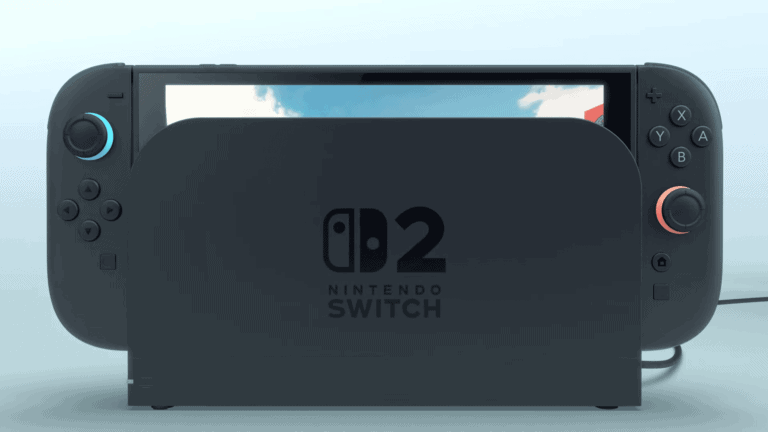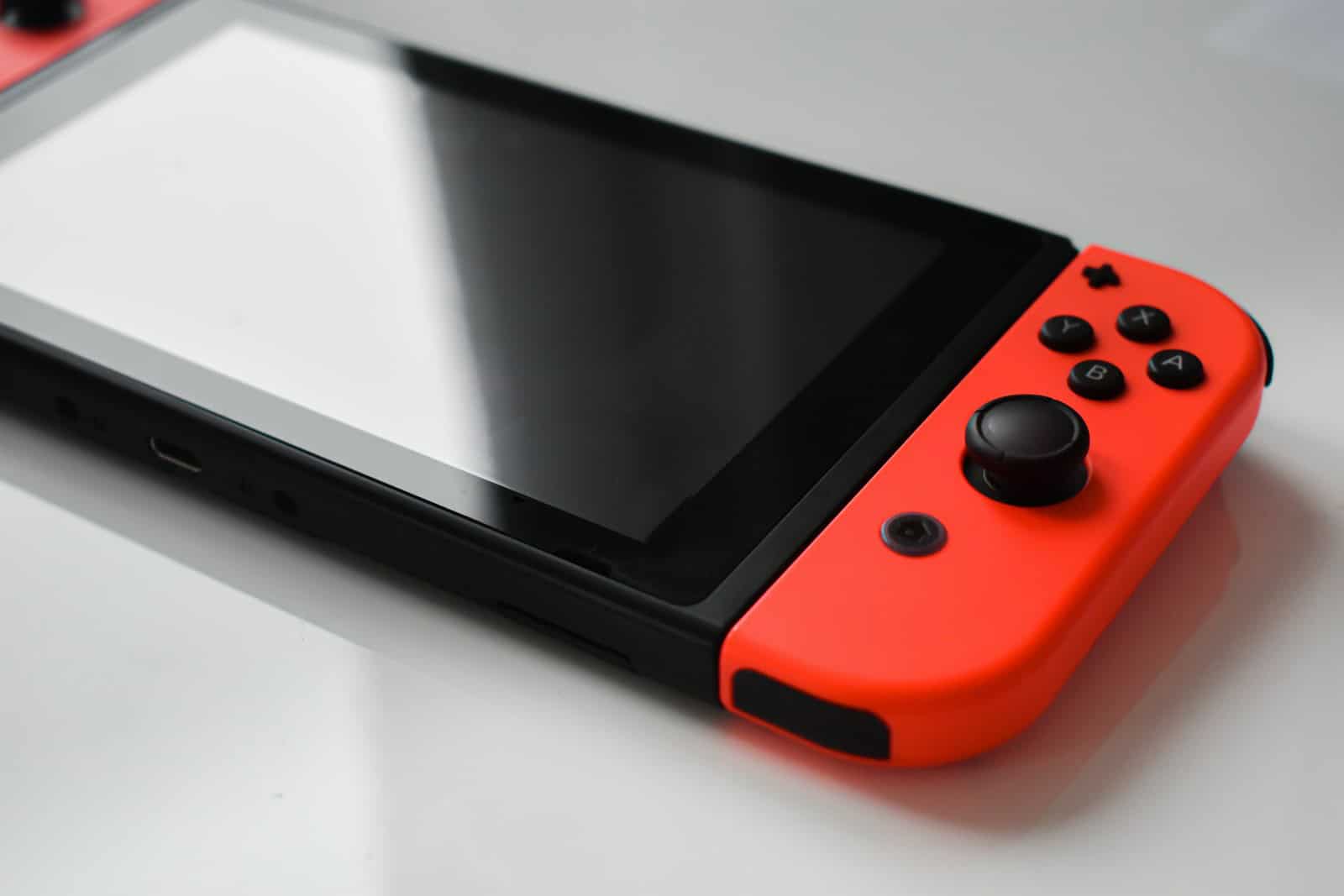
Keeping your Nintendo Switch clean isn’t just about making it look nice – it’s about extending its life and keeping your gaming experience at its best. Dust, oils from your hands, and everyday grime can build up over time, potentially affecting both performance and appearance. To clean your Nintendo Switch safely, use a soft, slightly damp cloth that’s been wrung out well to gently wipe the exterior surfaces, being careful to avoid getting moisture in any openings or ports.
For tougher dirt or sticky spots on your Joy-Con controllers or console body, you can use a mild cleaning solution – but never apply liquids directly to any Nintendo product. Instead, dampen your cleaning cloth first and make sure it’s only slightly moist before wiping. This gentle approach to cleaning your Nintendo Switch helps protect its electronic components while keeping it looking fresh and ready for your next gaming session.
How to Clean Nintendo Switch: Complete Guide for Safe Maintenance
Keeping your Nintendo Switch clean is essential for performance, longevity, and hygiene. Dust buildup, sticky buttons, and dirty screens can affect gameplay and even damage internal components over time.
This step‑by‑step guide will show you how to safely clean your Nintendo Switch, Joy‑Cons, dock, and accessories — without causing damage.
🧰 What You’ll Need
Before you begin, gather these supplies:
- ✅ Microfiber cloth
- ✅ 70% isopropyl alcohol (or higher)
- ✅ Cotton swabs
- ✅ Soft-bristled toothbrush (clean and dry)
- ✅ Compressed air can
- ✅ Wooden toothpick (optional, for tight spaces)
⚠️ Avoid:
- Household cleaners (like Windex)
- Bleach or ammonia
- Excess water
- Paper towels (can scratch screen)
Step 1: Power Off Your Nintendo Switch
Before cleaning:
- Hold the Power button.
- Select Power Options.
- Tap Turn Off.
- Remove Joy‑Cons.
- Unplug from the dock and charger.
Never clean the device while it’s powered on or plugged in.
Step 2: Clean the Screen
The screen is the most delicate part of your Switch.
How to Clean It Safely:
- Use a dry microfiber cloth first to remove dust.
- If needed, lightly dampen the cloth with 70% isopropyl alcohol.
- Gently wipe in circular motions.
- Let it air dry.
✅ If you have a screen protector, cleaning is safer and easier.
❌ Never spray liquid directly onto the screen.
Step 3: Clean the Joy‑Cons
Joy‑Cons collect dirt quickly, especially around buttons and analog sticks.
Surface Cleaning:
- Wipe with a microfiber cloth slightly dampened with alcohol.
Cleaning Around Buttons:
- Dip a cotton swab in alcohol.
- Gently clean around buttons and joystick edges.
- Use a dry toothbrush to loosen dirt.
- Use compressed air to remove debris.
Fixing Sticky Buttons:
If buttons feel sticky:
- Use a small amount of alcohol on a cotton swab.
- Work around the button edges carefully.
- Press the button repeatedly to loosen buildup.
⚠️ Avoid getting liquid inside the Joy‑Con.
Step 4: Clean the Game Card Slot
Dust can build up inside the cartridge slot.
- Ensure the device is powered off.
- Use compressed air to blow out debris.
- Do NOT insert objects into the slot.
Never use liquid inside the slot.
Step 5: Clean the Charging Port
Lint and dust can prevent proper charging.
- Shine a flashlight inside the USB‑C port.
- Use compressed air to remove dust.
- Carefully use a wooden toothpick to remove compact lint (if necessary).
⚠️ Never use metal objects.
Step 6: Clean the Nintendo Switch Dock
The dock can collect dust inside and outside.
Exterior:
- Wipe with microfiber cloth and alcohol solution.
Interior (screen slot):
- Use compressed air to remove dust.
- Use a thin microfiber cloth wrapped around a card to gently clean inside.
Be careful not to damage the internal connectors.
Step 7: Clean Controllers (Pro Controller)
If you use a Pro Controller:
- Wipe surface with alcohol-dampened cloth.
- Clean analog sticks with cotton swabs.
- Use compressed air around triggers and buttons.
How Often Should You Clean Your Switch?
- 🗓 Light cleaning: Every 1–2 weeks
- 🗓 Deep cleaning: Every 1–2 months
- 🗓 Charging port check: Every few months
If you travel frequently or share your console, clean it more often.
What NOT to Do
🚫 Don’t submerge any part in water
🚫 Don’t spray liquid directly onto the console
🚫 Don’t use harsh chemicals
🚫 Don’t open the console (unless you’re experienced with repairs)
Opening the device may void your warranty.
Tips to Keep Your Switch Clean Longer
✅ Use a protective case
✅ Apply a screen protector
✅ Store in a dust-free environment
✅ Wash hands before playing
✅ Avoid eating while gaming
When to Seek Professional Cleaning
Consider professional help if:
- Joy‑Con drift persists
- Charging port is damaged
- Buttons stop responding
- Internal fan sounds loud or clogged
Final Thoughts
Regular cleaning keeps your Nintendo Switch looking new and functioning properly. With just a microfiber cloth, compressed air, and a little care, you can extend the life of your console and enjoy smooth gameplay for years.
Key Takeaways
- Use a soft, slightly damp cloth for regular cleaning of your Switch console and Joy-Con controllers.
- Never apply liquids directly to any part of your Nintendo Switch or its accessories.
- Power off your console completely before cleaning and avoid getting moisture in ports or openings.
Preparation for Cleaning
Before cleaning your Nintendo Switch, proper preparation ensures both your safety and the protection of your device. Taking a few minutes to get ready will make the cleaning process more effective.
Safety Precautions
Always turn off your Nintendo Switch completely before cleaning. Don’t just put it in sleep mode – power it down fully. Remove the Joy-Cons from the main unit if you plan to clean them separately.
Unplug all cables, including the charging cable. This prevents any risk of electrical issues while cleaning.
Never spray liquids directly onto your Switch. Electronics and liquid don’t mix well, and moisture can damage internal components.
Remove any game cards or SD cards before cleaning. This protects your game data and prevents cleaning solutions from damaging the cards.
If your Switch was recently in use, let it cool down before cleaning to avoid any damage from temperature changes.
Gathering Cleaning Supplies
You’ll need specific supplies to clean your Switch properly:
Essential items:
- Microfiber cleaning cloth (lint-free)
- Cotton swabs for reaching small areas
- Compressed air (optional, for dust in ports)
For tougher cleaning jobs, consider having:
- Isopropyl alcohol (70%) for stubborn spots
- Slightly dampened cloth with water (well-wrung out)
Avoid harsh chemicals like ammonia, bleach, or abrasive cleaners that can damage your Switch’s screen and plastic components. Gentle cleaning methods work best.
Keep your cleaning supplies in a clean, dust-free container to prevent introducing more dirt to your console during the cleaning process.
Cleaning the Exterior
Keeping your Nintendo Switch exterior clean helps maintain its appearance and functionality. Proper cleaning prevents dirt buildup and extends the life of your device.
Wiping the Screen
The Switch screen collects fingerprints and dust easily during regular use. To clean it properly, turn off your Switch completely before beginning.
Use a soft clean cloth dampened with water and wring it out thoroughly to remove excess moisture. Gently wipe the screen in one direction rather than circular motions to avoid scratching.
Never use:
- Window cleaners
- Household cleaners
- Alcohol-based products
- Abrasive materials
For stubborn smudges, you can breathe lightly on the screen to create a small amount of moisture before wiping. Microfiber cloths work best as they’re designed to pick up dust without scratching sensitive surfaces.
Cleaning the Body and Back Plate
The Switch body and back plate require regular attention to prevent dirt accumulation in crevices.
First, remove the Joy-Cons from the main unit. Using a soft, slightly damp cloth, wipe down the plastic body. Pay special attention to the vents, as dust often collects there.
For hard-to-reach areas like button surrounds and ports:
- Use a dry, soft-bristled brush (like a clean toothbrush)
- Gently blow compressed air in short bursts
- Try cotton swabs for precision cleaning
Be extremely careful around ports and openings. Excessive moisture can damage your Switch, so always ensure your cleaning cloth is just damp, not wet.
Handling the Joy-Con Controllers
Joy-Con controllers need special attention due to their button layout and moving parts. Remove them from the console before cleaning.
For basic cleaning, use a slightly damp cloth to wipe down the outer surface. For buttons and joysticks, a 70% alcohol solution applied to a cloth (not directly on the controller) can help remove grime.
If you notice drift issues, dust under the joystick may be the culprit. In this case:
- Use compressed air aimed at the base of the joystick
- Apply very gentle pressure
- Rotate the stick while cleaning
Be patient with Joy-Con cleaning. Their small size makes them tricky to clean thoroughly without risking damage from excessive moisture.
Cleaning Internal Components
Internal components need regular maintenance to avoid overheating and damage. Keeping these areas clean ensures your Nintendo Switch continues to function properly and extends its lifespan.
Game Card Slot Maintenance
The game card slot can collect dust and debris over time, which may cause reading errors or damage to your games. To clean this sensitive area:
- Power off your Nintendo Switch completely before cleaning.
- Use a soft, clean brush (like a small cosmetics brush) to gently sweep away visible dust around the slot opening.
- Never insert wet materials into the card slot.
For stubborn debris, you can use a clean, dry cotton swab to carefully remove foreign material from the edges of the slot. Avoid inserting the swab too deeply as this might damage internal connectors.
If your games aren’t reading properly, inspect the gold contact points on your game cards. Clean them with a microfiber cloth if they appear dirty.
Airflow and Ventilation Cleaning
Your Switch can overheat due to dust buildup in the ventilation system. Proper airflow is crucial for maintaining optimal performance.
To clean the vents:
- Power off your device completely and unplug all accessories.
- Use compressed air at a distance of about 6 inches from the vents.
- Apply short bursts rather than continuous airflow to prevent moisture buildup.
- Hold the Switch with the vents pointing downward so dust falls out rather than deeper in.
Never use liquids to clean vents as Nintendo advises against pouring liquids directly on the product. For stubborn dust, a soft brush can gently dislodge particles before using compressed air.
Clean vents every 1-2 months if you use your Switch regularly, or more frequently if you play in dusty environments.
Maintaining the Dock and Accessories
Proper maintenance of your Nintendo Switch dock and accessories extends their lifespan and keeps your gaming experience trouble-free. Regular cleaning prevents dust buildup that could affect connections and performance.
Dock Cleaning
To clean your Nintendo Switch dock, first unplug all cables and remove the console. Use a microfiber cloth to wipe down the exterior surfaces, paying special attention to vents where dust accumulates. For stubborn dirt, lightly dampen the cloth with water only—never spray liquid directly onto the dock.
The interior of the dock needs attention too, especially the USB-C connector. Use compressed air to blow out dust from ports and crevices. Be gentle when cleaning the connector area.
For the dock’s USB ports, a dry cotton swab can remove dust without causing damage. If your Switch has connectivity issues in TV mode, cleaning these areas may solve the problem.
Never use harsh chemicals or alcohol-based cleaners on your dock as they can damage the plastic.
Accessory Inspection and Care
Your Joy-Cons and other controllers need regular maintenance too. Wipe them with a soft, slightly damp cloth to remove oils and dirt from regular handling. Pay attention to the seams where grime can build up.
For Joy-Con rails, use a dry toothbrush with soft bristles to gently clean the metal contacts. This helps maintain a secure connection to the console.
Check for loose parts or unusual noises during your cleaning routine. These might indicate internal issues that need attention.
Accessory cleaning checklist:
- Microfiber cloth for screens and surfaces
- Cotton swabs for tight spaces
- Soft toothbrush for Joy-Con rails
- Compressed air for ports and vents
Remember to fully power down your Switch before cleaning any electronic components. This prevents accidental button presses and potential damage.
Addressing Liquid Spills
If your Nintendo Switch has been exposed to liquid, quick action is essential. Immediately turn off your console by holding the power button for several seconds, then remove any game cards and SD cards.
First Steps After a Spill:
- Power down completely
- Remove all accessories and cards
- Disconnect from power sources
- Gently blot (don’t wipe) visible liquid with a soft cloth
You should allow the system to air-dry for a few days. Avoid using a hair dryer or placing it near heat sources as extreme temperatures can damage components.
For sticky spills like soda on controllers, cleaning with alcohol and cotton swabs is often effective. Gently clean accessible areas without forcing liquid into button crevices.
Do Not:
- Use rice (it’s ineffective and can cause additional damage)
- Shake the device to remove moisture
- Power on before completely dry
- Submerge in any liquid
The housing can be cleaned with a soft, dry cloth once visible moisture is addressed. Pay special attention to ports and vents where moisture might be trapped.
If your Switch doesn’t function properly after drying, professional repair may be needed. Water damage can cause corrosion even after the device appears dry externally.
Software and Data Management
Managing your Nintendo Switch’s software and data is essential for keeping your system running smoothly and protecting your game progress. Regular maintenance helps free up storage space and ensures your valuable game data stays safe.
System Settings Overview
To access data management options on your Nintendo Switch, start by selecting System Settings from the HOME Menu. This is represented by a gear icon on the bottom row of the main screen.
Once inside System Settings, scroll down until you find Data Management. This section shows a breakdown of your system’s storage usage, divided between the console’s internal memory and any microSD card you have installed.
Within Data Management, you can view exactly how much space each game and application is using. This helps you identify which games are taking up the most space when you need to free up storage.
The Manage Software option lets you see where each game is installed and gives you options to delete or archive software.
Data Backup and Protection
Nintendo Switch offers two main ways to protect your save data: Nintendo Switch Online cloud saves and manual transfers.
If you subscribe to Nintendo Switch Online, most of your game saves are automatically backed up to the cloud. To check your cloud saves:
- Go to System Settings
- Select Data Management
- Choose “Save Data Cloud”
Not all games support cloud saves, so check Nintendo’s compatibility list for your favorite titles.
For manual backups, you can transfer save data between Switch consoles. This is helpful when upgrading to a new system. Select “Transfer Your Save Data” in the Data Management menu to move individual game saves between devices.
Remember that deleting a game doesn’t remove your save data, but using “Delete Save Data” will permanently erase your progress.
Factory Reset Options
When you need to completely refresh your Nintendo Switch or prepare it for sale, you have several formatting options.
To perform a factory reset:
- Go to System Settings on the HOME Menu
- Scroll down and select “System”
- Scroll to the bottom and select Formatting Options
The “Initialize Console” option removes all saved data, screenshots, videos, and downloaded software while keeping the system updated. This is ideal if you’re keeping your Switch but want a fresh start.
For a complete reset, choose “Restore Factory Settings” which returns the console to its out-of-box state, including system updates.
Before formatting, back up important save data using the methods mentioned earlier. If you’re selling your Switch, make sure to unlink your Nintendo Account first by selecting “Delete All User Data.”
Long-Term Preservation Tips
Keeping your Nintendo Switch in top condition requires some regular maintenance beyond basic cleaning. These tips will help you preserve your console for years to come.
Storage Considerations
- Store in a cool, dry place away from direct sunlight
- Use a protective case when not in use
- Keep away from dusty environments
- Ensure proper ventilation around the dock
Your Switch needs regular use to maintain battery health. If you plan to store it for an extended period, charge the battery to about 50% first, then power it off completely.
Physical Protection
Apply a high-quality screen protector to prevent scratches on your display. This simple addition can prevent permanent damage that cleaning cannot fix.
Joy-Con Maintenance
Clean the Joy-Con rails monthly with a dry cotton swab to prevent connection issues. Avoid using excessive moisture that could damage the sensitive electronics.
Software Updates
Keep your system software updated to maintain optimal performance. These updates often include fixes for issues that could affect your console’s longevity.
Dock Care
Periodically clean the dock with a soft, dry cloth to prevent dust buildup. Ensure the USB ports remain free of debris.
Temperature Awareness
Never leave your Switch in extremely hot or cold environments. The optimal operating temperature is between 40-95°F (5-35°C).
Utilizing Support Resources
Finding reliable cleaning information for your Nintendo Switch can save you from potential damage. Nintendo offers official guidance while online communities provide tested solutions for various cleaning challenges.
Official Nintendo Support
Nintendo provides detailed cleaning instructions on their support website. You can access these guides through the Nintendo Support page by searching “cleaning Nintendo Switch” or browsing the maintenance section.
The official guidelines recommend using a soft, clean cloth dampened with water. Make sure to wring out excess moisture before wiping your console or controllers. This method is safe for the Switch screen and Joy-Con controllers.
For specific cleaning questions, you can contact Nintendo’s customer service directly through their website. They offer chat support, phone assistance, and email options if you need personalized help with tough cleaning situations.
Community Guides and Tutorials
Beyond official resources, you’ll find valuable cleaning tips in gaming communities. Forums like GBAtemp offer user-tested methods for stubborn dirt and grime.
YouTube hosts numerous tutorials showing step-by-step cleaning processes. These videos demonstrate techniques for deep-cleaning Joy-Cons with connection issues or removing debris from hard-to-reach areas.
Mac users can find specific instructions for cleaning their Nintendo Switch while connecting to their computers. Many users share compatibility tips and cleaning approaches that work for different setups.
Be cautious with community recommendations involving liquid solutions. Stick to mild options like warm water with minimal soap as suggested by experienced users. Avoid harsh chemicals that might damage your console’s finish or electronics.
Frequently Asked Questions
Keeping your Nintendo Switch clean is essential for its performance and longevity. Here are answers to common questions about maintaining different parts of your console.
What is the best way to clean the screen of a Nintendo Switch?
To clean your Nintendo Switch screen, turn off the device completely. Use a soft clean cloth dampened with water and wring it out well before wiping.
For stubborn smudges, you can use a microfiber cloth similar to what you’d use for eyeglasses or phone screens. Avoid using paper towels as they may scratch the screen.
Never spray or pour liquids directly onto the screen as moisture could damage internal components.
Can you provide guidance on cleaning the interior components of a Switch console?
Interior cleaning should be approached with caution. For dust buildup, use compressed air in short bursts to blow dust away from vents and openings.
Make sure the console is powered off and accessories are unplugged before attempting any cleaning of internal components.
If you’re experiencing serious issues that seem related to internal dirt or dust, consider contacting Nintendo support rather than opening the console yourself, as this could void your warranty.
What methods are recommended for cleaning the Nintendo Switch Lite’s joystick?
For joystick cleaning on the Switch Lite, use a soft, dry toothbrush to gently brush around the base of the joystick to remove dust and debris.
If you notice sticking or drifting, you can use a cotton swab with a small amount of isopropyl alcohol to clean around the joystick base. Be very sparing with the alcohol and ensure it doesn’t drip into the console.
Let the alcohol dry completely before using your Switch Lite again.
How should one clean the charging port of a Nintendo Switch to ensure safe use?
For the charging port, use a dry, soft-bristled brush (like a clean toothbrush) or compressed air to gently remove dust or lint. Always ensure the console is powered off first.
Avoid using metal objects like pins or paperclips as they can damage the delicate pins inside the port.
If you see stubborn debris, a wooden toothpick can be used very carefully, but avoid applying pressure that might bend internal components.
What are the steps to effectively remove dust from a Nintendo Switch fan?
To clean the fan, first power off your Switch completely. Use compressed air in short bursts, directing it into the air vents at the top of the console.
Hold the can upright and keep it a few inches away from the vents to avoid damage from excessive air pressure or condensation.
Perform this maintenance in a well-ventilated area, ideally outdoors, to prevent the dust from settling back into the console.
Is regular maintenance and cleaning necessary for the longevity of a Nintendo Switch device?
Yes, regular cleaning extends your Switch’s life. Nintendo recommends gentle wiping with a dampened soft cloth for routine maintenance.
Clean your Switch every few weeks if you use it daily, or whenever you notice visible dirt, fingerprints, or smudges. Pay special attention to cleaning after using it with dirty hands or in dusty environments.
Regular maintenance helps prevent dust buildup that can affect cooling, button responsiveness, and overall performance.