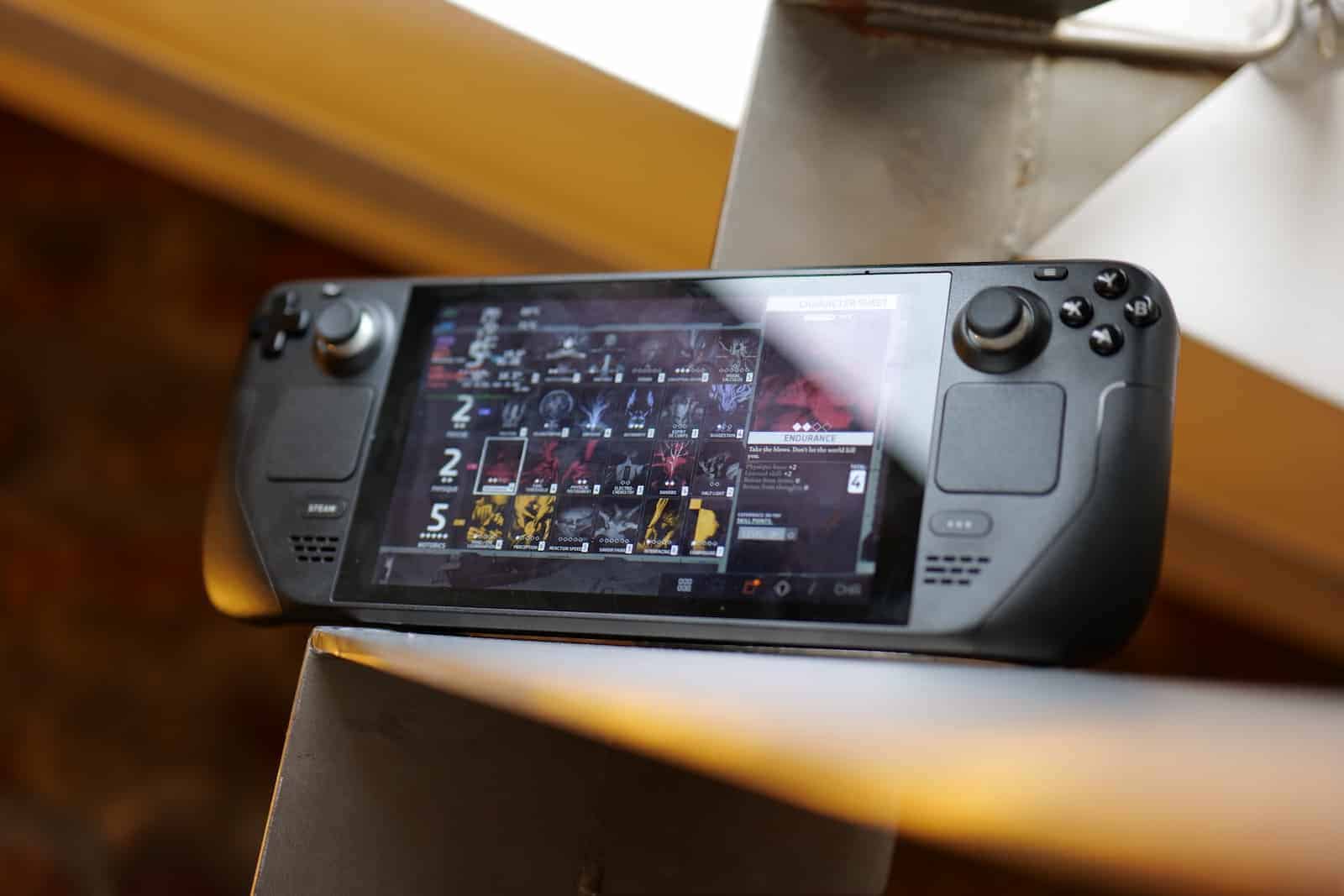
Gaming with family members just got a lot better on the Steam Deck. Valve’s handheld gaming device now offers improved Family Sharing features that make sharing games more convenient than ever. Steam’s Family Sharing no longer restricts library access to one person at a time, allowing multiple family members to play different games simultaneously from the same library.
Setting up Family Sharing on your Steam Deck is straightforward. Users can authorize library sharing through the Family settings menu, giving access to eligible games in their collection to family members using the same device or authorized computers. This feature is especially valuable for households with multiple gamers who don’t want to purchase the same titles repeatedly.
The recent update to Steam Families has expanded these capabilities, creating a more flexible gaming environment for everyone in the household. Family members can now enjoy their own achievements and save files while playing games from a shared library, making the Steam Deck an even more versatile gaming platform.
Steam Deck Family Sharing Guide: How to Share Your Steam Library
Steam Family Sharing lets you share your Steam game library with family members and close friends—including on the Steam Deck. This guide explains how Family Sharing works, how to set it up on a Steam Deck, and what limitations you should know about.
What Is Steam Family Sharing?
Steam Family Sharing allows you to:
- Share your game library with up to 5 accounts
- Authorize access on up to 10 devices
- Let others play your games using their own Steam accounts
Each player keeps:
- Their own save files
- Achievements
- Game settings
Important Limitations to Know First
Before setting it up, be aware of these rules:
- Only one person can use a shared library at a time
- If the owner starts a game, the borrower has a few minutes to exit
- Some games cannot be shared (MMOs, subscription games, certain third‑party titles)
- DLC is shared only if the borrower does not own the base game
- VAC bans apply to the borrower, but can affect the owner’s library access
How to Set Up Steam Family Sharing on Steam Deck
Step 1: Sign In to the Owner’s Account
- Turn on the Steam Deck
- Sign in using the library owner’s Steam account
- Make sure the Steam Deck is connected to the internet
Step 2: Enable Family Sharing
- Press the Steam button
- Go to Settings
- Select Family
- Turn on Authorize Library Sharing on This Device
Step 3: Authorize the Borrower’s Account
- Log out of the owner’s account
- Log in with the borrower’s Steam account
- Go to Settings → Family
- You should see the owner’s library listed
- Enable access for that account
✅ The shared library will now appear in the borrower’s game list.
How to Play Shared Games on Steam Deck
- Shared games appear just like owned games
- Download and launch normally
- Save data and achievements remain tied to the borrower’s account
- Cloud saves work if supported by the game
Switching Between Accounts on Steam Deck
To switch users:
- Press the Steam button
- Select Change Account
- Choose another Steam profile
Steam Deck makes multi‑account use smooth, especially for households sharing one device.
Managing Shared Libraries
Remove Access
- Sign in to the owner’s account
- Go to Steam → Settings → Family
- Remove device or account access
View Authorized Devices
You can see which devices are authorized and revoke access at any time.
Can You Share Games While Playing at the Same Time?
No—unless:
- Each user owns separate copies of the game
- The owner plays a game not in the shared library
If the owner starts playing a shared game, the borrower will receive a warning to quit.
Common Issues and Fixes
Shared Games Not Showing Up
- Make sure the device is authorized
- Confirm both accounts have logged in on the Steam Deck
- Restart the device and Steam
Game Says “Purchase Required”
- The owner may be currently playing
- The game may not support Family Sharing
Save Files Missing
- Confirm you’re logged into the correct Steam account
- Check if the game supports Steam Cloud
Best Use Cases for Steam Deck Family Sharing
- Parents sharing games with kids
- Couples sharing one Steam library
- Trying games before buying your own copy
- Sharing single‑player titles
Final Thoughts
Steam Family Sharing works extremely well on the Steam Deck, making it easy for families and friends to enjoy a shared game library without buying multiple copies. As long as you understand the one‑user‑at‑a‑time limitation and game restrictions, it’s a powerful and convenient feature.
If you plan to share a Steam Deck or a large library, Family Sharing is absolutely worth setting up. 🎮✅
Key Takeaways
- Steam Deck’s Family Sharing allows multiple users to play different games simultaneously from the same library, eliminating previous restrictions.
- Setting up Family Sharing requires simply toggling the option in Settings and authorizing devices for specific family members.
- Steam Families provides separate save files and achievements for each user, creating personalized gaming experiences from shared libraries.
Understanding Steam
Steam serves as the backbone of the Steam Deck‘s family sharing features. Before diving into how family sharing works, it’s helpful to understand what Steam is and how it developed over time.
What Is Steam?
Steam is a digital distribution platform created by Valve Corporation that allows users to purchase, download, and play video games. It functions as both a storefront and a game library management system for PC gamers.
The platform offers more than just games. Users can access community features, including forums, friend lists, and in-game voice chat. Steam also provides cloud saves, automatic updates, and family sharing capabilities that extend to devices like the Steam Deck.
For Steam Deck owners, Steam is the primary interface for accessing games and managing who can play them. The platform supports multiple user accounts on a single device, making it ideal for households with several gamers.
History of Valve’s Steam Platform
Valve launched Steam in 2003 primarily as a method to deliver updates to their own games like Counter-Strike. This initial version was met with skepticism from gamers who were accustomed to physical media.
By 2005, Valve began partnering with third-party publishers to distribute their games on Steam. This expansion transformed the platform from a simple update tool to a comprehensive digital marketplace.
Key milestones include:
- 2007: Introduction of Steam Community features
- 2010: Launch of Steam for Mac, beginning cross-platform support
- 2012: Introduction of the Steam Workshop for user-created content
- 2014: Family Sharing implemented, allowing users to share game libraries
- 2021: Release of the Steam Deck, Valve’s handheld gaming PC
The platform now hosts more than 50,000 games and serves millions of concurrent users daily. This evolution has positioned Steam as the dominant digital distribution platform for PC gaming.
Basics of Steam Family Sharing
Steam Family Sharing lets multiple users enjoy games from a single library without buying separate copies. This feature has evolved to become more flexible while maintaining certain restrictions to protect game developers.
Steam Family Sharing Defined
Steam Family Sharing is a feature that allows Steam users to share their game libraries with up to five other accounts across a maximum of ten devices. This system works by giving authorized users access to the library owner’s games when the owner isn’t using their library.
The Steam Deck allows family members or friends to access the same machine and play from the same collection of games. This feature has recently been updated and is now part of the broader “Steam Families” system.
Setting up Family Sharing requires the library owner to authorize specific devices and accounts. This can be done directly on the Steam Deck through the device settings.
Benefits of Family Sharing
The biggest advantage of Family Sharing is the cost savings. Instead of purchasing multiple copies of games, several people can play from a single library.
A recent improvement to the service now allows different family members to play different games from the same library simultaneously. Previously, only one person could access the library at a time.
Family Sharing also maintains individual save files and achievements. Each user keeps their own progress, statistics, and earned achievements, providing a personalized gaming experience.
For parents, this feature offers control over which games children can access, making it easier to manage content appropriately.
Limitations and Restrictions
Despite its benefits, Steam Family Sharing has some important limitations. Not all games support the feature due to technical limitations or publisher restrictions. Games requiring third-party accounts or subscriptions typically cannot be shared.
DLC (downloadable content) can only be used by family members if the library owner owns it. Any DLC purchased by borrowers won’t be available when playing the shared game.
The Steam Families system replaced the older Family View, combining sharing features with parental controls in one location.
If the library owner starts playing any game, other users may be given a few minutes to save their progress before being disconnected, though this restriction has been relaxed for different games.
Getting Started with Family Sharing on Steam Deck
Steam Family Sharing lets users share their game libraries with others on the same device. This feature works well on Steam Deck, allowing multiple people to enjoy games without purchasing them separately.
Setting Up Steam Deck
Before enabling Family Sharing, ensure the Steam Deck is updated to the latest software version. The Steam Deck owner must first create separate user accounts for each family member who will share the library.
To create additional accounts, the owner should:
- Power on the Steam Deck and go to the main Steam interface
- Navigate to Settings (gear icon)
- Select System
- Choose Add New User
Each account will need its own Steam login credentials. The primary account holder should be present during this setup process since they’ll need to log into their account directly on the device to authorize sharing.
Remember that the Steam Deck must be connected to the internet during initial setup for account verification.
Enabling Family Sharing
Once all accounts are created, the library owner must explicitly enable Family Sharing:
- Log into the primary account (the one sharing games)
- Go to Settings
- Scroll down to “Family” settings
- Switch the slider to ON for “Authorize Library Sharing on this Device”
- Select which accounts can access the shared library
Important limitations to note:
- Only one person can use the shared library at a time
- The account sharing games must be online for others to access the shared library
- Some games with third-party DRM may not work with Family Sharing
- Game progress and achievements are saved to the account playing the game
Users can easily switch between accounts from the Steam menu to access different libraries.
Managed Steam Accounts for Family Members
Setting up managed accounts through Steam Families offers parents a comprehensive way to control their children’s gaming activities on Steam Deck. This system replaces older features with new tools that help balance gaming access with appropriate oversight.
Creating Child Accounts
To get started with family sharing on Steam Deck, parents need to create dedicated accounts for their children. First, log into your Steam account on the Steam Deck or desktop client. Navigate to Settings, then to the “Family” tab where you’ll find the option to create a family group.
Click “Add a Family Member” and select “Create a Child Account.” You’ll need to:
- Enter a username and password
- Provide your child’s birth date
- Confirm your own identity as the parent/guardian
- Complete the account setup process
Child accounts are automatically added to your family group and will have limited features until modified by the parent account. These restrictions help ensure children access only age-appropriate content from the start.
Implementing Parental Controls
Steam Families offers robust parental controls that go beyond the previous Family View system. Parents can customize restrictions for each child account separately based on age and maturity level.
Key parental control features include:
- Time management: Set specific play schedules and daily time limits
- Game access: Approve which games from your library they can play
- Purchase approval: Review and authorize game purchases before completion
- Content filters: Restrict mature content and block inappropriate games
To adjust these settings, access the Family tab in your Steam settings and select the child account you want to manage. Changes apply across all devices, including Steam Deck, ensuring consistent protection regardless of where your child logs in.
Parents receive notifications when children request access to new games or additional play time, making oversight convenient.
Family Group and Family Management
The Family Group serves as the central hub for managing all shared accounts and games. Up to 5 accounts and 10 devices can be included in a single family, making it ideal for households with multiple gamers.
Family Management tools enable parents to:
- Monitor recent gaming activity across all family accounts
- View and manage game time for each family member
- Share eligible games across accounts without purchasing multiple copies
- Configure which devices can access shared games
To manage your family group, open Steam settings and navigate to the Family tab. From there, you can add or remove members, adjust individual settings, and review activity reports.
The new system eliminates the need to share login credentials, improving security while maintaining convenient access to game libraries for all family members.
Sharing Steam Libraries and Achievements
Steam Family Sharing allows users to share their game libraries with others, making it easier for families to enjoy games without buying multiple copies. This feature works on Steam Deck with some special considerations for achievements and game progress.
Game-Sharing with Steam Deck
Setting up family sharing on Steam Deck requires a few simple steps. First, the account owner needs to enable Steam Family Sharing in their account settings. The Steam Deck must be authorized as a shared device for the feature to work properly.
Steam Families is a newer feature that combines previous family features into one location. It replaces both Steam Family Sharing and Steam Family View with improved controls.
One important limitation to remember is that shared libraries function like a deck of cards – if one person is using any game from the library, others cannot access that library at all. This applies even if they want to play different games.
To set up sharing on your Steam Deck:
- Log into the Steam Deck with your account
- Enable Family Sharing in settings
- Authorize the device for sharing
- Log out and let family members log in
Impact on Achievements and Progress
When using Family Sharing on Steam Deck, each player maintains their own achievements and game progress. This means family members can earn their own achievements while playing shared games.
Steam Family Sharing allows players to earn their own Steam achievements even when playing games from someone else’s library. Game saves are typically stored separately for each user profile.
If a family member later purchases a game they previously played through sharing, their achievements and progress will typically carry over to their owned copy. This seamless transition encourages trying games before buying them.
Cloud saves work independently for each user, ensuring nobody overwrites another family member’s progress. However, some games with external accounts or special DRM might have limitations with the sharing feature.
Troubleshooting Common Issues
When using Family Sharing on Steam Deck, technical issues can sometimes interrupt your gaming experience. Most problems can be resolved with a few specific steps that address authorization, access conflicts, and system updates.
Steam Family Sharing Not Working
If Family Sharing suddenly stops functioning on your Steam Deck, there are several potential fixes. First, check if your device is still authorized in the shared library list. Family members might accidentally remove devices from their authorization list.
To re-authorize a device:
- Log into the Steam account that owns the games
- Go to Settings > Family
- Make sure the box is checked to authorize library sharing on this computer
- Log back into your account
Some users have found success by switching to the Beta participation option. To do this:
- Navigate to Settings > System > Beta Participation
- Select “Beta” from the dropdown menu
- Restart your Steam Deck
Running a system file check can also help with persistent issues. On a PC, open Command Prompt as administrator and type “sfc /scannow”.
Resolving Library Access Conflicts
The most common sharing issue is the “purchase” button appearing instead of “play” for shared games. This typically happens because only one person can access a Steam library at any time. If the game owner starts playing any game, others using the shared library will be disconnected after five minutes.
To minimize conflicts:
- Coordinate playing times with family members
- Set Steam to Offline Mode when playing single-player games
- Prioritize which family member gets to play at conflicting times
Some games don’t work with Family Sharing due to third-party DRM or multiplayer restrictions. Check the game’s store page or community discussions to confirm if it’s shareable.
Restarting Steam for Updates and Fixes
Many Steam Deck sharing issues can be resolved with a proper restart. Unlike putting the device to sleep, a full restart clears temporary files and applies pending updates.
To perform a proper restart:
- Press the Steam button
- Navigate to Power > Restart
- Wait for the system to fully reboot
After restarting, verify that Steam Guard is enabled by going to Steam > Settings > Security. This security feature is required for Family Sharing to function properly.
If problems persist, try:
- Logging out and back in to both accounts
- Disabling and re-enabling Family Sharing
- Checking for Steam client updates
- Verifying game file integrity for specific problematic games
Network configuration issues can also impact sharing. Ensure both devices are on the same network or have proper internet connectivity.
Frequently Asked Questions
Steam Family Sharing on the Steam Deck offers flexibility but comes with specific setup requirements and limitations. Users can share their game libraries but must navigate certain restrictions regarding simultaneous play and authorized devices.
How do I set up Steam Family Sharing on the Steam Deck?
Setting up Family Sharing on your Steam Deck requires a few simple steps. First, make sure your Steam Deck is fully updated to ensure compatibility with the sharing feature.
Next, select the “New Login” option and sign in with the account that owns the games you want to share. This authorizes the device for Family Sharing.
After logging in with the game owner’s account, log out and sign in with the account that will be accessing the shared games. The shared library should now be accessible from this account.
Remember that Steam Families can contain up to 6 family members, and this setup can be managed through the Steam client, mobile device, or web browser.
What should I do if Steam Family Sharing is not working on my Steam Deck?
If Family Sharing isn’t working properly, first verify that the Steam Deck is authorized for sharing. The game owner must have logged into the device at least once to authorize it.
Check that the games you’re trying to access are eligible for Family Sharing, as not all games support this feature due to technical limitations or publisher restrictions.
Ensure both accounts have Steam Guard enabled, as this is a requirement for Family Sharing. If problems persist, try restarting the Steam Deck or checking for system updates.
Is it possible to use Steam Family Sharing in offline mode on the Steam Deck?
Steam Family Sharing has limitations in offline mode. The borrowing account typically needs to be online to verify access permissions when launching a shared game.
Once a game is launched while online, some games may continue to work in offline mode for a limited time. However, this varies by game and isn’t guaranteed for all titles.
For reliable access to games in offline mode, users may need to purchase the games directly rather than relying on Family Sharing.
Can multiple accounts on a single Steam Deck share games with each other?
Yes, multiple accounts on a single Steam Deck can share games with each other. Each account that owns games can authorize the device for Family Sharing.
When setting up sharing, each game-owning account must log in to the Steam Deck at least once to authorize the device. After authorization, other accounts on that device can access their shared libraries.
Remember that Family Sharing works just like it does for a second PC, with the same limitations regarding simultaneous usage.
How can two family members play the same game on Steam without purchasing it twice?
Unfortunately, Steam Family Sharing is like sharing a pack of cards – if one person is using any game from the shared library, the entire library becomes unavailable to others.
Two family members cannot play games from the same library simultaneously through Family Sharing. If the owner starts playing any game, the borrower will receive a warning and a few minutes to save and exit.
The only way for two family members to play the same game simultaneously is to purchase separate copies of the game.
What are the limitations of using Steam Family Sharing on the Steam Deck?
A significant limitation is that only one person can use a shared library at any given time. When the library owner plays any game, others lose access to the entire shared library.
Not all games are eligible for sharing due to technical limitations, third-party keys, subscriptions, or account-bound content. DLC can only be shared if the borrower doesn’t own the base game.
Family Sharing also has regional restrictions, meaning games purchased in one region might not be sharable with accounts in different regions where that game isn’t available.