The Echo Dot is one of Amazon’s most popular smart speakers, offering a compact way to add Alexa to any room. If you’re looking to enhance your audio experience, you’ll be happy to know that Echo Dot devices offer flexible audio output options. You can connect your Echo Dot to external speakers using either the 3.5mm audio jack (available on most models) or via Bluetooth for a wireless setup.
Not all Echo Dot models have the same audio output capabilities, though. The gen 4 Echo Dot doesn’t allow for audio in, while the newer gen 5 has removed the audio jack completely. If you have an older model with the 3.5mm port, you can use a standard audio cable with male connections on both ends to connect to your favorite speakers or sound system.
Connecting your Echo Dot to external speakers transforms this small smart device into a powerful audio hub. Whether you’re playing music, podcasts, or audiobooks, you can enjoy better sound quality while still having access to all of Alexa’s smart features and voice commands.
Echo Dot Audio Out Guide
The Echo Dot is compact and convenient, but many users want louder or better sound. Luckily, Echo Dot supports multiple audio output options, allowing you to connect external speakers, soundbars, headphones, or home audio systems.
This guide explains all Echo Dot audio out methods, supported models, and how to set them up.
1. Echo Dot Audio Output Options (Overview)
Depending on the Echo Dot generation, you can use:
- ✅ 3.5mm AUX audio cable
- ✅ Bluetooth audio
- ❌ USB audio (not supported)
- ❌ HDMI output (not supported)
2. Using the 3.5mm Audio Jack (Wired Audio Out)
Supported Models
- Echo Dot (2nd, 3rd, 4th, and 5th gen)
- Echo Dot with Clock (3rd, 4th, and 5th gen)
Note: Some regional or special editions may vary slightly.
What You Need
- 3.5mm AUX cable
- External speaker, soundbar, or amplifier with AUX input
How to Connect
- Plug one end of the AUX cable into the Echo Dot
- Plug the other end into your speaker’s AUX IN
- Audio automatically routes through the external speaker
✅ No app setup required
✅ Works even without Wi‑Fi (for system sounds)
Audio Quality
- Stable and low latency
- Best option for home stereo systems
- Limited to analog quality
3. Connecting Echo Dot via Bluetooth (Wireless Audio)
Supported Devices
- Bluetooth speakers
- Soundbars
- Headphones
- Car audio systems
How to Pair via Voice
- Say: “Alexa, pair Bluetooth.”
- Put your speaker or headphones into pairing mode
- Select Echo Dot on your audio device
How to Pair Using the Alexa App
- Open the Alexa app
- Go to Devices > Echo & Alexa
- Select your Echo Dot
- Tap Bluetooth Devices > Pair a New Device
Pros and Cons
✅ Wireless convenience
✅ Works with most Bluetooth devices
❌ Slight audio delay
❌ Can disconnect if device sleeps
4. Setting a Default Audio Output
If you have multiple speakers:
- Open Alexa app
- Go to Devices > Echo & Alexa
- Select your Echo Dot
- Tap Audio Settings
- Choose your preferred speaker (Bluetooth or wired)
This ensures Alexa always plays audio through your chosen output.
5. Using Echo Dot with Multi‑Room Audio
Echo Dot can be part of an Amazon Multi‑Room Music setup.
How to Enable
- Open the Alexa app
- Go to Devices > + > Combine Speakers
- Select Multi‑Room Music
- Add Echo Dot and other Echo devices
✅ Works with wired and Bluetooth output
✅ Syncs music across rooms (minimal delay)
6. Common Audio Issues & Fixes
No Sound from External Speaker
- Check AUX cable connection
- Increase speaker volume
- Restart Echo Dot
Bluetooth Keeps Disconnecting
- Keep devices within 30 feet
- Disable battery optimization on speakers
- Re‑pair Bluetooth device
Audio Lag or Echo Effect
- Avoid mixing Bluetooth and internal speaker audio
- Use AUX cable for lowest latency
7. Can Echo Dot Output Audio to TV?
❌ Echo Dot does not support HDMI audio output
✅ You can connect to a TV or soundbar via:
- Bluetooth
- AUX cable (if TV supports AUX input)
8. Best Audio Out Option (Quick Comparison)
| Method | Quality | Latency | Ease of Use |
|---|---|---|---|
| AUX Cable | High | None | Very Easy |
| Bluetooth | Medium–High | Slight | Easy |
| Internal Speaker | Basic | None | Built‑in |
Final Thoughts
The Echo Dot may be small, but its audio out options are surprisingly flexible. For the best sound quality and reliability, use the 3.5mm AUX connection. If convenience matters more, Bluetooth works well for most setups.
With the right connection, Echo Dot can easily become part of a powerful home audio system.
Key Takeaways
- Echo Dot devices can output audio through their 3.5mm jack (on most models) or via Bluetooth connection to external speakers.
- Different Echo Dot generations have varying audio connection options, with newer models like gen 5 removing the audio jack entirely.
- You can significantly improve your Echo Dot’s sound quality while maintaining all smart features by connecting it to external speakers or a stereo system.
Understanding the Echo Dot
The Echo Dot has evolved significantly since its initial release, offering versatile audio capabilities and smart home integration in a compact package. Recent models feature improved sound quality and enhanced Alexa functionality that can transform how you interact with your home technology.
Echo Dot Overview
The Echo Dot is Amazon’s compact smart speaker designed to bring Alexa’s capabilities into any room of your home. The device comes in various generations, with the most recent models (4th and 5th gen) offering significant improvements over earlier versions.
Most Echo Dot models include a 3.5mm audio output jack that allows you to connect to external speakers for enhanced sound. This feature is particularly useful when you want better audio quality than the built-in speaker provides.
It’s important to note that while most Echo Dots have audio output capabilities, they generally don’t support audio input. The Echo Plus 2nd generation is one of the few Amazon devices that can switch its 3.5mm jack between output and input.
Spherical Design and Features
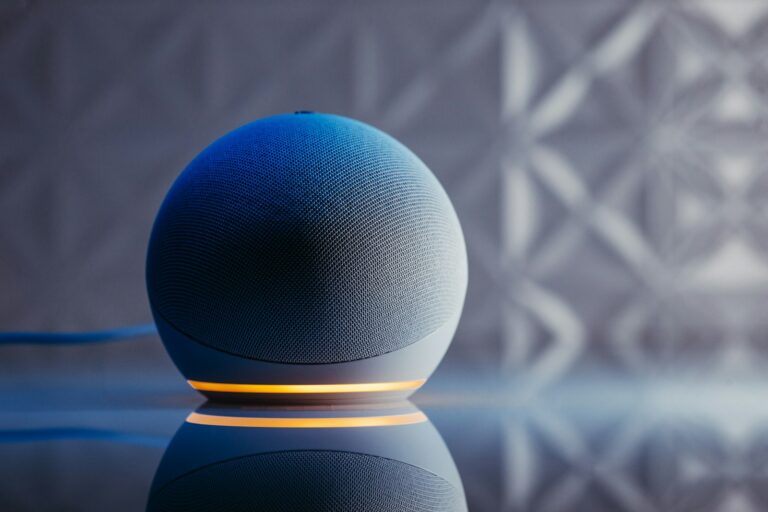
The newer Echo Dot models feature a distinctive spherical design that replaced the hockey puck shape of earlier generations. This modern look includes an LED light ring at the base that indicates when Alexa is listening or processing requests.
Physical controls sit on top of the device, including:
- Action button – Activates Alexa without the wake word
- Volume up/down buttons – Control speaker volume
- Microphone off button – Disables all microphones for privacy
The 4th generation Echo Dot includes the 3.5mm audio jack, but the 5th generation has removed this port entirely. This is an important consideration if connecting to external speakers is a priority for you.
Echo Dots also feature improved internal speakers that deliver richer, clearer sound despite their small size.
Alexa Integration
Your Echo Dot becomes truly powerful through its integration with Amazon’s Alexa voice assistant. Setting up is simple through the Alexa app on your smartphone, which guides you through connecting to Wi-Fi and customizing settings.
Alexa can handle numerous tasks through voice commands:
- Play music from services like Amazon Music, Spotify, and Apple Music
- Control smart home devices (lights, thermostats, cameras)
- Set timers, alarms, and reminders
- Check weather and news updates
- Use communication features like Announcements to broadcast messages to other Echo devices
The Echo Dot also includes Alexa Guard, which can listen for concerning sounds like breaking glass or smoke alarms when you’re away and send alerts to your phone.
You can customize your experience by enabling various Alexa Skills that add new functionality, from games to guided meditation to home automation routines.
Audio Output Capabilities
Amazon Echo Dot devices offer several ways to enjoy audio. The options vary from using the built-in speaker to connecting external audio equipment for enhanced sound quality.
Built-In Speaker Quality
The Echo Dot’s built-in speaker quality has improved with each generation. Early models featured basic speakers suitable for voice responses and casual music listening.
The 4th generation Echo Dot introduced a more robust speaker design with improved bass response and clearer audio output. The spherical design helped create a fuller sound profile compared to previous puck-shaped models.
Echo Dot with Clock variants maintain the same speaker quality as their standard counterparts, just with the added visual display.
When using your Echo Dot in smaller rooms like bedrooms or offices, the built-in speaker may be sufficient. However, for larger spaces or better music quality, you’ll want to explore external options.
External Audio Connectivity
Most Echo Dot models offer external audio connectivity through wired or wireless methods. However, this capability varies by generation.
The Echo Dot 4th generation features a 3.5mm audio output jack on the back next to the power adapter. This allows you to connect your device to powered speakers, headphones, or sound systems using a standard auxiliary cable.
Bluetooth connectivity is available across all Echo Dot generations. You can pair your Echo Dot with Bluetooth speakers by saying, “Alexa, pair” or through the Alexa app settings menu.
Unfortunately, the Echo Dot 5th generation and Echo Pop models do not include a 3.5mm audio jack, limiting external connectivity to Bluetooth only.
A/V Receiver Integration
Integrating your Echo Dot with an A/V receiver expands its capabilities significantly. This setup is perfect for home theater enthusiasts or those seeking premium audio.
For Echo Dot models with 3.5mm output (generations 1-4), you can connect directly to your receiver’s auxiliary input. Use a 3.5mm to RCA cable for receivers that lack a 3.5mm input port.
Alternatively, connect your Echo Dot to your A/V receiver via Bluetooth if your receiver supports wireless connections. This creates a clean setup without visible cables.
Many modern receivers also support Wi-Fi network streaming. You can add your Echo Dot and receiver to the same audio group within the Alexa app, allowing synchronized playback throughout your home.
For voice control of your entire system, ensure your receiver is compatible with Alexa voice commands. This allows you to adjust volume, change inputs, or power on/off your system using your Echo Dot.
Setting Up Your Echo Dot
Setting up a new Echo Dot properly ensures you’ll get the best audio experience possible. The process involves getting your device connected to Wi-Fi, configuring essential settings, and linking your smart home ecosystem.
Connecting to Wi-Fi
Start by plugging your Echo Dot into a power outlet. The light ring will turn blue and then orange, indicating it’s in setup mode. If it doesn’t enter setup mode automatically, press and hold the Action button for about 6 seconds until the light turns orange.
Open the Alexa app on your smartphone and tap “Devices” at the bottom. Select the “+” icon and choose “Add Device.” Select “Amazon Echo” followed by “Echo Dot.”
Follow the in-app instructions to connect to your Wi-Fi network. You’ll need to:
- Select your home Wi-Fi network
- Enter your Wi-Fi password
- Wait for your Dot to connect (this takes about 1-2 minutes)
Your Echo Dot will announce when it’s connected successfully.
Alexa App Configuration
The Alexa app serves as your Echo Dot’s control center. After connecting to Wi-Fi, customize your device settings for optimal audio performance.
Navigate to “Devices” > “Echo & Alexa” > select your Dot. Here you can:
- Change your device name to something memorable
- Set your location for accurate weather and local information
- Adjust audio settings including equalizer preferences
- Configure audio output options if using external speakers
For Echo Dot models with an audio jack, you can connect to external speakers using a 3.5mm cable. Note that the 5th generation Echo Dot doesn’t include an audio jack, while earlier models do.
To use AUX input, go to “Devices” > “Echo & Alexa” > select your Dot > “Speaker” > switch to AUX after connecting your cable.
Registering Smart Home Devices
Your Echo Dot can serve as a central hub for controlling smart home devices through voice commands.
To add smart devices:
- Tap “Devices” in the Alexa app
- Select the “+” icon and choose “Add Device”
- Select the type of device or manufacturer
- Follow the specific instructions for that device
The newest Echo Dot models support Matter, a universal smart home standard that simplifies connecting compatible devices. Look for the Matter logo on new smart home products for easier integration.
You can create device groups to control multiple items with a single command. For example, saying “Alexa, turn on living room lights” can activate all lights in that group.
Test your connections by asking Alexa to control each device. Most common commands include turning devices on/off, changing brightness/volume, or adjusting temperature settings.
Advanced Echo Dot Features
The Echo Dot offers sophisticated capabilities beyond basic audio output functions. These features transform your smart speaker into a central hub for home automation, entertainment, and security.
Creating Routines and Groups
Routines allow you to automate multiple actions with a single command. You can create morning routines that turn on lights, read the news, and play music when you say “Alexa, good morning.” Setting up routines is simple through the Alexa app under the “Routines” section.
Groups help you control multiple smart devices simultaneously. You can create a “Living Room” group that includes lights, plugs, and your Echo Dot. This allows you to say “Alexa, turn off the living room” to control everything at once.
Custom routines can be triggered by phrases, schedules, or even when motion is detected by compatible devices. For example, you can create a routine that turns on hallway lights when your Ring doorbell detects motion.
Home Theater Setup
Your Echo Dot can enhance your home entertainment system through its audio output capabilities. The latest Echo Dot models offer Bluetooth connectivity while older versions include a 3.5mm output jack.
For a more immersive experience, connect your Echo Dot to external speakers or sound systems. The Gen 4 Echo Dot doesn’t support audio input but provides excellent output options. Note that the Gen 5 has eliminated the audio jack entirely, focusing instead on improved built-in audio.
You can distribute audio to multiple speakers using an audio distribution amplifier. This setup allows you to play synchronized music throughout your home, creating a whole-house audio system.
Alexa Guard and Guard Plus
Alexa Guard transforms your Echo Dot into a security device at no additional cost. When enabled, your device listens for concerning sounds like breaking glass or smoke alarms while you’re away. It sends alerts to your phone if detected.
Alexa Guard Plus is a subscription service that adds more security features:
- Enhanced sound detection: Recognizes footsteps, doors closing, or other activity
- Emergency Helpline: Access to emergency services through Alexa
- Deterrent sounds: Plays dog barking or siren sounds when motion is detected
To activate Guard, simply say “Alexa, I’m leaving” and the service begins monitoring. When you return, say “Alexa, I’m home” to deactivate it. These features work with your Echo Dot’s improved speakers to help keep your home secure.
Voice Control and Commands
The Echo Dot’s voice control capabilities transform how you interact with your audio system. Alexa responds to a wide range of commands that make managing music and connecting with third-party services simple and intuitive.
Managing Audio Playback
You can control your Echo Dot’s audio output using simple voice commands. Start with basic phrases like “Alexa, play music” or get more specific with “Alexa, play jazz on Spotify.”
Volume control is straightforward with commands such as “Alexa, volume up” or “Alexa, set volume to 5.” When you need to pause or resume, simply say “Alexa, pause” or “Alexa, resume.”
For more refined control, try these commands:
- “Alexa, skip this song”
- “Alexa, play the previous track”
- “Alexa, loop this playlist”
- “Alexa, shuffle my favorites”
When connecting your Echo Dot to external speakers, you’ll still use the same voice commands to control playback, with the audio now coming through your preferred sound system.
Voice Commands for Third-Party Services
Your Echo Dot works seamlessly with numerous third-party music services including Spotify, Apple Music, Pandora, and Amazon Music. Simply specify the service in your command: “Alexa, play my workout playlist on Apple Music.”
To switch between services, you can set a default music provider in the Alexa app settings. Once set, Alexa will use this service unless you specify otherwise.
Beyond music, you can control podcast playback with commands like “Alexa, play The Daily podcast” or “Alexa, resume my podcast.”
If you experience issues with Alexa not responding to commands, try resetting your device by unplugging it for 30 seconds before plugging it back in. This often resolves temporary voice recognition problems.
Troubleshooting and Support
When your Echo Dot has audio problems, finding the right solution quickly helps you get back to enjoying your device. These common issues often have simple fixes that you can handle yourself before contacting Amazon support.
Common Audio Issues
If your Echo Dot isn’t producing sound, first check your device’s volume settings. Say “Alexa, volume up” or adjust it manually using the volume buttons. Sometimes the issue is as simple as the device being muted.
For Echo Dots connected to external speakers via aux cable, ensure the cable is properly plugged in and your external speaker is powered on. Many users report that their Echo Dot works with headphones but not through its speaker, which often indicates a connection problem.
Try restarting your device by unplugging it for about 30 seconds and then plugging it back in. This simple step resolves many audio issues.
If your Echo Dot still isn’t working, check if Bluetooth is interfering by saying “Alexa, disconnect” to remove any paired devices.
Firmware Updates
Your Echo Dot regularly receives automatic firmware updates that fix bugs and improve functionality. Outdated firmware can cause audio problems, so ensuring your device has the latest updates is essential.
To check for updates, open the Alexa app and select:
- Devices > Echo & Alexa
- Select your specific Echo Dot
- Scroll down to find the firmware version
Your device updates automatically when connected to Wi-Fi and plugged in. If you suspect it needs an update, try:
- Keeping it plugged in overnight
- Ensuring it has a strong Wi-Fi connection
- Manually checking for updates in the Alexa app
Amazon typically rolls out updates gradually, so if audio problems persist after other troubleshooting steps, waiting a few days might allow your device to receive the latest firmware.
Tech Support Resources
When self-troubleshooting doesn’t work, Amazon offers several support options. The Amazon Customer Service page for Echo Dot provides comprehensive guides for common issues.
The Amazon Forum is an excellent resource where users share solutions. Many audio problems have been discussed, such as aux audio not working with helpful community responses.
For personalized help, you can:
- Contact Amazon customer service directly via the Alexa app
- Use the live chat option on Amazon’s website
- Call the dedicated Echo support line
Some users prefer services like JustAnswer, where verified experts can provide technical assistance. These experts go through a quality verification process to ensure you receive accurate advice for your specific Echo Dot audio problem.
Frequently Asked Questions
Users often have specific questions about connecting their Echo Dot to external audio devices. The Echo Dot offers several connectivity options that enhance its versatility as a smart speaker.
Can the Amazon Echo Dot be used with external speakers?
Yes, the Echo Dot can be connected to external speakers. This feature allows you to enjoy better sound quality than what’s possible through the built-in speaker alone.
You can connect your Echo Dot to external speakers using either a 3.5mm audio cable or via Bluetooth pairing. This flexibility makes it easy to integrate your Echo Dot into your existing audio setup.
Does the Echo Dot feature an auxiliary output port?
Yes, the Echo Dot comes equipped with a 3.5mm auxiliary output port. This port is located on the back of the device and allows for direct connection to external speakers or audio systems.
The auxiliary port provides a simple plug-and-play solution for connecting to most home stereo systems, soundbars, or powered speakers without requiring additional adapters.
What are the methods to connect an Echo Dot to a stereo system?
You can connect an Echo Dot to a stereo system using two primary methods. The first is through the 3.5mm audio cable connection directly from your Echo Dot to your stereo’s auxiliary input.
The second method is via Bluetooth pairing, which provides a wireless connection option. However, some users have reported sound quality issues when using the 3.5mm connection, so you may need to adjust your stereo’s settings for optimal results.
Is there an audio output on the Echo Spot similar to the Echo Dot?
The Echo Spot, unlike the Echo Dot, does not feature a 3.5mm auxiliary output port. This is a key difference between the two devices.
If you’re looking to connect to external speakers, the Echo Spot relies solely on Bluetooth connectivity for external audio output. This limitation should be considered when choosing between Echo devices for your home audio setup.
How many watts is the Echo Dot’s speaker output?
The Echo Dot’s internal speaker output is relatively low-powered at approximately 1.6 watts. This limited power explains why many users choose to connect it to external speakers.
The small form factor of the Echo Dot necessitates this lower power output, making external audio connections particularly valuable for those seeking better volume and sound quality.
Which generation of Echo Dot includes an auxiliary output?
All generations of the Echo Dot (1st through 5th) include a 3.5mm auxiliary output port. This consistent feature has made the Echo Dot a popular choice for audio enthusiasts.
The auxiliary output has been maintained as a standard feature across Echo Dot generations, allowing for backward compatibility with various audio systems and continued support for wired connections to external speakers.