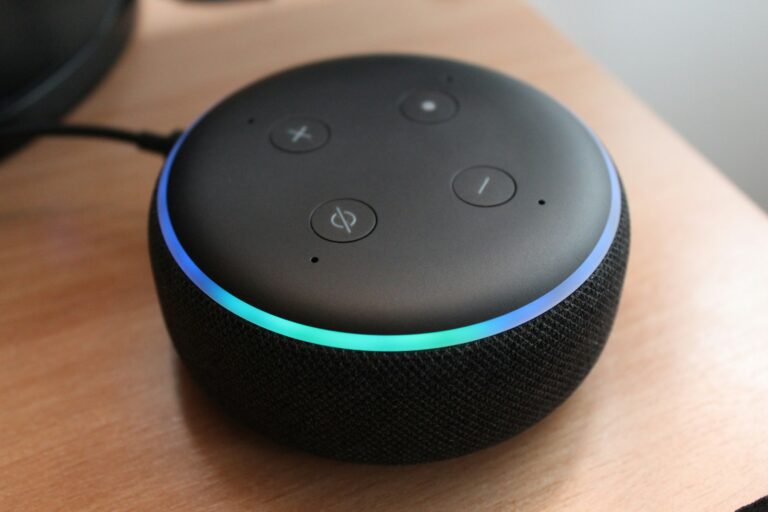
Sometimes our Amazon Echo devices need a reset to fix problems or prepare for a new owner. Whether your Alexa isn’t responding correctly or you want to start fresh, knowing how to reset your device is essential. You can reset most Echo devices by pressing and holding the Microphone off and Volume down buttons for about 20 seconds until the light ring turns off and back on again.
Resetting your Alexa device returns it to factory settings, removing all personal data and preferences you’ve set up. This process varies slightly depending on which Echo generation you own. For example, the Echo Dot requires different button combinations than the standard Echo models.
After the reset, your device will enter setup mode, allowing you to reconnect it to your Wi-Fi network and Amazon account. This fresh start can often solve common Alexa problems like connection issues, unresponsiveness, or strange behavior that might be frustrating your smart home experience.
How to Reset Alexa: Quick Solutions for Device Troubleshooting
If your Alexa device isn’t responding, won’t connect to Wi‑Fi, or keeps acting strangely, resetting it is often the fastest fix. This guide explains when to restart vs. reset Alexa and provides step‑by‑step instructions for popular Echo devices.
Restart vs. Reset: What’s the Difference?
Restart (Soft Reset)
- Fixes minor glitches
- Keeps all settings intact
- Best for temporary issues
Factory Reset (Hard Reset)
- Erases all settings and Wi‑Fi info
- Required when selling, gifting, or fixing persistent problems
Quick Fix: Restart Your Alexa Device
Try this first.
- Unplug your Echo device from the power outlet.
- Wait 30 seconds.
- Plug it back in and wait for Alexa to restart.
✅ Often resolves audio, connection, and responsiveness issues.
How to Factory Reset Alexa Devices
Echo & Echo Dot (4th and 5th Gen)
- Press and hold the Action button (●) for 20 seconds.
- Wait for the light ring to turn off and on again.
- Alexa will enter setup mode.
Echo Dot (3rd Gen), Echo Plus (2nd Gen)
- Press and hold Volume Down + Microphone Off.
- Hold for 20 seconds until the light ring changes.
- Device resets automatically.
Echo (1st & 2nd Gen)
- Press and hold Microphone Off + Volume Down.
- Hold for 20 seconds.
- Release when the light ring turns orange.
Echo Show & Echo Spot (Touchscreen Models)
Option 1: Using Buttons
- Press and hold Volume Down + Microphone/Camera Off.
- Hold for 20 seconds.
Option 2: On‑Screen Reset
- Swipe down from the top of the screen.
- Tap Settings → Device Options.
- Tap Reset to Factory Defaults.
Echo Studio
- Press and hold Volume Down + Microphone Off.
- Hold for 20 seconds until the light ring changes.
Reset Alexa Without Losing Smart Home Settings (Optional)
If you’re only changing Wi‑Fi:
- Open the Alexa app.
- Go to Devices → Echo & Alexa.
- Select your device.
- Tap Change Wi‑Fi Network.
✅ No need for a full reset.
After Reset: Set Up Alexa Again
- Open the Alexa app.
- Go to Devices → + Add Device.
- Follow the setup instructions.
- Reconnect to Wi‑Fi and sign in.
Common Issues & Fast Solutions
Alexa won’t connect to Wi‑Fi
- Restart your router
- Move Echo closer to the router
- Ensure Wi‑Fi password is correct
Alexa isn’t responding
- Check microphone is on
- Lower background noise
- Restart device
Alexa keeps disconnecting
- Update the Alexa app
- Check for router firmware updates
When Should You Reset Alexa?
- Device won’t respond after restarting
- Alexa won’t connect to Wi‑Fi
- You’re selling or gifting the device
- Persistent glitches or freezing
Key Takeaways
- Echo devices can be reset by holding specific button combinations for approximately 20 seconds until the light ring cycles.
- Resetting removes all personal settings and returns the device to factory condition, solving many common problems.
- Different Echo generations require different reset methods, so check your specific model instructions before proceeding.
Understanding Alexa and Amazon Echo
Amazon’s voice assistant technology has revolutionized how people interact with their homes and devices. Alexa serves as the brain behind Echo devices, creating a seamless smart home experience through voice commands.
The Role of Alexa in Smart Home Automation
Alexa is Amazon’s cloud-based voice service that powers the Echo lineup of smart speakers and displays. This intelligent assistant can understand and respond to voice commands, making everyday tasks simpler through hands-free control.
Users can ask Alexa to play music, answer questions, read the news, check the weather, and control compatible smart home devices. The system works by sending voice recordings to Amazon’s cloud when the wake word “Alexa” is detected.
One of Alexa’s key strengths is its ability to connect with thousands of smart home products from different manufacturers. This includes:
- Lighting systems (Philips Hue, LIFX)
- Thermostats (Nest, Ecobee)
- Security cameras (Ring, Arlo)
- Door locks (August, Yale)
Alexa’s skills (voice applications) extend functionality even further, allowing users to order food, request rides, or play interactive games through simple voice commands.
Overview of Echo Devices
Amazon offers several Echo devices to suit different needs and spaces. The standard Amazon Echo serves as the cornerstone of the lineup, featuring quality speakers and full Alexa capabilities.
The compact Echo Dot provides a more affordable entry point for those with limited space or budget. Despite its smaller size, it maintains all core Alexa features.
For visual interaction, the Echo Show adds a touchscreen display that can show weather forecasts, display recipes, make video calls, and stream content from services like Amazon Prime Video.
Premium options like the Echo Plus integrate built-in smart home hubs, eliminating the need for separate hub devices when connecting certain smart home products.
Each Echo generation brings improvements in sound quality, processing power, and design aesthetics. The latest models feature enhanced privacy controls, including physical microphone off buttons and the ability to delete voice recordings.
Preparation for Reset
Before resetting your Alexa device, some important preparations will ensure the process goes smoothly and you can quickly restore your settings afterward. Taking these steps helps prevent potential issues and data loss.
Checking Device Compatibility
Different Amazon Echo generations require different reset methods. The Echo 3rd and 4th generations have specific button combinations for resetting. Older models like the 1st generation Echo have their own reset procedures.
Users should identify their specific Alexa device model before attempting a reset. This information is typically found on the bottom of the device or in the original packaging.
The reset process varies significantly between Echo Dots, Echo Shows, and standard Echo devices. Each model has unique hardware buttons and configurations that affect how the reset is performed.
Echo devices with screens offer additional reset options through the device’s settings menu, which isn’t available on speaker-only models.
What You Need Before You Start
Having access to the Alexa app on a smartphone or tablet is essential for the reset process. Users should ensure the app is updated to the latest version for optimal functionality.
A working Amazon account credentials will be needed to reconfigure the device after reset. This includes having the email and password associated with the Alexa device ready.
Strong and stable Wi-Fi network connectivity is crucial for completing the setup after resetting. Users should verify their Wi-Fi password is correct and the signal is strong where the device is located.
Power supply availability is another requirement. The device should remain plugged in throughout the reset process to avoid interruptions that could cause incomplete resets.
Steps to Reset Your Alexa Device
Resetting an Amazon Echo device can solve many common issues like connectivity problems, unresponsive behavior, or preparing it for a new owner. The process varies slightly depending on your specific Echo model.
Performing a Soft Reset
A soft reset is the gentlest way to troubleshoot your Alexa device without losing your personal settings. Start by unplugging your Echo device from the power source for about 30 seconds, then plug it back in. This simple action often resolves minor glitches and connectivity issues.
For Echo devices with screens, a soft reset might also involve pressing and holding the power button for about 15 seconds until the screen turns off and on again.
If your Echo is unresponsive to voice commands, check if the microphone is turned off. Look for a red light ring or indicator, then press the microphone button to turn it back on.
Restarting the Alexa app on your smartphone can also help resolve synchronization issues between your phone and Echo device.
Executing a Factory Reset
A factory reset erases all personalized settings and returns your Echo to its original state. For most Echo 3rd or 4th generation devices, press and hold the Microphone off and Volume down buttons simultaneously for 20 seconds until the light ring turns off and on again.
For Echo Dot models, press and hold the Action button for about 25 seconds. The light ring will pulse orange, indicating the reset process has begun.
Echo Show devices can be reset through the device settings menu:
- Swipe down from the top of the screen
- Select “Settings”
- Choose “Device Options”
- Select “Reset to Factory Defaults”
After resetting, you’ll need to set up your device again using the Alexa app. The device will enter setup mode automatically with an orange light ring.
Troubleshooting Post-Reset Issues
If your Echo device fails to reset properly, ensure you’re following the exact button combination for your specific model. Button locations and combinations vary between generations and models.
Sometimes the device may remain unresponsive even after a reset attempt. In this case, check that your Echo is receiving power—the light ring should illuminate when plugged in.
Network connectivity problems are common after a reset. During setup, make sure your phone is connected to the same Wi-Fi network you want your Echo to use. If setup fails repeatedly, try moving the Echo closer to your router.
If voice recognition seems poor after reset, run the voice training again through the Alexa app. Go to Devices > select your Echo > Voice > Voice Training.
For persistent issues, contact Amazon customer support through the Alexa app or website, as hardware problems might require replacement.
Reconnecting to Services Post-Reset
After resetting your Alexa device, you’ll need to reconnect it to your network, account, and smart home services. This process involves three main steps to get your device working properly again.
Setting Up Wi-Fi Connection
To reconnect your Alexa to Wi-Fi, first open the Amazon Alexa app on your smartphone. Tap the Devices icon at the bottom right corner, then select “Echo & Alexa” to see your devices.
Select your reset device from the list. If the device isn’t showing up, put it in setup mode by pressing and holding the action button until the light ring turns orange.
In the app, choose “Set up a new device” and follow the on-screen instructions. The app will guide you through connecting your Echo to your home Wi-Fi network.
If connection problems persist, try moving your Echo closer to your router. Restarting your router can also help resolve connectivity issues that prevent successful reconnection.
Re-linking to Amazon Account
After establishing Wi-Fi connectivity, you’ll need to reconnect your device to your Amazon account. The Alexa app will automatically prompt you to sign in with your Amazon credentials during the setup process.
Verify your account details and confirm the correct Amazon account. If you use multiple Amazon accounts, ensure you’re signing in with the one you want associated with this device.
Once signed in, the app will ask you to confirm device settings such as:
- Device name
- Location (room assignment)
- Language preferences
If you’re setting up after a factory reset, you may need to reselect these options even if they were configured before. The process typically takes 2-3 minutes to complete.
Restoring Smart Home Integrations
With Wi-Fi and account connection established, you’ll need to rebuild your smart home connections. Open the Alexa app and navigate to the “Devices” tab, then select the “+” icon to add smart home devices.
Choose “Add Device” and select the brand or type of smart home product you want to reconnect. The app will walk you through the specific steps for each brand’s integration process.
For previously connected devices, Alexa may recognize them automatically. However, you’ll likely need to:
- Reconnect third-party skills
- Rebuild device groups
- Recreate routines that control multiple devices
Smart home devices like lights, plugs, and thermostats need individual reconnection. Check that each device responds to voice commands after reconnection. If devices aren’t responding, you may need to restart your Echo by unplugging it for 10 seconds and plugging it back in.
Understanding Indicators and Lights
Your Alexa device communicates important status information through different colored lights and patterns. These visual indicators help troubleshoot issues and understand what your device is doing at any given moment.
Significance of the Orange Light
An orange spinning light on your Echo device typically indicates that your Alexa is in setup mode or is attempting to connect to your network. This light appears during the initial setup process or when you reset your Echo device.
When troubleshooting your device, the orange light can be intentionally triggered. For example, you can force a factory reset by pressing and holding the Microphone Off and Volume Down buttons simultaneously for about 20 seconds. Once you see the orange spinning light ring, you’ll know the reset process has begun.
It’s important to distinguish between different light indicators. While orange means setup or reset mode, a solid red light indicates that the microphone is turned off, and Alexa isn’t listening to commands.
If your Echo device shows an orange light unexpectedly, it might be experiencing connectivity issues that require attention.
Support & Resources
When dealing with Alexa reset challenges, several support channels can help users troubleshoot problems. These resources range from Amazon’s built-in app support to professional assistance options that can address more complex issues.
Utilizing the Alexa App for Support
The Alexa app serves as the central hub for managing Echo devices and finding support options. Users can access troubleshooting guides directly through the app by navigating to the “Help & Feedback” section. This area contains detailed instructions for common reset procedures and connectivity issues.
The app also features a “Device Settings” menu where users can find device-specific help articles. When experiencing problems with a particular Echo device, users should tap on that device in the app and look for the gear icon to access troubleshooting tools.
Amazon regularly updates these support resources to address new issues. The app’s built-in diagnostic tools can automatically detect and suggest solutions for common problems, making it an excellent first stop for troubleshooting before trying more advanced reset procedures.
Contacting Tech Support
When self-service options aren’t enough, Amazon offers several ways to contact tech support directly. The fastest method is often through the Amazon website or app by selecting “Customer Service” and then “Echo & Alexa Devices.”
Users can choose between:
- Live chat: Available 24/7 with minimal wait times
- Phone support: Direct assistance from Alexa specialists
- Email: Best for non-urgent issues requiring detailed explanations
For complex reset issues, phone support typically provides the most efficient help. Support agents can walk users through advanced reset techniques not covered in basic documentation.
Amazon’s support team can also verify if hardware issues might be causing reset problems. Devices under warranty may qualify for free replacement if reset attempts fail due to hardware failures.
Exploring Third-Party Help Options
Beyond Amazon’s official channels, several third-party resources offer specialized Alexa troubleshooting assistance. JustAnswer provides access to verified tech experts who can address unusual reset scenarios for a fee, often with faster response times than official channels.
Online forums like Reddit’s r/amazonecho community contain user-contributed solutions for specific device models. These communities often discover workarounds for new issues before official documentation is updated.
YouTube tutorials provide visual step-by-step reset guides that can be easier to follow than written instructions. These videos often demonstrate physical button combinations and timing required for proper resets.
Third-party support services may offer extended troubleshooting for older Echo models that have limited official support. These services can be particularly valuable for first-generation devices with unique reset procedures.
Frequently Asked Questions
Resetting Alexa devices involves different procedures depending on the model. These methods can help solve common issues like connectivity problems or unresponsive behavior.
What are the steps to reset an Echo Dot (2nd Generation) to factory settings?
To reset an Echo Dot (2nd Generation), press and hold the Microphone Off and Volume Down buttons simultaneously for about 20 seconds. The light ring will turn orange, then blue.
After the light turns off and back on, it will enter setup mode with an orange ring. This indicates the device has been factory reset and is ready for setup again.
How can I reset an Echo Dot (3rd Generation) when it becomes unresponsive?
For an unresponsive Echo Dot (3rd Generation), first try a restart by unplugging the power adapter, waiting 10 seconds, and plugging it back in. If issues persist, perform a factory reset.
Press and hold the Action button for about 25 seconds until the light ring turns orange and then blue. The device will restart and enter setup mode with an orange light ring.
Can you reset an Amazon Echo (1st Generation) without using the Alexa app?
Yes, an Amazon Echo (1st Generation) can be reset without the app. Locate the reset button on the bottom of the device – it’s a small hole.
Use a paperclip or similar slim tool to press and hold the reset button for about 5-8 seconds. The light ring will turn orange, indicating the reset process has begun.
What is the procedure to reset an Echo Show device?
To reset an Echo Show, press and hold both the Mute and Volume Down buttons simultaneously until the Amazon logo appears (approximately 15 seconds).
After seeing the logo, the device will display on-screen instructions to complete the setup process. Follow these steps to reconfigure your device from scratch.
How do I reconnect my Alexa device to Wi-Fi after a reset?
After resetting, open the Alexa app on your smartphone and select “Devices” at the bottom of the screen. Tap the “+” icon and choose “Add Device.”
Select “Amazon Echo” and follow the on-screen instructions to connect to your Wi-Fi network. The app will guide you through the entire setup process including Wi-Fi configuration.
What should I do if my Alexa device is unresponsive and requires a reset?
First, try a simple restart by unplugging the device for about 30 seconds, then plugging it back in. This often resolves minor issues without losing settings.
If the device remains unresponsive, perform a factory reset using the appropriate method for your specific model. Note that this will erase all personalized settings and require complete device setup again.