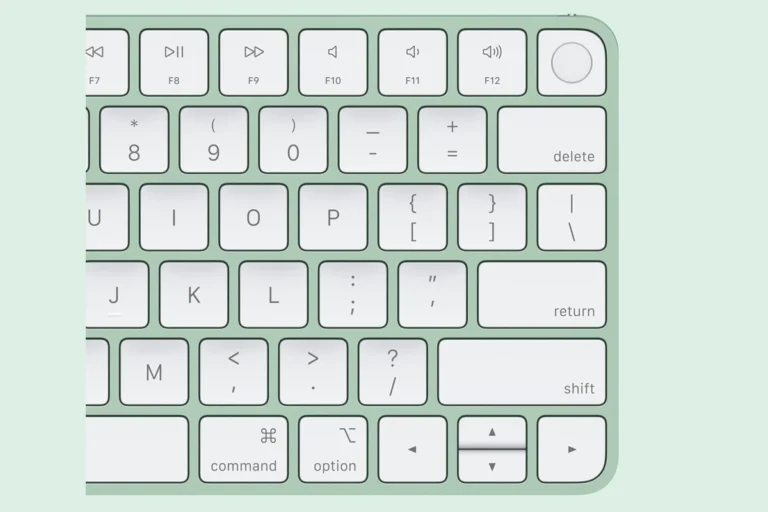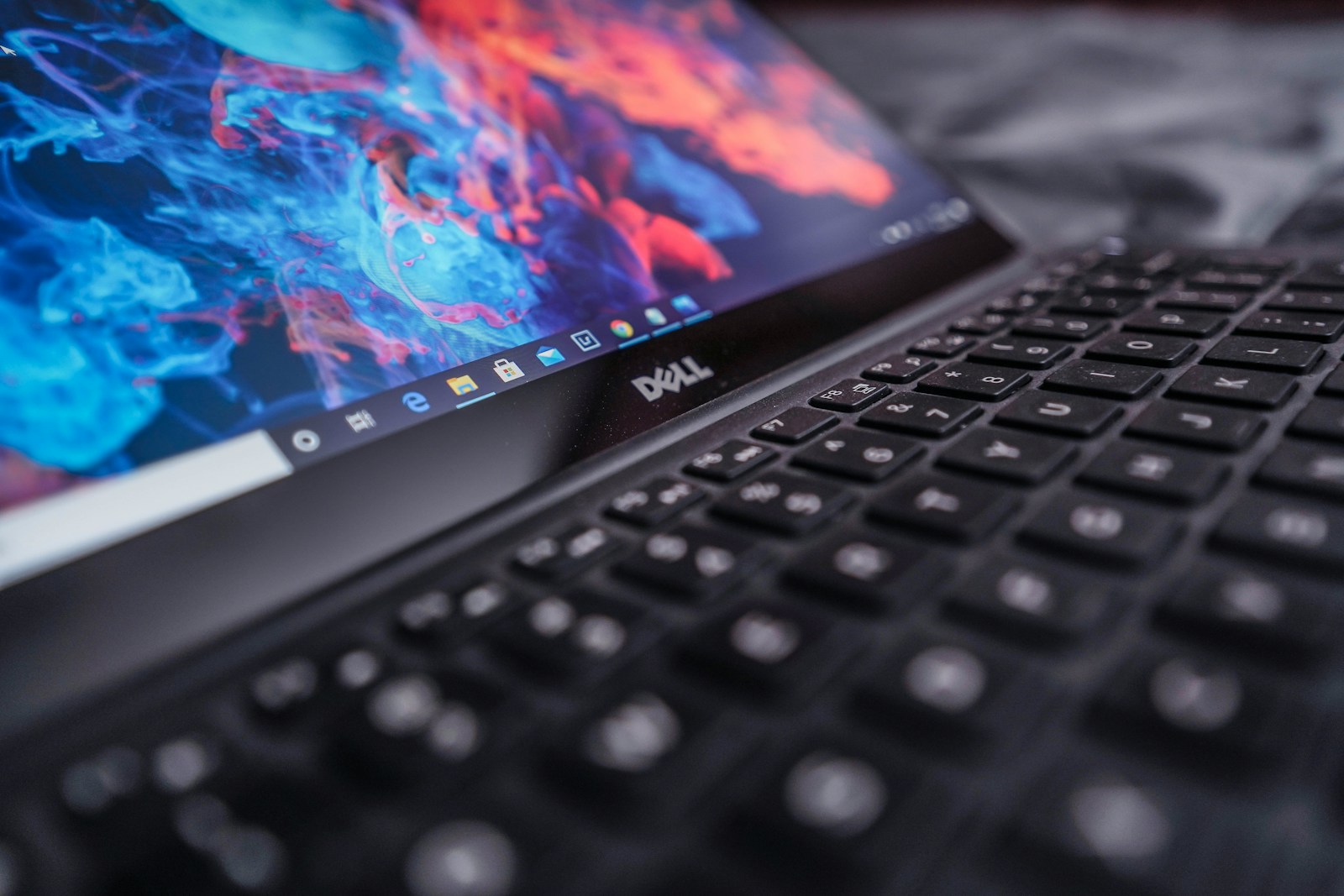
Having a backlit keyboard on your Dell laptop can be a game-changer when working in low-light environments. Many Dell laptop users don’t realize their keyboard has this helpful feature or aren’t sure how to activate it. To turn on your Dell backlit keyboard, press the F10 key or Fn+F10 key combination, depending on your laptop model. Some Dell laptops may use different key combinations like Fn+F6 or have dedicated backlight buttons.
If the keyboard shortcut doesn’t work, you might need to check your system settings. Dell provides multiple ways to control the keyboard backlight through Windows settings or BIOS configuration. The brightness can usually be adjusted through the same key combinations, often by pressing them multiple times to cycle through different brightness levels.
When troubleshooting backlight issues, ensure your laptop’s battery isn’t critically low, as some models automatically disable the keyboard backlight to conserve power. You may also need to enable the feature in BIOS if it was previously turned off during a system update or reset.
How To Turn On a Dell Backlit Keyboard
Many Dell laptops come with backlit keyboards to help you type easily in low-light environments. Here’s how to enable and adjust the keyboard backlight on your Dell laptop.
Step 1: Check if Your Dell Laptop Has a Backlit Keyboard
- Not all Dell laptops have backlit keyboards. Confirm your model supports this feature by checking the user manual or Dell’s website.
- Look for a keyboard icon with light rays on one of the function keys (usually F10, F6, or F5).
Step 2: Use the Keyboard Shortcut
- Press the Fn key + the Backlight key (often F10, F6, or F5 with a keyboard light icon).
- Each press toggles the backlight through brightness levels (Off → Low → High).
Step 3: Adjust Backlight Settings in BIOS (If Shortcut Doesn’t Work)
- Restart your Dell laptop.
- Press F2 repeatedly during startup to enter BIOS setup.
- Navigate to the Keyboard Backlight or System Configuration section.
- Ensure the keyboard backlight is enabled.
- Save changes and exit BIOS.
Step 4: Adjust Backlight Settings in Windows Mobility Center
- Press Windows key + X and select Mobility Center.
- Look for the Keyboard Brightness tile and adjust the slider if available.
Step 5: Update Keyboard Drivers and BIOS
- Go to Dell’s support website and download the latest keyboard drivers and BIOS updates for your model.
- Install updates and restart your laptop.
Troubleshooting Tips
- If the backlight doesn’t turn on, check if your laptop is in Battery Saver mode; some laptops disable backlighting to save power.
- Make sure your keyboard drivers are up to date.
- If you still can’t enable the backlight, contact Dell support.
Summary Table
| Step | Action |
|---|---|
| Confirm Backlit Keyboard | Check laptop specs and keyboard icons |
| Use Keyboard Shortcut | Press Fn + F10 (or F6/F5) to toggle backlight |
| Enable in BIOS | Enter BIOS and enable keyboard backlight |
| Adjust in Windows Mobility Center | Use Windows Mobility Center to adjust brightness |
| Update Drivers and BIOS | Download updates from Dell support site |
Key Takeaways
- Dell backlit keyboards typically activate using Fn+F10 or F10 alone, with multiple presses adjusting brightness levels.
- Keyboard backlights can be configured through BIOS settings if standard key combinations aren’t working.
- Low battery power or certain power-saving modes may automatically disable the keyboard backlight functionality.
Understanding Backlit Keyboards
Backlit keyboards provide illumination that makes typing in dim or dark environments easier and more efficient. The technology uses strategically placed lights to illuminate the keys from underneath, creating clear visibility of each character.
Benefits of a Backlit Keyboard
Backlit keyboards offer several practical advantages for Dell laptop users. The most significant benefit is the ability to work comfortably in low-light conditions without straining your eyes. This feature is especially useful during night flights, in dimly lit conference rooms, or while working late.
Many Dell keyboard backlight systems include brightness adjustment options, allowing users to customize the illumination level to match their environment. This adaptability helps reduce eye fatigue during extended typing sessions.
The illuminated keys also add a professional aesthetic to Dell laptops. They make the device look more premium and sophisticated while serving a practical purpose.
For professionals who travel frequently, the backlit keyboard eliminates the need for external lighting sources when working in dark environments.
Key Components and Mechanism
The typical Dell backlit keyboard consists of several essential components working together. LED lights form the foundation of the system, positioned beneath the keycaps to provide even illumination across all keys.
A light guide panel helps distribute the light uniformly, ensuring consistent brightness throughout the keyboard. This component is crucial for delivering a comfortable typing experience.
The keyboard controller manages the backlight functionality, including:
- Toggling the lights on/off
- Adjusting brightness levels
- Managing power consumption
Most Dell models use a dedicated function key combination (typically involving the Fn key plus F5, F6, F7, or F10) to control the keyboard backlight. The specific key combination varies by model but is usually marked with a backlight icon.
The system also includes power management features that automatically turn off the keyboard illumination after periods of inactivity to conserve battery life.
Preparing to Enable the Backlit Keyboard
Before attempting to turn on your backlit keyboard, it’s important to verify your Dell laptop supports this feature and understand the necessary system conditions for proper functionality. These preparations can save you time and frustration.
Checking Your Dell Model’s Capabilities
Not all Dell laptops come equipped with backlit keyboards. To determine if your Dell model has this feature, check the keyboard for a backlight symbol on one of the function keys (commonly F5, F6, F7, or F10). This symbol typically looks like a rectangle with rays coming out of it.
You can also verify backlight capability by:
- Checking your laptop’s product specifications on the Dell support website
- Looking in your laptop’s manual for mentions of keyboard backlighting
- Examining the space between keys for light leakage in a dark room
Some premium Dell models like XPS, Alienware, and higher-end Inspiron and Latitude series typically include backlit keyboards as standard features.
System Requirements for Backlit Functionality
For a Dell backlit keyboard to function properly, several system requirements must be met. First, ensure your laptop has sufficient battery power, as the backlight may automatically disable when battery levels are critically low.
The backlight feature must be enabled in BIOS on certain models. To check this setting:
- Restart your Dell laptop
- Press F2 repeatedly at the Dell logo to enter BIOS
- Navigate to System Configuration or Advanced settings
- Look for Keyboard Illumination or similar option
- Ensure it is set to “Enabled” or “Bright”
Dell laptops should have updated drivers and firmware to avoid backlight functionality issues. If your keyboard backlight isn’t working despite being supported, consider updating your BIOS and Dell software to the latest versions.
Activating Backlit Keyboard in Windows 10
Dell laptops with backlit keyboards allow users to type comfortably in low-light environments. The keyboard backlight can be easily turned on and adjusted using the built-in function keys.
Using the Function (Fn) Keys
To turn on your Dell backlit keyboard in Windows 10, look for the backlight key on your keyboard. This key is commonly located on F5, F6, F7, or F10, depending on your Dell model.
Press and hold the Fn key (usually located at the bottom left of your keyboard) and then press the backlight key. This combination will cycle through the brightness options of your keyboard.
Most Dell laptops offer multiple brightness levels. Each time you press the key combination, the backlight will change from off to dim to bright, and then back to off.
If your keyboard doesn’t light up after trying these steps, check your Dell laptop’s BIOS settings. Some models may have the keyboard backlight disabled by default.
You can also adjust the backlight timeout settings through Windows 10 power options if you want the keyboard to automatically turn off after a period of inactivity.
Adjusting Backlit Keyboard Settings
Dell backlit keyboards offer customization options to enhance your typing experience in different lighting conditions. Users can modify both the brightness level and, on some models, the keyboard backlight color.
Brightness Settings
To adjust the brightness of your Dell backlit keyboard, press and hold the Fn key and then press the Backlit key. This key is typically marked with a keyboard icon and is commonly found on F5, F6, F7, or F10, depending on your Dell model.
Most Dell laptops offer three brightness settings:
- Low intensity
- High intensity
- Off
Each press of the Fn + Backlit key combination cycles through these options. If the keyboard doesn’t respond, users may need to initialize the keyboard backlight switch by pressing Fn+F10 (the specific key depends on the Dell model).
Some Dell laptops also allow backlight adjustments through the BIOS settings. To access this, restart the system and press F2 at the Dell logo to enter BIOS setup.
Changing Keyboard Backlight Color
Select Dell gaming laptops and premium models feature RGB backlit keyboards that allow color customization. These models typically use the Alienware Command Center or Dell Peripheral Manager software to adjust colors.
To change keyboard backlight colors on compatible models:
- Open the control software installed on your system (Alienware Command Center, Dell Peripheral Manager, etc.)
- Navigate to the keyboard settings section
- Select the color options from the available palette
- Apply the settings to save your preferences
Some high-end Dell models allow zone-based RGB lighting, where different sections of the keyboard can display different colors simultaneously. This feature enables users to create custom lighting profiles for gaming, productivity, or personal preference.
Note that standard Dell business laptops typically have single-color backlighting (usually white or blue) without color adjustment options.
Navigating BIOS for Backlit Keyboard Control
The Dell backlit keyboard function can sometimes be controlled at the system level through BIOS settings. This allows users to enable or disable the backlight feature directly from the computer’s firmware.
Accessing the BIOS
To access the BIOS menu on Dell computers, first shut down your device completely. Press the power button to turn it on, then immediately begin pressing the F2 key repeatedly until the BIOS setup screen appears.
Some Dell models may use different key combinations. If F2 doesn’t work, try pressing Del or F12 during startup, then select BIOS Setup from the boot menu.
For newer Dell laptops, you can also access the BIOS by going to Windows Settings > Update & Security > Recovery > Advanced Startup > Restart Now. After restarting, select Troubleshoot > Advanced Options > UEFI Firmware Settings.
BIOS Configuration for Backlit Keyboard
Once in the BIOS menu, navigate to the keyboard settings section. This is typically found under:
- System Configuration
- Post Behavior
- Keyboard Illumination
Use the arrow keys to highlight the keyboard backlight option. Set it to “Bright” to enable the backlit keyboard or “Disabled” to turn it off.
After making changes, press F10 to save and exit the BIOS. Your computer will restart with the new keyboard backlight settings applied. If the backlight option is missing, try resetting BIOS to default settings or check if a BIOS update is available.
Special Modes Impacting Keyboard Backlight
Certain Dell laptop modes can override your normal keyboard backlight settings. These special operational modes prioritize different functions that may temporarily disable or alter how your keyboard illumination works.
Stealth Mode and Keyboard Backlight Interaction
Stealth Mode on Dell laptops is designed to minimize the computer’s visibility in low-light environments. When activated, this mode automatically turns off the keyboard backlight along with other light-emitting components.
To enable Stealth Mode, press Fn + F7 on most Dell models. This combination triggers the mode that reduces light emissions for discreet operation.
While in Stealth Mode, manual attempts to adjust the keyboard backlight using the standard Fn + F10 combination will be temporarily overridden. The backlight remains disabled until Stealth Mode is deactivated.
To resume normal keyboard backlight functionality, press Fn + F7 again to exit Stealth Mode. After exiting, the keyboard backlight will return to its previous brightness setting.
Tablet Mode’s Effect on Backlight
When a convertible Dell laptop enters Tablet Mode, the keyboard backlight behavior changes to accommodate the new form factor. The system typically disables the keyboard backlight automatically to conserve battery power.
This automatic shutdown occurs because:
- The keyboard isn’t accessible in tablet orientation
- Power conservation becomes a priority
- Accidental key presses are prevented
The backlight will remain disabled until the device is returned to laptop mode. Once back in laptop configuration, users may need to manually reactivate the keyboard backlight by pressing Fn + F10.
Some Dell models feature proximity sensors that detect when the device transitions between modes. These sensors help manage the backlight state without requiring manual intervention.
Frequently Asked Questions
Dell backlit keyboards can be activated through various methods depending on your laptop model. Here are answers to common questions about turning on and managing your Dell keyboard’s lighting features.
How can I enable the keyboard backlight feature on a Dell Inspiron series laptop?
To turn on the backlight on Dell Inspiron laptops, press the F10 key or Fn + F10 key combination. This keyboard shortcut toggles the backlight on and off on most Inspiron models.
If your specific Inspiron model uses different keys, try the Fn + right arrow key combination to cycle through the backlight brightness levels.
Some Dell Inspiron models allow you to control the backlight through the Dell Mobility Center in Windows settings.
What steps are required to activate the keyboard lighting for Dell laptops running Windows 7 or newer?
On Dell laptops with Windows 7 or newer, press Fn + F10 (or just F10) to toggle the keyboard backlight on and off. This is the most common method across Dell models.
You can also access the Dell Mobility Center by right-clicking on the battery icon in the taskbar and selecting “Dell Mobility Center.” From there, find the keyboard backlight option.
For some Dell models, you might need to adjust settings in the BIOS to ensure the backlight feature is enabled first.
Is there a method to adjust the backlight intensity of a Dell G15 gaming laptop’s keyboard?
Dell G15 gaming laptops typically offer multiple backlight intensity levels. Press Fn + F10 repeatedly to cycle through different brightness levels.
Some G15 models include the Alienware Command Center software that provides more detailed control over keyboard lighting. This software allows for customized lighting zones and effects.
You can also use the Fn + right arrow key to cycle through different brightness settings on many Dell gaming laptops.
Why is the backlight on my Dell laptop’s keyboard not illuminating, and how can I troubleshoot it?
If your Dell keyboard backlight isn’t working, first verify your laptop model actually has a backlit keyboard feature. Not all Dell laptops come with this feature, so check your specific model specifications.
Try restarting your computer, as this can sometimes resolve temporary software issues affecting the keyboard backlight.
Check if the feature is enabled in the BIOS. Restart your computer and press F2 at the Dell logo to enter BIOS settings, then look for keyboard backlight options.
Can you provide guidance on managing keyboard backlight settings for a Dell laptop equipped with an Intel Core i5 processor?
Dell laptops with Intel Core i5 processors typically use the Fn + F10 key combination to control the keyboard backlight. Press this combination to cycle through off, low, and high brightness settings.
For more granular control, open the Dell Power Manager or Dell Mobility Center. These applications provide sliders or preset options for backlight intensity.
Some models may also respond to the Fn + right arrow key combination to adjust the backlight settings.
What should I do to ensure my keyboard backlight is enabled by default on my Dell laptop?
To keep your Dell keyboard backlight on by default, adjust the timeout settings in the Dell Mobility Center. This prevents the backlight from turning off automatically after a period of inactivity.
In Dell Power Manager, look for keyboard illumination settings to configure when the backlight should be active. You can set it to always on when plugged in.
For BIOS-level changes, restart your computer and press F2 at the Dell logo to access BIOS settings. Look for keyboard backlight options and set them to your preference.