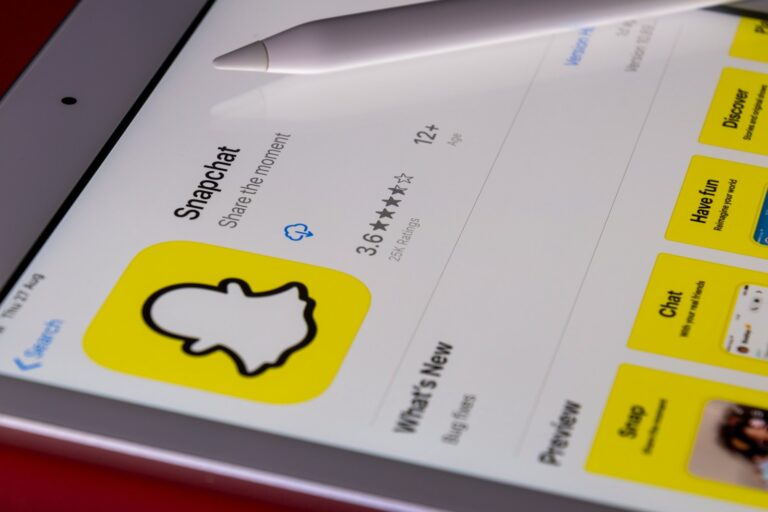
Having trouble logging into Snapchat on your iPhone? You’re not alone. Login issues can happen for many reasons — from forgotten passwords and network problems to app glitches or account locks.
This guide walks you through the most common causes and step-by-step solutions to help you get back into your account quickly.
1. Check Your Internet Connection
Before trying anything else, make sure your iPhone is properly connected to the internet.
✅ What to Do:
- Switch between Wi‑Fi and cellular data
- Turn Airplane Mode ON, wait 10 seconds, then turn it OFF
- Restart your router if you’re on Wi‑Fi
- Run a quick test by opening Safari and visiting a website
If other apps also aren’t loading, the issue is likely your connection—not Snapchat.
2. Make Sure Snapchat Isn’t Down
Sometimes the problem isn’t your phone — it’s Snapchat’s servers.
✅ Check Server Status:
- Visit a service like DownDetector
- Search “Is Snapchat down?”
- Check Snapchat’s official Twitter/X account for outage updates
If Snapchat is experiencing an outage, you’ll need to wait until it’s resolved.
3. Double-Check Your Login Credentials
It sounds simple, but typos happen.
✅ Verify:
- Correct username (not email unless you registered that way)
- Password capitalization
- No extra spaces before or after your login info
If you’re unsure about your password:
🔐 Reset Your Password:
- Tap “Forgot your password?”
- Choose via Phone or via Email
- Follow the verification instructions
- Create a new password
4. Update the Snapchat App
An outdated app can cause login errors.
✅ Update Snapchat:
- Open the App Store
- Tap your profile icon
- Scroll to find Snapchat
- Tap Update if available
Then try logging in again.
5. Restart Your iPhone
A simple restart can fix temporary glitches.
✅ How to Restart:
- iPhones with Face ID:
Press and hold the Side button + Volume button → Slide to power off - iPhones with Home Button:
Press and hold the Power button → Slide to power off
Wait 30 seconds, then turn it back on.
6. Check for iOS Updates
If your iPhone software is outdated, apps may not function properly.
✅ Update iOS:
- Go to Settings
- Tap General
- Select Software Update
- Install any available updates
7. Clear Snapchat Cache (If You Can Access Settings)
If you’re partially able to log in but experiencing errors:
- Open Snapchat
- Tap your Bitmoji/profile icon
- Go to Settings
- Scroll down to Clear Cache
- Tap Clear All
If you can’t log in at all, skip to the next step.
8. Delete and Reinstall Snapchat
Reinstalling removes corrupted app data.
✅ How to Reinstall:
- Press and hold the Snapchat app
- Tap Remove App
- Select Delete App
- Go to the App Store
- Search for Snapchat and reinstall
Then log in again.
9. Check If Your Account Is Locked
Snapchat may temporarily lock accounts for:
- Suspicious activity
- Using third-party apps
- Violating community guidelines
- Sending too many friend requests
✅ Unlock Your Account:
- Visit: https://accounts.snapchat.com
- Log in
- Click Unlock
If your account is permanently locked, Snapchat will notify you.
10. Make Sure Your Account Wasn’t Hacked
If your password suddenly doesn’t work:
Warning Signs:
- Password reset emails you didn’t request
- Friends receiving strange snaps from you
- Login attempts from unknown locations
✅ What to Do:
- Reset your password immediately
- Enable Two-Factor Authentication
- Go to Settings → Two-Factor Authentication
If you can’t access your account, contact Snapchat Support.
11. Disable VPNs or Security Apps
Snapchat may block logins from certain VPN IP addresses.
✅ Try This:
- Turn off your VPN
- Disable any firewall/security apps temporarily
- Try logging in again
12. Check Date & Time Settings
Incorrect time settings can interfere with login authentication.
✅ Fix It:
- Go to Settings
- Tap General
- Select Date & Time
- Enable Set Automatically
13. “Could Not Connect” Error
If you see this message:
- Check internet connection
- Disable VPN
- Update the app
- Restart your phone
- Try again after a few minutes
This error is often temporary.
14. Two-Factor Authentication Issues
If you can’t receive your verification code:
✅ Try:
- Checking if your phone number is correct
- Making sure your SIM is active
- Using your backup code (if you saved one)
- Switching from SMS verification to an authenticator app (if enabled)
15. Contact Snapchat Support
If none of the above works:
- Go to https://support.snapchat.com
- Select Contact Us
- Choose the issue that matches your problem
- Submit your request
Be ready to provide:
- Username
- Phone number
- Device type
- Detailed description of the issue
Quick Troubleshooting Checklist ✅
If you’re in a hurry:
- ✔ Check internet connection
- ✔ Confirm Snapchat isn’t down
- ✔ Reset password
- ✔ Update app
- ✔ Restart iPhone
- ✔ Reinstall app
- ✔ Check if account is locked
- ✔ Disable VPN
Final Thoughts
Most Snapchat login issues on iPhone are caused by simple problems like weak internet, incorrect passwords, or outdated apps. In more serious cases, account locks or security issues may be involved.
Work through the steps above one by one, and you should be able to identify and fix the problem quickly.