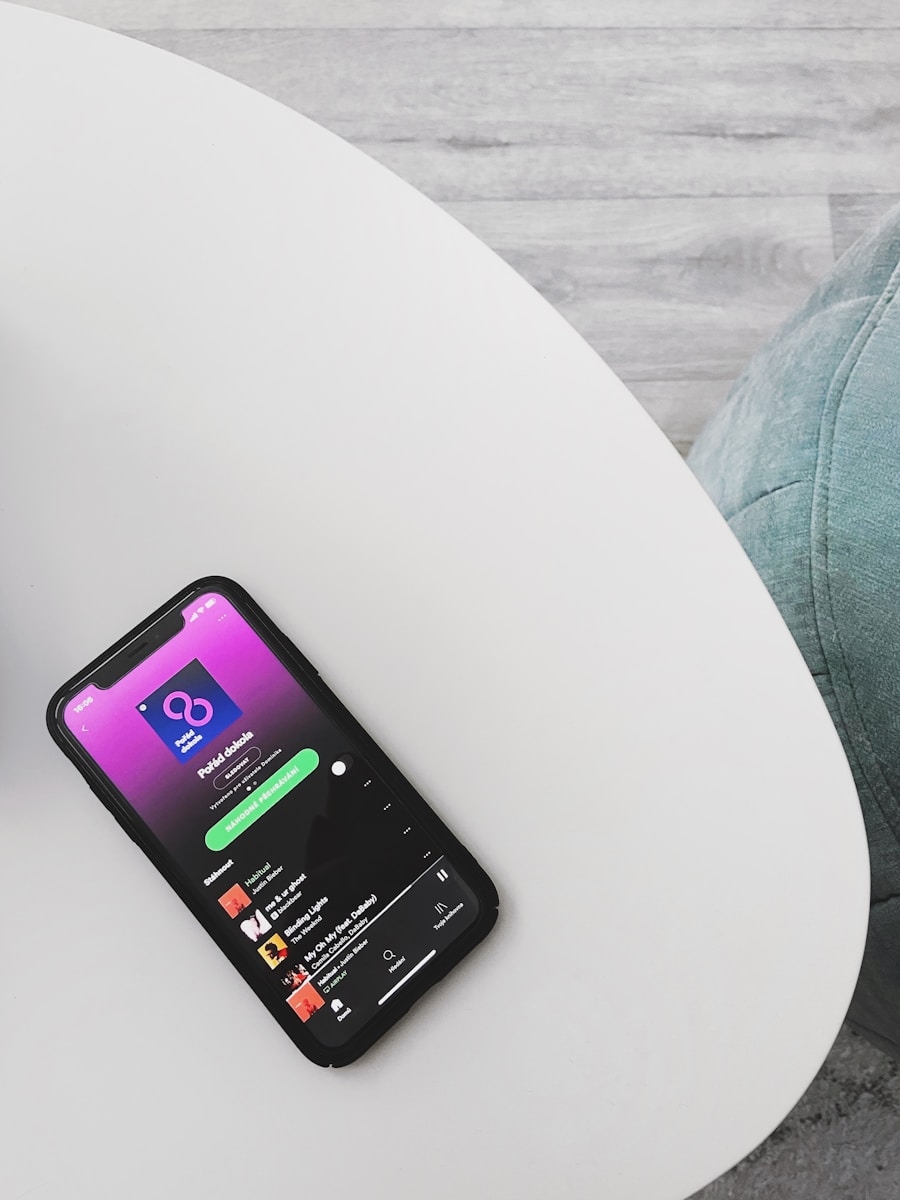
To add Spotify music to your Instagram Story, open the Spotify app and select the song you want to share. Tap the “Share” button and choose Instagram Stories. This will automatically create a story with the song’s cover art and a link to play it on Spotify. You can customize the story by adding text, stickers, or effects before posting. When viewers tap the story, they’ll be directed to Spotify to listen to the track. Make sure both apps are updated to ensure smooth sharing functionality.
Sharing your favorite tunes on Instagram Stories can make your posts more engaging and expressive. If you’ve ever wondered how to add that catchy song from Spotify to your next Story, you’re in the right place. You can share songs directly from Spotify to Instagram Stories by opening the song in Spotify, tapping the share icon, selecting Instagram Stories, and then posting the Story with the Spotify animation and song info included.
Want to make your Stories even more dynamic? Adding music creates an emotional connection with your followers and shows off your unique taste. Whether you’re highlighting a new discovery or sharing an old favorite, the process is simple and takes just a few taps to complete.
Key Takeaways
- You can share directly from Spotify to Instagram by using the share button within the Spotify app for a quick, seamless process.
- Adding music to your Stories creates more engaging content and allows followers to tap through to listen on Spotify.
- Instagram also offers its own music library as an alternative way to add songs to your Stories if the Spotify sharing option isn’t working.
Understanding Instagram Stories and Music Sharing
Instagram Stories allow you to express yourself through photos, videos, and music. Adding songs can boost engagement and make your stories more personal, giving viewers a soundtrack to your visual content.
The Appeal of Music in Instagram Stories
Music adds emotion and context to your Instagram Stories. When you include a song with your photos or videos, you create a more immersive experience for your followers. The right track can set the mood, whether it’s upbeat for a party post or mellow for a sunset view.
The music sticker feature in the Instagram app has become incredibly popular since its introduction. According to usage data, stories with music receive higher engagement rates than those without.
You can use music to:
- Highlight important moments
- Express feelings words can’t capture
- Create a theme across multiple stories
- Share your current music tastes with friends
Many users discover new songs through friends’ Instagram Stories, making it a platform for music discovery too.
Differences Between Instagram Stories and Standard Posts
Instagram Stories differ from regular posts in several key ways. Stories disappear after 24 hours, creating a sense of urgency and authenticity that standard posts don’t have. This temporary nature makes them perfect for sharing music you’re currently enjoying.
Unlike feed posts, Instagram Stories offer interactive features like polls, questions, and music stickers. You can add a song to your story with just a few taps, while regular posts don’t support audio additions.
Stories appear at the top of the app in a horizontal scroll format, making them more visible than standard posts that might get lost in the algorithm-driven feed.
When it comes to music sharing specifically, stories have a clear advantage. The music sticker allows viewers to see song details and tap to listen on platforms like Spotify, creating a seamless experience across social media platforms.
Pre-Requisites for Adding Music to Instagram Stories
Before you can share your favorite Spotify tracks on Instagram Stories, you need to ensure your accounts and devices are properly set up. This will help you avoid technical issues and ensure a smooth sharing experience.
Spotify Account Setup
To add Spotify music to your Instagram Stories, you need an active Spotify account. Both free and premium accounts work, but premium offers more flexibility.
First, make sure your Spotify app is updated to the latest version. Outdated versions may not include the sharing features needed for Instagram integration.
Next, check that you’re logged into your account. You won’t be able to share songs if you’re not properly signed in.
If you have multiple accounts, ensure you’re using the one you want associated with your Instagram shares. This matters because sharing from Spotify to Instagram will display your Spotify username.
Remember to adjust your privacy settings if you want to keep certain playlists private while sharing others.
Instagram App Accessibility
Your Instagram app must be properly set up to receive music from Spotify. Start by updating your Instagram app to the latest version through your device’s app store.
Make sure you have permission settings configured correctly. Instagram needs access to your storage to display music stickers and media files. Check this in your phone settings under the Instagram app permissions.
You should be logged into the Instagram account where you want to share the music. Switching between accounts can sometimes cause connection issues with Spotify.
The music sticker feature must be available in your region, as some countries have limited music functionality due to licensing restrictions.
Instagram Business accounts may have different music sharing capabilities than personal accounts, so be aware of any limitations.
Compatibility with Android and iOS
Device compatibility plays a crucial role in the Spotify-to-Instagram sharing process. Both Android and iOS support this feature, but with some differences.
On iOS devices, the integration between Spotify and Instagram tends to be more seamless. Make sure your iOS version is updated, as older versions may have compatibility issues with the latest app features.
For Android users, additional steps might be required depending on your device model and operating system version. Some Android devices might need to grant special permissions for cross-app functionality.
Both platforms require sufficient storage space for the apps to function properly. Clear cache if you experience performance issues.
Check that both apps can run in the background on your device, as this affects how they communicate with each other during the sharing process.
Direct Method: Using Instagram’s Music Library
Instagram offers a built-in music feature that lets you add songs directly to your stories. This method is straightforward and gives you access to thousands of popular tracks without leaving the app.
Adding Music from Instagram’s Built-In Library
To add music from Instagram’s library, start by opening your Instagram app and creating a new story. Tap the sticker icon at the top of the screen (it looks like a square with a smiley face). Find and select the “Music” sticker.
You’ll see a search bar where you can look for specific songs, artists, or albums. Instagram organizes music into categories like “For You,” “Browse,” and “Saved” to help you find the perfect track quickly.
Once you’ve found a song, you can:
- Select which part of the song to play
- Choose how long the clip will last (up to 15 seconds)
- Pick a display style for the music sticker
You can drag the music sticker anywhere on your story and resize it to fit your design. The sticker will show the song title and artist name, giving your followers context about what they’re hearing.
Selecting Tracks from Spotify within Instagram
While Instagram doesn’t directly import from Spotify in its music library, you can access many of the same popular tracks that are available on both platforms. The Instagram music library includes millions of songs licensed from major record labels.
When browsing Instagram’s music selection, you’ll notice many of the same trending and popular songs you might follow on Spotify. The library is regularly updated with new releases, making it easy to add current hits to your stories.
If you frequently use specific tracks, you can save them to your “Favorites” for quick access later. Simply tap the heart icon when selecting a song to add it to this list.
For the best audio quality, make sure you’re using the latest version of the Instagram app. Outdated versions might have limited music options or lower-quality audio playback when adding tracks to your stories.
Adding Spotify Music to Instagram Stories
Sharing your favorite Spotify tracks on Instagram Stories allows you to express your musical taste and connect with followers. You can add songs with playback capability and even include a link back to Spotify.
Step-by-Step Guide to Share Spotify Songs on Instagram Story
To add Spotify music to your Instagram story, you’ll need both apps installed on your phone. First, open the Spotify app and find the song you want to share. Tap the three dots next to the track title to open the menu options. Select “Share” and then tap on “Instagram Stories.”
The Instagram app will automatically open with your song artwork ready to add to your story. You’ll notice a special sticker appears that includes album art and a “Play on Spotify” button. This allows viewers to tap and listen directly.
Can’t see the option? Make sure both apps are updated to the latest version. Sometimes you may need to share songs from within Instagram instead. Just tap the sticker option in Instagram and select “Music” to search for your song.
Tips for Choosing the Right Spotify Content
When selecting Spotify content for your Instagram Story, consider your audience and what they might enjoy. Popular hits tend to get more engagement, but sharing lesser-known tracks can highlight your unique taste.
The song snippet preview is short, so choose the most recognizable or catchy part of the track. Think about the particular section that best represents the mood you’re trying to convey in your story.
You can share more than just songs! Try sharing albums, playlists, or podcasts from Spotify to your story. Each will display differently but still provide a link back to Spotify.
Match your music with your visual content for maximum impact. For example, pair upbeat songs with energetic videos or relaxing tunes with scenic photos. This creates a more cohesive story experience for your followers.
Advanced Methods for Music Integration
Beyond the basic sharing options, there are several advanced techniques to enhance how your Spotify music appears in Instagram Stories. These methods give you more control over quality and presentation.
Using Spotify Music Converter for File Conversion
If you want complete control over your music clips, converting Spotify songs to usable file formats is an excellent option. Specialized converters allow you to transform streaming tracks into portable formats like MP3, WAV, or FLAC.
Start by selecting a reliable converter that supports Spotify. These tools typically require you to:
- Copy the Spotify track URL from the share menu
- Paste into the converter application
- Select your preferred format (MP3 for smaller files, WAV or FLAC for higher quality)
- Choose output settings like bit rate and sample rate
Most converters offer batch processing, letting you prepare multiple songs at once. This method gives you audio files you fully own and can edit before uploading to Instagram.
Employing Third-Party Video Editing Apps
Video editing apps provide powerful ways to integrate Spotify music into visually stunning Instagram Stories. Apps like InShot Video Editor let you combine music with images and effects.
The process typically works like this:
- Export your Spotify song using a converter
- Open your video editing app
- Create a new project with your visual content
- Import the audio file and adjust its length
- Add visual effects that complement the music
- Export at high quality specifically optimized for Instagram
These apps offer precise control over how music syncs with visuals. You can create professional-looking stories by timing transitions to match beats or lyrics.
Quality Assurance in Audio Editing
Maintaining high audio quality when sharing Spotify music requires attention to technical details. The key factors affecting sound quality include file format, compression settings, and Instagram’s own processing.
For optimal sound quality:
- Choose appropriate formats: AAC or MP3 at 256kbps or higher balances quality and file size
- Monitor audio levels: Keep volume consistent without peaking or distortion
- Test before posting: Preview on different devices to ensure universal playability
- Consider Instagram’s limitations: The platform may compress audio further
When editing, focus on the most important 15 seconds of the song. This ensures you’re using the most engaging portion while working within Instagram’s time constraints. Use fade-ins and fade-outs to create a smoother listening experience.
Troubleshooting and Tips for Optimal Experience
Adding Spotify music to your Instagram Stories can sometimes be tricky, but with the right techniques, you can create engaging content that stands out. Here are solutions to common problems and ways to enhance your music sharing experience.
Common Issues When Adding Music to Stories
If you’re unable to share Spotify music with sound to your Instagram Story, try these fixes:
No sound when sharing: When sharing directly from Spotify, the sound doesn’t automatically transfer. Instead, use the Instagram music sticker to add the same song with audio.
Story not posting: Check your internet connection and update both apps to their latest versions.
Can’t find the share option: Open a specific song in Spotify, tap the three dots menu, and look for the Instagram icon in the sharing options.
Music unavailable in your region: Some songs have geographical restrictions. Try using a VPN or choose a different track from your library.
If the Instagram sharing option is missing entirely from Spotify, try logging out and back in to both apps.
Enhancing the Quality of Instagram Story with Sound
Make your Instagram Story with sound more engaging with these techniques:
Time your content: Sync visual elements with key moments in the song for a professional effect.
Adjust volume levels: Use Instagram’s volume control to balance music with any voice recording or video sound.
Choose the right segment: When adding music to Instagram Story, you can select the exact 15-second clip that best fits your content.
Add lyrics display: Instagram offers automatic lyrics for many songs, creating a karaoke-style visual that captures attention.
Use themed filters: Match visual filters with the mood of your music for a cohesive story.
Try combining animated GIFs that match your song’s rhythm for a more dynamic story experience.
Curating Personalized Playlists for Stories
Creating dedicated playlists in Spotify makes your Instagram Story sharing workflow much smoother:
Create a “Story-Ready” playlist in your library with 15-30 second highlights of your favorite tracks. This saves time when exporting Spotify songs to Instagram.
Organize by mood: Set up separate playlists for different content themes:
- Upbeat tracks for product announcements
- Mellow tunes for reflective posts
- Trending songs for timely content
Update regularly: Refresh your playlists weekly with new releases to keep your Stories current.
Save songs from Discover Weekly that would work well for future Stories. This builds your library of Instagram-ready tracks without extra effort.
Keep note of which songs perform best with your audience and build themed collections around their preferences.
Cross-Platform Sharing and Promotion
Connecting your Spotify music with Instagram Stories is just one part of building your online music presence. Effective cross-platform sharing can significantly increase your reach and engagement across multiple social networks.
Sharing Spotify Tracks on Other Social Media Platforms
Beyond Instagram, you can share your favorite Spotify tracks across various platforms. For TikTok, you can share your Canvas videos directly from the Spotify app. This creates a seamless connection between your music streaming and social media presence.
To share on Snapchat, simply tap the “Share” button on your chosen track and select Snapchat from the options. The process works similarly for Twitter and Facebook, allowing you to showcase what you’re listening to.
For LinkedIn or Pinterest, you can share a link to the song or use screenshots of the playing track to create more professional or visually appealing posts.
Quick Sharing Tips:
- Use consistent hashtags across platforms
- Tag artists or friends to increase visibility
- Share at peak engagement times for your audience
Generating Engagement with Instagram Story Features
To maximize engagement with your shared Spotify songs on Instagram, utilize interactive Story features. Add polls asking followers what they think of the track or use the question sticker to gather music recommendations.
The emoji slider can gauge how much your audience enjoys the song. You can also add text overlays explaining why you love the track or what it means to you.
Location tags can connect you with local music scenes. For even more engagement, you can combine Spotify shares with Instagram’s native music stickers to create layered audio experiences that capture attention.
Try using the countdown sticker for anticipated album releases or pinning your Stories as Highlights to create music recommendation collections your followers can revisit.
Exploring Alternative Music Sources
While Spotify is popular for Instagram Stories, other music platforms offer unique tracks and features for your content. These alternatives can provide fresh sounds and different sharing methods.
Incorporating Music from SoundCloud and Apple Music
SoundCloud gives you access to independent artists and remixes not found on other platforms. To share from SoundCloud:
- Open the SoundCloud app and find your desired track
- Tap the share icon
- Select “Instagram Stories”
- The song cover art will appear in your Story
You can also use Apple Music for your Instagram Stories. The process works slightly differently:
- Open Apple Music and play the song you want
- Tap the three dots menu
- Select “Share” and then “Instagram Stories”
Apple Music doesn’t provide direct playback on Instagram, but it creates a visually appealing story card with album artwork. Your followers can tap the card to open the song in Apple Music.
Finding Music with Shazam and Deezer
Shazam helps you discover songs playing around you that can enhance your Stories. The app makes sharing simple:
- Open Shazam and identify a song
- Tap on the song details
- Select the share icon
- Choose “Instagram Stories”
This creates a Story with the song information and artwork. Your followers can tap to listen on their preferred music service.
Deezer offers another way to find and share music. Their integration works by:
- Finding and playing your song in the Deezer app
- Tapping the share button
- Selecting Instagram Stories
Both platforms help you discover new music through recommendations and playlists. This gives you more options when you want something different from what’s available in Spotify’s catalog.
Best Practices for Legal and Copyright Considerations
When adding Spotify music to your Instagram Story, it’s important to understand copyright rules to avoid issues. Instagram has specific policies about using copyrighted music in your content.
Keep your music clips short when using them in Instagram Stories. Brief music clips are less likely to trigger copyright violations than longer ones.
Make sure the focus of your Stories remains primarily visual. Your content should not appear to be solely about showcasing the music itself.
Using music in Stories is generally considered safer than in permanent posts. Instagram typically allows more flexibility with music in temporary Story content.
If you’re using video editors to create content before uploading to Instagram, be aware that the same copyright rules apply. Pre-edited content with unauthorized music may still be flagged.
Consider these legal alternatives for adding music:
- Use Instagram’s built-in music library through the Instagram app
- Share directly from Spotify using the share button
- Use royalty-free music from licensed providers
- Create original music for your content
Always check the current policies as social media platforms frequently update their copyright guidelines. What’s acceptable today might change tomorrow.
When sharing from Spotify to Instagram Stories, use the official share feature. This method is designed to comply with licensing agreements between the platforms.
Frequently Asked Questions
Sharing Spotify music to Instagram stories can be tricky, but these common questions will help you master the process. Below are solutions to the most frequent challenges users face when trying to share their favorite tracks.
What are the steps to share a Spotify song on an Instagram story with a background image?
To share a Spotify song with a background image, first open Spotify and find the song you want to share. Tap the three dots next to the song and select Share.
Next, choose “Instagram Stories” from the sharing options. This will automatically open Instagram with the song artwork.
You can then customize your story by adding text, stickers, or drawings before posting it to your Instagram story.
Is there a way to link my Spotify account to Instagram for easier music sharing?
Currently, there’s no direct way to link your Spotify account to Instagram. The integration between the two platforms is limited to the sharing feature.
When you share from Spotify to Instagram, it’s a one-way process that doesn’t require account linking. Instagram does have its own music library that works separately from Spotify.
What is the process for adding Spotify music to an Instagram story on an iOS device?
On an iOS device, open the Spotify app and select the song you wish to share. Tap the three dots (share icon) and select Instagram Stories from the sharing options.
Instagram will automatically open with the song artwork. You can then edit your story as desired before posting.
The process is similar to Android, though some menu appearances might differ slightly depending on app versions.
How can I share music on my Instagram story with the sound included?
To share music with sound, you need to use Instagram’s built-in music feature rather than sharing directly from Spotify. First, save the Spotify story to your gallery after sharing from Spotify.
Then create a new Instagram story and upload the saved image. Now add sound by tapping the sticker icon at the top and selecting the music sticker.
Search for the same song in Instagram’s music library and position it on your story as desired.
Why is a song I want to add to my Instagram story from Spotify not available, and what can I do?
Some songs may not be available due to licensing restrictions between Spotify and Instagram. Not all songs in Spotify’s library are available in Instagram’s music library.
If you can’t find a specific song, try searching for a cover version or remix that might be available. You can also check if the song is available under a slightly different title or artist name.
As a workaround, you can play the song on Spotify while recording your Instagram story, though the quality may not be as good.
How to incorporate a Spotify track into an Instagram story along with a personal photo?
To add a Spotify track with your own photo, first share the song from Spotify to Instagram stories. When Instagram opens, save the story to your gallery without posting it.
Next, create a new Instagram story with your personal photo. Tap the sticker icon and select the music sticker to search for the same song in Instagram’s library.
You can also add the saved Spotify image as a sticker on your photo by selecting the photo sticker and choosing the saved image from your gallery.