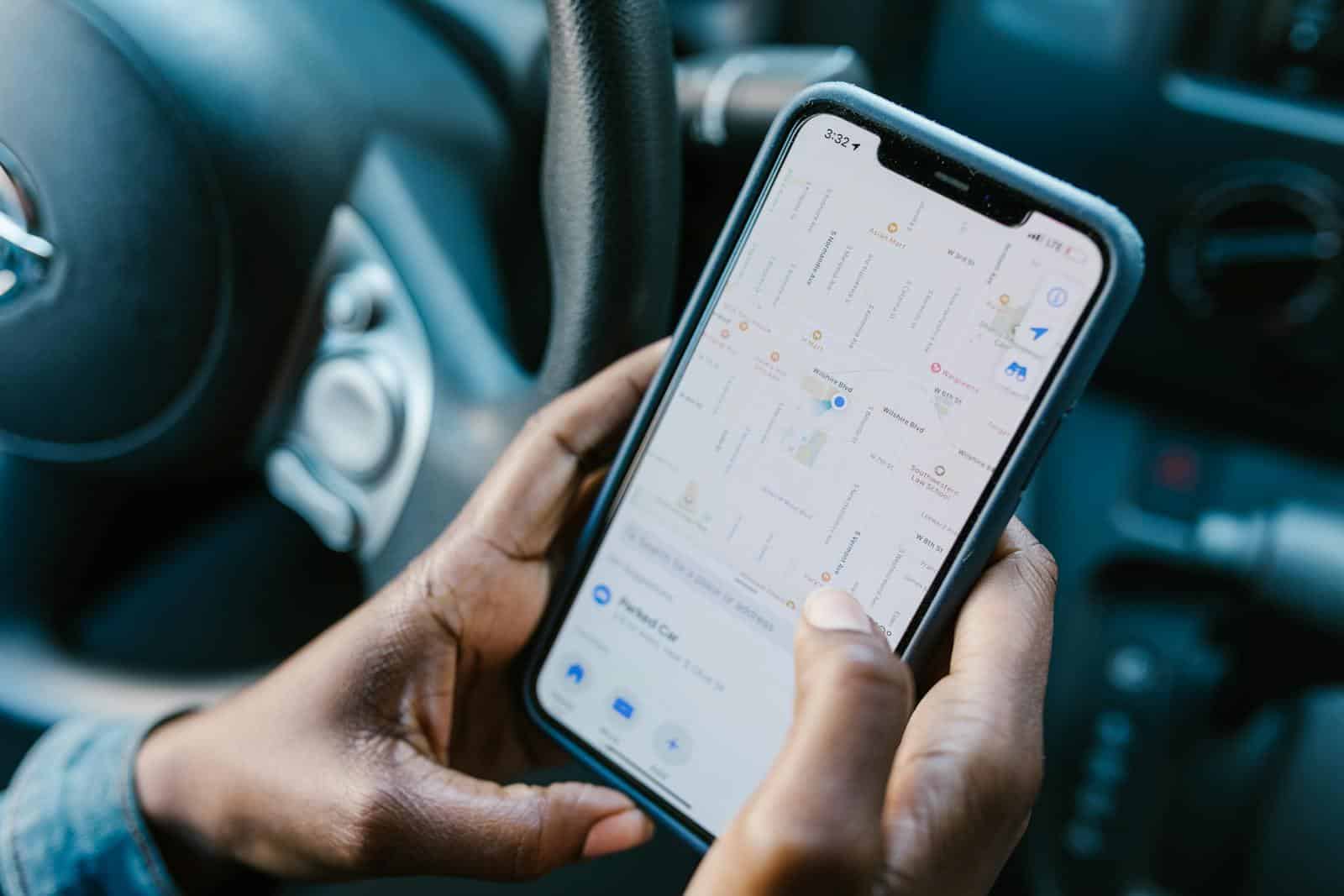
GPS issues on iPhones can be frustrating for users who rely on location-based services. These problems can stem from various sources, including software glitches, hardware malfunctions, or incorrect settings. To fix GPS problems on an iPhone, users should first ensure Location Services are enabled and that the device’s date and time are set correctly.
Simple troubleshooting steps can often resolve GPS issues. Restarting the iPhone or closing and reopening the Maps app may help. If these basic fixes don’t work, users can try resetting network settings or updating their iOS to the latest version.
More persistent GPS problems might require advanced solutions. These can include resetting all settings on the iPhone or, in rare cases, contacting Apple Support for potential hardware issues. Regular maintenance and updates can help prevent future GPS issues.
GPS Not Working on iPhone: Quick Fixes for Navigation Issues
When your iPhone’s GPS stops working properly, navigation apps like Apple Maps, Google Maps, or Waze can become unreliable—showing the wrong location, freezing, or failing to update directions. Fortunately, most GPS issues can be fixed quickly without visiting a repair center.
This guide walks you through simple, effective fixes to get your iPhone’s GPS working again.
Common Signs of GPS Problems
- Location jumps or drifts randomly
- Maps show the wrong position
- Navigation directions lag or freeze
- Apps can’t find your current location
- “Location unavailable” error messages
Quick Fix #1: Check Location Services
If Location Services are off, GPS won’t work at all.
Steps:
- Open Settings
- Tap Privacy & Security
- Select Location Services
- Turn Location Services ON
✅ Make sure it’s enabled at the top.
Quick Fix #2: Allow Location Access for Navigation Apps
Apps need permission to use GPS.
Steps:
- Go to Settings > Privacy & Security > Location Services
- Scroll to your navigation app (e.g., Maps, Google Maps)
- Set location access to While Using the App or Always
- Enable Precise Location
Quick Fix #3: Turn Airplane Mode On and Off
This refreshes GPS, Wi‑Fi, and cellular connections.
Steps:
- Open Control Center
- Turn Airplane Mode ON
- Wait 10 seconds
- Turn it OFF
This often resolves minor signal issues instantly.
Quick Fix #4: Restart Your iPhone
A simple restart can clear software glitches affecting GPS.
Steps:
- Hold the Power button + Volume button
- Slide to power off
- Wait 30 seconds, then turn your iPhone back on
Quick Fix #5: Check Date & Time Settings
Incorrect time settings can interfere with GPS accuracy.
Steps:
- Open Settings > General > Date & Time
- Enable Set Automatically
Quick Fix #6: Improve GPS Signal Conditions
GPS works best with a clear view of the sky.
Try this:
- Move outdoors or near a window
- Avoid tunnels, garages, or tall buildings
- Remove thick phone cases or metal accessories
Quick Fix #7: Reset Location & Privacy Settings
This resets all GPS permissions without deleting data.
Steps:
- Open Settings > General
- Tap Transfer or Reset iPhone
- Choose Reset
- Select Reset Location & Privacy
⚠️ You’ll need to re‑allow location access for apps afterward.
Quick Fix #8: Update iOS
Outdated software can cause GPS bugs.
Steps:
- Go to Settings > General > Software Update
- Install any available updates
Quick Fix #9: Disable VPN or Location‑Spoofing Apps
VPNs and fake GPS apps can interfere with accurate location tracking.
Try this:
- Turn off your VPN temporarily
- Remove any location‑spoofing apps
- Test GPS again
Quick Fix #10: Reset Network Settings (Last Resort)
This fixes deeper connectivity problems.
Steps:
- Go to Settings > General
- Tap Transfer or Reset iPhone
- Choose Reset
- Select Reset Network Settings
⚠️ This will erase saved Wi‑Fi passwords and Bluetooth connections.
When GPS Still Doesn’t Work
If none of the fixes above help, the issue may be hardware‑related.
Possible causes:
- Damaged GPS antenna
- Water or drop damage
- Faulty internal components
Next steps:
- Contact Apple Support
- Visit an Apple Store or authorized repair center
Quick Troubleshooting Summary
| Issue | Best Fix |
|---|---|
| No location detected | Enable Location Services |
| App shows wrong position | Enable Precise Location |
| GPS freezes | Restart iPhone |
| Poor accuracy | Move outdoors |
| GPS stopped after update | Reset Location & Privacy |
Final Thoughts
Most iPhone GPS problems are caused by incorrect settings or temporary software glitches—and can be fixed in minutes. Start with the quick checks, then work your way down the list for a reliable navigation experience.
Key Takeaways
- Enable Location Services and set correct date and time to fix most GPS issues
- Restart the iPhone or reset network settings for common GPS problems
- Update iOS regularly to prevent and resolve GPS-related difficulties
Understanding GPS and Location Services on iPhone
GPS and Location Services are integral components of iPhone functionality. These features enable precise positioning and location-based services for various apps and system functions.
How GPS Works on iPhone
iPhones use a combination of technologies to determine location. GPS chips in iPhones receive signals from satellites orbiting Earth. These signals contain time and position data. The iPhone’s processor calculates the device’s location by measuring the time it takes for signals to arrive from multiple satellites.
GPS accuracy can vary based on factors like satellite visibility and signal strength. In urban areas with tall buildings or indoors, GPS may be less precise. To improve accuracy, iPhones also use Wi-Fi and cellular tower data to supplement GPS information.
Location Services and Privacy Settings
Apple prioritizes user privacy with customizable Location Services settings. Users can control which apps access location data and when. Options include “Always,” “While Using the App,” “Ask Next Time,” and “Never.”
The Settings app allows users to view and modify app permissions. Some apps offer a “Precise Location” toggle, letting users choose between exact and approximate location sharing.
iOS provides location access indicators in the status bar. A hollow arrow indicates recent location use, while a solid arrow shows active location access.
Importance of Wi-Fi and Cellular Data for Accurate Location
Wi-Fi and cellular data play crucial roles in enhancing location accuracy on iPhones. These technologies help when GPS signals are weak or unavailable, such as indoors or in urban canyons.
Wi-Fi positioning uses a database of known Wi-Fi hotspot locations. By detecting nearby Wi-Fi networks, iPhones can estimate their position even without a GPS fix.
Cellular tower triangulation provides another layer of location data. iPhones measure signal strength from multiple cell towers to approximate their position.
The combination of GPS, Wi-Fi, and cellular data allows for faster and more reliable location services across various environments and use cases.
Common Issues and Fixes for iPhone GPS
GPS problems on iPhones can be frustrating, but many issues have straightforward solutions. Proper app permissions, iOS updates, and resetting network settings often resolve common GPS-related challenges.
Ensuring Proper Permissions for Apps
Apps need the right permissions to access your iPhone’s GPS. Check your settings to make sure location services are enabled for specific apps:
- Open Settings
- Tap Privacy & Security
- Select Location Services
- Ensure the toggle is on
- Scroll to find the app with GPS issues
- Choose “While Using the App” or “Always”
If an app still can’t access your location, try deleting and reinstalling it. This often fixes permission-related GPS problems.
Updating iOS for Latest GPS Software
Outdated iOS versions can cause GPS glitches. Apple regularly releases updates to improve GPS performance:
- Connect your iPhone to Wi-Fi
- Open Settings
- Tap General
- Select Software Update
- Download and install if available
After updating, restart your iPhone. This simple step often resolves GPS issues by clearing temporary software conflicts.
Resetting Network and Location Settings
If GPS problems persist, resetting network and location settings can help:
- Go to Settings > General > Transfer or Reset iPhone
- Tap Reset
- Choose “Reset Network Settings”
- Enter your passcode
- Confirm the reset
This process clears saved Wi-Fi passwords and cellular settings. It often fixes GPS issues related to network connectivity. If problems continue, try “Reset Location & Privacy” in the same menu. This resets location permissions for all apps, requiring you to grant them again when needed.
Advanced Troubleshooting Techniques
GPS issues on iPhones can be complex. Some problems require more advanced solutions beyond basic troubleshooting steps.
Contacting Apple Support for Technical Assistance
Apple Support offers specialized help for persistent GPS problems. Users can reach out via phone, online chat, or in-person at an Apple Store. Support representatives have access to diagnostic tools to pinpoint issues.
Apple may recommend specific software updates or settings changes. In some cases, they might suggest sending the device for repair. Keep your iPhone’s serial number and iOS version handy when contacting support.
For faster service, backup your iPhone data before the appointment. This allows for potential device resets if needed.
Identifying Hardware vs. Software Issues
Distinguishing between hardware and software GPS problems is crucial. Software issues often resolve with updates or settings adjustments. Hardware problems may require physical repairs.
To test for software issues:
- Update iOS to the latest version
- Reset all settings (Settings > General > Reset)
- Restore iPhone as new (after backing up data)
Signs of hardware problems:
- GPS fails even after software fixes
- Device overheats during GPS use
- GPS works inconsistently or inaccurately
If software solutions don’t work, the iPhone may need professional inspection. Apple’s diagnostic tests can confirm hardware faults.
Frequently Asked Questions
GPS issues on iPhones can be frustrating. Common problems include sudden malfunctions, inaccurate readings, and incorrect directions. Here are answers to some frequently asked questions about iPhone GPS problems.
Why did my iPhone GPS stop working suddenly?
Sudden GPS failures on iPhones can stem from software glitches or hardware issues. A simple restart often resolves temporary problems. If the issue persists, check for iOS updates or reset location services in the settings menu.
How do I calibrate the GPS on my iPhone for improved accuracy?
To calibrate the iPhone GPS, turn on Wi-Fi and cellular data. Open the Maps app and move in a figure-eight pattern. This action helps recalibrate the compass and improve GPS accuracy.
What steps should I take if the GPS on my iPhone is not accurate?
First, ensure Location Services is enabled in Settings. Check if the issue occurs in all apps or just one. Clear the app’s cache or reinstall it if necessary. Toggle Airplane Mode on and off to reset network connections.
Is there a way to check if the GPS is functioning correctly on my iPhone?
Open the Compass app to test GPS functionality. If it shows your location accurately, the GPS is working. You can also use third-party GPS testing apps available on the App Store for more detailed diagnostics.
Why isn’t my GPS providing correct directions while I am driving?
Incorrect directions may result from outdated map data or poor signal reception. Ensure you have the latest version of your navigation app. Check for physical obstructions like tall buildings or tunnels that might interfere with GPS signals.
What are common troubleshooting methods for GPS issues on the latest iPhone models?
For newer iPhones, try force closing all apps and restarting the device. Update to the latest iOS version. Reset network settings if problems persist. If these steps fail, contact Apple Support or visit an Apple Store for hardware diagnostics.