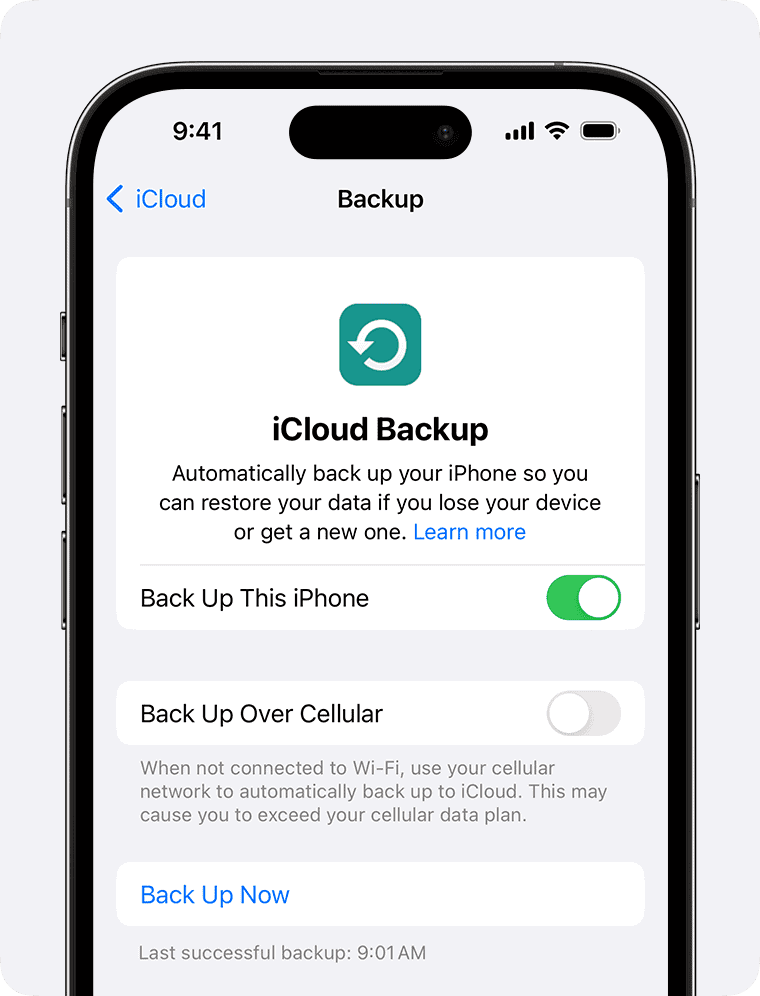
iCloud backup is a vital tool for iPhone, iPad, and Apple Vision Pro users. It creates a copy of important data, ensuring users don’t lose precious information. The time it takes to complete an iCloud backup can range from a few minutes to several hours or even days. This wide variation depends on several factors.
Internet connection speed plays a crucial role in backup duration. A faster connection allows for quicker data transfer to iCloud servers. The amount of data being backed up also affects the process length. Devices with more photos, videos, and apps will take longer to back up than those with less content.
Users can take steps to speed up their iCloud backups. Connecting to a strong Wi-Fi network and removing unnecessary files can reduce backup time. Regular backups help keep the process shorter by only uploading new or changed data. Apple recommends enabling automatic backups to maintain data safety without lengthy manual processes.
How Long Does an iCloud Backup Take?
A Complete Guide for iPhone, iPad, and Mac Users
If you’re backing up your Apple device for the first time—or restoring after a reset—you may wonder: how long does an iCloud backup actually take? The answer varies depending on several factors, but this guide breaks it down clearly so you know what to expect.
Quick Answer
An iCloud backup can take anywhere from a few minutes to several hours.
- Small backups (5–10GB): 10–30 minutes
- Average backups (20–50GB): 30 minutes to 2 hours
- Large backups (100GB+): 2–6+ hours
First-time backups usually take the longest.
What Affects iCloud Backup Time?
1. Backup Size
The more data you have, the longer it takes.
- Photos and videos are the biggest contributors
- App data, messages, and device settings add up quickly
2. Internet Upload Speed
iCloud backups depend on upload speed, not download speed.
- 5 Mbps upload → slow backups
- 20+ Mbps upload → much faster
- Unstable Wi‑Fi → interruptions and delays
Cellular backups are limited and may pause or throttle.
3. First Backup vs Incremental Backups
- First backup: Uploads everything → longest
- Subsequent backups: Only changes are uploaded → much faster (often minutes)
4. Apple Server Load
Backups may take longer during:
- Major iOS releases
- Peak usage hours
- Regional outages or slowdowns
5. Device Performance & State
- Low battery may pause backups
- Device must be locked and connected to power
- Older devices may back up more slowly
Typical Backup Times by Device
iPhone / iPad
- First backup: 1–4 hours
- Daily incremental backups: 5–15 minutes
Mac (iCloud Desktop & Documents)
- Initial sync: several hours to days (for large libraries)
- Ongoing updates: near-instant
How to Check Backup Progress
On iPhone or iPad
- Go to Settings
- Tap your Apple ID
- Select iCloud
- Tap iCloud Backup
You’ll see:
- Last backup time
- Estimated time remaining (when available)
How to Speed Up an iCloud Backup
✅ Use a fast, stable Wi‑Fi connection
✅ Plug your device into power
✅ Lock the screen during backup
✅ Remove unnecessary data (old videos, unused apps)
✅ Turn off backup for large apps you don’t need
Manage What Gets Backed Up
- Settings → Apple ID → iCloud
- Tap Manage Storage → Backups
- Select your device
- Toggle off apps you don’t want to back up
Why iCloud Backups Sometimes Take So Long
- Large photo or video libraries
- Slow upload speeds
- Frequent pauses due to Wi‑Fi drops
- Low available iCloud storage
- Ongoing system indexing or updates
iCloud Backup vs iTunes/Finder Backup
| Feature | iCloud Backup | Computer Backup |
|---|---|---|
| Speed | Slower (internet-based) | Much faster |
| Convenience | Automatic | Manual |
| Storage | Limited by iCloud plan | Limited by local disk |
| Encryption | Automatic | Optional |
Tip: If you need a backup quickly, use Finder (Mac) or iTunes (Windows) instead.
Frequently Asked Questions
Can I use my phone during an iCloud backup?
Yes, but heavy usage may slow or pause the process.
Does iCloud backup overnight?
Yes. Backups often run automatically while your device is charging, locked, and on Wi‑Fi.
What happens if the backup is interrupted?
It resumes automatically the next time conditions are met.
How often does iCloud back up?
Once every 24 hours when connected to power, Wi‑Fi, and locked.
Final Thoughts
iCloud backup times vary widely, but most users can expect:
- A long initial backup
- Fast daily backups afterward
If backups seem unusually slow, checking your internet upload speed and managing what gets backed up usually solves the problem.
Key Takeaways
- iCloud backup duration varies based on internet speed and data volume
- Regular backups can significantly reduce backup time
- Automatic backups offer convenience and data protection
Understanding iCloud Backup
iCloud Backup is a vital feature for Apple device users. It automatically saves important data to Apple’s cloud servers, ensuring information remains safe and accessible.
What Constitutes iCloud Backup
iCloud Backup includes a wide range of data from iOS devices. Photos, videos, messages, app data, device settings, and purchased content are all part of the backup. iCloud also syncs certain types of data across devices in real-time, like contacts and calendars.
The backup process runs automatically when the device is plugged in, locked, and connected to Wi-Fi. Users can also initiate manual backups. iCloud offers 5GB of free storage, with paid options for additional space.
Not all data is included in iCloud Backup. For example, data already synced to iCloud, such as iCloud Photos, is not part of the backup file.
Differences Between iCloud and iTunes/Finder Backup
iCloud Backup and iTunes/Finder Backup serve similar purposes but differ in key ways. iCloud Backup is wireless and automatic, while iTunes/Finder Backup requires a computer connection.
iCloud Backup stores data in the cloud, allowing access from anywhere. iTunes/Finder Backup saves data locally on a computer. This local backup can be encrypted for added security.
iCloud Backup is limited by available iCloud storage. iTunes/Finder Backup is only constrained by the computer’s storage capacity. iCloud Backup is incremental, only backing up changes. iTunes/Finder creates a full backup each time.
For those with limited internet access, iTunes/Finder Backup may be faster. However, iCloud Backup offers more convenience and frequent automatic backups.
Requirements for iCloud Backup
iCloud backup requires specific settings and conditions to function properly. Users must ensure their devices meet these requirements for successful backups.
Wi-Fi Network Connection
A stable Wi-Fi connection is essential for iCloud backups. The device must be connected to a Wi-Fi network to initiate and complete the backup process. Cellular data connections are not sufficient for iCloud backups due to potential data usage and connectivity issues.
Users should connect their devices to a reliable Wi-Fi network before starting a backup. Home or office networks are typically best suited for this task. Public Wi-Fi networks may not provide the necessary stability or speed for efficient backups.
The backup process may pause or fail if the Wi-Fi connection is lost during the backup. It’s advisable to keep the device connected to both Wi-Fi and a power source throughout the process.
Apple ID and iCloud Settings
Proper configuration of Apple ID and iCloud settings is crucial for iCloud backups. Users must sign in to their Apple ID on their device and enable iCloud Backup in the Settings app.
To enable iCloud Backup:
- Go to Settings
- Tap on [user’s name]
- Select iCloud
- Tap iCloud Backup
- Toggle the switch to turn on iCloud Backup
Sufficient iCloud storage space is necessary for backups. Apple provides 5GB of free iCloud storage, but users may need to purchase additional storage for larger backups. To check available storage:
- Go to Settings > [user’s name] > iCloud
- Tap Manage Storage
Users can view their current backup size and manage which apps and data to include in the backup. Removing unnecessary items can help reduce backup size and duration.
Factors Affecting iCloud Backup Time
Several key elements influence how long an iCloud backup takes to complete. The amount of data, network quality, and specific device settings play crucial roles in determining backup duration.
Amount of Data and Backup Size
The volume of information on an iPhone significantly impacts iCloud backup time. Larger data sets require more time to upload and process. Photos, videos, and app data contribute to the overall backup size.
A small backup of 1-5 GB typically takes 10-30 minutes. Medium-sized backups ranging from 5-10 GB may need 30-60 minutes. Larger backups exceeding 10 GB can take several hours or even days to complete.
Users can check their backup size in Settings > Apple ID > iCloud > Manage Storage > Backups. Removing unnecessary files or apps can reduce backup time.
Network Connection Quality
Internet speed greatly affects iCloud backup duration. Faster connections allow for quicker data transfers, while slower speeds extend the process.
- Wi-Fi: Recommended for faster backups
- Cellular: Slower and may incur data charges
Average mobile upload speeds of 11.3 Mbps can lead to longer backup times compared to faster home Wi-Fi networks. Users should connect to a stable, high-speed Wi-Fi network for optimal backup performance.
App Data and Device Settings
The number of installed apps and their data volume impact backup time. Some apps store large amounts of data, increasing the overall backup size.
iCloud backup settings allow users to control which apps are included:
- Go to Settings > Apple ID > iCloud
- Tap “Show All” to see the full app list
- Toggle off unnecessary apps to reduce backup size
Certain device settings, like iCloud Photos and iCloud Drive, can also increase backup time if enabled. Users can manage these options to optimize backup speed.
Optimizing iCloud Backup Process
Streamlining your iCloud backup can significantly reduce backup time and ensure all crucial data is safely stored. These strategies focus on efficient storage management, network optimization, and selective data backup.
Managing iCloud Storage Space
Effective iCloud storage management is key to faster backups. Start by reviewing your current storage usage in Settings > [Your Name] > iCloud > Manage Storage. Delete old backups of devices you no longer use. Remove unnecessary data from apps like Messages or Photos.
Consider upgrading your iCloud storage plan if you’re consistently near capacity. Apple offers plans ranging from 50GB to 2TB. A larger storage allowance can speed up backups by reducing the need for constant data pruning.
Regularly clean up your iPhone to free up space. Delete unused apps, clear browser caches, and remove downloaded media you no longer need.
Improving Wi-Fi Connectivity
A strong, stable Wi-Fi connection is crucial for quick iCloud backups. Connect to a 5GHz network if available, as it typically offers faster speeds than 2.4GHz networks.
Position your device closer to the Wi-Fi router to improve signal strength. Avoid backing up in areas with weak Wi-Fi coverage.
If possible, use a wired internet connection by connecting your router directly to your modem. This can provide more consistent speeds for large backups.
Perform backups during off-peak hours when network traffic is lower. Late night or early morning backups often complete faster due to reduced network congestion.
Selecting Data to Backup
Choose which apps and data types to include in your iCloud backup. Go to Settings > [Your Name] > iCloud > Manage Storage > Backups > [Your Device].
Toggle off backups for apps with large amounts of data you don’t need to restore, such as games or streaming apps. These can significantly increase backup size and time.
Use iCloud Photos to store your photo library separately from your main backup. This allows for continuous photo syncing and can reduce the size of your regular backups.
Consider using app-specific cloud storage for data-heavy apps. Many productivity and creative apps offer their own cloud sync options, which can be more efficient than including them in iCloud backups.
Frequently Asked Questions
iCloud backups can vary significantly in duration and speed. Several factors influence the process, and users often encounter common issues.
What factors influence the duration of an iCloud backup?
The size of the backup, internet connection speed, and device storage capacity all affect backup time. Large backups with many photos, videos, and apps take longer. Slow Wi-Fi connections increase backup duration. Devices with more storage generally require more time to back up.
How can the speed of an iCloud backup be increased?
Connecting to a fast Wi-Fi network improves backup speed. Removing unnecessary files and apps reduces backup size. Performing regular backups prevents large data accumulations. Closing other apps and avoiding device use during backup can also help.
Is it possible to use your iPhone while it is performing an iCloud backup?
Users can use their iPhone during an iCloud backup. The backup continues in the background. However, using the device may slow down the process. For faster backups, it’s best to leave the iPhone idle and connected to power.
What are the typical times for backing up various iPhone storage sizes to iCloud?
A 64GB iPhone might take 1-2 hours to back up. A 256GB iPhone could require 4-6 hours. A 512GB iPhone may need 8-12 hours or more. These times vary based on data amount and internet speed.
Why might an iPhone iCloud backup proceed slower than expected?
Slow internet connections often cause backup delays. Large amounts of new data since the last backup increase duration. Background app activity can interfere with the process. Outdated iOS versions may also impact backup speed.
Is a multiple-hour timeframe common for an iCloud backup process?
Multi-hour backups are normal for initial backups or after long periods without backing up. Large data volumes, especially photos and videos, extend backup time. Subsequent backups are typically faster, only updating changed data.