Staring at screens all day can leave your eyes feeling tired and strained. Many people don’t realize that adjusting a few simple monitor settings can make a huge difference in comfort during long computer sessions. The ideal monitor setup includes adjusting brightness to match your room’s lighting, setting contrast for crisp text readability, and positioning your screen 20-40 inches from your face at eye level.
Eye strain from computer use is increasingly common as more of us spend hours looking at screens for work and entertainment. Poor monitor settings can contribute to headaches, dry eyes, and even neck pain over time. Customizing your monitor settings doesn’t take much time but can significantly reduce these uncomfortable symptoms.
Most of us spend 8 to 12 hours a day staring at screens. This often leads to Digital Eye Strain (Computer Vision Syndrome), characterized by dry eyes, headaches, blurred vision, and neck pain.
Optimizing your monitor settings is the most effective way to reduce fatigue and protect your long-term vision. Here is a comprehensive guide to the best monitor settings for your eyes.
1. Brightness: Match Your Environment
The most common mistake is having a monitor that is either too bright or too dim compared to the room.
- The Rule: Your monitor should act like a light source that matches the ambient light in the room.
- The Test: Look at a white background (like a blank Word doc). If it looks like a glowing light bulb, it’s too bright. If it looks grey or dull, it’s too dim.
- Setting: Most users find comfort between 30% and 60% brightness. If you work in a dark room, drop it lower; if you are next to a bright window, push it higher.
2. Color Temperature: Go Warmer
Blue light has a short wavelength and high energy, which scatters more easily and makes it harder for the eye to focus, leading to strain. It also suppresses melatonin, disrupting sleep.
- Daytime: Set your color temperature to a “Neutral” or “Standard” setting (usually around 6500K).
- Evening/Night: Switch to a “Warm” setting (under 5000K). This reduces blue light and gives the screen a slight yellowish tint, which is much easier on the eyes.
- Tools: Use built-in features like Windows Night Light or macOS Night Shift. For more control, download f.lux.
3. Contrast: Keep it High
Contrast refers to the difference between the whites and blacks on your screen.
- The Goal: You want a high enough contrast so that text is sharp and easy to read without squinting.
- Setting: Most people find a contrast setting of 60% to 70% to be the “sweet spot.” Avoid “Dynamic Contrast” settings, as the constant shifting in brightness can cause eye fatigue.
4. Text Size and Scaling
Squinting at tiny text is a leading cause of “computer headaches.”
- Resolution: Always run your monitor at its Native Resolution (e.g., 1920×1080 or 3840×2160). Using a non-native resolution makes the image blurry.
- Scaling: If the text is too small at native resolution, use the “Scale” setting (Windows: Settings > Display > Scale & Layout). Set it to 125% or 150% to make UI elements and text larger without losing clarity.
5. Refresh Rate and Flicker
A flickering screen (even if the flicker is invisible to the naked eye) causes the eye muscles to work harder.
- Refresh Rate: Set your refresh rate to the highest possible setting supported by your monitor (at least 60Hz, though 120Hz or 144Hz feels much smoother and easier on the eyes).
- Flicker-Free Tech: If you are buying a new monitor, look for “Flicker-Free” or “TÜV Rheinland” certification.
6. Physical Ergonomics (The “Setup”)
Even the best settings won’t help if your monitor is positioned poorly.
- Distance: The screen should be about 20 to 30 inches away from your face (roughly an arm’s length).
- Height: The top of the monitor should be at or slightly below eye level. You should be looking slightly downward at the center of the screen, which helps keep the eyelids lower and reduces eye dryness.
- Angle: Tilt the monitor back 10 to 20 degrees.
7. Environmental Factors
- Reduce Glare: Position your monitor away from direct sunlight or bright overhead lights that reflect off the glass. Use an anti-glare screen protector if necessary.
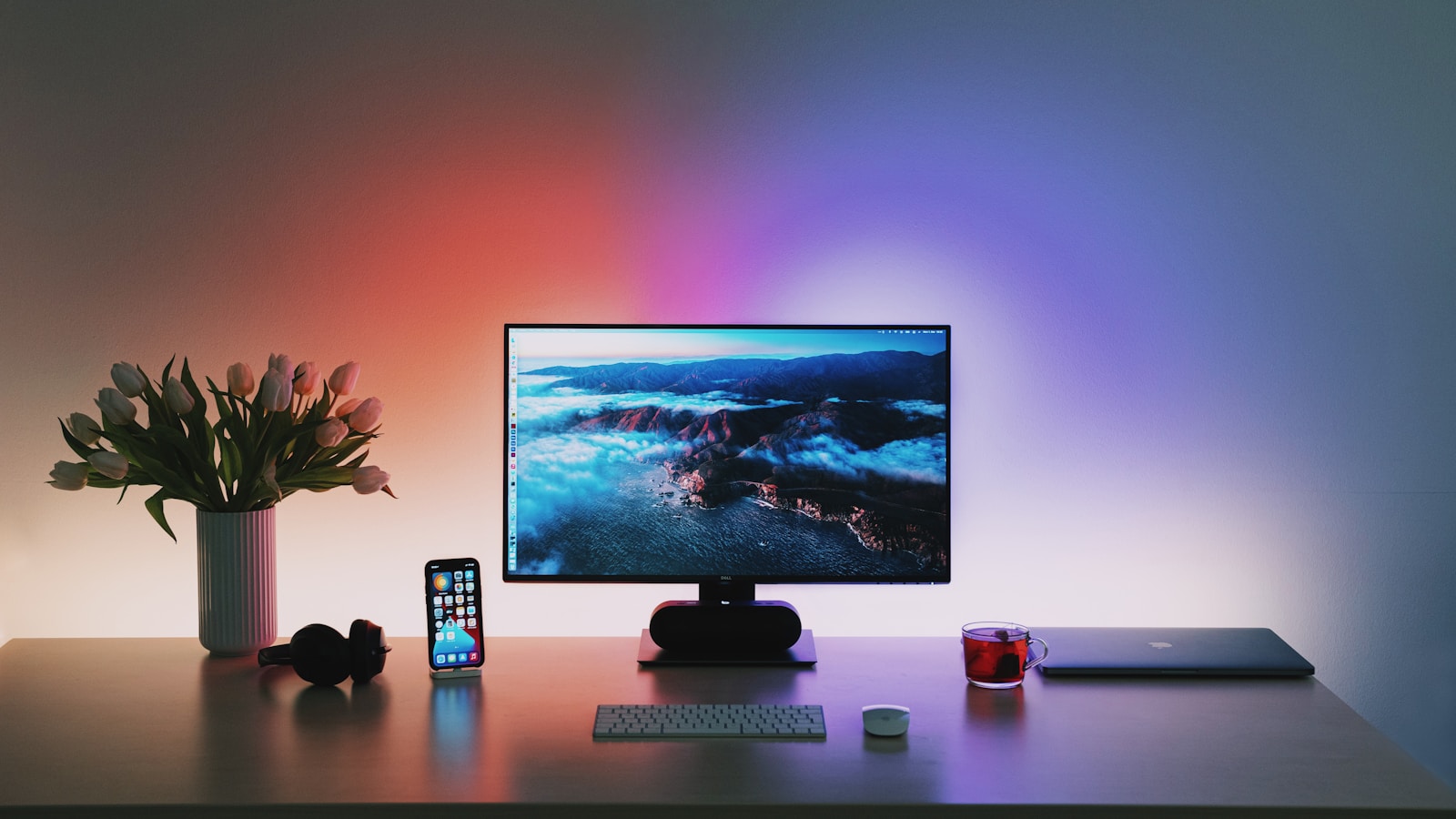
- Bias Lighting: Place a soft LED strip behind your monitor. This reduces the harsh contrast between the bright screen and the dark wall behind it, significantly reducing eye strain during night use.
The Golden Rule: 20-20-20
No matter how perfect your settings are, the human eye wasn’t designed to stare at a fixed distance for hours. Follow the 20-20-20 Rule:
Every 20 minutes, look at something 20 feet away for at least 20 seconds.
This allows the ciliary muscles inside your eyes to relax, preventing “accommodation spasms” (that feeling where your vision stays blurry when you finally look away from the computer).
Summary Checklist:
- Brightness: Matches the room.
- Color Temp: Warmer/Yellowish (especially at night).
- Contrast: High (60-70%).
- Scaling: Large enough to read comfortably without leaning in.
- Position: Arm’s length away, top of screen at eye level.
Key Takeaways
- Adjust monitor brightness and contrast based on your environment to reduce eye fatigue.
- Position monitors at eye level and 20-40 inches away from your face for optimal viewing.
- Use monitor features like blue light filters and consider adding LED backlighting to further minimize eye strain.
Understanding Monitor Settings for Eye Health
Proper monitor settings play a crucial role in preventing eye strain during long hours of computer use. Making a few simple adjustments can significantly reduce discomfort and protect your vision in the long term.
The Role of Blue Light
Blue light emitted from digital screens can contribute to eye strain and potentially disrupt sleep patterns. This high-energy visible light penetrates deeper into the eye than other light wavelengths.
Many modern devices now offer blue light filter settings that can be adjusted based on the time of day. These filters work by reducing the amount of blue light emitted from your screen, creating a warmer display.
You can activate these features through:
- Built-in settings (Night Shift on Mac, Night Light on Windows)
- Third-party apps like f.lux
- Blue light filtering glasses
Experts recommend increasing blue light filtering in the evening hours to help maintain healthy sleep patterns. During daytime use, moderate filtering can still help reduce eye fatigue without significantly altering color perception.
Color Temperature and Its Effects
Color temperature refers to the warmth or coolness of the light your monitor displays, measured in Kelvins (K). Lower values (2700K-3000K) create warmer, yellowish tones, while higher values (5000K+) produce cooler, bluish light.
Recommended color temperature settings:
- Daytime use: 5000K-6500K (matches natural daylight)
- Evening use: 2700K-3000K (reduces blue light, promotes melatonin production)
Adjusting your monitor’s color temperature based on the time of day helps your eyes process information more naturally. This reduces strain and may improve sleep quality.
Most operating systems now include color temperature adjustment features. For precision work requiring color accuracy, consider using color temperature profiles that can be toggled on/off as needed.
LED Backlight and Flicker-Free Technology
Modern monitors use LED backlighting, which can create imperceptible flickering that contributes to eye strain and headaches over time. This flickering occurs when the backlight rapidly turns on and off to adjust brightness.
Flicker-free technology addresses this issue by using direct current (DC) instead of pulse width modulation (PWM) to control brightness. This creates a steady light output that’s easier on the eyes.
When shopping for monitors, look for:
- “Flicker-free” certification
- DC dimming technology
- Low blue light features
Proper brightness settings are equally important. Your screen brightness should match your environment—not too bright in dark rooms and not too dim in bright spaces. The 20-20-20 rule also helps: every 20 minutes, look at something 20 feet away for 20 seconds.
Optimal Configuration for Reducing Eye Strain
The right monitor settings can significantly decrease eye fatigue during long computer sessions. Proper configuration addresses key factors that contribute to visual discomfort and helps maintain better eye health throughout the workday.
Adjusting Screen Brightness
Screen brightness should match your surrounding environment to prevent eye strain in the digital age. When a monitor is too bright compared to ambient light, eyes must constantly adjust, causing fatigue.
A good rule of thumb: the display should not feel like a light source in the room. Users should aim for a brightness level that makes white backgrounds appear soft white rather than glowing.
Most experts recommend these guidelines:
- Dark rooms: 40-60% brightness
- Normal indoor lighting: 60-70% brightness
- Bright environments: 70-85% brightness
Periodic adjustments throughout the day are necessary as natural light changes. Many monitors include brightness control buttons for easy access, allowing quick modifications as needed.
Implementing Blue Light Filters
Blue light from screens can disrupt sleep patterns and contribute to digital eye strain. Blue light filters help by reducing the amount of high-energy visible light emitted.
Most operating systems now include built-in blue light filtering:
- Windows: Night Light
- macOS: Night Shift
- Android/iOS: Night Mode or Eye Comfort
Blue light filtering glasses provide an additional layer of protection, especially for those who spend 8+ hours daily looking at screens. These specialized glasses typically have a slight yellow tint and can be worn with or without prescription lenses.
For those using computers late at night, increasing the filter intensity can help maintain proper melatonin production and improve sleep quality. The filter can be programmed to activate automatically at sunset.
Utilizing Brightness Intelligence Features
Modern monitors often include smart technologies that automatically adjust display parameters based on content and ambient conditions. These brightness intelligence features help maintain optimal viewing conditions without manual intervention.
Key brightness intelligence capabilities include:
- Ambient light sensors that automatically adjust brightness based on room lighting
- Content-aware adjustment that modifies brightness based on what’s displayed
- Color temperature adaptation that shifts between warmer and cooler tones
Some advanced monitors incorporate eye-tracking technology that detects viewing angles and adjusts brightness accordingly. This ensures consistent viewing experience regardless of position or distance.
When purchasing a new monitor, looking for models with certified low blue light technology and flicker-free displays provides additional protection. These features work alongside brightness intelligence to create a more eye-friendly viewing experience throughout the day.
Ergonomic Considerations for Monitor Usage
Proper monitor setup affects both comfort and eye health during long computer sessions. The right ergonomic practices can significantly reduce strain and prevent long-term issues.
The Importance of Posture
Good posture forms the foundation of ergonomic monitor use. When sitting at a computer, users should maintain a neutral position with their back straight and supported by their chair.
Shoulders should be relaxed, not hunched forward. The elbows should rest at approximately 90-degree angles when typing. This position reduces strain on the neck, shoulders, and upper back.
Many people tend to lean forward when focusing on their screens. This habit creates tension in the neck and can lead to headaches and chronic pain over time.
Key posture elements:
- Feet flat on the floor
- Back fully supported by chair
- Wrists straight, not bent up or down
- Head balanced, not jutting forward
Taking regular breaks to stretch and move around helps reset posture and prevents muscle fatigue.
Viewing Distance and Screen Position
The optimal monitor position helps prevent eye strain and neck discomfort. The main content you read should be at eye level, not necessarily the top of the monitor as previously recommended.
Most experts suggest placing your screen between 20 and 40 inches from your eyes. This distance allows comfortable viewing without straining to see details or leaning backward.
Monitor height matters significantly. Your screen should be positioned anywhere between eye level and thirty degrees below your line of sight. This range prevents neck strain from looking too far up or down.
For dual-monitor setups, place the primary screen directly in front and the secondary monitor slightly angled to the side. This arrangement minimizes constant head turning.
Measurement tip: When seated correctly, extend your arm. Your fingertips should nearly touch the screen at proper distance.
Ambient Light Influence
The lighting around your workspace directly impacts eye comfort. Proper ambient lighting reduces the contrast between your screen and surroundings, decreasing eye fatigue.
Avoid placing monitors directly in front of windows or bright light sources. This positioning creates glare and forces your eyes to constantly adjust between bright and dark areas.
Balance screen brightness with ambient lighting for maximum comfort. In brighter rooms, increase screen brightness slightly; in darker rooms, lower it to reduce eye strain.
Light management strategies:
- Use indirect, diffused lighting rather than harsh overhead lights
- Consider adding a small desk lamp for task lighting
- Install blinds or curtains to control natural light throughout the day
- Apply anti-glare filters to screens when necessary
Eye exercises help combat fatigue. Look near and far periodically to adjust your focus and give your eyes a break from fixed-distance screen viewing.
Advanced Monitor Features to Enhance Eye Comfort
Modern monitors come with specialized features designed to reduce eye strain during long hours of use. These technologies work differently but share the same goal of making screen time more comfortable for your eyes.
Auto EcoView for Dynamic Brightness
Auto EcoView technology automatically adjusts your monitor’s brightness based on the surrounding light conditions. This feature uses built-in sensors to detect ambient light levels and then optimizes screen brightness accordingly.
When working in a bright office during daytime, the monitor will increase brightness to maintain visibility. As evening approaches or lights dim, the screen will gradually lower its brightness to reduce eye strain.
Studies show that manually adjusting brightness settings throughout the day is something most users forget to do. Auto EcoView handles this automatically, preventing the harsh contrast between room lighting and screen brightness that often causes eye fatigue.
Most premium monitors from manufacturers like BenQ, EIZO, and ViewSonic now include some form of this technology, though the specific name varies by brand.
PWM Dimming vs. DC Dimming
PWM (Pulse Width Modulation) and DC (Direct Current) dimming represent two different methods monitors use to control brightness levels.
PWM dimming works by rapidly turning the backlight on and off. At lower brightness settings, this flickering occurs at a frequency that, while invisible to most people, can cause headaches and eye strain for sensitive users.
DC dimming, on the other hand, directly controls the current to maintain consistent illumination without flickering. Flicker-free monitors using DC dimming technology are significantly better for reducing eye strain, especially during extended use.
When shopping for eye-friendly monitors, look specifically for “flicker-free” or “DC dimming” in the specifications. These monitors typically cost slightly more but provide substantial benefits for eye comfort.
Glare Reduction and Screen Protectors
Monitor glare can force users to squint and strain their eyes, particularly in brightly lit environments. Two primary solutions address this issue: anti-glare coatings and screen protectors.
Many modern monitors come with factory-applied anti-glare coatings that diffuse reflected light. These matte finishes significantly reduce visible reflections but may slightly decrease image clarity compared to glossy screens.
For monitors without built-in glare protection, aftermarket screen protectors offer a practical solution. These films come in various types:
- Anti-glare films that diffuse light reflections
- Blue light filtering protectors that reduce harmful wavelengths
- Privacy filters that limit viewing angles while also reducing glare
Proper positioning of your monitor away from windows and bright light sources remains the most effective way to minimize glare before applying technological solutions.
Daily Habits and Software Aids to Prevent Eye Fatigue
Protecting your eyes while using a computer requires both good habits and helpful technology. These practices can significantly reduce eye strain and improve comfort during long periods of screen time.
Adhering to the 20-20-20 Rule
The 20-20-20 rule is a simple but effective technique to prevent eye fatigue. Every 20 minutes, look at something 20 feet away for at least 20 seconds. This practice helps reduce eye strain by giving your eyes a break from constant near focus.
During these short breaks, try to blink completely and frequently. Many people blink less when staring at screens, which can lead to dry eyes. Consider keeping lubricating eye drops at your desk for times when your eyes feel particularly dry.
The 20-20-20 rule works because it forces your eye muscles to relax periodically. These muscles work continuously when focusing on close objects like screens. Without breaks, they can become strained and tired, similar to how other muscles fatigue with constant use.
Monitor and Eye Reminder Applications
Several applications can help maintain good eye health by sending timely reminders for breaks. These tools work in the background while you focus on your tasks.
Popular options include:
- EyeCare 20-20-20: Reminds users to follow the 20-20-20 rule
- Time Out: Gradually dims the screen to signal break time
- Stretchly: Suggests both eye rest and physical stretches
- f.lux: Automatically adjusts screen color temperature based on time of day
Many of these applications also include features to adjust brightness and contrast levels throughout the day. This adaptive approach helps reduce eye strain as lighting conditions change.
Some monitors now come with built-in sensors that detect ambient light and adjust screen settings accordingly, further reducing the need for manual adjustments.
Balancing Screen Time and Breaks
Proper work scheduling is essential for eye health. Taking a 10-15 minute break at least once an hour provides significant relief from eye fatigue.
During longer breaks, try these activities to rest your eyes:
- Look out a window at distant objects
- Do simple eye exercises (moving eyes up/down/left/right)
- Close your eyes and cover them with warm palms
- Walk outside to give your eyes varied visual stimulation
Creating a dedicated “screen-free” time each day allows eyes to fully recover. Many professionals recommend avoiding screens at least one hour before bedtime to improve sleep quality and reduce eye fatigue.
For those who spend every day in front of monitors, alternating between computer work and non-screen tasks can provide natural breaks while maintaining productivity.
Monitor Settings for Different Usage Scenarios
Different activities require tailored monitor settings to reduce eye strain and improve visual comfort. The right combination of brightness, contrast, and color temperature can make a significant difference in how your eyes feel after hours of screen time.
Settings for Work and Productivity
For productivity tasks like document editing and data analysis, prioritize clarity and reduced eye fatigue. Set your monitor brightness to match your surroundings – typically between 40-60%.
Use these recommended settings:
- Brightness: Match to ambient lighting (neither too bright nor too dark)
- Contrast: 70-80% for good text readability
- Color temperature: 6500K during daytime (neutral white)
- Text size: Increase to 110-125% if reading small text frequently
Placing your monitor 20-40 inches away and at eye level reduces neck strain. Consider enabling blue light filters during evening work sessions to help maintain your natural sleep cycle.
Many professionals benefit from adding bias lighting (a light source behind the monitor) to reduce the perceived brightness difference between the screen and surrounding environment.
Adjustments for Gaming and Entertainment
Gaming and entertainment content benefit from different settings than work activities. Higher contrast and more vibrant colors enhance the visual experience.
Optimal gaming settings include:
- Brightness: 70-80% (higher than for work)
- Contrast: 80-90% for vivid details
- Response time: Set to “Fast” or “Gaming Mode” if available
- Refresh rate: Use highest available (144Hz+) for smooth motion
For movies and videos, try using your monitor’s cinema or movie preset. These modes typically offer warmer color temperatures and balanced contrast that make viewing more comfortable in dimly lit rooms.
Remember to take frequent breaks during extended gaming sessions. The 20-20-20 rule helps: every 20 minutes, look at something 20 feet away for 20 seconds.
Configuration for Smartphone and Other Devices
Mobile devices require special attention due to their closer viewing distance and varying lighting conditions.
For smartphones and tablets:
- Auto-brightness: Enable to automatically adjust to environmental light
- Night mode/Dark mode: Activate in evening hours to reduce blue light
- Text size: Increase for comfortable reading without squinting
- Screen timeout: Set to 30 seconds when not in use to save battery and reduce exposure
Most modern smartphones include eye comfort features like “Night Shift” (iOS) or “Eye Comfort Shield” (Android). These gradually shift display colors to warmer tones at sunset, reducing blue light exposure.
For e-readers, use the lowest comfortable brightness setting. Their e-ink displays already cause less eye strain than traditional screens, but proper lighting still matters.
Maintaining Circadian Rhythms While Using Monitors
Our bodies have natural sleep-wake cycles called circadian rhythms. These rhythms can be disrupted by the light from computer screens, especially at night.
The main culprit is blue light from monitors. This type of light tells our brains to stay alert when we should be winding down for sleep.
Recommended Monitor Settings for Healthy Sleep Cycles:
- Reduce blue light in the evening hours
- Adjust brightness to match room lighting
- Use night mode features after sunset
- Install blue light filtering software
Many computers now have built-in features to automatically adjust screen color temperature based on the time of day. Programs like f.lux can also help by warming screen colors in the evening.
Experts recommend limiting screen time 1-2 hours before bedtime. This allows the body to naturally produce melatonin, the sleep hormone.
Proper room lighting also matters. Using appropriate illumination when looking at screens helps prevent eye strain and supports natural rhythms.
For optimal results, combine adjusted monitor settings with regular screen breaks. Even short pauses allow eyes to rest and help maintain natural biological cycles.
Frequently Asked Questions
Finding the right monitor settings can significantly reduce eye strain and fatigue. These adjustments can make a big difference in your comfort during long computer sessions.
What are the optimal monitor settings to alleviate eye strain?
The best monitor settings for eye health include proper brightness, contrast, and blue light filters. Your monitor brightness should match your surrounding environment – not too bright in dim rooms and not too dim in bright spaces.
Position your monitor about 20-40 inches from your face and at eye level to maintain proper posture and reduce strain.
Many monitors now include blue light filtering options or night modes that can be enabled during evening hours to reduce exposure to blue light.
How should I adjust monitor brightness and contrast to minimize visual fatigue during gaming?
For gaming sessions, brightness should be around 120-150 nits, which is lower than the default setting on most monitors. Many experts recommend running monitors around 150 nits for comfortable extended sessions.
Contrast should typically be set between 60-70% for gaming. This provides good visual distinction without causing eye strain.
Take regular breaks using the 20-20-20 rule: every 20 minutes, look at something 20 feet away for 20 seconds to give your eyes a rest.
Is a warmer or cooler monitor color temperature preferable for eye health?
Warmer color temperatures (lower Kelvin values) are generally better for eye health, especially in the evening hours. Using warm color temperatures limits blue light exposure, which can disrupt sleep patterns.
During daytime, a neutral color temperature around 6500K works well. As evening approaches, switching to warmer settings (3000-4000K) helps signal to your brain that it’s time to wind down.
Many operating systems now include automatic color temperature adjustment features that shift colors warmer as evening approaches.
What is the recommended brightness level for laptop screens to protect eyesight?
Laptop screens should be set to 40-60% of maximum brightness in normal indoor lighting conditions. This helps balance visibility with comfort for extended use.
In brighter environments like outdoors, higher brightness may be necessary but should be adjusted back down when returning indoors.
Using dark mode on applications and websites can also help reduce overall screen brightness, particularly helpful when working in dimly lit environments.
How can RGB configurations be optimized on a monitor to reduce the impact on the eyes?
For optimal RGB settings, slightly reduce blue channel intensity compared to red and green. This creates a slightly warmer display that is easier on the eyes.
If your monitor offers RGB customization, try starting with red at 95-100%, green at 90-95%, and blue at 80-85% as a comfortable baseline.
Some professional monitors offer factory-calibrated sRGB modes that provide balanced color accuracy while minimizing eye strain.
Does a higher refresh rate on monitors, such as 144Hz, offer benefits for eye comfort?
Higher refresh rates like 144Hz can reduce eye strain by displaying smoother motion and reducing flicker. This smoothness reduces the work your eyes must do to track moving objects.
For those who experience eye fatigue with standard 60Hz displays, upgrading to 144Hz may provide noticeable relief, especially during fast-paced gaming or when viewing rapidly changing content.
The benefit is most noticeable when combined with proper brightness settings and using dark characters on a light background for text-based work.