Accidentally deleting important iMessages can be frustrating, but there’s good news for iPhone users. You can recover deleted iMessages on your iPhone for up to 30 days after deletion using built-in iOS features. This capability, introduced in iOS 16 and iPadOS 16.1, provides a safety net for those moments when you mistakenly remove crucial conversations.
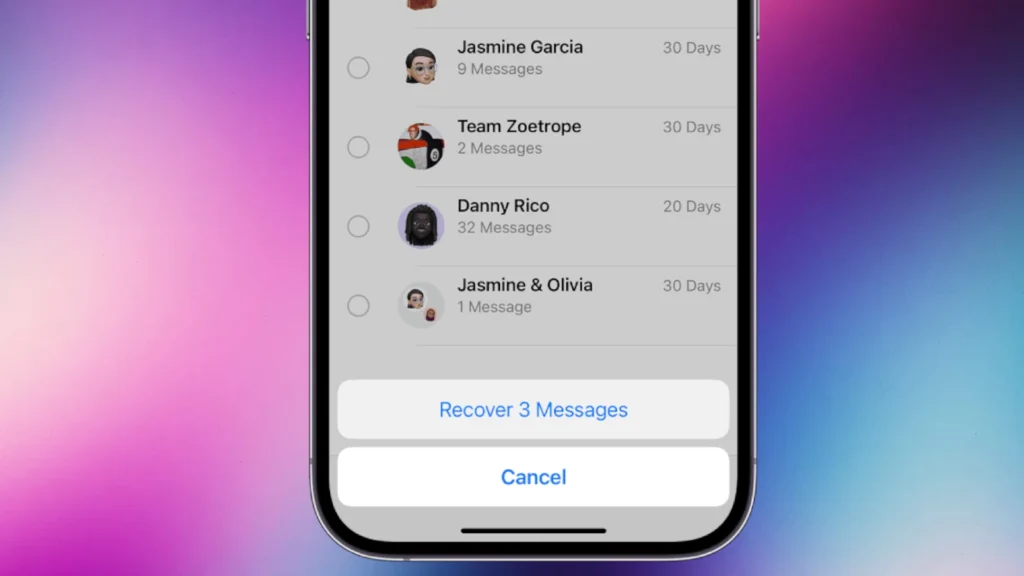
The process to retrieve deleted messages is straightforward. Users can access the Recently Deleted folder in their Messages app, select the conversations they want to restore, and tap the Recover button. This simple method eliminates the need for complex third-party software or time-consuming backups in many cases.
For messages older than 30 days or situations where the built-in recovery option doesn’t work, alternative methods exist. These include restoring from an iCloud or iTunes backup, which can recover messages from a specific point in time. While these methods may require more steps, they offer additional options for retrieving lost conversations.
Can You Recover Deleted iMessages?
Accidentally deleting an important iMessage can be stressful—especially if it contained photos, verification codes, or meaningful conversations. The good news is that yes, deleted iMessages can sometimes be recovered, depending on when they were deleted and how your device is set up.
This guide explains when recovery is possible, which methods work, and what to do if recovery isn’t an option.
Quick Answer
✅ Yes, you can recover deleted iMessages if:
- They were deleted within the last 30–40 days
- You have an iCloud or computer backup from before deletion
- Messages are synced with iCloud
❌ No, recovery is unlikely if:
- The messages were deleted long ago
- No backups exist
- The data has been overwritten
Method 1: Recover Recently Deleted iMessages (iOS 16+)
Apple introduced a Recently Deleted folder for Messages in iOS 16 and later.
How it works
Deleted messages are stored for up to 30 days before being permanently erased.
Steps
- Open Messages
- Tap Edit (top left)
- Select Show Recently Deleted
- Choose the messages or conversations
- Tap Recover
✅ Best option if you deleted the message recently
❌ Won’t work after the retention period expires
Method 2: Recover iMessages from an iCloud Backup
If your messages were backed up before deletion, you can restore them.
What you need
- iCloud Backup enabled
- A backup created before the message was deleted
Steps
- Go to Settings → General → Transfer or Reset iPhone
- Tap Erase All Content and Settings
- During setup, choose Restore from iCloud Backup
- Select the correct backup date
⚠️ Important: This replaces all current data with the backup’s data.
✅ Effective if backups are available
❌ You’ll lose data created after the backup
Method 3: Recover iMessages from a Mac or PC Backup
If you back up your iPhone using a computer, deleted messages may still exist there.
Steps (Mac)
- Connect your iPhone
- Open Finder
- Select your device
- Click Restore Backup
Steps (Windows)
- Open iTunes
- Connect your iPhone
- Select Restore Backup
✅ Works even without iCloud
❌ Restores the entire device, not just messages
Method 4: iCloud Messages Sync (Limited Recovery)
If Messages in iCloud is enabled, deletions sync across devices.
- Sometimes messages briefly reappear on another device
- Once synced, deletion is permanent
✅ Worth checking other Apple devices
❌ Not reliable for long-term recovery
Can You Recover iMessages Without a Backup?
Unfortunately, no—not reliably.
Despite claims from third-party apps:
- Apple encrypts iMessages end-to-end
- No tool can recover messages that were securely deleted and overwritten
- Many “recovery” tools only extract existing backups
⚠️ Be cautious of apps promising guaranteed recovery without backups.
How to Prevent Losing iMessages in the Future
To avoid this situation again:
✅ Enable iCloud Backup
✅ Turn on Messages in iCloud
✅ Back up your iPhone regularly to a Mac or PC
✅ Avoid permanently deleting messages until you’re sure
Summary
| Situation | Recovery Possible? |
|---|---|
| Recently deleted (≤30 days) | ✅ Yes |
| iCloud backup exists | ✅ Yes |
| Computer backup exists | ✅ Yes |
| No backups, long ago | ❌ No |
Final Thoughts
If you act quickly, recovering deleted iMessages is often possible. The key factors are timing and backups. When in doubt, check the Recently Deleted folder first—it’s the fastest and safest solution.
Key Takeaways
- iPhone users can recover deleted iMessages within 30 days using the Messages app
- Restoring from iCloud or iTunes backups provides additional recovery options
- Regular backups increase the chances of successful message recovery
Understanding iMessage Deletion on iOS Devices
iOS devices offer different options for managing deleted iMessages. These features give users control over their messaging data and recovery options.
The Difference Between ‘Recently Deleted’ and ‘Permanently Deleted’
The Messages app on iOS now includes a ‘Recently Deleted’ folder. This folder acts as a temporary storage for deleted messages. Users can access it by tapping ‘Edit’ in the top-left corner of the Messages app and selecting ‘Show Recently Deleted’.
Messages in this folder remain recoverable for 30 to 40 days. After this period, they become permanently deleted. Permanently deleted messages cannot be retrieved through normal iOS functions.
The ‘Recently Deleted’ feature provides a safety net for accidental deletions. It allows users to restore messages they may have removed by mistake.
How iOS 16 Handles Deleted Messages
iOS 16 introduced new message management features. The operating system now stores deleted messages in the ‘Recently Deleted’ folder automatically.
Users can find this folder by tapping ‘Filters’ in the Messages app. They then select ‘Recently Deleted’ from the list of options.
To recover messages, users choose the desired conversations and tap ‘Recover’. The system then moves these messages back to their original conversations.
This feature works on devices running iOS 16, iPadOS 16.1, or later versions. It simplifies the process of message recovery and provides greater control over messaging data.
Recovery Options for Deleted iMessages
iMessages can be recovered through several methods. These options include using iCloud backups, iTunes or Finder, and the “Erase All Content and Settings” feature.
Recover from iCloud Backup
iCloud backups offer a straightforward way to retrieve deleted iMessages. Users can restore their entire device from a previous backup that contains the deleted messages. To use this method:
- Go to Settings > General > Reset
- Select “Erase All Content and Settings”
- Set up the device as new
- Choose “Restore from iCloud Backup”
- Select the backup containing the deleted messages
This process restores all data from the chosen backup, not just messages. It’s important to select a backup from before the messages were deleted.
Using iTunes or Finder for Message Recovery
For Mac users with macOS Catalina or later, Finder replaces iTunes for device management. Windows users still use iTunes. This method involves:
- Connect the iPhone to a computer
- Open iTunes (Windows) or Finder (Mac)
- Select the device
- Click “Restore Backup”
- Choose the relevant backup
Like iCloud, this restores the entire device to the backup’s state. It’s crucial to have regular backups to increase the chances of message recovery.
When to Use ‘Erase All Content and Settings’
The “Erase All Content and Settings” option is a last resort. It’s used when:
- Other recovery methods fail
- A full device reset is needed
- Messages were deleted long ago
This process erases all data on the device. After erasing, users can set up the device as new and restore from a backup. It’s essential to have a recent backup before using this option.
Steps to Restore Messages on iPhone and iPad
Apple offers several methods to recover deleted iMessages on iPhones and iPads. These options include using iCloud backups, iTunes or Finder, and the Messages app itself.
Restoring from a Recent iCloud Backup
iCloud backups provide a simple way to restore deleted messages. Users should first check their iCloud settings to ensure backups are enabled. To restore:
- Go to Settings > General > Reset
- Select “Erase All Content and Settings”
- Follow the setup process until reaching the “Apps & Data” screen
- Choose “Restore from iCloud Backup”
- Sign in to iCloud and select the most recent backup
This process will restore the entire device to the state of the chosen backup, including all messages from that time.
iTunes and Finder Restoration Process
For users who prefer local backups, iTunes (on Windows) or Finder (on Mac) offer an alternative method:
- Connect the iPhone or iPad to a computer
- Open iTunes or Finder
- Select the device when it appears
- Click “Restore Backup”
- Choose the most recent backup containing the deleted messages
- Click “Restore” and wait for the process to complete
This method also restores the entire device to the backup’s state.
Direct Recovery from the Messages App
iOS 16 and later versions allow users to recover recently deleted messages directly within the Messages app:
- Open the Messages app
- Tap “Edit” in the top-left corner
- Select “Show Recently Deleted”
- Choose the conversations to recover
- Tap “Recover” then “Recover Messages”
This method is limited to messages deleted within the last 30-40 days. It provides a quick way to retrieve specific conversations without restoring the entire device.
Considerations for Non-iOS Devices
Recovering deleted iMessages on non-iOS devices presents unique challenges. The platform-specific nature of iMessage limits recovery options for Android users.
Challenges of iMessage Recovery on Android
Android devices cannot natively send or receive iMessages. This limitation makes recovering deleted iMessages on Android phones impossible through conventional means. Apple’s proprietary messaging system is exclusive to iOS, macOS, and watchOS devices.
Android users who switch from iPhone may lose access to their iMessage history. Apple does not provide official tools or methods for transferring iMessages to Android. Third-party apps claiming to recover iMessages on Android are often unreliable or potentially unsafe.
Some workarounds exist for viewing iMessages on Android, but they do not allow recovery of deleted messages. These methods typically involve keeping an iOS device active or using a Mac as an intermediary. However, these solutions are complex and impractical for most users.
Android users seeking to recover deleted messages should focus on SMS and other messaging platforms compatible with their devices. Native Android backup solutions and third-party recovery tools can help retrieve lost text messages on Android, but not iMessages.
Frequently Asked Questions
Recovering deleted iMessages on iPhones is possible through several methods. The success rate depends on factors like time since deletion and backup availability.
How can I recover deleted iMessages on an iPhone?
Users can recover deleted iMessages within 30-40 days using the Recently Deleted feature. Open the Messages app, tap Edit, then Show Recently Deleted. Select the conversations to restore and tap Recover.
Another option is restoring from an iCloud backup. Go to Settings, tap your name, select iCloud, and ensure Messages are turned on. Choose iCloud Backup to check for recent backups.
Is it possible to retrieve deleted text messages on an iPhone without a backup?
Retrieving deleted text messages without a backup is challenging but not impossible. Third-party data recovery software may help in some cases. These tools scan the iPhone’s storage for traces of deleted messages.
Success rates vary and depend on factors like how long ago the messages were deleted. It’s important to act quickly for the best chances of recovery.
What steps should be taken to restore permanently deleted text messages on an iPhone?
Check iCloud or iTunes backups first. If available, restore the entire backup to retrieve deleted messages. For iCloud, go to Settings > General > Reset > Erase All Content and Settings, then choose Restore from iCloud Backup during setup.
If no backup exists, consider professional data recovery services. They may have advanced tools to recover permanently deleted messages in some cases.
Can deleted iMessages be retrieved from an iPhone 13?
Yes, deleted iMessages can often be retrieved on an iPhone 13. Use the Recently Deleted feature in the Messages app within 30-40 days of deletion. Alternatively, restore from an iCloud or iTunes backup if available.
The iPhone 13 runs iOS 15 or later, which includes the Recently Deleted feature for Messages. This makes message recovery easier than on older models.
Is there a method to obtain deleted text messages from an iPhone 11?
The process for recovering deleted text messages on an iPhone 11 is similar to other models. Check the Recently Deleted folder in the Messages app first. If that doesn’t work, restore from an iCloud or iTunes backup.
Third-party recovery software is another option. These tools may be able to scan the iPhone 11’s storage and recover deleted messages.
Are iMessages permanently lost once deleted or can they be retrieved?
iMessages are not always permanently lost when deleted. They can often be retrieved within 30-40 days using the Recently Deleted feature. After this period, recovery becomes more difficult but may still be possible through backups or specialized software.
The likelihood of retrieval decreases over time and with continued use of the device. Regular backups increase the chances of successful message recovery.