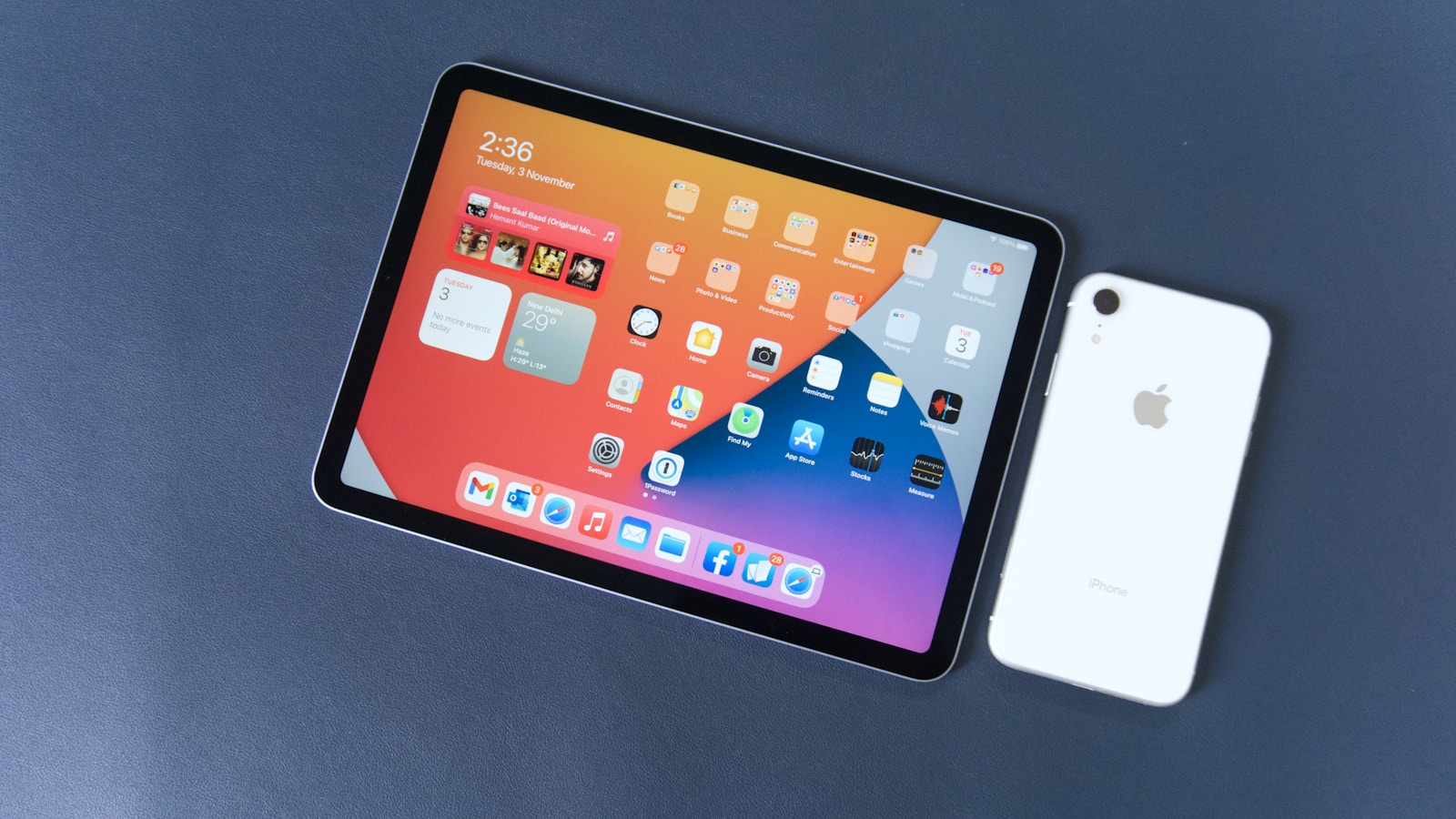
Resetting an iPad without a password or computer can be a lifesaver when you’re locked out of your device. Users can reset their iPad using the Find My iPad feature or by putting the device into recovery mode. These methods allow for a factory reset without needing the passcode or a computer, giving users a way to regain access to their locked devices.
The Find My iPad method requires the feature to be enabled beforehand and an internet connection. It allows users to erase their iPad remotely through iCloud.com or another iOS device. This approach is convenient for those who have access to another device and remember their Apple ID credentials.
Recovery mode is an alternative for users who don’t have Find My iPad enabled or can’t access it. This method involves using the iPad’s physical buttons to enter a special mode where the device can be reset. It’s a straightforward process that works even when the iPad is completely locked.
How to Reset iPad Without Password or Computer
Forgetting your iPad passcode can be frustrating—especially if you don’t have access to a computer. The good news is that you can still reset an iPad without the screen password and without using a computer, as long as you know the Apple ID and password linked to the device.
This guide explains all available methods, what you need for each one, and important things to know before you begin.
Before You Start (Important)
- ✅ These methods erase all data on the iPad
- ✅ You must know the Apple ID and password associated with the iPad
- ❌ There is no official way to reset an iPad without both the passcode and Apple ID
- ✅ After reset, you can restore from an iCloud backup (if available)
Method 1: Reset iPad Using iCloud (No Password, No Computer)
This is the most reliable method if you forgot your iPad passcode.
What You Need
- Apple ID & password used on the iPad
- Internet connection
- Any device with a browser (phone, tablet, or another iPad)
Steps
- Open a browser and go to https://www.icloud.com
- Sign in with your Apple ID
- Select Find Devices
- Choose your iPad from the device list
- Tap Erase iPad
- Confirm the action
The iPad will remotely erase itself and restart.
After Reset
- Set up the iPad as new or restore from an iCloud backup
- You’ll need to sign in with the same Apple ID to bypass Activation Lock
✅ Works even if the iPad is locked or disabled
Method 2: Reset iPad Using the “Find My” App on Another Apple Device
If you have access to another iPhone or iPad, this is even easier.
What You Need
- Another Apple device (iPhone/iPad)
- Same Apple ID logged in
Steps
- Open the Find My app
- Go to the Devices tab
- Select the locked iPad
- Tap Erase This Device
- Confirm the erase
Once completed, the iPad will reset automatically.
Method 3: Reset iPad Directly from Lock Screen (iPadOS 15.2 or Later)
Some newer iPadOS versions allow a reset without a computer after multiple failed passcode attempts.
Requirements
- iPad connected to Wi‑Fi or cellular
- Apple ID password
- iPadOS 15.2 or newer
Steps
- Enter the wrong passcode several times
- When “iPad Unavailable” appears, tap Erase iPad
- Confirm and enter your Apple ID password
- The iPad will reset
⚠️ This option may not appear on older iPads or if Find My is disabled.
What If You Don’t Know the Apple ID?
Unfortunately:
- Apple does not allow bypassing Apple ID or Activation Lock
- This is a security feature to prevent theft
Your Options
- Recover your Apple ID at: https://iforgot.apple.com
- Contact Apple Support with proof of purchase
Can You Reset an iPad Without Password, Computer, and Apple ID?
❌ No.
Any tool or website claiming this is either outdated or unsafe.
Final Tips
- Always keep Find My enabled
- Back up your iPad to iCloud regularly
- Store your Apple ID credentials securely
Key Takeaways
- Find My iPad allows remote reset with an internet connection
- Recovery mode enables reset using physical buttons on the iPad
- Both methods erase all data, so backing up regularly is crucial
Understanding iPad Factory Reset
A factory reset erases all data and settings on an iPad, returning it to its original state. This process differs from a normal reset and has significant consequences for users.
Differences Between Factory Reset and Normal Reset
A normal reset restarts the iPad, clearing temporary data and refreshing the system. It doesn’t remove personal information or installed apps. A factory reset, however, erases everything on the device.
Factory resets delete all content, settings, and apps. They remove the Apple ID association and disable Find My iPad. Normal resets don’t affect these elements.
Users perform normal resets to fix minor issues. Factory resets are for major problems or when selling the device. Normal resets take seconds, while factory resets can take several minutes to complete.
Consequences of Factory Resetting Your iPad
Factory resetting an iPad erases all personal data, including photos, videos, and documents. It removes all installed apps and their data. The iPad’s settings return to default.
Users lose access to their Apple ID on the device. They must sign in again after the reset. This process can be challenging without the password.
Backups are crucial before a factory reset. Without a backup, users permanently lose their data. iCloud or computer backups preserve important information.
After the reset, users must set up the iPad as new. This includes connecting to Wi-Fi, signing in to Apple ID, and reinstalling apps. The process can be time-consuming but results in a clean slate.
Pre-Reset Considerations
Before resetting an iPad without a password or computer, users must take essential preparatory steps. These measures protect data and ensure a smooth reset process.
Ensuring Backup Availability
iPad users should verify the existence of a recent backup before initiating a reset. iCloud offers an automatic backup solution. Users can check their iCloud backup status in Settings > [their name] > iCloud > iCloud Backup. If a recent backup is unavailable, connecting to Wi-Fi and plugging in the device can trigger a manual backup.
For those who prefer local backups, iTunes on a computer provides an alternative. However, this method requires access to a previously synced computer and the device’s passcode.
Regular backups safeguard against data loss during the reset process. Users should aim to back up their iPads frequently to preserve recent data and settings.
Deactivating Find My iPad Feature
Disabling the Find My iPad feature is crucial before resetting the device. This security measure prevents unauthorized resets and protects user data. To turn off Find My iPad, users typically navigate to Settings > [their name] > Find My > Find My iPad and toggle it off.
If the iPad is locked, users may need to sign out of their Apple ID remotely. This can be done through iCloud.com or another Apple device. Signing out removes the Activation Lock and allows for a clean reset.
Users should note that deactivating Find My iPad reduces the ability to locate the device if it’s lost or stolen. Reactivation after the reset is recommended for continued device security.
Resetting iPad Without Password or Computer
Resetting an iPad without a password or computer requires specific steps and options. Users can utilize built-in features or seek assistance from Apple to regain access to their device.
Using Recovery Mode
Recovery Mode offers a way to reset an iPad without a password. To enter Recovery Mode on an iPad with a Home button, press and hold the Home and Power buttons simultaneously until the recovery screen appears. For iPads without a Home button, quickly press and release the volume up button, then the volume down button, and finally hold the top button until the recovery screen shows.
Once in Recovery Mode, the iPad can be restored using a computer with iTunes or Finder. This process erases all data on the device, returning it to factory settings. Users should ensure they have a recent backup before proceeding with this method.
Contacting Apple Support for Assistance
Apple Support provides options for users unable to reset their iPad through other means. Contact Apple Support through their website, phone, or visit an Apple Store. Support staff can verify ownership and may offer additional solutions.
Apple might use a feature called Activation Lock to help remotely unlock the device. This process requires proof of purchase and may take several days. In some cases, Apple Support can guide users through alternative reset methods or provide instructions for unlocking the iPad without a computer.
Post-Reset Setup
After resetting your iPad, you’ll need to set it up again. You can choose to restore from a backup or start fresh with a new setup.
Restoring from iCloud or Finder Backup
Connect your iPad to Wi-Fi. On the “Hello” screen, follow the setup steps until you reach “Apps & Data.” Select “Restore from iCloud Backup” or “Restore from Mac or PC.” For iCloud, sign in with your Apple ID and choose a backup. For Mac or PC, connect your iPad to the computer and open Finder or the Apple Devices app.
Select your iPad and click “Restore Backup.” Choose the most recent backup and wait for the process to complete. Your iPad will restart and begin downloading your apps and data. This may take some time depending on your internet speed and backup size.
Setting Up iPad as New
If you prefer a fresh start, select “Set Up as New iPad” on the Apps & Data screen. Choose your language and region. Connect to Wi-Fi and set up Face ID or Touch ID. Create a new passcode for security.
Sign in with your Apple ID or create a new one. You can also skip this step and sign in later. Agree to the terms and conditions. Choose whether to share analytics with Apple. Set up Siri and select your preferred appearance.
Customize your settings for automatic updates, Screen Time, and location services. Finally, your iPad will be ready to use. You can now download apps from the App Store and customize your home screen layout.
Frequently Asked Questions
Resetting an iPad without a password or computer can be challenging. Several methods exist, each with specific requirements and limitations.
How do I unlock my iPad if I forgot the password without using a computer or iTunes?
Unlocking an iPad without a password or computer is not possible. Apple’s security measures require either the correct passcode or a connection to a trusted computer with iTunes or Finder.
How can I factory reset my iPad without a password?
Factory resetting an iPad without a password typically requires a computer. The device must be put into recovery mode and then restored using iTunes or Finder on a Mac or PC.
How can one factory reset an iPad using just the device buttons and without access to a computer?
Resetting an iPad using only device buttons is not feasible. A computer with iTunes or Finder is necessary to perform a factory reset without the passcode.
What steps should be taken to reset an iPad when the Apple ID password is forgotten?
If the Apple ID password is forgotten, users can reset it through the Apple ID account page or the Find My app on another device. After resetting the password, the iPad can be reset normally.
How can I reset my iPad to factory settings without the passcode or access to a computer?
Resetting an iPad to factory settings without the passcode or a computer is not possible. Apple’s security design requires either the passcode or a connection to a trusted computer.
What is the procedure for unlocking an iPad without the Apple ID credentials?
Unlocking an iPad without Apple ID credentials is not supported. Users must have the correct Apple ID and password to access a locked device or remove Activation Lock.