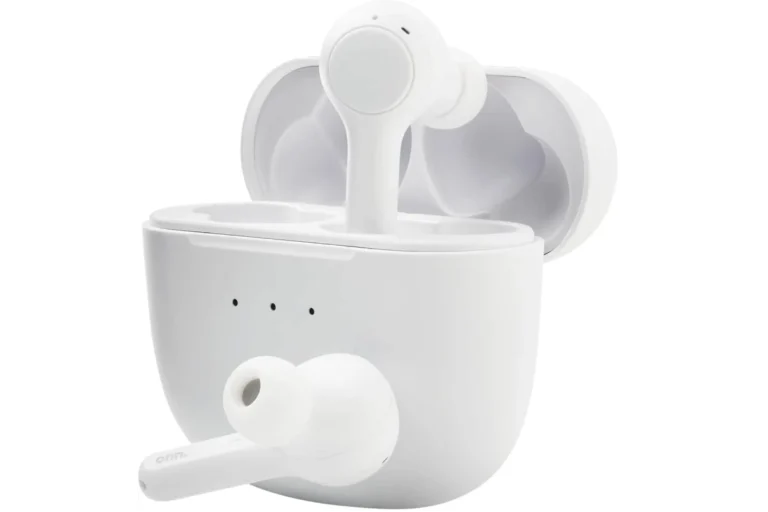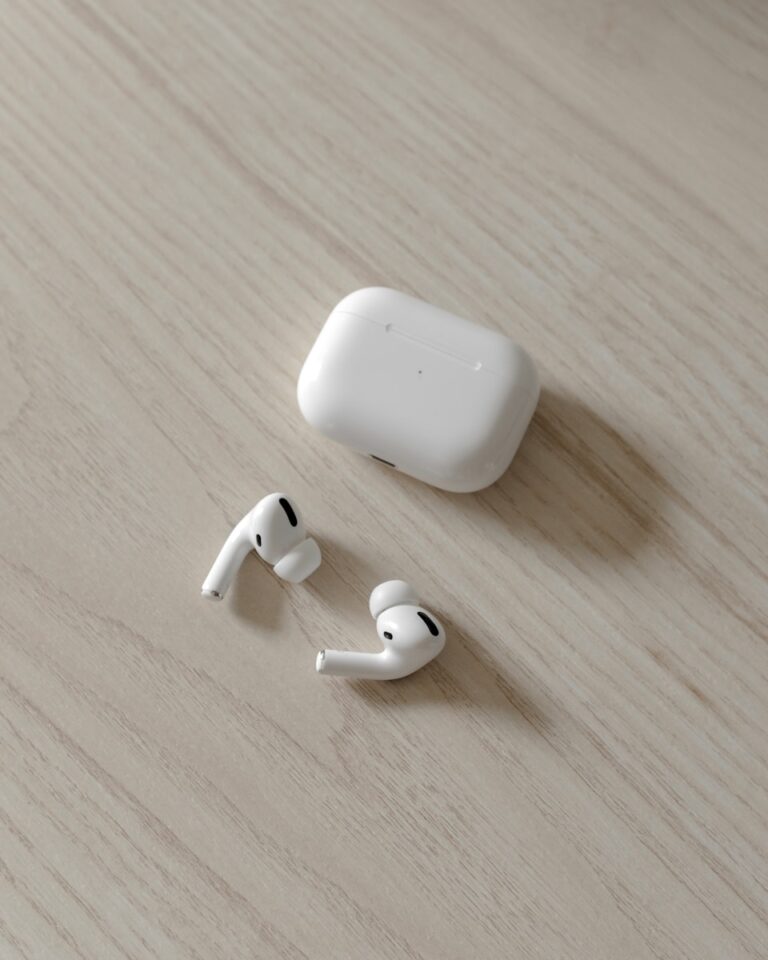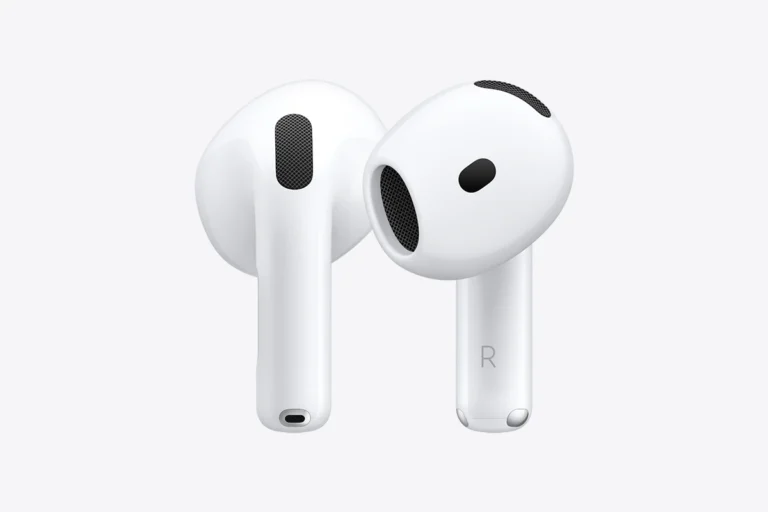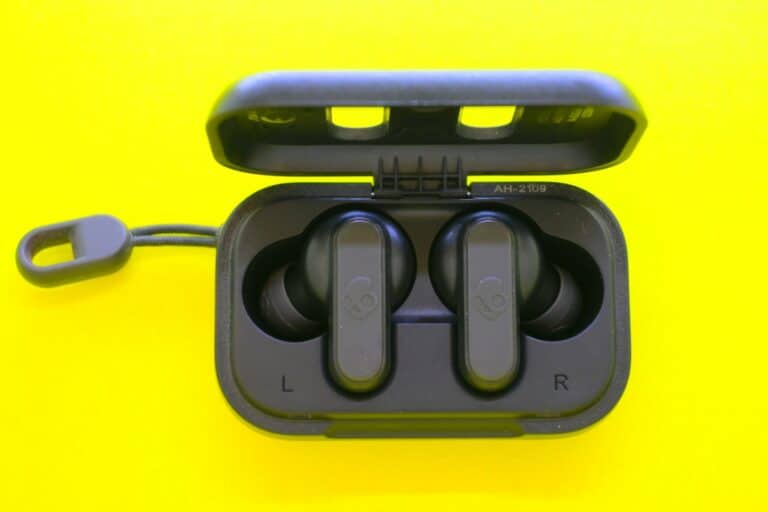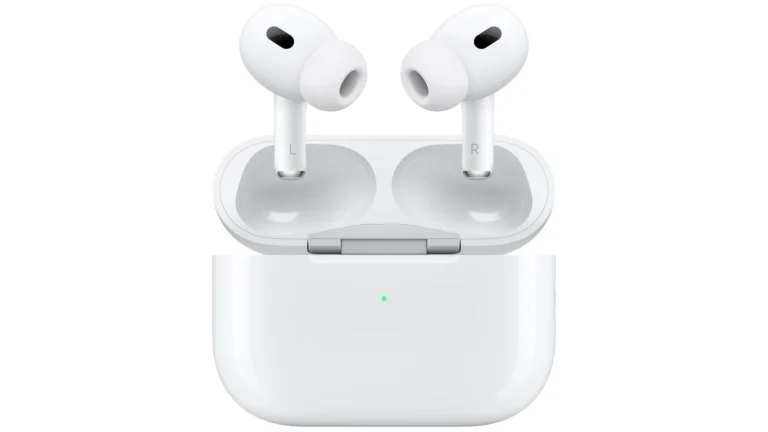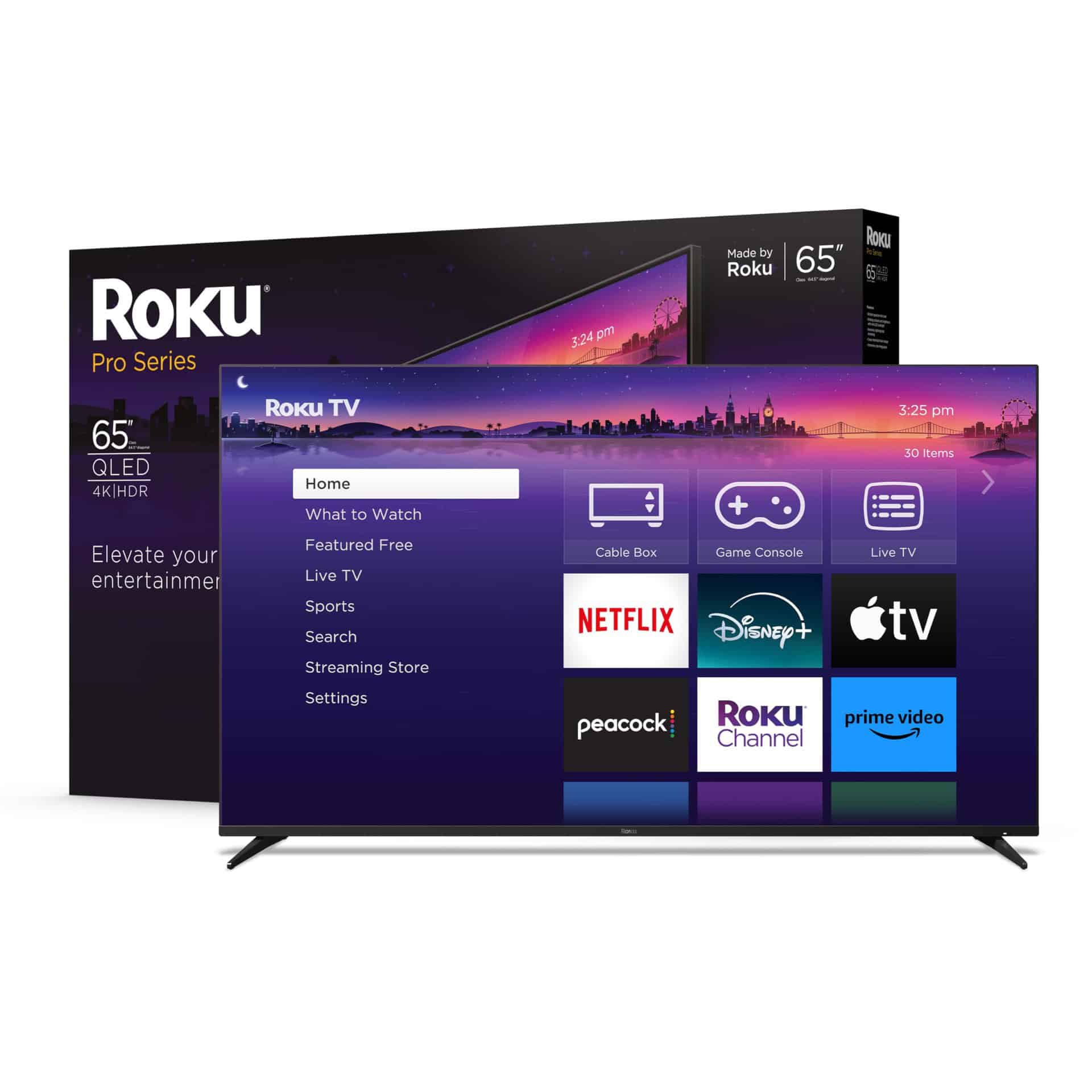
Watching TV with AirPods can give you a private listening experience without disturbing others around you. While Roku TVs don’t allow direct Bluetooth connections to AirPods, there’s still a simple way to enjoy your favorite shows using your Apple earbuds. You can connect AirPods to a Roku TV through the Roku mobile app’s private listening feature, which routes the TV audio through your phone to your AirPods.
The process is straightforward and doesn’t require any additional equipment beyond what you already own. You’ll need your AirPods, an iPhone, and the free Roku mobile app installed on your phone. This solution works for all AirPods models, including AirPods Pro and AirPods Max, giving you flexibility regardless of which version you own.
Steps To Connect AirPods to Roku TV
There are two main methods to connect your AirPods to a Roku TV, depending on whether your device has built-in Bluetooth support.
Method 1: Direct Bluetooth Connection (For Compatible Roku Devices)
Some newer Roku devices, like the Roku Plus Series TV and certain Roku soundbars, have built-in Bluetooth capabilities (source: wikiHow).
Steps:
- Put your AirPods in pairing mode – Open the AirPods case, press and hold the button on the back until the light flashes white
- On your Roku TV, go to Settings
- Navigate to Remotes & devices > Bluetooth
- Select “Pair new device”
- Choose your AirPods from the list of available devices
- Confirm the connection
Note: When using this method, you’ll need to manually reconnect your AirPods each time you want to use them (source: Pocket-lint).
Method 2: Using the Roku Mobile App (For All Roku Devices)
If your Roku TV doesn’t have built-in Bluetooth, you can use the Private Listening feature through the Roku mobile app (source: wikiHow).
Steps:
- Download the Roku mobile app (available for iOS and Android)
- Connect your phone to the same Wi-Fi network as your Roku TV
- Open the Roku app and ensure it’s connected to your Roku device
- Connect your AirPods to your phone via Bluetooth
- Tap the headphone icon at the bottom of the app screen to enable Private Listening
- Start streaming – audio will now play through your AirPods
This method allows you to use your AirPods for TV audio without needing to pair them directly to the TV (source: Pocket-lint).
Which Method Should You Use?
- Use Method 1 if you have a compatible Roku device with built-in Bluetooth and want a direct connection
- Use Method 2 if your Roku doesn’t support Bluetooth, or if you prefer the convenience of not manually reconnecting each time
Both methods work with all AirPods models and can also be used with other Bluetooth headphones (source: BoostVision).
Key Takeaways
- AirPods cannot connect directly to most Roku TVs but can work through the Roku mobile app’s private listening feature.
- The connection requires AirPods, a smartphone with the Roku app, and both devices connected to the same WiFi network.
- Audio quality may vary based on your network connection and can be improved by staying within range of your router.
Understanding the Compatibility Between AirPods and Roku TV
AirPods and Roku TVs have different connectivity technologies that affect how they work together. Most Roku TVs don’t support direct Bluetooth connections with audio devices like AirPods, but there are workarounds available.
Compatibility Requirements
To use AirPods with a Roku TV, you’ll need specific equipment and software. Most importantly, you’ll need the Roku mobile app installed on your iPhone or other device. This app enables the private listening feature, which routes the TV audio through your phone to your AirPods.
Some newer Roku TV models and devices do support direct Bluetooth connections to headphones. To check if your Roku TV has this capability, look for Bluetooth options in the settings menu under “Remotes & Devices.”
For the app method, you’ll need:
- AirPods (any generation)
- Roku TV
- iPhone or compatible device
- Roku mobile app
- Both devices connected to the same Wi-Fi network
Potential Limitations
While connecting AirPods to Roku TV provides a convenient private listening experience, there are several limitations to be aware of. Audio delay or lag might occur when using the mobile app method, which can affect your viewing experience, especially for action scenes or dialogue-heavy content.
Battery drain is another consideration. Using the private listening feature through the Roku app will consume more battery on both your phone and AirPods.
Signal quality may vary based on:
- Distance between devices
- Wi-Fi network stability
- Number of connected devices
Some users report occasional disconnections during extended viewing sessions. The quality of audio might also be slightly lower compared to the TV’s built-in speakers due to compression needed for wireless transmission.
Preparing Your Devices for Connection
Before connecting AirPods to a Roku TV, proper device preparation ensures a smooth and successful pairing process. Each device requires specific settings and conditions to work correctly together.
Updating Device Firmware
Keeping your devices updated is crucial for compatibility. For Roku TVs, check for system updates by navigating to Settings > System > System Update > Check Now. If an update is available, follow the on-screen instructions to install it.
For AirPods, updates happen automatically when they’re connected to an iOS device. To check your AirPods’ firmware version:
- Connect AirPods to your iPhone
- Go to Settings > General > About
- Scroll down and tap on your AirPods
- Look for the “Firmware Version” number
Outdated firmware can cause connectivity issues or prevent certain features from working. Most Roku TVs require at least OS 9.4 for Bluetooth audio device support.
Ensuring AirPods Charge
AirPods must have sufficient battery charge for proper pairing and use. Place them in their charging case and check the indicator light:
- Amber light: AirPods are charging
- Green light: AirPods are fully charged
For optimal connection performance, aim for at least 20% battery life. The charging case itself should also have adequate power.
To check AirPods battery levels:
- Hold the case near your iPhone with AirPods inside
- Open the case lid
- A battery status widget will appear on your iPhone
Low battery can cause intermittent connections or unexpected disconnections during use with your Roku TV.
Enabling Bluetooth on Roku TV
Not all Roku TV models support direct Bluetooth connections. Check your TV’s device list in the settings menu to confirm Bluetooth capability.
For Bluetooth-enabled Roku TVs:
- Press the Home button on your Roku remote
- Navigate to Settings
- Select Remote & devices
- Choose Bluetooth devices or Wireless devices
- Select “Pair new device” to make your TV discoverable
If your Roku TV doesn’t have built-in Bluetooth, you can still connect AirPods using the Roku mobile app’s Private Listening feature. This method uses your phone as an intermediary device, connecting your AirPods to your phone while the phone connects to the Roku TV through WiFi.
Step-by-Step Guide to Connecting AirPods to Roku TV
Connecting AirPods to a Roku TV requires using the Roku mobile app as an intermediary since most Roku TVs don’t support direct Bluetooth connections to headphones. This method uses the Private Listening feature through your smartphone.
Accessing the Bluetooth Pairing Mode
First, download the Roku mobile app on your smartphone if you haven’t already. The app is available for both iOS and Android devices in their respective app stores. Open the app and ensure your smartphone is connected to the same Wi-Fi network as your Roku TV.
Put your AirPods in pairing mode by opening the charging case lid with the AirPods inside. Press and hold the setup button on the back of the case until the status light flashes white. This indicates your AirPods are ready to pair.
On your smartphone, go to Settings and open the Bluetooth menu. Make sure Bluetooth is turned on. Your AirPods should appear in the list of available devices.
Selecting AirPods from the Device List
In your smartphone’s Bluetooth settings, tap on your AirPods when they appear in the device list. Your phone will establish a connection with the AirPods. You should hear the familiar connection sound in your AirPods when the pairing is successful.
Now open the Roku mobile app on your smartphone. Look for the remote control icon at the bottom of the screen and tap on it. This brings up the virtual remote control interface.
Look for the headphone icon in the app. This represents the Private Listening feature. Tap on this icon to enable audio streaming from your Roku TV through your smartphone and then to your AirPods.
Confirming the Pairing on Smartphone
Once you tap the headphone icon, the Private Listening feature will activate. You should see a volume slider appear, indicating that audio is now being routed through your smartphone. The TV speakers will automatically mute.
Put your AirPods in your ears. You should now hear the Roku TV audio through your AirPods. You can adjust the volume using either the volume buttons on your smartphone or the volume controls in the Roku app.
To verify everything is working properly, play some content on your Roku TV. The audio should come through your AirPods with minimal delay. If you experience significant lag, try moving closer to your TV or restarting both devices.
To stop Private Listening, simply tap the headphone icon again in the Roku app. This will return audio playback to your TV speakers.
Troubleshooting Common Connection Issues
When using AirPods with a Roku TV, several technical hiccups may arise that affect your listening experience. These issues typically fall into three categories that can be addressed with specific solutions.
Resolving Audio Delay
Audio delay happens when the sound from your AirPods doesn’t match what you see on screen. This can be frustrating during movies or shows.
To fix this issue, first try turning your AirPods off and on again. Simply place them back in their case for 15 seconds, then take them out again.
If the delay persists, check your Roku TV settings. Navigate to:
- Settings > Audio > Audio mode
- Select “Normal” instead of “Theater” or other enhanced modes
For Roku TV models with Bluetooth compatibility, ensure your device firmware is updated. Outdated firmware commonly causes sync issues between audio and video.
Some users find that closing background apps on their smartphone helps reduce audio latency when using the private listening feature through the Roku mobile app.
Reconnecting After Interruptions
Connection interruptions can occur when AirPods switch to another device or lose their connection entirely.
When AirPods disconnect unexpectedly, open the Roku mobile app and select the headphone icon again. Make sure your smartphone remains within 30 feet of your Roku TV.
For more reliable connections:
- Keep your iPhone unlocked while using private listening
- Disable Bluetooth on other nearby devices
- Close unnecessary apps on your smartphone
If connections drop frequently, move your smartphone closer to both your Roku TV and AirPods. Physical obstacles like walls can interfere with the signal path.
It’s also helpful to restart your Roku device occasionally. Go to Settings > System > Power > System restart to clear temporary connection issues.
Addressing Connectivity Problems
When AirPods won’t connect at all to your Roku setup, several solutions are available.
First, ensure your AirPods are properly paired with your smartphone. Since most Roku TVs don’t support direct Bluetooth connections, your AirPods must connect through the Roku mobile app’s private listening feature.
If your connection fails:
- Verify all devices are on the same Wi-Fi network
- Check that your AirPods have sufficient battery charge
- Update your Roku mobile app to the latest version
- Ensure your Roku TV’s software is current
For older Roku TV models without Bluetooth support, consider using a Bluetooth transmitter that connects to the TV’s audio output. These adapters typically plug into the headphone jack or optical audio port.
Try restarting your router if connection problems persist. Network instability often affects the private listening feature.
Optimizing Your Audio Experience
Once you’ve connected your AirPods to your Roku TV, several adjustments can enhance your listening experience. Fine-tuning both your AirPods settings and Roku TV audio options will help eliminate common issues like audio delays or sound quality problems.
Adjusting AirPods Settings
To get the best performance from your AirPods with Roku TV, proper configuration is essential. On your iPhone, go to Settings > Bluetooth, then tap the (i) icon next to your AirPods. Enable “Automatic Ear Detection” to pause audio when removing an AirPod. This feature helps conserve battery life during viewing breaks.
For AirPods Pro, noise cancellation settings can dramatically improve the viewing experience. Toggle between “Noise Cancellation” and “Transparency” modes depending on whether you need to hear surrounding sounds.
If experiencing audio drop-outs with AirPods, try these troubleshooting steps:
- Reset your AirPods by holding the setup button
- Update AirPods firmware through your iPhone
- Move closer to the Roku device or iPhone when using the Roku app
Keeping your AirPods charged above 20% also helps prevent connection issues and audio quality degradation.
Customizing Roku TV Audio Settings
Roku TVs offer several audio settings that work well with AirPods and other wireless headphones. From the Roku home screen, navigate to Settings > Audio to access these options.
Key Roku Audio Settings:
- Volume Mode: Select “Leveling” to maintain consistent volume across content
- Night Mode: Reduces loud sounds and enhances quiet dialogue—perfect for late-night viewing
- Speech Clarity: Enhances dialogue clarity without raising overall volume
When using the Roku mobile app for private listening, adjust the audio delay settings if experiencing lip-sync issues. This setting compensates for Bluetooth latency that sometimes occurs.
For optimal sound quality, ensure your Roku TV’s audio output format matches what your streaming service provides. Most services offer 5.1 surround sound, which AirPods Pro can partially simulate with spatial audio.
Alternatives to AirPods for Enhanced Audio
While AirPods work well with Roku TVs, other wireless headphones might offer advantages for specific viewing scenarios. Dedicated Roku-compatible headphones often provide lower latency and simpler connectivity.
Alternative Headphone Options:
| Headphone Type | Advantages | Best For |
|---|---|---|
| Roku TV Wireless Headphones | Zero latency, dedicated connection | Movie watching |
| Gaming Headsets | Low latency, extended battery life | Action content |
| Over-ear Bluetooth | Better bass response, noise isolation | Immersive viewing |
Many users find that dedicated headphones designed for TV viewing eliminate the audio delay sometimes experienced when using AirPods through the Roku app method. These headphones typically connect via RF or proprietary wireless technologies rather than Bluetooth.
For shared viewing experiences, consider wireless headphone splitters that allow multiple viewers to connect headphones simultaneously. This approach works particularly well for families or roommates with different volume preferences.
Frequently Asked Questions
Connecting AirPods to Roku TVs involves several different methods depending on your specific device model. These solutions range from using the Roku mobile app to navigating TV settings menus.
What are the steps to pair AirPods with a Roku TV?
You cannot connect AirPods directly to most Roku TVs since they lack Bluetooth audio output capabilities. Instead, you’ll need to use the Roku mobile app’s private listening feature.
First, download the Roku app on your iPhone. Connect your AirPods to your iPhone normally. Open the Roku app and connect it to your Roku TV (both devices must be on the same Wi-Fi network).
In the app, tap the headphone icon to enable private listening. The TV sound will now play through your AirPods while the TV speakers are muted.
Is it possible to use AirPods with Roku Express, and if so, how?
Yes, you can use AirPods with Roku Express through the Roku mobile app’s private listening feature. The Roku Express itself doesn’t have Bluetooth audio capabilities.
Download the Roku app on your iPhone and pair it with your Roku Express. Connect your AirPods to your iPhone, then tap the headphone button in the app to enable private listening.
This routes all audio from your Roku Express through your iPhone to your AirPods.
Can AirPods be connected to an Onn Roku TV, and what is the process?
Yes, AirPods can work with Onn Roku TV models using the Roku mobile app method. Some newer Onn Roku TV models may also support direct Bluetooth connections.
For the app method, connect your AirPods to your smartphone, open the Roku mobile app, connect to your Onn Roku TV, and tap the headphone icon.
For direct connection (if supported), go to your TV’s Settings menu, select Remotes & Devices, then Bluetooth devices, and follow the pairing instructions.
What method is used to enable private listening on a Roku device when using AirPods?
Private listening with AirPods on Roku devices is primarily enabled through the Roku mobile app. This feature works by routing the TV audio through your smartphone to your connected AirPods.
Open the Roku app with your AirPods connected to your phone. Tap the headphone button on the remote interface within the app to toggle private listening mode.
The TV sound will now play through your AirPods while muting the TV speakers, allowing for distraction-free viewing.
How can AirPods Pro be set up for use with a Hisense Roku TV?
AirPods Pro can be connected to a Hisense Roku TV using the same methods as regular AirPods. The primary method is using the Roku mobile app’s private listening feature.
Connect your AirPods Pro to your smartphone. Open the Roku app, connect to your Hisense Roku TV, and tap the headphone icon to enable private listening.
If your Hisense Roku TV supports direct Bluetooth connections, you can put your AirPods Pro in pairing mode and connect through the TV’s Bluetooth settings menu.
Are all Roku TV models equipped with Bluetooth connectivity for devices like AirPods?
No, not all Roku TV models have Bluetooth audio output capabilities. Most older Roku TV models cannot connect directly to Bluetooth headphones or speakers.
Newer premium Roku TV models may offer Bluetooth connectivity for audio devices. You can check if your model supports this by looking in Settings > Remotes & Devices > Bluetooth devices.
For models without Bluetooth audio support, the Roku mobile app remains the most reliable way to use AirPods with your Roku TV through the private listening feature.