Sometimes our Google Pixel 8 phones need a fresh start. Whether you’re experiencing frustrating glitches, preparing to sell your device, or just want to clear out digital clutter, a factory reset can solve many problems. To factory reset your Google Pixel 8, go to Settings > System > Reset options > Erase all data (factory reset), then tap “Erase all data” to confirm.
If your phone isn’t responding, you can also perform a hard reset using the physical buttons. Press and hold the power button and volume down button simultaneously to access the recovery menu. From there, you can use the volume buttons to navigate to “Factory data reset” and the power button to select it.
Remember that a factory reset will erase everything on your device, so backing up important data is crucial before starting. Photos, contacts, messages, and app data will all be removed during the process, returning your Pixel 8 to its original state.
Factory Reset Google Pixel 8: Complete Guide to Wiping Your Device
Factory resetting your Google Pixel 8 can solve numerous problems, from persistent software glitches to preparing your phone for resale. Whether you’re troubleshooting issues, selling your device, or simply starting fresh, this comprehensive guide walks you through every method of factory resetting your Pixel 8, what to do before resetting, and how to recover afterward.
What Is a Factory Reset?
A factory reset (also called a hard reset or master reset) restores your Google Pixel 8 to its original factory settings, exactly as it was when you first unboxed it.
What Gets Deleted
Everything Removed:
- All downloaded apps and app data
- Photos and videos (if not backed up)
- Music, documents, and files
- Text messages and call logs
- Contacts (if not synced to Google account)
- Wi-Fi networks and passwords
- Bluetooth pairings
- System settings and customizations
- Screen lock (PIN, pattern, password, fingerprint)
- Google account login (must re-enter after reset)
- All user data and personal information
What Remains:
- Operating system (Android)
- Pre-installed Google apps
- System apps
- Factory default settings
- Bootloader status (locked/unlocked remains same)
When to Factory Reset Your Pixel 8
Common Reasons:
✅ Selling or Giving Away Device
- Remove all personal information
- Prepare phone for new owner
- Protect your privacy
- Start fresh for buyer
✅ Persistent Software Problems
- Apps crashing repeatedly
- Phone freezing or lagging
- Unresponsive touchscreen
- Battery draining abnormally
- Wi-Fi or Bluetooth issues
- System errors after updates
✅ Before Trading In
- Remove all data before trade-in
- Meet carrier/retailer requirements
- Maximize trade-in value
- Ensure data security
✅ Malware or Security Concerns
- Suspicious apps won’t uninstall
- Phone behavior seems abnormal
- Compromised security
- Remove stubborn malware
✅ Forgotten Screen Lock
- Can’t remember PIN/password/pattern
- Too many failed unlock attempts
- Locked out of device
- Need to regain access
✅ Starting Fresh
- Clean slate after extended use
- Remove clutter and unused apps
- Improve performance
- Declutter digital life
Types of Resets
Factory Reset (Hard Reset):
- Erases everything
- Returns to factory state
- Described in this guide
- Most comprehensive option
Soft Reset (Restart):
- Simple restart/reboot
- Doesn’t erase data
- Fixes minor glitches
- Press and hold Power button → Restart
Network Settings Reset:
- Only resets Wi-Fi, Bluetooth, cellular
- Keeps all other data
- Settings → System → Reset options → Reset Wi-Fi, mobile & Bluetooth
Before You Factory Reset: Essential Preparation
Don’t skip this section! Proper preparation prevents data loss and complications.
Step 1: Back Up Your Data
Google Account Backup (Automatic):
Your Pixel 8 automatically backs up to Google if enabled. Verify this first:
- Open Settings
- Tap Google
- Tap Backup
- Check Backup by Google One status
- Verify it says “On” with recent backup date
- Tap Backup now to force immediate backup
What Google Backs Up:
- Apps and app data
- Call history
- Contacts
- Device settings
- SMS messages
- Photos and videos (if Google Photos backup enabled)
- Calendar events
- Passwords (via Google Password Manager)
Manual Photo Backup:
Even with Google Photos, manually verify:
- Open Google Photos app
- Tap your profile picture (top right)
- Tap Photos settings
- Tap Backup
- Ensure Backup is turned On
- Check Backup status shows “Backed up”
- Wait for “Backup complete” message
- Verify cloud icon appears on all photos
Alternative Backup Methods:
USB Transfer to Computer:
- Connect Pixel 8 to computer with USB cable
- On Pixel, tap notification: “Charging this device via USB”
- Select File transfer
- Open phone storage on computer
- Copy DCIM folder (photos), Downloads, Documents
- Save to computer hard drive
SD Card (if using one):
- Copy important files to SD card
- Remove SD card before factory reset
- Reinstall after reset
- Note: Pixel 8 doesn’t have SD card slot, but USB-C adapters work
Step 2: Remove Google Account Lock
This is critical if selling or giving away your phone.
Factory Reset Protection (FRP):
- Google security feature
- Requires Google account login after factory reset
- Prevents unauthorized device use
- Must remove account BEFORE reset (if giving away phone)
To Remove Google Account:
- Open Settings
- Tap Passwords & accounts or Google
- Tap your Google account
- Tap Remove account
- Confirm removal
- Enter screen lock if prompted
- Tap Remove account again
Important: Only do this if selling/giving away the phone. If keeping the phone, leave your Google account connected – you’ll need it to set up after reset.
Step 3: Remove Screen Locks and Security
Disable Screen Lock (Optional):
If you’re keeping the phone and remember your credentials, you can leave this. If selling, remove it:
- Go to Settings
- Tap Security & privacy
- Tap Device unlock
- Tap Screen lock
- Enter current PIN/password/pattern
- Select None
- Confirm with Delete
Disable Find My Device (If Selling):
- Go to Settings
- Tap Security & privacy
- Tap Find My Device
- Toggle Off
- Enter Google password if prompted
Step 4: Document Important Information
Before resetting, write down:
✏️ Google Account Credentials
- Email address
- Password
- Recovery phone/email
✏️ Wi-Fi Network Information
- Network names (SSIDs)
- Passwords
- Work/school network settings
✏️ App-Specific Data
- Game progress (check if cloud-saved)
- Two-factor authentication codes
- Banking app information
- Authenticator app backup codes
✏️ Phone Settings You Want to Remember
- Important phone numbers
- Custom settings configurations
- App arrangements
Step 5: Charge Your Phone
Battery Requirements:
- Charge Pixel 8 to at least 50% battery
- Preferably charge to 80-100%
- Factory reset can take 10-30 minutes
- Phone may need to restart multiple times
- Low battery during reset can cause problems
Best Practice:
- Keep phone plugged in during factory reset
- Use official Google charger if possible
- Ensure stable power connection
Step 6: Remove External Storage and SIM
Remove SIM Card:
- Locate SIM tray on left side of Pixel 8
- Insert SIM ejection tool (or paperclip) into hole
- Pull out SIM tray
- Remove SIM card
- Store SIM safely for later use
Why Remove SIM:
- Protect carrier information
- Prevent accidental account changes
- Keep for next phone
- Avoid confusion during setup
USB Storage:
- Disconnect any USB-C storage devices
- Remove any connected accessories
- Ensure phone is standalone
Method 1: Factory Reset Through Settings (Recommended)
This is the easiest and safest method when your Pixel 8 is functioning normally and you can access settings. Get ready to factory reset your Google Pixel phone Important: A factory reset erases all your data from your phone (source: Google Support).
When to Use This Method
✅ Use Settings Method If:
- Phone is working normally
- You can access Settings menu
- Screen is responsive
- You remember screen lock credentials
- Phone is not frozen or crashed
❌ Don’t Use This Method If:
- Phone is frozen/unresponsive
- You forgot screen lock
- Phone won’t boot to home screen
- Touchscreen not working
- System UI crashed
Step-by-Step Instructions
Step 1: Access Settings
- Unlock your Pixel 8
- Swipe up from bottom of screen to open app drawer
- Tap the Settings gear icon
- Or swipe down twice from top and tap gear icon
Step 2: Navigate to Reset Options
- In Settings, scroll down to System
- Tap System
- Tap Reset options
- May be labeled “Reset” on some Android versions
- Located near bottom of System menu
Step 3: Choose Factory Reset
- In Reset options, you’ll see:
- Reset Wi-Fi, mobile & Bluetooth
- Reset app preferences
- Erase all data (factory reset) ← Select this
- Tap Erase all data (factory reset)
Step 4: Review Warning Information
You’ll see a screen explaining what will be deleted:
Information Displayed:
- List of Google accounts signed in
- Downloaded apps
- Music, photos, data
- System settings
- All files in phone storage
Read Carefully:
- This is your last chance to back up
- Ensure you’ve backed up everything important
- Double-check you removed Google account if selling
Step 5: Confirm Factory Reset
- Scroll to bottom of warning screen
- Tap Erase all data button
- You may be prompted to:
- Enter your screen lock (PIN/password/pattern)
- Confirm with fingerprint
- Enter credentials if prompted
Step 6: Final Confirmation
- Another confirmation screen appears
- Shows: “This will erase all data from your phone’s internal storage”
- Tap Erase all data again (final confirmation)
- Phone begins factory reset process
Step 7: Wait for Reset to Complete
What Happens:
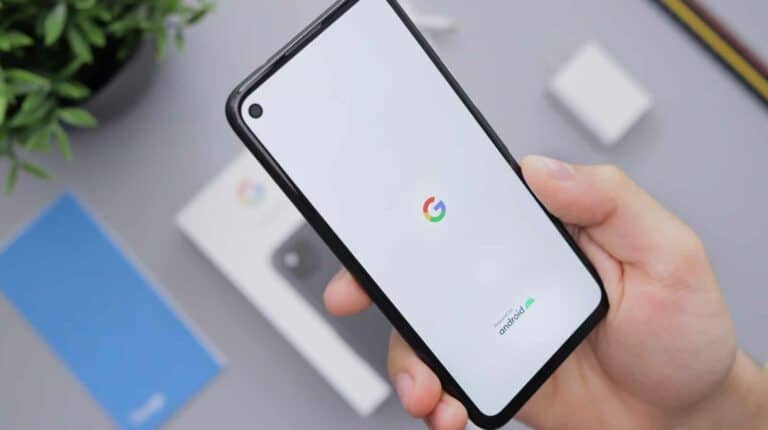
- Screen shows Google logo
- Progress indicator may appear
- Phone restarts automatically
- May reboot several times
- Process takes 5-30 minutes depending on data amount
During Reset:
- Don’t turn off phone
- Don’t remove battery (sealed on Pixel 8)
- Keep phone plugged in if possible
- Don’t press any buttons
- Let process complete fully
Step 8: Setup Screen Appears
After reset completes:
- Phone boots to “Welcome” screen
- Language selection appears
- Setup wizard begins
- Phone is now factory reset
- Ready for initial setup or new owner
Troubleshooting Settings Method
Problem: Can’t Find Reset Options
Solution:
- Update to latest Android version first
- Settings location may vary by Android version
- Alternative path: Settings → About phone → Reset options
- Use search in Settings: search “reset”
Problem: Reset Button Grayed Out
Solution:
- Device administrator apps may prevent reset
- Go to Settings → Security → Device admin apps
- Deactivate all admin apps
- Try factory reset again
Problem: Asks for Google Password
Solution:
- This is Factory Reset Protection (FRP)
- Enter Google account password
- If you forgot: Use Google account recovery
- Must verify account ownership
Method 2: Factory Reset Using Hardware Buttons (Recovery Mode)
Use this method when your Pixel 8 won’t boot normally or you can’t access Settings. A factory reset restores your Google Pixel to its original settings—wiping all your data, apps, and personal information from the device (source: Asurion).
When to Use Hardware Button Method
✅ Use This Method If:
- Phone won’t boot to home screen
- Stuck in boot loop
- Touchscreen not working
- Forgot screen lock (PIN/pattern/password)
- Phone frozen and won’t respond
- System UI crashed
- Settings method doesn’t work
Key Takeaways
- Factory reset removes all data and solves performance issues on your Pixel 8.
- Always back up important information before performing a factory reset.
- You can reset through Settings or recovery mode if your phone isn’t responding.
Understanding Factory Reset on Google Pixel 8
Factory reset is an essential function that returns your Google Pixel 8 to its original state. This process helps troubleshoot serious issues or prepare your device for a new owner by removing all personal data.
Definition of Factory Reset
A factory reset on a Google Pixel 8 is a process that erases all data on the device and restores it to its original settings. This includes all installed applications, photos, videos, contacts, and any customized settings. The phone essentially returns to the same state it was in when first purchased.
The technical term often seen in recovery mode is “wipe data/factory reset,” which completely clears the user partition where all personal data is stored.
Factory reset is different from a simple restart. It’s a complete data wipe that removes everything from the device’s internal storage except the operating system and pre-installed applications.
When to Perform a Factory Reset
Factory reset is recommended in several specific situations:
- When the screen freezes or becomes unresponsive
- When experiencing persistent call, app, or audio issues
- Before selling or giving away the phone
- When facing synchronization problems
- After malware infection
- As a last resort when troubleshooting persistent software issues
For minor problems, users should try simpler fixes first, like restarting the device or clearing the cache. Factory reset should be considered the final option when other troubleshooting methods fail to resolve issues.
Potential Risks of Factory Resetting
The primary risk of factory resetting is permanent data loss. All information not backed up will be erased completely and cannot be recovered afterward.
Sensitive information such as:
- Saved passwords
- Photos and videos
- Contacts and messages
- Downloaded apps and their data
- Custom settings
To minimize risks, users should:
- Back up all important data to Google Drive or another cloud service
- Ensure Google account credentials are known (for bypassing FRP lock)
- Remove SIM card and SD card if applicable
- Sign out of accounts before resetting when possible
Some apps with two-factor authentication may require reconfiguration after the reset.
Differences Between Models: Pixel 6, Pixel 7, Pixel 6a
While the basic factory reset concept remains consistent across Pixel models, there are some notable differences:
The Pixel 8 features a slightly updated recovery mode interface compared to earlier models. The button combinations to access recovery mode vary slightly – Pixel 8 requires pressing and holding the power button and volume down button simultaneously to access the boot menu.
Pixel 8 has faster reset completion times than Pixel 6 models due to improved processors. The Pixel 8 also includes enhanced security features that may require additional verification steps during the reset process.
Pixel 6 and 6a models may have different storage partitioning, affecting how factory reset works at a technical level, though the user experience remains similar.
Preparation Before Reset
Properly preparing your Google Pixel 8 before a factory reset prevents data loss and ensures a smooth transition. Taking a few important steps beforehand will protect your personal information and make it easier to set up your device later.
Backing Up Data
Before resetting your Pixel 8, back up all your important data. Open Settings and navigate to System > Backup. Toggle on “Back up to Google Drive” to save your app data, call history, device settings, and contacts.
Photos and videos should be backed up through Google Photos. Open the app and check if backup is enabled by tapping your profile picture and selecting “Photos settings” > “Backup.”
For files not automatically backed up, manually copy them to Google Drive or transfer them to a computer using a USB cable.
Text messages can be saved using the Google Messages app. Go to Messages > three-dot menu > Settings > Chat features > “Back up chats.”
Don’t forget to verify all backups are complete before proceeding with the reset.
Ensuring Google Account Credentials
Having access to the Google account linked to the Pixel 8 is essential for the reset process. Users should verify their login credentials before resetting the device.
Make sure to know:
- Gmail address
- Password
- Recovery email/phone number
This information will be required when setting up the phone after the reset. Without proper account credentials, users may face difficulties accessing their backed-up data.
It’s also recommended to check if two-factor authentication is enabled and have backup codes available if needed.
For those planning to sell or give away their device, sign out of the Google account before resetting by going to Settings > Accounts > Google account > Remove account.
Checking for ‘Find My Device’ Activation
The Find My Device feature provides security for lost or stolen phones but can complicate the reset process if not properly managed. Before resetting, users should verify its status.
To check if Find My Device is active:
- Open Settings
- Go to Security
- Tap “Find My Device”
- Ensure it’s toggled off if preparing to sell or give away the device
If planning to keep the phone, users can leave this feature on during reset. However, those transferring ownership should disable it to prevent activation lock issues for the next user.
Additionally, signing out of all Google accounts before reset will automatically disable Find My Device protection.
Disabling Screen Lock and FRP Lock
Factory Reset Protection (FRP) helps prevent unauthorized resets but can create obstacles if proper steps aren’t followed. To avoid issues, users should remove all screen locks before resetting.
Steps to disable screen lock:
- Go to Settings > Security
- Select Screen lock
- Enter current PIN/pattern/password
- Choose “None” option
FRP is automatically triggered when a device has a Google account and screen lock. By signing out of Google accounts and removing screen locks before reset, users prevent FRP activation.
This is particularly important when transferring the device to someone else, as FRP would require the previous owner’s Google credentials after reset, potentially rendering the phone unusable for the new owner.
Steps to Factory Reset via Settings
Resetting a Google Pixel 8 through the device settings is the most straightforward method when you can still access your phone. This process completely wipes all data from your device and returns it to factory conditions.
Navigating to the Reset Options
To begin the factory reset process on a Google Pixel 8, first unlock the device and open the Settings app. This can be done by swiping down from the top of the screen twice and tapping the gear icon, or by finding the Settings app in the app drawer.
Once in Settings, scroll down and tap on “System.” This section contains various system-level controls for the device. Inside the System menu, locate and tap on “Reset options.” This submenu specifically contains different reset functions available on the Pixel 8.
The Reset options screen displays several choices, including reset settings for Wi-Fi, mobile data, and app preferences. For a complete factory reset, the user should select “Erase all data (factory reset).”
Selecting ‘Erase All Data’
After tapping “Erase all data (factory reset),” the phone will display an information screen explaining what the factory data reset will do. This screen outlines that the process will:
• Delete all data from the phone’s internal storage
• Remove all apps and their data
• Erase all system settings and preferences
• Delete all downloaded content
Users should note that this process cannot be undone. Before proceeding, it’s essential to back up any important data, photos, or files.
At the bottom of this screen, tap the “Erase all data” button to continue with the process. The phone may ask for a PIN, pattern, or password to verify the user’s identity before proceeding.
Final Confirmation
The device will display a final confirmation screen to ensure the user wants to proceed with erasing all data. This is the last opportunity to cancel before the process begins.
To confirm, tap “Erase all data” again. Some Pixel 8 models may require the user to enter their Google account password for verification, especially if Google account protection is enabled.
Once confirmed, the device will restart and begin the reset process. A progress screen may appear showing the status of the data erasure. This process typically takes 5-10 minutes to complete.
When finished, the Pixel 8 will restart and display the initial setup screen, just like when the phone was new. The factory reset is now complete, and the device is ready for setup or transfer to a new owner.
Performing Factory Reset Using Recovery Mode
Recovery mode provides a reliable way to factory reset your Google Pixel 8 when other methods aren’t working or when your phone won’t boot normally. This process allows you to wipe all data and return the phone to its original factory settings.
Accessing Recovery Mode
To enter recovery mode on your Pixel 8, start by turning off your device completely. Once powered down, press and hold both the Volume Up button and Power button simultaneously for 10-15 seconds. Release the buttons when you see the Google start screen flash momentarily.
The device will then boot into a special menu. You may first see a “No command” screen with an Android robot. If this appears, press and hold the Power button, then press the Volume Up button once while still holding Power.
This action will bring up the Android Recovery screen, which has a black background with white or colored text options. Your phone is now in recovery mode.
Using Volume Keys to Navigate
In recovery mode, the touchscreen doesn’t work for navigation. Instead, use the volume buttons to move up and down through the menu options. The Volume Up button moves the selection highlight upward, while the Volume Down button moves it downward.
The current selection is typically highlighted in a different color or with an arrow pointing to it. Move carefully through the options until you find the one you need.
The Power button serves as the “select” or “enter” key in this interface. Once you’ve highlighted your desired option, press the Power button to select it.
This navigation method works consistently throughout all recovery mode menus on the Pixel 8.
Initiating ‘Wipe Data/Factory Reset’
Once in the recovery menu, use the Volume Down button to scroll to the “Wipe data/factory reset” option. When this option is highlighted, press the Power button to select it.
A confirmation screen will appear, warning that this action will erase all user data. Use the Volume buttons again to highlight “Factory data reset” or “Yes” (the exact wording may vary slightly).
Press the Power button once more to confirm and start the reset process. Your Pixel 8 will begin wiping all data and resetting to factory conditions.
This process typically takes several minutes to complete. When finished, use the volume buttons to select “Reboot system now” and press the Power button. Your phone will restart as a fresh device.
Additional Reset Methods
When standard reset methods aren’t working for your Google Pixel 8, several alternative approaches can help you reset your device. These options range from developer tools to specialized software solutions.
Resetting through ADB Commands
ADB commands provide a powerful way to reset your Pixel 8 when it’s unresponsive. To use this method, you’ll need to enable USB debugging on your phone first.
Required preparation:
- Install Android SDK Platform Tools on your computer
- Enable Developer Options on your Pixel 8
- Turn on USB debugging
Connect your phone to your computer with a USB cable. Open a command prompt or terminal window and navigate to the platform-tools folder. Enter the following commands:
adb devices
adb reboot recovery
When the recovery menu appears, use volume buttons to navigate to “Wipe data/factory reset” and press the power button to select. This method works even when your phone won’t boot normally.
Using Pixel Repair Tool
Google offers the Pixel Repair Tool specifically designed to fix problems with Pixel devices. This web-based tool can help reset your Pixel 8 when other methods fail.
Visit the Pixel Repair website and follow these steps:
- Connect your Pixel 8 to your computer
- Select your device model
- Choose the repair option (factory reset)
- Follow the on-screen instructions
The tool will guide you through putting your phone in recovery mode. It can fix software issues, reset your device, and even reinstall Android if necessary. This option is particularly useful when your phone is completely unresponsive or stuck in a boot loop.
Using Third-Party Software
Several third-party programs can factory reset your Google Pixel 8 when standard methods don’t work. Tools like EaseUS MobiUnlock for Android provide user-friendly interfaces for resetting locked devices.
These programs typically work by:
- Installing the software on your computer
- Connecting your Pixel 8 via USB
- Selecting “Factory Reset” from available options
- Following guided steps to complete the process
Popular third-party options include:
- EaseUS MobiUnlock
- Dr.Fone – Screen Unlock
- Android Unlocker
Be cautious when using third-party software. Only download from reputable sources to avoid malware. Some programs may require payment for full functionality, unlike the official methods which are free but might require more technical knowledge.
Unlocking Google Pixel 8 Without Data Loss
Many Pixel 8 users face the challenge of being locked out of their devices while wanting to preserve their valuable data. Unfortunately, the truth is that unlocking a Google Pixel 8 without data loss is extremely difficult due to Google’s robust security measures.
Using Android Password Utilities
Android password utilities offer potential solutions for locked Pixel 8 devices. Third-party software like Aiseesoft Android Unlocker provides options for users who are locked out.
To attempt this method, users must download the appropriate software on their computer and connect their Pixel 8 via USB. The software guides users through specific steps to bypass the lock screen.
These utilities often claim to work without data loss, but success rates vary significantly. Most require the device to be in developer mode or have USB debugging enabled prior to being locked.
Users should exercise caution when using third-party tools as they may compromise device security or violate warranty terms. Additionally, many of these tools require payment for full functionality.
Utilizing Google’s ‘Find My Device’ Service
Google’s Find My Device offers a legitimate way to regain access to a locked Pixel 8. This method requires that the service was previously enabled on the device.
Users can visit the Find My Device website or app from another device and sign in with the same Google account linked to their Pixel 8. Once signed in, they can locate their device and select the “Secure Device” option.
This allows users to set a new password remotely. The process preserves most data while providing a new access method. However, it won’t work if:
- The device is offline
- The Google account associated with the device isn’t accessible
- Find My Device wasn’t enabled beforehand
For users with pattern locks, this service can be particularly helpful as it bypasses the need to remember the exact pattern.
Leveraging Professional Unlock Services
Professional unlock services represent a last resort for users who cannot access their Pixel 8 through other means. These services typically involve visiting an authorized repair center or contacting Google support directly.
Google’s support team may request proof of ownership, such as purchase receipts or the Google account credentials associated with the device. If verified, they might provide specific instructions to remove the screen lock without performing a full factory reset.
Repair shops with specialized equipment might also offer recovery services, though these come with significant caveats:
- High cost compared to DIY methods
- No guarantee of data preservation
- Potential security risks with unauthorized services
Most professionals will be honest that unlocking without data loss is rarely possible due to Google’s Factory Reset Protection system.
Post-Reset Steps
After completing a factory reset on your Google Pixel 8, several important tasks need to be done to get your phone working properly again. The reset gives you a fresh start, but you’ll need to restore your data and reconfigure your settings.
Restoring Data from Backup
To recover your data, first connect to Wi-Fi during the initial setup process. When prompted, sign in to your Google account that contains your backup. Select “Restore” when asked about using a backup.
Your apps will begin downloading automatically from the Google Play Store. Note that while app data backed up to Google will restore, you may need to log into individual apps again.
For photos and videos, open Google Photos and they should appear if they were previously backed up. Music, documents, and other files stored in Google Drive will be accessible after signing in.
If you used alternate backup methods like a computer or microSD adapters, manually transfer these files back to your phone using a USB cable.
Setting Up the Google Pixel 8 Again
Follow the on-screen setup wizard that appears after the factory reset. You’ll need to:
- Select your language and connect to Wi-Fi
- Sign in with your Google account credentials
- Choose whether to copy data from another device
- Set up a screen lock (PIN, pattern, or fingerprint)
- Configure Google Assistant preferences
Consider which apps to reinstall carefully. This is a good opportunity to remove apps you rarely used before the reset.
Don’t forget to reconnect your Bluetooth devices like headphones, smartwatches, and car systems. These connections need to be established again as they don’t transfer automatically.
Re-enabling Essential Settings
Start by checking your privacy and security settings. Go to Settings > Security and enable screen lock, Find My Device, and Google Play Protect.
Customize your notification settings for each app by going to Settings > Apps & notifications. This prevents being overwhelmed by unnecessary alerts.
Adjust display settings like brightness, night light, and dark theme according to your preferences in Settings > Display.
Battery optimization is important too. In Settings > Battery, enable Adaptive Battery and Battery Saver mode when needed.
For accessibility needs, configure text size, display size, and color correction in Settings > Accessibility.
Lastly, check for system updates at Settings > System > Advanced > System update to ensure your Pixel 8 has the latest security patches and features.
Frequently Asked Questions
Factory resetting a Google Pixel 8 can solve many problems, but the process varies depending on your situation. These common questions address different reset scenarios and important preparations.
What are the steps to perform a factory reset on a Google Pixel 8 if I’ve forgotten my password?
If you’ve forgotten your password, you can still factory reset your Pixel 8 using the recovery mode. First, power off your device completely.
Then press and hold the Volume Up and Power buttons simultaneously for 10-15 seconds until the phone boots into recovery mode. Use the volume buttons to navigate to “Wipe data/factory reset” and press the power button to select it.
Confirm your choice when prompted. The device will reset and reboot, but note that you’ll still need your Google account credentials afterward to complete setup.
Can I factory reset my Google Pixel 8 using hardware buttons if the screen is unresponsive?
Yes, you can reset your Pixel 8 even with an unresponsive screen. Turn off your phone completely first.
Press and hold both the Power and Volume Down buttons simultaneously for about 10-15 seconds. When the bootloader menu appears, use volume buttons to navigate to “Recovery Mode” and press the power button to select.
When you see the Android robot with an exclamation mark, press and hold the power button, then press volume up once. Use volume buttons to navigate to “Wipe data/factory reset” and press power to confirm.
Is it possible to factory reset a Google Pixel 8 Pro and what are the instructions?
The Pixel 8 Pro can be factory reset using the same methods as the standard Pixel 8. The easiest method is through Settings.
Go to Settings > System > Reset options > Factory Reset Device. Follow the on-screen prompts to complete the process.
For a hardware reset when the device is powered off, hold Volume Up and Power buttons together for 10-15 seconds to enter recovery mode, then select “Wipe data/factory reset” using volume buttons to navigate and power button to select.
How can I reset my Google Pixel 8 without losing any important data during the process?
To protect your data before a factory reset, create a comprehensive backup. Start by enabling automatic backups in Settings > System > Backup.
Make sure your photos and videos are backed up to Google Photos. Additionally, verify that your contacts are synced with your Google account.
For app data that isn’t automatically backed up, use the specific app’s backup feature if available. Double-check that text messages, call logs, and other personal data are backed up using your preferred method.
What is the procedure for factory resetting a Google Pixel 8 if I no longer have access to my Google account?
Without Google account access, you can still perform a hardware reset, but you’ll face limitations afterward. Power off your device completely.
Use the hardware buttons (Power + Volume Up) to enter recovery mode, then select “Wipe data/factory reset” using volume buttons to navigate and power to select.
Be aware that after resetting, you’ll encounter Factory Reset Protection (FRP) during setup. Without the original Google account credentials, you may not be able to complete device setup.
What precautions should I take before performing a factory reset on a Google Pixel 8 to ensure I don’t lose any vital information?
Back up all important data before resetting. Go to Settings > System > Backup and verify it’s turned on and has run recently.
Manually back up any data not covered by Google’s automatic backup, including photos, documents, and downloads. Factory resets permanently erase all data on the device.
Ensure you have your Google account password and any two-factor authentication methods accessible. Remove your SIM card and any SD cards before proceeding if you plan to sell or dispose of the device.