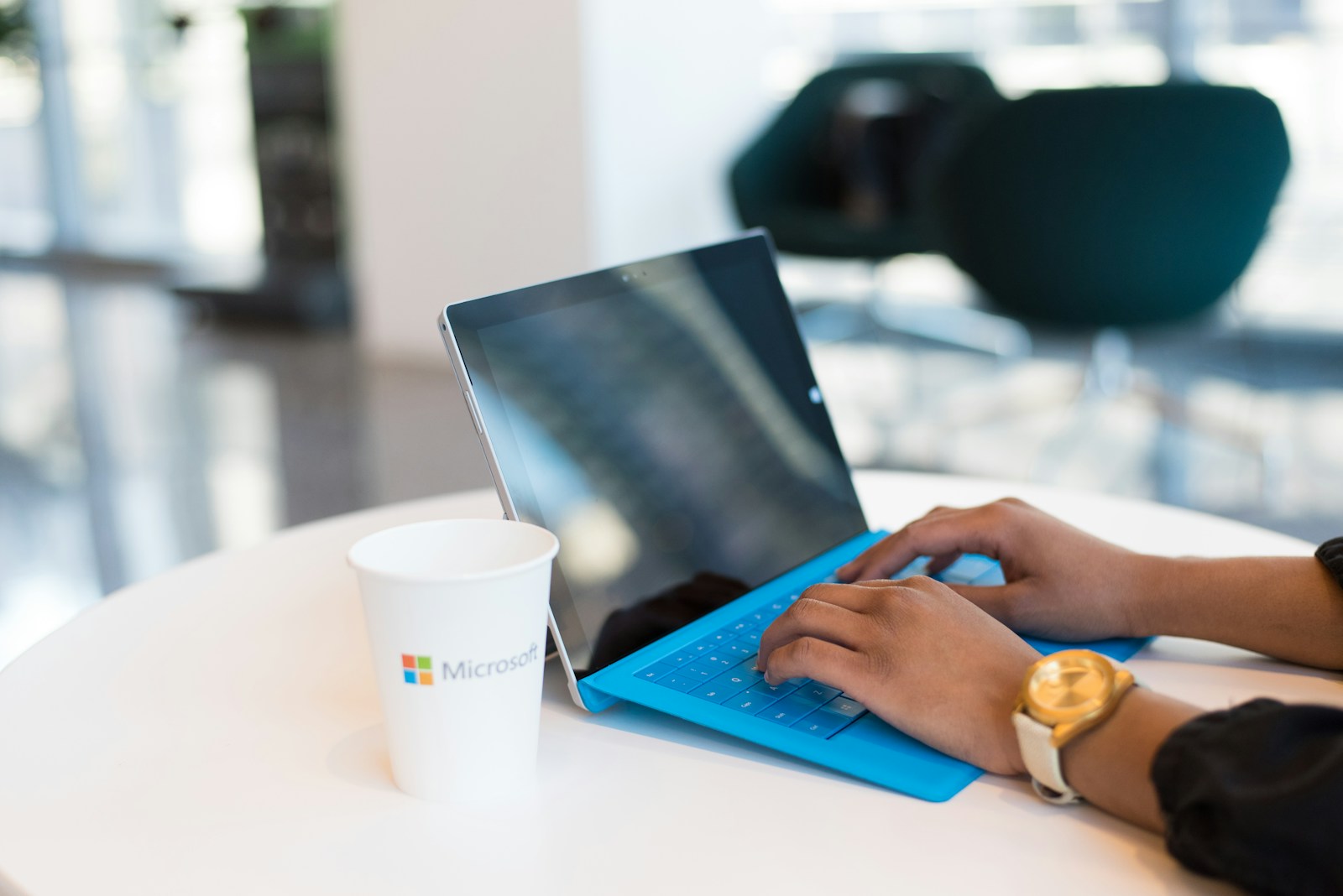
Is your Microsoft Surface touchscreen not responding? This frustrating issue can happen to any Surface device, from Pro models to the Surface Laptop. Restarting your device, reinstalling touchscreen drivers, or performing a hard reset are often the quickest ways to fix a non-responsive touchscreen on Microsoft Surface devices. These simple solutions solve most touchscreen problems without requiring professional repair.
Sometimes the touchscreen stops working after a Windows update or because of software conflicts. Other times, it might be due to physical damage or hardware issues. Before assuming you need a repair, try some basic troubleshooting steps that have worked for many Surface users.
Many Surface owners have successfully fixed their touchscreen issues by reinstalling the touchscreen drivers or performing a power button reset by holding it down for about 30 seconds. These methods often restore functionality without the need for technical expertise or expensive repairs.
How to Fix a Non-Responsive Microsoft Surface Touch Screen
If your Microsoft Surface touchscreen suddenly stops responding to touch, it can disrupt your workflow and be frustrating. The issue can be caused by software glitches, driver problems, or hardware faults. This guide will help you troubleshoot and fix a non-responsive Surface touchscreen.
Step 1: Clean the Screen
- Use a soft, lint-free cloth slightly dampened with water or screen cleaner.
- Wipe the screen gently to remove dirt, dust, or oils that may interfere with touch sensitivity.
Step 2: Restart Your Surface
- Press and hold the Power button for about 10 seconds until the device powers off.
- Wait a few seconds, then press the Power button again to turn it back on.
- Sometimes, a simple reboot fixes touchscreen responsiveness.
Step 3: Check for Windows and Surface Updates
- Go to Settings > Update & Security > Windows Update.
- Click Check for updates and install any available updates.
- Also, install Surface firmware and driver updates from Microsoft to ensure compatibility.
Step 4: Reinstall the Touchscreen Driver
- Right-click the Start button and select Device Manager.
- Expand the section labeled Human Interface Devices.
- Find and right-click HID-compliant touch screen.
- Select Uninstall device.
- After uninstalling, restart your Surface. Windows will automatically reinstall the touchscreen driver.
Step 5: Calibrate the Touchscreen
- Open Control Panel.
- Go to Hardware and Sound > Tablet PC Settings.
- Under the Display tab, click Calibrate.
- Follow the on-screen instructions to recalibrate the touchscreen.
Step 6: Boot into UEFI and Test Touchscreen
- Shut down your Surface.
- Press and hold the Volume Up button, then press and release the Power button.
- Continue holding the Volume Up button until the UEFI screen appears.
- Test the touchscreen functionality here to determine if the issue is hardware-related.
- If the touchscreen doesn’t work in UEFI, it’s likely a hardware problem.
Step 7: Perform a System Restore or Reset
- If the touchscreen stopped responding after recent changes, try System Restore to revert to a previous state.
- If problems persist, consider resetting your Surface:
- Go to Settings > Update & Security > Recovery.
- Choose Reset this PC and follow instructions (back up data first).
Step 8: Contact Microsoft Support or Repair
- If none of the above steps work and the touchscreen remains unresponsive (especially if it fails in UEFI), it may be a hardware failure.
- Contact Microsoft Support or visit a certified repair center for diagnostics and repair.
Summary Table
| Step | What to Do | Notes |
|---|---|---|
| Clean Screen | Wipe with soft cloth | Remove dirt/oil |
| Restart Device | Power off/on | Fixes minor glitches |
| Update Software | Windows & Surface updates | Ensures driver compatibility |
| Reinstall Driver | Device Manager > HID-compliant touch screen uninstall | Forces driver reinstall |
| Calibrate Touchscreen | Control Panel > Tablet PC Settings | Improves touch accuracy |
| Test in UEFI | Boot holding Volume Up + Power | Checks hardware functionality |
| Restore or Reset | System Restore or Reset PC | Last resort |
| Contact Support | Microsoft Support or repair center | Hardware issue likely |
By following these steps, you can usually restore touchscreen functionality on your Microsoft Surface. If the problem persists, professional repair is recommended.
Key Takeaways
- Restart your Surface or reinstall touchscreen drivers to quickly resolve most touchscreen responsiveness issues.
- Perform a hard reset by holding the power button for 30 seconds to fix persistent touchscreen problems.
- Check for physical damage and test touch functionality in UEFI before assuming hardware failure requires professional repair.
Understanding Touchscreen Issues on Microsoft Surface Devices
Microsoft Surface devices are known for their responsive touchscreens, but sometimes these screens can stop working properly. Touchscreen problems can stem from both software and hardware issues, with solutions ranging from simple restarts to more complex repairs.
The Role of Drivers and Firmware
Outdated or corrupted drivers are often the culprits behind touchscreen failures on Surface devices. When the touchscreen drivers malfunction, your Surface can’t properly interpret touch inputs.
Driver-related symptoms include:
- Intermittent touchscreen response
- Touch working in some applications but not others
- Erratic cursor movements
Microsoft regularly releases firmware updates that address touchscreen issues. These updates improve compatibility and fix known bugs that affect touch functionality.
To check for driver updates, go to Settings > Update & Security > Windows Update. For persistent issues, manually reinstalling the HID touch driver through Device Manager can resolve many touch-related problems.
Common Symptoms of a Non-Responsive Touchscreen
Surface users experiencing touchscreen problems typically notice several distinct signs that indicate a problem.
Physical symptoms:
- Complete lack of touch response
- Partial screen dead zones
- Ghost touches (screen responds without being touched)
If touch doesn’t work in the UEFI boot menu, this suggests a hardware failure rather than a software issue. Physical damage, even from minor impacts, can affect touchscreen functionality on Surface Pro and other models.
Temperature extremes can also temporarily disable touch functions. Surface devices have thermal protection that may limit touchscreen functionality when the device overheats.
Performing a two-button restart (holding power and volume-up buttons) often resolves temporary touchscreen issues by clearing system memory.
Preliminary Troubleshooting Steps
Before seeking advanced solutions for a non-responsive touchscreen, try these basic troubleshooting steps that often resolve most Surface touchscreen issues. These simple fixes take just minutes to perform and can save hours of frustration.
Checking for Windows Updates
Outdated software is a common cause of touchscreen problems on Surface devices. Windows updates often contain critical driver fixes that improve touchscreen functionality.
To check for updates on Windows 10, click the Start menu, then go to Settings > Update & Security > Windows Update and select “Check for updates.” For Windows 8 users, access the Charms bar, select Settings > Change PC Settings > Update & Recovery.
Missing touchscreen drivers are frequently fixed through these updates. Allow all pending updates to install completely, then restart your device to apply the changes.
If multiple updates are available, install them in batches and restart between installations for best results. This methodical approach helps identify which update resolves the issue.
Restarting Surface Device
A simple restart can clear temporary system errors affecting the touchscreen. For standard restarts, tap the Windows button, select Power, then Restart.
If the touchscreen isn’t responding at all, try a two-button restart:
- Press and hold the Power button for 30 seconds
- Release and wait 10 seconds
- Press and hold both Volume Up and Power buttons for 15 seconds
- Release both buttons and wait 10 seconds
- Press the Power button normally to turn on the device
This process fully refreshes the system hardware, often resolving touchscreen connectivity issues on Surface Pro and other models. The two-button method is especially effective when the touchscreen becomes completely unresponsive.
Cleaning the Touchscreen
Physical debris and smudges can interfere with touch sensitivity. Before cleaning, power off your Surface device completely to avoid triggering unwanted actions.
Use a soft, lint-free microfiber cloth slightly dampened with water or screen cleaner specifically designed for electronics. Never apply liquids directly to the screen.
Gently wipe in one direction across the entire surface, paying special attention to:
- Areas with visible fingerprints
- Corners and edges where debris accumulates
- Spots showing decreased sensitivity
Avoid using paper towels, household cleaners, or alcohol-based solutions as these can damage the oleophobic coating. After cleaning, allow the screen to dry completely before powering on your Surface.
Regular cleaning prevents buildup that can gradually degrade touchscreen performance on all Surface models running Windows 8 or Windows 10.
Advanced Troubleshooting Techniques
When simple fixes fail to resolve a Microsoft Surface touchscreen issue, it’s time to try more technical solutions. These methods address underlying driver problems and system issues that often cause touchscreen malfunctions.
Accessing the Device Manager
The Device Manager is a powerful tool for diagnosing and fixing hardware problems on Microsoft Surface devices. To access it, right-click on the Start button and select “Device Manager” from the menu. Alternatively, press Windows key + X and choose Device Manager from the list.
Once opened, look for the “Human Interface Devices” section. Expand it to find touchscreen-related devices such as “HID-compliant touch screen.” If there’s a yellow warning icon next to any device, it indicates a problem.
To troubleshoot, right-click on the touchscreen device and select “Properties.” Check the “Device status” section for error messages. The Device Manager also allows users to disable and re-enable the touchscreen, which can reset the connection and resolve minor issues.
Updating or Reinstalling Touchscreen Drivers
Outdated or corrupted drivers often cause touchscreen problems. In Device Manager, right-click on the “HID-compliant touch screen” device and select “Update driver.” Choose “Search automatically for updated driver software” to let Windows find the appropriate driver.
If updating doesn’t work, try reinstalling the driver completely. Right-click the touchscreen device and select “Uninstall device.” Check the box that says “Delete the driver software for this device” if available. After uninstalling, restart the Surface, and Windows will automatically reinstall the default drivers.
For persistent issues, visit the Microsoft Surface support website to download the latest official drivers. Install them manually by choosing “Browse my computer for driver software” during the update process.
Boot Surface from a USB Device
Creating a bootable USB recovery drive can help resolve deeper system issues affecting the touchscreen. First, prepare a USB drive with at least 8GB of space. Go to Control Panel > Recovery > Create a recovery drive, and follow the prompts.
Once created, shut down your Surface completely. To boot from the USB, press and hold the volume-up button while pressing the power button. Continue holding volume-up until the Surface logo appears.
This boots into the UEFI interface where you can test the touchscreen’s hardware functionality. From here, select the USB boot option to access recovery tools. The recovery environment offers options to restore your system, reset the device, or perform advanced troubleshooting that might resolve touchscreen issues without losing data.
Recovery Options for Surface Devices
When a Surface device has a non-responsive touchscreen, software recovery options can often solve the problem. These methods range from using official recovery images to performing clean installations or restoring factory settings.
Using the Recovery Image
Surface devices can be restored using official recovery images from Microsoft. These images contain the original Windows version and all necessary drivers for your specific Surface model.
To download a recovery image, visit the Surface recovery image download page and enter your device’s serial number. This is especially helpful for Surface Pro 3 and Surface Pro 4 models with touchscreen issues.
You’ll need an 8GB or larger USB drive to create the recovery media. After downloading, use the Recovery Drive Creator to format the USB drive and copy the recovery files.
Boot your Surface from the USB by holding the Volume Down button while pressing Power. Follow the on-screen instructions to complete the recovery process.
Performing a Clean Install
A clean install completely wipes your Surface and installs a fresh copy of Windows. This can resolve persistent touchscreen problems caused by corrupted system files.
First, back up all your important files as this process erases everything. Create a Windows installation media using the Media Creation Tool from Microsoft’s website.
Insert the USB drive and boot from it by accessing the UEFI menu. Press and hold the volume up button while pressing power until the Surface logo appears.
Select Custom Install during setup and remove all existing partitions before installing Windows. After installation, visit the Surface Support page to download the latest drivers.
Restoring to Factory Settings
The simplest recovery option is resetting your Surface to factory settings directly from Windows. This option preserves the recovery partition while removing all apps and personal files.
To begin, go to Settings > System > Recovery and select Reset PC. Choose whether to keep your personal files or remove everything.
For Surface Pro 3 and 4 devices with unresponsive screens, you can use a keyboard to navigate this menu. Alternatively, boot into the recovery environment by holding Volume Up while pressing and releasing Power.
If the factory reset doesn’t fix your touchscreen, consider professional data recovery software to retrieve important files before sending your device for hardware repair.
Dealing with Hardware-Related Issues
Hardware problems can often be the root cause of touch screen failures on Microsoft Surface devices. These issues may require different troubleshooting approaches than software-related problems.
Identifying a Hardware Problem
When your Surface touch screen stops responding, determining if it’s a hardware issue is the first step. The most reliable way to test this is by booting to UEFI and checking if touch functionality works there.
To access UEFI:
- Power off your Surface completely
- Press and hold the volume-up button
- Press and release the power button
- Continue holding the volume-up button until the UEFI screen appears
If touch doesn’t work in UEFI, this strongly indicates a hardware failure requiring professional service. Physical damage signs like cracks or visible impact marks usually confirm hardware issues.
Remember to disconnect all accessories before testing, as they can sometimes interfere with touch functionality.
External Tools and Inputs
When dealing with touch screen problems, external input devices can provide temporary solutions while troubleshooting continues.
Essential external tools include:
- Bluetooth or USB mouse
- External keyboard
- Surface Pen (which may still work even when touch doesn’t)
Connecting an external keyboard and mouse allows full functionality of the device despite touch screen issues. This approach is particularly useful for saving work or accessing important files when touch capability is lost.
For meeting presentations or urgent work, consider using screen mirroring to an external display with a standard computer setup. This workaround maintains productivity while addressing the hardware problem.
USB hubs can expand connectivity options when dealing with limited ports on Surface devices.
Considering Screen Replacement
When hardware issues persist, screen replacement might be necessary. For devices still under warranty, Microsoft’s service centers offer repair or replacement options.
Screen replacement costs vary based on:
- Device model (newer models typically cost more)
- Warranty status (covered vs. out-of-warranty)
- Repair location (Microsoft Store vs. third-party repair)
For out-of-warranty devices, third-party repair services often provide more affordable options. However, using non-Microsoft parts may affect device quality and future support.
Before proceeding with replacement, users should backup all data from the device. While screen replacement typically doesn’t affect storage, protecting personal information is always recommended.
Some users might consider DIY replacement, but this is generally not recommended for Surface devices due to their complex construction and risk of further damage.
Getting Professional Help
When your Surface touchscreen stops responding, sometimes DIY fixes aren’t enough. Professional assistance offers specialized solutions when standard troubleshooting fails to resolve persistent touchscreen issues.
Reaching Out to Tech Support
Microsoft offers dedicated technical support for Surface devices with non-responsive touchscreens. Before calling, have your device’s serial number ready, usually found on the back of the device or under the kickstand.
Tech support representatives can guide users through advanced troubleshooting steps not covered in basic online tutorials. These might include specific firmware updates or diagnostic tools only available to support staff.
For devices under warranty, Microsoft may offer free repair or replacement services. Even for out-of-warranty devices, official tech support can provide accurate cost estimates for repairs before users commit.
Microsoft Store locations also offer in-person technical assistance. Booking an appointment with a Microsoft technician ensures hands-on help with complex touchscreen issues.
Consulting with JustAnswer’s Verified Experts
JustAnswer connects users with verified tech experts who specialize in Surface device repairs. These professionals often have experience with specific touchscreen failure patterns across different Surface models.
Experts can provide customized solutions based on the exact symptoms described, sometimes identifying hardware issues that general troubleshooting misses. The service typically costs less than in-person repair shops while offering quick response times.
Many JustAnswer technicians have Microsoft certifications and can advise on whether a problem requires physical repair or if software solutions might still work.
Users can upload photos or videos of their device issues, helping experts make more accurate diagnoses. This visual evidence often reveals subtle details about touchscreen failures that text descriptions miss.
Data Recovery and Salvage
When touchscreen issues prevent access to important files, data recovery becomes critical. Professional services can retrieve data even when the touchscreen makes the device unusable.
Recovery technicians use specialized tools to connect directly to the Surface’s storage, bypassing the need for touchscreen operation. Most can recover documents, photos, and other important files without needing to fix the touchscreen first.
Several data recovery software options exist for less severe cases. These programs can be installed and operated from another computer with the Surface connected as an external drive.
For company devices with sensitive information, professional recovery services offer secure methods that maintain data confidentiality. They can provide certificates of destruction for sensitive data after recovery if needed.
Post-Repair Considerations
After fixing a non-responsive Microsoft Surface touchscreen, it’s essential to verify the repair was successful and take steps to prevent future issues. Proper testing confirms touchscreen functionality while preventive measures help extend the life of your device.
Testing Touch Functionality
Start by performing a comprehensive touchscreen test across the entire display. Use the built-in Surface diagnostic tool to check for any remaining dead zones or response issues.
Test multi-touch gestures including:
- Pinch-to-zoom
- Two-finger scrolling
- Edge swipes
- Tap and hold
Verify touch accuracy in all screen regions, particularly the corners and edges where problems often persist. These areas typically show issues first if the repair wasn’t completely successful.
Boot into UEFI by holding the volume-up button while powering on to test touch functionality at the firmware level. This confirms if problems are hardware or software-related.
Preventive Measures for Future
Keep your Surface’s touchscreen drivers updated through Windows Update or the Surface app. Outdated drivers are a common cause of touchscreen unresponsiveness.
Clean the screen regularly with a microfiber cloth and appropriate screen cleaner. Dirt, oils, and debris can interfere with touch sensitivity and responsiveness over time.
Protect your investment with a quality screen protector that’s compatible with Surface touch sensitivity. Tempered glass options provide the best touch experience while offering protection.
Avoid extreme temperatures as they can affect touchscreen performance. Don’t leave the device in hot cars or expose it to freezing conditions for extended periods.
Restart your Surface weekly to clear temporary issues that might affect touchscreen performance. This simple step prevents many common problems before they start.
Frequently Asked Questions
Touch screen problems on Microsoft Surface devices can be frustrating, but most issues have straightforward solutions. Here are answers to common questions about fixing unresponsive touch screens.
What troubleshooting steps can be taken to address touch screen issues on Surface Pro devices?
If your Surface Pro touch screen isn’t responding, try a simple restart first. Sometimes this basic step resolves temporary glitches.
For persistent issues, shut down your Surface completely. After powering off, press and hold the volume up button while pressing the power button until you see the Microsoft or Surface logo.
Clean the screen with a soft, lint-free cloth. Dirt and fingerprints can sometimes interfere with touch sensitivity.
Check for physical damage to the screen. Cracks or visible damage might require professional repair.
How can I recalibrate the touch screen on my Microsoft Surface?
Open the Control Panel and navigate to Hardware and Sound, then select Tablet PC Settings.
Click on “Calibrate” and follow the on-screen instructions. You’ll be prompted to touch specific points on the screen.
For better precision, use a stylus rather than your finger during the calibration process.
Restart your Surface after calibration to ensure the new settings take effect properly.
What methods are recommended for resolving ghost touch issues on a Surface Pro?
Clean the screen thoroughly to remove any debris that might be causing false touches.
Try a two-button shutdown by holding the power button and volume up button for 15 seconds, then release both.
Disable and then re-enable the touch screen driver through Device Manager.
If the issue persists in specific apps only, try reinstalling those applications.
Is there a way to reset the touch functionality on a Surface when it becomes unresponsive?
Perform a two-button reset by pressing and holding both the power button and volume up button for at least 15 seconds.
Try booting in Safe Mode to determine if a third-party application is causing the issue.
You can use the Surface Diagnostic Tool to automatically check for and fix common touch screen problems.
As a last resort, consider resetting your Surface to factory settings if no other solutions work.
How can I update or reinstall touch screen drivers on a Microsoft Surface?
Open Device Manager by typing “device manager” in the search box on the taskbar.
Expand the “Human Interface Devices” category and find the touch screen device.
Right-click on the touch screen device and select “Update driver” to check for updates online.
To reinstall, right-click the touch screen driver and select “Uninstall device.” After restarting, Windows will automatically reinstall the driver.
What are the common fixes for a Microsoft Surface Pro touch screen not responding in specific areas?
Check for screen protectors or cases that might be interfering with touch sensitivity in certain areas.
Look for dead zones on the screen which could indicate physical damage to the digitizer.
Update Windows and firmware to the latest versions, as Microsoft regularly releases patches for touch screen issues.
Try recalibrating the screen, focusing specifically on the unresponsive areas during the calibration process.