Is your Samsung keyboard suddenly not working properly? This frustrating issue can happen to anyone and can range from keys not responding to the keyboard completely disappearing. To fix a Samsung keyboard that’s not working, try restarting your device, clearing the keyboard cache, or checking for system updates – these simple steps solve most keyboard problems without requiring technical expertise.
Many Samsung users encounter keyboard problems after software updates or when switching between apps. The good news is that most keyboard issues aren’t permanent. Whether you’re dealing with a Galaxy phone or tablet, there are several proven solutions that can get your keyboard functioning normally again.
How to Fix a Samsung Keyboard That’s Not Working: Step-by-Step Guide
If your Samsung phone or tablet’s keyboard suddenly stops working, it can be frustrating and disrupt your communication. Whether the keyboard won’t appear, is unresponsive, or crashes, there are several ways to troubleshoot and fix the issue. This guide will walk you through effective solutions to get your Samsung keyboard working again.
Common Causes of Samsung Keyboard Issues
- Software glitches or bugs
- Outdated keyboard app or system software
- Corrupted keyboard cache or data
- Conflicting third-party apps
- Incorrect keyboard settings
- Insufficient device storage
Step-by-Step Fixes for Samsung Keyboard Not Working
1. Restart Your Device
- Press and hold the power button.
- Tap Restart.
- A simple reboot can clear temporary glitches causing keyboard problems.
2. Check Keyboard Settings
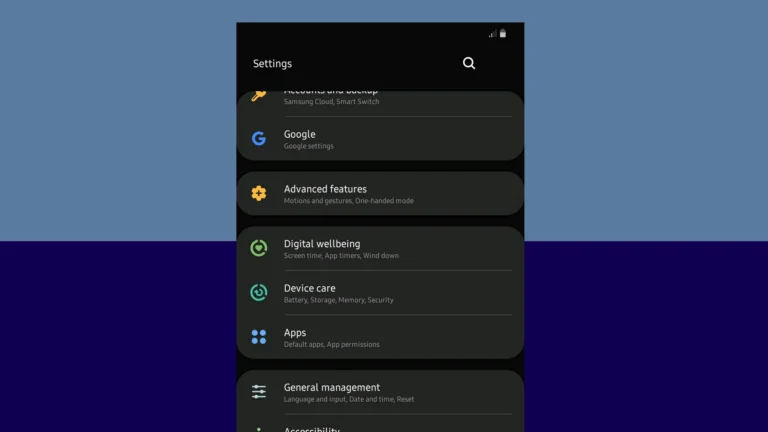
- Go to Settings > General management > Samsung Keyboard settings.
- Ensure the Samsung Keyboard is enabled as the default keyboard.
- If you use a third-party keyboard, try switching back to Samsung Keyboard.
3. Clear Keyboard Cache and Data
- Go to Settings > Apps.
- Tap the three-dot menu and select Show system apps.
- Find and tap Samsung Keyboard.
- Tap Storage > Clear cache.
- If the problem persists, tap Clear data (note: this will reset keyboard settings).
4. Update Your Device and Keyboard App
- Go to Settings > Software update and check for system updates.
- Open Galaxy Store or Google Play Store, search for Samsung Keyboard or Samsung apps, and update if available.
5. Disable and Re-enable Samsung Keyboard
- Go to Settings > General management > Keyboard list and default.
- Disable Samsung Keyboard and then re-enable it.
6. Try Safe Mode to Identify Conflicts
- Press and hold the power button.
- Tap and hold Power off until Safe mode appears.
- Tap Safe mode to restart your device in this mode.
- Test the keyboard. If it works in safe mode, a third-party app is likely causing the issue.
- Restart normally and uninstall recently installed apps one by one.
7. Reset Keyboard Settings
- Go to Settings > General management > Samsung Keyboard settings.
- Scroll down and tap Reset to default settings > Reset keyboard settings.
8. Use an Alternative Keyboard Temporarily
- Download a third-party keyboard app like Gboard from the Google Play Store.
- Set it as the default keyboard in Settings > General management > Keyboard list and default.
Additional Tips
- Ensure your device has enough free storage space.
- Avoid installing apps from untrusted sources that might interfere with system functions.
- Regularly back up your device to avoid data loss during troubleshooting.
Summary Table
| Issue | Fix |
|---|---|
| Keyboard not appearing | Restart device, check default keyboard settings |
| Keyboard unresponsive | Clear keyboard cache and data |
| Keyboard crashes or freezes | Update system and keyboard app |
| Possible app conflict | Boot into Safe Mode, uninstall conflicting apps |
| Keyboard settings incorrect | Reset keyboard settings |
By following these steps, you should be able to resolve most Samsung keyboard issues and get back to typing smoothly. If problems persist, consider contacting Samsung Support or visiting a service center.
Key Takeaways
- Restarting your device and clearing your keyboard’s cache often resolves most Samsung keyboard issues quickly.
- System updates sometimes cause keyboard malfunctions, so checking for the latest software is essential for proper functionality.
- When the default keyboard fails, resetting keyboard settings or trying an alternative keyboard app can provide an immediate solution.
Common Keyboard Issues and Symptoms
Samsung keyboard users often encounter specific problems that can disrupt their typing experience. These issues range from complete keyboard failures to subtle input errors that affect daily usage.
Intermittent Keyboard Functionality
One of the most frustrating experiences is when the Samsung keyboard works inconsistently. Users may see the “Unfortunately Samsung Keyboard Has Stopped” error message appearing randomly. This popup typically indicates a system conflict or corrupted keyboard data.
Sometimes the keyboard appears but disappears mid-typing, forcing users to restart their apps. This problem can happen in any application that requires text input, from messaging to email.
Weather conditions can also affect functionality. In high humidity or extreme temperatures, touch sensors may become less reliable, causing the keyboard to register touches incorrectly or not at all.
After system updates, many users report their keyboards working for a while before suddenly stopping. This pattern suggests compatibility issues between the keyboard software and the new system version.
Keyboard Lag or Unresponsiveness
Typing delay is a common complaint with Samsung keyboards. When users press a key, there’s a noticeable lag before the character appears on screen. This delay can range from barely perceptible to several seconds long.
Heavy resource usage from other apps can worsen keyboard response times. When multiple apps run in the background, the keyboard may struggle to maintain smooth performance.
The “Samsung Keyboard Keeps Stopping” notification often precedes complete freezes. Users report that after this warning, the keyboard becomes entirely unresponsive, requiring a device restart.
Swipe typing features may become particularly sluggish. The predictive path might trail far behind finger movements, resulting in incorrect word selections.
Incorrect Input and Typing Errors
Autocorrect malfunctions are prevalent issues with Samsung keyboards. The system might repeatedly change correctly spelled words to incorrect alternatives, frustrating users during important communications.
Ghost touches occur when the keyboard registers key presses that weren’t made. This results in random characters appearing in text fields without user intervention.
Multiple key presses happen when a single tap registers as two or more of the same character. For example, typing “hello” might result in “heello” or worse gibberish.
Some users report their keyboard not working for specific characters only. The space bar or particular letters might stop responding while the rest of the keyboard functions normally.
Language switching can trigger errors where the keyboard suddenly changes to a different language layout or fails to maintain the selected language preferences.
Basic Troubleshooting Steps
When your Samsung keyboard stops working, several simple fixes can help resolve the issue quickly. These steps address the most common causes of keyboard problems and can be completed in just a few minutes without technical expertise.
Restart Your Samsung Device
The simplest solution is often the most effective. Restarting your Samsung device can fix temporary glitches causing your keyboard to malfunction.
To restart your device, press and hold the power button until the power menu appears. Tap “Restart” and wait for your device to completely power off and turn back on. If your screen is responsive but the keyboard isn’t, this method often resolves keyboard issues.
For devices that are completely unresponsive, try a forced restart. Press and hold both the power button and volume down button simultaneously for about 10-15 seconds until the device restarts.
Check for Software Updates
Outdated software can cause compatibility issues with the Samsung keyboard. Keeping your device updated ensures optimal keyboard performance.
To check for updates:
- Open Settings
- Scroll down and tap Software update
- Tap Download and install
- If an update is available, follow the prompts to install it
Samsung regularly releases keyboard updates that fix bugs and improve functionality. These updates might be included in system updates or separately through the Galaxy Store or Google Play Store.
Clear Samsung Keyboard Cache and Data
Over time, the keyboard app can accumulate corrupted data that affects its performance. Clearing the cache and data can reset the keyboard to its default state.
To clear the Samsung keyboard cache:
- Go to Settings > Apps
- Tap the menu (three dots or lines) and select Show system apps
- Find and tap Samsung Keyboard
- Select Storage
- Tap Clear cache
- If problems persist, tap Clear data
After clearing data, you’ll need to reset keyboard settings like language preferences and predictive text. This process removes any customizations but often resolves persistent keyboard problems.
If Samsung Keyboard continues to malfunction, try setting another keyboard as the default temporarily, then switch back.
Advanced Solutions to Keyboard Issues
When basic troubleshooting doesn’t fix your Samsung keyboard problems, it’s time to try more powerful solutions. These methods can resolve deep-seated software issues that affect keyboard functionality.
Boot in Safe Mode to Identify Conflicts
Safe Mode is a diagnostic state that temporarily disables third-party applications. This helps determine if another app is causing your keyboard to malfunction.
To enter Safe Mode on most Samsung devices, press and hold the power button until the power options appear. Then, touch and hold the “Power off” option until the Safe Mode prompt appears. Tap “Safe Mode” to confirm.
Once in Safe Mode, test your keyboard functionality. If it works properly here, a third-party app is likely causing the conflict. Clear the app data for suspect applications or uninstall recently added apps one by one to identify the culprit.
Safe Mode works similarly across Android versions including Android 5.0, 8.0.0, 10.0, and 13.0, though the exact interface may differ slightly.
Perform a Factory Reset
A factory reset should be considered when all other solutions fail. This option erases all data and returns your device to its original state.
Before proceeding:
- Back up all important data
- Ensure your device is charged above 50%
- Note your Google account credentials
To perform a factory reset, go to Settings > General Management > Reset > Factory Data Reset. On older versions like KitKat, the path may be Settings > Backup and Reset.
Review the information about what will be deleted, then tap “Reset Device” and confirm with your PIN or pattern. Your device will restart and reset to factory conditions, which often resolves persistent keyboard issues.
After the reset, you’ll need to restore your data and reinstall apps.
Use Samsung’s Official Repair Tools
Samsung offers specialized tools to fix system issues without losing data. These options are less drastic than a factory reset but more powerful than basic troubleshooting.
Samsung Members app includes a device diagnostic tool that can identify and fix keyboard problems. Open the app, go to “Get Help” > “Interactive checks” > “Touch screen & keys” to run keyboard-specific diagnostics.
For deeper issues, Samsung’s Smart Switch PC software can repair Android system files. Download Smart Switch to your computer, connect your phone via USB, and look for the “Emergency Software Recovery” option.
Another valuable option is clearing system cache through recovery mode. Power off your device, then press and hold the volume up + power buttons (or volume up + home + power on older devices) until the recovery menu appears. Use volume keys to select “Wipe cache partition” and press power to select.
Alternative Keyboard Options
If your Samsung keyboard isn’t working properly, you have several alternatives to try. These options range from installing third-party keyboards to connecting external hardware for improved typing experiences.
How to Enable and Use Gboard
Gboard, Google’s keyboard app, offers a reliable alternative to the Samsung keyboard. To install Gboard, visit the Google Play Store and download the app. After installation, go to your phone’s Settings, select “General management,” then “Keyboard list and default” and enable Gboard.
To set Gboard as your default keyboard, tap “Default keyboard” and select Gboard from the list. This keyboard offers features like glide typing, voice input, and multilingual typing without switching keyboards.
Gboard also includes helpful customization options. Users can adjust themes, keyboard height, and enable one-handed mode by going to Gboard settings. For text prediction quality improvement, allow Gboard to learn from your typing patterns in the settings menu.
If you experience issues with Gboard, try clearing the cache or updating the app through the Play Store.
Connecting Bluetooth Keyboards
External Bluetooth keyboards provide a physical typing experience for Samsung device users. To connect one, ensure Bluetooth is enabled in your Settings, then put your keyboard in pairing mode.
Popular options include standard Bluetooth keyboards from major manufacturers or specialized models like the AirTurn Ped and AirTurn Duo, which are designed for hands-free page turning and specific professional uses.
To pair your keyboard, go to Settings > Connections > Bluetooth, then select your keyboard from available devices. Once connected, your Samsung device should automatically detect keyboard input.
Most Bluetooth keyboards work immediately after connection, but some may require additional setup through their companion apps. For optimal performance, keep both your keyboard and phone fully charged.
If your keyboard isn’t working properly, try resetting your phone’s keyboard settings or removing and re-pairing the Bluetooth connection.
Switching Input Methods
Samsung devices support multiple input methods that can be changed when the default keyboard isn’t working. To switch between installed keyboards, swipe down from the top of your screen to access Quick Settings, then tap the keyboard icon.
You can also change input methods by going to Settings > General management > Samsung Keyboard settings > Input languages and types.
Voice typing offers a hands-free alternative when keyboard typing isn’t possible. Enable this by tapping the microphone icon on most keyboards, including Samsung’s default and Gboard.
Handwriting recognition is another option for certain languages and keyboards. This allows you to write directly on screen rather than typing.
For multilingual users, many keyboards support language switching without changing your entire input method. Configure multiple languages in keyboard settings to quickly toggle between them while typing.
Hardware-Related Concerns
Sometimes keyboard issues stem from physical damage or outdated drivers rather than software glitches. When software fixes don’t resolve your Samsung keyboard problems, exploring hardware-related solutions becomes necessary.
Inspect for Physical Damage or Connectivity Issues
Start by examining your Samsung keyboard for visible damage. Look for broken keys, liquid spills, or debris trapped underneath the keys. For laptop keyboards, check if any keys are loose or unresponsive when pressed.
For external Samsung keyboards, ensure the connection is secure. Try these steps:
- Unplug and reconnect the keyboard cable
- Clean the connection port using compressed air
- Test the keyboard in different USB ports
- Try the keyboard on another device to determine if the issue is with the keyboard or your computer
If using a wireless keyboard, check the battery level and replace if necessary. Also verify that the keyboard’s wireless receiver is properly connected and functioning. Sometimes simply removing and reinserting the receiver can resolve connectivity issues.
Update or Reinstall Keyboard Drivers
Outdated or corrupted keyboard drivers often cause keyboard malfunctions. In Windows 10 and Windows 7, you can update drivers through Device Manager.
To access and update drivers:
- Press Win+X and select Device Manager
- Expand “Keyboards” category
- Right-click on your Samsung keyboard
- Select “Update driver” and follow prompts
If updating doesn’t work, try uninstalling the keyboard driver. After uninstalling, restart your computer. Windows will automatically reinstall a fresh copy of the driver upon restart.
For Samsung laptops specifically, visit the official Samsung website to download the latest keyboard drivers for your exact model. Installing the manufacturer’s drivers often resolves issues that generic Windows drivers cannot fix.
Contact Samsung Support for Hardware Assessment
When self-troubleshooting fails, professional assistance may be required. Samsung offers several support options for hardware-related keyboard issues.
Visit the Samsung Support website to find your nearest service center. Before contacting support, gather important information:
- Your device model number
- Purchase date and warranty status
- Detailed description of the keyboard problem
- Troubleshooting steps you’ve already attempted
For laptops under warranty, Samsung may offer free repair or replacement for hardware failures. Even outside warranty, Samsung technicians can properly diagnose whether your keyboard issue stems from hardware failure or another cause.
If the keyboard requires replacement, always use genuine Samsung parts to ensure compatibility and proper functioning. Third-party replacements may work initially but often develop problems over time.
Device-Specific Keyboard Solutions
Different Samsung devices often require unique approaches to resolve keyboard malfunctions. Samsung tablets and phones each present distinct challenges that need tailored troubleshooting methods.
Troubleshooting Keyboard on Samsung Tablets
Samsung tablets like the Galaxy Note Pro 12.2 and Galaxy Note S7FE frequently experience keyboard issues that can be resolved through specific methods. When the keyboard stops responding on these devices, users should first try resetting the keyboard settings by navigating to Settings > General management > Samsung Keyboard settings > Reset to default settings.
For the Galaxy Note Pro 12.2, users may encounter the keyboard freezing when using split-screen functionality. This issue can often be resolved by:
- Closing all background apps
- Performing a soft reset (holding power button for 10 seconds)
- Checking for system updates
The S7FE tablet sometimes experiences issues with the PageFlip virtual keyboard feature. Users can fix this by clearing the keyboard cache:
- Go to Settings > Apps > Show system apps
- Find Samsung Keyboard
- Tap Storage > Clear cache
Keyboard Issues on Samsung Phones
Samsung phone models like the Galaxy Note S4 and A3 have their own keyboard troubleshooting requirements. The most common issue on these devices is the “Unfortunately Samsung keyboard has stopped working” error message.
To fix this problem on the Samsung A3:
- Go to Settings > Apps > Show system apps
- Locate Samsung Keyboard
- Select Clear data and Clear cache
- Restart the device
For the Galaxy Note S4, keyboard lag is a frequent complaint. This can be improved by:
- Restarting the keyboard app
- Disabling unnecessary keyboard features (predictive text, key-tap sound)
- Ensuring adequate free storage (at least 500MB)
Some users report that third-party keyboards work better on older Samsung phones when the default keyboard malfunctions. Popular alternatives include Gboard and SwiftKey.
Frequently Asked Questions
Samsung keyboard issues can be frustrating but most problems have simple solutions. These common questions address specific keyboard problems across different Samsung devices and situations.
How can I troubleshoot a non-responsive Samsung keyboard on a tablet?
If your Samsung tablet keyboard isn’t responding, start by restarting your device to clear temporary glitches. This simple step often resolves minor software issues.
Try clearing the keyboard cache by going to Settings > Apps > Samsung Keyboard > Storage > Clear Cache. This removes temporary files that might be causing problems.
Check for any pending software updates that might include keyboard fixes. Go to Settings > Software Update > Download and install.
What steps should be taken when the Samsung keyboard fails to work on the lock screen?
When the keyboard doesn’t work on the lock screen, check if the issue is specific to that screen. Try using a different keyboard temporarily to determine if it’s a Samsung keyboard problem.
Ensure your screen protector isn’t interfering with touch sensitivity. Sometimes thick or poorly applied protectors can block touch inputs near the keyboard area.
Reset the keyboard settings by navigating to Settings > General management > Samsung Keyboard settings > Reset to default settings.
What is the procedure to fix a Samsung keyboard that stopped working after a software update?
After an update, keyboard issues may appear due to compatibility problems. First, try forcing the keyboard app to stop by going to Settings > Apps > Samsung Keyboard > Force Stop.
Clear both cache and data for the keyboard app. This will reset the keyboard completely but may resolve update-related issues.
If problems persist, check Samsung community forums for other users experiencing similar issues with the same update. There might be a known bug that Samsung is working to fix.
How can I resolve issues with a Samsung keyboard that is not functioning on Windows 10?
For Samsung physical keyboards connected to Windows 10, check the Bluetooth or USB connection. Sometimes simply disconnecting and reconnecting resolves the issue.
Update keyboard drivers through Device Manager. Right-click the Start button > Device Manager > Keyboards > right-click your Samsung keyboard > Update driver.
Check for Windows updates that might contain compatibility fixes for peripherals. Some Samsung keyboard issues are resolved with system updates.
What methods are available to repair a Samsung physical keyboard that is not responding?
Clean the keyboard to remove dust or debris that might be blocking key mechanisms. Use compressed air to blow between keys without damaging the keyboard.
Check the keyboard’s battery level if it’s wireless. Low batteries often cause intermittent connection problems or complete failure.
Test the keyboard on different devices to determine if the issue is with the keyboard itself or the connected device. This helps isolate the source of the problem.
What actions should be taken if the Samsung keyboard is not appearing when typing?
If the keyboard doesn’t appear when needed, reset the keyboard to default settings. Go to Settings > General management > Samsung keyboard settings > Reset.
Check if you’ve accidentally enabled a different input method. Go to Settings > General management > Keyboard list and default to verify Samsung Keyboard is selected.
Look for any apps that might be conflicting with the keyboard function. Some apps override system keyboards or cause them to malfunction when active.