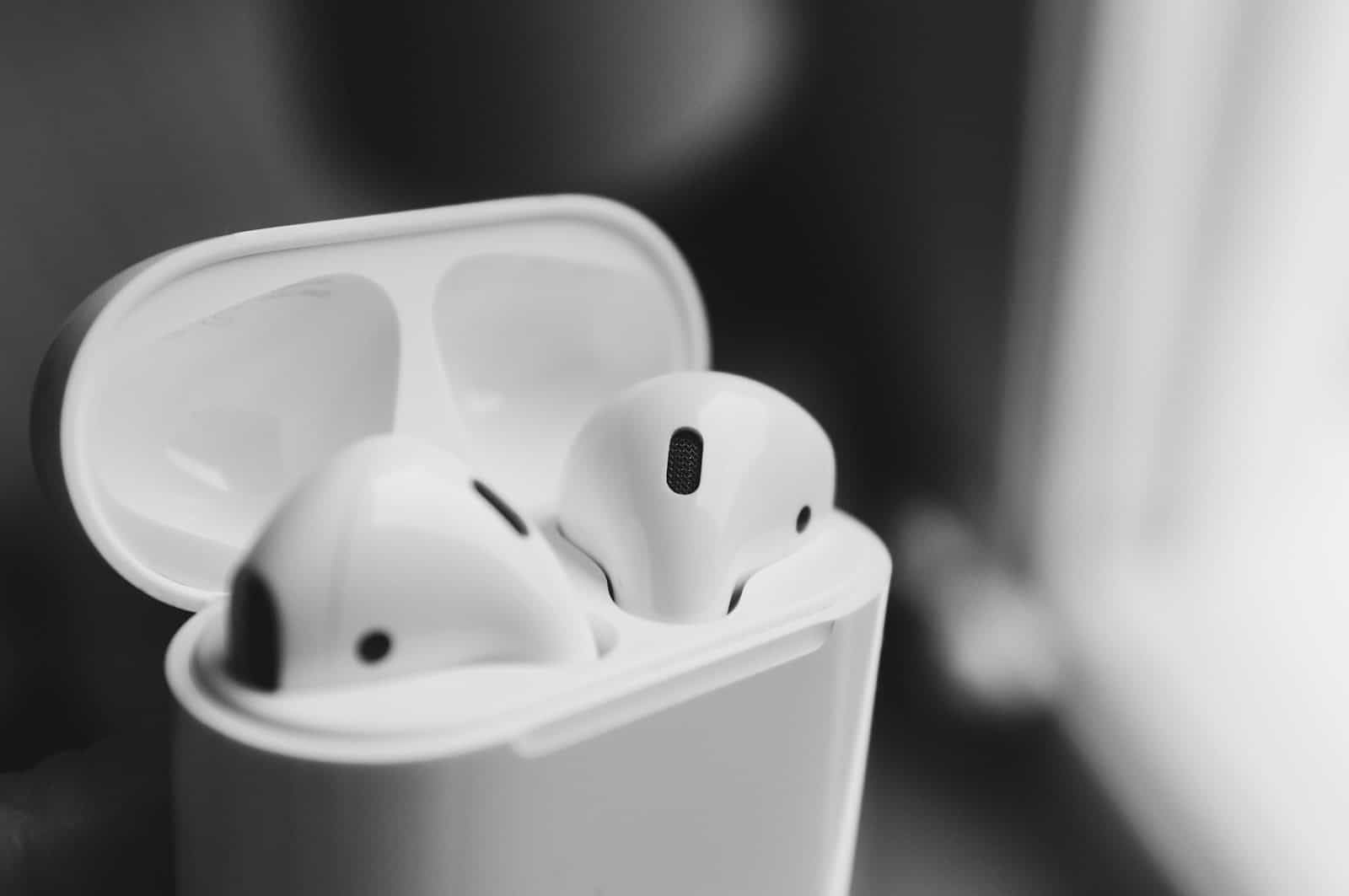
Having trouble with your AirPods? Sometimes they just need a simple reset to fix connection issues, sound problems, or battery draining too quickly. Resetting your AirPods takes less than a minute and involves placing them in their charging case and holding down the setup button until the status light flashes amber. This quick fix can solve many common problems without needing to contact Apple Support.
Different AirPods models have slightly different reset procedures. For regular AirPods (Gen 1, 2, or 3), you’ll use the button on the back of the case, while AirPods Pro follows a similar process. AirPods 4 owners need to double-tap the front of the case three times after waiting with the lid closed for 30 seconds.
After resetting your AirPods, you’ll need to reconnect them to your devices. Don’t worry if it doesn’t work the first time – sometimes you need to try the reset process twice. Your AirPods should now work properly with your iPhone, iPad, or Mac just like they did when they were brand new.
How to Reset Your AirPods: A Simple Step-by-Step Guide
Resetting your AirPods can resolve various issues such as connectivity problems, charging errors, or audio glitches. Whether you have AirPods (1st, 2nd, or 3rd generation), AirPods Pro, or AirPods Max, the reset process is straightforward.
Why Reset Your AirPods?
- Fix connection or pairing issues
- Resolve charging or battery problems
- Prepare AirPods for a new owner
- Clear settings and start fresh
How to Reset AirPods (1st, 2nd, 3rd Gen and AirPods Pro)
Step 1: Put Your AirPods in the Charging Case
- Place both AirPods inside the charging case.
- Close the lid and wait for about 30 seconds.
Step 2: Open the Charging Case
- Open the lid of the charging case but keep the AirPods inside.
Step 3: Locate the Setup Button
- Find the small setup button on the back of the charging case.
Step 4: Press and Hold the Setup Button
- Press and hold the setup button for about 15 seconds.
- The status light on the front (or inside for some models) will flash amber, then white.
Step 5: Reconnect Your AirPods
- With the lid open, bring the AirPods close to your iPhone or other device.
- Follow the on-screen instructions to reconnect.
How to Reset AirPods Max
Step 1: Charge Your AirPods Max
- Ensure your AirPods Max has some charge.
Step 2: Press and Hold the Noise Control and Digital Crown Buttons
- Hold both buttons for about 15 seconds until the LED flashes amber, then white.
Step 3: Reconnect Your AirPods Max
- Bring the AirPods Max near your device and follow on-screen pairing instructions.
Additional Tips
- Make sure your device’s Bluetooth is turned on.
- After resetting, you may need to reconfigure settings like noise cancellation or spatial audio.
- If problems persist after resetting, try restarting your device or updating its software.
Summary
| AirPods Model | Reset Method Summary |
|---|---|
| AirPods 1st-3rd Gen, AirPods Pro | Hold setup button on charging case until light flashes white |
| AirPods Max | Hold noise control + digital crown buttons until LED flashes white |
Resetting your AirPods is a quick and effective way to solve many common issues. After a reset, your AirPods will be like new and ready to pair with your devices again.
For official instructions, visit Apple Support:
How to reset your AirPods and AirPods Pro
Key Takeaways
- Resetting AirPods requires placing them in their case and holding the setup button until the light flashes amber.
- Different AirPods models have specific reset procedures, with AirPods 4 requiring a triple-tap on the front of the case.
- After resetting, you’ll need to reconnect your AirPods to your devices before using them again.
Understanding AirPods and Their Functionality
Apple’s AirPods represent cutting-edge wireless audio technology with unique features across different models. Each version includes a specialized charging case that serves as both storage and power source.
Identifying Your AirPods Model
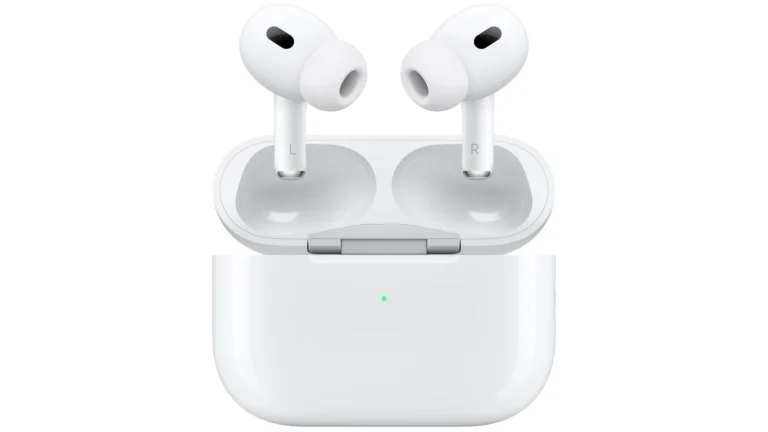
AirPods come in several distinct versions, each with unique characteristics. The standard AirPods feature a one-size-fits-all design without ear tips. AirPods Pro are recognizable by their silicone ear tips and shorter stems, offering noise cancellation capabilities.
AirPods Max stand apart as over-ear headphones with a distinctive headband and ear cups. They don’t use a charging case but come with a Smart Case for protection.
The newest AirPods 4 feature a redesigned shape that blends elements from both standard AirPods and the Pro line. Users can identify their specific model by checking the model number printed on each AirPod or through their iPhone’s settings menu.
Physical differences between models affect how users interact with them, particularly when performing resets or troubleshooting.
Exploring the Charging Case
The charging case is essential to the AirPods experience. It protects the earbuds and provides multiple charges when away from power sources.
Standard cases charge via Lightning cable, while some models support wireless charging. The case features an important setup button on the back used for pairing and resetting.
A small LED indicator on the front or inside the case shows charging status and battery level. White indicates normal function, while amber suggests charging is needed.
The AirPods Pro case is slightly wider than standard models, while AirPods 4 cases feature a distinct design with repositioned status lights. When placed inside, magnetic connectors hold the earbuds securely while charging them.
The case battery level can be checked through the iPhone’s battery widget or by opening the case near an iPhone.
Preparing to Reset Your AirPods
Before resetting your AirPods, you need to complete a few preparation steps. Proper charging and disconnecting from devices will help ensure a smooth reset process.
Ensuring AirPods Are Charged
A successful reset requires sufficient battery power in both your AirPods and the charging case. Fully charged AirPods prevent interruptions during the reset process.
Place your AirPods in their charging case and close the lid for at least 30 seconds. This helps stabilize the connection between the AirPods and the case.
Connect the charging case to power using a Lightning cable or place it on a wireless charger if your model supports it. Look for the status light on the case to confirm charging.
For optimal results, aim for at least 50% battery level. The status light will turn green when the AirPods and case have sufficient charge.
Disconnecting from Bluetooth Devices
AirPods must be disconnected from all paired devices before resetting. This prevents connection conflicts during the reset procedure.
On an iPhone or iPad, open Settings > Bluetooth and locate your AirPods in the device list. Tap the (i) information icon next to your AirPods name.
Select Forget This Device and confirm your choice. This removes the AirPods from your device’s saved Bluetooth connections.
For Android devices, open Settings > Connected Devices or Bluetooth, find your AirPods, and select Unpair or Forget.
Remember to repeat this process on all devices previously paired with your AirPods, including computers, tablets, and smartphones. Skipping this step may cause the reset to fail or result in connection problems afterward.
The Reset Process for AirPods
Resetting your AirPods can solve many common issues including connection problems, audio glitches, and battery irregularities. The process varies slightly between standard AirPods and AirPods Pro models, but both involve specific button presses and light indicators.
Initiating the Reset on AirPods
To begin resetting standard AirPods (Generation 1, 2, or 3), place both earbuds in their charging case. Make sure the case has some charge remaining for the process to work properly.
Close the lid and wait approximately 30 seconds before opening it again. This brief pause helps clear temporary settings from the AirPods’ memory.
Next, locate the setup button on the back of the charging case. Press and hold this button for about 15 seconds until you see the status light on the front of the case begin to flash.
The status light will first flash amber, then change to white. This color change indicates that the reset is in progress. Continue holding the button until you see the white light.
Completing the Process on AirPods Pro
AirPods Pro follow a similar reset procedure with a few distinct differences. First, ensure both AirPods Pro are in their charging case and the lid is closed.
After waiting 30 seconds, open the lid. On your iPhone or iPad, go to Settings > Bluetooth and find your AirPods Pro in the device list.
Tap the “i” icon next to your AirPods Pro name and select “Forget This Device.” Confirm your choice when prompted.
With the case lid still open, press and hold the setup button on the back for approximately 15 seconds. Just like with standard AirPods, the status light will flash amber then white, indicating the reset is complete.
Understanding the Status Light Indicators
The status light on your AirPods case provides important feedback during the reset process. An amber flashing light indicates that the AirPods are preparing to reset to factory settings.
When the light changes to white, your AirPods have successfully returned to factory settings and are ready to be paired with a device again.
If the light continues flashing amber and doesn’t change to white, your reset attempt may have failed. Try the process again, ensuring you hold the setup button for the full 15 seconds.
No light at all usually means your case needs charging. Connect it to power before attempting the reset again. A solid green light indicates full charge, while amber means partial charge.
Post-Reset Steps
After resetting your AirPods, there are a few important steps to complete the process. These steps ensure your earbuds work properly with your devices and all settings are configured correctly.
Reconnecting to Your Apple ID
When you reset your AirPods, they disconnect from your Apple ID. To reconnect them, open the AirPods case lid near your iPhone or iPad. A setup animation should appear on your device’s screen.
Tap “Connect” when prompted. If you have AirPods Pro or newer models, you might see additional setup options for features like Noise Control or Spatial Audio.
Follow the on-screen instructions to complete the setup process. This typically takes less than a minute.
If the animation doesn’t appear, go to your device’s Bluetooth settings and select your AirPods from the list of available devices. The status light on your AirPods case should flash white, indicating they’re in pairing mode.
Once paired, your AirPods will automatically reconnect to your Apple ID and sync across all your Apple devices.
Pairing with Android Devices
AirPods work with Android devices, though some features won’t be available. To pair reset AirPods with an Android device:
- Open the AirPods case with the AirPods inside
- Press and hold the setup button on the back of the case until the status light flashes white
- Open Bluetooth settings on your Android device
- Look for “AirPods” in the available devices list
- Tap to connect
Unlike with Apple devices, you’ll need to manually connect your AirPods each time you want to use them with Android. The battery indicator feature won’t work natively either.
For improved functionality, consider downloading a third-party app from the Google Play Store that enhances AirPods compatibility with Android.
Verifying Factory Settings
After resetting and reconnecting your AirPods, verify they’ve returned to factory settings by checking these indicators:
First, custom settings like double-tap functions or automatic ear detection should be reset to defaults. If you previously renamed your AirPods, they should now display their original name.
Check that the status light flashes white when the case is open, confirming proper reset. Your AirPods should also respond properly to basic commands.
If using AirPods Pro, test the noise cancellation and transparency modes to ensure they work correctly. For AirPods Pro Gen 2, verify that the touch controls respond properly.
If any features still don’t work correctly, try resetting them again and ensure you’re holding the setup button for the full 15 seconds until the light changes from amber to white.
Troubleshooting Common Reset Issues
Sometimes resetting your AirPods doesn’t go as smoothly as expected. The following solutions address the most common obstacles you might encounter during the reset process.
When AirPods Won’t Enter Reset Mode
If your AirPods aren’t entering reset mode when you press and hold the setup button, the issue might be with the charging case. First, ensure the AirPods have sufficient battery power. Place them in the case for at least 15 minutes while connected to a power source.
The charging case contacts might be dirty, preventing proper connection. Clean the contacts inside the case with a cotton swab, removing any debris or buildup that could interfere with the connection.
Try resetting each AirPod individually. Some users have had success by:
- Removing one AirPod from the case
- Attempting the reset with just one AirPod inside
- Repeating with the other AirPod
If the status light doesn’t flash amber then white after holding the setup button for 15 seconds, connect the charging cable to the case and try again.
If AirPods Still Show Old Settings
When your AirPods continue showing old settings after a reset, the issue often relates to incomplete disconnection from previous devices. First, ensure you’ve removed the AirPods from your Bluetooth devices list on all paired devices.
For iPhone users, follow these steps:
- Go to Settings > Bluetooth
- Find your AirPods in the list
- Tap the info (i) icon
- Select Forget This Device
- Confirm your choice
For Mac users:
- Open System Preferences > Bluetooth
- Right-click on your AirPods
- Select Remove or Forget Device
Sign out of iCloud on all devices temporarily if the problem persists. This breaks the connection between your Apple ID and the AirPods’ settings. After completing the reset process, sign back into iCloud.
Seeking Tech Support
When all troubleshooting methods fail to reset your AirPods or AirPods Pro, it’s time to contact Apple Support. Before reaching out, gather important information about your devices:
- AirPods model and serial number (found on the case)
- iOS version on your connected device
- Purchase date and warranty status
Apple Support can be reached through multiple channels:
- Online chat: Visit Apple’s support website
- Phone support: Call the Apple support line
- Apple Store: Make a Genius Bar appointment
For AirPods still under warranty, Apple might replace them if they determine the reset failure stems from a hardware issue. Be prepared to demonstrate the reset steps you’ve already attempted to expedite the support process.
Remember that third-party repair shops generally cannot fix internal AirPods issues, so official Apple support is recommended for persistent problems.
Additional Tips and Considerations
When resetting your AirPods, there are some important steps to consider beyond the basic reset procedure. These help ensure your devices are properly managed in Apple’s ecosystem.
Using ‘Find My’ to Locate AirPods Before Resetting
Before resetting AirPods, users should check their location in the Find My app if they’re misplaced. This feature displays the last known location where AirPods connected to the paired device.
To locate AirPods:
- Open the Find My app on an iOS device
- Select the “Devices” tab
- Tap on the AirPods to see their location
- Use the “Play Sound” option to help find them
The sound will play on available AirPods, even if they’re in the charging case. For separated AirPods, users can view individual locations for each earbud. If AirPods are offline, the map shows their last connected location.
This step is crucial as resetting AirPods will remove them from Find My tracking.
Removing Your AirPods from iCloud Account
Users should properly remove AirPods from their iCloud account before resetting, especially when planning to sell or give them away. This prevents future connection issues and protects privacy.
To remove AirPods from an iCloud account:
- Go to Settings on the iPhone or iPad
- Tap the name of the AirPods near the top of the screen
- Select Forget This Device
This process unpairs the AirPods and removes them from all devices signed into the same iCloud account. The device will no longer appear in the Bluetooth devices list.
For security, this step ensures the previous owner’s device doesn’t automatically reconnect to the AirPods. After removal, the AirPods will be ready for pairing with a new device.
Frequently Asked Questions
Resetting your AirPods can solve many common issues and prepare them for new device connections. Here are answers to the most common reset-related questions for different AirPods models.
What are the steps to hard reset AirPods Pro?
To hard reset your AirPods Pro, place them in their charging case and close the lid for 30 seconds. Then open the lid and press and hold the setup button on the back of the case for about 15 seconds.
The status light will flash amber and then white, indicating the reset is complete. The AirPods Pro are now ready to be paired with your devices again.
How can you reset AirPods 2 to factory settings?
For AirPods 2, put them in their charging case and keep the lid open. Press and hold the setup button on the back of the case for approximately 15 seconds until the status light flashes amber, then white.
After resetting, the AirPods 2 will no longer be connected to any of your devices. They will need to be set up again to use them.
What is the process to reset AirPods 3 to their original state?
To reset AirPods 3, place them in their charging case and ensure the lid remains open. Press and hold the setup button on the back of the case for 15 seconds.
When the status light flashes amber and then white, the reset is complete. The AirPods 3 will return to factory settings and need to be paired with devices again.
What should I do to remove a previous owner’s settings on AirPods?
To remove previous owner settings, perform a factory reset by placing the AirPods in their case with the lid open. Hold the setup button for about 15 seconds until the light flashes amber, then white.
This process disconnects the AirPods from all devices and removes all previous user information. The AirPods will be ready for a new setup as if they came directly from the factory.
Can you guide me through resetting AirPods Max to default configurations?
To reset AirPods Max, press and hold both the Digital Crown and noise control button simultaneously for 15 seconds. Continue holding until the LED light flashes amber, then white.
This action removes all Bluetooth connections and returns the headphones to factory settings. The AirPods Max will need to be paired with devices again after the reset is complete.
What are the consequences of performing a hard reset on AirPods?
Performing a hard reset on AirPods removes all device connections and paired information. All personalized settings like ear detection preferences and microphone settings will be lost.
The reset process requires users to go through the initial setup again. However, this is beneficial for resolving persistent connection issues or preparing AirPods for a new user.