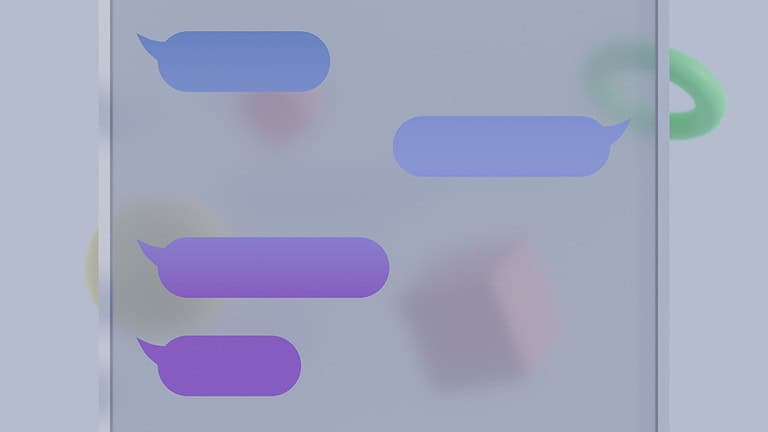
Green text messages between iPhones can be puzzling for users accustomed to the familiar blue bubbles. This color change often indicates a shift from Apple’s iMessage service to standard SMS texting. The most common reason for green texts is that iMessage is disabled on either the sender’s or recipient’s device.
iPhone users may encounter green messages due to various factors. Network issues, incorrect date and time settings, or problems with Apple ID can all cause iMessage to falter. Additionally, if the recipient has switched to a non-Apple device, messages will default to SMS and appear green.
Understanding the cause of green messages can help iPhone users troubleshoot communication issues. By checking iMessage settings, verifying network connections, and ensuring both parties have compatible devices, users can often resolve the problem and return to blue bubble conversations.
Why Are My Texts Green When Texting Another iPhone?
If you’re texting another iPhone user but your messages are showing up green instead of blue, you’re not alone. This is a common iPhone issue and usually has a simple explanation. Let’s break down what it means and how to fix it.
What Do Green and Blue Texts Mean?
On an iPhone:
- Blue bubbles = iMessage
- Sent over the internet (Wi‑Fi or cellular data)
- Includes features like read receipts, typing indicators, and high‑quality media
- Green bubbles = SMS/MMS
- Sent through your carrier’s texting service
- No read receipts, typing indicators, or end‑to‑end encryption
If your messages are green, your iPhone is not using iMessage.
Common Reasons Your Texts Are Green
1. iMessage Is Turned Off
If iMessage is disabled on your phone, all messages will send as SMS.
How to check:
- Go to Settings
- Tap Messages
- Make sure iMessage is turned ON
2. No Internet Connection
iMessage requires Wi‑Fi or cellular data. If your connection is weak or unavailable, your iPhone may fall back to SMS.
Fix:
- Turn Wi‑Fi or cellular data on
- Try switching Airplane Mode on and off
- Move to an area with better signal
3. The Other Person Turned Off iMessage
Even if you have iMessage enabled, messages will be green if the recipient:
- Disabled iMessage
- Switched to an Android phone
- Signed out of their Apple ID
There’s nothing wrong with your phone in this case.
4. iMessage Activation Issues
Sometimes iMessage doesn’t activate properly due to:
- Carrier problems
- Incorrect date & time settings
- Apple server outages
Try this:
- Go to Settings → Messages
- Turn iMessage OFF
- Restart your iPhone
- Turn iMessage ON again
5. You’re Texting a Phone Number Instead of an Apple ID
If the contact isn’t properly linked to iMessage, texts may default to SMS.
Fix:
- Open Contacts
- Make sure the number is labeled correctly
- Ask the person to check Settings → Messages → Send & Receive
6. You’re Roaming or Your Carrier Doesn’t Support iMessage Fully
Some carriers or international roaming situations can force SMS instead of iMessage.
How to Force iMessage Instead of SMS
Try these quick steps:
- Start a new conversation instead of replying to an old one
- Delete the conversation and re‑create it
- Make sure “Send as SMS” is enabled (this allows fallback but doesn’t block iMessage)
Check here: Settings → Messages → Send as SMS
Is It a Problem If My Messages Are Green?
Not necessarily. Green messages still:
- Send and receive texts
- Work without internet
However, you’ll miss out on iMessage features like:
- Read receipts
- Typing indicators
- End‑to‑end encryption
- Full‑quality photos and videos
When to Contact Apple or Your Carrier
You should seek help if:
- iMessage won’t activate at all
- All iPhone contacts suddenly show green
- You see activation error messages
Apple Support or your carrier can check for account or network issues.
Quick Summary
Your texts are green when:
- iMessage is off
- There’s no internet connection
- The other person isn’t using iMessage
- There’s a carrier or activation issue
In most cases, turning iMessage off and back on or fixing your internet connection solves the problem.
Key Takeaways
- Green messages indicate SMS texting instead of iMessage
- iMessage settings, network problems, or device incompatibility can cause green texts
- Checking settings and connections often resolves messaging color issues
Understanding the Basics of iPhone Messaging
iPhone messaging uses different protocols and visual cues to indicate message types and status. The color of message bubbles provides key information about how messages are sent and received.
Distinguishing Between iMessage and SMS/MMS
iMessage is Apple’s proprietary messaging service for iOS devices. It uses the internet to send messages, photos, and videos between Apple devices. SMS (Short Message Service) and MMS (Multimedia Messaging Service) are older technologies that work on all mobile phones.
iMessage offers more features than SMS/MMS:
• Free messaging over Wi-Fi
• Read receipts
• Typing indicators
• High-quality media sharing
• Group messaging
SMS/MMS uses cellular networks and may incur carrier charges. These protocols have character limits and lower quality media sharing.
iPhones automatically use iMessage when messaging other Apple devices if both users have it enabled. The system switches to SMS/MMS when messaging non-Apple phones or if iMessage is unavailable.
The Significance of Message Bubble Colors
Message bubble colors indicate which protocol is being used:
• Blue bubbles = iMessage
• Green bubbles = SMS/MMS
Blue bubbles show the conversation is using iMessage’s enhanced features. Green bubbles mean the messages are being sent as standard texts through the cellular network.
Reasons for green bubbles when messaging another iPhone:
- Recipient’s iMessage is turned off
- Sender’s iMessage is disabled
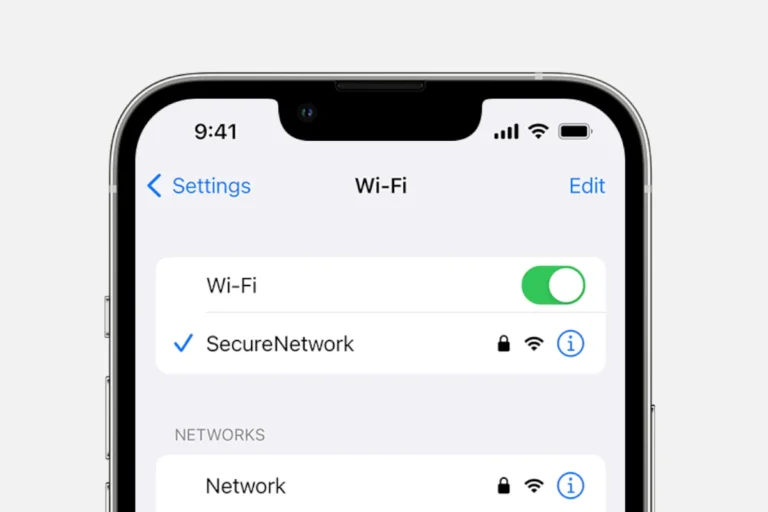
- No internet connection
- iMessage server issues
To enable iMessage:
- Go to Settings > Messages
- Toggle on iMessage
Users can check if contacts are registered with iMessage by looking for blue bubbles in existing conversations or checking contact details.
Troubleshooting Green Message Issues
Green messages between iPhones often indicate a problem with iMessage. This section explores common issues and solutions related to network connections, device settings, and carrier plans.
Assessing Network and Wi-Fi Connection
Check the iPhone’s internet connection. Open Safari and load a webpage to verify Wi-Fi or cellular data is working. If not, toggle Wi-Fi off and on in Settings. For cellular issues, turn on Airplane Mode for 30 seconds, then turn it off.
Ensure both iPhones have a stable internet connection. Poor signal strength can cause iMessage to fall back to SMS. Move to an area with better coverage or connect to a reliable Wi-Fi network.
Restart the iPhone. This can resolve minor software glitches affecting iMessage. Press and hold the power button, then slide to power off. Wait 30 seconds before turning it back on.
Settings App Exploration
Open the Settings app and tap “Messages.” Verify iMessage is turned on. If it’s off, toggle the switch to enable it. Wait a few moments for activation.
Sign out of Apple ID and sign back in. Go to Settings > Apple ID > Sign Out. Restart the iPhone, then sign in again with your Apple ID.
Check for iOS updates. Go to Settings > General > Software Update. Install any available updates, as they often include bug fixes for messaging issues.
Carrier and Plan Considerations
Contact your carrier to ensure your plan includes iMessage support. Some plans may restrict certain features.
Verify your phone number is correctly set up for iMessage. Go to Settings > Messages > Send & Receive. Ensure your phone number is checked.
Ask your carrier to refresh your account’s network settings. They can sometimes reset connections from their end, resolving persistent messaging issues.
Check Apple’s system status page for any iMessage outages. Temporary service disruptions can cause green message bubbles.
Tips for Effective Messaging Across Platforms
Effective communication between iPhones and other devices requires understanding different messaging protocols and optimizing settings. Users can enhance their messaging experience by adapting to cross-platform interactions and fine-tuning their iPhone configurations.
Communicating with Non-Apple Devices
iPhone users can improve messaging with Android and other non-Apple devices by using compatible apps. WhatsApp and Telegram offer cross-platform messaging with features like read receipts and multimedia sharing. For SMS, iPhone users should enable MMS in their settings to send pictures and videos to non-iOS devices.
Group chats work best when everyone uses the same app. RCS (Rich Communication Services) is becoming more common on Android, offering features similar to iMessage. iPhone users can consider third-party apps that support RCS for better compatibility with Android contacts.
Optimizing iPhone Messages Settings
To ensure smooth messaging, iPhone users should check their iMessage settings. Go to Settings > Messages and toggle on iMessage. Enter your Apple ID to activate the service fully. Enable “Send as SMS” to automatically switch to text messages when iMessage is unavailable.
For better data management, turn on “Low-Quality Image Mode” under Messages settings. This reduces image file sizes in conversations. Users can also manage storage by setting message history to auto-delete after 30 days or 1 year.
To avoid confusion, customize message effects for specific contacts. Long-press a conversation, tap “Info,” and choose “Hide Alerts” for less important threads. This helps prioritize messages and keeps the inbox organized.
Advanced Messaging Options for iPhone Users
iPhone users have access to several advanced messaging features beyond basic texting. iMessage, Apple’s proprietary messaging service, offers enhanced functionality when communicating with other Apple devices.
iMessage provides end-to-end encryption for secure conversations. Users can send high-quality photos, videos, and audio messages without compression. The service also supports read receipts and typing indicators.
For group chats, iMessage allows naming conversations, adding or removing participants, and sharing locations. Users can react to messages with tapbacks or send animated effects for added expression.
FaceTime integration enables seamless video calls directly from message threads. Apple users can start audio or video calls with a single tap within conversations.
SMS fallback ensures messages are sent as regular texts when iMessage is unavailable. This feature maintains communication even without internet connectivity.
To manage these options:
- Open Settings
- Tap Messages
- Toggle desired features on/off
A comparison of iMessage vs. SMS:
| Feature | iMessage | SMS |
|---|---|---|
| Encryption | Yes | No |
| Media quality | High | Compressed |
| Internet required | Yes | No |
| Blue bubbles | Yes | No (green) |
Users experiencing issues can try restarting their device or checking their iMessage settings to ensure optimal functionality.
Frequently Asked Questions
Green text messages on iPhones can occur due to various reasons. Understanding these causes and potential solutions can help users troubleshoot and resolve issues with their messaging.
What could cause messages to be green instead of blue on my iPhone?
Messages appear green when sent as SMS/MMS instead of iMessage. This happens if iMessage is turned off, there’s no internet connection, or the recipient doesn’t have an iPhone. Sometimes, iOS bugs can also cause this issue.
How can I resolve the issue of green text messages on my iPhone?
To fix green messages, check if iMessage is enabled in Settings. Ensure a stable internet connection. Update iOS to the latest version. If problems persist, restart your iPhone or sign out and back into your Apple ID.
What does it mean when only one contact’s messages are green?
Green messages for a single contact often indicate they don’t have an iPhone or iMessage enabled. It could also mean they’ve blocked you or their phone is off. Check if they’ve recently switched to Android.
Is there a way to determine if a green text message has been delivered?
Unlike iMessages, green SMS messages don’t show read receipts or “Delivered” status. To check if an SMS was delivered, enable “Send Read Receipts” in Settings. Some carriers may provide delivery reports for SMS.
If someone has an iPhone, why would my texts to them be green?
Texts to another iPhone user may be green if their iMessage is off, they have no internet, or there’s a network issue. It could also happen if they’ve blocked you or if there’s a problem with Apple’s servers.
Can a green text message indicate that I’ve been blocked?
Green messages alone don’t confirm you’ve been blocked. However, if messages to a specific iPhone user suddenly turn green and don’t deliver, it might be a sign. Look for other indicators like calls going straight to voicemail.