Transferring data between iPhones without using iCloud is a straightforward process that can be accomplished in several ways. Users can transfer everything from one iPhone to another using Quick Start, a computer with iTunes, or third-party apps. This method is useful for those who prefer not to use iCloud or have limited storage space.
The Quick Start feature offers the simplest solution for transferring data. It allows users to place their new iPhone near the old one and follow on-screen prompts to transfer information wirelessly. This process ensures all data, including apps, settings, and personal files, moves to the new device seamlessly.
For those who prefer a wired connection, using a computer with iTunes provides another reliable option. This method involves backing up the old iPhone to a computer, then restoring that backup to the new device. It’s particularly helpful when dealing with large amounts of data or slower internet connections.
How to Transfer Everything from iPhone to iPhone Without iCloud
You don’t need iCloud to move your data to a new iPhone. Below are the best ways to transfer everything — apps, photos, messages, settings, and more — without using iCloud.
✅ Method 1: Use Apple’s Quick Start (Best & Easiest)
This transfers data directly from one iPhone to another wirelessly.
What You Need:
- Both iPhones running iOS 12.4 or later
- Wi‑Fi and Bluetooth turned on
- Both devices charged (or plugged in)
🔹 Steps:
- Turn on your new iPhone and place it near your old iPhone.
- A Quick Start screen will appear on your old device.
- Tap Continue.
- Use your old iPhone to scan the animation on the new iPhone.
- Enter your old iPhone’s passcode on the new device.
- Choose Transfer from iPhone.
- Keep both devices near each other until the transfer finishes.
✅ This transfers:
- Apps
- Photos & videos
- Messages
- Contacts
- Settings
- App data
No iCloud backup required.
✅ Method 2: Transfer Using a Computer (No iCloud)
This method creates a full backup on your computer, then restores it to the new iPhone.
🔹 Step 1: Back Up Old iPhone to Computer
On Mac (macOS Catalina or later):
- Connect iPhone to Mac.
- Open Finder.
- Select your iPhone.
- Click Back Up Now.
- Check Encrypt local backup (recommended to transfer passwords and health data).
On Windows or Older Mac:
- Install/open iTunes.
- Connect your iPhone.
- Click the device icon.
- Select Back Up Now.
- Choose Encrypt backup (recommended).
Wait for backup to complete.
🔹 Step 2: Restore Backup to New iPhone
- Turn on your new iPhone.
- On the setup screen, choose Restore from Mac or PC.
- Connect it to your computer.
- Open Finder or iTunes.
- Select Restore Backup.
- Choose the most recent backup.
Wait for restore to finish.
✅ This method transfers nearly everything.
✅ Method 3: Direct Wired Transfer (Fastest Option)
If you have:
- A Lightning to USB‑C cable (or compatible cable)
You can connect both phones directly during setup and choose Transfer Directly from iPhone.
This is often faster and more stable than wireless transfer.
🔒 Important Notes
- Make sure your old iPhone is updated to the latest iOS version.
- Keep both devices plugged in during transfer.
- Don’t interrupt the process.
- After transfer, check that all apps and data are present before erasing the old phone.
✅ What Transfers?
✔ Photos
✔ Messages
✔ Contacts
✔ App data
✔ Settings
✔ Call history
✔ Health data (if encrypted backup used)
❌ Apple Pay cards may need to be added again.
🏁 Final Recommendation
The easiest way without iCloud is:
👉 Use Quick Start (Transfer from iPhone option)
It’s simple, wireless, and doesn’t require a computer.
Key Takeaways
- Quick Start enables wireless data transfer between iPhones
- iTunes backup and restore offers a wired alternative for data transfer
- Third-party apps provide additional options for selective data transfer
Preparing for Data Transfer
Successful iPhone data transfer requires proper preparation. This involves ensuring device compatibility and implementing effective backup strategies.
Compatibility and Requirements
Before starting the transfer process, check that both iPhones are running iOS 12.4 or later. This version introduced direct wireless transfer capabilities. Ensure both devices have sufficient battery life or connect them to power sources. A stable Wi-Fi network is crucial for smooth data transfer. Remove any unnecessary apps or files from the old iPhone to speed up the process.
Keep the SIM card in the old iPhone until the transfer is complete. This helps maintain cellular connectivity during the process. If you’re switching carriers, contact your new provider to activate the new SIM card in advance.
Backup Strategies
Create a full backup of your old iPhone as a safety measure. Use iTunes or Finder on a computer to make an encrypted backup. This preserves sensitive data like passwords and health information. Alternatively, use iCloud backup if you have sufficient storage space.
For selective data transfer, consider using third-party tools. These allow you to choose specific items to move. Be cautious when selecting these tools and only use trusted options. Some data, like Apple Pay information and Face ID settings, won’t transfer and will need manual setup on the new iPhone.
Transferring Data Without iCloud
iPhone users can move data between devices without relying on iCloud. Several methods offer efficient and secure ways to transfer information directly.
Using Quick Start
Quick Start enables seamless data transfer between iPhones. Users start by turning on their new iPhone and placing it near the old one. The old iPhone displays a “Continue” button to tap. A message “Finish on New iPhone” appears, prompting users to scan an animation.
Next, users set up Face ID or Touch ID on the new iPhone. They then choose to transfer data directly. Both devices must stay close and connected to power during the process.
This method transfers apps, settings, and data without using iCloud storage. It works over a direct wireless connection, making it fast and reliable.
Utilizing iTunes or Finder
iTunes (for Windows) and Finder (for macOS Catalina and later) offer alternative transfer methods. Users connect their old iPhone to a computer and create a backup. They then connect the new iPhone and restore from that backup.
To begin, users open iTunes or Finder and connect the old iPhone. They select the device and choose “Back Up Now”. After the backup completes, they disconnect the old iPhone and connect the new one.
Users then select “Restore Backup” and choose the recent backup. This process transfers all data, including apps, messages, and photos. It requires a computer but doesn’t use iCloud or internet data.
Leveraging AirDrop
AirDrop provides a quick way to transfer specific data types between iPhones. It uses Bluetooth and Wi-Fi for direct device-to-device transfers. Users can send photos, videos, contacts, and more.
To use AirDrop, both iPhones need Wi-Fi and Bluetooth turned on. Users open the content they want to share and tap the share button. They then select AirDrop and choose the receiving iPhone.
The receiving iPhone gets a prompt to accept the transfer. AirDrop works best for smaller data sets or specific files. It’s fast and doesn’t require iCloud or a computer.
Setting up New iPhone
Setting up a new iPhone involves activating essential services and restoring apps and data. This process ensures your new device is personalized and ready for use.
Activating iPhone Services
Turn on your new iPhone by pressing and holding the side button. Follow the on-screen instructions to select your language and region. Connect to a Wi-Fi network or use cellular data to activate your device.
Set up your Apple ID by entering your email and password. If you don’t have an Apple ID, create one. This account is crucial for accessing various Apple services.
Configure Face ID or Touch ID for secure device access. Face ID uses facial recognition, while Touch ID uses fingerprint scanning. These features enhance security and provide quick access to your iPhone.
Enable or disable location services based on your preferences. This affects apps that use your location data.
Restoring Apps and Data
Choose how to transfer data to your new iPhone. The Quick Start method allows direct transfer from your old iPhone. Place the devices near each other and follow the prompts on both screens.
For a wired transfer, connect your old iPhone to the new one using a cable and adapter. This method is faster but requires compatible devices and cables.
Select “Restore from iCloud Backup” if you have a recent backup. Enter your Apple ID and choose the most recent backup to download your data and settings.
Use “Restore from iTunes Backup” if you prefer computer-based backups. Connect your new iPhone to the computer with your latest backup and select it in iTunes or Finder.
After restoring, your apps will begin downloading. Prioritize essential apps by tapping their icons to start downloads immediately.
Alternatives to iCloud and iTunes Restore
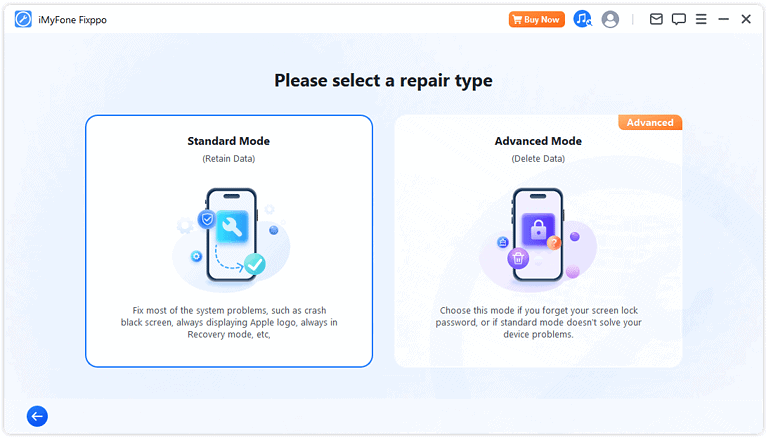
Several third-party options exist for transferring data between iPhones without using iCloud or iTunes. These solutions offer flexibility and additional features for moving contacts, photos, and other content to a new device.
Third-Party Data Transfer Tools
iPhone data transfer software provides a straightforward way to move information between devices. These tools often support a wider range of file types than native Apple solutions. Many allow selective transfers, letting users choose specific data to move.
Popular options include EaseUS MobiMover, AnyTrans, and dr.fone – Phone Transfer. These programs typically connect both iPhones to a computer via USB cables. Users then select the data types they want to transfer.
Some tools offer wireless transfer options through Wi-Fi connections. This can be convenient for quick transfers without needing a computer. Most third-party software also provides backup functionality as an added benefit.
When choosing a data transfer tool, consider factors like supported file types, transfer speed, and ease of use. Some programs offer free trials, allowing users to test functionality before purchasing.
Frequently Asked Questions
Transferring data between iPhones without iCloud involves several methods and considerations. Users often have questions about the process, available options, and best practices for a smooth transition.
What steps are needed to transfer data from one iPhone to another using Quick Start?
- Turn on the new iPhone and place it near the old iPhone.
- Tap “Continue” on the old iPhone when prompted.
- Scan the animation on the new iPhone with the old iPhone’s camera.
- Set up Face ID or Touch ID on the new iPhone.
- Choose to transfer data directly between devices.
- Keep both iPhones close and connected to power during the transfer.
Is it possible to move photos from an old iPhone to a new one without using iCloud or a computer?
Yes, users can transfer photos without iCloud or a computer. The Quick Start method allows direct transfer of all data, including photos, between two iPhones. Another option is using third-party apps designed for wireless photo transfer between iOS devices.
Can you explain how to wirelessly transfer data between two iPhones?
Quick Start offers a wireless data transfer option. Both iPhones must be running iOS 11 or later. The process uses Bluetooth to initiate the connection and Wi-Fi to transfer the data. Users should keep both devices close and plugged in during the transfer.
What are the methods to transfer information from an old iPhone to a new iPhone without performing a reset?
- Quick Start: Allows direct transfer without resetting the new iPhone.
- iTunes or Finder backup and restore: Create a backup on a computer and restore it to the new iPhone.
- Third-party transfer tools: Some apps can move data between iPhones without a reset.
How can I back up my iPhone to ensure a smooth data transfer to a new device?
- Connect the iPhone to a computer with iTunes or Finder.
- Select the device when it appears.
- Choose “Back Up Now” to create a full backup.
- Encrypt the backup for added security and to include sensitive data.
Regular backups ensure all data is up to date for transfer.
What alternatives are available to transfer data between iPhones for users without access to iCloud?
- iTunes or Finder backup and restore using a computer.
- Third-party transfer tools that don’t require iCloud.
- Manual transfer of specific data types using apps or email.
- Peer-to-peer file sharing apps for transferring selected files.
These methods provide options for users who prefer not to use iCloud or have limited storage.