An unresponsive iPhone can cause frustration and concern. When your device won’t restart, it may seem like a major problem. To force restart an iPhone, press and release the volume up button, then the volume down button, and finally hold the side button until the Apple logo appears.
This simple process often resolves issues with frozen screens or unresponsive devices. It works for newer iPhone models, including those with Face ID, iPhone 8, and iPhone SE (2nd generation). For older models like the iPhone 7, the process differs slightly.
If a force restart doesn’t work, connecting your iPhone to a computer and using iTunes to update or restore the device may help. As a last resort, a factory reset can resolve persistent issues, but it’s important to back up your data first.
iPhone Won’t Restart: Quick Solutions for Unresponsive Devices
If your iPhone won’t restart, freezes on a black screen, or becomes completely unresponsive, it can be frustrating—especially if the power button doesn’t seem to work. Fortunately, most iPhone restart issues are caused by temporary software glitches and can be fixed in minutes.
This guide walks you through quick solutions, from simple force restarts to advanced fixes, to get your iPhone working again.
Common Reasons an iPhone Won’t Restart
Understanding the cause can help you choose the right solution:
- iOS software crash or frozen app
- Low or completely drained battery
- Failed or stuck iOS update
- Storage overload
- Hardware issues (buttons, battery, or logic board)
Quick Solutions to Fix an Unresponsive iPhone
Try these steps in order. Most users won’t need to go beyond the first few fixes.
1. Force Restart Your iPhone (Most Effective)
A force restart bypasses iOS and reboots the device even if the screen is frozen.
iPhone 8, X, 11, 12, 13, 14, 15, and later:
- Quickly press and release Volume Up
- Quickly press and release Volume Down
- Press and hold the Side button
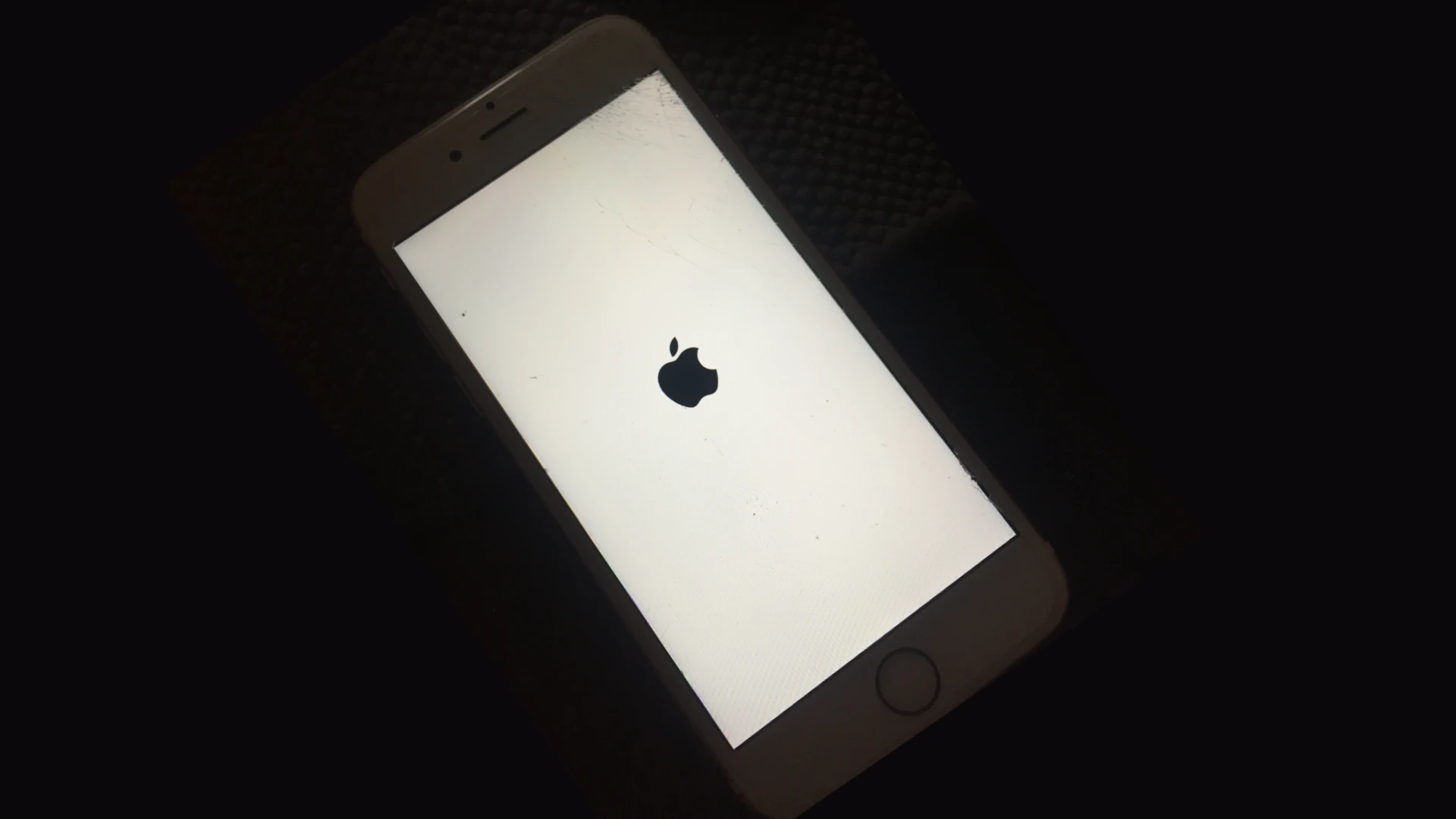
- Release when the Apple logo appears
iPhone 7 & 7 Plus:
- Press and hold Volume Down + Power
- Release when the Apple logo appears
iPhone 6s, SE (1st gen), and earlier:
- Press and hold Home + Power
- Release when the Apple logo appears
2. Charge the iPhone for at Least 30 Minutes
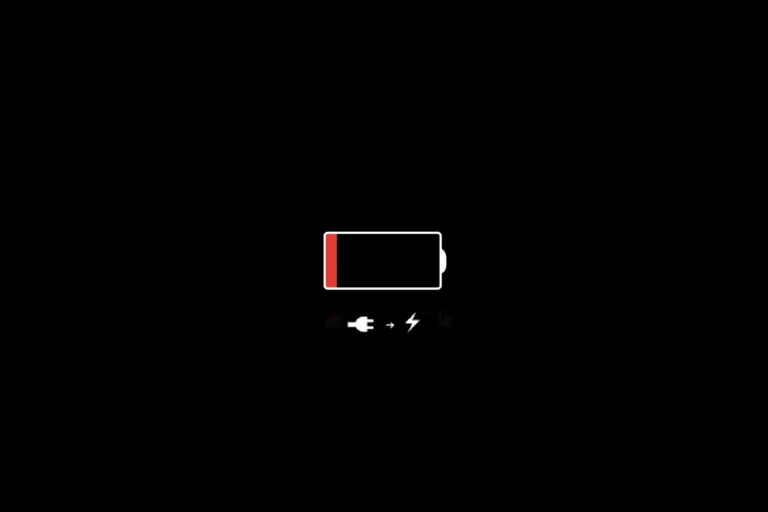
If your iPhone battery is completely drained, it may appear unresponsive.
Tips:
- Use an Apple‑certified cable and charger
- Plug directly into a wall outlet
- Wait at least 30 minutes before trying again
If the battery icon appears, let it charge longer before restarting.
3. Check for a Frozen or Black Screen
Sometimes the iPhone is on, but the screen isn’t responding.
Try this:
- Increase brightness using Siri (if enabled)
- Call your phone from another device
- Toggle the Silent switch to feel vibration
If you hear sounds or feel vibration, the display may be the issue.
4. Free Up Storage (If iPhone Turns On Briefly)
Low storage can prevent restarts or cause freezing.
Steps:
- Go to Settings → General → iPhone Storage
- Delete unused apps, videos, or photos
- Restart the iPhone
5. Update iOS (When Possible)
Software bugs often cause restart issues.
Steps:
- Go to Settings → General → Software Update
- Install the latest iOS version
- Restart the device
6. Use Recovery Mode (Advanced Fix)
If your iPhone won’t restart normally, Recovery Mode can reinstall iOS.
What you need:
- Mac or Windows PC
- USB cable
Steps:
- Connect iPhone to your computer
- Open Finder (Mac) or iTunes (Windows)
- Force restart and keep holding buttons until Recovery Mode appears
- Choose Update (keeps data)
⚠️ Only choose Restore if Update fails, as it erases data.
7. Use DFU Mode (Last Resort)
DFU mode reloads firmware and software from scratch.
Warning: This can erase your data and should only be used if nothing else works.
If DFU doesn’t fix the issue, the problem is likely hardware‑related.
When to Contact Apple Support
Contact Apple or visit an authorized service provider if:
- iPhone won’t turn on after charging and force restart
- Buttons don’t work
- Phone overheats or shuts down repeatedly
- Issue started after water damage or a drop
Hardware repairs may be necessary.
Final Thoughts
When an iPhone won’t restart, a force restart and charging the device solve most problems. If the issue persists, updating iOS or using Recovery Mode usually fixes deeper software issues.
If none of the solutions work, it’s time to seek professional help—especially if there’s potential hardware damage.
Key Takeaways
- Force restart your iPhone by pressing specific button combinations
- Connect to iTunes for software updates if force restart fails
- Factory reset can fix persistent issues but requires data backup
Understanding the iPhone Restart Issue
An iPhone that won’t restart can be frustrating and concerning. This issue can stem from various factors, ranging from software glitches to hardware problems. Users may encounter different symptoms and potential causes when facing restart difficulties.
Common Symptoms When an iPhone Won’t Restart
iPhones may display several signs when they refuse to restart. The device might show a black screen, unresponsive to button presses. Sometimes, the Apple logo appears but doesn’t progress further. In other cases, the iPhone may get stuck in a boot loop, repeatedly showing the Apple logo.
Users might notice the screen remaining dark even when connected to a power source. The device could feel warm or hot to the touch. Occasionally, an iPhone may vibrate or make sounds but fail to turn on fully. These symptoms often indicate a deeper issue preventing normal operation.
Potential Causes for Startup Failures
Software issues frequently lead to restart problems. Corrupted system files, incomplete updates, or conflicts between apps can disrupt the boot process. Malware, though rare on iPhones, can also cause startup failures.
Hardware-related causes include battery depletion or damage. A faulty power button or other internal components may prevent the device from turning on. Water damage or physical impact can affect critical parts, leading to startup issues.
Overheating due to prolonged use or exposure to high temperatures may trigger safety mechanisms, preventing the iPhone from restarting. In some cases, a faulty charging cable or port can interfere with the device’s ability to power on properly.
Force Restarting Your iPhone
When your iPhone becomes unresponsive, a force restart can often resolve the issue. This process varies slightly depending on your iPhone model but generally involves pressing specific button combinations.
Step-by-Step Guide to Force Restart
For most recent iPhone models, follow these steps to force restart:
- Press and quickly release the volume up button.
- Press and quickly release the volume down button.
- Press and hold the side button.
- Keep holding until the Apple logo appears (about 10 seconds).
This sequence works for iPhone X, iPhone 11, iPhone 12, and newer models. It’s important to perform these steps in order and quickly.
If your iPhone doesn’t restart, try charging it for an hour before attempting again. A depleted battery can sometimes mimic a frozen device.
Force Restart Variations Across iPhone Models
Older iPhone models require different button combinations:
- iPhone 8 and SE (2nd generation): Use the same method as newer models.
- iPhone 7 series: Press and hold both the side button and volume down button.
- iPhone 6s and earlier: Press and hold both the home button and side (or top) button.
Hold these buttons until you see the Apple logo. Release immediately after to avoid entering recovery mode.
For all models, avoid forcing a restart unless necessary. It’s a last resort when your iPhone won’t respond to normal shutdown procedures.
Restoring Your iPhone Using iTunes
iTunes offers a reliable method to restore iPhones that won’t restart. This process can help resolve software issues and get your device functioning again.
How to Connect to iTunes for Recovery
Connect your iPhone to a computer with iTunes installed using a USB cable. Open iTunes and wait for it to detect your device. If iTunes doesn’t recognize your iPhone, try a different USB port or cable. Ensure your computer has the latest version of iTunes.
For newer Macs, use Finder instead of iTunes. The steps remain similar. If prompted, click “Trust This Computer” on your iPhone. If your iPhone screen is unresponsive, you may need to enter Recovery Mode.
Recovery Mode and Its Functionality
Recovery Mode allows iTunes to reinstall iOS when normal methods fail. To enter Recovery Mode on newer iPhones, press and quickly release the volume up button, then the volume down button. Next, press and hold the side button until you see the recovery mode screen.
For older models, the process varies slightly. Once in Recovery Mode, iTunes will detect your device and offer options to Update or Restore. Choose “Update” to reinstall iOS without erasing data. If that fails, you’ll need to select “Restore,” which erases all content but can fix more serious issues.
Recovery Mode is useful for fixing software problems, removing forgotten passcodes, and upgrading to the latest iOS version when standard methods don’t work.
Factory Reset as a Last Resort
A factory reset erases all data and settings on an iPhone, returning it to its original state. This drastic step can resolve persistent restart issues when other methods fail.
Preparing for a Factory Reset
Before initiating a factory reset, back up all important data. Use iCloud or iTunes to create a complete backup of your iPhone. This ensures you can restore your information later.
Disable Find My iPhone in Settings > [Your Name] > iCloud > Find My iPhone. This step is crucial, as it prevents activation lock issues after the reset.
Note your Apple ID and password. You’ll need these to set up your iPhone after the reset.
Unpair any connected devices, such as Apple Watches or AirPods. This prevents syncing problems later.
Proceeding With the Factory Reset
To start the reset, go to Settings > General > Transfer or Reset iPhone > Erase All Content and Settings. Enter your passcode if prompted.
Tap “Erase iPhone” to confirm. Your device will restart and display the Apple logo during the process.
After the reset, your iPhone will restart as a new device. Follow the setup prompts to restore your backup or set up as new.
If the iPhone still won’t restart properly after the reset, contact Apple Support or visit an Apple Store for hardware diagnostics.
Frequently Asked Questions
iPhone restart issues can be frustrating. These questions address common problems and solutions for restarting iPhones in various scenarios.
How can I restart an iPhone that is frozen and unresponsive?
To restart a frozen iPhone, users should try a force restart. For iPhone 8 and newer models:
- Press and quickly release the volume up button.
- Press and quickly release the volume down button.
- Press and hold the side button until the Apple logo appears.
This process typically takes about 10-15 seconds.
What steps should I take if my iPhone’s buttons are not initiating a restart?
If the buttons aren’t working, users can try connecting the iPhone to a power source. This may trigger the device to turn on.
Another option is to connect the iPhone to a computer with iTunes or Finder. The computer may recognize the device and offer update or restore options.
What should be done when an iPhone won’t turn off or restart?
When an iPhone won’t turn off or restart, users can try draining the battery completely. Once drained, connect the device to a power source and attempt to turn it on.
If this doesn’t work, users should contact Apple Support or visit an Apple Store for further assistance.
How can I force a restart on an iPhone that does not respond to touch?
For iPhones that don’t respond to touch, the force restart method using physical buttons is the best option. The process varies slightly depending on the iPhone model.
For iPhone 7 and 7 Plus, press and hold both the side and volume down buttons for at least 10 seconds until the Apple logo appears.
What are the troubleshooting methods for an iPhone that won’t power on?
If an iPhone won’t power on, users should first ensure it’s charged. Connect it to a power source for at least 30 minutes.
Check the charging cable and adapter for damage. Try a different cable or adapter if available.
If charging doesn’t help, attempt a force restart using the appropriate method for the iPhone model.
Is there a way to perform a restart on an iPhone without using the physical buttons?
Users can restart their iPhone without buttons by going to Settings > General > Shut Down. This option is useful if physical buttons are damaged or unresponsive.
For iPhones with Face ID, users can also go to Settings > General > Shut Down, then slide to power off.
To turn the iPhone back on, connect it to a power source or press and hold the side button.