Have you ever sent a text message and immediately regretted it? Maybe you spotted a typo or realized you sent it to the wrong person. With Apple’s newer iOS versions, you don’t need to panic anymore. You can now edit and unsend iMessages within a short time window after sending them, giving you better control over your digital conversations.
The ability to fix message mistakes is a game-changer for iPhone users. This feature works with blue-bubble iMessages (not green SMS texts) and lets you take back messages before they cause confusion or embarrassment. You can edit a message up to five times within 15 minutes of sending it, and recipients will see that the message was edited.
The process is simple and takes just a few taps. When you unsend a message, both you and the recipient will see a small notification that a message was unsent, leaving no trace of the original content. This feature works best when everyone is using updated iOS devices, ensuring a seamless messaging experience.
How To Edit and Unsend iMessages
Apple introduced the ability to edit and unsend iMessages, giving you a chance to fix typos or retract messages sent by mistake. Here’s how to use these features:
Requirements
To edit or unsend iMessages, you need:
- iOS 16 or later (iPhone)
- iPadOS 16.1 or later (iPad)
- macOS 13 or later (Mac)
- visionOS 1 or later (Vision Pro)
Both you and the recipient must be using iMessage (not SMS) with compatible software versions (source: Apple Support).
How to Unsend an iMessage on iPhone
- Open the Messages app
- Navigate to the conversation with the message you want to unsend
- Long press on the message you just sent
- Tap Undo Send from the menu that appears
- The message will disappear from the conversation
Important: You have a limited time window (typically 2 minutes) after sending to unsend a message.
How to Edit an iMessage on iPhone
- Open the Messages app
- Find the message you want to edit
- Long press on the message
- Tap Edit from the menu
- Make your changes to the text
- Tap the blue checkmark to confirm
Note: Recipients will see that the message has been edited, with an “Edited” label appearing below it. They can tap this label to view the edit history (source: Tech Solutions Support).
How to Unsend/Edit on Mac
The process is similar on Mac:
- Open the Messages app
- Click on the conversation
- Right-click (or Control-click) on the message
- Select Undo Send or Edit from the menu
- If editing, make changes and press Return to save
Time Limits
- Unsending: You typically have 2 minutes after sending
- Editing: You can edit messages within 15 minutes of sending, and you can edit up to 5 times
Important Limitations
- These features only work with iMessage (blue bubbles), not SMS/MMS (green bubbles)
- Both sender and recipient must have compatible Apple devices with updated software
- Recipients can see edit history and may see the original message if they’re using older software
- Once the time window expires, you cannot unsend or edit the message
This feature is particularly useful for fixing embarrassing typos or retracting messages sent to the wrong person! (source: Cult of Mac)
Key Takeaways
- iPhone users can unsend iMessages within two minutes of sending by pressing and holding the message bubble and tapping “Undo Send.”
- The edit feature allows up to five changes within a 15-minute window after sending an iMessage.
- Both edit and unsend features only work with blue-bubble iMessages and when recipients are using compatible iOS devices.
Understanding iMessage on iOS 16
iOS 16 brought significant updates to iMessage that changed how users interact with their text conversations. These updates gave iPhone users more control over their messages after hitting the send button.
The Basics of iMessage
iMessage is Apple’s messaging service that appears as blue bubbles on your iPhone screen. It works between Apple devices and offers features that regular SMS (green bubbles) doesn’t support.
To use iMessage, you need an Apple ID and an internet connection. The service works across iPhones, iPads, and Mac computers, allowing seamless communication between Apple devices.
When sending an iMessage, you’ll know it’s working properly when the message bubble appears blue rather than green. Blue bubbles indicate you’re messaging another Apple user through iMessage rather than SMS.
The Messages app on iPhone offers various features like reactions, effects, and the ability to share photos and videos in high quality.
New Features for Message Management
iOS 16 introduced two game-changing features to the Messages app: the ability to edit and unsend messages. These features work only with blue bubble iMessages, not with SMS messages.
To unsend a message, you can press and hold the message bubble until a menu appears, then tap “Undo Send.” This option is available for up to 2 minutes after sending.
For editing messages, the process is similar. Press and hold on the message, then select “Edit.” You can make changes to your text and send the updated version. This feature gives users a chance to fix typos or clarify their meaning.
Both parties will see a note that a message was edited or unsent. These features only work when all participants have iOS 16 or newer.
How to Unsend Messages on iPhone
The unsend feature on iPhone allows users to recall messages they’ve sent by mistake. This useful tool has some limitations to be aware of, and understanding what happens after a message is unsent can help manage expectations.
Step-by-Step Guide to Unsend an iMessage
To unsend a message on iPhone, users need to follow these simple steps:
- Open the Messages app on the iPhone
- Locate the conversation containing the message to unsend
- Press and hold on the specific message bubble
- Tap “Undo Send” from the menu that appears
This process works quickly, but users should act fast. The unsend option appears in the same pop-up menu as other message options like reactions and replies.
For messages that were sent recently, this feature can be a lifesaver when dealing with typos, wrong recipients, or regrettable content. The option is easy to access and takes only seconds to complete.
Limitations and Timeframe for Unsending Messages
The most important limitation to know is the time restriction. Users can only unsend an iMessage within 2 minutes of sending it. After this window expires, the option disappears from the menu.
Both sender and recipient must be using iOS 16 or later for the feature to work properly. If the recipient has an older iOS version or uses Android, unsending might not work as expected.
Some users have reported issues where the unsend ability disappears unexpectedly. Power cycling the phone (turning it off and on) might restore the functionality in these cases.
Messages sent to non-Apple devices won’t be unsent but will still show as unsent on the sender’s device. This creates a situation where the message remains visible to the recipient.
What Happens After Unsending an iMessage
After unsending a message, both parties will see a notification that a message was unsent. This means recipients will know that something was sent and then removed, though they won’t see the original message content.
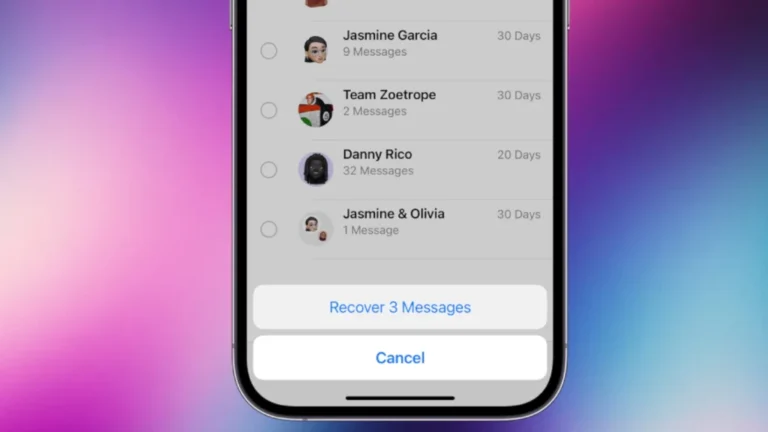
The unsent message isn’t permanently deleted right away. It moves to a Recently Deleted section where it remains for 30 days before being permanently removed from Apple’s servers.
If the recipient viewed the original message before it was unsent, they already saw the content. Unsending doesn’t erase memories or screenshots the recipient might have taken.
For privacy-conscious users, it’s worth noting that Apple Support confirms the unsend feature works across all devices signed into the same Apple ID. This ensures the message is removed from all your devices simultaneously.
How to Edit Messages
The ability to edit iMessages gives users a way to fix typos, clarify meaning, or add forgotten information after a message has been sent. This feature helps maintain clearer communication and reduces the need for follow-up correction messages.
Navigating the Edit Option
To edit a sent message, users need to first open the Messages app on their iPhone. Then they should locate the specific message they want to modify. Once found, they can touch and hold the message bubble, which will bring up a menu of options.
From the menu, they should tap the Edit option. The message will then open in edit mode, allowing them to make their desired changes. After modifying the text, they simply need to tap the blue checkmark or “Done” button to save the edits.
It’s important to note that users can only edit messages within 15 minutes of sending them. The recipient will see that the message has been edited, marked with an “Edited” label.
Best Practices for Editing Text Messages
When editing messages, it’s advisable to make changes that maintain the original context of the conversation. Major content changes might confuse recipients who have already read and responded to the original message.
Users should also be aware that recipients can view the edit history of a message by tapping on the “Edited” label. This means previous versions remain accessible, so sensitive information isn’t truly removed through editing.
For important corrections:
- Keep edits simple and focused on fixing errors
- Use editing for clarification rather than changing meaning
- Consider adding “(edited)” in your text if making substantial changes
- Be mindful that the recipient will receive a notification about the edit
This transparency helps maintain trust in digital conversations.
Impact of Editing Messages on Conversation
The editing feature creates a more fluid conversation experience by reducing clutter from correction messages. When used properly, it helps maintain clearer communication threads.
One interesting aspect is that edited messages create a collapsible thread within a single message bubble. This means both the edited version and original message can be viewed by tapping the “Edited” label, creating an organized way to see the evolution of a message.
For business or professional communications, this feature adds a layer of professionalism by allowing quick correction of errors without disrupting the flow of conversation.
However, users should remember that the editing feature works only with iMessage (blue bubbles) and not with standard SMS text messages (green bubbles). Both sender and recipient need to be using Apple devices with updated iOS for the feature to function properly.
Troubleshooting Message Issues
When iMessage features like Edit and Unsend stop working, there are several potential fixes users can try. These solutions range from simple network checks to system updates and service verification.
Fixing Unsend Messages Functionality
The Undo Send feature allows users to recall a message, but only works within strict time limits. Users can unsend messages for up to 2 minutes after sending them. To use this feature, they should touch and hold the message bubble, then tap Undo Send.
If the unsend option is missing, users should verify they’re using iMessage (blue bubbles) rather than SMS (green bubbles). The feature only works with iMessage conversations.
Time restrictions are important to note – after two minutes, the unsend option disappears. For editing messages, users have a 15-minute window before this option becomes unavailable.
Dealing with Messages Not Working
When edit or unsend features aren’t functioning properly, users can try several troubleshooting methods:
- Check network connection – A stable internet connection is essential for iMessage features to work properly.
- Update iOS – Outdated iOS versions may cause functionality issues.
- Enable iMessage – Verify iMessage is properly activated in Settings > Messages.
- Restart the device – A simple restart can often resolve temporary glitches.
If problems persist after trying these steps, power cycling the phone (turning it completely off and back on) might help restore functionality.
Checking Apple System Status for iMessage
Sometimes message issues stem from Apple’s services rather than individual devices. Users should check the Apple System Status page to verify if iMessage services are functioning normally.
When widespread outages occur, the status page displays yellow or red indicators for affected services. During these outages, features like Edit and Unsend may be temporarily unavailable.
Users experiencing persistent issues should visit Apple’s support site or contact Apple Support directly for assistance. The support team can provide guidance on whether the problem is account-specific or related to a broader system issue.
Enhanced Messaging Experience
Apple’s Messages app now offers powerful features that let users fix mistakes and take back messages they wish they hadn’t sent. These improvements make texting more flexible and less stressful for iPhone users.
Sending iMessages Successfully
To send an iMessage, users need to open the Messages app on their iPhone and select a contact who also uses an Apple device. The text field will show a blue “Send” button when iMessage is available. Users can include photos, videos, and other attachments by tapping the plus icon near the text field.
For those concerned about message delivery, iMessages display a “Delivered” status below the message when successfully sent. If this confirmation doesn’t appear, users might check their internet connection or verify the recipient has iMessage enabled.
iMessages offer several advantages over regular SMS:
- Blue bubbles instead of green
- End-to-end encryption
- Ability to send via Wi-Fi
- Support for reactions and effects
Managing Sent and Received Messages
After sending an iMessage, users have options to correct mistakes. They can unsend a message within 2 minutes of sending by touching and holding the message bubble, then tapping “Undo Send.” This completely removes the message from both devices.
For minor corrections, users can edit messages for up to 15 minutes after sending. To edit a message, simply:
- Long-press on the message bubble
- Select “Edit” from the menu
- Make your changes
- Tap to confirm
Recipients will see that a message has been edited. The Messages app also provides options to filter unknown senders and manage notifications for specific conversations, giving users greater control over their messaging experience.
Frequently Asked Questions
iMessage editing and unsending features have time limits and specific behaviors that users need to understand. Here are answers to common questions about these features on iPhone.
How can I retract an iMessage after it has been delivered?
To unsend a delivered iMessage, open the Messages app and find the conversation with the message you want to retract. Touch and hold the message bubble, then tap “Undo Send” in the menu that appears.
This feature works only for recently sent messages and requires both users to be on compatible iOS versions.
Does the recipient get notified when an iMessage is unsent or edited?
Yes, recipients do receive notifications about unsent or edited messages. When a message is unsent, the recipient will see a small notification in the conversation indicating that a message was unsent.
For edited messages, recipients can see that a message has been edited. They can also view the edit history by tapping on the “Edited” label that appears beneath the message.
What is the time limit for unsending an iMessage on an iPhone?
Users have only 2 minutes after sending a message to unsend it. This short window means users need to act quickly if they notice a mistake.
For editing messages, the time limit is longer. Users have up to 15 minutes after sending to make edits to their messages.
Are edited iMessages visible to the receiver in iOS 15?
No, the ability to edit messages was not available in iOS 15. The edit and unsend features were introduced in iOS 16 and are not backward compatible with earlier iOS versions.
Users on iOS 15 or earlier cannot edit messages they’ve sent, nor can they see edits made by others using newer iOS versions.
If I delete an iMessage, is it removed from the recipient’s device as well?
No, deleting a message from your device only removes it from your conversation history. The message remains on the recipient’s device unless you use the unsend feature within the 2-minute window.
This is an important distinction between deleting and unsending. Unsending affects both devices, while deleting only affects your own.
What happens to unsent messages in the context of the Unsent Project?
The Unsent Project is unrelated to Apple’s message unsending feature. It’s a social media project where people share messages they wrote but never sent to someone.
These are typically emotional messages that people chose not to send in real life, rather than messages that were sent and then technically “unsent” using iPhone features.