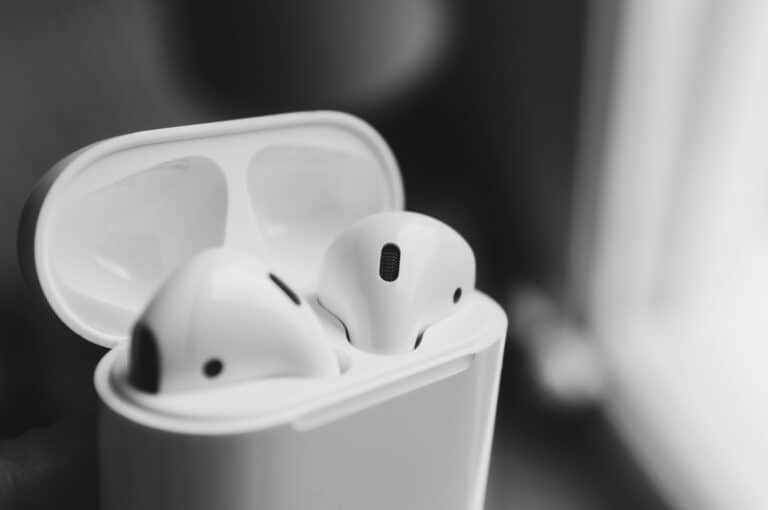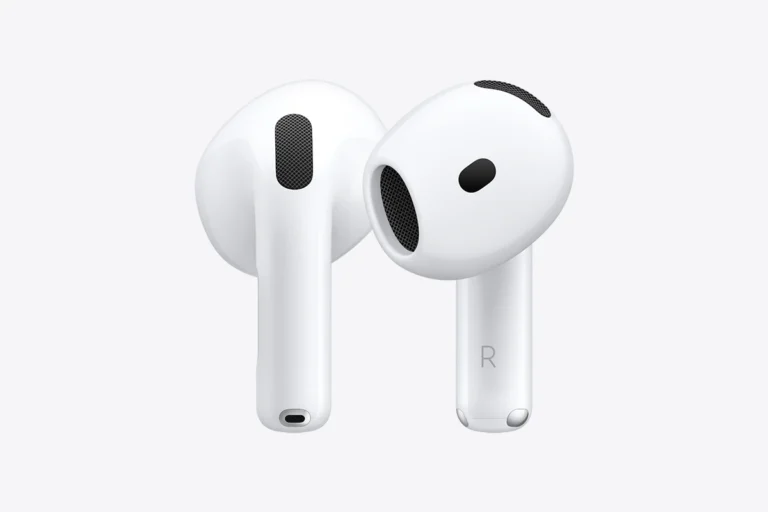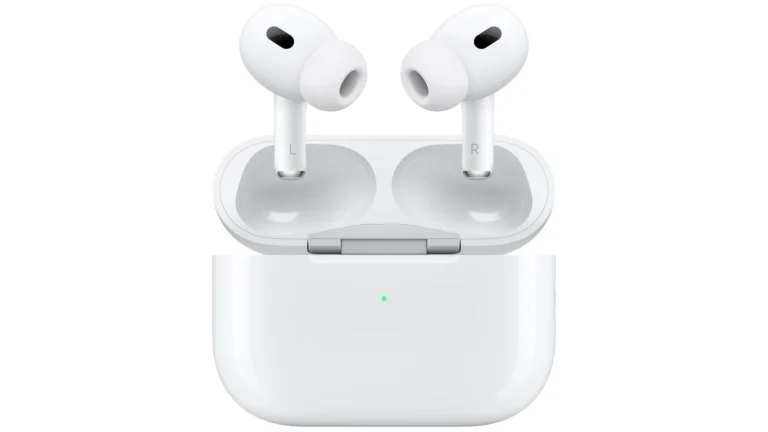
Dealing with AirPods that won’t connect can be frustrating, especially when you’re ready to listen to your favorite music or jump on an important call. Many users face this common issue, which can stem from simple Bluetooth glitches to more complex software problems. To fix AirPods that won’t connect, first ensure Bluetooth is enabled on your device, then place your AirPods in their charging case, close the lid for 15 seconds, and try reconnecting them through your device’s Bluetooth settings.
Sometimes the solution is as simple as checking the battery levels or resetting your AirPods by pressing and holding the setup button on the back of the charging case for up to 10 seconds. Other times, you might need to clean your AirPods or address software issues on your connected device. The good news is that most connection problems can be resolved without professional help.
How To Fix AirPods That Won’t Connect
If your AirPods or AirPods Pro won’t connect to your iPhone, iPad, Mac, or other devices, don’t worry — this is a common issue that can usually be fixed with some simple troubleshooting steps.
1. Check AirPods Battery Level
- Make sure your AirPods and their charging case have enough charge.
- Place the AirPods in the case and open the lid near your iPhone to see the battery status.
- Charge your AirPods and case if the battery is low.
2. Toggle Bluetooth On and Off
- On your iPhone/iPad/Mac, turn Bluetooth off, wait a few seconds, then turn it back on.
- This can refresh the connection and often resolves pairing issues.
3. Restart Your Device
- Restart your iPhone, iPad, or Mac to clear any temporary glitches affecting Bluetooth connectivity.
4. Forget and Re-Pair Your AirPods
- Go to Settings > Bluetooth on your device.
- Find your AirPods in the list, tap the “i” icon, and select Forget This Device.
- Put your AirPods back into pairing mode by holding the setup button on the case until the light flashes white.
- Reconnect your AirPods by bringing them close to your device and following the on-screen instructions.
5. Reset Your AirPods
- Put your AirPods in the charging case and close the lid.
- Wait 30 seconds, then open the lid.
- Press and hold the setup button on the back of the case for about 15 seconds until the status light flashes amber, then white.
- Reconnect your AirPods to your device.
6. Update Your Device Software
- Ensure your iPhone, iPad, or Mac is running the latest software version.
- Go to Settings > General > Software Update and install any available updates.
- Sometimes, connectivity issues are fixed in software patches.
7. Check for Interference or Distance
- Make sure you’re within range (about 30 feet) of your device.
- Remove any obstacles or electronic devices that might interfere with Bluetooth signals.
8. Try Connecting to Another Device
- Test your AirPods with another iPhone, iPad, or Mac.
- If they connect successfully, the problem may be with your original device.
9. Contact Apple Support
- If none of the above steps work, your AirPods might have a hardware issue.
- Reach out to Apple Support for further assistance or repair options.
Summary
Most connection problems with AirPods are resolved by checking battery levels, toggling Bluetooth, restarting devices, or resetting the AirPods themselves. Keeping your device software updated also helps prevent bugs that affect connectivity.
For detailed official guidance, see Apple’s support page: If your AirPods or AirPods Pro won’t connect.
Key Takeaways
- Check Bluetooth settings and battery levels before attempting more complex troubleshooting steps.
- Resetting AirPods by holding the setup button on the charging case often resolves stubborn connection issues.
- Clean your AirPods’ connection points and update your device’s software to prevent recurring connectivity problems.
Understanding AirPods Connectivity
AirPods rely on sophisticated Bluetooth technology to connect wirelessly to your devices. When connection issues occur, they typically stem from either hardware limitations, software glitches, or incorrect settings that can be addressed with proper troubleshooting.
Bluetooth Technology Basics
Bluetooth is a wireless technology standard that enables short-range communication between devices. AirPods use Bluetooth 5.0 (or newer in later models), which provides improved range, speed, and stability compared to older versions.
Bluetooth operates on the 2.4 GHz frequency band, which can sometimes face interference from other wireless devices like Wi-Fi routers, microwaves, and cordless phones. This interference may cause connection issues with AirPods.
The effective range for most Bluetooth devices, including AirPods, is approximately 30-60 feet (10-20 meters) in ideal conditions. Physical barriers like walls can significantly reduce this range and affect connectivity quality.
Bluetooth connections require both devices to have the feature enabled and to be discoverable to each other. On iPhones and other Apple devices, this is managed through the Bluetooth settings menu.
How AirPods Pair with Devices
AirPods use Apple’s proprietary H1 or H2 chip (depending on the model) to create a seamless pairing experience with Apple devices. This technology enables automatic pairing through the iCloud account.
When an AirPods case is opened near an iPhone, a connection prompt appears on screen. After initial pairing, AirPods automatically connect when removed from their case and placed in ears.
For non-Apple devices like Android phones or Windows computers, manual pairing is required through standard Bluetooth settings. This process involves putting AirPods in pairing mode by holding the button on the back of the case.
AirPods can remember multiple devices but can only actively connect to one device at a time. Switching between devices requires either manual disconnection or using features like Automatic Switching on compatible Apple devices.
Common Reasons for Connection Issues
Software-related problems frequently cause connectivity issues. Outdated iOS versions or AirPods firmware may result in incompatibilities that prevent proper connections. iOS updates sometimes introduce temporary bugs affecting Bluetooth functionality.
Hardware limitations can also impact connectivity. AirPods battery levels below 10% often lead to unstable connections. Physical damage to the AirPods or their charging case might damage the Bluetooth components.
Interference and range issues occur commonly in crowded wireless environments. Too many Bluetooth devices operating nearby can create signal congestion. Being too far from the paired device will cause disconnections.
Device-specific settings may prevent proper connectivity. Bluetooth might be disabled in settings or blocked by power-saving modes. Some apps or system features might temporarily override Bluetooth settings during operation.
Pairing conflicts happen when AirPods try to connect to multiple devices simultaneously. This often occurs when walking between rooms with different Apple devices that share the same Apple ID.
Initial Troubleshooting Steps
When your AirPods won’t connect, several basic steps can quickly resolve most connection issues without requiring technical expertise or service center visits. These solutions focus on checking hardware indicators, ensuring system compatibility, and verifying your device settings.
Checking AirPods Status Light
The status light on your AirPods case provides crucial information about their current state. If the light doesn’t appear when opening the case, the AirPods likely need charging. Place them in the charging case and connect to power using a Lightning cable.
Different color indicators have specific meanings:
- Amber light: AirPods are still charging
- Green light: AirPods are fully charged
- White flashing light: AirPods are in pairing mode
- No light: Case battery is depleted
If dirt or debris has accumulated on the charging contacts, the AirPods may not charge properly. Gently clean these contacts with a soft, dry cloth.
The status light location varies by model. On standard AirPods, it’s on the inside of the case, while AirPods Pro display it on the front.
Ensuring Compatibility with iOS 10 and Above
AirPods require specific software versions to function properly. The original AirPods work with devices running iOS 10 or later, while newer models like AirPods Pro need more recent versions.
Compatibility requirements:
- First-generation AirPods: iOS 10 or later
- Second-generation AirPods: iOS 12.2 or later
- AirPods Pro: iOS 13.2 or later
- AirPods 3rd generation: iOS 15 or later
If your iPhone software is outdated, update to the latest iOS version by going to Settings > General > Software Update. This often resolves connection problems, as Apple regularly improves Bluetooth connectivity and AirPods functionality.
Android users should ensure their device runs Android 4.0 or newer, though some advanced features may be unavailable.
Verifying Bluetooth Settings on Device
Bluetooth issues are among the most common reasons AirPods won’t connect. First, ensure Bluetooth is enabled on your device by going to Settings > Bluetooth. The toggle should be green or blue (depending on your device).
If Bluetooth is on but AirPods still won’t connect, try toggling Airplane Mode on and off. This often resets the Bluetooth connection:
- Swipe down from the top-right (iPhone X or newer) or up from bottom (older iPhones)
- Tap the Airplane Mode icon to enable it
- Wait 5 seconds
- Tap it again to disable it
Sometimes the AirPods appear in your Bluetooth devices list but won’t connect. In this case, try “forgetting” the device:
- Go to Settings > Bluetooth
- Tap the “i” icon next to your AirPods
- Select “Forget This Device”
- Restart the pairing process with the case open and button pressed
Software Solutions and System Recovery
When AirPods won’t connect, software issues on the connected device are often the culprit. These problems can usually be resolved without needing technical support or hardware replacement.
Restarting Your iOS Device
Restarting an iPhone or iPad is the simplest yet most effective troubleshooting step for connectivity issues with AirPods. This process clears temporary memory and refreshes system processes that manage Bluetooth connections.
To restart an iPhone with Face ID:
- Press and hold the side button and either volume button
- Drag the power off slider
- Wait 30 seconds, then press and hold the side button until the Apple logo appears
For older iPhone models with a Home button:
- Press and hold the side button
- Drag the slider to power off
- Wait, then press the side button again
Many users report that their AirPods reconnect automatically after a device restart. This solution works for all models including AirPods Pro.
Resetting Network Settings
When simple restarts don’t work, resetting network settings often fixes connection problems with AirPods by clearing all saved Bluetooth pairings and connections.
Steps to reset network settings:
- Open the Settings app on your iPhone
- Tap General
- Scroll down and tap Transfer or Reset iPhone
- Select Reset then Reset Network Settings
- Enter your passcode when prompted
This process clears all saved Wi-Fi networks, Bluetooth devices, and VPN settings. After the reset, your iPhone will restart automatically.
Remember to reconnect to your Wi-Fi network before attempting to pair your AirPods again. The AirPods will need to be set up as a new device.
Updating Device Firmware
Outdated software can cause compatibility issues between your AirPods and iOS devices. Regular firmware updates address bugs and improve connection stability.
To check for iOS updates:
- Connect your iPhone to Wi-Fi and a power source
- Go to Settings > General > Software Update
- If an update is available, tap Download and Install
AirPods firmware updates automatically when they’re:
- Connected to your iOS device
- In their charging case
- The case is charging
No manual method exists to force an AirPods firmware update. However, keeping your iOS device updated ensures compatibility with the latest AirPods firmware versions.
Some connectivity issues stem from incompatibilities between Windows operating systems and AirPods. For Windows users, checking for Windows updates might resolve persistent disconnection problems.
Hardware Inspection and Cleaning
Physical issues with your AirPods can often prevent them from connecting properly. Dirt buildup and damage are common culprits that affect connectivity.
Inspecting AirPods for Physical Damage
Before attempting software fixes, carefully examine your AirPods and charging case for visible damage. Check for cracks, dents, or water damage that might interfere with the device’s functionality.
Pay close attention to the speaker meshes and sensors. These delicate components can become blocked or damaged, causing connection problems.
Look at the bottom of each AirPod where the charging contacts are located. Damaged contacts will prevent proper charging and pairing.
For AirPods Pro models, inspect the ear tips for tears or deformities that might affect the seal and sensor readings. Misaligned or damaged ear tips can trigger improper fit detection, which sometimes leads to connectivity issues.
Cleaning the Charging Contacts
Dirt and debris on charging contacts often cause connection failures. To clean them properly, use a dry cotton swab or soft, lint-free cloth to gently wipe the gold-colored contacts on both the AirPods and inside the charging case.
For stubborn buildup, slightly dampen the cloth with isopropyl alcohol (70% concentration). Be extremely careful not to get moisture into any openings.
Clean the charging case’s Lightning or USB-C port using a soft brush or compressed air. Avoid inserting any metal objects that could damage the internal components.
Regular cleaning helps maintain reliable connections. Many users report that simply cleaning the contacts resolved their connection issues when their AirPods wouldn’t pair.
After cleaning, allow everything to dry completely before attempting to pair again. Battery depletion can occur if moisture interferes with charging.
Advanced Troubleshooting Techniques
When basic fixes fail, deeper solutions can restore your AirPods’ connectivity. These methods require adjusting specific settings that affect how your AirPods interact with your devices.
Manual Reconnection to Device
If your AirPods won’t connect automatically, you can try manually reconnecting them through your Bluetooth settings. First, place your AirPods in their charging case and close the lid for about 15 seconds.
Open the Bluetooth settings on your device. On an iPhone or iPad, go to Settings > Bluetooth. On a Mac, navigate to Apple menu > System Settings > Bluetooth.
Look for your AirPods in the device list. If they appear but show as disconnected, tap on their name to connect. If they don’t appear at all, you may need to forget the device entirely and re-pair.
To forget and re-pair:
- Find your AirPods in the Bluetooth devices list
- Tap the “i” icon or information button
- Select “Forget This Device”
- Confirm your choice
- Put AirPods in pairing mode by holding the setup button on the case until the light flashes white
Disabling Automatic Ear Detection
AirPods include a feature called Automatic Ear Detection that can sometimes cause connection problems. This feature detects when AirPods are in your ears and automatically routes audio through them.
To disable this feature:
- Connect your AirPods to your iPhone or iPad
- Go to Settings
- Tap Bluetooth
- Find your AirPods and tap the “i” icon
- Toggle off “Automatic Ear Detection”
Disabling this feature may help if your AirPods disconnect frequently or if only one AirPod works at a time. The downside is that your AirPods will continue playing even when removed from your ears, which may drain battery faster.
If this solution works, users might consider re-enabling the feature after a few days to see if the problem has resolved permanently.
When to Seek Professional Support
Sometimes AirPods connectivity issues need expert attention, especially after trying all troubleshooting steps without success. Professional help ensures proper diagnosis and repair of hardware-related problems.
Visiting an Apple Store or Authorized Service Provider
When basic troubleshooting fails, visiting an Apple Store or Authorized Service Provider is recommended. These locations have specialized tools to test AirPods and identify hardware defects that users cannot detect at home.
Technicians can run diagnostic tests directly on the AirPods to check:
- Battery health
- Connection capabilities
- Hardware functionality
- Internal components
It’s advisable to make an appointment before visiting to avoid long wait times. Bring all AirPods components including the charging case and original receipt if possible.
Many hardware issues may be covered under Apple’s limited warranty or AppleCare+ if purchased. Authorized Service Providers offer the same level of expertise as Apple Stores and use genuine Apple parts for replacements.
Contacting Apple Support for Assistance
Apple Support offers multiple ways to get help with AirPods that won’t connect. Users can reach out via phone, chat, or email for personalized troubleshooting.
When contacting Apple Support, be prepared with:
- Your AirPods serial number (found on the case or original packaging)
- Apple ID information
- Details about devices you’re trying to connect to
- Troubleshooting steps already attempted
Support representatives might suggest a device reset or firmware update not covered in basic troubleshooting. For AirPods Pro and Max, they can help with specific connectivity features unique to these models.
Remote diagnostics may be possible in some cases, allowing Apple to check your AirPods’ health without an in-person visit. Support can also initiate a mail-in repair service if necessary.
Frequently Asked Questions
AirPods connectivity problems can be frustrating, but most issues have simple solutions. Below are answers to common questions about troubleshooting connection problems with your AirPods.
How can I troubleshoot AirPods failing to connect to my iPhone?
First, ensure Bluetooth is turned on by opening Control Center and checking the Bluetooth icon. If it’s on but AirPods still won’t connect, place them in their charging case for 10 seconds, then try again.
Check your AirPods’ battery level by opening the case near your iPhone. Low battery is a common reason for connection failures.
Sometimes dirt or debris on the charging contacts can interfere with connections. Clean the metal contacts with a slightly dampened lint-free cloth to ensure proper charging and connection.
What steps should I follow if AirPods won’t show up on my Bluetooth device list?
If AirPods aren’t appearing in the Bluetooth device list, try turning Bluetooth off and on again. Go to Settings > Bluetooth, toggle it off, wait 5 seconds, then toggle it back on.
Another effective method is to restart your device. Power it off completely, wait 30 seconds, then turn it back on.
Make sure your AirPods are in pairing mode by placing them in the case and holding the setup button until the status light flashes white.
How do I reset AirPods to address connectivity issues?
To reset AirPods, place them in their charging case and close the lid for 30 seconds, then open it. Press and hold the setup button on the back of the case for about 15 seconds until the status light flashes amber, then white.
After resetting, the AirPods will be disconnected from all devices. To reconnect, simply open the case near the iPhone and follow the on-screen instructions to pair them again.
This reset process clears previous connection data and often resolves persistent connection problems.
Why aren’t my AirPods responding after I try to reset them?
If AirPods aren’t responding to reset attempts, their battery might be completely drained. Place them in the charging case for at least 15 minutes with the case connected to power.
Sometimes the charging case itself needs to be reset. Try charging the case for 10 minutes, then attempt the reset process again.
If problems persist, check for debris blocking the charging contacts in the case or on the AirPods. Charging issues often manifest as connection problems.
What could be causing my AirPods to not flash white during the connection process?
When AirPods don’t flash white during setup, the case battery may be too low. Connect the charging case to power for at least 10 minutes before trying again.
The setup button might be stuck or damaged. Examine it carefully and try pressing gently from different angles.
Software issues on the connected device can also prevent proper pairing. Updating your device to the latest iOS version often resolves these compatibility problems.
What can be done when my AirPods connect to other devices but not to my iPhone?
If AirPods connect to other devices but not your iPhone, first check if your iPhone’s iOS is up to date. Outdated software often causes selective connection problems.
Try forgetting the AirPods in iPhone Bluetooth settings, then reconnect them. Go to Settings > Bluetooth, tap the “i” icon next to your AirPods, and select “Forget This Device.”
The problem might be with your iPhone’s Bluetooth system. Restarting your iPhone clears temporary memory and often resolves connection conflicts with specific devices.