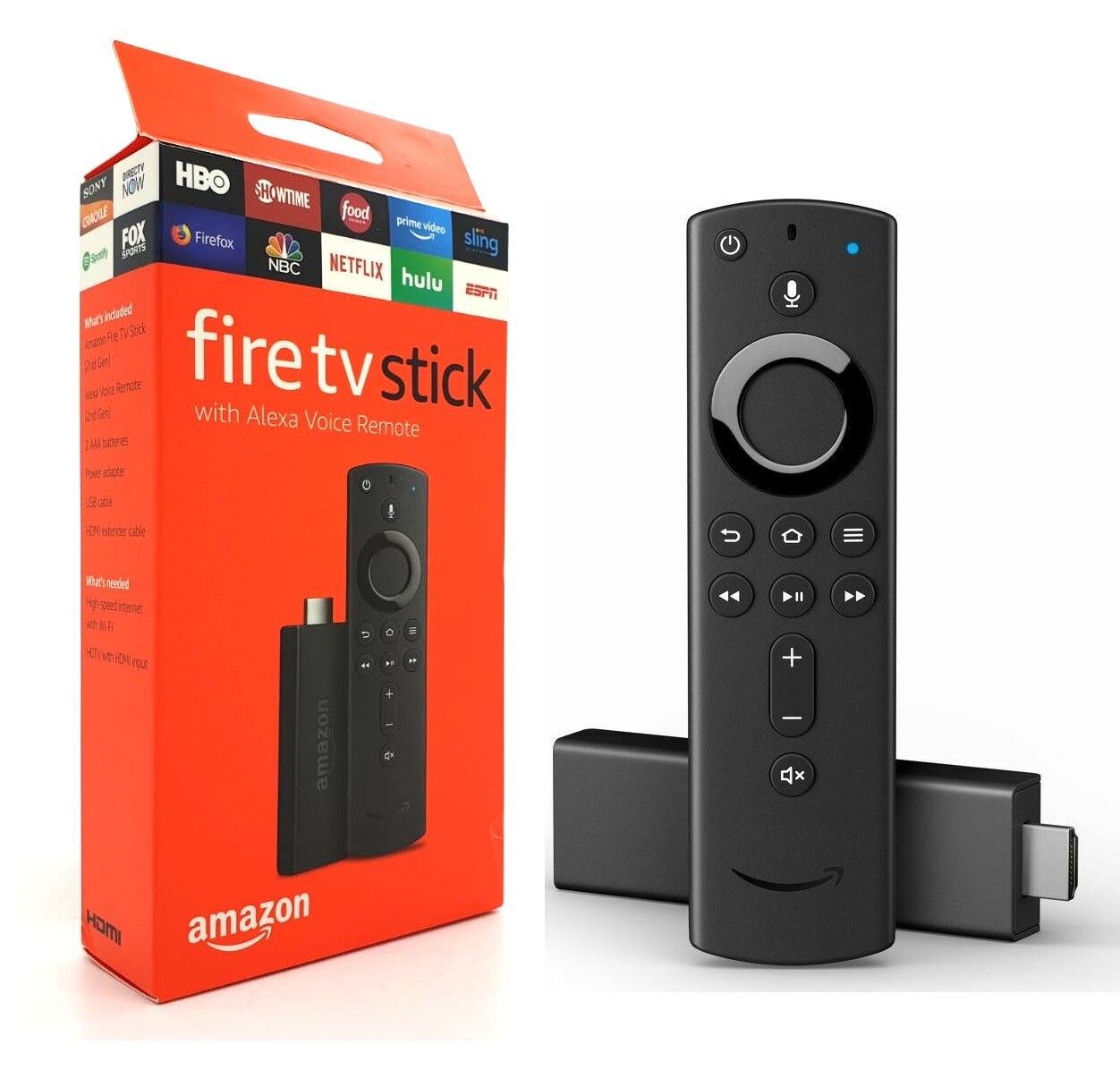
Is your Fire TV Stick remote suddenly not responding? Don’t worry, this is a common issue that can usually be fixed with a few simple steps. The fastest way to fix an unresponsive Fire Stick remote is to replace the batteries, press and hold the Home button for 10 seconds, or reset the remote by simultaneously pressing the Left, Menu, and Back buttons. These quick fixes solve most remote problems without requiring you to buy a replacement.
Sometimes the issue might be related to the Fire TV device itself rather than the remote. If changing batteries didn’t work, try unplugging your Fire TV Stick from both the power supply and HDMI port, wait for about 60 seconds, then plug it back in. This simple restart often resolves connection issues between your remote and device. Also, make sure there are no obstacles between the remote and the Fire Stick, as this can interfere with the signal.
How to Fix an Amazon Fire Stick Remote That Won’t Work
If your Amazon Fire Stick remote is unresponsive or not working properly, follow these troubleshooting steps to get it back in action:
1. Check the Batteries
- Replace the batteries with fresh, high-quality ones.
- Make sure the batteries are inserted correctly with the right polarity.
2. Restart Your Fire Stick and TV
- Unplug your Fire Stick from the power source.
- Unplug your TV as well.
- Wait about 30 seconds.
- Plug the Fire Stick and TV back in and power them on.
3. Re-pair the Remote
- Hold down the Home button on the remote for about 10 seconds.
- Wait for the Fire Stick to recognize and pair with the remote.
- If it doesn’t pair automatically, try this manual pairing:
- Go to Settings > Controllers & Bluetooth Devices > Amazon Fire TV Remotes > Add New Remote.
- Follow the on-screen instructions.
4. Reset the Remote
- Remove the batteries.
- Press and hold the Home button for 20 seconds.
- Release the button and reinsert the batteries.
- Press the Home button again to pair.
5. Check for Interference
- Remove any objects between the remote and the Fire Stick.
- Make sure you are within 20 feet of the Fire Stick.
- Avoid other wireless devices that might cause interference.
6. Use the Fire TV App as a Temporary Remote
- Download the Amazon Fire TV app on your smartphone.
- Connect your phone to the same Wi-Fi network as your Fire Stick.
- Use the app to control the Fire Stick while troubleshooting.
7. Factory Reset the Fire Stick (Last Resort)
- If nothing else works, perform a factory reset via the Fire Stick settings or by holding down the Back and Right buttons on the remote for 10 seconds.
- Note: This will erase all your data and settings.
These steps should resolve most remote issues. If problems persist, consider contacting Amazon support or replacing the remote.
Sources:
- Amazon Fire TV Remote Not Working – Amazon Help
- How to Reset and Resync Your Fire TV Remote – WikiHow
- Firestick Remote Not Working: Best Fixes for 2025 – Firestick News
Key Takeaways
- Replace batteries and hold the Home button for 10 seconds to quickly fix most remote issues.
- Reset your remote by pressing the Left, Menu, and Back buttons simultaneously when simple fixes fail.
- Restart your Fire TV device by unplugging it for 60 seconds if remote pairing problems persist.
Understanding the Issue
When a Fire TV remote stops working, it’s important to identify what’s happening before attempting a fix. The problem could be due to simple battery issues or more complex pairing problems.
Identifying Common Symptoms
A Fire TV remote not working typically shows several telltale signs. The most obvious is complete unresponsiveness – pressing buttons produces no reaction on the screen.
Sometimes the remote’s LED indicator fails to light up when buttons are pressed. This often indicates a power-related issue.
In other cases, the remote works inconsistently. Some buttons may respond while others don’t, or the remote might work briefly before failing again.
Distance problems can also occur. The remote might only function when held extremely close to the Fire TV device.
Common symptoms to watch for:
- No LED light when pressing buttons
- Partial functionality (some buttons work, others don’t)
- Remote works only at very close range
- Fire TV device completely unresponsive to any remote commands
Recognizing the Difference Between Hardware and Software Malfunctions
Determining whether an unresponsive Firestick remote has a hardware or software problem helps choose the right solution.
Hardware issues typically involve physical components like batteries or damaged parts. Signs include:
- No LED light on the remote even with fresh batteries
- Visible physical damage to the remote
- Buttons that stick or feel different when pressed
Software issues generally relate to connection or pairing problems. These symptoms include:
- The LED light blinks but the Fire TV doesn’t respond
- Remote worked previously but stopped after a system update
- Other Bluetooth devices also having connection problems
Battery problems are the most common hardware issue. Even if batteries are new, incorrect installation or poor battery contact can cause an unresponsive remote.
Signal interference from other electronic devices can sometimes create software connection issues that make the remote appear broken when it’s actually a temporary disruption.
Immediate Troubleshooting Steps
When your Fire TV remote stops working, a few simple checks can often solve the problem quickly without needing to contact customer support or buy a replacement.
Checking the Power Source and Batteries
The most common reason for remote failure is battery issues. First, check if the batteries are dead and replace them if necessary. Many users don’t realize that low battery power can cause intermittent problems before complete failure.
Always use fresh alkaline batteries rather than rechargeable ones, as they provide more consistent power to the remote. The Fire TV remote typically uses two AAA batteries.
To replace batteries:
- Slide open the battery compartment on the back of the remote
- Remove the old batteries
- Insert new batteries, ensuring the positive (+) and negative (-) ends align with the markings
- Close the battery compartment
If the remote has a power indicator light, check if it illuminates when pressing buttons. No light could indicate battery problems.
Verifying the Integrity of the Remote
Physical damage can affect remote functionality. Inspect your remote for any visible damage, liquid exposure, or stuck buttons.
Try pressing specific button combinations to reset the remote:
- Press the Rewind and Right buttons simultaneously for three seconds
- Press the Menu button followed by any other button
If buttons feel sticky or unresponsive, clean the remote gently with a slightly damp cloth. Ensure no moisture enters the seams or battery compartment.
Test the remote at different distances and angles from the Fire TV device. Sometimes interference or obstructions can block the signal. Make sure nothing blocks the line of sight between the remote and the device.
Ensuring Proper Setup and Connections
The remote must be properly paired with your Fire TV device. If connection is lost, you’ll need to re-establish it.
To reset and repair the connection:
- Unplug your Fire TV from both power and HDMI for at least 60 seconds
- Plug the device back in and wait for it to fully restart
- Press and hold the Left button, Menu button, and Back button simultaneously for 10 seconds
- Wait 10-15 seconds for the pairing process to complete
Ensure your Fire TV has the latest software update, as outdated firmware can cause remote connectivity issues. Check for other devices that might cause interference, especially those operating on similar frequencies.
If using the Fire TV app as a backup remote, verify your phone and Fire TV are connected to the same Wi-Fi network.
Advanced Troubleshooting
When basic fixes fail to solve your Fire Stick remote issues, these advanced techniques can restore functionality. The following methods address the most common underlying problems that prevent remotes from connecting properly.
Pairing and Repairing the Amazon Fire Stick Remote
To manually pair your Fire TV remote, start by placing it within 10 feet of your device. Press and hold the Home button for at least 10 seconds to initiate pairing mode.
For stubborn connection issues, try a forced restart. Hold down the Select + Play buttons together for 5 seconds to restart the device completely. This often clears temporary glitches in the connection.
If the remote still won’t connect, perform a factory reset:
- Press and hold the Left button, Menu button, and Back button simultaneously for about 10 seconds
- Release the buttons when the LED light starts blinking rapidly
- Remove batteries, wait 30 seconds, then reinsert them
- Press the Home button to complete pairing
Resolving Obstructions and Interference Issues
Physical barriers can significantly impact remote performance. The Fire Stick remote uses Bluetooth technology with a range of approximately 30 feet but requires a clear path.
Remove any objects blocking the line of sight between the remote and the Fire Stick. Metal objects, thick walls, and electronic devices can interfere with the signal strength.
Other household devices operating on the 2.4GHz frequency (like microwaves, wireless phones, and baby monitors) may cause interference. Try powering off nearby electronics temporarily to identify potential interference sources.
Relocate your Fire Stick using an HDMI extender to move it away from the TV’s metal casing, which can block signals. Amazon provides these extenders free for eligible customers experiencing connectivity problems.
Adjusting the HDMI Input and TV Compatibility
Sometimes the issue lies with the HDMI connection rather than the remote itself. Try unplugging your Fire TV from both the power supply and HDMI input, then wait 60 seconds before reconnecting.
If using an HDMI hub or switch, connect the Fire Stick directly to the TV instead. Some hubs can interfere with the remote’s signals or power distribution.
Check if your TV’s HDMI port supports CEC (Consumer Electronics Control). Disabling CEC in your TV settings may resolve conflicts with the Fire Stick remote.
For persistent issues, try connecting to a different HDMI port. Some ports may have better compatibility or fewer interference issues than others. After changing ports, navigate to your TV’s input settings and select the corresponding HDMI input.
Alternative Solutions
When a Fire TV remote stops working even after basic troubleshooting, there are other options available to control your device and continue enjoying your streaming experience.
Using the Fire TV Remote App
The Fire TV Remote App offers a convenient alternative when the physical remote isn’t functioning. This free application transforms any smartphone or tablet into a virtual remote control.
To get started, users need to download the app from their device’s app store. The smartphone must be connected to the same Wi-Fi network as the Fire TV device.
The app provides all the same functions as the physical remote. Users can navigate menus, adjust volume, and even use voice commands through their phone’s microphone.
One significant advantage is the keyboard feature, which makes searching and typing passwords much easier than using the on-screen keyboard. The app also doesn’t require batteries, eliminating that potential point of failure.
Examining the Need for a Remote Replacement
Sometimes, a replacement remote is the best solution. Signs that indicate replacement is necessary include:
- Physical damage to the remote
- Failure to respond after multiple reset attempts
- Battery contacts that appear corroded or damaged
- Remote that won’t pair despite following all troubleshooting steps
Official Amazon Fire TV remotes can be purchased directly from Amazon. Third-party compatible remotes are also available, often at lower prices.
When selecting a replacement, ensure compatibility with the specific Fire TV model. Some newer remotes include additional features like volume buttons and power controls that older models lack.
Before purchasing, check if the device is still under warranty. Amazon may provide a free replacement if the remote failure occurred during the coverage period.
Expert Assistance
When DIY solutions fail to resolve Fire Stick remote issues, professional help is available. Technical support services can diagnose and fix complex problems that may not be solvable through standard troubleshooting steps.
Seeking Support from JustAnswer Membership
JustAnswer offers specialized technical assistance
Optimizing the Fire Stick Experience
Once your Fire Stick remote is working properly, maximizing its functionality can enhance your streaming experience. Taking advantage of built-in features and maintaining your device properly ensures smoother performance and fewer interruptions.
Utilizing Shortcuts and Features
The Fire Stick remote offers several convenient shortcuts that many users don’t know about. The Home button serves as the central navigation point, but pressing and holding it for 3 seconds opens a quick-access menu with commonly used apps.
Double-pressing the Home button reveals recently used applications, saving time when switching between streaming services. This shortcut eliminates the need to return to the main menu repeatedly.
Voice commands through the microphone button can streamline searches. Instead of typing out movie titles or actor names, users can simply press and speak. This feature works across multiple apps and the main interface.
Custom button mapping is available in newer Fire Stick models. Users can assign frequently used functions to specific buttons through the Settings menu under Remotes & Bluetooth Devices.
Regular Maintenance and Updates
Fire Stick devices occasionally get stuck during system optimization processes, which can affect remote functionality. Checking for and installing software updates regularly helps prevent these issues.
To update manually, navigate to Settings > My Fire TV > About > Check for Updates. Amazon typically releases updates monthly, bringing performance improvements and new features.
Clearing the cache periodically improves responsiveness. This can be done by:
- Going to Settings > Applications
- Selecting Manage Installed Applications
- Choosing apps with large cache sizes
- Selecting “Clear cache“
Physical maintenance matters too. Users should replace remote batteries when power runs low and occasionally clean the remote’s contacts with a dry cloth.
Removing unused apps frees up system resources. The Fire Stick has limited storage, and performance slows when memory is constrained.
Frequently Asked Questions
Fire Stick remote issues can be frustrating but are usually solvable with a few simple steps. Many problems have quick fixes that don’t require technical expertise or replacement.
What steps can one follow to troubleshoot a non-responsive Amazon Fire TV Stick remote?
First, users should check and replace the batteries, ensuring they’re inserted correctly. Fresh batteries solve many remote issues instantly.
Next, one should try restarting the Fire TV device by unplugging it from power for about 60 seconds before plugging it back in. This simple reset often resolves connection problems.
If the remote still doesn’t respond, pressing and holding the Home button for 10 seconds may trigger a reset and reconnection process.
How can one pair a new Firestick remote to their TV?
To pair a new remote, users should first ensure their Fire TV device is powered on. Then they need to hold the Home button for 10 seconds.
When the LED indicator on the remote blinks blue, this signals successful pairing. If no blinking occurs, users should repeat the process.
Some newer Fire TV remotes may require holding a specific button combination instead. The device screen typically provides pairing instructions.
What are the common reasons for a Fire Stick remote to stop working even with new batteries?
Interference from other devices can disrupt the Bluetooth connection between the remote and Fire Stick. Moving WiFi routers or other electronics away may help.
Physical obstructions blocking the line of sight can affect older infrared-based remotes. Ensuring a clear path between remote and device solves this problem.
Software issues on the Fire Stick itself might prevent proper communication. A complete restart of the device often resolves these problems.
What should I do if there is no light on my Amazon Fire Stick remote?
When no lights appear on the remote, users should first try a battery replacement with high-quality, non-rechargeable alkaline batteries.
If new batteries don’t activate the light, checking for physical damage to the battery contacts or internal components may reveal issues. Gentle cleaning of contacts sometimes helps.
As a last resort, pressing multiple buttons simultaneously (like Home + Menu + Back) for 10 seconds can trigger a hard reset on some models.
How can I reset my Fire TV remote if it’s not functioning properly?
For most Fire TV remotes, pressing and holding the Home button for 10 seconds initiates the reset process. Users should watch for the LED indicator to blink.
Another effective reset method involves removing the batteries, waiting 30 seconds, reinserting them, and then holding the Home button for pairing.
For more stubborn issues, users can try pressing and holding multiple buttons (Home + Menu + Left navigation button) for 12 seconds to force a factory reset.
Where can I find the Amazon Fire Stick remote app, and how does it work?
The Amazon Fire TV app is available for free download on both iOS and Android devices through their respective app stores.
After installation, users must ensure their smartphone and Fire TV device are connected to the same WiFi network. The app will automatically detect compatible devices.
The app offers all the same functions as the physical remote plus additional features like keyboard input and voice control, making it an excellent backup solution when physical remotes fail.