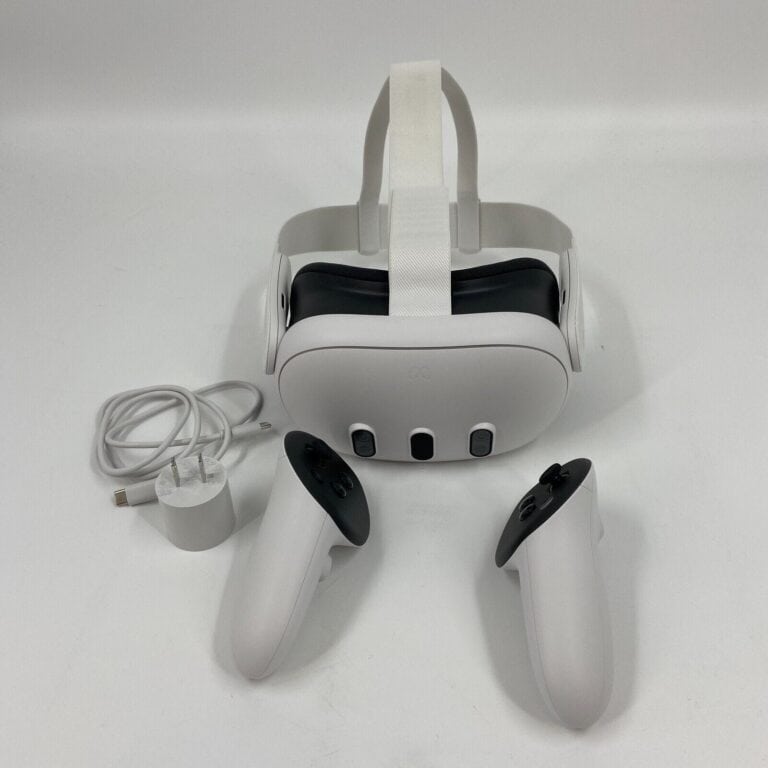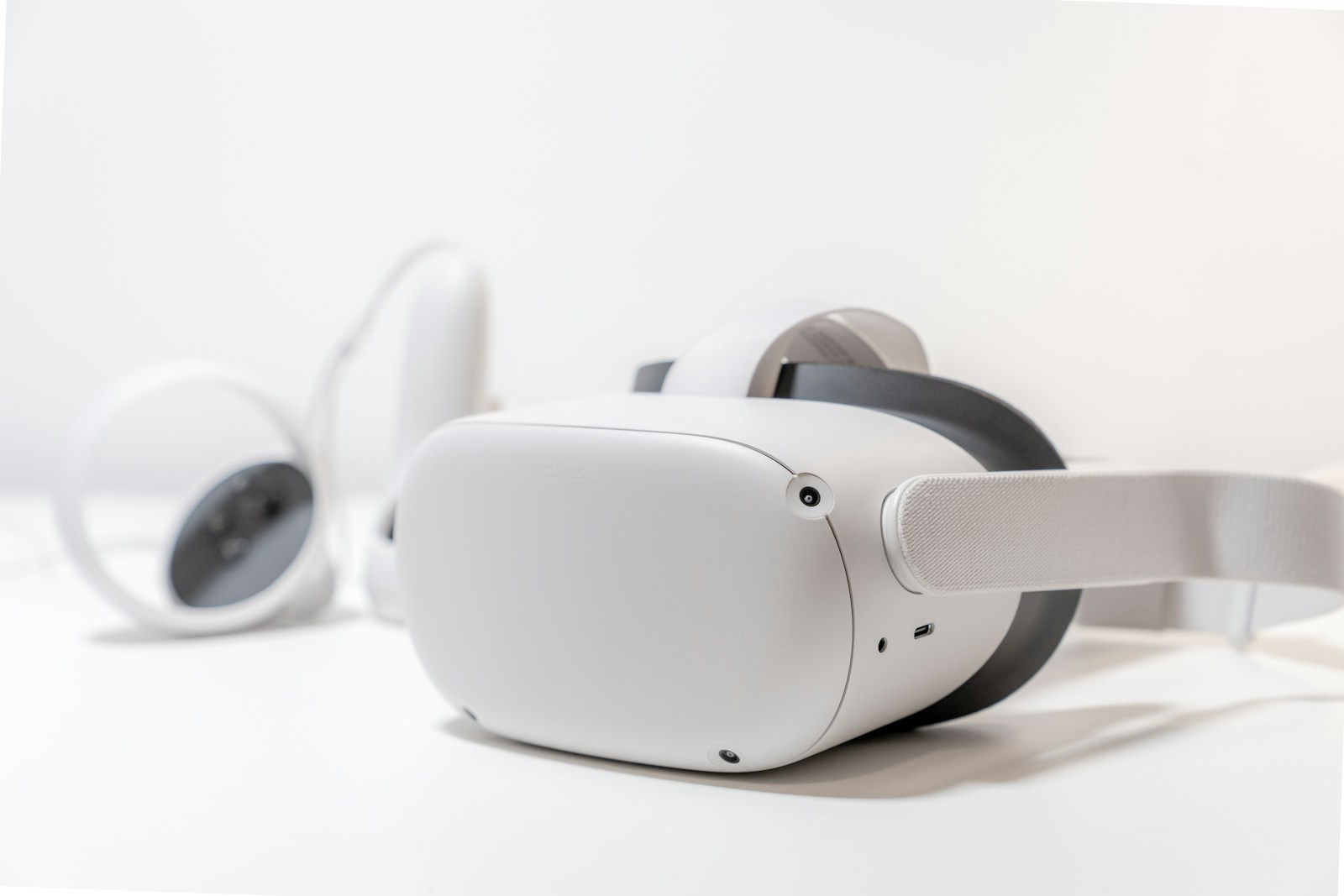
Is your Oculus Quest microphone suddenly not working? This common issue can disrupt your virtual reality experience when you can’t communicate with friends or use voice commands. To fix an Oculus Quest microphone that’s not working, start by performing a hard reboot by holding the power button for at least 10 seconds, checking for physical obstructions in the microphone pinholes, and ensuring the microphone isn’t muted in your settings. These simple steps solve most microphone problems quickly.
Many users find their microphone works inconsistently across different applications or after system updates. If basic troubleshooting doesn’t work, you might need to check application-specific permissions, reset your device to factory settings, or test the microphone in different environments. Sometimes the microphone issues are related to Oculus Link when using your headset with a PC.
How to Fix Oculus Quest Mic Not Working
If your Oculus Quest microphone isn’t working during VR sessions or voice chats, it can be frustrating. This guide will help you troubleshoot and resolve common mic issues on Oculus Quest and Quest 2.
Common Causes of Mic Issues on Oculus Quest
- Muted microphone in settings or app
- Software glitches or outdated firmware
- Bluetooth or USB interference
- Hardware damage or dirt blocking mic
- Permissions not granted for voice access
Step-by-Step Fixes
1. Check Microphone Mute Status
- While in VR, press the Oculus button to open the universal menu.
- Look for the microphone icon at the bottom.
- If the mic icon has a slash through it, your mic is muted—click it to unmute.
2. Restart Your Oculus Quest
- Hold down the power button until the power menu appears.
- Select Restart.
- Once rebooted, test the microphone again.
3. Check App Permissions
- Open the Oculus mobile app on your phone.
- Go to Settings > Your Device > More Settings > Privacy.
- Ensure microphone access is enabled for apps you want to use.
4. Update Oculus Software
- Make sure your Oculus Quest is running the latest firmware.
- Go to Settings > About > Software Update in the headset.
- Update if a new version is available.
5. Check for Bluetooth or USB Interference
- Disconnect any Bluetooth devices connected to your Quest.
- If using Oculus Link (USB cable), unplug and reconnect the cable securely.
6. Clean the Microphone Area
- Gently wipe the microphone openings on the headset with a soft, dry cloth.
- Ensure no debris or dirt is blocking the mic.
7. Test with Another App
- Try using the mic in a different app or game to see if the issue persists.
- This helps determine if the problem is app-specific.
8. Factory Reset (Last Resort)
- Back up your data as this will erase your headset.
- Go to Settings > System > Factory Reset.
- Confirm and wait for the reset to complete.
- Set up your Quest again and test the microphone.
When to Contact Oculus Support
If none of the above fixes work, the microphone hardware might be faulty. Contact Oculus Support or visit an authorized service center for repair or replacement options.
Summary
To fix your Oculus Quest mic not working, start by checking mute status and permissions, restart the device, update software, and clean the mic area. If problems persist, consider a factory reset or professional support.
Key Takeaways
- Performing a hard reboot and checking for physical obstructions solves most Oculus Quest microphone issues.
- Verify microphone settings aren’t muted both in the system settings and within individual applications.
- Try factory resetting your device as a last resort if all other troubleshooting steps fail.
Understanding the Oculus Quest Mic Issue
Microphone problems on Oculus Quest headsets can be frustrating, especially when you’re trying to communicate with friends in social VR apps. These issues can stem from various causes including incorrect settings, software bugs, or hardware malfunctions.
Identifying Common Mic Problems
Users often discover their Oculus Quest microphone isn’t working when other players can’t hear them in multiplayer games. The most common signs include:
- No voice detection in apps like VRChat
- Other players indicating they can’t hear you
- Voice commands not registering with the headset
- Microphone icon showing as muted even when it shouldn’t be
To check if your microphone is functioning properly, try using the built-in voice commands feature. If the Quest doesn’t respond to commands like “Take a screenshot” or “Open settings,” this suggests a microphone issue.
The microphone on Quest headsets is located in small pinholes on the headset. Sometimes these can become blocked with dust or debris, causing muffled audio or no audio pickup at all.
Software vs. Hardware Issues
Most microphone problems on the Quest are software-related rather than hardware failures. Software issues typically include:
- Incorrect permission settings
- App-specific microphone blocks
- System software bugs
- Outdated firmware
To distinguish between software and hardware problems, try restarting your headset by holding the power button for 10 seconds. This simple step often resolves temporary software glitches.
If a factory reset doesn’t solve the problem, it might be hardware-related. Physical damage or manufacturing defects can affect the internal microphone components. Water damage is particularly problematic and usually requires professional repair.
Quest headsets have multiple microphones for noise cancellation and voice detection. If only one microphone is faulty, you might experience intermittent issues rather than complete failure.
Compatibility with Games and Apps
Not all VR applications handle microphones the same way. Some apps like VRChat use Photon Voice 2 for voice chat, which might have separate settings from the system microphone.
When experiencing mic issues in specific apps:
- Check if the problem occurs in all applications or just one
- Verify the app’s voice chat settings
- Ensure the app has microphone permissions granted
Some multiplayer games require you to press a button to activate voice chat. This “push-to-talk” feature can sometimes be confused with a microphone malfunction if users aren’t aware of it.
For PC VR users using Air Link or Link cable, additional complications can arise. Windows might be setting the wrong default microphone or the Oculus software might not be correctly routing audio inputs. Always check both the Quest settings and your PC’s sound control panel when using connected VR.
Initial Troubleshooting Steps
When your Oculus Quest 2 microphone stops working, a few simple checks can often resolve the issue quickly. These steps address the most common causes of microphone problems and require no technical expertise to implement.
Checking Microphone Access
The Quest 2 requires proper permissions to access the microphone. Many apps will request microphone access when first launched. If denied, the mic won’t function in those applications.
To verify app permissions:
- Press the Oculus button to access the menu
- Select Settings (gear icon)
- Navigate to Device > Apps
- Find the app where the microphone isn’t working
- Check that microphone permissions are enabled
Sometimes apps may have their permissions accidentally revoked after updates. If an app previously worked but suddenly doesn’t, this is a likely culprit. Toggle the permission off and on again to refresh it.
Meta occasionally pushes system updates that can affect app permissions. After major system updates, it’s worth checking these settings again.
Verifying Microphone Settings
The Quest 2 has built-in settings that control microphone behavior across the device. These settings might be changed accidentally during use.
To check microphone settings:
- Press the Oculus button to open the universal menu
- Select Settings (gear icon)
- Navigate to Device
- Select Audio
- Ensure the microphone isn’t muted
Look for the microphone icon – if it shows as muted (with a strike-through), tap it to unmute. The Quest 2 also has voice commands functionality that uses the microphone.
Check if your specific game or app has separate audio settings. Many multiplayer games have in-game options to control voice chat and microphone sensitivity.
Restarting the Oculus Quest
Often the simplest solution is the most effective. Restarting your Quest 2 can resolve temporary software glitches affecting the microphone.
To perform a standard restart:
- Hold the power button on the right side of the headset
- Select Restart from the menu that appears
- Wait for the device to fully power down and restart
If the device is unresponsive, perform a hard reboot by pressing and holding the power button for at least 10 seconds until the device powers off completely.
After restarting, test the microphone in an app known to use voice features. The Oculus Party Chat feature provides a reliable way to test microphone functionality without launching a separate app.
Software Solutions
When fixing microphone issues on your Oculus Quest, software adjustments can often solve the problem without needing hardware replacements. These solutions range from simple updates to more advanced developer troubleshooting.
Updating Firmware and Apps
The Quest microphone problems frequently stem from outdated software. Check if your Quest headset is running the latest firmware by going to Settings > Device > About. If an update is available, connect to Wi-Fi and install it immediately.
Voice communication apps like Discord may also need updates to work properly with Quest. Some users report that quitting Discord and running it as administrator resolves microphone issues.
For Oculus Link users experiencing microphone failures, try disconnecting the Link in settings, then muting and unmuting the microphone before reconnecting. This simple reset often fixes connection problems between the Quest and PC.
Meta regularly releases patches that address microphone functionality, so keeping everything updated should be your first troubleshooting step.
Reinstalling Problematic Applications
When specific apps have microphone issues, reinstallation can clear corrupted data. First, identify which applications have microphone problems and which work correctly to isolate the issue.
For Windows PC users connecting Quest via Link, check your sound settings by:
- Right-clicking the speaker icon in the taskbar
- Selecting “Open Sound settings”
- Under Input, choosing Headset Microphone from the dropdown menu
If Windows privacy settings are blocking microphone access, navigate to Start > Settings > Privacy > Microphone and ensure access is enabled for your VR applications.
For persistent issues, completely uninstall and reinstall problematic apps, making sure to clear cache data when possible.
Debugging with Developer Tools
For more technical users, Developer Mode offers advanced troubleshooting options. Enable Developer Mode through the Oculus app on your smartphone under Settings > Device > Developer Mode.
Once enabled, connect your Quest to a computer and use ADB (Android Debug Bridge) commands to check microphone status:
adb devices
adb shell dumpsys media.audio_flinger
These commands display active audio inputs and can reveal if the system recognizes the microphone hardware.
Developers creating Unity applications can troubleshoot microphone issues by checking the AudioSettings and Microphone class implementations. Unity’s console often provides error messages related to microphone access that aren’t visible to end users.
For persistent issues, the Oculus Developer Hub tool provides comprehensive logging capabilities that can identify exactly when and why microphone failures occur.
Working with Different Devices
The Oculus Quest microphone can sometimes experience connectivity issues when paired with various devices. Troubleshooting these connections requires understanding how the Quest interfaces with computers and mobile devices.
Connecting Oculus Quest to a Computer
When using the Oculus Quest with a PC through Oculus Link, microphone issues can occur frequently. One effective solution involves disconnecting Oculus Link in settings, then going to devices to mute and unmute the microphone. This simple toggle often resolves communication problems.
For persistent issues, users should check Windows audio settings. The system sometimes defaults to incorrect audio inputs after connecting the Quest. To fix this:
- Right-click the speaker icon in the Windows taskbar
- Select “Sound settings”
- Navigate to “Input devices”
- Ensure “Oculus Virtual Audio Device” is selected as the default
Mac users face different challenges as Oculus Link officially supports Windows only. However, third-party solutions like Virtual Desktop can enable connectivity with varying microphone success rates.
Interacting with Android Devices and Smartphones
The Oculus mobile app serves as the primary interface between smartphones and the Quest headset. When microphone issues arise with Android devices or iPhones, users should first verify privacy permissions in the Oculus app settings.
For Android users experiencing microphone problems:
- Ensure the Oculus app has microphone permission enabled
- Restart both the Quest headset and smartphone
- Check that Bluetooth is functioning properly
Sometimes a hard reboot of the Quest by holding the power button for 10 seconds resolves issues when connecting to any device. This clears temporary software glitches that might affect microphone functionality.
The Oculus app version should also remain updated on smartphones to maintain compatibility with the latest Quest firmware.
Advanced Troubleshooting Techniques
When basic fixes fail to resolve Oculus Quest 2 microphone issues, more advanced methods may be necessary. These techniques address deeper system problems and connectivity issues that could be preventing your microphone from functioning properly.
Factory Resetting the Oculus Quest
Factory resetting should be considered a last resort after trying other solutions, as it erases all downloaded games and saved data. To perform a factory reset:
- Power off your Oculus Quest 2 headset completely
- Hold down the power and volume (-) buttons simultaneously until the boot screen appears
- Use the volume buttons to navigate to “Factory Reset” and select with the power button
The process takes approximately 5-10 minutes to complete. After resetting, you’ll need to set up your device again as if it were new.
Some users report that factory resetting solved persistent microphone issues that couldn’t be fixed through other methods. Be sure to back up any important data before proceeding.
Networking and Connection Solutions
Microphone problems often stem from network connectivity issues, especially when using Link or Air Link features. Try these advanced networking solutions:
First, ensure your PC recognizes the Quest 2 microphone by checking sound settings. Navigate to Windows sound settings, locate the Oculus microphone, select “Manage device” then “Additional device properties.” Under Advanced, uncheck “Allow applications to take exclusive control of this device.”
Adjust your router settings to prioritize VR traffic. Set your Quest 2 MAC address as a priority device in QoS (Quality of Service) settings.
For Link users experiencing mic issues after updates, try accessing advanced settings through the Meta Quest mobile app. Tap Menu → Devices → Your headset → Headset Settings → Advanced Settings.
Optimizing Microphone for Specific Use Cases
Different VR applications have unique audio requirements that may need special microphone configurations. Optimizing your Oculus Quest microphone settings can significantly improve your communication experience and overall immersion.
Enhancing Mic Performance for VRChat
VRChat users often struggle with microphone clarity during busy social gatherings. To improve voice transmission in crowded virtual rooms, restart your Oculus Quest whenever you notice audio degradation.
For advanced optimization, adjust these VRChat-specific settings:
- Microphone Sensitivity: Set to medium-high to ensure your voice carries without picking up breathing
- Noise Suppression: Enable to filter background noise
- Push-to-Talk: Activate in busy environments to prevent audio overlap
Many VRChat enthusiasts benefit from checking their microphone permissions before each session. This prevents the common issue where the app loses microphone access after updates or system changes.
Improving Audio Quality for Streaming and Recording
Content creators need pristine audio when streaming or recording Oculus Quest gameplay. When connecting to PC via Link, ensure the “Headset Microphone – Oculus Virtual Audio Device” is set as the default recording device in Windows sound settings.
For optimal streaming quality:
- Disable Auto Gain Control: Prevents volume fluctuations
- Position Microphone: Adjust headset for ideal mic placement
- Use Pop Filter: Attach a small foam cover if possible
External microphones often provide superior audio quality. If using one, disconnect the Oculus microphone in your PC sound settings to prevent conflicts between audio sources.
Setting Up Lip Sync with Oculus Avatar
Oculus Avatar lip synchronization creates more realistic social interactions by matching your avatar’s mouth movements to your speech. To configure this feature properly, the microphone must be functioning correctly.
Begin by performing a hard reboot if experiencing issues—hold the power button for at least 10 seconds to fully reset the system.
For optimal lip sync performance:
- Update Firmware: Ensure both headset and controllers run the latest software
- Calibrate Voice Recognition: Use the built-in voice training tool
- Test in Private: Verify lip sync works before joining public spaces
Lip sync sensitivity can be adjusted in the Avatar settings menu. Higher sensitivity improves response to softer speech but may cause false triggers from background noise.
Frequently Asked Questions
Microphone issues on Oculus Quest 2 headsets can be frustrating but are often fixable with the right troubleshooting steps. Many common problems have simple solutions that don’t require technical expertise.
How can I troubleshoot microphone issues on my Oculus Quest 2 in VR chat?
For VR chat microphone problems, first ensure the app has microphone permissions. Check this in the Quest settings under Apps > VR Chat > Permissions.
Restart your Oculus Quest 2 as this often resolves temporary glitches affecting the microphone. A hard reboot can clear system errors that might be blocking the mic functionality.
Make sure the microphone isn’t physically obstructed. The microphone consists of small pinholes on the headset that can sometimes get blocked by dust or debris.
What steps should I take if my Meta Quest headset mic is not being detected?
If the mic isn’t detected, try performing a hard reboot by holding the power button for at least 10 seconds. This forces the system to fully shut down and restart.
Check if the issue persists across different applications. If only certain apps have mic problems, the issue might be app-specific rather than hardware-related.
Consider factory resetting as a last resort if other solutions fail. Remember this will erase all data on the device, so back up important files first.
What are the correct microphone settings to ensure functionality in Oculus Quest 2?
Navigate to Settings > Device > Audio to verify microphone settings. Make sure volume levels are properly adjusted and the mic isn’t muted.
Check app-specific settings as well. Some applications have their own audio controls that can override system settings.
Ensure voice commands are properly configured if you’re trying to use that feature. This feature requires microphone access to function correctly.
Why is the internal microphone on my Oculus Quest 2 not working, and how can I fix it?
The internal microphone might fail due to software glitches or physical issues. Check if the microphone is clean and not obstructed by looking at the small pinholes on the headset.
Software conflicts can cause intermittent microphone failures. Try closing background apps that might be accessing the microphone.
If the problem persists after basic troubleshooting, consider reinstalling the Oculus app or updating any relevant drivers on your connected devices.
How do I get my Quest 2 microphone to work when using Oculus Link?
When using Oculus Link, make sure both the PC and headset recognize the correct audio input device. Check Windows sound settings on your computer.
Verify that the Oculus software on PC has microphone permissions. Windows may block access to the mic without proper authorization.
Try unplugging and reconnecting the Link cable if audio isn’t transferring properly. Sometimes a simple connection reset resolves communication issues between devices.
What methods are available to test the Oculus Quest 2 microphone without a PC?
Use the built-in voice commands feature to test microphone functionality. If the Quest responds to “Hey Facebook” or other voice commands, the mic is working.
Try recording a video in the headset, then play it back to check if audio was captured. This confirms the internal microphone is functioning.
Join a multiplayer game with voice chat and ask other players if they can hear you. This real-world test confirms both the microphone works and that it’s properly communicating with online services.