Are you having trouble with your Meta Quest headset displaying a “tracking lost” error? This frustrating issue can interrupt your VR experience, but fortunately, it’s usually fixable with a few simple steps. Most tracking problems can be solved by restarting your headset, clearing your Guardian history, or ensuring proper lighting in your play area.
The Meta Quest uses cameras on the headset to track your movements in space. When these cameras can’t see properly or get confused by their surroundings, the tracking system fails. This commonly happens in rooms that are too dark, too bright, or lack visual features for the cameras to track.
Before diving into more complex solutions, try the basics first. Many users have resolved tracking issues by simply cleaning the headset cameras, adjusting room lighting, or resetting their Guardian history. If the problem persists, you might need to check your headset tracking settings or even consider a factory reset as a last resort.
How to Fix Meta Quest Tracking Lost Error
Tracking issues on Meta Quest devices (Quest 2, Quest 3, Quest Pro) can interrupt your VR experience. This guide covers common causes and fixes to restore reliable tracking.
1. Ensure Proper Lighting
- Tracking relies on the headset’s cameras detecting the environment.
- Make sure your play area is well-lit but avoid direct bright lights or reflections.
- Avoid very dark rooms or overly bright sunlight that can confuse sensors.
2. Clear the Cameras and Sensors
- Dirt, smudges, or fingerprints on the headset cameras can cause tracking loss.
- Gently clean the cameras with a microfiber cloth.
- Avoid liquids or abrasive materials.
3. Check for Obstructions
- Remove any objects blocking the headset’s cameras or your controllers.
- Make sure your hands, controllers, or other objects aren’t covering the sensors.
4. Reboot the Headset
- Restart your Meta Quest headset to clear temporary glitches.
- Hold the power button, select Restart, or power off and on manually.
5. Reset Guardian and Recalibrate
- Open Settings > Guardian.
- Reset the Guardian boundary to recalibrate your play area.
- Follow the on-screen steps to set up your space again.
6. Update Firmware
- Make sure your headset and controllers are running the latest software.
- Go to Settings > About > Software Update.
- Install any available updates.
7. Check Controller Batteries
- Low battery in controllers can cause tracking issues.
- Replace or recharge controller batteries.
- Ensure controllers are properly paired.
8. Minimize Reflective Surfaces
- Mirrors, windows, or shiny floors can interfere with tracking.
- Cover or avoid such surfaces in your play area.
9. Factory Reset (Last Resort)
- Backup your data.
- Go to Settings > System > Factory Reset.
- This erases all data and settings and can fix persistent software issues.
Summary Table
| Step | Action | Purpose |
|---|---|---|
| Proper Lighting | Ensure balanced, indirect light | Improve sensor detection |
| Clean Cameras | Wipe headset cameras gently | Remove dirt blocking sensors |
| Remove Obstructions | Clear objects from sensor view | Prevent tracking interference |
| Reboot Headset | Restart device | Clear temporary glitches |
| Reset Guardian | Recalibrate play area | Fix boundary-related tracking |
| Update Firmware | Install latest software | Fix bugs and improve tracking |
| Check Controller Battery | Replace/recharge batteries | Maintain controller connectivity |
| Avoid Reflective Surfaces | Cover mirrors/windows | Reduce sensor confusion |
| Factory Reset | Reset device to factory settings | Resolve persistent issues |
Additional Resources
- Official Meta Quest tracking troubleshooting: Meta Quest Help
- Community tips and fixes on Reddit and forums.
Key Takeaways
- Clean headset cameras and adjust room lighting to quickly fix most tracking issues.
- Restart your device and clear your Guardian history to resolve persistent tracking problems.
- In severe cases, unpair and re-pair your controllers or perform a factory reset to restore proper tracking functionality.
Understanding the Meta Quest Tracking System
The Meta Quest‘s tracking system is the foundation of immersive VR experiences, using advanced cameras and sensors to translate physical movement into virtual action. This technology enables precise position tracking in 3D space without requiring external sensors or base stations.
Components of Tracking: HMD, Controllers, and Cameras
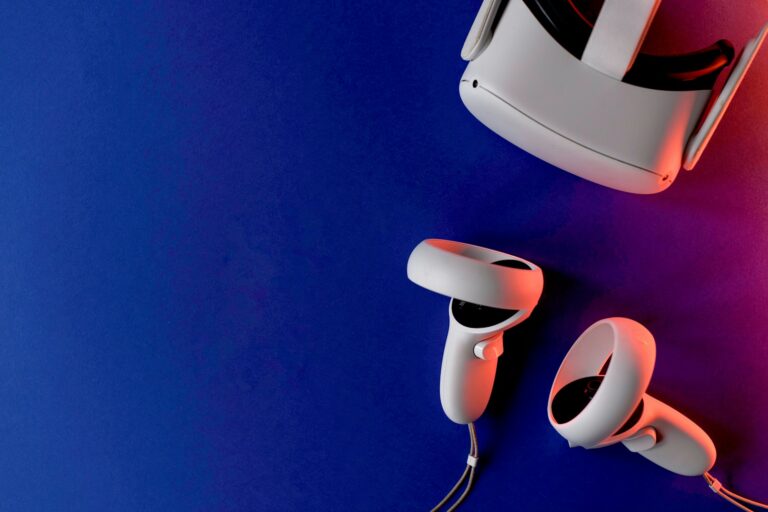
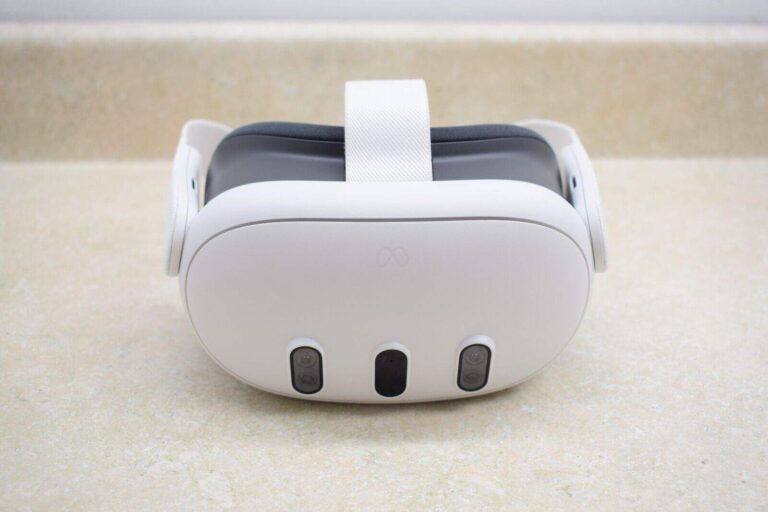
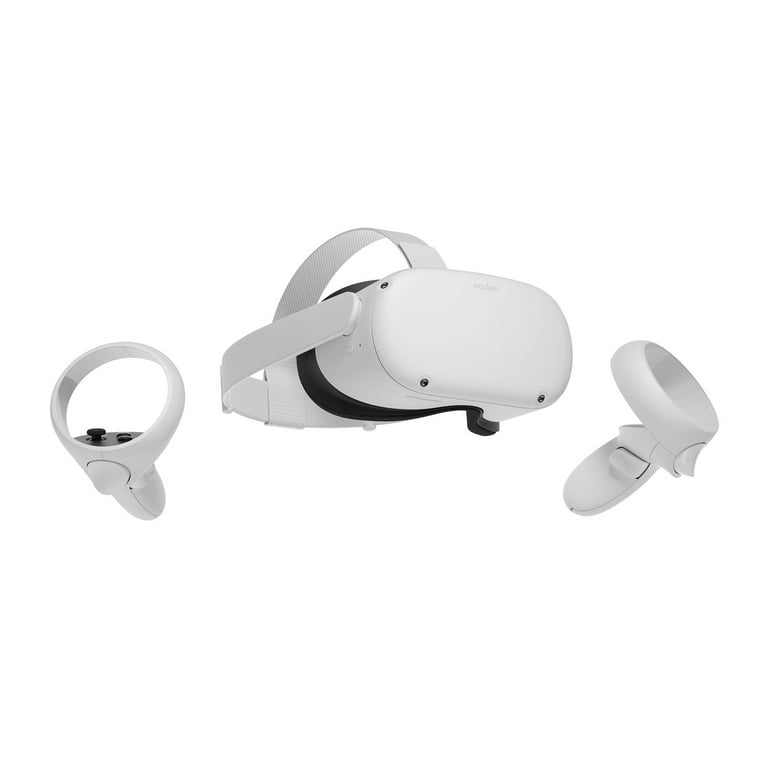
The Meta Quest tracking system consists of three main components that work together seamlessly. The Head-Mounted Display (HMD) contains multiple outward-facing cameras that constantly scan the environment to determine its position in space. These cameras create a spatial map of your surroundings.
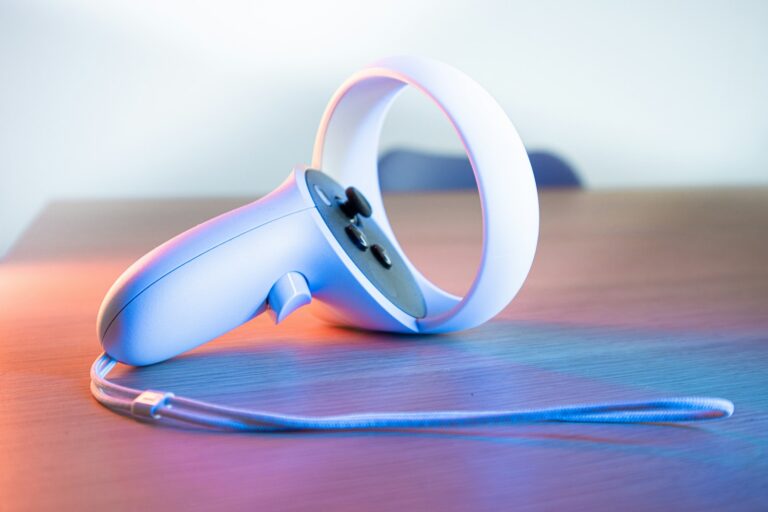
The controllers feature infrared LED rings that are tracked by the headset cameras. This allows the system to detect precise controller movements and translate them into virtual actions. The controllers also contain acceleration and gyroscope sensors for additional movement data.
The tracking cameras are perhaps the most crucial component. Meta Quest headsets typically feature 4-6 cameras positioned around the headset. These cameras work together to provide:
- Inside-out tracking (no external sensors needed)
- Hand and finger tracking capabilities
- Room-scale boundary mapping
- Environmental awareness
When tracking is lost, one or more of these components isn’t functioning properly.
Role of Tracking Data in Virtual Experiences
Tracking data serves as the critical link between physical and virtual worlds. The system processes camera inputs and sensor data about 90 times per second to create responsive experiences with minimal latency.
This tracking data directly influences how users interact with virtual objects. When you reach for something in VR, the system calculates your hand position relative to virtual items. Precise tracking makes experiences feel natural and intuitive.
Tracking data also helps prevent motion sickness by ensuring virtual movement aligns perfectly with physical movement. Even small tracking errors can create discomfort due to visual-vestibular mismatch.
The system uses predictive algorithms to anticipate movement and maintain tracking during quick motions. These algorithms help compensate for occasional sensor limitations or environmental challenges.
XR Interaction Toolkit: Fundamentals
The XR Interaction Toolkit provides developers with standardized tools to implement tracking-based interactions. This framework handles the complex calculations needed to translate tracking data into meaningful interactions.
Key components of the toolkit include:
- Interactors: Digital representations of hands/controllers
- Interactables: Virtual objects that respond to user input
- Interaction Managers: Systems that determine which interactions take priority
Developers can implement various interaction types using tracking data:
- Direct manipulation (grabbing, pushing)
- Ray-based interaction (pointing, selecting distant objects)
- Gesture recognition (hand movements, controller patterns)
The toolkit optimizes tracking data to ensure interactions feel responsive and natural. Without proper tracking, these interactions become impossible or inconsistent.
Insights Into Passthrough Cameras and Real-World Integration
Passthrough cameras on Meta Quest headsets serve a dual purpose: tracking and mixed reality. These cameras capture real-world images that are then processed and displayed inside the headset.
The passthrough feature lets users see their surroundings without removing the headset. This is particularly useful for:
- Setting up play spaces safely
- Quick transitions between VR and reality
- Mixed reality applications that blend virtual and real elements
Advanced processing enhances these camera feeds to improve depth perception and reduce distortion. The system reconstructs a 3D representation of the real world from the 2D camera inputs.
Real-world integration relies heavily on accurate tracking data. When the system knows precisely where the headset and controllers are in physical space, it can properly align virtual elements with real ones.
Common Tracking Issues and Diagnostics
Tracking problems with Meta Quest headsets often have straightforward solutions that users can implement themselves. Understanding the common issues and diagnostic approaches can save time and frustration when your VR experience gets interrupted.
Identifying Tracking Lost Errors
The “Tracking Lost” error typically appears as a notification in your field of view during VR use. This error occurs when the Quest headset can’t determine its position in the physical space. Users might experience a gray screen with a warning message, or the virtual environment may appear to drift or jump unexpectedly.
Several factors can trigger tracking failures:
- Insufficient lighting in your play area
- Highly reflective surfaces confusing the sensors
- Smudged camera lenses on the headset
- Environmental interference from IR sources
- Software glitches after updates
The Quest uses outward-facing cameras to map your environment. When these cameras can’t see properly or process what they’re seeing, tracking breaks down. Recognizing what causes the issue is the first step toward fixing it.
Initial Checks and Simple Fixes
Most tracking issues can be resolved with basic troubleshooting steps. Start by cleaning the camera lenses on your headset using a microfiber cloth. Fingerprints and dust can significantly impact tracking quality.
Check your play environment for these common problems:
- Too dark or too bright lighting
- Moving shadows or changing light conditions
- Mirrors or windows causing reflections
- Large empty walls with no visual features
Battery issues in the Oculus Quest controllers can also cause tracking problems. Replace with fresh batteries if you notice erratic behavior. Restarting your headset is another simple but effective fix that can resolve temporary glitches.
If basic fixes don’t work, try clearing your Guardian history. This resets the spatial data your headset has stored about previous play spaces.
Notifications and System Alerts
The Quest provides helpful notifications that can guide troubleshooting efforts. When tracking is lost, the system displays specific error messages with hints about potential causes. Pay attention to these alerts as they often contain valuable diagnostic information.
Common system notifications include:
- “Low light detected” – Increase ambient lighting
- “Too much light detected” – Reduce direct sunlight or bright lights
- “Controller tracking lost” – Check controller batteries and visibility
- “Guardian system unavailable” – Reset Guardian or restart headset
These notifications appear in a transparent overlay that doesn’t completely interrupt your experience but should not be ignored. Addressing the issue promptly helps prevent motion sickness that can result from poor tracking performance.
The Quest operating system might also suggest recalibration or environment checks when it detects ongoing tracking issues.
Controller and HMD Calibration Methods
When tracking problems persist, calibration methods can help restore proper functionality. For controller tracking issues, unpair and re-pair your controllers to the headset through the Quest settings menu.
The headset itself may need recalibration if tracking issues continue:
- Navigate to Settings > Device > Reset View
- Look straight ahead in a well-lit environment
- Hold the Oculus button on the right controller until the view resets
For persistent problems, factory reset might be necessary but should be considered a last resort as it erases all data on your device.
Regular maintenance of your Quest 2 headset and controllers can prevent tracking issues. Keep sensors clean and ensure your play space has consistent lighting for optimal user comfort and tracking performance.
Technical Solutions to Restore Tracking
When tracking issues occur with Meta Quest headsets, several technical approaches can effectively solve the problem. These solutions range from simple restarts to more advanced sensitivity adjustments.
Restarting the Oculus Quest 2
The simplest solution is often the most effective. A proper restart can clear temporary glitches that cause tracking problems.
To perform a complete restart:
- Hold the power button for 3 seconds
- Select Restart from the menu
- Wait for the device to fully power down and restart
If the headset becomes unresponsive, users can perform a forced restart by holding the power button for 10 seconds. This method doesn’t delete any data but refreshes the system processes.
Many tracking issues stem from Guardian problems. Clearing Guardian history often resolves persistent tracking errors:
- Go to Settings > Guardian > Clear Guardian History
- Set up a new Guardian boundary
Factory Reset: When and How
A factory reset should be considered a last resort when other solutions fail. This process erases all data and returns the device to its original state.
Before performing a factory reset:
- Back up important game saves and media
- Note which apps are installed (they’ll need to be reinstalled)
- Ensure the headset has sufficient battery or is connected to power
To perform a factory reset:
- Go to Settings > System > Reset Options
- Select Factory Reset
- Confirm the reset when prompted
Alternatively, users can reset using the mobile app or by holding the power and volume down buttons during startup. After resetting, tracking problems are often resolved as system conflicts are eliminated.
Checking for Firmware Updates
Outdated firmware can cause tracking inconsistencies. Meta regularly releases updates that improve tracking performance.
To check for updates:
- Connect to Wi-Fi
- Go to Settings > System > Software Update
- If available, download and install the update
Updates typically install automatically when the headset is charging and connected to Wi-Fi. Users should ensure their headset remains charged during the update process.
Beta firmware channels sometimes offer fixes before public release. Advanced users can opt into the beta program through the Meta companion app, though beta firmware may have other stability issues.
Adjusting Tracking Sensitivity and Preferences
Fine-tuning tracking settings can resolve persistent issues, especially in challenging environments.
Key adjustments include:
- Frequency setting: Changing tracking frequency to 50Hz has solved startup tracking problems for many users
- Lighting optimization: Adjust room lighting to be moderate and even—not too bright or dim
- Camera cleaning: Gently wipe the headset’s tracking cameras with a microfiber cloth
In the experimental settings menu, users can find additional tracking options. Some users find success with the “extra tracking volume” option for games requiring extended arm movements.
Environmental factors greatly impact tracking. Users should avoid reflective surfaces, direct sunlight, and infrared interference sources like fireplaces or certain remote controls.
Advanced Troubleshooting Techniques
When basic solutions fail to resolve tracking issues with your Meta Quest headset, deeper technical approaches may be required. These methods target specific system components and configuration settings that affect tracking performance.
Using Oculus Developer Tools
Developer tools provide powerful options for diagnosing and fixing tracking problems. To access these tools, enable Developer Mode in the Meta Quest mobile app by creating a developer account. This unlocks the Developer options in your headset settings.
The ADB (Android Debug Bridge) commands can be particularly helpful. Connect your headset to a PC using a USB cable and run the following command to restart the tracking system:
adb shell am broadcast -a com.oculus.vrshell.intent.action.VR_REBOOT
Developer settings also offer options to adjust the tracking frequency and visualization tools. These settings let you see how your headset perceives the environment, which helps identify problem areas.
For persistent issues, try clearing the tracking cache with:
adb shell am broadcast -a com.oculus.vrshell.intent.action.CLEAR_GUARDIAN_DATA
This clears your Guardian history, which often resolves tracking problems.
OpenXR and SteamVR Configurations
OpenXR and SteamVR settings can significantly impact tracking performance when using your Quest with PC VR applications. For OpenXR applications, ensure you’ve set Meta as the active runtime in the Oculus PC app settings.
Common SteamVR fixes include:
- Adjusting tracking frequency in SteamVR settings
- Verifying base station visibility (for compatible setups)
- Updating SteamVR to the latest version
- Disabling supersampling if experiencing performance issues
When using Virtual Desktop or Air Link, try these settings:
| Connection Type | Recommended Setting |
|---|---|
| Virtual Desktop | Medium bitrate, 72Hz refresh |
| Air Link | Dynamic bitrate, 90Hz refresh |
These adjustments help maintain stable tracking by balancing performance demands with your network capabilities. Remember that SteamVR may compete with Oculus tracking systems, so disable unnecessary overlays.
XR Plug-in Management and Provider Plug-Ins
For developers or power users working with Unity or custom applications, XR plug-in management issues can cause tracking problems. The Meta XR SDK requires proper configuration to maintain tracking integrity.
First, verify you’re using compatible plug-in versions. Mixing outdated XR plug-ins with newer Meta Quest software often creates tracking conflicts. In Unity, navigate to Project Settings → XR Plug-in Management and ensure the Oculus provider is enabled.
Key settings to check include:
- Tracking Origin Mode (Floor vs. Device)
- Positional Tracking Mode (6DoF should be enabled)
- Hand Tracking Support (if using hand tracking)
Try re-enabling 6DoF tracking if tracking issues persist. This can be done in the experimental features section of your headset.
Provider plug-ins sometimes need manual updates separate from the Unity or Unreal engine updates. Check the Meta developer portal for the latest compatible versions.
Seeking Expert Help and Official Support
When all else fails, professional assistance might be necessary. Meta provides multiple support channels to help resolve persistent tracking issues.
Start by submitting a detailed support ticket through the Meta Help Center. Include information about:
- Headset model and firmware version
- Detailed description of tracking problems
- Environment conditions (lighting, reflective surfaces)
- Steps already attempted
The Meta community forums provide another valuable resource. Many experienced users share advanced solutions not covered in official documentation.
If hardware issues are suspected, check your warranty status. Meta’s support team can authorize repairs or replacements for defective tracking cameras or sensors.
For developer-specific issues, the Oculus Developer portal offers specialized support and documentation focused on tracking optimization. Their engineering team can provide insights into complex tracking scenarios.
Enhancing User Experience and Stability
Optimizing Meta Quest for better tracking involves several system-level improvements. These enhancements focus on proper configuration, input management, comfort considerations, and utilizing the right development tools.
Configuring the XR Origin and Camera
The XR Origin acts as the foundation for spatial tracking in Meta Quest headsets. It defines how the virtual camera moves in relation to the physical headset position. When experiencing tracking lost errors, check that the XR Origin is properly configured.
Proper camera offset settings are crucial for accurate tracking. The main camera should be set as a child of the XR Origin with appropriate height adjustments. This ensures the virtual view correctly matches physical movements.
Key Configuration Steps:
- Set camera clear flags to “Solid Color”
- Enable “Track Position” and “Track Rotation” in the XR settings
- Position the main camera at (0,0,0) relative to the XR Origin
- Configure environment scale to 1:1 for realistic movement
Testing camera settings in different lighting conditions helps prevent future tracking issues.
Input System Optimization for Improved Interaction
Meta Quest controllers rely on the Input System to translate physical movements into VR actions. When controllers show tracking lost errors, optimizing the Input System becomes essential.
Users should check for input binding conflicts that may interfere with tracking. The Unity Input System package provides tools to detect and resolve these issues.
Controller Optimization Tips:
- Update controller firmware regularly
- Verify battery levels are above 30%
- Clear controller pairing and re-pair if tracking issues persist
- Customize input sensitivity settings for better response
Implementing “Continuous Tracking” mode rather than “Predictive Tracking” can help maintain consistent controller movement even when tracking is temporarily lost.
Designing for User Comfort to Prevent Motion Sickness
User comfort directly impacts tracking perception. When players feel discomfort, tracking issues become more noticeable and problematic. Designing experiences with comfort in mind helps reduce perceived tracking errors.
Implementing comfort features like vignetting during movement reduces motion sickness while maintaining spatial awareness. This keeps users from making sudden movements that might trigger tracking issues.
Comfort Design Principles:
- Add static reference points in the visual field
- Implement gradual acceleration/deceleration
- Minimize artificial locomotion when possible
- Include comfort rating system for different experience modes
Developers should test their applications with users who have varying sensitivity to motion sickness. Adjustable comfort settings allow each user to find their optimal experience level while maintaining reliable tracking.
Utilizing XR Core Utilities and VR Project Template
The XR Core Utilities package provides standardized components that improve tracking stability. When integrated properly, these utilities help prevent tracking lost errors by handling edge cases automatically.
Starting with a VR Project Template saves time and reduces tracking issues. These templates come pre-configured with optimal settings for Meta Quest headsets.
Key XR Utilities:
- Interaction Toolkit components
- Locomotion System helpers
- Grab Interactable objects
- Teleportation anchors
When upgrading projects, developers should check for compatibility between XR Core Utilities versions and their existing codebase. Incompatibilities can lead to tracking instabilities.
Regular testing in various environments helps identify potential tracking issues before users encounter them. The Meta Quest controllers tracking system performs best when developers follow established best practices.
Integrating with Other Platforms and SDKs
When dealing with “Tracking Lost” errors, understanding how Meta Quest integrates with other platforms can provide alternative solutions and expanded functionality. These integrations can sometimes help bypass tracking issues through different technological approaches.
Building for Mixed Reality with Microsoft HoloLens
Microsoft HoloLens offers an alternative tracking system that can complement Meta Quest when experiencing tracking problems. Developers can create applications that transition smoothly between platforms, maintaining tracking data integrity across devices.
The Mixed Reality Toolkit (MRTK) provides cross-platform compatibility tools that help bridge tracking methodologies. When Meta Quest loses tracking, applications built with MRTK can sometimes fall back to HoloLens tracking algorithms.
Key benefits include:
- Spatial mapping backup when Quest tracking fails
- Shared anchor points between devices
- Complementary inside-out tracking systems
Developers should implement tracking state synchronization between platforms to ensure seamless transitions when Quest tracking errors occur.
Cross-Platform Integration: PlayStation VR and Others
PlayStation VR uses a fundamentally different tracking system than Meta Quest, which can provide insights for resolving tracking issues. The external camera-based tracking of PSVR contrasts with Quest’s inside-out approach, offering alternative methods when one system fails.
Unity and Unreal Engine provide frameworks for cross-platform development that help normalize tracking data between systems. This allows games and applications to handle tracking loss gracefully by adapting to the available hardware capabilities.
When developing cross-platform applications:
- Implement platform-specific tracking fallbacks
- Create consistent interface interactions across devices
- Design shared tracking space calibration tools
Multi-platform testing is essential for identifying tracking weaknesses before they cause problems for users.
Utilizing Social Gaming Experiences for User Engagement
Social gaming platforms can help mitigate tracking issues by providing alternative interaction methods when physical tracking fails. Horizon Worlds and other Meta social platforms offer network-synchronized avatar positioning that can continue functioning even when local tracking is compromised.
Features to implement include:
- Voice-commanded interactions as tracking fallbacks
- Gaze-based selection when controller tracking fails
- Network-predicted movement during brief tracking lapses
These social platforms often include specialized tools for handling tracking disruptions gracefully. Developers should leverage these capabilities to maintain user engagement during technical difficulties.
Hand Tracking and Configurable Locomotion System
Hand tracking provides an effective backup when controller tracking fails. Meta Quest’s built-in hand tracking can be activated automatically when controller tracking is lost, maintaining user interaction capabilities.
Configurable locomotion systems allow users to switch between movement methods when tracking issues occur:
| Locomotion Method | Tracking Requirement | Fallback Potential |
|---|---|---|
| Teleportation | Minimal | High |
| Smooth locomotion | Moderate | Medium |
| Room-scale | Extensive | Low |
Implementing a hybrid tracking system that combines controller, hand, and head-based inputs creates redundancy. When one tracking method fails, the system can seamlessly switch to another without interrupting the user experience.
Best Practices for Developers
Developers working with Meta Quest can implement specific strategies to mitigate tracking issues and create more robust VR applications. These practices not only help prevent the dreaded “tracking lost” error but also enhance overall user experience across different environments.
Effective Use of VR Packages and Extensions
When developing for Meta Quest headsets, selecting the right VR packages is crucial for tracking stability. Developers should prioritize packages with regular updates and strong community support. The XR Interaction Toolkit provides reliable controller tracking integration compared to deprecated alternatives.
Installing packages through Unity Hub ensures compatibility and version control. Developers should:
- Test multiple tracking packages before committing to production
- Implement fallback mechanisms when tracking is temporarily lost
- Use Meta’s recommended SDK versions rather than beta releases
Custom tracking solutions should include diagnostic tools that alert users to potential tracking issues before they become critical errors. This proactive approach reduces user frustration and support tickets.
Ensuring Consistent Tracking Data for Quality Assurance
Robust testing frameworks help catch tracking issues before release. Developers should establish testing protocols across various lighting conditions and physical spaces to simulate real-world usage.
Essential testing environments include:
- Bright rooms with natural light
- Dimly lit spaces
- Rooms with reflective surfaces
- Areas with moving objects or people
Tracking data logs should be implemented to capture moments when tracking is lost, allowing developers to analyze patterns. This data helps identify whether issues stem from software implementation or environmental factors.
Quality assurance teams should validate tracking across different movement patterns. Slow, moderate, and rapid head and controller movements should all maintain stable tracking for immersive experiences.
3D Development and Adoption of MR/VR Development Principles
Optimizing 3D assets directly impacts tracking performance. Heavy polygon counts and complex physics can tax the system resources needed for tracking calculations. Developers should balance visual fidelity with performance requirements.
Key MR/VR development principles include:
- Spatial design awareness – Creating environments that don’t confuse the tracking algorithms
- Performance budgeting – Allocating adequate resources for tracking processes
- Graceful degradation – Maintaining core functionality when tracking temporarily fails
When implementing guardian boundaries, developers should provide clear visual indicators that don’t interfere with the tracking cameras’ ability to recognize the environment.
Leveraging User Input for Interactive VR and MR Content
Effective input handling makes experiences feel responsive even during minor tracking hiccups. Developers should implement prediction algorithms that estimate controller position during momentary tracking losses.
Input filtering techniques help smooth out jittery tracking data:
- Exponential smoothing for gradual movements
- Kalman filtering for prediction-based tracking
- Threshold filtering to ignore minor tracking noise
When controllers lose tracking, applications should gracefully pause interactions rather than continuing with incorrect input. This prevents user frustration from actions they didn’t intend.
Developers should implement clear visual feedback when tracking is compromised. Subtle UI elements can indicate reduced tracking reliability without breaking immersion.
Frequently Asked Questions
Meta Quest users often encounter tracking issues that can interrupt gameplay. These problems have specific solutions depending on the cause, from simple restarts to more advanced troubleshooting steps.
How can I resolve the ‘tracking lost’ issue on my virtual reality headset?
The ‘tracking lost‘ error typically appears when turning on the headset or entering a new environment. This issue often occurs right before guardian setup.
To fix this problem, first try clearing your Guardian history, which solves many tracking issues. This simple step refreshes the spatial mapping data.
If that doesn’t work, ensure the room has adequate lighting—not too bright or too dark. Also, check that no reflective surfaces are confusing the tracking cameras.
What steps should I take when my Meta Quest 2 controllers start vibrating and lose tracking?
When controllers vibrate and lose tracking, first check the battery levels. Low batteries often cause erratic behavior in the controllers.
Try unpairing and re-pairing your controllers to the headset. This can reset the connection and solve many tracking problems.
Ensure nothing is blocking the tracking rings on the controllers, including your hands or other objects.
Why does my headset keep losing tracking, and how can I fix it?
Persistent tracking issues often relate to environmental factors. Insufficient lighting, reflective surfaces, or patterned carpets can confuse the headset’s cameras.
Battery issues in either the headset or controllers may cause tracking loss. Make sure both are adequately charged.
Software bugs can also cause tracking problems. Power off and restart your headset to clear temporary glitches.
What are the common causes for ‘tracking off boundary disabled’ errors on Meta Quest devices?
The ‘tracking off boundary disabled’ error typically happens when the headset cannot recognize its surroundings. This often occurs after moving to a new location or changing room lighting.
Dirty camera lenses can interfere with tracking. Gently clean the external cameras with a microfiber cloth.
Outdated software may cause boundary tracking issues. Check for and install any pending system updates.
How to troubleshoot controllers that cease to work due to tracking loss on Oculus devices?
When controllers stop working due to tracking issues, first remove and reinsert the batteries. Sometimes the battery connection needs to be reset.
Check for controller damage, particularly to the tracking ring. Even small cracks can affect performance.
Update your headset software, as controller firmware improvements come with system updates. Old firmware can cause tracking inconsistencies.
Where can I find solutions for frequent ‘tracking lost’ errors reported by Meta Quest 3 users on forums?
The Meta Community Forums offer solutions from both support staff and experienced users for tracking issues.
Reddit communities like r/oculus contain helpful troubleshooting threads and user experiences with similar problems.
Video tutorials on YouTube, such as guides for fixing tracking lost loops, provide step-by-step visual instructions that many users find easier to follow.