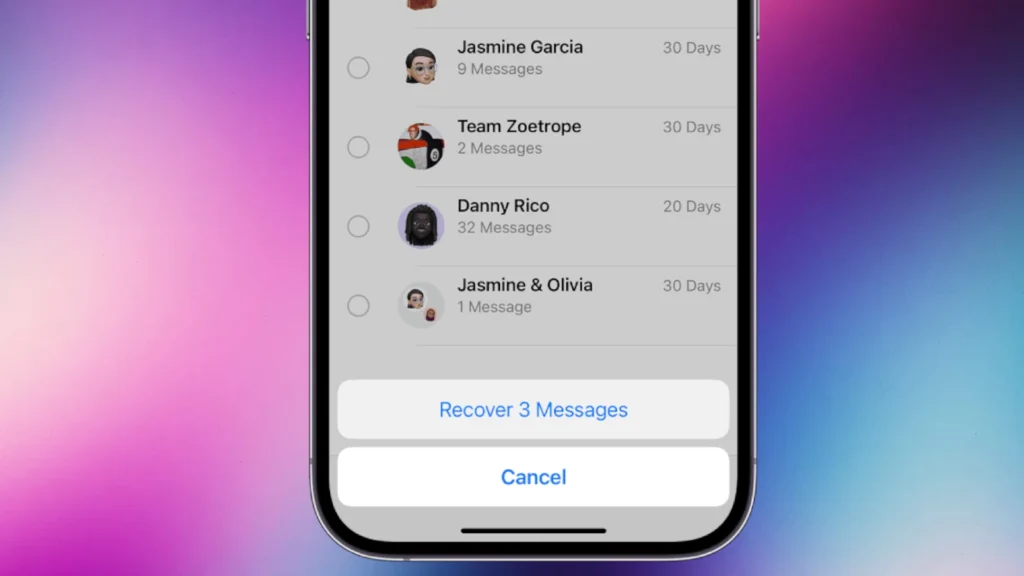
Accidentally deleting important messages on your iPhone can be frustrating. Luckily, Apple provides built-in options to recover deleted texts. You can restore deleted messages within 30 to 40 days using the Recently Deleted folder in the Messages app on iOS 16 or later.
For older iOS versions, restoring from an iCloud or iTunes backup is an effective method. These backups contain your messages at the time they were created. Connecting your iPhone to a computer and using iTunes or Finder allows you to restore a previous backup containing the lost messages.
Third-party apps offer additional recovery options, but they may come with risks. It’s important to weigh the benefits against potential privacy concerns when considering these alternatives. Regular backups remain the most reliable way to protect your messages from permanent loss.
How to Recover Messages on iPhone: A Step‑by‑Step Guide
Accidentally deleting an important text message on your iPhone can be stressful, but in many cases, those messages aren’t gone forever. Apple provides several built‑in recovery options, and there are also backup‑based methods that can help you retrieve lost conversations.
This guide walks you through all reliable ways to recover messages on an iPhone, from the easiest to more advanced solutions.
Check Recently Deleted Messages (iOS 16 and Later)
If you’re using a modern version of iOS, deleted messages may still be recoverable directly from the Messages app.
Steps:
- Open the Messages app
- Tap Edit (or Filters) in the top left
- Select Recently Deleted
- Choose the conversations you want to recover
- Tap Recover
Important: Messages stay here for up to 30 days before permanent deletion.
Recover Messages from an iCloud Backup
If you regularly back up your iPhone to iCloud, you may be able to restore messages from a previous backup.
What you’ll need:
- An iCloud backup created before the messages were deleted
- Your Apple ID and password
Steps:
- Go to Settings → General → Transfer or Reset iPhone
- Tap Erase All Content and Settings
- Set up your iPhone again
- Choose Restore from iCloud Backup
- Select the backup containing your messages
Note: This will replace current data with the backup’s contents.
Recover Messages from a Computer Backup (Finder or iTunes)
If you back up your iPhone to a Mac or Windows PC, this method may work.
Steps:
- Connect your iPhone to your computer
- Open Finder (macOS Catalina or later) or iTunes
- Select your iPhone
- Choose Restore Backup
- Pick a backup created before message deletion
Like iCloud restores, this replaces existing data on your device.
Use iCloud Message Sync (If Enabled)
If Messages in iCloud is enabled, deleted messages may still exist on another Apple device signed into the same Apple ID.
Try this:
- Check Messages on your iPad or Mac
- Disable Messages in iCloud, wait briefly, then re‑enable it
This method can sometimes resync messages that haven’t fully propagated deletion.
Recover Messages from Your Carrier (Limited Cases)
Some carriers keep message records for a short period.
- Contact your carrier’s support team
- Ask if message recovery or transcripts are available
This usually works only for SMS, not iMessages, and is not guaranteed.
Third‑Party Recovery Tools: Use With Caution
There are third‑party apps claiming to recover deleted iPhone messages.
Be aware:
- Most require access to backups
- Many cannot recover permanently deleted messages
- Privacy and security risks are possible
Only use reputable tools and avoid services that ask for your Apple ID password.
What You Can’t Recover
Unfortunately, some messages are permanently gone if:
- They were deleted more than 30 days ago
- No backup exists
- The backup was overwritten
- iCloud sync already removed them from all devices
How to Prevent Message Loss in the Future
To avoid this situation again:
- Enable iCloud Backup
- Turn on Messages in iCloud
- Back up to a computer periodically
- Avoid permanently deleting messages immediately
Final Thoughts
Recovering messages on an iPhone is often possible—especially if you act quickly. Start with the Recently Deleted folder, then explore backups if needed. While not every message can be restored, Apple’s recovery options make it easier than many people expect.
If your messages are important, consistent backups are your best protection.
Key Takeaways
- Messages can be recovered from the Recently Deleted folder within 30-40 days on newer iOS versions
- Restoring from iCloud or iTunes backups can retrieve deleted messages on older iOS versions
- Regular backups are crucial for protecting messages from permanent loss
Understanding the Basics of iPhone Message Recovery
iPhone users can recover deleted messages through built-in features and iCloud backups. Recent iOS updates have improved the process, making it easier to retrieve lost conversations.
The Role of iCloud in Message Recovery
iCloud plays a crucial role in message recovery for iPhone users. It automatically backs up messages when enabled, storing them securely in the cloud. Users can restore their entire message history from an iCloud backup if needed. This method is particularly useful when switching to a new device or after a factory reset.
To use iCloud for message recovery:
- Go to Settings > [Your Name] > iCloud
- Ensure “Messages” is toggled on
- Perform regular iCloud backups
iCloud keeps multiple backup versions, allowing users to choose the most relevant one for message restoration. This feature provides a safety net for accidental deletions or data loss.
How iOS 16 Affects Message Recovery
iOS 16 introduced a game-changing feature for message recovery: the Recently Deleted folder. This addition simplifies the process of retrieving deleted messages without relying on backups.
Key points about iOS 16’s message recovery:
- Messages are kept in the Recently Deleted folder for 30-40 days
- Users can access this folder directly in the Messages app
- Individual messages or entire conversations can be recovered
To recover messages in iOS 16:
- Open the Messages app
- Tap “Edit” in the top-left corner
- Select “Show Recently Deleted”
- Choose the messages to recover
- Tap “Recover”
This feature provides a quick and easy way to undo accidental deletions, enhancing user control over their message history.
Step-by-Step Guide to Recovering Deleted Messages
Retrieving deleted messages on an iPhone is possible through several methods. These include using iCloud backups, restoring from iTunes or Finder, and checking the Recently Deleted folder.
Using iCloud Backup to Retrieve Messages
iCloud offers a straightforward way to recover deleted messages. First, ensure iCloud Backup is enabled in Settings. Go to Settings > [Your Name] > iCloud > iCloud Backup. If it’s on, check the last backup date.
To restore:
- Erase your iPhone (Settings > General > Reset > Erase All Content and Settings)
- Follow setup prompts until you reach “Apps & Data” screen
- Choose “Restore from iCloud Backup”
- Sign in to iCloud and select the relevant backup
This process restores all data from the backup, including messages. It’s important to note that any data created after the backup date will be lost.
Restoring Messages via iTunes or Finder
For older iPhones or those not using iCloud, iTunes or Finder backups are useful.
Steps for iTunes (Windows or older Macs):
- Connect iPhone to computer
- Open iTunes
- Click the iPhone icon
- Select “Restore Backup”
- Choose the most relevant backup
- Click “Restore” and wait for the process to complete
For newer Macs using Finder:
- Connect iPhone to Mac
- Open Finder and select your iPhone
- Click “Manage Backups” to view available backups
- Choose the desired backup and click “Restore”
This method also restores all data from the selected backup.
Exploring Recently Deleted Folder Options
For iOS 16 and newer, the Recently Deleted folder in Messages offers a quick recovery option.
To access:
- Open Messages app
- Tap “Edit” in the top-left corner
- Select “Show Recently Deleted”
- Choose messages to recover
- Tap “Recover” or “Recover All”
Messages remain in this folder for up to 30 days. This method is ideal for quickly recovering recently deleted messages without a full device restore.
Leveraging Third-Party Apps for Message Recovery
Third-party apps offer powerful tools for recovering deleted messages on iPhones. These applications provide advanced features and user-friendly interfaces to help retrieve lost texts.
How PhoneRescue Can Help
PhoneRescue is a popular iPhone data recovery tool. It recovers deleted text messages and iMessages with a high success rate. The app scans the device’s storage and iCloud backups to find lost messages.
PhoneRescue offers a preview feature. Users can see message content before recovery. This allows selective restoration of specific conversations or texts.
The app supports recovery from various scenarios. It works for accidental deletions, iOS updates, and device damage. PhoneRescue also recovers other data types like contacts and photos.
Utilizing Tenorshare UltData
Tenorshare UltData is another effective message recovery app. It offers three recovery modes: direct device scan, iTunes backup extraction, and iCloud backup download.
UltData’s smart recovery algorithm enhances its success rate. It can recover messages from deeply hidden storage areas on the iPhone.
The app provides a user-friendly interface. It guides users through the recovery process step-by-step. UltData also offers message filtering options. Users can sort by date, sender, or content to find specific texts quickly.
Best Practices for Protecting and Restoring Messages
Safeguarding iPhone messages requires a combination of proactive measures and careful recovery techniques. Users can employ several strategies to protect their conversations and retrieve lost data effectively.
The Importance of Regular Backups
Regular backups are crucial for preserving iPhone messages. Users should enable iCloud backups or connect their device to a computer for local backups. iCloud offers automatic daily backups when the iPhone is connected to Wi-Fi and charging. To enable iCloud backups:
- Go to Settings > [Your Name] > iCloud
- Tap iCloud Backup
- Toggle on iCloud Backup
For computer backups, users can:
- Connect iPhone to computer
- Open iTunes (on Windows) or Finder (on Mac)
- Select the device and choose “Back Up Now”
These backups ensure a recent copy of messages is always available for recovery.
Managing Privacy and Security During Recovery
Privacy protection is essential when recovering messages. Users should:
• Use a strong passcode on their iPhone
• Enable two-factor authentication for Apple ID
• Be cautious when using third-party recovery apps
When restoring from iCloud, users can select which data to recover, maintaining control over their information. For added security, it’s advisable to:
• Perform recoveries on a trusted Wi-Fi network
• Log out of iCloud on shared devices
• Review app permissions regularly
These steps help safeguard personal data during the recovery process.
Considerations Before Erasing All Content and Settings
Erasing all content and settings is a drastic step that should be carefully considered. Before proceeding, users should:
• Ensure they have a recent backup
• Save important data not included in backups
• Understand that this action is irreversible
- Go to Settings > General > Reset
- Tap “Erase All Content and Settings”
- Enter passcode and confirm
This process wipes the device clean, allowing for a fresh start or preparing it for a new user. It’s crucial to have a backup ready if planning to restore messages afterward.
Frequently Asked Questions
Recovering deleted messages on an iPhone can be challenging, but several methods exist. The following questions address common concerns and provide solutions for retrieving lost text messages.
How can I retrieve deleted text messages from an iPhone without a backup?
Recovering deleted messages without a backup is difficult but not impossible. Third-party data recovery tools can scan your iPhone’s memory for deleted messages. These apps may have varying success rates. To increase chances of recovery, stop using the device immediately after message deletion to prevent data overwriting.
Is it possible to restore messages on an iPhone after 30 days of deletion?
Restoring messages after 30 days is unlikely through built-in iPhone features. Apple’s Recently Deleted folder in the Messages app only retains deleted messages for up to 30 days. For older messages, check iCloud or iTunes backups from before the deletion date. Third-party recovery software might help, but success is not guaranteed.
What are the steps to recover permanently deleted text messages on an iPhone?
To recover permanently deleted messages:
- Check iCloud or iTunes backups.
- Restore your iPhone from the most recent backup containing the messages.
- If no backup exists, try third-party recovery software.
- As a last resort, contact your cellular provider to see if they store message logs.
How do I retrieve messages from iCloud to my iPhone?
To retrieve messages from iCloud:
- Go to Settings > [Your Name] > iCloud.
- Turn on Messages in iCloud if not already enabled.
- Wait for messages to download.
- If messages don’t appear, sign out of iCloud and sign back in.
- Alternatively, restore your iPhone from an iCloud backup.
Can I recover my text message history on my iPhone without using iCloud?
Yes, you can recover text message history without iCloud:
- Use iTunes or Finder to restore from a computer backup.
- Try third-party recovery software that doesn’t require iCloud.
- Check if your cellular provider stores message logs.
- Look for SMS backup apps you might have used previously.
How can I see the message history on my iPhone?
To view message history on your iPhone:
- Open the Messages app.
- Tap on a conversation to see its history.
- Scroll up to load older messages.
- Use the search bar at the top to find specific messages or contacts.
- For deleted messages, check the Recently Deleted folder if using iOS 16 or later.