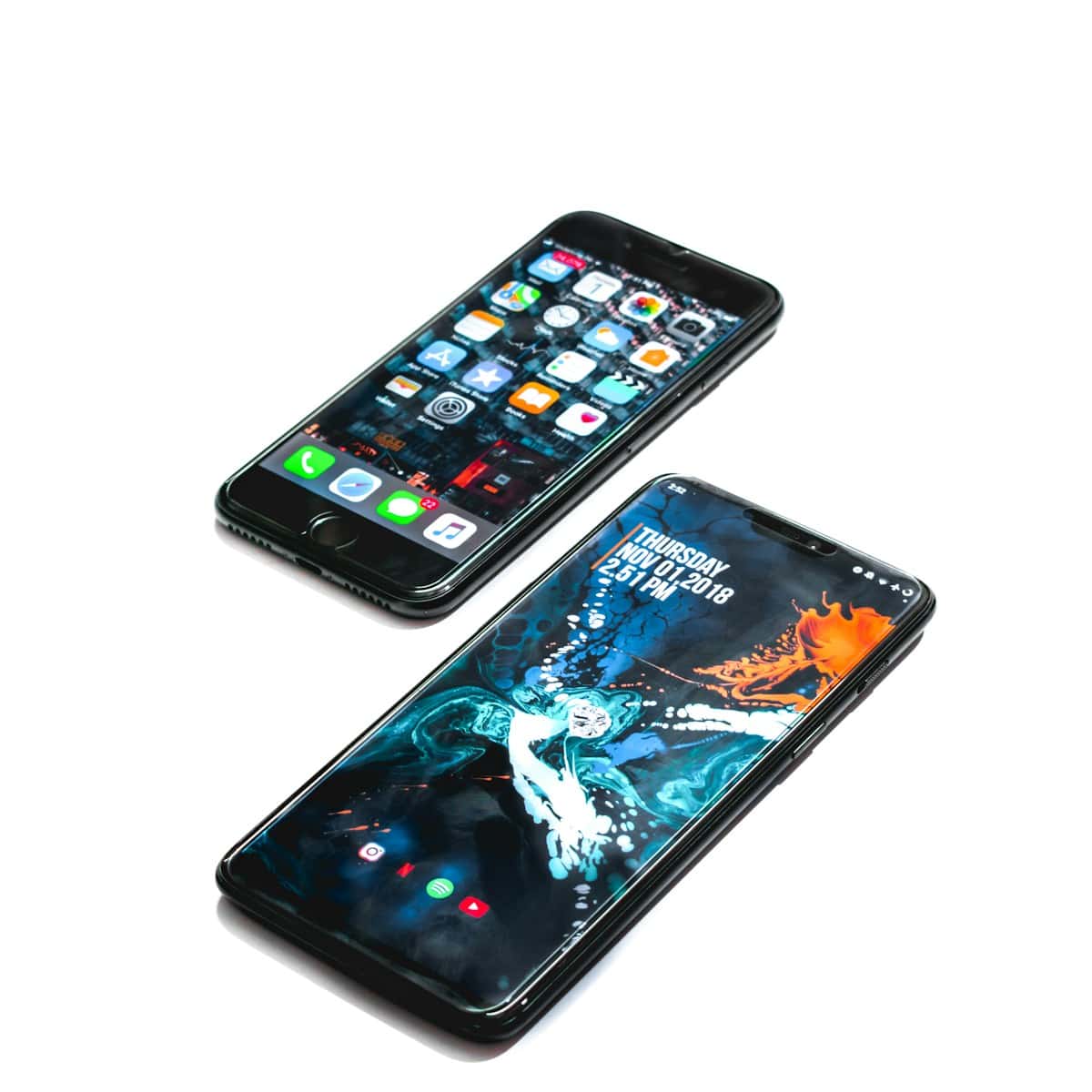
Switching from an iPhone to an Android device can seem daunting, but the process has become much simpler in recent years. Users can now transfer their contacts, photos, messages, and other important data from an iPhone to an Android phone using various methods like Wi-Fi, USB cables, or dedicated apps. This seamless transition ensures that people don’t lose valuable information when changing devices.
Google and other Android manufacturers have developed tools to make the switch easier. The “Switch to Android” app, Google One, and Samsung Smart Switch are some options available for transferring data. These solutions cater to different Android devices and offer step-by-step guides to help users through the process.
Before starting the transfer, it’s important to prepare both devices. This includes backing up the iPhone data, ensuring both phones have sufficient battery life, and connecting them to a stable Wi-Fi network. Following these steps helps ensure a smooth and complete data transfer experience.
Transfer Data from iPhone to Android: Complete Guide
Switching from iPhone to Android is easier than ever. Modern tools make it simple to transfer your contacts, photos, messages, and more to your new Android device. Here’s everything you need to know for a smooth transition.
What Can You Transfer?
When moving from iPhone to Android, you can typically transfer:
- Contacts and contact groups
- Photos and videos from your camera roll
- Calendar events and reminders
- Text messages (SMS)
- Music (non-DRM protected)
- Documents and files
- Device settings (Wi-Fi passwords, wallpapers)
What doesn’t transfer:
- iMessage conversations (they become SMS)
- Apps (you’ll need to re-download Android versions)
- App data for most apps
- Apple-specific data (Apple Pay, Health, iCloud Keychain)
(source: Android Authority)
Method 1: Use Google’s Switch to Android App (Recommended)
The easiest way to transfer data is using Google’s official Switch to Android app.
Requirements
- iPhone running iOS 15 or later
- Internet connection (Wi-Fi recommended)
- Both devices charged to at least 50%
- Lightning to USB-C cable (for faster transfer) OR wireless connection
(source: Google Support)
Step-by-Step Instructions
1. Set up your new Android device
- Turn on your Android phone
- Follow the setup wizard
- When you reach “Copy apps & data,” select iPhone
2. Download Switch to Android on your iPhone
- Open the App Store on your iPhone
- Search for “Switch to Android”
- Download and install the app
3. Connect the devices
Wireless method:
- Open Switch to Android on iPhone
- Scan the QR code shown on your Android device
- Follow the prompts to grant permissions
Wired method (faster):
- Connect your iPhone to Android using a Lightning to USB-C cable
- Your Android will recognize the iPhone automatically
4. Choose what to transfer
- Select the types of data you want to move:
- Contacts
- Calendar events
- Photos and videos
- Text messages
- Tap Start to begin the transfer
5. Wait for the transfer to complete
- Keep both devices close together
- Don’t use either device during transfer
- Transfer time varies based on data amount (usually 15-30 minutes)
6. Finish Android setup
- Once complete, continue setting up your Android device
- Sign in to your Google account
- Download apps from Google Play Store
(source: WIRED)
Method 2: Samsung Smart Switch (For Samsung Devices)
If you’re switching to a Samsung Galaxy device, use Smart Switch for an optimized experience.
How to Use Samsung Smart Switch
1. Download Smart Switch
- Available on both devices or via computer
- iOS app available in the App Store
- Android app comes pre-installed on Samsung devices
2. Connect devices
- Wireless: Open Smart Switch on both devices and follow prompts
- Cable: Use Lightning to USB cable with adapter
- Via computer: Use Samsung Smart Switch for PC/Mac
3. Select content
- Choose data types to transfer
- Smart Switch can transfer more content than standard methods
- Supports some app data transfer
4. Start transfer
- Wait for the process to complete
- Don’t interrupt or use devices during transfer
(source: TechGig)
Method 3: Manual Transfer via Google Account
For more control over what transfers, use your Google account.
Transfer Contacts
1. Export contacts from iPhone
- Go to Settings > [Your Name] > iCloud
- Ensure Contacts is enabled
- On a computer, visit iCloud.com
- Select Contacts > All Contacts
- Click the gear icon > Export vCard
2. Import to Google Contacts
- Visit contacts.google.com
- Click Import > Select file
- Choose your exported vCard file
- Contacts will sync to your Android device
Alternative method:
- Install Google Contacts app on iPhone
- Allow access to iPhone contacts
- Contacts sync automatically to Google account
Transfer Photos and Videos
Option 1: Google Photos (Recommended)
- Download Google Photos on your iPhone
- Sign in with your Google account
- Enable Backup in settings
- Let all photos upload (use Wi-Fi to save data)
- Install Google Photos on Android
- Sign in with the same account
- All photos appear automatically
Option 2: Computer Transfer
- Connect iPhone to computer
- Copy photos to computer folder
- Connect Android device
- Copy photos to Android’s DCIM folder
(source: Wide Angle Software)
Transfer Music
For Apple Music subscribers:
- Download Apple Music app from Google Play Store
- Sign in with your Apple ID
- Access your entire library
For purchased/local music:
- Use iTunes on computer to export music files
- Upload to YouTube Music or another streaming service
- Or manually copy files to Android’s Music folder
Transfer Calendar Events
1. Sync with Google Calendar
- On iPhone, go to Settings > Calendar > Accounts
- Add your Google account
- Enable Calendar sync
- Wait for events to sync
2. Access on Android
- Open Google Calendar app
- All events appear automatically
Method 4: Third-Party Transfer Tools
Several apps offer comprehensive transfer solutions:
MobileTrans
- Features: Transfers contacts, photos, messages, music, and more
- Method: Computer-based or direct device connection
- Cost: Free trial, paid version for full features
- Pros: Can transfer some app data
- Cons: Requires software installation
Copy My Data
- Features: Simple wireless transfer
- Method: Both devices on same Wi-Fi network
- Cost: Free
- Pros: Easy to use, no cables needed
- Cons: Limited to basic data types
AnyTrans
- Features: Comprehensive data transfer
- Method: Computer-based
- Cost: Paid software
- Pros: Transfers more data types including app data
- Cons: Expensive, requires computer
(source: Optimum)
Special Considerations
Transferring WhatsApp Chats
WhatsApp offers official chat history transfer:
- Update WhatsApp to latest version on iPhone
- During Android setup, sign in to WhatsApp with same number
- Follow prompts to transfer chat history
- Keep both devices connected throughout
Transferring Apps
- Apps don’t transfer automatically
- Manually download Android versions from Google Play Store
- Sign in to each app with your existing account
- Most app data syncs from cloud accounts
Transferring iMessages
- iMessages cannot transfer to Android
- They become regular SMS texts
- Important: Turn off iMessage before switching:
- Go to Settings > Messages
- Toggle off iMessage
- Visit deregister-imessage.apple.com to fully deregister
- Otherwise, you may miss texts from iPhone users
(source: Android Authority)
Before You Switch: Preparation Checklist
1. Back up your iPhone
- Create an iCloud backup
- Back up important data separately
2. Download important data
- Save copies of photos, documents, and files
- Export any app-specific data you need
3. Deauthorize services
- Turn off iMessage
- Sign out of iCloud
- Deauthorize iTunes if needed
- Remove Apple Watch pairing
4. Note down important information
- Save passwords (consider using a password manager)
- Export 2FA backup codes
- List of apps you’ll need to re-download
5. Charge both devices
- Ensure both devices are at least 50% charged
- Have chargers ready
After Transfer: Final Steps
1. Verify all data transferred
- Check contacts, photos, messages
- Ensure nothing important is missing
2. Set up Android-specific features
- Configure Google Assistant
- Set up Google Pay
- Customize home screen and settings
3. Download your apps
- Visit Google Play Store
- Re-download all needed apps
- Sign in to each app
4. Update security settings
- Set up screen lock
- Enable Find My Device
- Configure backup settings
5. Remove data from iPhone (optional)
- Go to Settings > General > Transfer or Reset iPhone
- Choose Erase All Content and Settings
- Only do this after confirming everything transferred successfully
Troubleshooting Common Issues
Transfer is stuck or slow:
- Ensure stable internet connection
- Keep devices close together
- Restart both devices and try again
- Use wired connection instead of wireless
Some contacts didn’t transfer:
- Manually export from iCloud.com
- Import to Google Contacts
- Check for duplicate contacts
Photos are missing:
- Check iCloud Photo Library status
- Download all photos to iPhone first
- Use Google Photos backup as alternative
Apps won’t download:
- Verify apps have Android versions
- Check Google Play Store region settings
- Ensure sufficient storage space
Still receiving iMessages:
- Deregister at deregister-imessage.apple.com
- Wait 24-48 hours for full deregistration
- Contact Apple Support if issues persist
Bottom Line
Transferring data from iPhone to Android is straightforward using Google’s Switch to Android app, which wirelessly transfers contacts, photos, messages, and calendar events in just a few steps (source: Google Support). Samsung users can use Smart Switch for additional features, while manual methods via Google Photos and Google Contacts offer more control.
The key is proper preparation: back up your data, deregister iMessage, and plan which apps you’ll need on Android. With the right approach, you can complete the entire switch in under an hour and enjoy your new Android device with all your important data intact.
Key Takeaways
- Multiple methods exist for transferring data from iPhone to Android, including Wi-Fi, cables, and apps
- Preparation of both devices is crucial for a successful data transfer
- Specific tools are available for different Android brands to simplify the switching process
Preparing for the Transfer
Transferring data from an iPhone to an Android device requires careful planning and preparation. This process involves several key steps to ensure a smooth transition and preserve important information.
Assessing Data for Transfer
Users should review the content on their iPhone to determine what needs to be moved. Photos, contacts, calendars, and documents are typically high-priority items. Apps cannot be directly transferred, so it’s important to make a list of essential applications to reinstall on the new Android device.
Music and other media may require special handling. Users should check if their music is DRM-free or available through streaming services compatible with Android. For purchased content, it’s crucial to verify if it can be accessed on the new platform.
Messages and call logs can be trickier to transfer. Some third-party tools can help, but users should weigh the importance of this data against the effort required to move it.
Creating Necessary Accounts
A Google account is essential for Android devices. Users should create one if they don’t have it already. This account will be the central hub for many Android services and apps.
Setting up the Google account before the transfer allows for easier syncing of contacts, calendars, and other data. Users can start by adding their Google account to their iPhone to begin the synchronization process.
For those with multiple email accounts, it’s advisable to set these up on the new Android device. This ensures immediate access to all communications after the switch.
Consolidating Google Services
Users should familiarize themselves with Google’s ecosystem. This includes services like Google Photos, Google Drive, and Google Keep.
Google Photos can automatically back up iPhone photos and videos. Users should enable this feature and allow sufficient time for the backup to complete before the transfer.
Google Drive provides cloud storage for documents and files. Users can upload important files from their iPhone to Google Drive, making them easily accessible on the new Android device.
Google Keep or similar note-taking apps can be used to transfer notes. Users should export notes from the iPhone’s Notes app and import them into a Google-compatible format.
Backing Up iPhone Data
A full iCloud backup is crucial before starting the transfer process. This backup serves as a safety net in case anything goes wrong during the switch.
To create an iCloud backup:
- Connect to Wi-Fi
- Go to Settings > [Your Name] > iCloud > iCloud Backup
- Tap “Back Up Now”
Users should also consider using iTunes or Finder for a local backup on a computer. This provides an additional layer of data security.
For those with large amounts of data, purchasing extra iCloud storage might be necessary to ensure a complete backup. Google One can offer additional storage for the Android device if needed.
Executing the Data Transfer
Transferring data from an iPhone to an Android device involves several methods. Each approach offers unique advantages depending on the specific Android phone and user preferences.
Using Smart Switch for Samsung Devices
Samsung’s Smart Switch simplifies data transfer to Galaxy phones. Users can download the Smart Switch app on both devices. Connect the phones with a USB cable or Wi-Fi. Select the data to transfer, including contacts, photos, and messages. The process typically takes 15-30 minutes.
Smart Switch supports wireless transfers but wired connections are faster. It can move up to 4GB of app data, making it ideal for large transfers. The app even transfers Wi-Fi passwords and device settings.
For older iPhones, users may need a Lightning to USB-C adapter. Samsung provides this adapter with many new Galaxy phones.
Transferring via Google Drive
Google Drive offers a cloud-based transfer method. iPhone users must first install the Google Drive app. Back up desired data to Google Drive. This includes contacts, calendar events, and photos.
Sign in to the same Google account on the new Android device. Data syncs automatically. Download the Google Photos app to access transferred images.
This method works well for smaller data sets. It’s free for up to 15GB of storage. Users with more data can buy additional storage or use Google One.
Google Drive transfers are slower than direct methods. They depend on internet speed. But they offer flexibility, allowing transfers over time.
Employing the Quick Switch Adapter for Pixel Phones
Google Pixel phones use a Quick Switch Adapter for data transfer. This small USB-C to USB-A adapter comes with new Pixel devices. Users connect their iPhone to the Pixel using this adapter and the iPhone’s charging cable.
The transfer process starts during Pixel setup. Users select what to move: contacts, calendar events, photos, videos, and music. The Pixel guides users through unlocking their iPhone and granting permissions.
This method is fast and comprehensive. It can transfer most data types, including iMessage history. The process typically takes 30-60 minutes, depending on data volume.
Transferring Specific Data Types
Moving data between iPhone and Android involves transferring various types of information. Each data type requires specific methods and tools for a smooth transition.
Migrating Contacts and Messages
Transferring contacts from iPhone to Android is straightforward. Users can sync contacts with their Google account or export them as a vCard file. For messages, the process is more complex due to differences in messaging systems.
Android’s Switch to Android app can transfer SMS messages. However, iMessage content often doesn’t transfer directly. Users may need to turn off iMessage on their iPhone before switching. Some third-party apps can help move message history, but results vary.
Call logs can be transferred using specialized apps or by syncing with a Google account.
Moving Photos and Videos
Photos and videos often hold sentimental value, making their transfer crucial. The Google Photos app offers a simple solution. Users can install it on their iPhone, enable backup, and then access their media on the new Android device.
For large collections, a direct transfer using a USB cable is faster. Many Android phones come with transfer tools that can move photos and videos directly from an iPhone.
Cloud storage services like iCloud or Dropbox can also facilitate the transfer. Users upload their media on the iPhone and download it on the Android device.
Transferring Calendars and Documents
Calendar events can be moved by syncing with a Google account. Users should ensure their iPhone calendar syncs with iCloud, then export it to Google Calendar.
For documents, cloud storage services are the most efficient method. Services like Google Drive, Dropbox, or OneDrive allow users to upload files from their iPhone and access them on Android.
Some Android transfer tools can also move documents directly. Users should check their new phone’s capabilities or manufacturer’s website for specific transfer options.
Switching Messaging and Email Services
Transitioning messaging services can be challenging. WhatsApp offers a built-in transfer tool for moving chats from iPhone to specific Android models. For other messaging apps, users may need to start fresh on their new device.
Email transition is generally smoother. Gmail accounts can be easily set up on Android devices. For other email services, users can add their accounts in the Android email app.
Users should download their preferred messaging and email apps on their new Android device. This ensures a seamless continuation of communication after the switch.
Post-Transfer Setup
After transferring data from an iPhone to Android, several key steps ensure a smooth transition. These include configuring settings, installing essential apps, and transferring remaining media.
Configuring Phone Settings on Android
New Android users should customize their device settings for optimal performance and security. Go to Settings > Security to set up a screen lock using a PIN, pattern, or fingerprint. Enable automatic updates in Settings > System > System update to keep the device secure. Adjust display settings like brightness and dark mode in Settings > Display. Configure notification preferences in Settings > Apps & notifications. Set up Google Assistant by opening the Google app and following the prompts.
Installing and Setting Up Essential Apps
The Google Play Store offers a wide range of free apps to replace iOS counterparts. Install and set up:
- Google Chrome for web browsing
- Google Keep for notes
- Google Contacts to manage contact list
- WhatsApp for messaging (restore chat history from iPhone backup)
- YouTube Music or Spotify for streaming
Sign in to Google accounts in each app to sync data across devices. Download any additional apps used regularly on the iPhone.
Transferring Music and Other Media
For music not transferred during initial setup, use a computer to move files:
- Connect Android to PC via USB cable
- Select “File Transfer” mode on Android
- Drag and drop music files from iTunes library to Android’s Music folder
For streaming services, log in to accounts on the Android device. YouTube Music and Spotify allow easy playlist transfers. AirPods can be paired with Android: go to Settings > Bluetooth, put AirPods in pairing mode, and select them from the list of available devices.
Frequently Asked Questions
Transferring data between iPhones and Android devices can be accomplished through various methods. Users have several options to move their files and information seamlessly.
How can I transfer my files from an iPhone to an Android device wirelessly?
Wi-Fi transfer apps offer a convenient way to move data wirelessly. Google One is a popular choice for this purpose. Users can install the app on their iPhone, back up their data, and then restore it on their new Android device.
These apps typically require both devices to be connected to the same Wi-Fi network. They often provide step-by-step instructions for a smooth transfer process.
What is the most reliable app for transferring data from an iPhone to an Android device?
Google One stands out as a reliable option for data transfer. It offers comprehensive backup and restoration features.
Other trusted apps include Move to iOS and Samsung Smart Switch. These apps are designed specifically for transferring data between different operating systems.
Is there a way to move data from an iPhone to Android using a cable connection?
Yes, many Android devices support cable transfers. Users can connect their iPhone to their Android device using a USB-C to Lightning cable.
This method often requires following on-screen prompts on the Android device. It can transfer various data types, including contacts, photos, and messages.
How do I switch from an iPhone to Android without using iCloud?
Google accounts offer an alternative to iCloud for data transfer. Users can sync their iPhone data to Google services before switching.
This method involves backing up contacts, calendar events, and photos to Google’s cloud services. The data can then be accessed on the new Android device.
Can I transfer all my data from an iPhone to Android without using any apps?
Transferring all data without apps can be challenging. Manual methods exist for some data types.
Users can export contacts as a vCard file and transfer it to the Android device. Photos and videos can be moved using a computer as an intermediary.
How do I migrate my data from an iPhone to Android after I’ve already set up the Android device?
Most transfer methods work best during initial setup. However, options still exist for post-setup transfers.
Users can reset their Android device to factory settings and start the transfer process anew. Alternatively, they can use cloud services or third-party apps to move specific data types individually.