Google Assistant has become an essential tool for smartphone users, making daily tasks easier with simple voice commands. The most useful Google Assistant commands let you control your phone hands-free, manage your smart home, find information, and even entertain yourself without touching a screen. Whether you’re driving, cooking, or just relaxing, these voice commands can save you time and effort.
Getting started with Google Assistant is simple – just say “Hey Google” or “OK Google” followed by your request. You can make calls, send texts, open apps, turn on your flashlight, and even check the weather with just your voice. Digital assistants continue to improve, with Google rolling out new features regularly to make interactions more natural and helpful.
Essential Google Assistant Commands for Maximizing Productivity in 2026
Google Assistant has become an indispensable tool for boosting productivity in our daily lives. Whether you’re managing your schedule, controlling smart devices, or accessing information quickly, knowing the right commands can save you valuable time. Here’s a comprehensive guide to help you maximize your productivity with Google Assistant.
Getting Started with Google Assistant
To activate Google Assistant, simply say “Hey Google” or “OK Google” followed by your command. You can also long-press the home button on Android devices or use the Google Assistant app.
Schedule & Time Management
Calendar Commands:
- “Hey Google, what’s on my calendar today?”
- “Schedule a meeting for tomorrow at 2 PM”
- “Add [event name] to my calendar for [date and time]”
- “When is my next appointment?”
- “Cancel my [time] meeting”
Reminders & Alarms:
- “Set a reminder to call John at 3 PM”
- “Remind me to buy groceries when I get to the store”
- “Set an alarm for 6:30 AM on weekdays”
- “Show me my reminders”
- “Snooze alarm for 10 minutes”
Communication & Connectivity
Calls & Messages:
- “Call [contact name]”
- “Send a text to [contact] saying [message]”
- “Read my messages”
- “Send a WhatsApp message to [contact]”
- “Make a video call to [contact]”
Email Management:
- “Send an email to [contact]”
- “Check my emails”
- “Read my latest email”
Information & Research
Quick Answers:
- “What’s the weather today?”
- “How’s the traffic to [destination]?”
- “Define [word]”
- “Convert [amount] dollars to euros”
- “What’s [company name] stock price?”
News & Updates:
- “What’s the news today?”
- “Tell me about [topic] news”
- “What’s happening in [location]?”
Task Management & Notes
- “Make a note that [information]”
- “Add milk to my shopping list”
- “Show me my shopping list”
- “Create a to-do list”
- “What’s on my to-do list?”
Smart Home Control
Device Management:
- “Turn on/off the [device name]”
- “Dim the lights to 50%”
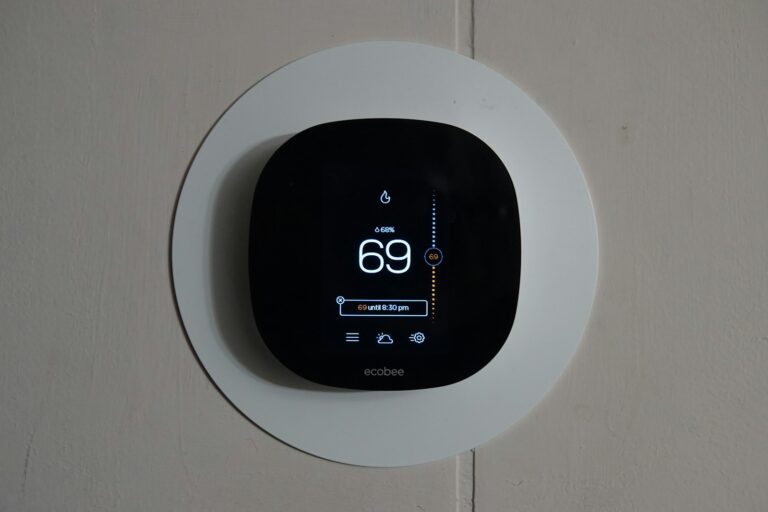
- “Set the thermostat to 72 degrees”
- “Start the robot vacuum”
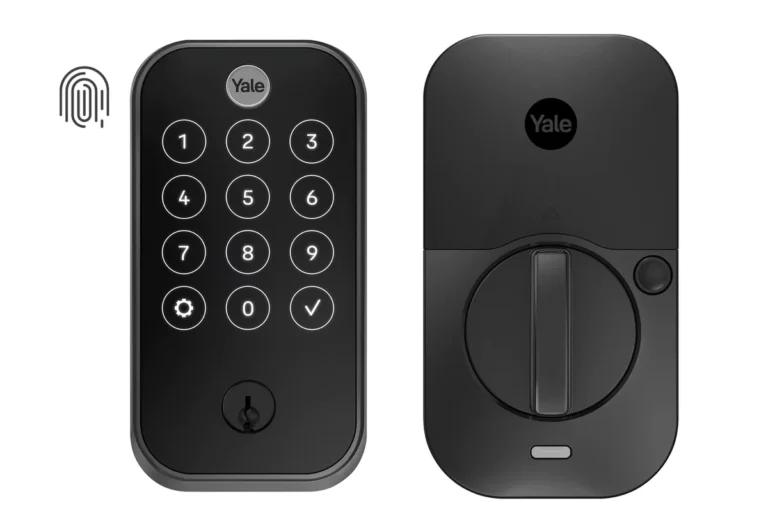
- “Lock the front door”
Navigation & Travel
- “Navigate to [destination]”
- “How long will it take to get to work?”
- “Find parking near [location]”
- “When does [business name] close?”
- “Find gas stations nearby”
Entertainment & Media
Music & Podcasts:
- “Play [song/artist/playlist]”
- “Play relaxing music”
- “Skip this song”
- “What’s this song?”
- “Play the latest episode of [podcast]”
Streaming & Content:
- “Play [show name] on Netflix”
- “Pause”
- “Resume playback”
- “Set volume to [level]”
Work-Related Productivity Commands
Focus & Concentration:
- “Set a timer for 25 minutes” (for Pomodoro technique)
- “Play focus music”
- “Turn on Do Not Disturb mode”
Quick Calculations:
- “What’s [number] times [number]?”
- “Calculate [percentage] of [number]”
- “What’s the tip on a [amount] dollar bill?”
Language & Translation
- “How do you say [phrase] in [language]?”
- “Translate [phrase] to [language]”
- “Be my Spanish interpreter”
Routine Commands
Create custom routines that trigger multiple actions with a single command:
- “Hey Google, good morning” (can turn on lights, read calendar, weather, and news)
- “Hey Google, I’m leaving” (can lock doors, turn off lights, adjust thermostat)
- “Hey Google, bedtime” (can set alarms, turn off devices, play sleep sounds)
Pro Tips for Maximum Productivity
- Set up Voice Match so Google Assistant can recognize you and provide personalized responses
- Create custom routines for your most common task sequences (source: Android Authority)
- Use location-based reminders to get alerts when you arrive or leave specific places
- Link your work apps like Google Workspace, Slack, or Trello for seamless integration
- Practice natural language – Google Assistant understands conversational commands, not just rigid phrases
Advanced Features
- Continued Conversation: Enable this feature to ask follow-up questions without saying “Hey Google” each time
- Broadcast Messages: Send announcements to all your Google Home devices
- Find Your Phone: “Hey Google, find my phone” will make it ring even on silent mode
According to comprehensive command guides, Google Assistant supports hundreds of commands across various categories (source: Tom’s Guide), making it an incredibly versatile productivity tool. The key is to start with the commands most relevant to your daily routine and gradually expand your usage.
By mastering these essential Google Assistant commands, you’ll streamline your workflow, save time on routine tasks, and stay organized throughout 2026. The more you use Google Assistant, the better it becomes at understanding your preferences and anticipating your needs.
Key Takeaways
- Google Assistant responds to voice commands for everyday tasks like making calls, sending messages, and controlling phone functions.
- Smart home integration allows users to manage lights, thermostats, and other connected devices through simple voice requests.
- Entertainment options include playing music, finding sports updates, and answering trivia questions when you need information quickly.
Getting Started with Google Assistant
Google Assistant makes everyday tasks simpler through voice commands and smart features. The setup process is straightforward, and once configured, it becomes a helpful digital companion for managing your schedule, home devices, and information needs.
Setting Up Google Assistant on Your Device
Setting up Google Assistant varies slightly depending on whether you have an Android phone or iPhone. The process is most seamless on Android devices, where Google Assistant often comes pre-installed.
For Android users, simply press and hold the home button or say “Hey Google” to begin. If prompted, follow the on-screen instructions to complete setup.
iPhone users need to download the Google Assistant app from the App Store first. After installation, open the app and sign in with a Google account to activate the service.
Some newer devices have dedicated Google Assistant buttons that provide instant access to the service without needing the trigger phrase.
Understanding the Trigger Phrase
The standard trigger phrase for activating Google Assistant is “Hey Google” or “OK Google.” These phrases alert your device to start listening for commands.
When you say the trigger phrase, your device will make a distinctive sound or visual indication showing it’s ready to receive instructions. This confirmation helps you know when the Assistant is actively listening.
For privacy concerns, it’s important to understand that devices only respond after hearing the trigger phrase. No continuous recording occurs during normal operation.
Some devices allow for voice match technology, which recognizes your specific voice pattern to prevent others from activating your Assistant.
Adjusting Assistant Settings for Personalization
Google Assistant becomes more helpful when personalized to your preferences. To access settings, say “Hey Google, open Assistant settings” or find Google Assistant in your device’s settings menu.
Key personalization options include:
- Voice Match: Trains the Assistant to recognize your voice
- Preferred payment methods: For shopping commands
- Routines: Custom command sequences that perform multiple actions
- Personal information: Home and work addresses for navigation
You can customize how the Assistant responds by selecting different voices and adjusting response verbosity in the settings menu.
Privacy controls let you review or delete your Assistant history and manage what information Google can access. These settings help balance convenience with data protection for your mobile device.
Basic Commands for Everyday Use
Google Assistant offers simple commands that can make daily tasks much easier. These basic functions help with communication, keeping track of your schedule, and staying informed about your surroundings.
Making Calls and Sending Texts
Getting in touch with contacts is effortless with Google Assistant. You can start a call by saying, “Hey Google, call [contact name]” or “Call [business name].” This works for both personal contacts and local businesses.
For texting, try commands like “Send a text to [contact name]” followed by your message. Google Assistant will confirm the recipient and message before sending.
Group communications are also possible. Say “Call [group name]” to start a conference call with predefined groups in your contacts.
For hands-free situations, like driving, these commands are particularly useful. You can even ask Google Assistant to read your recent messages by saying, “Read my messages.”
Setting Alarms and Reminders
Google Assistant excels at managing your schedule with alarms and reminders. To set an alarm, simply say, “Hey Google, set an alarm for [time].” You can specify morning or evening and add labels too.
For recurring alarms, try “Set an alarm for 7 AM every weekday.” This helps establish daily routines without needing to set individual alarms.
Reminders are equally simple:
- “Remind me to take medicine at 9 PM”
- “Remind me to call mom when I get home”
- “Set a reminder for my meeting tomorrow at 3 PM”
Location-based reminders work too. Say “Remind me to buy milk when I’m at the grocery store” and you’ll be notified when you arrive.
Asking for Weather Updates and Current Location
Weather information is among the most useful features of Google Assistant. Ask “What’s the weather today?” for current conditions or “What’s the forecast for this weekend?” for extended predictions.
For location-specific weather, try “What’s the weather in [city name]?” This works for any location worldwide, making it perfect for travel planning.
Your current location can be identified by asking “Where am I?” Google Assistant will provide your address and sometimes additional information about nearby landmarks.
Combine these queries for practical advice: “Do I need an umbrella today?” or “What’s the temperature outside right now?” These contextual questions deliver the information you need without overwhelming details.
Entertainment and Multimedia
Google Assistant transforms your device into an entertainment hub with simple voice commands. You can control music playback, watch videos, and even play interactive games without touching your phone or speaker.
Playing Music and Media Content
Google Assistant makes playing your favorite tunes effortless with voice commands. Simply say “Hey Google, play…” followed by a song, artist, genre, or playlist.
For music services, you can control playback on Spotify, YouTube Music, Pandora, and other supported platforms. Specify your preferred service by saying “on Spotify” or similar at the end of your request.
Basic playback commands include:
- “Play/pause music”
- “Skip this song”
- “Volume up/down”
- “Play music for cooking”
For podcast lovers, Assistant can find and play specific episodes or continue where you left off. Try “Play the latest episode of…” or “Resume my podcast.”
Need music for a specific mood? Ask for “relaxing music” or “workout playlist” and Google will suggest appropriate options.
Accessing YouTube with Voice Commands
Google Assistant provides hands-free control of YouTube content on compatible devices. Users with Nest displays or Chromecast-enabled TVs can search and play videos using natural language.
Common YouTube commands include:
- “Play cat videos on YouTube”
- “Show cooking tutorials on YouTube”
- “Play music videos by [artist]”
For Chromecast users, controlling playback is simple with commands like “pause,” “resume,” or “skip ahead 30 seconds.” This works particularly well when cooking or doing activities where touching screens is inconvenient.
On Nest Hub displays, users can browse search results visually before selecting content. Ask “Show me videos about gardening” to see options without committing to one immediately.
Playing Games Through Google Assistant
Google Assistant offers numerous games accessible entirely through voice. These range from trivia challenges to adventure games and are perfect for solo entertainment or group fun.
Popular gaming commands include:
- “Let’s play a game”
- “Play trivia”
- “Tell me a riddle”
For trivia enthusiasts, try “OK Google, Crystal Ball” or “OK Google, Lucky Trivia” for challenging questions across various categories. These games track scores and can accommodate multiple players.
Adventure fans will enjoy interactive storytelling games where your choices affect the outcome. Say “Tell me a story” or try specific adventures like “Talk to Dustin from Stranger Things.”
Simple games like “Rock, Paper, Scissors” or “Coin Flip” are perfect for quick decision-making or settling friendly disputes without needing physical props.
Smart Home Integration
Google Assistant transforms your home into a voice-controlled environment where lights, thermostats, locks, and cameras respond to simple commands. This technology brings convenience and accessibility to everyday tasks through seamless connectivity.
Controlling Smart Home Devices
With Google Assistant, managing your smart home is as simple as speaking. Users can turn lights on or off with commands like “Hey Google, turn off the living room lights.” The system works with thousands of compatible devices from various manufacturers.
Temperature control becomes effortless with phrases such as “Set the thermostat to 72 degrees.” This functionality works with Nest thermostats and other compatible climate control systems.
Security features respond to voice commands as well. Users can lock doors or check security cameras by saying “Lock the front door” or “What’s on the outside camera?”
For lighting adjustments beyond simple on/off controls, Google Assistant understands brightness commands. Try “Hey Google, set the kitchen lights to 60%” or “dim the bedroom lights” for perfect ambiance without touching a switch.
Setting Up Routines for Automated Tasks
Routines elevate the smart home experience by combining multiple actions into a single command. Users create custom sequences that execute several tasks simultaneously or in sequence.
A “Good Morning” routine might turn on lights, report the weather, start the coffee maker, and read the day’s news headlines—all triggered by one phrase. This saves time and streamlines daily activities.
Creating routines is straightforward through the Google Home app:
- Open the Google Home app
- Tap “Routines”
- Select “Add a routine”
- Choose a trigger phrase
- Select desired actions
Time-based routines can run automatically at specific times without voice activation. A nighttime routine might lock doors, adjust thermostats, and turn off lights at 11:00 PM every evening.
Using the Google Home App for Device Management
The Google Home app serves as the control center for all connected devices. Through this interface, users can add new devices, organize them into rooms, and manage their settings without voice commands.
Setting up new devices typically involves:
- Tapping the “+” icon in the Google Home app
- Selecting “Set up device”
- Following the guided process to connect to the home network
The app provides detailed controls beyond what’s possible with voice. Users can create device groups, customize device names, and adjust advanced settings for optimal performance.
Smart displays like the Nest Hub add visual controls to the Google Assistant experience. These devices show device status, camera feeds, and touch controls for those moments when speaking isn’t practical.
For troubleshooting connectivity issues, the app offers diagnostic tools that help identify and resolve problems with connected devices. This ensures the smart home system remains reliable and responsive to commands.
Advanced Tips and Tricks
Google Assistant offers powerful features beyond basic commands. These advanced capabilities let users customize their experience, connect with external services, and use Assistant as a memory aid for important information.
Customizing Assistant Voice and Language
Users can personalize their Google Assistant by changing its voice and language settings. To modify these options, they need to open the Google Home app, tap their profile picture, and select Assistant settings.
Google offers several voice options with different accents and speaking styles. The Assistant Voice selection includes male, female, and gender-neutral options with various personality traits.
For multilingual households, Google Assistant can be set to understand and respond in two languages simultaneously. This feature works by selecting primary and secondary languages in the settings menu.
Voice speed can also be adjusted for those who prefer faster or slower responses. This setting helps customize the interaction experience based on personal preference.
Finding and Using Third-Party Services
Google Assistant connects with numerous third-party services and apps to expand its capabilities. Users can discover compatible services by checking the Google Assistant section in the Google Play Store.
Popular integrations include food delivery services, ride-sharing apps, and smart home devices. Users can say commands like “Order pizza from Domino’s” or “Get me an Uber to the airport” to activate these services.
Many third-party actions don’t require separate installation. Simply asking Assistant to connect with a service often initiates the integration process automatically.
To view all connected services, users should go to Assistant settings and select “Services.” This menu allows adding new services or removing unwanted connections.
Remembering Important Information
One of Google Assistant’s most useful advanced features is its ability to remember things for later recall. Users can ask Assistant to store personal information with commands like “Remember that my parking spot is B42” or “Remember that Mom’s birthday is April 15th.”
To retrieve this information, users simply ask questions like “Where did I park?” or “When is Mom’s birthday?” Assistant will recall the stored details immediately.
For recurring reminders, Assistant excels at creating scheduled alerts. Users can say “Remind me to drink water every morning” or set location-based reminders like “Remind me to buy milk when I’m at the grocery store.”
The system can also remember preferences for future reference, such as favorite restaurants, movies, or songs, making subsequent recommendations more personalized.
Troubleshooting Common Issues
Even the most reliable voice assistants can encounter problems. When Google Assistant stops responding to your commands, there are several straightforward solutions you can try before seeking professional help.
Resolving Recognition Errors
If Google Assistant isn’t recognizing your voice commands correctly, start by making sure Voice Match is properly turned on. This feature helps the Assistant recognize your specific voice patterns.
Try retraining your voice model. Go to Google Assistant settings, select “Voice Match,” and follow the prompts to record your voice again. This often resolves recognition issues after system updates.
For Android phones specifically, check if microphone permissions are enabled. Navigate to Settings > Apps > Google > Permissions and ensure microphone access is granted.
If you find Assistant confusing your commands with similar-sounding phrases, try speaking more slowly and clearly. Unlike Apple’s Siri, Google Assistant sometimes needs more distinct pronunciation for specialized terms.
Fixing Connectivity Problems
Many Assistant issues stem from poor internet connections. Check your Wi-Fi or mobile data connection first when commands stop working properly.
Try these quick fixes:
- Toggle Airplane mode on and off
- Restart your Wi-Fi router
- Switch between Wi-Fi and mobile data
- Verify the Google servers are operational
If basic commands suddenly fail, the problem might be with Google’s servers rather than your device. Wait a few minutes and try again.
For persistent connectivity issues, try clearing the Google app cache. Go to Settings > Apps > Google > Storage > Clear Cache. This removes temporary data that might be causing conflicts.
Updating Google Assistant for Optimal Performance
Regular updates ensure your Assistant has the latest features and bug fixes. Check for updates to both the Google app and your device’s operating system.
For Android devices, visit the Play Store, search for “Google,” and tap “Update” if available. Also check Settings > System > Advanced > System Update to ensure your OS is current.
If problems persist after updating, try resetting Google Assistant preferences. Open the Google app, tap your profile picture, select Settings > Google Assistant > General, and choose “Reset Assistant.”
Some users find that removing and re-adding their Google account resolves stubborn issues. This refreshes all connection settings and permissions at once. Just remember to back up important data first.
Frequently Asked Questions
Google Assistant offers numerous commands and features that can make daily life easier. These frequently asked questions address common queries about maximizing its potential across various devices and situations.
What are the top essential commands for maximizing the use of Google Assistant?
The most useful Google Assistant commands include basic functions like asking about weather conditions, setting timers, and creating reminders.
For productivity, try commands like “Make a list,” “Set an alarm,” or “Send a text to [contact name].” These save time on routine tasks.
Smart home users can control their devices with commands such as “Turn off the lights,” “Set the thermostat to 72 degrees,” or “Lock the front door.” These commands work with compatible smart home devices.
Entertainment commands like “Play music,” “What’s on my calendar today?” and “Find my phone” are also extremely helpful in daily life.
How can one utilize Google Assistant efficiently on Android devices?
On Android, users can activate Google Assistant by saying “Hey Google” or pressing and holding the home button. This hands-free option is particularly useful while driving.
Android users can edit text messages using voice commands like “delete” and “clear” to modify text or “send” to complete messages. This makes texting while multitasking much easier.
The Assistant can provide turn-by-turn directions with commands like “Give me directions to the airport” or help locate nearby services with “Find the closest ATM.” These location-based features are particularly useful when traveling.
What unique features can Google Assistant perform that are less well-known?
Google Assistant can translate conversations in real-time with “Interpreter Mode.” Simply say “Be my Spanish interpreter” to begin a bilingual conversation.
It can identify songs playing nearby when asked “What song is this?” This feature works similarly to dedicated music identification apps.
The Assistant can also read articles and webpages aloud when you say “Read this page.” This is helpful when cooking, exercising, or otherwise occupied.
Is there a way to activate Google Assistant without using the wake phrase every time?
Users with multiple Google devices can set up continued conversation mode. This allows follow-up questions without repeating “Hey Google” each time.
On newer Android phones, “Quick Phrases” lets users complete specific tasks like answering calls or stopping alarms without the wake phrase. This feature continues to expand with updates.
Some Google Nest displays support gesture controls, allowing users to pause media by raising a hand instead of speaking a command.
Can you list some entertaining or humorous commands that work with Google Assistant?
Google Assistant responds to fun commands like “Tell me a joke,” “Play rock, paper, scissors,” or “Roll a die.” These can provide quick entertainment.
Ask “Do you know the muffin man?” or “Sing me a song” for amusing responses. These easter eggs show the Assistant’s personality.
Games like “Crystal Ball,” “Mad Libs,” and trivia challenges can be accessed simply by asking Google Assistant to play them. These are great for brief entertainment breaks.
What advanced tricks and shortcuts can Google Assistant perform to enhance user experience?
Google Assistant can run routines that execute multiple commands with a single phrase. Say “Good morning” to hear the weather, news, and calendar events in sequence.
Advanced users can create custom shortcuts by mapping lengthy commands to shorter phrases. This saves time for frequently used complex commands.
The Assistant can screen calls, take voice notes that automatically transcribe to text, and even identify plants or landmarks through the camera. These advanced features continue to expand with each update.