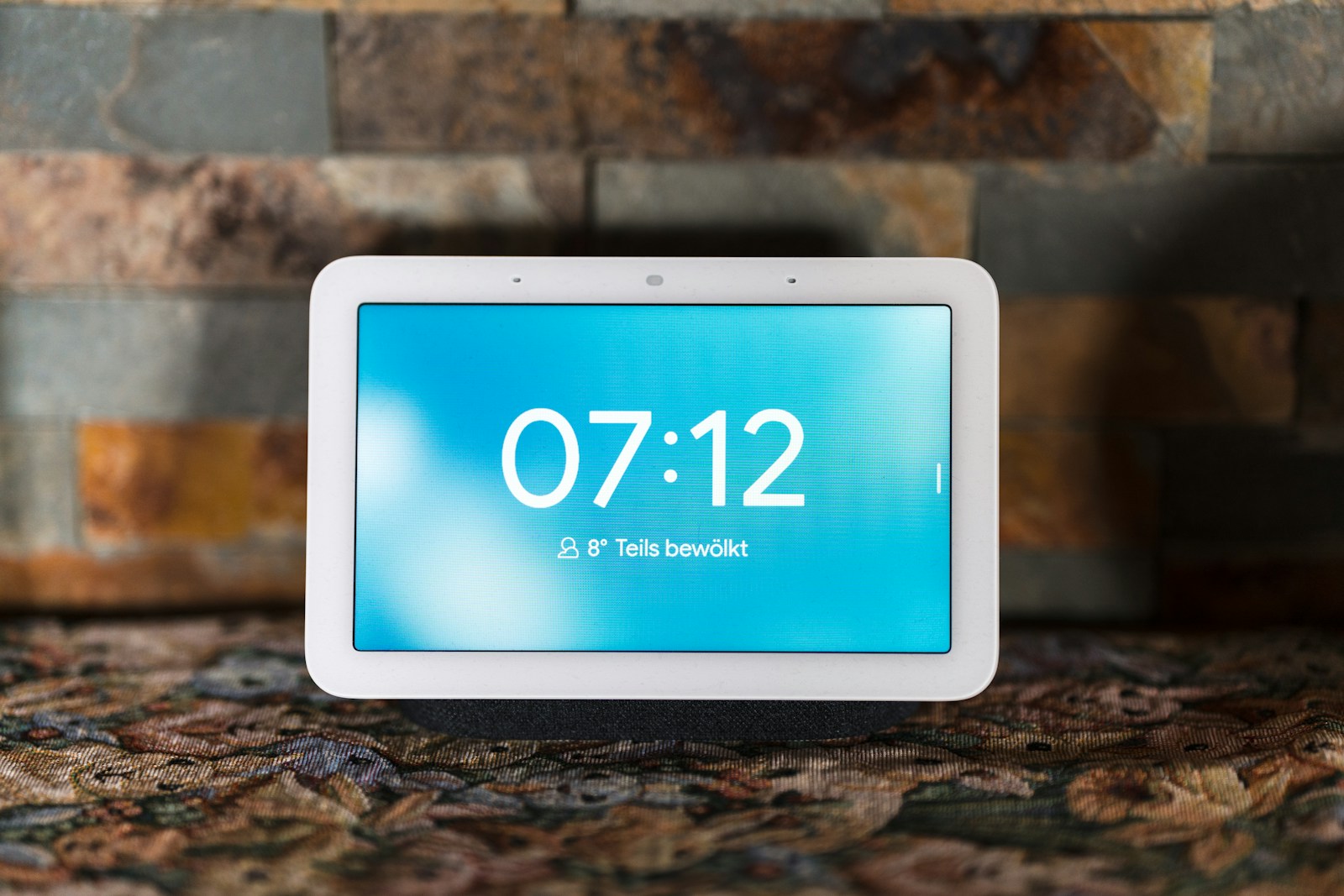
Is your Google Nest Hub acting up? Smart home devices sometimes need a fresh start to work properly again. When your Google Nest Hub encounters problems like freezing, connectivity issues, or unresponsiveness, resetting it can often solve these issues quickly. To factory reset your Google Nest Hub, press and hold both volume buttons simultaneously for about 10 seconds until you hear a confirmation sound.
Resetting your Google Nest Hub doesn’t have to be complicated. There are actually several methods to reset your device depending on which model you have. Some Nest Hubs can be reset through the device settings, while others require pressing specific button combinations. After resetting, users will need to set up their device again, but this process can solve many common issues that might be plaguing the smart display.
Smart home enthusiasts should know that performing a factory reset will remove all personal information and settings from the device. This makes it an essential skill for anyone who uses Google Nest products in their connected home. It’s also helpful when changing Wi-Fi networks or preparing the device for a new owner.
How to Reset Your Google Nest Hub
Resetting your Google Nest Hub can help resolve issues, clear personal data, or prepare the device for a new user. There are two types of resets: a soft reset (restart) and a factory reset (erase all data).
Method 1: Soft Reset (Restart)
A soft reset simply restarts your Nest Hub without deleting any data.
Steps:
- Unplug the Nest Hub from the power outlet.
- Wait about 10 seconds.
- Plug it back in.
- Wait for the device to reboot.
Method 2: Factory Reset (Erase All Data)
A factory reset restores your Nest Hub to its original factory settings, erasing all your personal information and settings.
Option A: Using the Touchscreen Buttons
- On the back of the Nest Hub, press and hold both volume buttons (Volume Up and Volume Down) simultaneously.
- Keep holding the buttons for about 10 seconds.
- The device will display a countdown and then begin the factory reset process.
Option B: Using the Google Home App
- Open the Google Home app on your phone or tablet.
- Tap your Nest Hub device from the list.
- Tap the Settings (gear icon).
- Scroll down and tap Remove device or Factory reset.
- Confirm your choice to start the reset.
Important Notes
- A factory reset cannot be undone.
- After resetting, you will need to set up your Nest Hub again from scratch.
- Ensure you know your Google account credentials to log back in after reset.
Summary Table
| Reset Type | How to Perform | Effect |
|---|---|---|
| Soft Reset | Unplug and replug power | Restarts device, no data loss |
| Factory Reset | Hold both volume buttons 10 seconds | Erases all data, restores factory settings |
For more detailed info, visit Google’s official support page: Factory reset Google Nest Hub.
Key Takeaways
- Factory resetting a Google Nest Hub can resolve most technical issues including freezing and connectivity problems.
- The reset process typically involves holding down volume buttons for 10 seconds or using device settings.
- After resetting, users will need to reconfigure their device settings and reconnect to their Wi-Fi network.
Understanding the Google Nest Hub
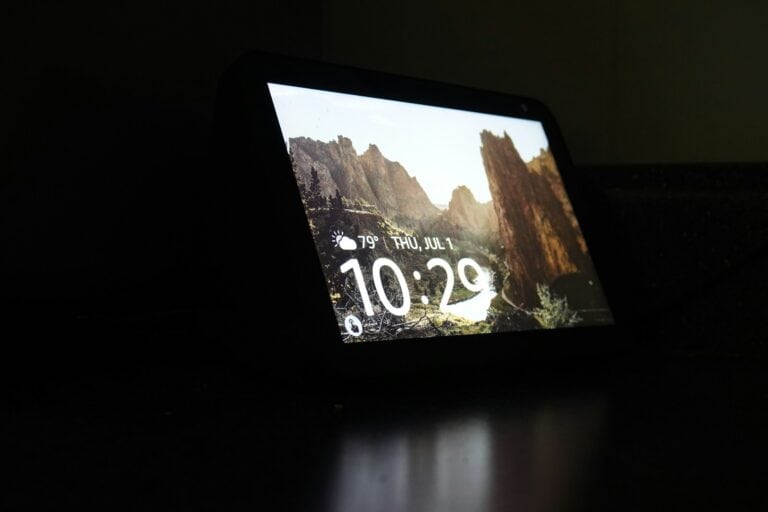
The Google Nest Hub serves as a central command center for smart homes, combining visual displays with voice assistant capabilities. This versatile device connects various smart home elements while providing information and entertainment through an intuitive interface.
Key Features and Functionality
The Google Nest Hub comes equipped with the powerful Google Assistant, which responds to voice commands for hands-free control. Users can manage smart home devices including lights, thermostats, and security cameras with simple voice instructions or touchscreen controls.
The Hub functions as an entertainment center with access to music streaming services, YouTube videos, and photo slideshows. Its display adapts to ambient lighting conditions, making it comfortable to view in any environment.
For smart home enthusiasts, the Nest Hub offers exceptional compatibility with thousands of devices from various manufacturers. This includes Nest cameras, thermostats, doorbells, and products from other major smart home brands.
The device also serves as an information center, providing weather updates, calendar appointments, and news briefings on demand.
Device Overview and Components
The Google Nest Hub features a compact design with a 7-inch touch display (or 10-inch on the Max version) mounted on a fabric-covered base. The screen serves as both display and control interface, while microphones positioned around the device ensure accurate voice command reception.
Physical buttons include volume controls on the rear edge, which also serve as reset triggers when needed. Some models include a switch to disable microphones for privacy concerns.
Inside, the Hub contains various sensors including:
- Ambient light sensors (for screen brightness adjustment)
- Ultrasound sensors (for proximity detection)
- Temperature sensors (on select models)
The Nest Hub Max adds a built-in camera for video calls and security monitoring. All models connect via Wi-Fi and Bluetooth for seamless integration with home networks and personal devices.
The Hub’s minimal footprint makes it suitable for bedside tables, kitchen counters, or living room shelves while maintaining an elegant aesthetic in any room.
Preparation for Resetting Your Device
Before resetting your Google Nest Hub, taking a few preparatory steps can save you from potential data loss and ensure a smooth reset process. Proper preparation will minimize downtime and preserve your personalized settings.
Backup Important Data
Resetting your Google Nest Hub will erase all personal information and settings. Before proceeding, open the Google Home app on your smartphone to review what’s currently configured on your device.
Make note of:
- Custom routines you’ve created
- Speaker groups
- Device pairings
- Voice match settings
- Personal preferences
For users with multiple smart home devices, take screenshots of your home setup configuration. This makes it easier to restore everything exactly as you had it before.
Check if any important reminders or calendar events are stored only on your Nest Hub. These should be synchronized with your Google Account, but it’s best to verify this beforehand.
Ensure Device Connectivity
Proper connectivity is essential for both the reset process and subsequent device setup. Verify that the Nest Hub is connected to a stable power source by checking that the light indicator is on.
For wireless connectivity, ensure:
- Your Wi-Fi network is functioning properly
- Your smartphone (Android or iOS) has the latest version of the Google Home app installed
- Bluetooth is enabled on your mobile device for the initial setup after reset
The Google Home app must be signed in with the same Google Account that’s currently linked to your Nest Hub. This creates a smooth transition when you reconnect your device after the reset.
Position your Nest Hub within close range of your Wi-Fi router during the reset and subsequent setup process. This minimizes potential connection issues that could interrupt the procedure.
Performing a Factory Reset on Google Nest Hub
Factory resetting your Google Nest Hub will erase all personal data and return the device to its original settings. This process is helpful when troubleshooting persistent problems or preparing your device for a new owner.
Using Physical Buttons
The quickest way to reset your Google Nest Hub is by using the physical buttons on the device. For standard Nest Hub models, press and hold both volume buttons simultaneously for about 10 seconds until the reset process begins.
For the Nest Hub Max, the process is similar. Hold down the volume buttons at the back of the device simultaneously for approximately 10 seconds. You’ll hear a confirmation sound indicating the reset has started.
If your device is frozen showing only the Google “G” logo, try an alternative method. Unplug your device, then hold down the volume button while plugging it back in. Release the button once the device powers on again.
Through the Google Home App
The Google Home app offers another method for factory resetting your Nest Hub. This approach works well when the device is still responsive and connected to your network.
First, open the Google Home app on your smartphone. Locate and select your Nest Hub from the list of connected devices. Tap on the Settings icon (gear symbol) in the top right corner of the screen.
Scroll down to find the “Remove Device” or “Factory Reset” option. The exact wording may vary depending on your app version. Select this option and confirm your choice when prompted.
The app will guide you through the remaining steps. After confirmation, your Google Nest Hub will begin the reset process automatically. This typically takes a few minutes to complete, after which the device will restart with factory settings.
Setting Up Google Nest Hub Post-Reset
After performing a factory reset on your Google Nest Hub, you’ll need to set it up again from scratch. This process involves connecting to Wi-Fi, linking your Google account, and personalizing your device settings.
Connecting to Wi-Fi
To begin setting up your Google Nest Hub after a reset, place it within 15-20 feet of your Wi-Fi router for optimal connection. This proximity helps prevent connectivity issues during setup.
First, plug in your Nest Hub and wait for it to power on. The screen will display setup instructions. Download and open the Google Home app on your smartphone if you haven’t already.
Make sure your phone has Wi-Fi, Bluetooth, and Location Services enabled. These features are essential for discovering and connecting to your Nest Hub.
The app will detect your Nest Hub and guide you through the connection process. If you encounter a prompt for a “nesthubXXXX” Wi-Fi password during setup, this is temporary and generated by the device itself.
Linking Your Google Account
Once connected to Wi-Fi, the next step is linking your Google account to the Nest Hub. This connection enables personalized features and access to your Google services.
Follow the prompts in the Google Home app to select which Google account to link. If you have multiple accounts, choose the one you primarily use for Google services.
You may need to:
- Verify your identity
- Accept privacy terms
- Grant necessary permissions for the Nest Hub to access your account information
This linkage allows your Nest Hub to display your calendar events, photos, and other personalized content. It also enables voice match technology so Google Assistant can recognize different household members.
Customizing Settings and Preferences
After connecting your account, it’s time to personalize your Nest Hub experience with settings that match your preferences and household needs.
Display Settings:
- Adjust brightness and volume
- Select a photo album or clock face for the display
- Configure night mode settings for bedtime
Voice Assistant Options:
- Train Google Assistant to recognize your voice
- Set up routines for common tasks
- Choose default music and video streaming services
You can also assign the device to a specific room in your home, which helps with smart home management. This organization is particularly useful if you have multiple Nest devices.
Consider enabling digital wellbeing features if you want to set limits on device usage or filter content for children.
Troubleshooting Common Issues After Reset
Resetting your Google Nest Hub can fix many problems, but sometimes new issues appear after the reset process. These typically involve connectivity problems or software-related issues that need specific solutions.
Connectivity and Network Problems
After a factory reset, many users find their Google Nest Hub won’t connect to Wi-Fi during setup. This is often the most frustrating post-reset issue.
To resolve connection problems:
- Place your Nest Hub within 15-20 feet of your router during setup
- Ensure your phone has both Wi-Fi and Bluetooth enabled
- Check if your device appears “paused” in the Google Home app’s Wi-Fi menu
Try restarting your router and modem. Unplug them for 30 seconds, then plug them back in and wait for them to fully restart before attempting setup again.
Sometimes the 2.4GHz band works better for initial connection than 5GHz. If possible, try connecting to the 2.4GHz network first.
Software Update and Bug Fixes
Software glitches can persist even after resetting your Google Nest Hub. The device may appear stuck on startup screens or behave erratically.
When facing software issues:
- Ensure complete power cycling – Unplug your Nest Hub for at least 30 seconds before plugging it back in
- Check for system updates – Once connected, the Hub might need to install pending updates
- Clear cache on your Google Home app – Go to your phone’s settings, find the app, and clear its cache
For persistent software problems, try setting up the device using a different phone or tablet. This eliminates potential compatibility issues between your phone and the Nest Hub.
If all else fails, contact Google’s technical support. They can provide specialized troubleshooting steps for your specific situation and firmware version.
Maximizing Google Nest Hub Capabilities
After resetting your Google Nest Hub, you can take full advantage of its features to create a more connected and efficient home environment. The device offers numerous ways to enhance your daily routine through smart integrations and voice commands.
Integrating with Smart Home Devices
The Google Nest Hub works seamlessly with a wide range of smart home devices including lights, thermostats, and security cameras. Users can connect compatible devices through the Google Home app by tapping the “+” icon and following the setup instructions.
For optimal energy efficiency, pair the Nest Hub with a smart thermostat to create automated temperature schedules. This integration can significantly reduce energy consumption while maintaining comfort.
Security-conscious users benefit from connecting doorbell cameras and security systems. The Nest Hub display can show live camera feeds when someone approaches the door or when motion is detected.
Smart lighting control allows for mood setting, security simulation when away, and hands-free operation. Simply say “Hey Google, turn off the living room lights” or create routines for morning and evening lighting scenes.
Optimizing Google Assistant Use
Google Assistant forms the core of the Nest Hub experience, responding to voice commands for countless tasks. Users can customize their experience through the Google Assistant settings in the Home app.
Voice Match technology enables personalized responses for each household member. Setting up Voice Match ensures calendar appointments, reminders, and preferences are specific to each individual.
For better response accuracy, users should position their Nest Hub away from noisy appliances and consider ambient noise when giving commands. Speaking clearly and using consistent phrasing improves recognition rates.
Routines transform multiple actions into a single command. For example, saying “Hey Google, good morning” can trigger weather updates, calendar information, and news briefings while adjusting connected devices.
Exploring Additional Features
The Nest Hub excels as an entertainment center with music streaming services like Spotify, YouTube Music, and Pandora. Users can request specific songs, playlists, or genres by voice.
Recipe assistance makes cooking easier by displaying step-by-step instructions. The hands-free interface is particularly valuable when handling food, allowing users to navigate recipes without touching the screen.
Photo displays transform the device into a digital picture frame. Users can select specific Google Photos albums or let the Hub automatically display highlights from their library.
Video calling capabilities allow for keeping in touch with family and friends. The Nest Hub Max model includes a camera that enables Google Duo and Zoom calls with automatic framing.
Broadcasting messages to other Google speakers throughout the home creates an effective intercom system. Simply say “Hey Google, broadcast dinner is ready” to notify everyone simultaneously.
Frequently Asked Questions
Resetting your Google Nest Hub can solve many common issues. Here are answers to the most common questions about resetting various Google Nest devices.
What is the process to perform a factory reset on the Google Nest Hub?
To factory reset your Google Nest Hub, press and hold both volume buttons on the back of the screen for about 10 seconds. The device will automatically begin the reset process.
For the second-generation Nest Hub specifically, you can perform a factory reset to return the device to its original settings when you need a fresh start.
Another method is to use the Google Home app. Open the app, tap and hold the device tile, then navigate to Settings > More and select Reboot or Factory Reset.
How can one reset a Google Nest Mini if the device does not have a physical button?
If a Google Nest Mini lacks physical buttons, users can reset it through the Google Home app. Open the app on a connected smartphone, locate the device, and access its settings.
In the device settings, look for the “Factory Reset” or “Reset” option. This digital method works when physical buttons aren’t available or functioning.
The app will guide users through the reset process with on-screen prompts. Follow these carefully to complete the reset.
What steps should be taken to reset a first generation Google Nest Mini?
For the first generation Google Nest Mini, locate the factory reset button on the bottom of the device. Press and hold this button for about 15 seconds.
The device will begin the reset process automatically. Users will hear an audio confirmation when the reset begins.
After the reset completes, the device will restart and enter setup mode. It can then be reconfigured as if it were new.
How can I troubleshoot connectivity issues with my Google Nest Hub?
When experiencing connectivity problems, first try a simple reboot. Unplug the Nest Hub from its power source, wait about 30 seconds, then plug it back in.
Check your Wi-Fi network to ensure it’s functioning properly. The Hub needs a stable internet connection to work correctly.
If problems persist, try moving the Hub closer to your router. Network interference or distance can cause connectivity issues.
What are the instructions to reboot a Nest WiFi Hub to its default settings?
To reboot a Nest WiFi Hub, locate the reset button on the device. It’s typically found on the bottom or back of the unit.
Press and hold this button for about 10 seconds. The device lights will change to indicate the reset process has begun.
After resetting, the Nest WiFi Hub will need to be set up again using the Google Home app. All previous network settings will be erased.
Is there a method to reset a second-generation Google Nest Mini without using the associated app?
Yes, the second-generation Nest Mini can be reset without the app by unplugging it and holding down the volume button while plugging it back in.
Release the volume button once the device turns on. The device will automatically enter reset mode and begin the factory reset process.
This physical reset method works when the app isn’t available or when the device isn’t responding to app commands.