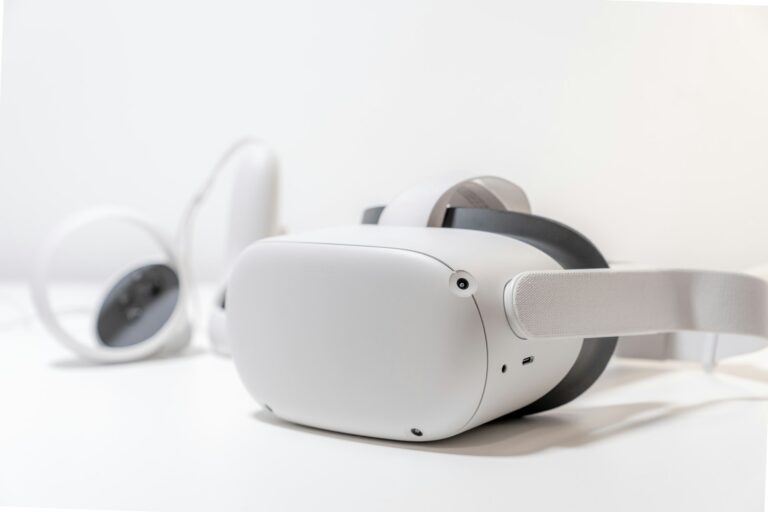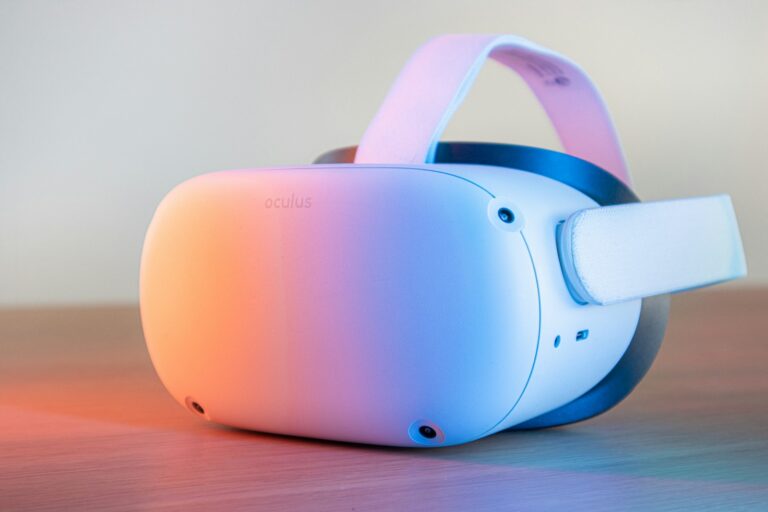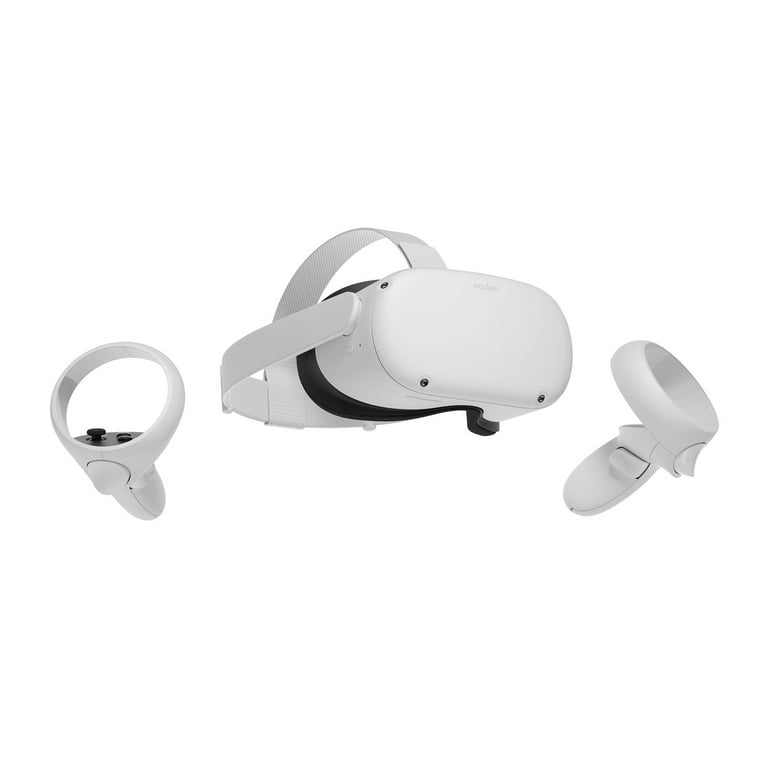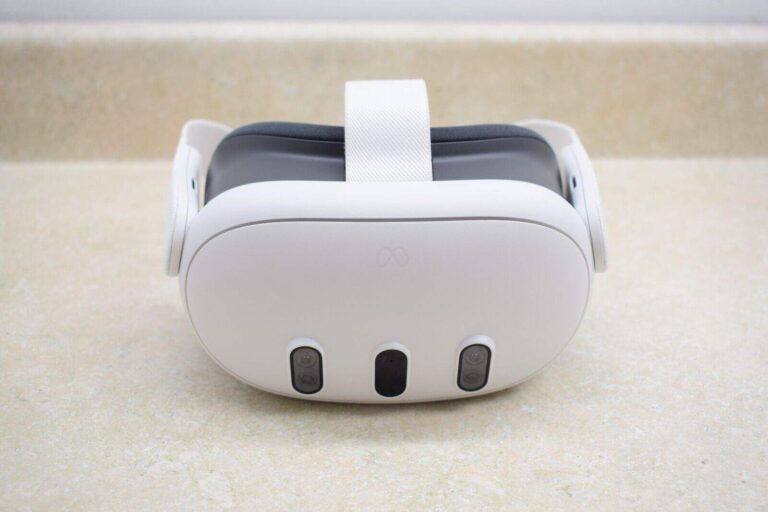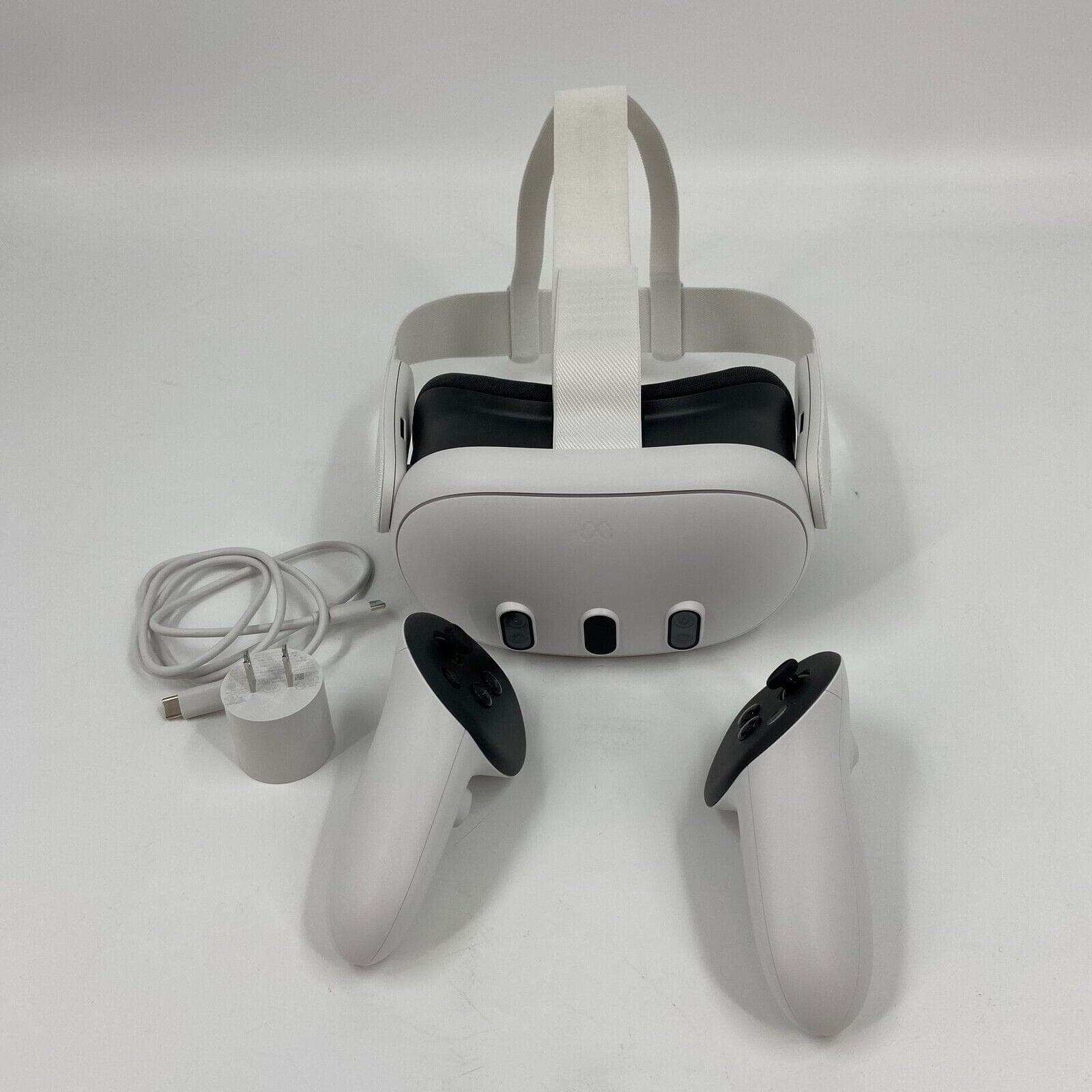
The Meta Quest 3 offers amazing virtual reality experiences, but its battery life can limit your fun. Most users get only 2-3 hours of gameplay before needing to recharge. By using simple settings adjustments like Battery Saver mode and lowering screen brightness, Quest 3 owners can significantly extend their VR sessions without expensive accessories.
For those wanting even longer playtime, external solutions exist. Third-party battery straps provide additional power at lower costs than Meta’s official $130 option, as recommended by Meta Community users. These accessories not only extend battery life but often improve comfort during extended gameplay sessions.
How to Extend Meta Quest 3 Battery Life
The Meta Quest 3 is a powerful VR headset, but like all wireless devices, its battery life can limit your playtime. Maximizing battery performance ensures longer sessions and better overall experience. Here’s a comprehensive guide on how to extend the battery life of your Meta Quest 3.
1. Enable Battery Saver Mode
- Meta Quest 3 includes a Battery Saver Mode designed to reduce power consumption.
- To activate it:
- Go to Settings > System > Power.
- Enable Battery Saver.
- This mode lowers graphic output and background activity, extending usage time.
2. Lower Screen Brightness
- High brightness drains battery quickly.
- Adjust brightness by:
- Opening Settings > Display.
- Reducing Brightness to a comfortable but lower level.
3. Turn Off Wi-Fi When Not Needed
- Wi-Fi connectivity uses power even when idle.
- Disable Wi-Fi if you’re playing offline content:
- Go to Settings > Wi-Fi.
- Toggle Wi-Fi off.
4. Close Unused Apps and Background Processes
- Running multiple apps consumes extra power.
- Close apps you’re not using:
- Press the Oculus button to open the menu.
- Close apps by selecting them and choosing Quit.
5. Reduce Volume or Use Wired Audio
- High audio volume can slightly increase power use.
- Lower the volume or use wired headphones to save battery.
6. Avoid Using VR While Charging
- Using the headset while charging can generate heat and reduce battery longevity.
- Charge fully before use and avoid gaming during charging.
7. Keep Your Headset Updated
- Meta regularly releases software updates that optimize battery performance.
- Check for updates:
- Go to Settings > About > Software Update.
- Install any available updates.
8. Use External Battery Packs or Battery Straps
- Consider accessories like battery head straps that include built-in batteries.
- These extend playtime by supplementing the internal battery.
- Ensure any external battery is compatible and safe for the Quest 3.
9. Manage Tracking Settings
- If you don’t need full room tracking, switch to Stationary Mode to save power.
- Adjust tracking settings in Settings > Device > Tracking.
10. Store Your Headset Properly
- Avoid leaving your Quest 3 in hot environments, as heat degrades battery life.
- Store in a cool, dry place when not in use.
Summary Table: Quick Battery Saving Tips
| Tip | How to Do It | Effectiveness |
|---|---|---|
| Enable Battery Saver Mode | Settings > System > Power | High |
| Lower Screen Brightness | Settings > Display | Moderate |
| Turn Off Wi-Fi When Offline | Settings > Wi-Fi | Moderate |
| Close Unused Apps | Oculus menu > Close apps | Moderate |
| Reduce Volume / Wired Audio | Volume buttons / Plug in headphones | Low to moderate |
| Avoid VR While Charging | Charge fully before use | Protects battery health |
| Keep Software Updated | Settings > About > Software Update | Optimizes battery management |
| Use External Battery Pack | Purchase compatible battery strap | Extends playtime significantly |
| Adjust Tracking Settings | Settings > Device > Tracking | Moderate |
| Proper Storage | Store in cool, dry place | Maintains battery longevity |
By applying these tips, you can enjoy longer VR sessions on your Meta Quest 3 and keep your battery healthy over time.
For more detailed info, visit Meta’s official support page:
Maximize the battery life of your Meta Quest headset
Key Takeaways
- Enabling Battery Saver mode and reducing screen brightness can immediately extend Quest 3 battery life without affecting gameplay quality.
- External battery straps provide the most significant playtime extension and improved weight balance for longer VR sessions.
- Regular software updates help optimize power consumption as Meta continues to improve the Quest 3’s energy efficiency.
Understanding Meta Quest 3 Battery Specifications
The Meta Quest 3’s battery system is designed to balance performance with portability. Knowing the details of its battery specifications can help users maximize their VR experience while minimizing interruptions.
Battery Capacity and Life Expectancy
The Meta Quest 3 comes equipped with a built-in lithium-ion battery that has a capacity of approximately 4,310 mAh. This powers the headset for about 2.2 to 2.5 hours of active gameplay on a single charge.
Battery performance varies significantly based on usage type. Games with intensive graphics will drain power faster than video watching or simpler applications.
The battery has an expected lifespan of 500-1000 complete charge cycles before noticeable degradation occurs. After this point, users may experience reduced runtime between charges.
Temperature also affects battery performance. The Quest 3 battery functions optimally between 59°F to 77°F (15°C to 25°C). Using the headset in very cold or hot environments can temporarily reduce battery life.
Manufacturer’s Battery Usage Guidelines
Meta recommends charging the Quest 3 with the included 20W USB-C power adapter for optimal performance. A full charge typically takes about 2 hours when the headset is powered off.
The Quest 3 supports fast charging capabilities, but users should note that using non-certified chargers may impact long-term battery health.
To preserve battery health, Meta suggests:
- Avoiding complete battery depletion before recharging
- Storing the headset at 40-80% charge if unused for extended periods
- Keeping the device updated with the latest firmware
For extended sessions, users can use the headset while charging, though this may cause slight heating. Many users opt for external battery solutions like the official Battery Strap or third-party alternatives to extend playtime.
Optimizing Meta Quest 3 VR Settings for Battery Efficiency
The Meta Quest 3 VR headset offers several customizable settings that can significantly extend battery life. Adjusting these settings properly strikes a balance between performance and power consumption.
Adjusting Display Settings
Screen brightness has a significant impact on battery consumption. Users can lower the brightness by accessing the quick settings menu with the right controller button. A 50-70% brightness level often provides good visibility while conserving power.
The refresh rate setting also affects battery life. While 90Hz or 120Hz delivers smoother visuals, switching to 72Hz can extend usage time substantially. This setting can be found in the Experimental Features menu.
Resolution can be adjusted in the same menu. Choosing a slightly lower rendering resolution saves power while maintaining acceptable visual quality. For most casual applications, the difference is barely noticeable.
Power-saving display tips:
- Enable “Dark Mode” in the Accessibility settings
- Turn off “Guardian Boundary” when playing in a familiar space
- Consider reducing render resolution by 10-20%
Managing Wireless Connectivity
Wireless connections are major battery drainers. The Meta Quest 3 uses both Wi-Fi and Bluetooth, which can be managed for better efficiency.
When not streaming content or playing multiplayer games, enabling Airplane Mode can significantly extend battery life. This can be toggled in the quick settings menu.
For multiplayer sessions, using a 5GHz Wi-Fi connection instead of 2.4GHz provides faster data transfer and potentially less battery drain since data transfers complete more quickly.
The headset’s Battery Saver mode automatically optimizes wireless connections. This setting can be found in System Settings > Power.
Connectivity best practices:
- Disable Wi-Fi when playing offline games
- Turn off Bluetooth when not using accessories
- Consider setting up “Auto Sleep” to quickly pause connectivity
Conserving Power Through App Management
Not all VR apps consume battery equally. Graphically intensive games drain power faster than simple applications or media viewers.
Users should close unused apps that may run in the background. This can be done by pressing the Oculus button, hovering over the app, and selecting “Quit” from the menu.
Some apps offer their own power-saving options. For example, video players might have options for lower playback quality, which requires less processing power and extends battery life.
The Meta Quest Store often displays estimated battery usage for apps. Users can check these ratings before downloading to plan their VR sessions around battery limitations.
App management strategies:
- Fully close apps when finished instead of leaving them suspended
- Choose less graphically intensive apps for longer sessions
- Update all apps regularly as developers often optimize battery usage in updates
Selecting the Right Accessories for Extended Battery Life
The right accessories can significantly extend your Meta Quest 3 battery life while also improving comfort during longer VR sessions. Choosing accessories designed specifically for power management will help you get more playtime without interruptions.
Choosing an Ergonomic Strap
The standard strap that comes with the Meta Quest 3 works well for short sessions, but for extended play, an ergonomic option offers better support and battery benefits. The Meta Quest Elite Strap with Battery provides an additional 2 hours of headset use with its built-in battery pack.
This official accessory distributes weight more evenly across the head, reducing strain during long gaming sessions. The battery is integrated into the rear portion, creating a counterbalance that improves overall comfort.
Third-party alternatives are also available at various price points. Many users find options on online marketplaces like Aliexpress that offer similar functionality at lower costs, though build quality may vary.
When selecting a strap, users should look for:
- Adjustable fit mechanisms
- Durable materials
- Even weight distribution
- Integrated power solutions
External Battery Packs and Cases
For those seeking maximum playtime, external battery packs offer the most significant boost to Meta Quest 3 battery life. The ideal external battery should charge at the Quest 3’s limit of 18W to maintain the headset’s internal battery near 100% during use.
Portable power banks with 10,000mAh or higher capacity can add 3-5 hours of additional playtime. These can be attached to the headset strap or placed in a pocket with a short cable running to the device.
Battery cases combine protection with power extension. These specialized cases include both a protective shell and integrated battery, though they add some weight to the overall setup.
Key considerations for external batteries include:
- Capacity (measured in mAh)
- Weight (lighter is better for comfort)
- Charging speed compatibility
- Mounting options or attachment method
Compatibility with Third-Party Accessories
Not all accessories work seamlessly with the Meta Quest 3, so verifying compatibility before purchase is essential. Most manufacturers clearly state which VR headset models their products support.
Connection types matter—the Meta Quest 3 uses USB-C for charging. Accessories should have the correct connector type and support the proper power delivery specifications to function correctly.
Some users report success with magnetic charging cables that allow quick disconnection if needed during play. These can be particularly useful for safety reasons, preventing damage if the cable is accidentally pulled.
Reviews from other Quest 3 users provide valuable insights about which third-party accessories actually deliver on their promises. Community forums often contain discussions about which products maintain compatibility after firmware updates.
Popular third-party accessories include:
- Magnetic charging adapters
- Weighted counterbalance attachments with battery slots
- Custom-designed power bank mounts
- Fast-charging wall adapters for quicker recharges between sessions
Effective Charging Techniques and Maintenance
Proper charging habits and maintenance can significantly extend your Meta Quest 3’s battery lifespan. Following the right charging protocols not only improves daily usage time but also preserves the battery’s overall health for years to come.
Understanding Fast Charging Capabilities
The Meta Quest 3 supports fast charging through its USB-C port, which can reduce charging time considerably when using the right equipment. For optimal fast charging, use the included charging adapter or a compatible USB-C charger rated at 18W or higher.
Not all chargers deliver the same performance. Third-party chargers may work, but might charge at slower rates or generate excess heat. When possible, stick with the original charger or certified alternatives.
Charging from 0-80% typically happens much faster than the final 20%. This is intentional battery management to protect battery health. A full charge from empty typically takes about 2 hours with the original charger.
While fast charging is convenient, it’s worth noting that frequent use of rapid charging generates more heat, which can potentially impact battery longevity over time.
Battery Maintenance for Longevity
For maximum battery lifespan, experts recommend keeping the Meta Quest 3 battery between 20% and 80% charge. Meta officially recommends using your device until battery level drops below 50% before recharging.
Best Practices for Battery Health:
- Avoid frequent complete discharges (below 20%)
- Don’t leave the headset plugged in for days after reaching 100%
- Store in cool, dry conditions if not used for extended periods
- If storing long-term, keep the battery at about 50% charge
Heat is a major enemy of battery life. Remove the headset during charging to prevent heat buildup, and never charge while covered or in direct sunlight.
Modern lithium-ion batteries don’t have “memory effect,” so partial charges won’t harm the battery—they’re actually better than full discharge cycles for long-term health.
Using Charging Docks and Stations
Dedicated charging docks provide a convenient way to keep your Meta Quest 3 charged while also serving as an elegant storage solution. Most official docks use pogo pins for seamless charging without repeatedly plugging in cables.
Quality charging stations often include:
- LED indicators showing charge status
- Smart charging technologies to prevent overcharging
- Simultaneous controller charging
- Proper alignment to prevent strain on cables and ports
Third-party charging stations vary in quality and compatibility. Look for products with positive reviews specifically mentioning the Quest 3, as older docks designed for previous models may not fit correctly.
Magnetic charging cables offer another convenient alternative, reducing wear on the USB-C port from frequent connections while allowing easy one-handed connection and removal. These cables typically maintain full charging speeds while adding convenience.
Strategies for Comfort and Extended Use
Comfort plays a crucial role in maximizing your Meta Quest 3 experience and battery life. When you’re more comfortable, you’re less likely to take breaks that waste battery power during pausing and resuming.
Importance of Balanced Weight Distribution
The Meta Quest 3 can feel front-heavy during extended play sessions, which may cause neck strain and discomfort. Users can purchase a headset battery strap that serves two purposes: extending battery life and improving weight distribution. These accessories shift some weight to the back of the head, creating a more balanced feel.
Third-party options are available at various price points, often cheaper than Meta’s official $130 model. Some users report that even a simple power bank attached to the back strap with velcro can improve comfort dramatically.
For best results, position any counterweight directly opposite to the headset’s front mass. This creates a seesaw effect that makes the device feel lighter overall, allowing for longer play sessions without discomfort.
Finding the Perfect Fit with Adjustable Straps
The default strap that comes with the Quest 3 offers basic adjustability, but optimizing it is essential for comfort during long sessions. Users should adjust the top strap first to position the headset at the correct height on their face.
Side straps should be tightened evenly on both sides to center the display properly. A good fit means the headset stays in place without requiring excessive pressure on the face or forehead.
Many users find that aftermarket straps with additional padding and adjustment points provide superior comfort. Halo-style designs distribute pressure around the entire head rather than concentrating it on the face.
Taking time to adjust straps between different users prevents unnecessary battery drain from repeated removal and replacement of the headset. Properly fitted straps also reduce light leakage, which allows for lower brightness settings—significantly saving battery life.
Purchasing Guide for Meta Quest 3 Battery Solutions
Finding the right battery solution for your Meta Quest 3 requires careful consideration of both the retailer and payment security. These factors ensure you receive a quality product that safely extends your VR experience.
Identifying Reliable Retailers
When shopping for Meta Quest 3 battery accessories, buyers should prioritize authorized retailers like Amazon, Best Buy, and the official Meta store. These established marketplaces typically offer genuine products with manufacturer warranties.
International marketplaces like AliExpress can provide cost-effective alternatives, but require extra verification. Shoppers should:
- Check seller ratings (aim for 95%+ positive feedback)
- Verify product reviews with photos from actual buyers
- Confirm compatibility specifically with Meta Quest 3
- Compare prices across multiple sellers
Third-party battery packs should list exact specifications including capacity (measured in mAh), charging speed, and connector type. Avoiding suspiciously cheap options prevents purchasing counterfeit products that might damage the headset.
Ensuring Safe and Secure Payment Options
Protecting financial information while purchasing Meta Quest 3 battery solutions is essential. Buyers should always use secure payment methods that offer buyer protection.
Credit cards and PayPal provide strong fraud protection policies. Many platforms offer additional security through:
- Two-factor authentication during checkout
- Purchase protection programs for eligible transactions
- Secure encrypted connections (look for HTTPS in the URL)
When shopping internationally on sites like AliExpress, using their escrow system holds payment until the item arrives and meets expectations. This prevents sellers from receiving funds for unsatisfactory products.
Never send direct bank transfers or use gift cards for purchasing battery accessories. These payment methods typically lack dispute mechanisms if problems arise with the order.
Practical Tips for Extending Playtime During VR Sessions
Maximizing your Meta Quest 3 battery life during gameplay requires both smart settings management and strategic charging practices. These approaches can significantly extend your VR sessions without disrupting your immersive experience.
Managing In-Game Settings for Efficiency
One of the most effective ways to extend battery life is to lower the screen brightness on your headset. This simple adjustment preserves power while maintaining a good visual experience.
Enable Battery Saver Mode when available. This setting automatically optimizes various functions to reduce power consumption during gameplay.
Close unused applications running in the background. Multiple active apps drain battery unnecessarily, so make it a habit to shut down programs you’re not using.
Consider these additional settings adjustments:
- Reduce refresh rate if your game doesn’t require maximum fluidity
- Lower resolution slightly for less demanding games
- Turn off features like hand tracking when not needed
- Disable Wi-Fi and Bluetooth when playing offline games
Taking Breaks to Charge the Device
Strategic charging can dramatically extend overall playtime. Many users find success with battery headstraps that offer hot-swappable batteries, ensuring you always have a charged backup ready.
External power banks provide an excellent solution for longer sessions. Connect a portable battery pack to your headset while playing to maintain charge levels without interruption.
Schedule short 15-minute charging breaks between gaming sessions. Even brief charging periods can add significant playtime when done consistently.
Keep your Quest 3 plugged in during non-gameplay activities like watching videos or browsing menus. This habit preserves battery for when you need to be untethered.
Transporting and Storing Meta Quest 3 for Battery Preservation
Proper transportation and storage practices significantly impact your Meta Quest 3’s battery health and longevity. Following the right procedures can prevent unnecessary battery drain and potential damage while not in use.
Selecting a Durable Carrying Case
A high-quality carrying case is essential for protecting your Meta Quest 3 during transport. Look for cases with rigid shells and custom-fitted compartments that prevent controllers from moving around and activating accidentally, which can drain battery life.
Battery Saver mode should be enabled before storing the headset in its case. This reduces power consumption if the device accidentally turns on during transport.
The ideal case includes:
- Shock-absorbing materials to protect against drops
- Moisture-resistant exterior to prevent humidity damage
- Ventilated design to prevent overheating
- Cable management system for organized storage of charging accessories
Consider cases with battery compartments that allow for charging while stored, extending session time when you’re ready to use the device again.
Optimizing Storage Conditions
The environment where you store your Meta Quest 3 directly affects battery health. Maintain a moderate temperature between 59-77°F (15-25°C) for optimal battery preservation.
Never store the headset:
- In direct sunlight
- Near heat sources
- In extremely cold environments
- In high humidity areas
For extended storage periods, charge the battery to approximately 50-80% rather than 100%. Lithium-ion batteries experience less stress and degradation at medium charge levels when not in use for long periods.
Power off the device completely rather than leaving it in sleep mode. This prevents background processes from draining the battery.
Remove the batteries from controllers during long-term storage to prevent corrosion and power leakage. A regular maintenance routine of checking and briefly using the device every 2-3 months helps maintain overall battery health.
Frequently Asked Questions
Meta Quest 3 users often encounter battery issues during extended gameplay sessions. These common questions address key strategies for maximizing battery performance and exploring hardware solutions for longer VR experiences.
What are the best practices for prolonging the Meta Quest 3 battery life?
To extend battery life, users should first enable Battery Saver mode in System Settings > Power. This feature helps optimize power consumption during gameplay.
Reducing screen brightness significantly impacts battery performance without greatly affecting the VR experience. This simple adjustment can be made quickly through the Quest 3’s settings menu.
Keeping the Meta Quest 3’s software updated ensures optimal battery performance. Regular updates often include power management improvements that help extend runtime between charges.
Are there any effective battery extenders available for Meta Quest 3?
Several third-party battery packs designed specifically for the Quest 3 can extend gameplay by 2-3 hours. These typically attach to the back of the headset, providing counterbalance weight distribution while charging.
Meta offers an official battery strap for $130, but many third-party alternatives provide similar functionality at lower price points. Companies like Kiwi, BoboVR, and Anker offer popular options.
How does the Meta Quest 3 Elite Strap affect the device’s battery life?
The Elite Strap with Battery adds approximately 2 hours of additional gameplay to the standard 2-3 hour battery life. This accessory connects directly to the headset without requiring external cables.
The Elite Strap’s battery integrates seamlessly with the Quest 3’s power system. Users can monitor combined battery levels through the headset interface without switching between power sources.
What should I look for when choosing a battery pack for Meta Quest 3?
When selecting a battery pack, capacity (measured in mAh) is crucial. Look for options between 5,000-10,000 mAh, which can provide 1-3 full charges depending on usage patterns.
Check for Quick Charge compatibility and USB-C connections that support data transfer. This ensures optimal charging speeds and maintains functionality with Link cable for PC VR gaming.
Weight distribution matters significantly for comfort during extended sessions. Battery packs that attach directly to the headstrap balance the headset better than those connected via cable.
Is it possible to replace the Meta Quest 3 battery for improved longevity?
The Quest 3’s internal battery is not designed to be user-replaceable. Attempting to replace it voids the warranty and risks damaging the headset’s internal components.
For long-term battery health, users should follow proper charging practices rather than attempting battery replacement. This includes using the provided charger and avoiding complete battery depletion.
What troubleshooting steps can be taken to address rapid Meta Quest 3 battery drain?
If experiencing unusually fast battery drain, check for background applications running on the headset. Closing unused apps conserves significant power during gameplay sessions.
Verify that the magnetic charging pins remain clean and free of debris. Dirty connectors can cause incomplete charging and apparent battery issues when the headset isn’t properly charged.
Resetting the headset occasionally helps resolve software glitches that might cause excessive power consumption. A factory reset should be considered only after trying other troubleshooting methods.