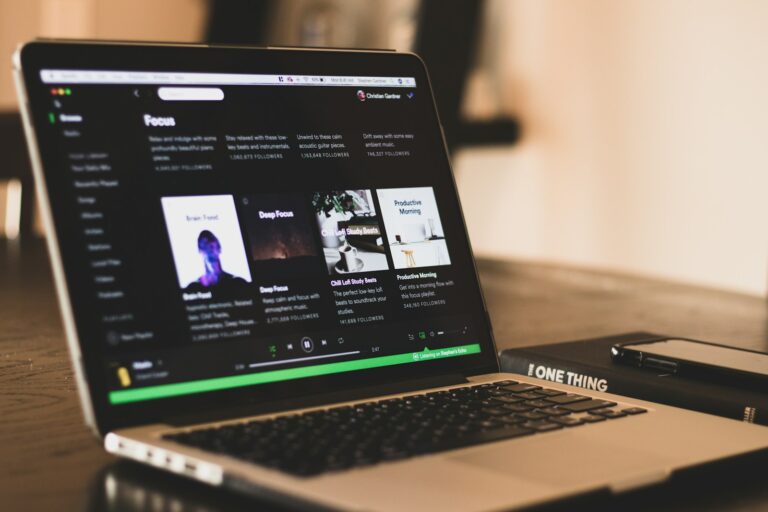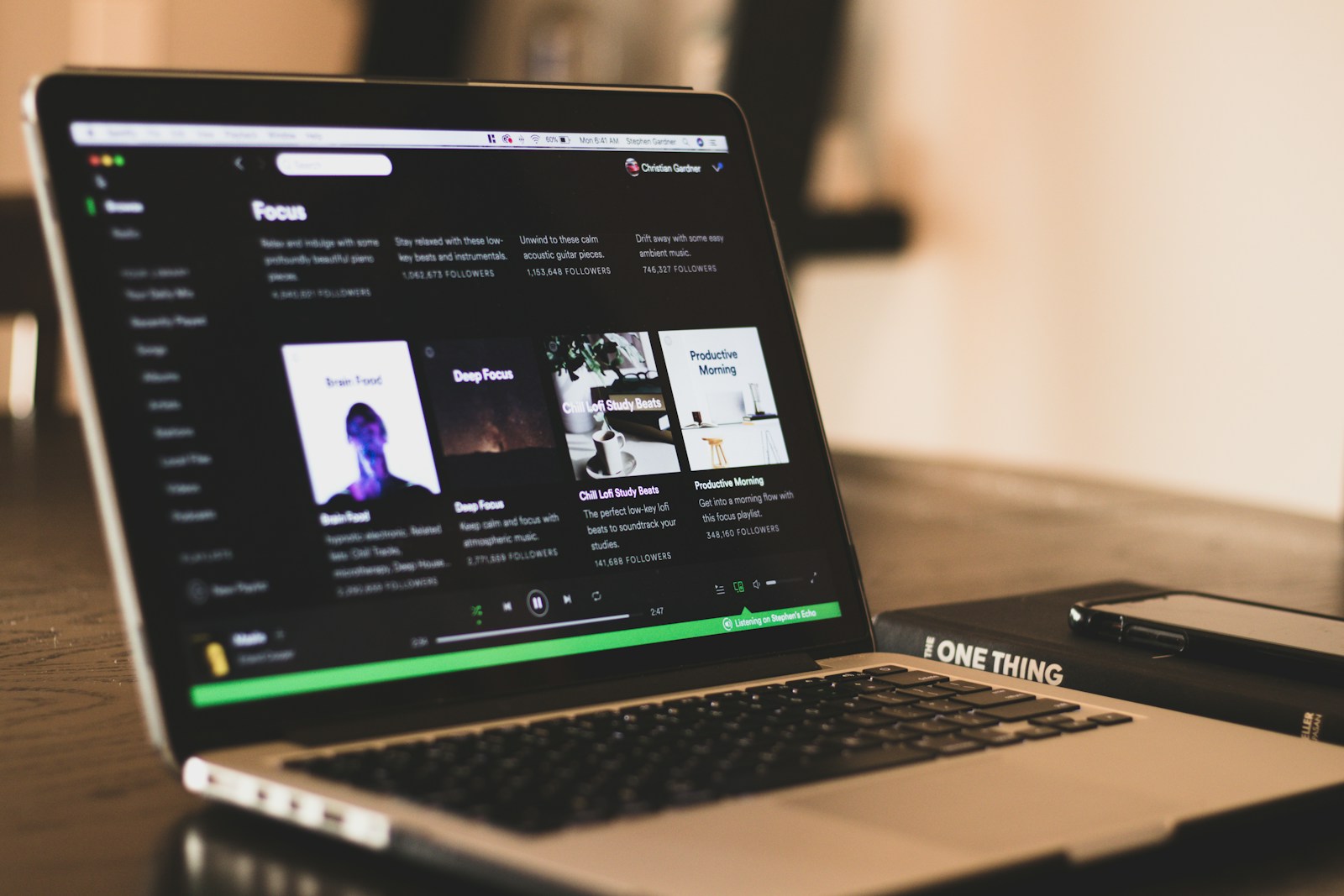
Want to enjoy your favorite song on repeat without paying for Spotify Premium? You can actually loop songs on Spotify without a paid subscription using some simple workarounds. features built right into the app. The easiest way to loop songs on Spotify without Premium is by using the built-in “repeat” feature and creating single-song playlists.
Many music lovers find themselves wanting to hear the same track over and over. Whether you’re studying with background music or just fell in love with a new song, looping capabilities shouldn’t be locked behind a paywall. Spotify’s free version does have limitations, but with a few clever tricks, you can easily set up continuous playback.
Creating a one-song playlist is another effective method that gives you more control. Simply add your chosen track to a new playlist, then use the repeat function on that playlist. This works across most devices including smartphones, tablets, and computers.
How To Loop a Song on Spotify Without Premium
Spotify’s free plan comes with limitations, but looping a song is still possible—depending on the device you’re using. If you want to play your favorite track on repeat without Spotify Premium, this guide walks you through the methods that work and explains the restrictions you should expect.
Can You Loop a Song on Spotify Free?
Yes, but with limitations.
Spotify allows looping (repeat) on the free plan, but availability and control vary by platform:
- ✅ Desktop (Windows & Mac): Fully supported
- ⚠️ Mobile (Android & iPhone): Limited or unavailable for on-demand songs
- ✅ Web Player: Supported in some cases
Method 1: Loop a Song on Spotify Desktop (Free)
This is the easiest and most reliable method.
Steps:
- Open Spotify on your Windows or Mac computer.
- Log in to your free account.
- Play the song you want to loop.
- Look at the Repeat icon (🔁) in the bottom-right playback controls.
- Click it once to repeat the playlist.
- Click it twice to repeat the current song (the icon shows a small “1”).
✅ This works the same way for free and Premium users on desktop.
Method 2: Loop a Song Using Spotify Web Player
The Spotify web player also supports repeat functionality.
Steps:
- Go to open.spotify.com
- Log in to your account.
- Play the desired song.
- Click the Repeat button in the playback bar.
- Click it again until the “1” appears for single-song repeat.
⚠️ Availability may vary depending on browser and region.
Method 3: Loop a Song on Mobile (Free Plan Workarounds)
On iOS and Android, Spotify Free users cannot directly loop an individual on-demand song. However, there are a few workarounds.
Option 1: Use Playlists
- Add the song to a playlist
- Enable Repeat Playlist
- Shuffle may still be enforced
This doesn’t guarantee a true single-song loop but increases how often the song plays.
Option 2: Download the Song Using Local Files (Advanced)
If you own the song file:
- Enable Local Files in Spotify desktop settings
- Add the song to a playlist
- Sync the playlist to your phone
This may allow looping depending on device and settings, but results vary.
Why Looping Is Limited on Spotify Free (Mobile)
Spotify restricts:
- On-demand playback
- Song selection
- Repeat controls
These limitations encourage upgrading to Spotify Premium, which offers:
- Full repeat control
- No ads
- Offline listening
- Unlimited skips
Tips for Better Looping Without Premium
- Use Spotify Desktop whenever possible
- Disable shuffle when repeating playlists
- Use browser-based playback if mobile looping is unavailable
- Consider creating a playlist with the same song repeated multiple times
Frequently Asked Questions
Can you loop a song on Spotify iPhone without Premium?
Not directly. iOS free users have limited repeat control unless using desktop or web player.
Is looping a song free on Spotify?
Yes, on desktop and web player. Mobile has restrictions.
Does Spotify remove the repeat feature for free users?
No, but it limits how and where it can be used.
Final Thoughts
Looping a song on Spotify without Premium is still possible—especially on desktop and the web player. While mobile users face more restrictions, simple workarounds can help you replay your favorite track more often. If looping songs is something you do frequently on your phone, upgrading to Premium may be worth considering—but for occasional use, the free options get the job done.
Key Takeaways
- Use Spotify’s built-in repeat function and single-song playlists to loop tracks without needing Premium subscription.
- Different devices offer varied looping methods, but all free accounts can achieve continuous playback through proper setup.
- Creating custom playlists with the same song multiple times provides a simple alternative when standard looping features aren’t working.
Understanding Spotify’s Features
Spotify offers different playback controls depending on your account type. These features impact how you can listen to your favorite songs on repeat and manage your music streaming experience.
Free vs. Premium Accounts
Spotify provides two main account types: Free and Premium. With a free account, you can access millions of songs, but with limitations. You’ll encounter advertisements between tracks and have restricted mobile app functionality. When using Spotify Free on mobile, you’re limited to shuffle play for most playlists and can skip only six times per hour.
Premium accounts remove these restrictions for $9.99 monthly. With Premium, you get:
- Ad-free listening
- Unlimited skips
- Higher audio quality (up to 320 kbps)
- Download options for offline listening
- On-demand song selection on mobile
Despite these differences, both account types offer some form of repeat functionality, though Premium provides more control over your music experience.
Repeat and Loop Options
The repeat feature on Spotify lets you play tracks multiple times without manual intervention. You can find this feature represented by two curved arrows forming a circle.
For both Free and Premium users, Spotify offers three repeat states:
- No repeat (default setting)
- Repeat playlist/album (green icon)
- Repeat single track (green icon with small “1”)
To access this on desktop or web player:
- Look for the repeat icon in the playback controls
- Click once to repeat the playlist/album
- Click twice to repeat a single song
On mobile, the process is similar but may require opening the expanded player view first. Free users can access these loop options just like Premium subscribers.
Spotify’s Music Streaming Technology
Spotify’s streaming technology delivers music through a combination of peer-to-peer networking and server streaming. The platform uses adaptive bitrate streaming to adjust audio quality based on your internet connection speed.
When you hit play, Spotify doesn’t download the entire file at once. Instead, it buffers a portion ahead while you listen. This technology enables nearly instant playback while minimizing data usage.
The platform supports various audio quality settings:
- Low (24 kbps)
- Normal (96 kbps)
- High (160 kbps)
- Very High (320 kbps, Premium only)
Spotify’s algorithms also preload songs it predicts you’ll play next, creating a seamless listening experience. This technology works regardless of whether you’re using repeat functions on their web player or mobile app, making continuous listening of your favorite tracks possible even without Premium.
Setting Up Your Spotify Environment
Before you can loop songs on Spotify without premium, you need to understand your app’s layout and controls. Knowing how to navigate the interface will help you access the repeat functions easily.
Mobile and Desktop App Overview
Spotify offers both mobile and desktop applications with similar functionality but slightly different layouts. On iPhone and Android, the Spotify mobile app has a clean interface with navigation tabs at the bottom. When you open the app, you’ll see Home, Search, and Your Library options.
The Spotify desktop app for Windows and Mac features a sidebar menu instead of bottom tabs. This sidebar contains the same main navigation options but gives you more screen space for browsing music.
Both versions support the free tier, though with some limitations compared to Premium. The most important controls for playback appear at the bottom of the screen on mobile and at the bottom of the window on desktop.
Navigating Spotify’s User Interface
When playing a song on your mobile device, the player controls appear at the bottom of the screen. Tap this area to expand the full player view where you’ll find additional options.
On the Spotify desktop app, the player controls are always visible at the bottom. Look for these important elements:
- Play/pause button in the center
- Skip forward/backward buttons beside it
- Volume slider on the right
- Repeat button (circular arrows icon)
To find the repeat function on mobile, open the full-screen player view and look for the same circular arrows icon. This button toggles between three states:
- No repeat (gray icon)
- Repeat playlist (green icon)
- Repeat single track (green icon with small “1”)
Understanding these controls is essential for looping songs without Premium.
Workarounds to Loop a Song Without Premium
If you don’t have Spotify Premium, you can still enjoy your favorite song on repeat using a few clever tricks. These methods work with the free version of Spotify and require minimal setup.
Creating a Single-Song Playlist
To loop a song on Spotify without Premium, creating a single-song playlist is remarkably effective. Start by finding the song you want to loop. Click the three dots next to the track and select “Add to playlist.”
Choose “New playlist” and give it a name that helps you remember its purpose, like “Loop – Song Name.”
Now add the same song to this playlist multiple times:
- Select the song again
- Click “Add to playlist”
- Choose your newly created playlist
- Repeat steps 1-3 about 10-20 times
With this method, you’ll have the same track playing consecutively. Enable the regular repeat function (press once until it turns green) on this playlist, and you’ll have your makeshift looping system.
Using Third-Party Spotify Music Converters
Another approach is using Spotify music converters to download songs and play them through media players with loop capabilities. These tools allow you to convert Spotify music to MP3 or other formats.
Popular converters include AudKit and TuneFab, which can capture Spotify audio at up to 320kbps quality. After installation, you simply:
- Copy the Spotify song link
- Paste it into the converter
- Select your preferred audio format
- Download the converted track
Once you’ve downloaded Spotify songs, you can play them in any media player with repeat functionality. This gives you complete control over looping without Premium restrictions.
Remember that you should only convert songs you have the rights to download, respecting artists’ work and copyright laws.
Looping Songs on Different Devices
Spotify offers loop functionality across all its platforms, though the steps differ slightly depending on which device you’re using. The interface varies between mobile, desktop, and web versions, but all allow you to enjoy your favorite songs on repeat.
Looping a Song on Spotify Mobile
On your mobile device, the loop function works differently for free and premium users. If you’re using the free version, you’ll need to be aware of certain limitations.
To loop a song on Spotify mobile:
- Open the Spotify app and play the song you want to loop
- Tap the Now Playing bar at the bottom to expand it
- Look for the repeat icon (two arrows forming a circle) near the playback controls
- Tap once to repeat the playlist
- Tap again until it shows a small 1 to repeat the current song
Free users might see this feature restricted on mobile. However, you can try closing and reopening the app if the feature doesn’t appear immediately.
Looping a Song on Spotify Desktop
The desktop version of Spotify makes looping songs quite straightforward for all users, including those with free accounts. This makes it an excellent option when you want to play songs on repeat without premium.
Steps to loop on desktop:
- Open Spotify on your computer
- Play the song you want to repeat
- Find the repeat button (circular arrows) at the bottom of the player
- Click once to repeat the playlist (button turns green)
- Click again to repeat the current song (green with a small “1”)
The desktop version provides a more consistent experience. You can easily see when loop mode is activated by the green color of the repeat button.
Utilizing Spotify Web Player
The Spotify Web Player offers similar functionality to the desktop application, making it a convenient option when you’re using a computer without the Spotify app installed.
To loop songs on the web player:
- Go to open.spotify.com in your browser
- Log in to your account
- Play your desired song
- Look for the repeat button in the playback controls bar
- Click it once to repeat the playlist
- Click again to repeat the single track
The web player allows free users to loop songs without premium, similar to the desktop application. This makes it a good alternative when you’re using a public or work computer and want to enjoy a song on repeat.
Optimizing Playback Experience
Getting the most from your looped songs involves more than just the repeat function. You can enhance your listening experience through quality settings and smart storage options.
High-Quality Audio Streaming Settings
Even without Premium, you can adjust audio quality settings to improve your looped song experience. Open Spotify Settings and locate the “Audio Quality” option. For free users, you can toggle between “Automatic” and “Low” quality depending on your internet connection stability.
To save data while enjoying your looped tracks, enable “Data Saver” in Settings. This reduces quality slightly but allows for longer listening sessions without excessive data usage.
When using Wi-Fi, Spotify automatically tries to deliver better audio quality. For the best experience, connect to a strong Wi-Fi network whenever possible. This ensures your looped songs sound clearer without interruptions.
Managing Offline Playback and Downloads
While full offline listening requires Premium, free users can prepare for limited connectivity. Create and sync playlists while on Wi-Fi before heading to areas with poor reception.
The Spotify mobile app caches recently played songs automatically. To maximize this benefit, play your favorite tracks while on Wi-Fi before losing connection. These tracks remain temporarily available even with spotty service.
For desktop users, Spotify’s web player offers an advantage – it can continue playing cached songs briefly during connection drops. This works especially well for songs you’ve already been looping.
Consider third-party tools like “Eternal Jukebox” that can help create endless versions of your favorite tracks through browser-based solutions when offline options are limited.
Advanced Looping Techniques and Tips
Beyond the basic repeat functions, there are clever ways to enhance your song looping experience on Spotify without paying for Premium. These methods use technical aspects of audio files and lesser-known features within the platform.
Using ID3 Tags and Audio Format Knowledge
Understanding audio file formats can give you an edge when trying to loop songs on Spotify. Different audio formats like MP3, WAV, FLAC, and AAC have varying capabilities when it comes to playback behavior.
You can use ID3 tags in MP3 files to your advantage before adding them to local files in Spotify. These tags contain metadata that can be modified using free software like Mp3tag or similar tools. By editing the start and end time markers in these tags, you can create the illusion of a seamless loop.
For local files, consider converting your favorites to WAV format for better quality or MP3 for smaller size. When adding these to Spotify, place them in a single-song playlist for easier looping through the web player interface.
Some audio formats preserve loop points better than others:
| Format | Loop Compatibility | File Size |
|---|---|---|
| MP3 | Good | Small |
| WAV | Excellent | Large |
| FLAC | Very Good | Medium |
| AAC | Good | Small |
Exploring Spotify’s Podcast Looping
Spotify treats podcasts differently than music tracks, which you can use to your advantage. The Spotify podcast player includes separate controls that sometimes behave differently than the music player.
You can create a “podcast playlist” that contains just one episode. This method works especially well because podcast controls tend to have fewer restrictions for free users. The Spotify repeat button in podcast mode sometimes allows for different behavior than in music mode.
Try this trick: save an audio clip as a podcast format, upload it through Anchor or another podcast platform, then subscribe to it in Spotify. This bypasses some of the limitations placed on regular music tracks.
Podcast episodes also have a “sleep timer” feature you can manipulate. Set it to end after the episode finishes, then enable repeat. This combination can create a looping effect that’s hard to achieve with regular music tracks on free accounts.
Frequently Asked Questions
Looping songs on Spotify without Premium can be tricky but not impossible. Here are answers to common questions about repeating tracks when using the free version of Spotify.
Is there a way to loop a single song on Spotify using an Android device when not subscribed to Premium?
Yes, Android users can loop songs without Premium by using the Spotify web player in a browser instead of the app. Open your browser, go to Spotify’s website, log in, and play your song.
Once playing, look for the repeat button at the bottom of the player. Click it once for playlist repeat, and twice for single song repeat.
Another option is using The Eternal Jukebox, a website that allows you to pick any Spotify song and loop it indefinitely.
Can iPhone users repeat a song on Spotify without having a Premium account?
iPhone users face similar limitations but can also use the Spotify web player through Safari or another browser. The web interface offers repeat functionality even for free accounts.
Simply navigate to Spotify’s website, sign in, and use the repeat button in the playback controls. This bypasses the app restrictions that free users typically encounter.
Remember that you’ll need to keep your browser open and screen active for continuous playback.
What method allows for repeating songs on Spotify using mobile without a Premium subscription?
The most reliable method is using the web player through your mobile browser. This works across all devices and provides the loop functionality that’s restricted in the free mobile app.
Another approach is using third-party websites specifically designed for looping music. These sites can connect to your Spotify account and handle the repeat function externally.
Keep in mind that these workarounds may consume more battery and data than the native app.
How to set a playlist to repeat on Spotify’s mobile application?
For playlist repeat (rather than single song), free users can sometimes access the repeat function in the mobile app. Look for the repeat icon (circular arrows) in the playback controls.
If visible, tap it once to enable playlist repeat. The icon should turn green when activated.
If you don’t see this option, you’ll need to use the web player method described earlier to enable playlist repeat functionality.
What alternatives exist if the loop button is missing from the Spotify app interface?
If you can’t find the loop button, try using YouTube to play the song instead. YouTube allows unlimited repeats through its loop feature.
Another option is downloading a separate music player app that offers loop functionality and playing your music there instead of through Spotify.
You can also create a playlist containing the same song multiple times as a manual workaround to achieve a similar effect.
How can one enable continuous song playback in Spotify’s non-Premium version?
You can enable continuous playback by using Spotify’s web player and activating the repeat function there. This works even with a free account.
Another method is creating a playlist with only one song repeated many times. This simulates looping even when the actual repeat function isn’t available.
For desktop users, the free version offers more functionality, including repeat options, compared to the mobile app.