Resetting your Android phone can be a powerful solution for fixing software issues, improving performance, or preparing your device for a new owner. Whether you’re dealing with a sluggish phone, persistent glitches, or simply want a fresh start, this comprehensive guide will walk you through everything you need to know about resetting your Android device.
What is a Factory Reset?
A factory reset is the process of restoring your Android phone to its original state by erasing all data, settings, and installed apps, effectively returning it to the condition it was in when you first bought it (source: The Tech Gorilla). Also known as a hard reset or master reset, this procedure completely wipes your device clean.
What Gets Erased During a Factory Reset?
Understanding what you’ll lose is crucial before proceeding:
- All downloaded and installed apps
- App data and settings
- Photos, videos, and music stored on internal storage
- Text messages and call logs
- Contacts stored on the phone (not on SIM or Google account)
- Wi-Fi passwords and network settings
- Bluetooth pairings
- Custom settings and preferences
- Downloaded files and documents
What stays safe:
- Data stored on your SD card (if removed before reset)
- Data backed up to Google account or cloud services
- Contacts synced with Google account
- Apps linked to your Google account (can be reinstalled)
Before You Reset: Essential Preparation Steps
1. Back Up Your Data
Backing up is the most critical step before performing a factory reset (source: Android.com).
Automatic Google Backup:
- Go to Settings > System > Backup
- Enable “Back up to Google Drive”
- Tap “Back up now”
- This saves app data, call history, device settings, and more
Manual Backups:
- Photos/Videos: Use Google Photos to auto-backup media
- Contacts: Ensure contacts are synced to your Google account
- Files: Transfer important documents to Google Drive, Dropbox, or a computer
- Messages: Use SMS backup apps from the Play Store
- WhatsApp: Back up chats within the WhatsApp settings
2. Remove Your Google Account
To avoid Factory Reset Protection (FRP) lock issues:
- Go to Settings > Accounts (or Users & accounts)
- Select your Google account
- Tap “Remove account”
- Confirm the removal
3. Remove SD Card and SIM Card
Take out your microSD card to preserve the data stored on it. You may also want to remove your SIM card to prevent any issues during the reset.
4. Charge Your Phone
Ensure your phone has at least 50-70% battery charge. A factory reset can take 10-30 minutes, and you don’t want your device to die mid-process (source: Ofzen and Computing).
5. Note Down Important Information
Write down or save:
- Wi-Fi passwords
- App login credentials
- Important settings configurations
- Two-factor authentication backup codes
Method 1: Factory Reset Through Settings (Standard Method)
This is the easiest and recommended method when your phone is functioning normally (source: Google Support).
Step-by-step instructions:
- Open the Settings app on your Android phone
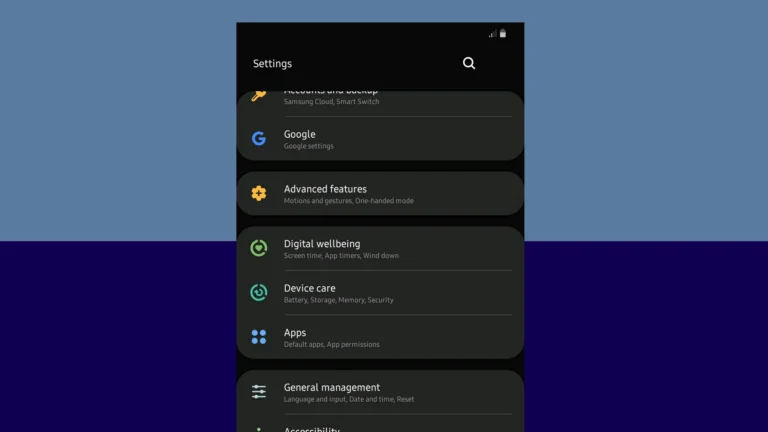
- Scroll down and tap System (may be called “General management” on Samsung devices)
- Tap Reset options (or just “Reset”)
- Select Erase all data (factory reset) or Factory data reset
- Review the list of accounts and data that will be removed
- Tap Reset phone or Erase all data
- If prompted, enter your PIN, password, or pattern
- Tap Erase everything to confirm
- Your phone will restart and begin the reset process
The entire process typically takes 10-30 minutes. Once complete, your phone will reboot to the initial setup screen.
Note: The exact menu names and locations may vary depending on your Android version and phone manufacturer (Samsung, Google Pixel, OnePlus, Xiaomi, etc.).
Manufacturer-Specific Paths
Samsung:
- Settings > General management > Reset > Factory data reset
Google Pixel:
- Settings > System > Reset options > Erase all data (factory reset)
OnePlus:
- Settings > System > Reset options > Erase all data
Xiaomi/Redmi:
- Settings > About phone > Factory reset > Erase all data
Motorola:
- Settings > System > Reset options > Erase all data (factory reset)
Method 2: Factory Reset Using Recovery Mode
If your phone is frozen, unresponsive, or you’ve forgotten your password, you can perform a factory reset using Recovery Mode (source: WikiHow). This method operates outside the Android OS.
Step-by-step instructions:
- Power off your Android phone completely
- Press and hold the correct button combination for your device:
- Most devices: Volume Up + Power button
- Samsung: Volume Up + Power button (older models may include Home button)
- Google Pixel: Volume Down + Power button, then use volume buttons to select Recovery
- Continue holding until you see the Android logo or Recovery menu
- Use the Volume buttons to navigate through the menu
- Highlight Wipe data/factory reset (or “Recovery mode” first on some devices)
- Press the Power button to select
- Navigate to Yes or Factory data reset
- Press Power to confirm
- Wait for the process to complete
- Select Reboot system now
- Press Power to restart
Common Recovery Mode Button Combinations:
- Samsung: Volume Up + Power
- Google Pixel: Volume Down + Power
- OnePlus: Volume Down + Power
- Xiaomi: Volume Up + Power
- Motorola: Volume Down + Power
- LG: Volume Down + Power
If the first combination doesn’t work, try the alternative or search for your specific phone model’s recovery mode instructions.
Method 3: Reset Using Find My Device (Remote Reset)
If your phone is lost, stolen, or you can’t access it physically, you can perform a remote factory reset using Google’s Find My Device (source: Android Authority).
Requirements:
- Your phone must be connected to the internet
- Location services must be enabled
- You must be signed into your Google account
Step-by-step instructions:
- Go to android.com/find on any computer or device
- Sign in with the Google account linked to your phone
- Select your device from the list
- Click Erase device
- Confirm by clicking Erase again
- Your phone will be factory reset remotely
Important: Once erased, you won’t be able to locate the device anymore.
Method 4: Reset Using ADB (Advanced Users)
For tech-savvy users, Android Debug Bridge (ADB) allows you to reset your phone from a computer.
Requirements:
- ADB installed on your computer
- USB debugging enabled on your phone (before issues occur)
- USB cable
Instructions:
- Connect your phone to computer via USB
- Open command prompt/terminal
- Type:
adb devicesto verify connection - Type:
adb shell recovery --wipe_data - Or:
adb reboot recoverythen use hardware buttons to factory reset
Soft Reset vs. Factory Reset: What’s the Difference?
Soft Reset (Restart)
- Simply restarts your phone
- No data is lost
- Fixes minor glitches and freezes
- Press and hold Power button > Restart
Hard Reset (Factory Reset)
- Erases all data and settings
- Returns phone to factory condition
- Fixes major software issues
- Requires backup and setup afterward
When Should You Factory Reset Your Android Phone?
Consider a factory reset in these situations:
- Performance issues: Phone is extremely slow or laggy
- Persistent crashes: Apps or system constantly crashes
- Storage problems: Internal storage is full and causing issues
- Selling or giving away: Preparing phone for a new owner
- Malware infection: Virus or malware that won’t remove
- Forgotten password: Locked out of your device
- Software glitches: Persistent bugs after updates
- Before repair: Protecting your data before service
- Fresh start: Want to clean up and reorganize
Troubleshooting Common Reset Issues
Phone Won’t Enter Recovery Mode
- Ensure device is completely powered off
- Try different button combinations
- Charge battery to at least 50%
- Look up your specific model’s instructions
Factory Reset Stuck or Frozen
- Wait at least 30 minutes as some resets take time (source: Android Authority)
- If still stuck after 30+ minutes, force restart
- Try recovery mode method instead
- Contact manufacturer support
Factory Reset Protection (FRP) Lock
- Google’s security feature prevents unauthorized access after reset
- You must sign in with the Google account previously used on the device
- If you forgot credentials, recover your Google account first
- Visit accounts.google.com/signin/recovery
Can’t Remember Google Account Password
- Use Google account recovery before resetting
- FRP will lock you out after reset if you can’t provide credentials
- Contact Google support for account recovery help
Reset Doesn’t Fix the Problem
- Issue may be hardware-related
- Try booting in Safe Mode first to diagnose
- Contact manufacturer or authorized service center
- May need professional repair
After the Factory Reset: Setting Up Your Phone
Once the reset completes, you’ll need to set up your device:
- Select language and region
- Connect to Wi-Fi network
- Sign in to your Google account
- Restore from backup (if available)
- Set up security (PIN, password, fingerprint, face unlock)
- Reinstall apps from Play Store
- Restore photos from Google Photos
- Configure settings to your preferences
- Re-download files from cloud storage
- Set up accounts (email, social media, etc.)
Alternatives to Factory Reset
Before performing a factory reset, try these less drastic solutions:
1. Restart Your Phone
- Simple restart can fix many issues
- Hold Power button > Restart
2. Clear App Cache
- Settings > Apps > Select app > Storage > Clear cache
- Doesn’t delete app data, just temporary files
3. Boot in Safe Mode
- Helps identify if third-party apps cause problems
- Hold Power button > Press and hold “Power off” > OK to reboot in Safe Mode
4. Uninstall Problematic Apps
- Remove recently installed apps causing issues
- Settings > Apps > Select app > Uninstall
5. Clear System Cache (via Recovery Mode)
- Enter Recovery Mode
- Select “Wipe cache partition”
- This doesn’t delete personal data
6. Update Software
- Settings > System > System update
- Install latest Android version and security patches
7. Free Up Storage Space
- Delete unused apps and files
- Clear downloads folder
- Move photos to cloud storage
8. Reset Specific Settings
- Reset network settings only
- Reset app preferences
- Doesn’t erase personal data
Factory Reset vs. Other Reset Options
Modern Android phones offer several reset options (source: Android.com):
Reset Wi-Fi, mobile & Bluetooth:
- Only resets network settings
- Doesn’t affect apps or data
Reset app preferences:
- Resets all app settings to default
- Doesn’t delete app data
Erase all data (factory reset):
- Complete wipe of everything
- Returns phone to factory condition
How to Reset Samsung Galaxy Tab
Resetting a Samsung Galaxy tablet can solve many common problems like freezing, slow performance, or forgotten passwords. When your device isn’t working properly, a reset can give it a fresh start by clearing out software issues. You can reset a Samsung Galaxy tablet by going to Settings > General management > Reset > Factory data reset, or by using recovery mode with the Volume Up + Power button combination if you’re locked out.
Before performing a reset, it’s important to back up your data since a factory reset will erase all your personal information, apps, and settings. Many Samsung tablets include backup options through Samsung Cloud or Google services. Taking a few minutes to save your photos, contacts, and important files will save you headaches later.
Key Takeaways
- Factory resetting a Samsung tablet erases all data but fixes most software problems and removes forgotten passwords or screen locks.
- Always back up your data to Samsung Cloud or Google before performing any type of reset to avoid permanent loss.
- For locked tablets, recovery mode using hardware buttons provides a way to reset when you can’t access the settings menu.
Understanding Factory Resets for Samsung Tablets
A factory reset is a process that returns your Samsung Galaxy tablet to its original state, as if it just came out of the box. This procedure removes all personal data, downloaded apps, and customized settings from your device.
Factory resets are useful in several situations. If your tablet is running slowly, experiencing glitches, or you plan to sell it, a reset can help solve these issues.
When you perform a factory data reset, your Samsung tablet will erase everything stored on the internal memory. This includes photos, videos, contacts, music, and apps you’ve downloaded.
There are two main ways to reset a Samsung tablet. The first method is through the Settings menu, which is accessible when your tablet is working normally. Look under General management > Reset > Factory data reset to find this option.
The second method is often called a hard reset. This is done through the recovery mode when your tablet won’t turn on properly or you can’t access the settings menu.
To enter recovery mode on most Samsung tablets, you need to press and hold specific button combinations. For many models, holding the Volume Up + Power buttons works to access the wipe data option.
Before performing any reset, remember to:
- Back up important data
- Remove your Google account
- Take out any SD cards
- Charge your battery to at least 50%
The reset process typically takes 5-10 minutes to complete. After the reboot system phase finishes, your Samsung Galaxy Tab will restart as a fresh device.
Preparing to Reset Your Samsung Galaxy Tablet
Before performing a factory reset on your Samsung Galaxy tablet, proper preparation is essential to avoid data loss and ensure a smooth process. Taking time to back up important information and check battery levels can save you from frustration later.
Backing Up Data
Resetting your Samsung tablet will erase all personal data, including photos, videos, contacts, and downloaded apps. This makes creating backups critical before proceeding.
Start by connecting your tablet to a computer (Windows PC or Mac) using a USB cable. Once connected, you can transfer photos, videos, and documents directly to your computer’s storage.
For contacts and calendar items, sync them with your Samsung or Google account. Open Settings, tap Accounts and backup, then select Manage accounts to ensure everything is syncing properly.
Apps and their data require special attention. Many apps store information in the cloud, but others keep it only on your device. Check important apps’ settings to verify where your data is stored.
Don’t forget to back up text messages if they’re important. You can use Samsung’s Smart Switch app to create a complete backup of your tablet’s contents.
Ensuring Battery Life
A Samsung tablet needs sufficient battery charge before starting the reset process. If your device powers off during reset, it could potentially become unusable.
Make sure your tablet has at least 50% battery life before beginning the reset process. Better yet, connect it to a power source throughout the procedure to eliminate any risk of power loss.
If your battery is old or drains quickly, charge it fully before starting and keep it plugged in during the entire reset process. This prevents interruptions that might corrupt the operating system.
Cold temperatures can affect battery performance, so reset your device in a room-temperature environment. If your tablet feels unusually hot, let it cool down before proceeding with the reset.
Performing a Soft Reset on Samsung Tablet
A soft reset is the simplest way to restart your Samsung tablet when it freezes or experiences minor issues. This process doesn’t delete any of your data and can solve many common problems with your device.
Soft Reset Through Device Settings
The easiest way to perform a soft reset on your Samsung Galaxy tablet is through the device settings. This method works when your tablet is still responsive to touch commands.
Press and hold the power button for a few seconds until the power menu appears on screen. You’ll see several options displayed.
Tap on the Restart or Reboot option from the menu. Your tablet will then shut down and restart automatically.
If your tablet is completely frozen but still on, you can try accessing the notification panel by swiping down from the top of the screen. Look for the power icon and tap it to bring up the power menu.
For Samsung Galaxy Tab A users, you might find a Device care option in Settings that can optimize performance before trying a reset.
Soft Reset Using Hardware Keys
When your tablet is unresponsive to touch, using hardware buttons is the most effective method to force a restart.
Press and hold both the Power button and Volume Down button simultaneously for about 7-10 seconds. Keep holding until the screen goes black, which indicates the device is shutting down.
Once the screen is off, release the buttons and wait a few seconds. Then press the power button to turn your tablet back on.
For older Samsung tablets with a physical home button, you might need to press and hold the Power button + Volume Up button + Home key until you see the Samsung logo.
If your tablet has a locked screen and you can’t remember the PIN, you can still perform a soft reset without losing data by holding Power + Volume Down.
The Samsung Galaxy Tab S8 Ultra and similar newer models might require you to hold the buttons for slightly longer, about 10-15 seconds before the screen turns off.
Executing a Hard Reset on Samsung Tablet
When your Samsung tablet is unresponsive or you need to clear all data, a hard reset is the solution. This process returns your device to factory settings and removes all personal information.
Hard Reset via Recovery Mode
A hard reset through recovery mode works even when your tablet won’t turn on normally or you’re locked out. This method doesn’t require your password or PIN.
First, power off your Samsung tablet completely. Then press and hold both the Volume Up and Power buttons simultaneously until the Android Recovery screen appears (typically 10-15 seconds).
Once in recovery mode, you’ll see a black screen with text options. Use the volume buttons to navigate to “Wipe data/factory reset” and press the Power button to select it.
The system will ask for confirmation. Select “Yes” to proceed with the reset. This process may take several minutes to complete.
After the reset finishes, select “Reboot system now” to restart your tablet with factory settings.
Hard Reset Through Samsung Find My Mobile
If you can’t access your tablet but remember your Samsung account credentials, Find My Mobile offers a remote reset option.
Visit the Samsung Find My Mobile website on a computer or another device. Log in with the same Samsung account linked to your tablet.
Once logged in, select your tablet from the list of devices. Click on “Erase data” or “Factory reset” from the available options on the left side menu.
The website will show a warning that all data will be erased. Confirm your choice by clicking “Erase” or “Reset.”
Your tablet will reset remotely when it connects to the internet. This method is particularly useful if your device is locked and you cannot access it physically.
Remember that this method requires your tablet to be connected to the internet and linked to your Samsung account beforehand.
Resetting Samsung Galaxy Tablet Without Password
Forgetting your Samsung Galaxy tablet password can be frustrating, but there are reliable methods to regain access to your device. These approaches don’t require your password and can be performed with minimal technical knowledge.
Using Google Find My Device
Google Find My Device offers a straightforward solution for locked Samsung tablets. This service allows you to reset your tablet remotely if you’ve previously logged into your Google account on the device.
To use this method:
- Visit the Find My Device website on another device
- Sign in with the same Google account connected to your tablet
- Select your tablet from the list of devices
- Choose the “Erase Device” option
This process will completely wipe your tablet, removing the password protection. The tablet will reset to factory settings, eliminating all personal data and installed apps.
Remember that this method only works if your tablet is connected to the internet and your Google account is properly linked to the device.
Utilizing Android Unlocker Tools
When Google Find My Device isn’t an option, specialized Android unlocking software can help reset a Samsung tablet without password. These third-party tools are designed specifically for bypassing lock screens.
Popular Android unlocker tools include Dr.Fone, iMyFone LockWiper, and 4uKey for Android. Using these tools typically involves:
- Installing the software on a computer
- Connecting the tablet via USB cable
- Following the program’s instructions to remove the lock screen
Alternatively, users can try the hardware button method. This involves:
- Powering off the tablet completely
- Pressing and holding specific button combinations (usually Volume Up + Power buttons)
- Selecting Data Wipe + Factory reset from the recovery menu using volume buttons to navigate
This hardware method works even without internet connectivity and doesn’t require additional software.
Security and Privacy Considerations
When resetting a Samsung Galaxy tablet, protecting your personal information is crucial. Taking proper security measures before and after the reset helps safeguard your data and prevents unauthorized access.
Before Factory Resetting the Device
Before performing a factory reset on your Samsung tablet, back up all important data to avoid permanent loss. Your photos, documents, contacts, and app data will be completely erased during the reset process.
Make sure to disable security features like fingerprint recognition and facial scanning. If your tablet has a password, PIN, or pattern lock, have it ready as you’ll need it to authorize the reset.
Remember to sign out of all accounts, especially your Samsung and Google accounts. This helps prevent potential Google FRP (Factory Reset Protection) lock issues later. FRP is designed to prevent unauthorized resets, but it can cause problems if not properly addressed.
For tablets with SD cards, consider removing them before resetting to protect that data from erasure.
After Factory Resetting the Device
Once your Samsung Galaxy tablet has been reset to factory settings, set up strong security measures immediately. Create a new secure password or PIN that combines letters, numbers, and special characters.
Enable biometric security options like fingerprint scanning if available on your device. This adds an extra layer of protection beyond traditional passwords.
Restore your data selectively rather than all at once. This gives you an opportunity to review what’s being reinstalled and avoid restoring potentially problematic apps or files.
Consider enabling Samsung’s privacy settings for keeping your app usage, location data, and passwords secure. These features help protect your information from potential vulnerabilities.
If you’re selling or giving away your tablet, ensure all personal data has been completely erased. Even after a factory reset, some data recovery might be possible with specialized tools.
Troubleshooting Post-Reset Issues
Factory resetting a Samsung Galaxy tablet can resolve many problems, but sometimes new issues arise afterward. These common post-reset challenges can usually be fixed with some targeted troubleshooting steps.
Dealing with Boot Loops
Boot loops occur when a Samsung tablet repeatedly restarts without fully loading the operating system. This frustrating issue often happens after a factory reset that didn’t complete properly.
To fix a boot loop, first try a forced restart by holding down the Power and Volume Down buttons simultaneously for 10-15 seconds. If that doesn’t work, try booting into recovery mode:
- Power off the tablet completely
- Press and hold Volume Up + Power button together
- Release when the Android Recovery screen appears
- Use volume buttons to navigate to “Wipe cache partition”
- Press Power button to select it
For persistent boot loops, a complete system reflash might be necessary using Samsung Smart Switch software on a computer. This reinstalls the operating system from scratch.
Recovering Lost Data
Data loss is an unfortunate reality after factory resets, but recovery options exist. If you didn’t back up before resetting, try these approaches:
First, check if your data is recoverable from cloud services. Samsung tablets typically sync with:
- Samsung Cloud – photos, contacts, calendar
- Google account – app data, contacts, Drive files
- Microsoft/Outlook – emails, calendar events
For files not backed up to cloud services, connect your tablet to a computer and try data recovery software like Dr.Fone or Disk Drill. Success rates vary based on how much the device has been used since the reset.
Remember to sign in with the exact same Google account used before the reset to restore any Google-backed-up data.
Addressing Network Issues
Network connectivity problems frequently occur after factory resets on Samsung tablets. Wi-Fi, Bluetooth, and mobile data may need reconfiguration.
For Wi-Fi issues, try these steps:
- Toggle Airplane mode on/off
- Manually re-enter Wi-Fi passwords
- Reset network settings: Settings > General Management > Reset > Reset Network Settings
Bluetooth pairing problems can usually be fixed by clearing the Bluetooth cache:
- Go to Settings > Apps
- Tap the three dots and select “Show system apps”
- Find Bluetooth app and clear cache/data
For cellular connectivity issues on LTE/5G tablets, ensure the APN settings are correct. Contact your carrier for the proper settings if needed. Sometimes, removing and reinserting the SIM card also resolves stubborn connection problems.
If all else fails, a second factory reset might be necessary, but be sure to back up any recovered data first.
Alternative Tools and Services
If regular reset methods don’t work for your Samsung Galaxy tablet, specialized software tools can help. These alternatives can be particularly useful when dealing with locked screens or forgotten passwords.
Tenorshare 4uKey for Android
Tenorshare 4uKey for Android is a specialized tool designed to help users unlock Samsung tablet screens when they’re locked out. This software can remove various screen locks including PIN, pattern, password, and fingerprint locks.
The program works with multiple Samsung Galaxy Tab models, including the popular Samsung Galaxy Tab A series. Users need to download and install the software on their computer, then connect their tablet using a USB cable.
4uKey for Android can bypass the lock screen without requiring the original password. However, users should note that using this tool will result in data loss similar to a factory reset.
The software requires purchase after a trial period, with prices varying based on license duration.
Other Software Solutions
Several alternative software options exist for users needing to reset Samsung Galaxy tablets. Dr.Fone is a comprehensive toolkit that includes reset and unlock capabilities for Samsung devices experiencing various issues.
Google’s Find My Device service can remotely reset Samsung tablets if the device is connected to the internet and linked to a Google account. This option is useful when the tablet is lost or stolen.
Samsung’s own Find My Mobile service provides similar functionality for remotely unlocking or resetting devices. Users must have previously registered their tablet with a Samsung account.
Some users find success with Android Multi Tools, which can bypass screen locks through ADB commands. These tools typically require enabling USB debugging beforehand.
Frequently Asked Questions
Resetting a Samsung Galaxy tablet can solve many common issues. Here are answers to the most common questions about tablet resets, including methods using buttons, bypassing passwords, and troubleshooting reset problems.
What are the steps to perform a factory reset on a Samsung Galaxy tablet with buttons?
If you can’t access your tablet settings, you can use the hardware buttons to perform a factory reset. First, power off your tablet completely.
Next, press and hold the Volume Up button and the Power button simultaneously until the device vibrates and shows the recovery screen. This might take 10-15 seconds.
When the “No Command” screen appears, use the Volume buttons to navigate to “Wipe data/factory reset” and press the Power button to select it. Select “Yes” to confirm the reset.
How can I reset a Samsung Galaxy tablet if I have forgotten my password?
If you’ve forgotten your password, you can reset your tablet using the recovery mode. Turn off your tablet completely.
Press and hold Volume Up and Power buttons simultaneously until you see the recovery menu. Use Volume buttons to navigate to “Wipe data/factory reset” and select it with the Power button.
Once the reset is complete, your tablet will restart without the password, but all data will be erased. Make sure to back up important files whenever possible.
Is it possible to restore factory settings on a Samsung Galaxy tablet without a password?
Yes, you can restore factory settings without a password using the recovery mode method. Power off your tablet completely.
Press Volume Up and Power buttons together until you see the Android recovery screen. Use Volume buttons to navigate to “Wipe data/factory reset” and select with the Power button.
This process will erase all data but will remove any password protection. Your tablet will restart fresh as if it was new.
How to bypass a forgotten password on a Samsung Galaxy Tab A without a factory reset?
Unfortunately, Samsung’s security features make it difficult to bypass a password without performing a factory reset. If you’ve set up Find My Device, you may try to unlock it remotely.
Log into your Samsung account on another device and use the Find My Device feature to unlock your tablet. This only works if the tablet is connected to the internet.
If you’ve made many incorrect password attempts, the tablet may be locked for security reasons. In most cases, a factory reset will be necessary.
What should I do if the hard reset function is not working on my Samsung Galaxy Tab A?
If the standard reset methods aren’t working, try charging your tablet for at least 30 minutes to ensure it has enough power. Some tablets won’t reset with a low battery.
Make sure you’re pressing the correct button combination. For most Samsung tablets, it’s Volume Up + Power, but some models might use different combinations.
If the recovery menu appears but the “Factory reset” option is missing, try using the Settings menu approach instead. Go to Settings > General Management > Reset > Factory Data Reset.
How to conduct a Samsung Galaxy tablet factory reset when I don’t have access to the registered email and password?
Without access to your registered email and password, you’ll need to use the hardware button method to reset your tablet. Power off your device completely.
Press and hold Volume Up + Power buttons until you see the recovery menu. Use Volume buttons to navigate to “Wipe data/factory reset” and select with the Power button.
After the reset, you’ll need to set up your tablet as new. Note that you may encounter Factory Reset Protection (FRP), which requires the previous Google account credentials.