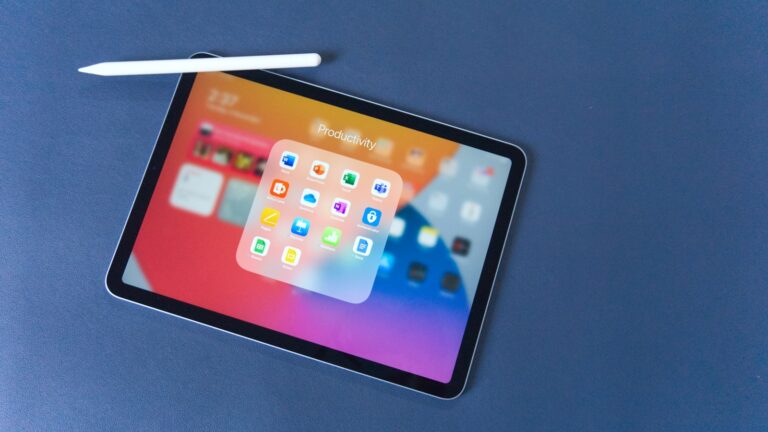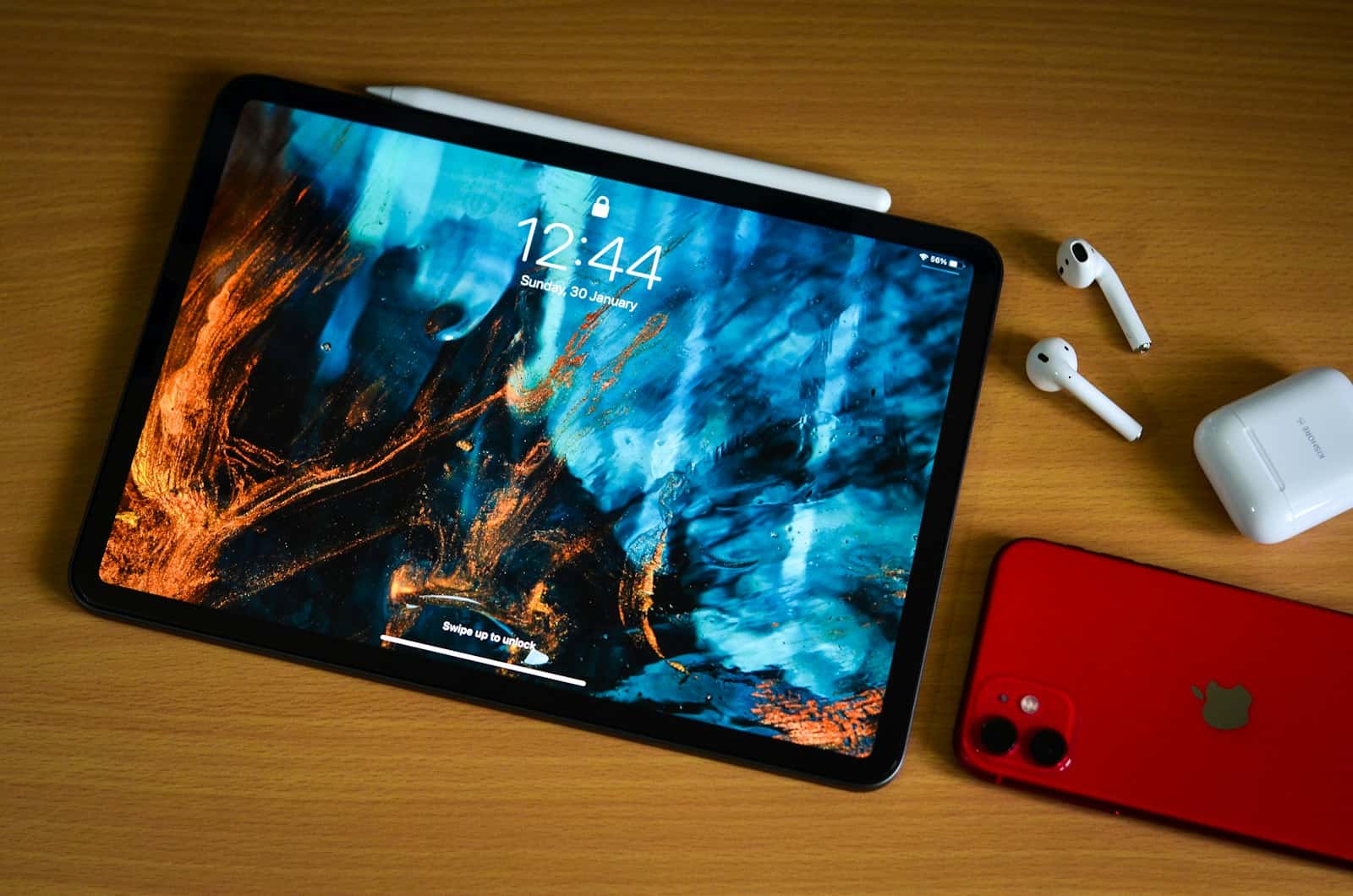
Screen recording on an iPad with sound is a useful feature for creating tutorials, capturing gameplay, or sharing app experiences. To screen record on iPad with sound, add the Screen Recording control to Control Center, then tap and hold the control to enable audio before starting the recording. This process allows users to capture both visual and audio elements from their device.
iPad users can customize their screen recordings by choosing to include internal audio, external microphone input, or both. The built-in screen recording tool offers flexibility for various purposes, from educational content creation to personal use.
How to Screen Record on iPad with Sound
Screen recording on your iPad is a built-in feature that lets you capture everything happening on your screen, along with audio. Here’s how to do it:
Step 1: Add Screen Recording to Control Center
First, you need to ensure the Screen Recording feature is accessible:
- Open Settings on your iPad
- Tap Control Center
- Scroll down to More Controls
- Find Screen Recording and tap the + button to add it
Step 2: Enable Microphone Audio
To record sound along with your screen:
- Open Control Center (swipe down from the top-right corner on iPads without a Home button, or swipe up from the bottom on older models)
- Press and hold the Screen Recording button (the circle with a dot inside)
- Tap the Microphone icon to turn it on (it should turn red when enabled)
- This will allow you to record external audio from your microphone (source: Apple Support)
Step 3: Start Recording
- Tap Start Recording
- A 3-second countdown will begin
- Control Center will close automatically, and a red indicator will appear at the top of your screen showing that recording is active
Step 4: Stop Recording
When you’re finished:
- Tap the red status bar at the top of your screen, or
- Open Control Center again and tap the Screen Recording button
- Tap Stop to end the recording
Your screen recording will automatically save to the Photos app.
Important Notes
- Internal audio (sounds from apps, videos, games) is automatically captured during screen recording
- External audio (your voice through the microphone) requires you to enable the microphone as described in Step 2 (source: Hollyland)
- Some apps may block screen recording due to privacy restrictions
This feature works across all recent iPadOS versions, making it easy to create tutorials, capture gameplay, or record any content on your screen with sound (source: MacObserver).
Key Takeaways
- Screen recording on iPad requires adding the feature to Control Center first
- Users can capture internal audio, external sound, or both during recordings
- Screen recordings are saved to the Photos app for easy access and sharing
Getting Started with Screen Recording on iPad
Screen recording on iPad allows users to capture their device’s display and audio. This feature is useful for creating tutorials, sharing gameplay, or demonstrating app functionality.
Understanding the Screen Recording Feature
The screen recording feature on iPad captures everything happening on the device’s display. Users can record the entire screen, including audio from apps or their own voice. This tool is built into iPadOS, making it easy to access and use.
Screen recordings are saved as video files in the Photos app. Users can edit, share, or delete these recordings like any other video on their iPad. The feature works across all apps and can capture both system sounds and external audio through the iPad’s microphone.
Enabling Screen Recording in Settings
To use screen recording, users must first add it to the Control Center. This process involves a few simple steps in the iPad’s Settings app:
- Open the Settings app
- Tap “Control Center”
- Scroll down to “More Controls”
- Find “Screen Recording” and tap the green plus icon
Once added, users can access screen recording by swiping down from the top-right corner of the screen to open Control Center. The screen recording button appears as a circular icon with a dot inside.
Users can customize additional options for screen recording in Settings. These include choosing whether to save recordings to the Camera Roll or another location, and setting preferences for microphone audio capture.
Performing a Screen Recording with Sound
Screen recording with sound on an iPad is a straightforward process. Users can capture both internal audio from apps and external audio through the device’s microphone.
Using the Control Center to Record
To start a screen recording, open Control Center by swiping down from the top-right corner of the iPad screen. Look for the screen recording button, which appears as a circle inside another circle. Press and hold this button to access additional options.
Before starting the recording, tap the microphone icon to enable audio capture. This ensures the iPad records sound along with the video. Once settings are configured, tap “Start Recording” to begin.
A three-second countdown will appear before the recording starts. The status bar turns red to indicate active recording. Navigate through apps or perform actions as needed during the recording.
Incorporating Internal and External Audio
iPads can record both internal app sounds and external audio via the microphone. For internal audio, ensure the device’s volume is turned up. Apps like games, videos, or music players will be captured in the recording.
To record external sound, enable the microphone in the screen recording options. This allows the iPad to pick up voice narration or ambient sounds. Users can switch between internal and external audio sources during recording.
For the best audio quality, speak clearly and stay close to the iPad’s microphone. Minimize background noise when recording external audio. Remember that system sounds, such as keyboard clicks, may also be captured in the recording.
Managing Screen Recordings
Screen recordings on iPad need proper organization and editing for effective use. The Photos app provides a central location for accessing and managing recordings, while built-in tools allow for basic edits and sharing.
Accessing and Managing Recordings in Photos App
The Photos app automatically stores screen recordings after capture. Users can find their recordings in the “Recents” album or by searching for “screen recording” in the Photos app. The app organizes recordings chronologically, making it easy to locate specific videos.
To manage storage, users can delete unwanted recordings by selecting the video and tapping the trash icon. For better organization, create albums specifically for screen recordings. This helps separate them from other photos and videos.
The Photos app also allows users to view recording details like date, time, and duration. This information aids in identifying and sorting recordings efficiently.
Editing and Sharing Your Screen Recordings
The Photos app offers basic editing tools for screen recordings. Users can trim the length of recordings by adjusting the start and end points. This feature is useful for removing unwanted sections at the beginning or end of a recording.
To edit, select the recording and tap “Edit” in the top right corner. Use the slider at the bottom to trim the video. The app also provides options to adjust brightness, contrast, and saturation.
For sharing, tap the share icon and choose from various options like Messages, Mail, or AirDrop. Users can also save recordings to Files or upload them to cloud services. For more advanced editing, third-party video editing apps offer additional features and effects.
Advanced Screen Recording Tips
Screen recording on iPad can be enhanced with some advanced techniques. These tips will help users create higher quality recordings and explore additional tools.
Utilizing Do Not Disturb Mode During Recordings
Do Not Disturb mode is a valuable feature for screen recording. It prevents notifications from interrupting the recording process. Users can activate this mode by swiping down from the top-right corner of the screen and tapping the crescent moon icon.
Do Not Disturb silences calls, alerts, and notifications while the iPad is locked. For screen recording, it ensures a clean, distraction-free video. Users can customize Do Not Disturb settings in the Settings app under Focus.
Some users prefer to schedule Do Not Disturb mode during specific recording times. This automation helps maintain consistency in longer recording sessions or frequent tutorial creations.
Exploring Third-Party Screen Recording Apps
While the built-in screen recording feature on iPad is useful, third-party apps offer additional functionality. These apps can provide more advanced editing tools, custom overlays, and improved audio options.
Popular screen recording apps include DU Recorder, Record it!, and AZ Screen Recorder. These apps often allow users to add facecam recordings, draw on the screen, and adjust video quality settings.
Some third-party apps integrate well with the Apple Pencil, enabling users to create annotated tutorials easily. This feature is particularly useful for educational content or detailed how-to guides.
Users should consider their specific needs when choosing a third-party app. Factors to evaluate include ease of use, export options, and compatibility with other editing software.
Frequently Asked Questions
Screen recording on iPad with sound involves several key steps and considerations. Users often encounter common issues and have specific questions about the process.
How do you enable sound when screen recording on an iPad?
To enable sound for screen recording on an iPad, open Control Center and long-press the screen recording button. Tap the microphone icon to turn it on. This ensures both internal audio and external sounds are captured during the recording.
Why doesn’t my screen recording capture audio on my iPad?
If audio isn’t captured during screen recording, check if the microphone is enabled in Control Center. Some apps may restrict audio recording. Ensure the iPad’s volume is turned up and no silent mode or mute settings are active.
What steps are involved to record both screen and audio on an iPad using Zoom?
To record screen and audio on an iPad using Zoom, start a Zoom meeting. Tap “Share Content” and select “Screen”. Choose “Start Broadcast” and begin the Zoom recording. This captures both the iPad screen and any audio playing through the device or microphone.
Is it possible to record the screen with audio on an iPhone, and does the method differ from an iPad?
Screen recording with audio on an iPhone is possible and follows a similar process to the iPad. Add the screen recording option to Control Center in Settings. Tap the record button and enable the microphone to capture audio along with the screen content.
How can one activate screen recording on an iPad?
To activate screen recording on an iPad, add the screen recording button to Control Center through Settings. Open Control Center by swiping down from the top-right corner. Tap the screen recording button to start. A three-second countdown appears before recording begins.
Can you explain the procedure for recording your screen with audio on the latest iPhone models?
For the latest iPhone models, the procedure remains consistent. Access Control Center by swiping down from the top-right corner. Long-press the screen recording button and enable the microphone. Tap “Start Recording” to begin. The process captures both screen activity and audio.