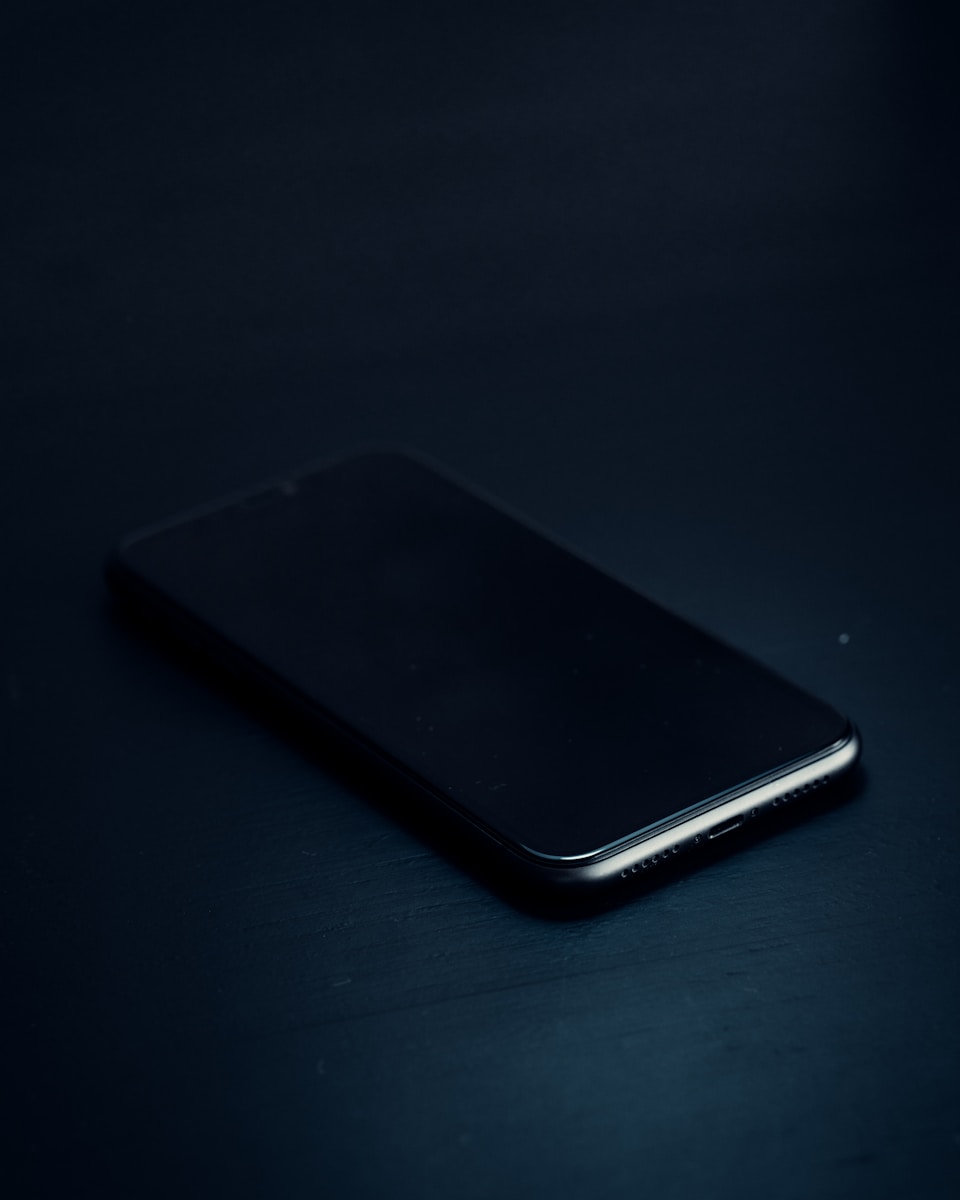
An unresponsive iPhone 11 can be frustrating. A force restart often solves the issue when an iPhone 11 won’t turn on. This simple fix involves pressing specific buttons in sequence to reboot the device.
If the force restart doesn’t work, the problem may be more complex. The iPhone could have a drained battery, faulty charging equipment, or hardware damage. Software issues like frozen apps or system crashes can also prevent the device from powering on.
Troubleshooting an iPhone 11 that won’t turn on requires a systematic approach. Users should start with basic solutions and progress to more advanced fixes if needed. In some cases, professional repair or replacement may be necessary.
iPhone 11 Won’t Turn On: Quick Troubleshooting Guide
If your iPhone 11 won’t turn on or has a black screen, don’t panic. Here are the most effective solutions to get your device working again.
1. Force Restart Your iPhone 11
This is the first thing you should try, as it resolves many power-related issues:
- Press and quickly release the Volume Up button
- Press and quickly release the Volume Down button
- Press and hold the Side button until you see the Apple logo (about 10 seconds)
This won’t erase your data and often fixes temporary software glitches (source: Apple Support).
2. Charge Your iPhone
Your battery might be completely drained:
- Use an original or certified charging cable and adapter
- Plug it into a wall outlet (not a computer USB port)
- Wait at least 15-30 minutes before trying to turn it on
- Look for the charging icon on the screen
If you don’t see a charging indicator after 30 minutes, there may be a charging port issue.
3. Check Your Charging Cable and Adapter
- Inspect the Lightning cable for damage or fraying
- Check the charging port for lint, debris, or damage
- Try a different cable and power adapter
- Test with a different power outlet
4. Inspect the Screen
Sometimes the iPhone is on, but the screen appears black:
- Check if the screen is physically damaged
- Try adjusting the brightness by pressing the volume buttons
- Listen for notification sounds or vibrations
- Try calling your phone from another device
5. Connect to a Computer
Try connecting your iPhone to a computer with iTunes/Finder:
- Connect your iPhone 11 to a Mac or PC
- Open iTunes (Windows/older Mac) or Finder (newer Mac)
- If your device appears, try updating or restoring it
- If it doesn’t appear, try force restarting while connected
6. Check for Hardware Issues
Physical damage can prevent your iPhone from turning on:
- Water damage: Even if your iPhone 11 is water-resistant, liquid damage can occur
- Drop damage: Internal components may be damaged
- Battery failure: Batteries degrade over time and may need replacement
(source: iPhone Medic)
7. Enter Recovery Mode
If software issues are preventing startup:
- Connect your iPhone to a computer
- Force restart using the button sequence above, but keep holding the Side button even after the Apple logo appears
- Continue holding until you see the recovery mode screen
- Choose “Update” to reinstall iOS without erasing data
8. Contact Apple Support
If none of these solutions work, you likely have a hardware problem:
- Visit an Apple Store or Apple Authorized Service Provider
- Check if your device is under warranty or AppleCare+
- Get a professional diagnostic
(source: Apple Support)
Prevention Tips
- Keep your iOS updated
- Avoid exposing your iPhone to extreme temperatures
- Use quality charging accessories
- Don’t let your battery completely drain regularly
Most iPhone 11 power issues can be resolved with a force restart or proper charging. If basic troubleshooting doesn’t work, professional repair may be necessary.
Key Takeaways
- Force restart is the first step to try when an iPhone 11 won’t turn on
- Check charging equipment and battery health if the device remains unresponsive
- Seek professional help if basic troubleshooting steps fail to resolve the issue
Preliminary Checks and Simple Fixes
When an iPhone 11 won’t turn on, there are two primary areas to examine: battery charge and system responsiveness. These initial steps can often resolve the issue without needing professional assistance.
Assessing Charge Issues
Check the charging cable and power adapter for any visible damage. Try a different cable or adapter if available. Plug the iPhone into a power source and wait 15-30 minutes. If the battery was completely drained, it may take time for the charging icon to appear.
Look for a red battery icon on the screen. This indicates the device is charging but lacks sufficient power to turn on. Continue charging for at least an hour.
Clean the charging port gently with a soft brush to remove any debris that might prevent proper connection. Ensure the iPhone is not exposed to extreme temperatures, as this can affect battery performance.
Performing a Force Restart
A force restart can resolve software glitches causing the device to appear unresponsive. For iPhone 11, follow these steps:
- Press and quickly release the volume up button.
- Press and quickly release the volume down button.
- Press and hold the side button until the Apple logo appears (about 10 seconds).
Release the side button when the logo is visible. If successful, the iPhone should boot up normally. This process does not erase data and is safe to perform multiple times if needed.
If the force restart doesn’t work, connect the iPhone to a computer and try to restore it using iTunes or Finder. This step may require professional help if unsuccessful.
Addressing Software Concerns
Software issues can often cause an iPhone 11 to appear unresponsive. Updating the iOS or restoring factory settings may resolve these problems.
Updating iOS via iTunes or Finder
Connecting the iPhone 11 to a computer with iTunes or Finder can help update the device’s software. This method is useful when the phone won’t turn on normally. Users should download the latest version of iTunes or use Finder on macOS Catalina or later.
Steps to update via iTunes/Finder:
- Connect iPhone to computer with a USB cable
- Open iTunes or Finder
- Select the iPhone when it appears
- Click “Check for Update“
- Choose “Download and Update”
If the iPhone isn’t recognized, users may need to put it in recovery mode. This involves pressing and quickly releasing the volume up and down buttons, then holding the side button until the recovery mode screen appears.
Restoring to Factory Settings
A factory reset can fix persistent software issues but erases all data on the device. It’s crucial to back up important information before proceeding.
To restore factory settings:
- Connect iPhone to computer
- Open iTunes or Finder
- Select the device
- Click “Restore iPhone”
- Follow on-screen instructions
If the standard restore fails, users can try putting the iPhone in recovery mode first. This process is similar to the update method but involves selecting “Restore” instead of “Update” when prompted.
After restoring, the iPhone will restart as a new device. Users can then set it up as new or restore from a backup.
Hardware Troubleshooting
When an iPhone 11 won’t turn on, hardware issues may be the culprit. Physical damage and faulty components can prevent the device from powering up. Careful inspection and professional assistance are often necessary to resolve these problems.
Inspecting for Physical Damage
Users should examine their iPhone 11 for signs of physical damage. Look for cracks in the screen or body, dents, or water damage indicators. Check the charging port for debris or bent pins. Clean the port gently with a soft brush if needed. Inspect the battery for swelling, which can cause the screen to separate from the frame. If water damage is suspected, do not attempt to charge or turn on the device. Remove the SIM card and dry the phone thoroughly.
Seeking Professional Repair Service
If visual inspection doesn’t reveal the issue, professional repair is the next step. Apple Stores and authorized service providers have diagnostic tools to identify hardware problems. They can perform component-level repairs or replacements. Technicians may check the battery, logic board, or other internal parts. Some issues, like a faulty power management chip, require specialized equipment to fix. Professional repair ensures proper handling of delicate components and maintains the device’s warranty status where applicable.
Preventive Measures and Best Practices
Regular iPhone maintenance can prevent many issues that might cause a device to stop turning on. Users should check their battery health in the Settings app under Battery > Battery Health. If the maximum capacity drops below 80%, consider a battery replacement.
Keeping the iPhone updated with the latest iOS version is crucial. Apple frequently releases software updates that fix bugs and improve system stability. To enable automatic updates, go to Settings > General > Software Update > Automatic Updates.
Protective accessories like cases and screen protectors can safeguard the iPhone from physical damage. A good-quality case absorbs shock from drops and falls, while a tempered glass screen protector prevents scratches and cracks.
Optimizing device settings can extend battery life and reduce strain on the system. Lower screen brightness, turn off background app refresh for unnecessary apps, and disable push email for non-essential accounts.
Avoid exposing the iPhone to extreme temperatures. Heat can damage the battery and internal components, while cold can temporarily reduce battery life. Store and use the device in temperatures between 32° to 95° F (0° to 35° C).
Regularly back up your iPhone data to iCloud or a computer. This practice ensures important information is safe if the device encounters issues or needs repair.
Frequently Asked Questions
iPhone 11 users may encounter issues with their device not turning on. These problems can stem from various causes and have different solutions.
What should I do if my iPhone 11 will not power on or charge?
First, check the charging cable and power adapter for any damage. Try a different outlet and cable if available. If the device still won’t respond, perform a force restart by quickly pressing and releasing the volume up button, then the volume down button, and finally holding the side button until the Apple logo appears.
How can I fix an iPhone 11 that won’t turn on after being charged overnight?
Clean the charging port with a soft, dry brush to remove any debris. Try charging with a different cable and adapter. If the issue persists, perform a force restart as described above. If these steps fail, the battery may need replacement.
What are the steps to resolve an iPhone 11 that is stuck on the Apple logo and won’t turn on?
Connect the iPhone to a computer and open iTunes or Finder. Put the device in recovery mode by quickly pressing the volume up and down buttons, then holding the side button. Choose the “Update” option when prompted to reinstall iOS without erasing data.
How do you troubleshoot an iPhone 11 with a black screen that won’t turn on?
Check if the device is responsive to touch or button presses. If not, try a force restart. If the screen remains black, connect to a computer to see if it’s recognized. If detected, attempt a software restore. If undetected, the display may need repair or replacement.
Why might an iPhone 11 suddenly stop turning on, and how can it be fixed?
A sudden shutdown could result from a software crash, battery depletion, or hardware failure. Try charging the device for at least 30 minutes. If it doesn’t respond, perform a force restart. If the problem persists, check for any signs of physical or liquid damage.
What common solutions can fix an iPhone 11 that died and now won’t turn on even when plugged in?
Try different charging cables, power adapters, and outlets. Perform a force restart while the device is connected to power. If unsuccessful, put the iPhone in recovery mode and restore it using a computer. If these steps fail, contact Apple Support or visit an authorized service provider for further assistance.