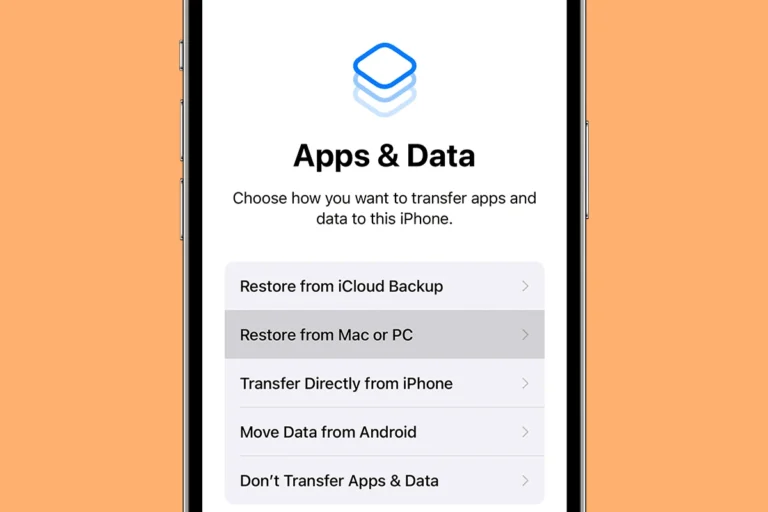
Downloading MP3 files to your iPhone opens up a world of music options beyond streaming services. You can transfer MP3 files to your iPhone using iTunes, third-party apps, cloud services, or AirDrop. These methods give you more control over your music library and allow you to enjoy songs offline without an internet connection.
iTunes remains a popular choice for managing iPhone music. Simply add MP3 files to your iTunes library, connect your iPhone, and sync the desired tracks. For those who prefer alternatives, third-party apps like iMazing or WALTR offer user-friendly interfaces for direct file transfers without iTunes.
Cloud services provide another convenient option. Upload MP3 files to Dropbox or Google Drive, then download them to your iPhone using the corresponding app. This method works well for accessing your music across multiple devices. Mac users can also take advantage of AirDrop for quick, wireless transfers of MP3 files to their iPhones.
How to Download an MP3 to iPhone: A Step-by-Step Guide
Whether you want to add your favorite songs or audio files directly to your iPhone, here are several easy methods to download MP3 files onto your device.
Method 1: Using iTunes (Windows or macOS)
- Download and Install iTunes
Make sure you have the latest version of iTunes installed on your computer. - Add MP3 Files to iTunes Library
- Open iTunes.
- Click File > Add File to Library (Windows) or File > Add to Library (macOS).
- Select the MP3 files you want to add.
- Connect Your iPhone to the Computer
Use a USB cable to connect your iPhone. - Sync MP3 Files to iPhone
- Click the device icon in iTunes.
- Go to the Music tab.
- Check Sync Music and select the MP3 files or playlists you want.
- Click Apply or Sync.
- Access Music on Your iPhone
Open the Music app on your iPhone to listen to the transferred MP3 files.
Method 2: Using Third-Party Transfer Tools
If you prefer to avoid iTunes or want a simpler, more direct way, you can use third-party tools such as FoneTool, AppGeeker iPhone Data Transfer, or Wondershare MobileTrans.
- Download and Install the Transfer Tool
Choose a tool compatible with your computer (Windows/macOS). - Connect Your iPhone to the Computer
Use a USB cable. - Select MP3 Files to Transfer
Use the software interface to select the MP3 files from your computer. - Transfer MP3 Files to iPhone
Follow the tool’s instructions to transfer files directly without format conversion or complicated syncing. - Enjoy Your Music
Open the Music app on your iPhone to find your transferred MP3 files.
Method 3: Using Cloud Services (e.g., iCloud Drive, Dropbox)
- Upload MP3 Files to Cloud Storage
Upload your MP3 files to iCloud Drive, Dropbox, Google Drive, or another cloud service from your computer. - Access Cloud Storage on iPhone
Open the corresponding app on your iPhone. - Download or Play MP3 Files
You can either stream the MP3 files directly or download them for offline use.
Tips
- MP3 files added via iTunes or transfer tools will appear in the Apple Music app.
- Cloud services allow more flexibility but might require an internet connection to stream.
- Some third-party apps on the App Store may also support MP3 playback and file management.
By following any of these methods, you can easily get your MP3 files onto your iPhone and enjoy your favorite music anytime, anywhere.
Sources:
Key Takeaways
- Multiple methods exist to download MP3 files to iPhone, including iTunes, third-party apps, and cloud services
- Transferring MP3s gives users more control over their music library and offline listening options
- AirDrop offers a quick wireless transfer option for Mac users sending MP3s to their iPhones
Understanding iPhone Music Management
iPhone music management involves various tools and services for organizing and accessing your music library. These methods offer flexibility in how you store, sync, and play your favorite tunes.
iPhone’s Music App and Apple Music
The Music app on iPhone serves as the central hub for your music collection. It displays songs stored locally on your device and those available through Apple Music. Apple Music, a subscription service, provides access to millions of tracks. Users can download songs for offline listening or stream them over Wi-Fi or cellular data.
The Music app organizes songs by artist, album, and playlist. It offers features like creating custom playlists, sharing music with friends, and discovering new artists through personalized recommendations. Apple Music integrates seamlessly with the Music app, allowing subscribers to add streaming tracks to their library alongside purchased music.
iTunes and macOS Catalina
iTunes was the primary tool for managing iPhone music on computers. Users could sync their music library, create playlists, and transfer songs to their iPhone through a USB connection.
With macOS Catalina and later versions, Apple replaced iTunes with separate apps for different media types. The Music app on Mac now handles music management. It retains many iTunes features for organizing and syncing music to iPhones.
Windows users can still use iTunes to manage their iPhone’s music. The software allows for easy transfer of MP3 files and other audio formats to iPhones.
Cloud Services for Music Storage
Cloud storage services expand music management options for iPhone users. iCloud Music Library, part of Apple Music and iTunes Match subscriptions, stores your music collection in the cloud. This feature enables access to your entire library across all Apple devices linked to your Apple ID.
Other cloud services like Dropbox and Google Drive can store MP3 files. Users can then download these files to their iPhone using the respective apps or transfer them to the Music app.
iCloud Drive offers another option for storing and accessing music files. It integrates with the Files app on iPhone, allowing users to manage and play music directly from cloud storage.
Methods to Download MP3 to iPhone
Transferring MP3 files to an iPhone can be done through various methods. These include using computer software, direct downloads from the iTunes Store, and third-party apps designed for music transfer.
Using iTunes and Finder on Computer
iTunes remains a popular option for transferring MP3 files to iPhones on Windows computers. Users can add MP3s to their iTunes library and sync them with their connected iPhone. The process involves:
- Opening iTunes
- Adding MP3 files to the library
- Connecting the iPhone
- Selecting the device in iTunes
- Choosing which songs to sync
For macOS Catalina and later, Finder replaces iTunes. The steps are similar:
- Connect iPhone to Mac
- Open Finder
- Select the iPhone
- Click on the Music tab
- Choose sync options and transfer files
Both methods allow users to manage their music library efficiently.
Direct Download from the iTunes Store
The iTunes Store offers a straightforward way to download MP3s directly to an iPhone. Users can:
- Open the iTunes Store app
- Browse or search for desired songs
- Purchase and download tracks
Downloaded songs automatically appear in the Music app. This method is convenient but limited to available content in the store. It doesn’t allow transfer of personal MP3 files not in the iTunes catalog.
Third-Party Apps for Music Transfer
Several third-party apps provide alternatives for transferring MP3s to iPhones. These apps often offer more flexibility than iTunes. Popular features include:
- Wireless transfer over Wi-Fi
- Drag-and-drop interfaces
- Support for various file formats
Some apps allow direct downloads from cloud storage or web sources. Users should choose reputable apps from the App Store to ensure security. These tools can be especially useful for those who find iTunes cumbersome or want to bypass computer-based transfers entirely.
Transferring MP3 Files to iPhone
There are several methods to transfer MP3 files to an iPhone. Users can sync their entire music library or selected playlists, use AirDrop for quick transfers, or leverage cloud services for easy access to their music.
Syncing Entire Music Library or Selected Playlists
iTunes remains a popular option for transferring MP3 files to iPhones. Users can connect their iPhone to a computer and open iTunes. In the device summary page, they can select “Music” and choose to sync the entire library or specific playlists.
For those who prefer a more selective approach, creating and syncing playlists offers greater control. Users can make playlists in iTunes, then choose which ones to transfer. This method helps manage storage space on the iPhone.
After selecting the desired music, clicking “Apply” or “Sync” starts the transfer process. Once complete, the MP3 files will be available in the iPhone’s Music app.
AirDrop MP3 to iPhone from Mac or Other Apple Devices
AirDrop provides a quick and wireless way to transfer MP3 files between Apple devices. To use AirDrop, both devices must have Wi-Fi and Bluetooth enabled. On the sending device, users can select the MP3 files and choose the AirDrop option.
The receiving iPhone needs to have AirDrop set to receive from “Contacts Only” or “Everyone”. When the files appear on the iPhone screen, tapping “Accept” initiates the transfer. The MP3 files will then be accessible in the Music app.
AirDrop is ideal for transferring a small number of files quickly without cables or internet connection.
Using Cloud Services Like iCloud Drive and Dropbox
Cloud services offer a convenient way to access MP3 files across devices. iCloud Drive, Dropbox, and Google Drive are popular options. Users can upload MP3 files to these services from their computer.
On the iPhone, users can download the corresponding app for their chosen cloud service. They can then stream the music directly from the cloud or download it for offline listening.
iCloud Music Library, a feature of Apple Music, automatically syncs purchased and uploaded music across devices. This eliminates the need for manual transfers but requires an Apple Music subscription.
Managing and Playing Downloaded Music
Downloaded MP3 files on your iPhone offer flexibility and offline access to your favorite tunes. The Music app provides a central hub for organizing and enjoying your audio collection.
Play MP3 on iPhone Using Music App
The Music app is the default player for MP3 files on iPhone. To play downloaded music:
- Open the Music app
- Tap “Library” at the bottom
- Select “Songs” or “Albums”
- Tap the desired track to start playback
The app supports various audio formats, including MP3, AAC, and ALAC. Users can create playlists, shuffle songs, and enable repeat mode. The Music app integrates with Apple Music, allowing seamless mixing of downloaded and streaming content.
Listen to Music Offline on iPhone
Offline listening is a key benefit of downloaded MP3 files. To ensure music is available without an internet connection:
- Download songs or albums in advance
- Enable Airplane Mode to test offline access
- Open the Music app and play downloaded tracks
The Music app automatically saves recently played songs for offline use. Users can also manually select specific playlists or albums for offline availability. This feature is particularly useful for travel or areas with limited connectivity.
Manually Manage Music and Playlists
Manual management gives users full control over their music library. To manually manage music:
- Connect iPhone to a computer
- Open Finder (Mac) or iTunes (Windows)
- Select the iPhone in the sidebar
- Check “Manually manage music and videos”
- Drag and drop MP3 files to the device
This method allows for precise control over which songs are on the iPhone. Users can create custom playlists, delete unwanted tracks, and organize music without syncing the entire library. It’s ideal for those who prefer a hands-on approach to music management.
Frequently Asked Questions
Downloading MP3 files to an iPhone offers various methods and options. Users can utilize different approaches depending on their preferences and technical needs.
What are the steps to download MP3 files to an iPhone using iCloud Drive?
To download MP3 files using iCloud Drive, first upload the files to iCloud Drive on a computer. Open the Files app on the iPhone and navigate to the iCloud Drive folder. Tap the download icon next to the MP3 file to save it locally.
Is there a way to download MP3 files to an iPhone without using iTunes?
Yes, third-party apps provide alternatives to iTunes for downloading MP3 files. Apps like Documents by Readdle or VLC allow users to transfer MP3 files via Wi-Fi or cloud services. These apps often include built-in media players for easy playback.
How can I download MP3 files directly to my iPhone from Safari?
Safari on iPhone can download MP3 files directly. Tap and hold the download link for the MP3 file. Select “Download Linked File” from the menu. The file will save to the Downloads folder in the Files app.
Can MP3 files be transferred from YouTube to an iPhone, and if so, how?
Transferring MP3 files from YouTube to an iPhone is not directly supported. Users can employ third-party websites or apps to convert YouTube videos to MP3 format. These files can then be transferred to the iPhone using cloud services or file-sharing apps.
What is the process for downloading MP3 songs to an iPhone from Google?
Downloading MP3 songs from Google to an iPhone requires finding a legitimate source. Use the Safari browser to search for legal MP3 download sites. Tap the download link and choose “Download” when prompted. The file will save to the Files app.
How can I play downloaded MP3 files on my iPhone from the Files app?
To play MP3 files from the Files app, locate the file and tap to open it. The iPhone will use its default media player. For more features, users can import the files into a dedicated music app or use third-party players that can access the Files app directly.