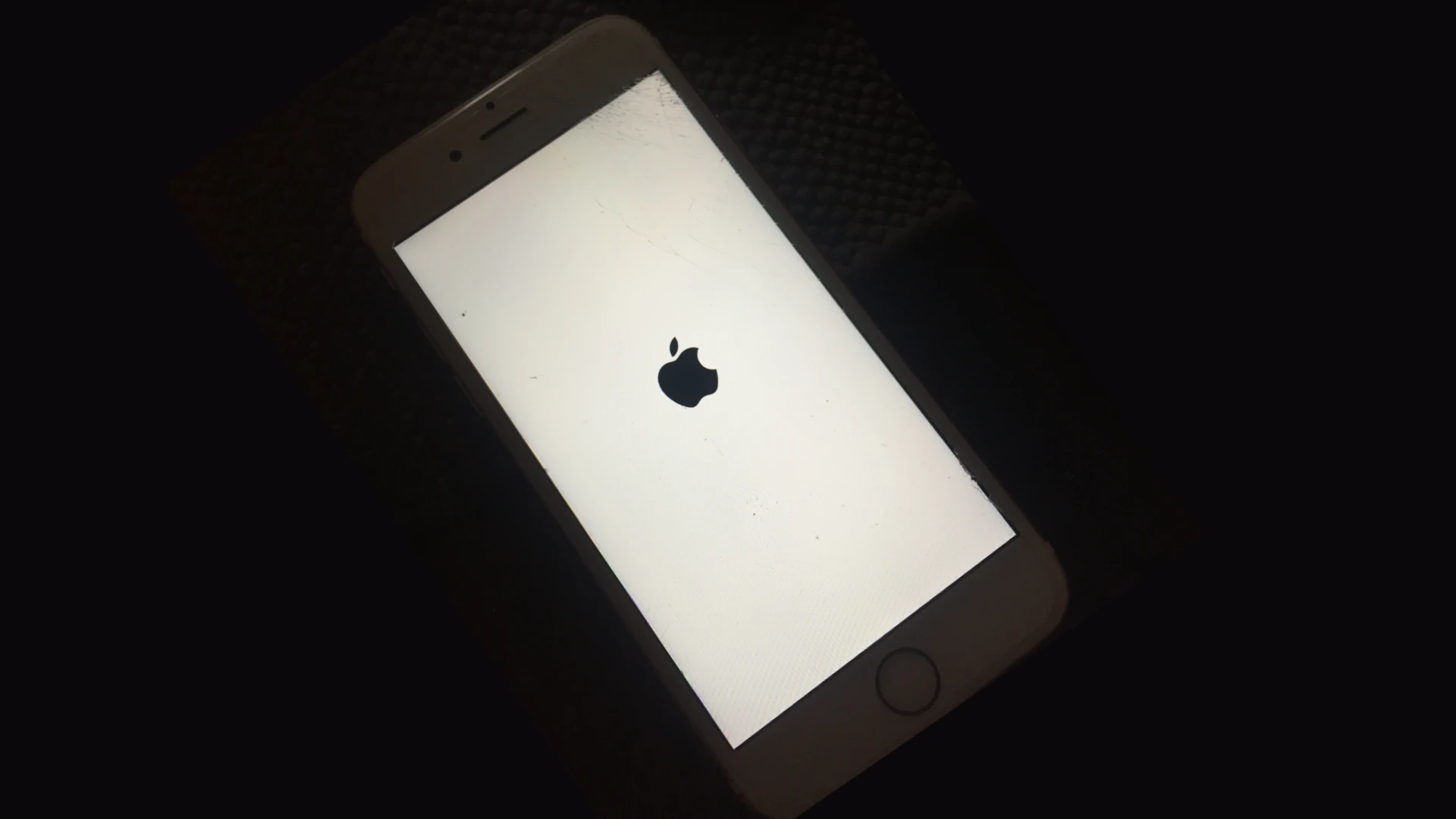
An iPhone that won’t turn on or gets stuck on the Apple logo can be a frustrating experience. This issue often occurs after software updates, data transfers, or due to hardware problems. To fix an iPhone stuck on the Apple logo, try force restarting the device by quickly pressing the volume up and down buttons, then holding the side button until the Apple logo disappears and reappears.
If a force restart doesn’t work, users can try putting their iPhone into recovery mode. This process varies depending on the iPhone model, but generally involves connecting the device to a computer and using specific button combinations. Recovery mode allows users to update or restore their iPhone’s software, which can often resolve the issue.
Guide: iPhone Won’t Turn On or Stuck on Apple Logo
If your iPhone won’t turn on or is stuck on the Apple logo during startup, follow these steps to troubleshoot and potentially fix the issue.
1. Check Power and Charge
- Charge your iPhone: Connect your iPhone to a charger and let it charge for at least 30 minutes. Use an official or certified charger and cable.
- Check charging accessories: Ensure the cable and charger are working by testing with another device.
2. Force Restart Your iPhone
A force restart can often resolve temporary software glitches.
- iPhone 8 or later: Press and quickly release Volume Up, then Volume Down, then press and hold the Side button until the Apple logo appears.
- iPhone 7 and 7 Plus: Press and hold both the Volume Down and Side buttons until the Apple logo appears.
- iPhone 6s or earlier: Press and hold both the Home and Side (or Top) buttons until the Apple logo appears.
3. Use Recovery Mode
If force restart does not work, try Recovery Mode to update or restore your iPhone.
- Connect your iPhone to a computer (Mac or PC) with the latest version of iTunes or Finder.
- Put your iPhone in Recovery Mode:
- Follow the force restart steps but keep holding the buttons until you see the recovery mode screen (a cable pointing to a computer or iTunes icon).
- iTunes/Finder will prompt you to Update or Restore:
- Try Update first to reinstall iOS without erasing data.
- If Update fails, choose Restore (this erases your data).
4. Use DFU Mode for a Deeper Restore
If Recovery Mode doesn’t fix the issue, Device Firmware Update (DFU) mode allows a more thorough restore.
- DFU mode bypasses the iOS bootloader and reloads firmware and software.
- The process varies by iPhone model; it requires precise timing of button presses.
- After entering DFU mode, restore your iPhone via iTunes/Finder.
5. Check for Hardware Issues
If none of the above steps work:
- Your iPhone may have hardware damage (battery, logic board, or other components).
- Contact Apple Support or visit an Apple Store or authorized repair center for diagnostics and repair.
Additional Tips
- Avoid interrupting updates or restores.
- Regularly back up your iPhone to avoid data loss.
- Keep your iPhone’s software updated to prevent bugs.
References
- Apple Support: If your iPhone won’t turn on or the screen is black
- Lifewire: Why Is My iPhone Stuck on the Apple Logo? Fix It Now
- wikiHow: iPhone Stuck on Apple Logo? 6 Ways to Fix It
Key Takeaways
- Force restart is the first step to fix an iPhone stuck on the Apple logo
- Recovery mode can be used if force restart fails to resolve the issue
- Regular software updates and proper charging habits can prevent these problems
Troubleshooting Initial Power Issues
When an iPhone won’t turn on, several steps can help diagnose and potentially resolve the issue. These methods focus on checking external factors and performing a force restart.
Checking External Factors
First, ensure the iPhone’s battery isn’t completely drained. Connect it to a power source using the original charging cable and adapter. Try different outlets to rule out power supply problems. Wait at least 15 minutes before attempting to turn on the device.
Inspect the charging cable and port for damage or debris. Use a flashlight to check for lint or dirt in the port. Gently clean it with a soft, dry brush if needed. Avoid using liquids or metal objects.
If the iPhone still won’t turn on, test with a different cable and charger. This helps determine if the issue lies with the charging accessories rather than the device itself.
Performing a Force Restart
A force restart can often resolve issues when an iPhone is unresponsive or stuck on the Apple logo. The process varies slightly depending on the model:
For iPhone 8, SE (2nd Gen), and newer:
- Press and release Volume Up
- Press and release Volume Down
- Press and hold Side button until Apple logo appears
For iPhone 7:
- Press and hold Volume Down and Side button simultaneously until Apple logo appears
For iPhone 6s, SE (1st Gen), and earlier:
- Press and hold Home and Side button together until Apple logo shows
Hold the buttons for about 10 seconds. If successful, the device should restart normally. If not, try the process again, ensuring you’re pressing the correct buttons for your model.
Advanced Recovery Solutions
When standard troubleshooting fails to resolve an iPhone stuck on the Apple logo, advanced recovery methods can help. These techniques involve deeper system-level interventions to restore functionality.
Entering DFU Mode
DFU (Device Firmware Update) mode is a powerful recovery option for iPhones. It allows for a complete system restore when other methods fail.
To enter DFU mode on iPhone 8 or newer:
- Connect iPhone to a computer
- Quick-press Volume Up button
- Quick-press Volume Down button
- Hold Side button until screen goes black
- Release Side button and hold Volume Down for 5 seconds
For older models, the process varies slightly. Once in DFU mode, the screen remains black. iTunes or Finder will detect the device and prompt for restoration.
DFU mode bypasses the bootloader, allowing for a clean iOS reinstall. This can fix persistent software issues causing the Apple logo freeze.
Using Recovery Mode
Recovery mode is a less drastic option than DFU mode. It’s useful for updating or restoring iOS without erasing all data.
To enter recovery mode:
- Connect iPhone to a computer
- Press and quickly release Volume Up
- Press and quickly release Volume Down
- Press and hold Side button until recovery mode screen appears
For iPhone 7 and earlier, the button combinations differ. In recovery mode, the phone displays a “Connect to iTunes” screen.
iTunes or Finder will offer options to update or restore the device. Updating can sometimes fix the issue without data loss. If updating fails, a full restore becomes necessary.
Reinstalling iOS via iTunes/Finder
Reinstalling iOS is often the final step in advanced recovery. It completely replaces the operating system, potentially resolving deep-seated software issues.
For macOS Catalina and later, use Finder. For earlier macOS versions or Windows, use iTunes. The process:
- Connect iPhone to computer
- Open iTunes or Finder
- Put iPhone in recovery mode
- Click “Restore” when prompted
- Follow on-screen instructions to download and install the latest iOS
This process erases all data on the iPhone. A recent backup is crucial for restoring personal information after the reinstall.
If the reinstall fails, it may indicate a hardware problem. In such cases, seeking professional repair becomes necessary.
When Your iPhone Is Stuck on the Apple Logo
An iPhone stuck on the Apple logo can be frustrating and concerning. This issue often stems from software problems or hardware malfunctions. Quick fixes and professional repair options are available to resolve this common iPhone issue.
Understanding Software Corruption
Software corruption is a frequent cause of iPhones getting stuck on the Apple logo. This can happen after a failed update or restore attempt. To fix this, try a force restart. For iPhone 8 and newer models:
- Press and release the volume up button
- Press and release the volume down button
- Press and hold the side button until the Apple logo appears
If this doesn’t work, connect the iPhone to a computer and put it in recovery mode. iTunes or Finder can then reinstall iOS. This process may erase data, so having a recent backup is crucial.
Seeking Professional iPhone Repair
When software fixes fail, hardware issues may be the culprit. Common hardware problems include:
- Faulty logic board
- Damaged power components
- Corrupted storage
These issues require professional repair. Apple Stores and authorized service providers can diagnose and fix complex hardware problems. They have specialized tools and genuine parts to ensure proper repairs.
For older iPhones out of warranty, third-party repair shops may offer more affordable options. However, using non-Apple parts can void any remaining warranty.
Preventive Measures and Best Practices
Regular software updates are crucial for maintaining iPhone functionality. Users should enable automatic updates or check for new iOS versions frequently. This helps prevent system glitches that may lead to startup issues.
Backing up data is essential. iCloud or iTunes backups safeguard important information in case of device failure. Users should create backups before major iOS updates or when experiencing unusual phone behavior.
Proper charging habits extend battery life and prevent power-related startup problems. Use Apple-certified cables and avoid exposing the iPhone to extreme temperatures while charging.
Keeping the iPhone’s storage optimized improves performance. Delete unused apps and clear cache regularly. This reduces the risk of system slowdowns that could lead to boot loop issues.
Force restarting can resolve minor software glitches before they escalate. Users should learn this technique for their specific iPhone model. It’s a simple yet effective troubleshooting step.
Avoiding unauthorized modifications is critical. Jailbreaking or using unofficial software can compromise system stability and increase the likelihood of startup failures.
Protecting the iPhone from physical damage is key. Use a sturdy case and screen protector to prevent internal component damage that could affect startup processes.
Frequently Asked Questions
iPhone users may encounter issues with their devices not turning on or getting stuck on the Apple logo. These problems can be frustrating, but several solutions exist.
How can I resolve the issue when my iPhone keeps displaying the Apple logo and then turns off?
This issue often indicates a software problem. Try force restarting your iPhone. For iPhone 8 and later models, quickly press and release the volume up button, then the volume down button, and finally press and hold the side button until the Apple logo appears.
For iPhone 7 and 7 Plus, press and hold both the volume down and power buttons until the Apple logo shows up.
What should be done if an iPhone continuously flashes the Apple logo while charging?
A flashing Apple logo during charging may signal a hardware issue. First, try using a different charging cable and power adapter. If the problem persists, connect your iPhone to a computer and attempt to restore it through iTunes or Finder.
What are the steps to fix an iPhone that is stuck on the Apple logo?
- Force restart your iPhone using the method for your specific model.
- If that doesn’t work, try putting your device in recovery mode and restoring it.
- As a last resort, use DFU (Device Firmware Update) mode to restore your iPhone.
Is there a way to troubleshoot an iPhone that shows the Apple logo but fails to turn on?
Yes, there are several steps to try:
- Charge your iPhone for at least an hour.
- Check for any physical damage to the charging port or screen.
- Attempt a force restart.
- If these steps fail, connect to iTunes or Finder and try to restore your device.
What could be causing an iPhone, such as the iPhone 11 or iPhone X, to be stuck on the Apple logo?
Several factors can cause this issue:
- A failed software update
- Jailbreaking attempts
- Hardware problems
- Corrupt system files
What solutions are available for an iPhone 7 or later models that won’t boot past the Apple logo?
For iPhone 7 or later models:
- Force restart the device.
- Try recovery mode and restore the iPhone.
- Use DFU mode as a last resort.
- If software solutions fail, the device may need professional repair for potential hardware issues.