Running out of iPhone storage can be frustrating. Fortunately, there are several ways to upgrade your device’s capacity without buying a new phone. You can expand your iPhone’s storage by optimizing existing space, using external devices, or leveraging cloud services.
One simple method is to remove unnecessary files and media. This involves going through your apps, photos, and videos to delete what you don’t need. Many users find they can free up significant space just by clearing out old downloads and unused applications.
For those who need more drastic solutions, external storage devices offer an effective option. These connect to your iPhone via the Lightning or USB-C port, allowing you to offload files and access them when needed. Cloud storage services like iCloud also provide a seamless way to store your data without taking up physical space on your device.
Ways to Upgrade iPhone Storage
If you’re constantly seeing the “iPhone Storage Full” message, you’re not alone. iPhones come with fixed internal storage that cannot be physically upgraded like some other devices (source: GadgetMates). However, there are still plenty of ways to manage and expand your storage capacity through software optimization, cloud solutions, and external hardware.
Software-Based Solutions
1. Offload Unused Apps
iOS has a built-in feature that automatically removes apps you don’t use while keeping their data. Go to Settings > General > iPhone Storage and enable “Offload Unused Apps.” You can reinstall these apps anytime without losing your data.
2. Delete Large Files and Downloads
Check Settings > General > iPhone Storage to see which apps are taking up the most space. Delete old videos, photos, podcasts, and downloaded content you no longer need.
3. Clear Browser Cache and App Data
Safari and other apps accumulate cached data over time. Clear Safari cache in Settings > Safari > Clear History and Website Data. Many apps also have options to clear cache within their settings.
4. Optimize Photo Storage
Enable “Optimize iPhone Storage” in Settings > Photos. This keeps smaller versions of photos on your device while storing full-resolution versions in iCloud.
5. Delete Message Attachments
Messages can consume gigabytes of storage with photos, videos, and GIFs. Go to Settings > General > iPhone Storage > Messages to review and delete large attachments.
6. Review and Delete Old Backups
Remove outdated app backups and data you no longer need through Settings > General > iPhone Storage.
Cloud Storage Solutions
7. Use iCloud Storage
While the free 5GB tier is limited, upgrading to iCloud+ gives you 50GB, 200GB, or more. Store photos, videos, documents, and backups in the cloud to free up local storage.
8. Third-Party Cloud Services
Services like Google Drive, Dropbox, OneDrive, and Amazon Photos offer additional storage options (source: InsanelyMac). Many provide free storage tiers and can automatically back up your photos and files.
External Hardware Solutions
9. External Storage Drives
Lightning or USB-C compatible external drives (depending on your iPhone model) can store photos, videos, and documents. These plug directly into your iPhone and work with the Files app.
10. Photo Sticks and Flash Drives
Specialized iPhone flash drives with Lightning connectors let you transfer files directly without needing a computer. They’re portable and don’t require internet connectivity.
11. Wireless Storage Devices
Wi-Fi enabled storage devices create their own network, allowing you to access files wirelessly without using your phone’s internal storage.
Best Practices for Managing Storage
- Regularly review your storage usage to identify space hogs
- Stream music and videos instead of downloading them when possible
- Use “Recently Deleted” folders in Photos and Files to permanently remove items
- Back up to a computer regularly using Finder (Mac) or iTunes (Windows)
- Consider your storage needs when buying your next iPhone—it’s better to get more storage upfront since it can’t be upgraded later
While you can’t physically upgrade your iPhone’s internal storage after purchase (source: GadgetMates), these methods can help you effectively manage and expand your available space without upgrading your device.
Key Takeaways
- Optimize existing storage by removing unnecessary files and apps
- Use external storage devices to expand capacity
- Leverage cloud services for seamless data storage and access
Understanding iPhone Storage
iPhone storage management is crucial for optimal device performance. Users can leverage various storage types and tools to maximize space and efficiency.
Types of iPhone Storage
iPhones offer internal storage and iCloud storage options. Internal storage ranges from 64GB to 1TB, depending on the model. This space houses apps, photos, videos, and system files. iCloud storage provides additional online space, starting with 5GB free and expandable up to 2TB.
Users can store data locally or in iCloud. Local storage offers quick access but is limited. iCloud storage allows access across devices but requires an internet connection. Some apps use both, keeping essential data on-device and backing up to iCloud.
Checking Your Current Storage
To check iPhone storage:
- Open the Settings app
- Tap “General”
- Select “iPhone Storage”
This screen shows:
- Total storage capacity
- Available space
- Storage breakdown by app
Color-coded bars indicate space used by apps, photos, and other data. Tapping an app reveals its storage usage and options to offload or delete it.
How iCloud Storage Integrates with iPhone
iCloud seamlessly integrates with iPhone, offering:
- Automatic backups
- Photo syncing across devices
- Document storage
iCloud storage management:
- Go to Settings
- Tap your Apple ID
- Select “iCloud”
- Choose “Manage Storage”
Here, users can view storage usage, upgrade plans, or delete unnecessary backups. iCloud optimizes iPhone storage by storing full-resolution photos and videos online while keeping device-optimized versions locally.
Practical Steps to Free Up iPhone Storage
Freeing up storage on an iPhone involves removing unnecessary data and optimizing how apps use space. These strategies can help users reclaim valuable storage capacity without sacrificing functionality.
Deleting Unnecessary Files and Apps
Users can start by reviewing their iPhone storage usage in Settings. This reveals which apps and file types consume the most space. Large apps, old photos, and downloaded videos are often prime candidates for deletion.
To remove an app:
- Press and hold its icon on the home screen
- Tap “Remove App”
- Choose “Delete App“
For photos and videos:
- Open the Photos app
- Select unwanted items
- Tap the trash icon
Don’t forget to empty the “Recently Deleted” album to permanently remove these files.
Offloading Unused Apps
Offloading allows users to delete an app while keeping its documents and data. This frees up space without losing important information.
To offload apps:
- Go to Settings > General > iPhone Storage
- Tap on an app
- Select “Offload App”
The app’s icon remains on the home screen with a small cloud symbol. Tapping it will reinstall the app and restore its data.
Optimizing Photo Storage
iCloud Photos can store full-resolution images in the cloud while keeping smaller versions on the device.
To enable this feature:
- Go to Settings > [Your Name] > iCloud
- Tap “Photos”
- Turn on “iCloud Photos”
- Select “Optimize iPhone Storage”
This setting automatically manages photo storage, keeping originals in iCloud and device-optimized versions on the iPhone.
Managing Messages and Attachments
Text messages and their attachments can accumulate over time, consuming significant storage.
To manage message storage:
- Go to Settings > Messages
- Scroll to “Message History”
- Choose a shorter retention period (30 days or 1 year)
For attachments:
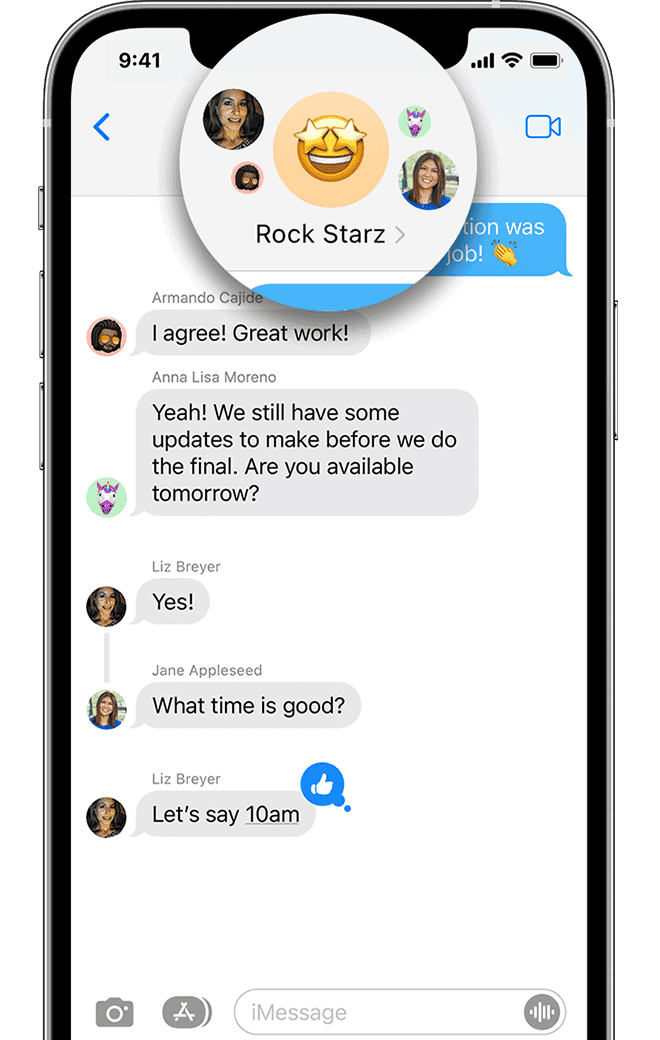
- Open a conversation in Messages
- Tap the contact name at the top
- Select “Info”
- Scroll to see photos and attachments
- Tap “See All Photos” to select and delete multiple items
These steps can free up substantial space, especially for users who exchange many photos and videos through messages.
Upgrading to More Storage
Expanding iPhone storage capacity offers several options to meet growing data needs. Users can choose a higher capacity device, increase cloud storage, or utilize external solutions.
Choosing a Higher Capacity iPhone
Apple offers iPhones with various storage capacities. The latest models come in 128GB, 256GB, 512GB, and 1TB options. Upgrading to a higher capacity iPhone provides more local storage for apps, photos, videos, and files.
Users should assess their storage needs before upgrading. A 256GB iPhone suits most users, while 512GB or 1TB models cater to power users who store large media files or work with data-intensive apps.
When upgrading, users can transfer data from their old iPhone to the new one using iCloud, iTunes, or the Quick Start feature. This ensures a seamless transition to the higher capacity device.
Upgrading Your iCloud Storage Plan
iCloud offers a convenient way to expand storage without changing devices. Apple provides several iCloud+ plans with increased storage capacity.
To upgrade iCloud storage:
- Go to Settings > [Your Name] > iCloud
- Tap “Manage Storage” or “Change Storage Plan”
- Select a new plan and complete the purchase
iCloud+ plans include:
- 50GB for $0.99/month
- 200GB for $2.99/month
- 2TB for $9.99/month
Upgrading iCloud storage allows users to back up more data, store photos and videos in iCloud, and use features like iCloud Drive and iCloud Keychain across devices.
External Storage Options
External storage devices offer a flexible solution for expanding iPhone storage capacity. These options include:
- Lightning flash drives: Connect directly to iPhones for quick file transfers
- Wireless hard drives: Store large amounts of data accessible via Wi-Fi
- NAS (Network Attached Storage): Provides home network storage accessible from any device
Some popular external storage options for iPhones include:
- SanDisk iXpand Flash Drive
- Western Digital My Passport Wireless SSD
- Synology DiskStation NAS devices
Users can transfer files to these devices using the Files app or dedicated apps provided by manufacturers. This frees up space on the iPhone while keeping data accessible when needed.
Utilizing Cloud Storage Services
Cloud storage services offer a convenient solution for iPhone users to expand their storage capacity. These services allow users to store files, photos, and videos remotely, freeing up space on their devices.
iCloud Drive and iCloud for Windows
iCloud Drive integrates seamlessly with iOS devices, providing automatic syncing and backup. Users can access 5GB of free storage, with options to upgrade to larger plans. iCloud for Windows extends this functionality to PC users, enabling file access across platforms.
To set up iCloud Drive:
- Go to Settings > [Your Name] > iCloud
- Toggle on iCloud Drive
- Choose which apps can use iCloud Drive
iCloud+ offers additional features like Hide My Email and Private Relay for enhanced privacy. Users can upgrade their storage plan through Settings > [Your Name] > iCloud > Manage Storage > Change Storage Plan.
Third-Party Cloud Solutions
Google Drive and Dropbox are popular alternatives to iCloud. These services offer free storage tiers and paid upgrades for more space.
Google Drive provides 15GB of free storage and integrates well with Google’s suite of apps. Dropbox offers 2GB free, with a focus on file sharing and collaboration.
To use these services:
- Download the app from the App Store
- Sign up or log in to your account
- Enable automatic photo uploads if desired
Both services offer desktop apps for easy file management across devices.
Transfer Files to Cloud Storage
Moving files to cloud storage helps optimize iPhone storage. Users can transfer photos, videos, and documents to free up space on their devices.
Steps to transfer files:
- Open the Files app on your iPhone
- Select the files you want to move
- Tap the Share button
- Choose your preferred cloud storage service
For photos and videos:
- Open the Photos app
- Select the items to transfer
- Tap the Share icon
- Choose your cloud storage app
Regular file transfers to cloud storage can significantly reduce local storage usage on iPhones.
Frequently Asked Questions
iPhone users often seek ways to increase their device’s storage capacity. This section addresses common queries about upgrading iPhone storage options.
What are the steps to increase iCloud storage for an iPhone?
To upgrade iCloud storage on an iPhone, users can follow these steps:
- Open the Settings app
- Tap on the Apple ID at the top
- Select “iCloud”
- Tap “Manage Storage” or “iCloud Storage”
- Choose “Change Storage Plan” or “Buy More Storage”
- Select a plan and complete the purchase
Is it possible to upgrade an iPhone’s internal storage from 64GB to 128GB?
Unfortunately, upgrading an iPhone’s internal storage is not possible. Apple designs iPhones with fixed internal storage capacities. Users cannot increase the physical storage after purchase.
How can one purchase additional storage for an iPhone, excluding iCloud?
Users can expand their iPhone storage without iCloud by using external storage devices. These options include:
- Lightning or USB-C compatible flash drives
- Wireless hard drives or SSDs
- Cloud storage services like Google Drive or Dropbox
What options are available to upgrade an iPhone from 128GB to 256GB?
Direct upgrades from 128GB to 256GB are not possible on existing iPhones. Users have two main alternatives:
- Trade in the current iPhone for a higher capacity model
- Use cloud storage or external devices to supplement the existing storage
Can iPhone memory be expanded beyond the original capacity after purchase?
iPhone memory cannot be physically expanded after purchase. Users can:
- Use cloud storage services
- Connect external storage devices
- Delete unnecessary files and apps
- Use streaming services instead of storing media locally
What are the latest iCloud storage plans and how can they be purchased?
Apple offers several iCloud storage plans:
- 50GB for $0.99/month
- 200GB for $2.99/month
- 2TB for $9.99/month
To purchase, users can:
- Go to iPhone Settings
- Tap on their Apple ID
- Select “iCloud” > “Manage Storage”
- Choose “Change Storage Plan”
- Pick a plan and follow the prompts to complete the purchase