Is your home internet crawling when you need it most? Slow connections can frustrate anyone trying to work, stream, or game at home. Thankfully, there are several simple ways to boost your Wi-Fi speed without calling your internet provider or spending a fortune on new equipment.
Improving your home internet speed often starts with basic adjustments like relocating your router, switching to ethernet cables when possible, or simply changing Wi-Fi channels to avoid interference. These small changes can make a noticeable difference in performance, especially during peak usage times when multiple devices are connected. Many households don’t realize that router placement alone can eliminate dead zones and strengthen signals throughout the home.
For those experiencing persistent slowdowns, updating router firmware or upgrading aging equipment might be necessary. Modern routers with current technology can handle more devices simultaneously and offer features specifically designed to prioritize important traffic like video calls or gaming sessions over less critical downloads.
5 Ways to Make Your Home Internet Faster
Slow internet can disrupt work, streaming, and gaming. Here are five practical tips to boost your home internet speed and enjoy smoother connectivity.
1. Optimize Router Placement
- Place your router in a central, elevated location away from walls and obstructions.
- Avoid placing it near metal objects, microwaves, or cordless phones that cause interference.
- This improves Wi-Fi coverage and signal strength throughout your home.
2. Update Router Firmware
- Router manufacturers release firmware updates to improve performance and security.
- Log in to your router’s admin panel (check your router’s manual for instructions).
- Check for and install any available firmware updates regularly.
3. Use a Wired Connection When Possible
- Connect devices like desktop PCs or smart TVs directly to the router using Ethernet cables.
- Wired connections are faster and more stable than Wi-Fi, reducing lag and buffering.
4. Limit Connected Devices and Manage Bandwidth
- Disconnect devices not in use to reduce network congestion.
- Use Quality of Service (QoS) settings in your router to prioritize bandwidth for important devices or applications.
- Avoid heavy downloads or streaming on multiple devices simultaneously.
5. Upgrade Your Internet Plan or Hardware
- Check if your internet plan offers sufficient speed for your needs.
- Consider upgrading to a higher-speed plan if necessary.
- Upgrade your router to a modern model that supports the latest Wi-Fi standards (Wi-Fi 6 or 6E) for better speed and range.
Summary Table
| Tip | How It Helps |
|---|---|
| Optimize Router Placement | Improves Wi-Fi signal and coverage |
| Update Router Firmware | Enhances performance and security |
| Use Wired Connection | Provides faster, stable connectivity |
| Manage Devices & Bandwidth | Reduces network congestion |
| Upgrade Plan or Hardware | Increases maximum internet speed |
For more detailed tips, see 5 Ways To ‘Speed Up Your Wi-Fi’ For Faster Internet.
Key Takeaways
- Strategic router placement and channel selection can dramatically improve Wi-Fi performance without additional costs.
- Wired connections provide faster, more stable internet access for stationary devices like desktop computers or gaming consoles.
- Regular router maintenance including firmware updates and occasional reboots helps maintain optimal broadband speeds.
Understanding Your Internet Connection
Before you can make your internet faster, you need to understand what you’re working with. Your connection type, environmental factors, and Wi-Fi technology all play crucial roles in determining your internet speed.
Types of Internet Connections
Internet service providers offer several types of connections with varying speed capabilities. Fiber optic delivers the fastest speeds (up to 1 Gbps or more) through glass or plastic strands that transmit data using light signals.
Cable internet uses the same coaxial cable as television services, typically offering speeds from 25-1,000 Mbps depending on your plan. DSL works through telephone lines but provides slower speeds than cable, usually between 5-100 Mbps.
Satellite internet connects through orbital satellites and is available almost anywhere but suffers from higher latency (500-800 ms) compared to wired connections (10-40 ms).
Fixed wireless broadcasts internet signals from towers to receivers at your home, delivering moderate speeds but requiring line-of-sight to towers.
What Affects Internet Speed?
Multiple factors can impact your internet speed beyond just your plan’s advertised rate. Network congestion occurs when many people use the same connection simultaneously, especially during peak evening hours.
Hardware limitations matter too. Outdated modems or routers can’t deliver the speeds your plan offers. A router from 2015 might only support 100 Mbps even if you pay for 500 Mbps service.
Physical barriers like walls, floors, and large furniture can block or weaken Wi-Fi signals. Distance from your router significantly decreases signal strength and speed.
Weather conditions can affect satellite and fixed wireless connections. Heavy rain or snow may disrupt satellite signals, while fog or rain can impact fixed wireless performance.
The Impact of Wi-Fi Technology on Speed
Wi-Fi standards have evolved significantly over the years, with each generation offering better speed and performance. The older 802.11n standard supports maximum theoretical speeds of 600 Mbps, while the newer 802.11ac (Wi-Fi 5) can reach up to 3.5 Gbps under ideal conditions.
Wi-Fi frequencies also matter. The 2.4 GHz band travels farther and penetrates walls better but offers slower speeds and faces more interference from household devices. The 5 GHz band provides faster speeds but has a shorter range and struggles with solid obstacles.
The newest standard, Wi-Fi 6 (802.11ax), delivers speeds up to 9.6 Gbps theoretically and handles multiple connected devices more efficiently. It uses both 2.4 GHz and 5 GHz bands to optimize performance across different usage scenarios.
Optimizing Router Functionality
Your router serves as the central hub of your home internet experience. By making a few strategic adjustments to how you set up and maintain your router, you can significantly improve connection speeds and reliability.
Optimal Router Placement
Router location plays a crucial role in Wi-Fi performance. Finding an open space near the center of your residence provides the best coverage throughout your home.
Avoid placing routers near walls, especially concrete or brick, as these materials block Wi-Fi signals. Metal objects, appliances, and mirrors can also interfere with signal strength.
Height matters too. Positioning your router on a high shelf improves signal distribution compared to placing it on the floor.
Consider the layout of your home. If you frequently use devices in specific areas, try to position the router closer to these high-traffic zones while maintaining central placement.
To reduce interference, keep routers away from other electronic devices that operate on similar frequencies, such as microwave ovens, baby monitors, and cordless phones.
Firmware Update and Maintenance
Regular firmware updates are essential for optimal router performance. These updates often include security patches, bug fixes, and performance improvements that can boost speed.
Most modern routers offer automatic update options through their administration panels. If yours doesn’t, check the manufacturer’s website quarterly for new firmware versions.
The router’s admin interface typically provides access through a web browser using an IP address like 192.168.1.1 or 192.168.0.1. Look for the firmware update section within settings.
Periodic router restarts can also help clear memory and resolve connectivity issues. Consider setting up a weekly automatic restart schedule through your router settings.
Changing Wi-Fi channels can significantly improve performance when neighboring networks cause interference. Use channel scanning tools to identify less congested channels for your network.
Router Specifications and Standards
When evaluating router capabilities, pay attention to Wi-Fi standards. Modern routers supporting 802.11ac (Wi-Fi 5) or 802.11ax (Wi-Fi 6) offer superior speeds compared to older 802.11n models.
Dual-band or tri-band routers operate on multiple frequencies simultaneously. The 5GHz band typically provides faster speeds and less interference, while 2.4GHz offers better range and compatibility with older devices.
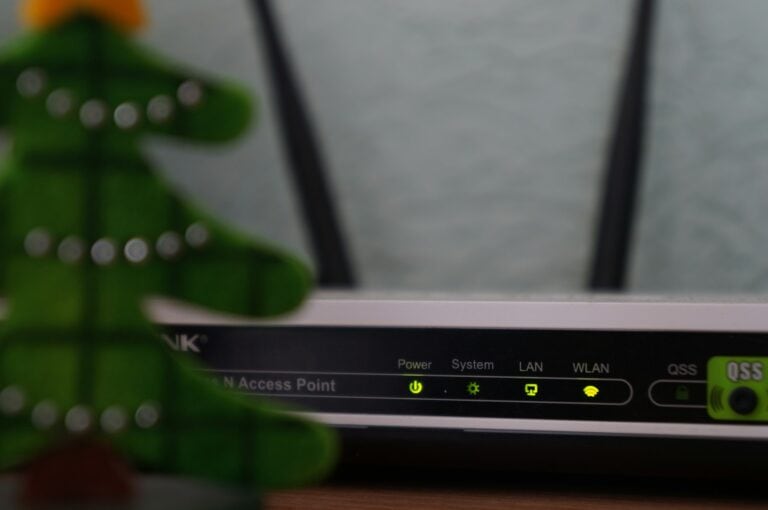
Router antennas matter too. Adjustable external antennas allow for directional signal optimization, while internal antennas offer a cleaner aesthetic but less flexibility.
Bandwidth capabilities vary between models. Check your router’s specifications to ensure it can handle your internet service plan’s maximum speeds.
Quality of Service (QoS) settings let you prioritize specific devices or applications. This feature proves especially valuable for activities requiring stable connections, such as video conferencing or online gaming.
Upgrading Your Home Network Infrastructure
Investing in better network equipment can dramatically improve internet speeds and reliability. The right hardware forms the foundation for a fast, stable connection throughout your home.
When to Upgrade Your Modem and Router
Most people don’t think about their modem or router until there’s a problem. However, if your devices are more than 3-5 years old, they might be holding back your internet performance. Modern routers and modems support faster speeds and newer technologies than older models.
Look for these signs that indicate it’s time for an upgrade:
- Frequent disconnections or need to restart devices
- Cannot achieve the speeds you’re paying for
- Dead zones in your home
- Multiple devices experiencing slowdowns
When shopping for a new router, check what speeds it supports. The router should match or exceed the internet plan you’re paying for. Many internet service providers rent equipment, but purchasing your own modem often saves money over time while providing better performance.
Consider a mesh network system if you have a larger home. These systems use multiple access points to provide better coverage throughout your space.
The Shift to Wi-Fi 6
Wi-Fi 6 (also known as 802.11ax) represents a significant leap forward in wireless networking technology. It’s designed specifically to handle many connected devices simultaneously—perfect for modern homes filled with smart devices.
Key benefits of Wi-Fi 6 include:
- Faster speeds: Theoretical maximum speeds up to 9.6 Gbps
- Better performance in congested areas: handles multiple connections more efficiently
- Improved battery life for connected devices
- Backward compatibility with older Wi-Fi devices
Wi-Fi 6 routers use sophisticated technologies like OFDMA (Orthogonal Frequency Division Multiple Access) and MU-MIMO to communicate with multiple devices at once. This means fewer bottlenecks when everyone’s streaming, gaming, or video conferencing simultaneously.
Upgrading to Wi-Fi 6 makes the most sense if you have newer devices that support the standard and have many connected devices in your home.
The Advantages of Wired Connections
While wireless technology continues to improve, wired connections still offer significant advantages for devices that need the most reliable and fastest connections.
Ethernet cables provide:
- Consistent speeds without interference
- Lower latency (important for gaming and video calls)
- More secure connections than wireless
- No competition with other wireless devices
For home offices, gaming setups, or media streaming devices, running gigabit Ethernet cables directly to these devices can dramatically improve performance. Modern homes benefit from establishing a “wired backbone” using Ethernet for critical devices.
Cat6 or Cat6a cables support speeds up to 10 Gbps and are relatively future-proof. Consider installing these cables during home renovations or running them along baseboards for a cleaner appearance.
For devices that can’t be easily connected with Ethernet, consider powerline adapters that use your home’s electrical wiring to extend your network.
Enhancing Connection Quality
Connection quality is a critical factor that can make or break your home internet experience. The right adjustments can help overcome common obstacles that slow down your network performance.
Minimizing Wireless Interference
Wireless signals face numerous obstacles in the average home. Walls, appliances, and other electronic devices can all disrupt your Wi-Fi connection.
Physical barriers are among the most common culprits. Thick concrete walls, metal objects, and even fish tanks can weaken signals as they travel through your home.
Electronic interference is equally problematic. Devices like microwave ovens, baby monitors, and cordless phones operate on frequencies that may conflict with your Wi-Fi.
Try these interference reduction strategies:
- Adjust router placement to a central location away from other electronics
- Change Wi-Fi channels in your router settings to avoid congestion
- Upgrade to dual-band or tri-band routers that can operate on less crowded 5GHz frequencies
- Reposition antennas on your router for better signal direction
Network Congestion Management
Network congestion occurs when too many devices compete for limited bandwidth. This is especially common in households with multiple users streaming, gaming, and working simultaneously.
One effective strategy is to limit the number of connected devices. Disconnect gadgets that aren’t actively being used, as they may still consume bandwidth for updates and background processes.
Consider implementing a device schedule. This can involve designating specific times for high-bandwidth activities or setting up parental controls to manage children’s device usage.
For larger homes or networks with many users, adding more access points (not repeaters) can distribute the network load more efficiently. Unlike repeaters, access points connect directly to your network via Ethernet.
Use of Quality of Service (QoS) Settings
QoS settings allow users to prioritize certain types of internet traffic over others. This feature is particularly valuable for households where important activities like video conferencing compete with entertainment.
Most modern routers include QoS options in their administrative interfaces. Users can typically access these settings through the router’s web portal or companion app.
Common QoS priorities include:
| Activity | Priority Level | Example Use Case |
|---|---|---|
| Video calls | High | Work meetings, telehealth |
| Gaming | Medium-High | Online multiplayer games |
| Streaming | Medium | Netflix, YouTube |
| Downloads | Low | Software updates |
By configuring these settings, users ensure critical applications receive bandwidth priority when network resources are limited. This prevents lag during important video calls even when others are streaming or downloading files.
Some advanced routers also offer automatic QoS features that can detect and prioritize traffic without manual configuration. These systems use machine learning to adapt to household usage patterns.
Conducting Speed Tests and Monitoring Performance
Regular testing and monitoring are essential steps to understand your internet performance. By tracking your speeds over time, you can identify patterns, troubleshoot problems, and make informed decisions about your internet service.
How to Perform Speed Tests
To get accurate speed test results, start by closing unnecessary apps and pausing downloads on all devices. Connect directly to your router with an Ethernet cable when possible, as this provides more reliable results than Wi-Fi testing.
Popular speed test websites include Speedtest.net, Fast.com, and your internet provider’s own testing tool. For consistent results, it’s best to:
- Run tests at different times of day (morning, afternoon, evening)
- Test from multiple locations in your home
- Use the same server for each test when possible
Some routers have built-in speed testing capabilities, eliminating the need for third-party websites. For long-term monitoring, consider setting up automated tests using simple scripts or dedicated applications.
Interpreting Speed Test Results
Speed test results typically display three key metrics: download speed, upload speed, and ping (latency). Download speeds, measured in Mbps (Megabits per second), affect streaming quality and download times. Most households need at least 25 Mbps for basic streaming.
Upload speeds impact video calls and file sharing. A good upload speed is typically 5-10 Mbps for most users. Ping measures response time in milliseconds—lower numbers (under 50ms) are better for gaming and video calls.
When interpreting results, compare your actual speeds with what your internet service provider promised. Variations of 10-20% are normal, but consistent speeds below 80% of advertised rates may indicate a problem worth investigating.
Tools for Monitoring Network Health
Beyond basic speed tests, several tools can help monitor your network’s overall health. DSLReports offers both standard speed tests and long-term quality tests that check for consistency issues.
For continuous monitoring, consider:
- Ping tools: Simple applications that regularly check if your connection is active
- Bandwidth monitors: Software that tracks data usage across your network
- Signal strength meters: Apps that measure Wi-Fi signal quality throughout your home
Some routers support third-party firmware like DD-WRT or Tomato, which provide detailed monitoring capabilities. For advanced users, dedicated scripts can log internet quality metrics over time, helping to identify patterns and improve Wi-Fi performance.
Network Extension and Coverage Solutions
If your Wi-Fi signal struggles to reach every corner of your home, network extension solutions can help eliminate dead zones and improve coverage. These technologies work by expanding your wireless network’s reach without requiring a complete system overhaul.
Wi-Fi Extenders vs. Mesh Networks
Wi-Fi extenders are devices that connect to your existing router and create a separate network to expand coverage. They’re typically more affordable and easier to set up than other solutions. Place them halfway between your router and dead zones for optimal performance.
Mesh networks, however, offer a more seamless experience. Unlike extenders, mesh systems use multiple nodes that work together as a single network with one name. This means your devices automatically connect to the strongest signal as you move through your home.
Key Differences:
- Extenders: More affordable, separate network name, potential speed loss
- Mesh: Seamless roaming, consistent coverage, higher price point
Mesh networks excel in larger homes with multiple floors, while extenders work well for smaller spaces with just one or two dead zones.
Powerline Networking Adapters
Powerline adapters offer a unique solution by using your home’s electrical wiring to transmit internet signals. They’re especially useful for areas where wireless signals struggle to penetrate thick walls.
The setup is straightforward: plug one adapter near your router (connected via Ethernet) and place additional adapters in rooms where you need internet. These adapters run the signal over your electric lines and are essentially plug-and-play.
Benefits of Powerline Adapters:
- Bypass wireless interference issues
- Reach distant rooms without signal degradation
- Simple installation without new wiring
Many powerline adapters also include Wi-Fi functionality, creating new wireless access points in previously dead zones. This solution works well in older buildings with concrete or brick walls that block wireless signals.
Advanced Home Network Setups
Going beyond basic router configurations can dramatically improve your home internet speed and functionality. These advanced setups create a more robust network infrastructure that handles multiple devices and specialized tasks efficiently.
Network Attached Storage (NAS) Use Cases
A Network Attached Storage (NAS) device serves as a central file repository for your home network, offering significant benefits over external hard drives. NAS systems allow multiple users to access files simultaneously from any connected device on the network.
For media enthusiasts, a NAS can function as a personal streaming server, eliminating buffering issues when multiple family members stream content simultaneously. Most modern NAS systems support 4K video streaming without taxing your main computer’s resources.
Home businesses benefit from automatic backups that protect critical data. Many NAS devices offer RAID configurations that provide redundancy if a drive fails.
The speed benefit comes from local file access – transferring files at 100+ Mbps within your network rather than downloading from cloud services. This improves efficiency for households with limited internet bandwidth.
Implementing Virtual Private Networks (VPNs)
Adding a VPN to a home network enhances both security and potentially speed. When installed directly on a router rather than individual devices, VPNs protect all network traffic automatically.
Key benefits include:
- Bypassing ISP throttling – Some providers slow certain types of traffic
- Reducing ping times for online gaming by optimizing routing
- Securing all connected devices with encrypted connections
- Accessing geo-restricted content that might be blocked in certain regions
Implementation options range from router-based solutions to dedicated VPN appliances. Modern routers often include VPN client capabilities, allowing the entire network to benefit from a single configuration.
Performance varies based on the VPN service and protocol used. The latest WireGuard protocol offers significantly better speeds than older options like OpenVPN, often achieving 80-90% of the original connection speed.
For homes with gigabit connections, consider routers with dedicated VPN acceleration hardware to maintain high throughput.
Frequently Asked Questions
Many common internet speed issues can be solved with simple adjustments to your setup. These solutions range from router positioning to firmware updates that can dramatically improve your connection quality.
How can I improve the Wi-Fi signal in my home?
The location of your router greatly impacts Wi-Fi coverage. Relocate your router to a central, elevated position away from walls and metal objects for better signal distribution.
Adjusting router antennas can direct the signal where it’s needed most. Point them in different directions to maximize coverage throughout your home.
Consider extending your Wi-Fi network with mesh systems or range extenders if you have persistent dead zones or a large home.
What router settings should be adjusted to increase internet speed?
Changing Wi-Fi channels can reduce interference from neighboring networks. Use channels 1, 6, or 11 for 2.4GHz networks and less congested channels in the 5GHz band.
Update your router’s firmware regularly. Manufacturers release updates that improve performance and security, which can boost overall speed.
Switch between Wi-Fi bands when possible. The 5GHz band typically offers faster speeds and less interference, while 2.4GHz provides better range.
Are there any effective methods to speed up internet on mobile devices?
Clear cache and browsing data regularly on mobile devices. Accumulated data can slow down browsing performance significantly.
Disable auto-updates and background app refreshing. These features consume bandwidth even when you’re not actively using your device.
Connect to the 5GHz network when available. Mobile devices often default to the more crowded 2.4GHz band, reducing potential speeds.
What techniques can enhance internet speeds when using a PC?
Use wired Ethernet connections whenever possible. Routing an Ethernet cable directly to your computer bypasses Wi-Fi limitations and provides more stable speeds.
Update network drivers on your computer. Outdated drivers can limit connection speeds and cause stability issues.
Close bandwidth-heavy applications running in the background. Video streaming, cloud backups, and automatic updates can significantly reduce available bandwidth.
How do I conduct an internet speed test and interpret the results?
Use reliable speed testing websites like Speedtest.net or Fast.com. Run tests at different times of day to understand performance variations.
Focus on three key metrics: download speed (for streaming and browsing), upload speed (for video calls and sending files), and ping (for gaming and real-time applications).
Compare results to your service plan. If speeds consistently fall below 70-80% of what you’re paying for, contact your internet service provider.
What are the best practices for managing network bandwidth to maximize internet performance?
Prune unnecessary connections to your network. Disconnect devices that aren’t in use, as each connected device takes a portion of available bandwidth.
Implement Quality of Service (QoS) settings on your router. This prioritizes important traffic like video calls over less critical activities like background downloads.
Consider upgrading to a router with more antennas. Networks with many users benefit from routers with additional antennas that can handle multiple simultaneous connections.