Is your touchpad giving you trouble on your ASUS laptop? A non-working touchpad can be frustrating, especially when you need to get work done quickly. You can often fix an ASUS touchpad by checking if it’s disabled via the function key (usually Fn+F9), reinstalling drivers, or adjusting Windows settings.
Many ASUS laptop users face touchpad issues at some point. Problems might include a completely unresponsive touchpad, erratic cursor movement, or gestures not working properly. Sometimes the fix is as simple as cleaning your touchpad with a slightly damp microfiber cloth. Other times, you might need to dive into device settings or reinstall drivers.
Before assuming your hardware is broken, try checking if the touchpad is enabled in MyASUS app or Windows settings. Many users don’t realize their touchpad was accidentally disabled by pressing the hotkey combination or through Windows updates.
How To Fix An ASUS Touchpad That Is Not Working
If your ASUS laptop touchpad is unresponsive, erratic, or not working at all, there are several troubleshooting steps you can try to resolve the issue.
1. Check If Touchpad Is Disabled
Sometimes the touchpad is accidentally disabled via a keyboard shortcut or settings.
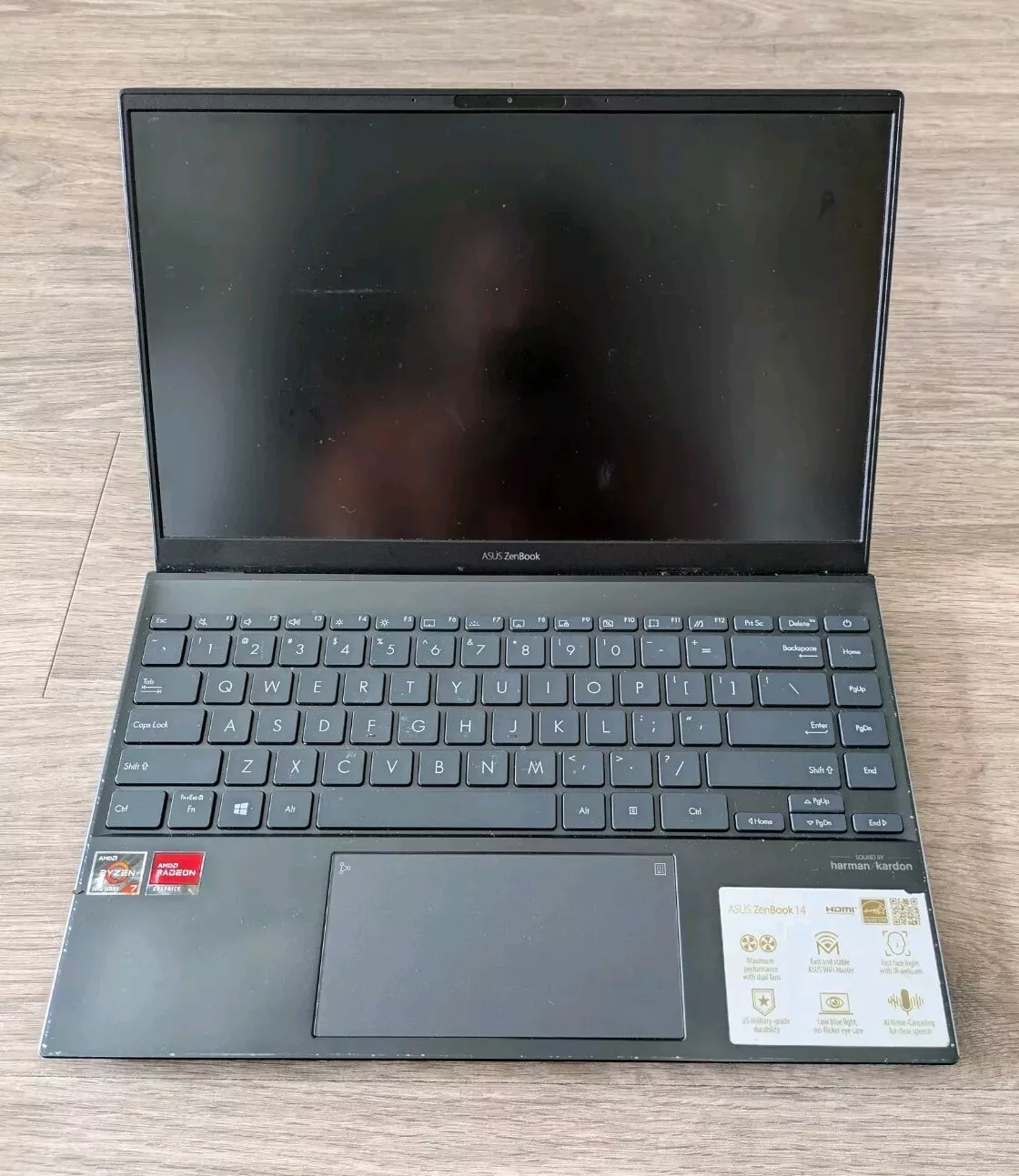
- Keyboard Shortcut: On many ASUS laptops, press Fn + F9 or Fn + F7 to toggle the touchpad on/off. Look for the touchpad icon on the function keys.
- Windows Settings:
- Go to Settings > Devices > Touchpad
- Make sure the touchpad toggle is On
2. Enable Touchpad in Device Manager
- Press Windows + X and select Device Manager
- Expand Mice and other pointing devices
- Look for your touchpad device (e.g., ASUS Touchpad, ELAN, or Synaptics)
- If it’s disabled (gray icon), right-click and select Enable device
- If enabled, you can try Disable device, then Enable device again to reset it
3. Update or Roll Back Touchpad Drivers
Outdated or faulty drivers often cause touchpad issues.
- Update Driver:
- In Device Manager, right-click your touchpad device
- Select Update driver > Search automatically for updated driver software
- Roll Back Driver:
- If the problem started after a recent update, right-click the device
- Select Properties > Driver tab > Roll Back Driver (if available)
Alternatively, download the latest drivers directly from the ASUS Support website.
4. Check Touchpad Settings in BIOS
Sometimes the touchpad is disabled at the BIOS level.
- Restart your ASUS laptop
- Press F2 (or Del) repeatedly during boot to enter BIOS setup
- Navigate to the Advanced tab or Internal Pointing Device setting
- Ensure the touchpad is Enabled
- Save and exit BIOS
5. Run Windows Troubleshooter
Windows has a built-in troubleshooter that can detect and fix touchpad problems.
- Go to Settings > Update & Security > Troubleshoot
- Click Additional troubleshooters
- Select Hardware and Devices > Run the troubleshooter
6. Disable External Mouse (If Connected)
Sometimes an external USB or Bluetooth mouse disables the touchpad automatically.
- Disconnect any external mice
- Check if the touchpad starts working
- You can also check Settings > Devices > Touchpad > Leave touchpad on when a mouse is connected and enable it if needed
7. Reset BIOS to Default
If BIOS settings are causing the issue, reset BIOS to factory defaults.
- Enter BIOS as in step 4
- Find Load Setup Defaults or Reset to Default
- Save and exit
8. Perform a System Restore
If the touchpad stopped working recently, restoring Windows to an earlier point might help.
- Search Create a restore point in Windows search and open it
- Click System Restore
- Choose a restore point before the touchpad issue started
- Follow prompts to restore
9. Check for Hardware Issues
If none of the above work, the touchpad hardware might be faulty.
- Try an external mouse temporarily
- Contact ASUS support or visit a service center for repair
Summary Table
| Step | Action |
|---|---|
| 1. Check touchpad toggle | Use Fn + F9 or Windows Settings |
| 2. Enable in Device Manager | Enable or reset device |
| 3. Update/Roll back drivers | Update or revert drivers |
| 4. BIOS check | Ensure touchpad enabled |
| 5. Run Windows troubleshooter | Detect and fix hardware issues |
| 6. Disconnect external mouse | Prevent auto-disable of touchpad |
| 7. Reset BIOS | Restore default BIOS settings |
| 8. System Restore | Revert to previous working state |
| 9. Hardware check | Seek professional repair if needed |
If you want detailed step-by-step help, ASUS also provides official troubleshooting at their support page.
Key Takeaways
- Check if your touchpad is disabled using the function key (often Fn+F9) or in Windows settings before trying more complex solutions.
- Reinstalling touchpad drivers through Device Manager can resolve most software-related touchpad issues.
- Regular cleaning and keeping your system updated will prevent many common touchpad problems from occurring.
Understanding Your Asus Touchpad
The touchpad on your Asus laptop combines hardware and software to provide precise cursor control and gesture recognition. Knowing how your touchpad works and recognizing common issues can help you troubleshoot problems more effectively.
Anatomy of an Asus Precision Touchpad
The Asus Precision touchpad is designed with multiple components working together to track your movements. It consists of a smooth surface panel with sensitive touch sensors underneath that detect finger position and movement.
Most modern Asus laptops feature Microsoft Precision touchpads, which offer improved accuracy and consistent gesture support across Windows devices. These touchpads include:
- Multi-touch sensors that track several fingers simultaneously
- Pressure-sensitive areas for detecting clicks
- Edge zones for special gestures and scrolling
- Dedicated driver software that handles input processing
The touchpad connects to your system through an internal controller that translates physical touches into cursor movements. This specialized hardware requires proper driver installation to enable all features, including two-finger scrolling, pinch-to-zoom, and three-finger gestures.
Common Touchpad Issues and Symptoms
Asus touchpad problems typically manifest in several recognizable ways. Understanding these symptoms helps identify the underlying cause.
The most frequent issue is complete unresponsiveness, where the cursor won’t move at all. This often happens when the touchpad is accidentally disabled through the function key combination (usually Fn+F9).
Other common problems include:
- Erratic cursor movement – jumping or moving unpredictably
- Gesture recognition failure – two-finger scrolling stops working
- Delayed response – noticeable lag between touch and movement
- Partial functionality – clicking works but movement doesn’t
These issues frequently stem from outdated or corrupted drivers, physical contamination like dirt or moisture, or hardware malfunctions. Sometimes, simply cleaning the touchpad surface can restore normal operation.
Initial Troubleshooting Steps
When an ASUS laptop touchpad stops working, there are several quick fixes you can try before seeking professional help. These simple steps often resolve common touchpad issues without requiring technical expertise or special tools.
Checking Touchpad Enablement in Settings
Many ASUS laptops have a function key combination that enables or disables the touchpad. Look for an icon resembling a touchpad on the function keys (usually F9 or F10). Try pressing this key combination to see if it reactivates your touchpad.
If that doesn’t work, check your Windows settings:
- Open Settings (Windows key + I)
- Select Devices (Windows 10) or Bluetooth & devices (Windows 11)
- Click on Touchpad
- Make sure the touchpad toggle is switched to On
Some ASUS laptops also have ASUS-specific touchpad settings in their pre-installed software. Check for an ASUS utility in your Start menu that might control additional touchpad functions.
Using an External USB Mouse for Diagnostics
Connecting an external USB mouse serves two purposes. First, it provides temporary navigation control while troubleshooting. Second, it helps determine if the issue is hardware or software related.
If the external mouse works properly, this suggests Windows can still communicate with pointing devices. This is a good sign, indicating your touchpad issue might be software-related rather than a hardware failure.
With the external mouse connected, you can:
- Access Device Manager to check for driver issues
- Navigate through settings more easily
- Update touchpad drivers from the ASUS support website
Keep the external mouse connected until you resolve the touchpad issue.
Performing a System Restart
A simple restart can fix many touchpad problems by clearing temporary system errors. Before restarting, save all your work in open applications.
To perform an effective restart:
- Click the Start menu
- Select Power
- Choose Restart (not Shut Down)
For a more thorough reset, try a complete shutdown instead:
- Click Start > Power > Shut Down
- Wait 30 seconds after the computer powers off
- Press the power button to restart
On some ASUS models, touchpad issues appear after Windows updates or sleep mode. A restart often resolves these temporary glitches by reloading all drivers and system components.
Driver Management
Proper driver management is often the key to resolving touchpad issues on ASUS laptops. Corrupted or outdated drivers are among the most common causes of touchpad malfunctions.
Updating or Reinstalling Touchpad Drivers
When an ASUS touchpad stops responding, reinstalling the touchpad drivers from the official ASUS support website often resolves the issue. Users should first visit the ASUS support page and search for their specific laptop model to download the correct drivers.
The installation process typically involves:
- Uninstalling current drivers – Navigate to Device Manager, find the touchpad under “Mice and other pointing devices,” right-click and select “Uninstall device”
- Downloading new drivers – Get the latest touchpad drivers specifically for the laptop model
- Installing downloaded drivers – Run the installation package and follow on-screen instructions
After installation, a system restart is usually required to complete the process. This approach fixes most driver corruption issues that cause touchpad failures.
Rolling Back Drivers After an Update
Sometimes touchpad problems occur immediately after a Windows update installs new drivers. In these cases, rolling back to previous driver versions can quickly resolve the issue.
To roll back touchpad drivers:
- Open Device Manager through the Start menu or by pressing Win+X
- Expand “Mice and other pointing devices”
- Right-click on the touchpad device and select “Properties”
- Navigate to the “Driver” tab
- Click the “Roll Back Driver” button (if available)
If the rollback option is grayed out, this indicates no previous driver is stored on the system. In this case, manually downloading an older driver version from ASUS might be necessary.
Utilizing Device Manager for Driver Issues
Device Manager offers several helpful tools for diagnosing and fixing touchpad driver problems. This built-in Windows utility provides a centralized location for managing all hardware devices.
Key actions to take in Device Manager include:
- Checking for driver errors – Yellow exclamation marks indicate driver problems
- Updating drivers – Right-click the touchpad device and select “Update driver”
- Scanning for hardware changes – Forces Windows to detect and reconfigure the touchpad
- Enabling disabled devices – Ensures the touchpad hasn’t been accidentally disabled
Sometimes, enabling the “Show hidden devices” option in Device Manager’s View menu reveals additional touchpad-related entries that need attention. For persistent issues, the “Disable device” then “Enable device” sequence can reset the driver connection and restore functionality.
Software Fixes and System Restore
When an ASUS touchpad stops working, software solutions can often resolve the issue without requiring technical help. These fixes include adjusting touchpad software settings and using Windows system restoration tools to return to a working state.
Dealing with ASUS Smart Gesture Software
ASUS Smart Gesture is a specialized utility that controls touchpad functionality on ASUS laptops. If your touchpad isn’t responding, first check if the software is properly installed and running.
To reinstall Smart Gesture:
- Open Control Panel and uninstall any existing ASUS Smart Gesture software
- Visit the official ASUS support website to download the latest version for your specific model
- Install the software and restart your computer
Sometimes the touchpad settings get changed accidentally. Open Smart Gesture and verify that basic touchpad functions are enabled. Look for a checkbox labeled “Enable touchpad” or similar wording.
If Smart Gesture shows the touchpad is disabled, try using the function key (usually F6) to toggle it back on. This key typically has a touchpad icon and may require pressing the Fn key simultaneously.
Conducting a System Restore to a Previous State
If touchpad problems began after a recent update or software installation, restoring your system to an earlier point can help.
For Windows 10 and 11 systems:
- Type “System Restore” in the search bar and select “Create a restore point”
- Click the “System Restore” button in the window that appears
- Select “Choose a different restore point” and click Next
- Select a restore point from before the touchpad issues began
- Follow the prompts to complete the restoration
This process reverts system files and settings to an earlier state without affecting personal files. The computer will restart during the process, which typically takes 10-30 minutes.
For persistent issues, consider checking BIOS settings. Some users have fixed touchpad problems by changing touchpad settings from I2C to PS2 in the BIOS menu, accessible during system startup.
Advanced Troubleshooting Techniques
When basic solutions fail to fix your Asus touchpad, deeper technical approaches may be needed to resolve the issue. These methods require more technical knowledge but often solve persistent touchpad problems.
Navigating Asus Support and Resources
Asus provides several dedicated support channels for touchpad issues. The official Asus website contains detailed troubleshooting guides specifically for touchpad problems. These guides often include model-specific solutions not found elsewhere.
MyASUS app, pre-installed on most Asus laptops, offers diagnostic tools and driver updates. Users can access hardware tests to check if the touchpad is functioning properly at the hardware level.
The Asus support forum has a large community of users who share solutions for common problems. Many users have posted successful fixes for touchpad issues that might match your specific situation.
Driver downloads on the official site are organized by model number. Always download touchpad drivers specifically matched to your laptop model and Windows version to prevent compatibility issues.
Consulting Tech Support for Hardware Issues
When software solutions fail, hardware issues may be the culprit. Contacting Asus technical support through their hotline provides access to technicians familiar with model-specific touchpad problems. Before calling, gather essential information such as your laptop model, serial number, and Windows version.
For laptops under warranty, Asus offers repair services for hardware-related touchpad failures. The technical team can determine if the issue requires physical repair.
Physical inspection by qualified technicians can identify loose connections between the touchpad and motherboard. This common issue often requires professional assistance to resolve.
Some Asus models have known touchpad hardware defects addressed through service bulletins. Tech support can confirm if your model is affected and eligible for special repair programs.
Frequently Asked Questions
ASUS touchpad issues can occur for various reasons, from driver problems to accidental disabling. The following questions address common troubleshooting methods and solutions that help resolve these frustrating touchpad malfunctions.
How can I enable my ASUS laptop touchpad without using a mouse?
Users can enable an ASUS touchpad without a mouse by using the function key combination. Most ASUS laptops have a dedicated key combination, typically Fn + F9 or Fn + F10, which toggles the touchpad on and off.
External keyboards can also be connected to navigate to touchpad settings if available. Windows accessibility features like keyboard navigation may help access touchpad settings through Control Panel or Settings.
What steps should I take to troubleshoot an unresponsive ASUS touchpad in Windows 10?
First, check if the touchpad is turned on in Windows settings. Navigate to Settings > Devices > Touchpad and ensure the toggle is switched on.
If that doesn’t work, uninstalling and reinstalling the touchpad drivers often resolves the issue. Open Device Manager, find the touchpad under “Mice and other pointing devices,” right-click to uninstall, then restart the computer.
Running Windows Update might also help, as it can automatically install missing or updated touchpad drivers.
Why might my ASUS laptop touchpad stop functioning, and how can I identify the cause?
Physical issues like dust or dirt accumulation on the touchpad surface can cause malfunctions. Cleaning the touchpad with a slightly damp microfiber cloth may resolve these issues.
Hardware failures sometimes occur, particularly with aging devices or after liquid damage. If the touchpad makes unusual clicking sounds or feels loose, internal components may be damaged.
Software conflicts with recently installed programs or Windows updates can also disable touchpad functionality. Checking Device Manager for yellow warning icons beside the touchpad driver helps identify software-related issues.
Can you provide guidance on updating the ASUS Precision Touchpad drivers to resolve sensitivity issues?
Updating ASUS Precision Touchpad drivers can be done through the ASUS website by downloading the latest driver package for the specific laptop model. Always choose drivers that match the exact model and Windows version.
The MyASUS app provides an alternative method for driver updates. This pre-installed application checks for and installs driver updates specifically designed for the device.
Windows Device Manager offers a third option. Right-click on the touchpad device, select “Update driver,” and choose to search automatically for updated driver software.
What methods are available for resetting my ASUS laptop’s touchpad settings?
Windows Settings provides the simplest reset method. Navigate to Settings > Devices > Touchpad and click the “Reset” button if available, or toggle off additional features one by one.
Control Panel offers more detailed settings. Access Mouse Properties through Control Panel, navigate to the ASUS Smart Gesture or device-specific tab, and look for reset options.
For a complete reset, reinstalling touchpad drivers removes all custom configurations. Uninstall the current driver through Device Manager, restart the computer, and let Windows install the default driver.
How do I address touchpad malfunctions post-upgrading to Windows 11 on my ASUS Vivobook?
After upgrading to Windows 11, visiting the ASUS support website to download Windows 11-compatible touchpad drivers specifically designed for the Vivobook model ensures compatibility.
Checking Windows 11 touchpad settings helps identify any new configurations affecting performance. Navigate to Settings > Bluetooth & devices > Touchpad to adjust sensitivity and gesture settings.
Rolling back drivers sometimes fixes compatibility issues. In Device Manager, right-click the touchpad, select Properties, navigate to the Driver tab, and click “Roll Back Driver” if the option is available.