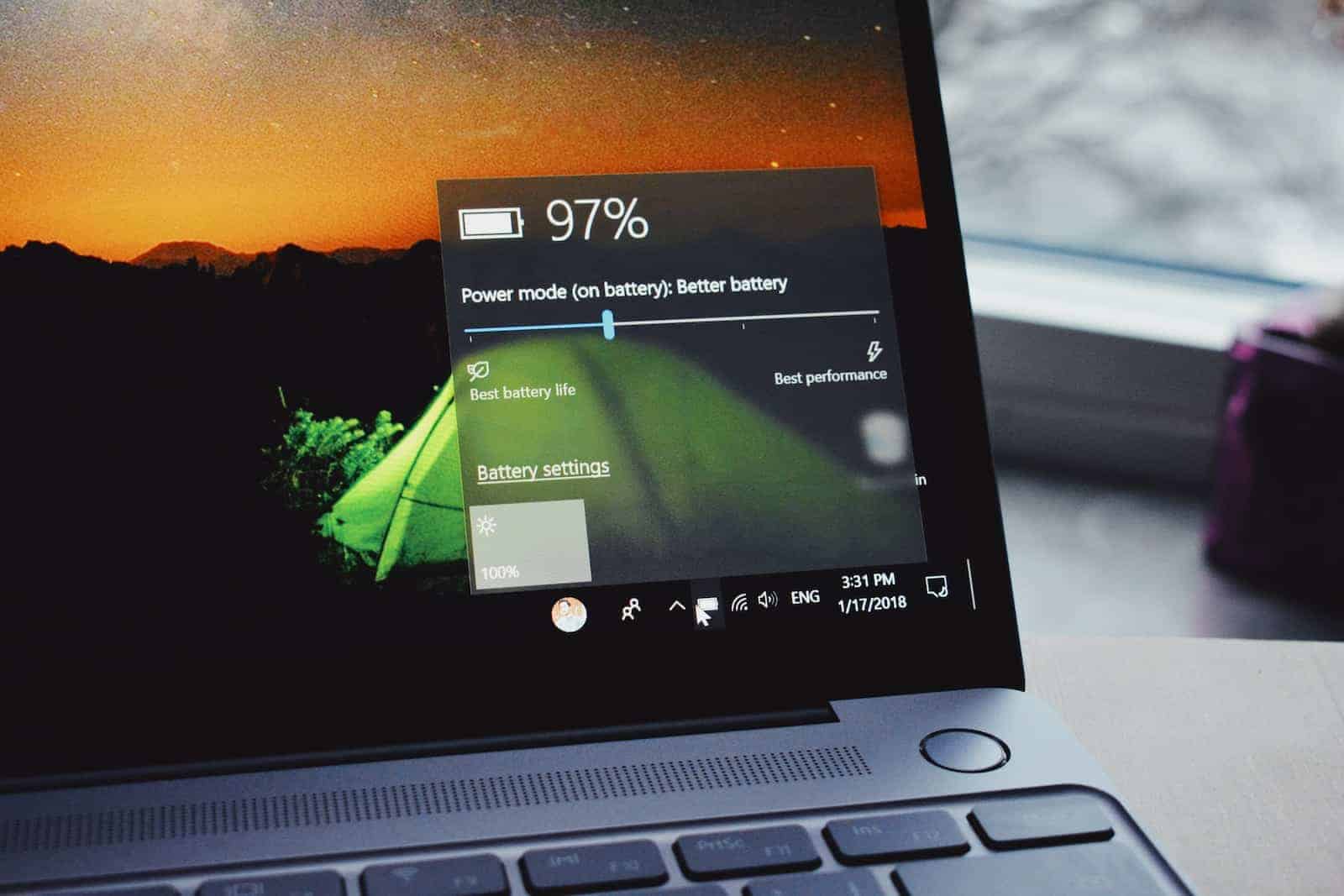
Wondering if your laptop is losing its charge too quickly? As our devices age, battery performance naturally declines, but knowing exactly how much capacity remains can help you decide if it’s time for a replacement. You can easily check your laptop’s battery health in Windows by using the built-in powercfg command tool that generates a detailed HTML report showing your battery’s current capacity compared to its original design capacity.
Many users don’t realize that Windows already includes everything you need to check battery health without installing third-party apps. This report shows important metrics like your battery’s original design capacity, current capacity, and cycle count. These numbers tell you exactly how much your battery has degraded over time.
The process takes just a minute and gives you valuable information about your laptop battery’s condition and expected lifespan. Understanding this data helps you make informed decisions about when to replace your battery or adjust your usage habits to extend its life.
How to Check Your Laptop’s Battery Health (Windows & Mac Guide – 2026)
Your laptop battery won’t last forever. Over time, batteries lose capacity, meaning they hold less charge and drain faster. Checking your battery health helps you decide whether you need a replacement—or just better charging habits.
Here’s how to check battery health on Windows 10, Windows 11, and macOS.
✅ How to Check Battery Health on Windows 10 & Windows 11
Windows doesn’t show battery health directly in Settings, but it includes a built-in battery report tool.
Method 1: Generate a Battery Report (Best Method)
Step 1: Open Command Prompt
- Press Windows + S
- Type cmd
- Click Run as administrator
Step 2: Generate the Report
Type the following command and press Enter:
powercfg /batteryreport
Windows will generate a battery report and save it to:
C:\Users\YourUsername\battery-report.html
Step 3: Open the Report
- Go to your user folder
- Double-click battery-report.html
🔎 What to Look For
Inside the report, find:
🔋 Design Capacity
The original maximum charge the battery was designed to hold.
🔋 Full Charge Capacity
How much charge the battery can currently hold.
📊 Battery Health Calculation
You can estimate battery health with this formula:
(Full Charge Capacity ÷ Design Capacity) × 100
Example:
- Design Capacity: 50,000 mWh
- Full Charge Capacity: 40,000 mWh
Battery Health = 80%
✅ 90–100% → Excellent
⚠️ 70–89% → Normal wear
❗ Below 70% → Consider replacement
This method is widely recommended in Windows battery guides from sources like LaptopVoyager and BatteryMall.
✅ Alternative Windows Method (Manufacturer Tools)
Some brands provide built-in diagnostics:
- Dell → Dell Power Manager
- HP → HP Support Assistant
- Lenovo → Lenovo Vantage
- ASUS → MyASUS app
These tools often show battery health as a percentage directly.
✅ How to Check Battery Health on macOS
Apple makes this much easier.
For macOS Big Sur or Later:
Step 1:
Click Apple Menu () → System Settings (or System Preferences)
Step 2:
Click Battery
Step 3:
Click Battery Health
You’ll see:
- Maximum Capacity (%)
- Peak Performance Capability
- Battery condition (Normal, Service Recommended, etc.)
🔎 What “Maximum Capacity” Means
- 100% → Like new
- 85–95% → Normal after a year or two
- Below 80% → Battery is significantly worn
Apple considers batteries designed to retain up to 80% capacity after 1,000 charge cycles (varies by model).
✅ How to Check Battery Cycle Count (Mac Advanced)
- Click Apple Menu ()
- Hold Option key
- Click System Information
- Select Power
Look for:
- Cycle Count
- Condition
- Maximum Capacity
Higher cycle counts = more wear.
🔋 Signs Your Battery May Need Replacement
- Laptop dies before 20%
- Rapid battery drain
- Device only works when plugged in
- “Service Recommended” warning (Mac)
- Battery health below 70%
💡 How to Improve Battery Lifespan
✅ Avoid keeping battery at 0% or 100% constantly
✅ Keep charge between 20%–80% when possible
✅ Avoid extreme heat
✅ Use manufacturer battery optimization features
✅ Reduce screen brightness
📊 Quick Comparison
| Feature | Windows | Mac |
|---|---|---|
| Built-in health percentage | ❌ (manual calculation) | ✅ Yes |
| Battery report file | ✅ Yes | ❌ |
| Cycle count visible | ❌ (varies by manufacturer) | ✅ Yes |
| Third-party tools available | ✅ Yes | ✅ Yes |
Final Thoughts
Checking your laptop’s battery health only takes a few minutes and can help you:
- Decide when to replace your battery
- Diagnose power issues
- Extend your laptop’s lifespan
If your battery health is below 70% and performance is suffering, it may be time for a replacement.
Key Takeaways
- Windows has a built-in battery report tool accessible through Command Prompt using the powercfg command.
- The report shows your battery’s design capacity versus current capacity, allowing you to calculate its health percentage.
- Regular battery health checks help you monitor degradation and make timely decisions about battery replacement or usage adjustments.
Understanding Laptop Battery Health
Monitoring your laptop’s battery health is essential for maximizing its lifespan and planning for replacements before you’re caught without power. Knowing how to interpret battery health metrics helps you make informed decisions about your device’s usage and maintenance.
Concepts of Battery Health and Capacity
Battery health refers to your laptop battery’s current condition compared to when it was new. It’s typically measured as a percentage that indicates how much of the original capacity remains. As batteries age, their ability to hold charge naturally decreases.
Several factors affect battery health:
- Charge cycles – Each complete discharge and recharge counts as one cycle
- Temperature exposure – High heat accelerates battery degradation
- Age – Even unused batteries deteriorate over time
- Usage patterns – Constantly running at 100% or 0% charge harms batteries
Windows provides built-in tools to check these metrics, which can help you determine if your battery is performing as expected or needs replacement.
Battery Life and Usage History
Your battery’s usage history reveals patterns that impact its overall health. Windows’ battery report shows detailed information about recent usage, including discharge rates and estimated battery life.
The report tracks:
- Usage time on battery – How long your laptop runs between charges
- Energy consumption – Which applications use more power
- Recent charge cycles – How frequently you’re charging
- Battery capacity over time – Visual graphs showing degradation
This data helps identify if your battery life has been declining over time. For example, if you notice battery duration dropping significantly after a software update, you might need to adjust power settings or investigate background processes.
Design Capacity vs. Full Charge Capacity
These two measurements are crucial for understanding your battery’s health status:
Design Capacity: The maximum amount of charge your battery could hold when it was manufactured. This number never changes and serves as the baseline for measuring degradation.
Full Charge Capacity: The maximum amount of charge your battery can currently hold. This number gradually decreases over time.
The ratio between these values determines your battery’s health percentage:
Battery Health = (Full Charge Capacity ÷ Design Capacity) × 100%
A new battery should have nearly identical values for both metrics. When the full charge capacity falls below 80% of the design capacity, you’ll likely notice significantly reduced battery life. Most manufacturers consider batteries below this threshold as candidates for replacement.
Checking Battery Health on Windows Laptops
Windows provides built-in tools to check your laptop’s battery health without installing third-party software. These methods give you detailed information about battery capacity, usage patterns, and overall health status.
Using Windows PowerShell
To check your battery health, you can use either Command Prompt or Windows PowerShell. Both tools work effectively for this purpose.
Open PowerShell or Command Prompt by right-clicking on the Start button and selecting “Windows PowerShell” or by searching for it in the Start menu.
Type this command and press Enter:
powercfg /batteryreportThe system will generate a battery report and save it as an HTML file. You’ll see a message showing where the file is saved, typically in your user directory (C:\Users\YourUsername).
PowerShell gives you the same results as Command Prompt for battery diagnostics in both Windows 10 and Windows 11.
Interpreting powercfg /batteryreport
The battery report contains several important sections that help you understand your battery’s condition.
Look for “Design Capacity” and “Full Charge Capacity” near the top of the report. Design Capacity shows what your battery was capable of when new, while Full Charge Capacity shows its current maximum.
A significant difference between these two values indicates battery degradation. For example, if your design capacity is 50,000 mWh but full charge is only 35,000 mWh, your battery has lost 30% of its original capacity.
The report also shows “Cycle Count” – the number of complete charge-discharge cycles. Most laptop batteries are rated for 300-500 cycles before significant degradation.
Reviewing Battery Report HTML File
To open the battery report, navigate to the location shown after running the command. The file is named “battery-report.html” and opens in your default web browser.
The report contains several helpful sections:
- Battery Information: Shows manufacturer details and serial number
- Installed Batteries: Lists technical specifications
- Recent Usage: Displays power state changes over recent days
- Battery Capacity History: Shows how capacity has changed over time
- Battery Life Estimates: Predicts how long your battery will last
Pay special attention to the capacity history graph, which visually shows your battery’s health decline over time. A healthy battery will show minimal decline, while an aging battery will show a steeper downward trend.
You can run this report periodically (perhaps every few months) to track your battery’s health over time.
Monitoring Current Capacity and Charge Cycles
Understanding your laptop battery’s current capacity and charge cycles helps you track its health over time. These metrics reveal how your battery performs compared to when it was new.
Tracking Capacity History
Your laptop stores information about its battery’s original capacity and how much it can hold now. In Windows, you can generate a detailed battery report by opening Command Prompt as administrator and typing powercfg /batteryreport. This creates an HTML file that shows your battery’s design capacity and current capacity.
The report highlights two important values:
- Design Capacity: The original maximum charge your battery could hold
- Full Charge Capacity: What your battery can currently hold
A significant difference between these numbers indicates battery wear. For example, if your design capacity is 60,000 mWh but full charge shows only 45,000 mWh, your battery has lost 25% of its original capacity.
For Mac users, you can check cycle counts by clicking the Apple menu, selecting “About This Mac,” then “System Report,” and finally “Power” under Hardware.
Analyzing Battery Life Estimates
Battery life estimates help you understand how long your laptop can run before needing a recharge. Windows provides this information in the battery report under “Battery Life Estimates.” This section shows how runtime has changed over time.
The Active column under “At Full Charge” displays how long your battery lasts when fully charged. If it shows significantly less time than when your laptop was new, your battery health has declined.
You can also review the Battery Usage section to see drain patterns over the past three days. Look for:
- Sudden drops in battery percentage
- Unusually rapid discharge rates
- Inconsistent performance between similar tasks
Dell laptop owners can use built-in diagnostics by pressing F12 during startup and selecting Diagnostics for a comprehensive battery health assessment.
Improving and Maintaining Battery Lifespan
Taking proper care of your laptop battery can significantly extend its useful life and maintain its performance over time. Good habits and system settings both play important roles in battery health.
Battery Charging Best Practices
To maximize your battery’s lifespan, avoid keeping it at 100% charge for extended periods. Many experts recommend maintaining your battery at around 50% when possible, as this is the optimal charge level for battery health.
Some laptops offer built-in battery limit features that stop charging at 80% capacity. Check if your laptop manufacturer provides this option in their proprietary software.
Avoid complete discharges when possible. Modern lithium-ion batteries don’t have the “memory effect” of older battery types, so frequent partial charges are actually better than full discharge cycles.
Unplug your laptop once it reaches full charge if you don’t need to use it plugged in. Constant charging at 100% generates heat and stress that degrades battery cells over time.
Optimizing Power Mode and Performance
Windows offers several power modes to balance performance and battery conservation. You can change your power mode to “Battery saver” when working away from an outlet.
Adjust your display brightness – this is one of the biggest power consumers. Even reducing brightness by 25% can noticeably extend battery runtime.
Review your laptop’s sleep and power settings:
- Decrease screen timeout settings
- Enable hibernation for longer periods of inactivity
- Turn off keyboard backlights when not needed
Close unnecessary background applications and browser tabs that consume power. Check Task Manager to identify power-hungry apps running in the background.
Preventive Measures for Longer Battery Life
Keep your laptop cool. Heat accelerates battery degradation, so use your device on hard surfaces that allow proper ventilation. Consider using a cooling pad during intensive tasks.
Update your operating system and drivers regularly. These updates often include power management improvements that can help extend battery life.
Disable unused connectivity features like Bluetooth and Wi-Fi when not needed. These wireless technologies continuously consume power even when not actively transmitting data.
Avoid exposing your laptop to extreme temperatures. Both cold and hot environments can damage battery cells and reduce capacity. The ideal temperature range is between 50-95°F (10-35°C).
Run a battery health report periodically to monitor your battery’s condition and catch any significant degradation early.
Identifying and Resolving Battery Issues
Battery problems can significantly impact your laptop’s performance and portability. Understanding how to spot issues early and take appropriate action helps extend your device’s usability and prevents unexpected shutdowns.
Recognizing Signs of Battery Deterioration
Your laptop battery may be deteriorating if you notice it drains much faster than when it was new. A healthy battery should maintain most of its original capacity for at least a year of regular use.
Watch for these warning signs:
- Sudden shutdowns when the battery indicator still shows charge remaining
- Rapid drainage from full to empty in significantly less time than before
- Overheating during charging or normal operation
- Swelling or bulging of the battery (immediately stop using if you notice this)
- Battery status indicators showing “Consider replacing” or “Poor condition”
Windows may also display a red X over the battery icon or a notification stating “Battery health is significantly deteriorated.”
Troubleshooting Common Battery Problems
When facing battery issues, try these troubleshooting steps before seeking professional help:
Check power management settings:
- Go to Control Panel > Power Options
- Select a balanced or power-saving plan
- Adjust display brightness and sleep settings
Update drivers and firmware:
Update your BIOS and power management drivers through your manufacturer’s support website. HP users can run the HP Battery Check diagnostic tool to test battery health.
Test your charger and ports:
Try a different charger or outlet. Check for damaged cables or dirt in charging ports.
Run diagnostic tests:
Dell users can access hardware diagnostics by pressing F12 at startup and selecting “Diagnostics” to test battery functionality.
Generate a battery report:
Open Command Prompt as administrator and type powercfg /batteryreport to create a detailed battery life report.
When to Consider Battery Replacement
Replace your battery when its capacity falls below 50% of the original design capacity. This information appears in the battery report under “Design Capacity” versus “Current Capacity.”
Most laptop batteries last 2-4 years depending on usage patterns. If your battery no longer holds a charge for your typical work session, replacement is worth considering.
Consider these factors when deciding:
- Age of laptop: Is it worth investing in a new battery for an older model?
- Warranty status: Some manufacturers cover battery replacement within warranty
- Battery availability: Check if official replacement batteries are still available
- Cost comparison: Compare battery replacement cost versus a new laptop
For many laptops, battery replacement is straightforward and costs $50-$150 depending on your model. Contact your manufacturer for genuine replacement parts or authorized service centers.
Frequently Asked Questions
Windows provides several built-in methods to check your laptop battery health without installing additional software. These methods range from simple command prompt tools to detailed battery reports that show capacity trends over time.
What steps are involved in checking the battery health on a Windows 10 laptop?
To check your battery health in Windows 10, you can use the built-in battery report feature. First, open Command Prompt as administrator by right-clicking the Start button and selecting “Command Prompt (Admin).”
Next, type powercfg /batteryreport /output "C:\battery-report.html" and press Enter. This command generates a detailed battery report showing your battery’s current capacity compared to its design capacity.
Once generated, navigate to your C drive and open the HTML file to view comprehensive information about your battery’s health, usage patterns, and capacity history.
Is there a command to assess the battery condition on a laptop using the command prompt?
Yes, the Command Prompt offers a simple way to check your battery health. The powercfg /batteryreport command is the most effective tool for this purpose.
This command creates a comprehensive battery report showing battery specifications, usage patterns, and capacity measurements. You can specify the output location with the /output parameter followed by your desired file path.
Another useful command is powercfg /energy, which performs a system diagnostic that includes battery performance issues among other power-related information.
What are the indicators of a failing laptop battery?
Rapid battery depletion is the most common sign of a failing battery. If your laptop suddenly shuts down before the battery percentage reaches zero, this indicates battery health problems.
Physical signs include overheating, swelling, or bulging of the battery compartment. These symptoms require immediate attention as they may pose safety risks.
The battery report will show a significant difference between design capacity and current capacity. When your current capacity falls below 50% of the design capacity, it’s generally time to consider a replacement.
Can laptop battery health be determined through online tools?
Online tools for checking battery health are limited because they can’t directly access your hardware information. Most effective battery diagnostics require direct system access.
Instead of online tools, you should rely on built-in Windows features or manufacturer-provided utilities. These provide more accurate measurements of battery health since they can directly communicate with your hardware.
Some laptop manufacturers offer web-based diagnostics through their support sites, but these typically require downloading and installing specialized software rather than running purely online.
What software options are available for monitoring laptop battery performance?
BatteryInfoView is a lightweight, free utility that provides detailed battery information including voltage, charge/discharge rate, and capacity deterioration over time.
HWiNFO and AIDA64 are comprehensive system monitoring tools that include detailed battery diagnostics among their many features. Both can track voltage, wear levels, and charge cycles.
Some laptop manufacturers offer their own battery management software, such as Lenovo’s Vantage, Dell’s Power Manager, or HP’s Support Assistant, which provide tailored battery diagnostics for their specific hardware.
How can one review the battery health on a HP laptop running Windows 11?
For HP laptops running Windows 11, you can use HP’s built-in battery diagnostic tool in the BIOS. Restart your laptop and press F2 repeatedly to access BIOS settings, where you’ll find battery health information.
Alternatively, use the Windows battery report command in Windows 11. Press Windows+X, select Terminal (Admin), then type powercfg /batteryreport /output "C:\battery-report.html" to generate a detailed report.
HP Support Assistant software, which comes pre-installed on most HP laptops, also offers battery health diagnostics. Open the application and look for the “Battery Check” feature under diagnostics or hardware checkup options.