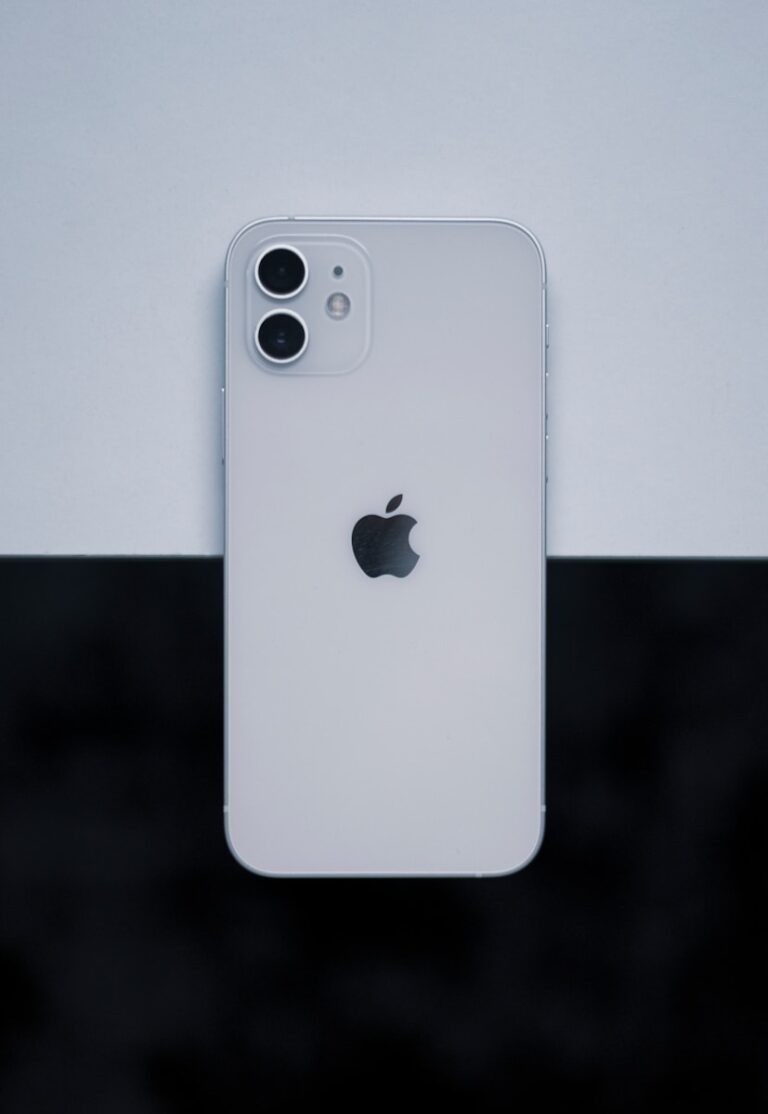
Is your iPhone 12 refusing to turn off? This common issue can be frustrating for users. To turn off an unresponsive iPhone 12, press and quickly release the volume up button, then the volume down button, and finally hold the side button until the Apple logo appears. This process, known as a force restart, often resolves the problem.
If the force restart doesn’t work, there may be a software glitch or a hardware malfunction. Some users report success by letting the battery drain completely before recharging. Others find that updating the iOS software can fix the issue.
For persistent problems, contacting Apple Support or visiting an Apple Store might be necessary. They can diagnose and repair any hardware issues that prevent the iPhone 12 from turning off properly.
iPhone 12 Won’t Turn Off: Complete Troubleshooting Guide
If your iPhone 12 won’t turn off, freezes on the screen, or ignores the power button, the issue is usually caused by a software glitch, unresponsive touchscreen, or system setting conflict. This guide walks you through safe, effective solutions, from quick fixes to advanced steps.
1. Why Your iPhone 12 Won’t Turn Off
Common causes include:
- iOS software bugs or freezes
- An app causing the system to hang
- Unresponsive side or volume buttons
- Accessibility features interfering with shutdown
- System overload or memory issues
2. Try the Standard Power-Off Method
First, make sure you’re using the correct shutdown method for iPhone 12:
- Press and hold Side Button + Volume Up or Down
- Wait for “slide to power off”
- Drag the slider to turn off the phone
If the slider doesn’t appear or won’t move, continue below.
3. Force Restart iPhone 12 (Most Effective Fix)
A force restart can fix most software freezes and does not delete data.
Steps:
- Quickly press and release Volume Up
- Quickly press and release Volume Down
- Press and hold the Side Button
- Release when the Apple logo appears
✅ This bypasses the normal shutdown process and resets the system.
4. Turn Off iPhone 12 Using Settings
If the buttons aren’t working:
- Go to Settings → General
- Scroll down and tap Shut Down
- Slide to power off
This method works even if hardware buttons are faulty.
5. Check Accessibility Settings
Some features can interfere with button behavior.
- Go to Settings → Accessibility
- Check Touch, AssistiveTouch, and Side Button settings
- Temporarily disable AssistiveTouch if enabled
- Try turning off the phone again
6. Update iOS
Software bugs can prevent proper shutdown.
- Go to Settings → General → Software Update
- Install any available updates
- Restart your iPhone afterward
7. Check for a Frozen App
If an app is causing the issue:
- Force close all apps
- Avoid reopening the problematic app
- Check the App Store for app updates
8. Reset All Settings (Advanced)
If the problem keeps happening:
- Go to Settings → General → Transfer or Reset iPhone
- Tap Reset
- Choose Reset All Settings
✅ Keeps your data
❌ Resets Wi‑Fi, Face ID, and preferences
9. Restore iPhone Using a Computer (Last Resort)
If your iPhone still won’t shut down properly:
- Connect iPhone to a Mac or PC
- Open Finder (Mac) or iTunes (Windows)
- Put iPhone into Recovery Mode
- Select Update (not Restore first)
⚠️ Use Restore only if Update fails, as it erases data.
10. When to Contact Apple Support
You should contact Apple if:
- Side button or volume buttons don’t work
- iPhone overheats or randomly restarts
- The issue persists after restoring iOS
This may indicate a hardware issue.
11. Temporary Workarounds
- Use Settings → Shut Down
- Enable AssistiveTouch to simulate button presses
- Let the battery drain completely (not recommended frequently)
Final Thoughts
In most cases, an iPhone 12 that won’t turn off can be fixed with a force restart or software update. Hardware issues are less common but possible if buttons are damaged.
Key Takeaways
- Force restart can often fix an iPhone 12 that won’t turn off
- Software updates may resolve persistent turn-off issues
- Professional assistance is recommended for hardware-related problems
Understanding the iPhone 12 Hardware
The iPhone 12’s hardware design marks a significant evolution in Apple’s smartphone technology. Its button layout and functionality play a crucial role in device operation and troubleshooting.
Side Button and Volume Buttons
The iPhone 12 features three main external buttons: the side button and two volume buttons. The side button, located on the right edge, serves multiple functions. It powers the device on and off, activates Siri, and enables Apple Pay.
The volume buttons sit on the left side of the phone. These buttons adjust audio levels and can be used in combination with the side button for various tasks. For instance, pressing and quickly releasing the volume up button, followed by the volume down button, and then holding the side button forces a restart of the device.
This button configuration allows users to perform essential actions without accessing the touchscreen. It proves especially useful when the iPhone 12 becomes unresponsive or fails to turn off normally.
Sleep/Wake Button Evolution
The sleep/wake button on the iPhone 12 has undergone significant changes from earlier models. Previously known as the power button, it moved from the top of the device to the side with the iPhone 6.
On the iPhone 12, this button gained additional capabilities. It now serves as the “side button,” incorporating functions previously handled by the home button on older models. This change accommodates the full-screen design of newer iPhones.
The side button on the iPhone 12 can wake the device, put it to sleep, activate Siri, and trigger emergency features. Its placement and multi-functionality represent Apple’s focus on streamlining user interactions while expanding device capabilities.
Troubleshooting Steps to Turn Off iPhone 12
If your iPhone 12 won’t turn off, several methods can help resolve this issue. These techniques range from basic force restarts to using built-in accessibility features.
Force Restart Procedure
The force restart method is often the most effective way to turn off an unresponsive iPhone 12. This process doesn’t erase any data and can fix many software glitches.
- Press and quickly release the volume up button.
- Press and quickly release the volume down button.
- Press and hold the side button.
- Keep holding until the Apple logo appears.
This sequence may take 10-30 seconds. Once the Apple logo shows, release the side button. The iPhone will restart, potentially resolving the issue.
Using AssistiveTouch to Turn Off iPhone 12
AssistiveTouch provides an on-screen menu for various functions, including powering off the device. This method is useful if the physical buttons are unresponsive.
To enable AssistiveTouch:
- Go to Settings > Accessibility > Touch > AssistiveTouch
- Toggle AssistiveTouch on
To turn off the iPhone using AssistiveTouch:
- Tap the AssistiveTouch button
- Select Device > More > Restart
This virtual method bypasses physical button issues and can often shut down a problematic device.
Utilizing Emergency SOS
Emergency SOS can force an iPhone 12 to turn off as a last resort. This feature is designed for emergencies but can help with unresponsive devices.
To use Emergency SOS:
- Press and hold the side button and either volume button
- Slide the Emergency SOS slider
This action will call emergency services and turn off the iPhone. Cancel the call immediately if not in an actual emergency. The device will power down, potentially resolving the issue upon restart.
Advanced Solutions and Preventive Measures
When an iPhone 12 won’t turn off, advanced solutions and expert assistance can help resolve persistent issues. These methods go beyond basic troubleshooting to address complex software problems or hardware malfunctions.
Software Update and Restoration
Updating iOS or restoring the iPhone 12 can fix stubborn software glitches. Connect the device to a computer with iTunes or Finder. Check for available iOS updates. If updates don’t solve the problem, consider a full restore.
Backup important data before restoring. Choose “Restore iPhone” in iTunes or Finder. This erases all content and installs the latest iOS version. After restoration, set up the iPhone as new or restore from a backup.
If the iPhone still won’t turn off, try Recovery Mode. Connect to a computer and force restart the device. Hold the side button until the Recovery Mode screen appears. Update or restore the iPhone through iTunes or Finder.
Contacting Apple Support
For unresolved issues, Apple Support offers expert assistance. Visit apple.com/support or use the Apple Support app to schedule an appointment. Explain the problem in detail to the support representative.
Apple Support may suggest additional troubleshooting steps. They can run remote diagnostics to identify hardware issues. If necessary, they’ll arrange repair or replacement options.
For in-person help, visit an Apple Store or Authorized Service Provider. Bring proof of purchase and backup your data beforehand. Technicians can perform hands-on diagnostics and repairs.
Face ID issues may require specialized support. Apple’s face recognition system is complex. Only authorized technicians should attempt repairs involving Face ID components.
Frequently Asked Questions
iPhone 12 users sometimes face issues with their device not turning off. These questions address common problems and provide solutions.
How can I force restart an iPhone 12 if it’s unresponsive?
To force restart an iPhone 12, press and release the volume up button, then press and release the volume down button. Next, press and hold the side button until the Apple logo appears. This method works when the device is unresponsive to normal shutdown procedures.
What steps can I take if my iPhone 12 is frozen and pressing the power button does nothing?
If the iPhone 12 is frozen, try a force restart. If that doesn’t work, connect the device to a power source. It may have a drained battery. Wait a few minutes, then attempt the force restart again.
Is there a way to hard reset my iPhone 12 when the screen is frozen?
Yes, a hard reset is possible even with a frozen screen. Use the force restart method: quickly press volume up, volume down, then hold the side button until the Apple logo shows up.
Why isn’t my iPhone 12 shutting down when I hold the power button?
Apple changed the shutdown process for newer iPhones. To turn off an iPhone 12, hold the side button and either volume button simultaneously until the power off slider appears. Slide to power off.
What should I do if my iPhone 12 screen is frozen and I can’t click on anything?
First, try a force restart. If unsuccessful, connect the iPhone to a computer and use iTunes or Finder to update or restore the device. This can resolve persistent software issues causing the freeze.
How can I turn off my iPhone 12 if the usual methods aren’t working?
If standard methods fail, try letting the battery drain completely. Once drained, charge the iPhone and attempt to turn it on. If issues persist, contact Apple Support for further assistance.