Have you noticed your laptop getting thicker or its case starting to warp? You might be dealing with a swollen battery, which is more than just a cosmetic issue. This common problem happens when gases build up inside the battery cells, making the battery expand and potentially damaging your device.
If you discover a swollen laptop battery, you should immediately stop using the device, unplug it, and safely remove the battery if possible. Continuing to use or charge a laptop with a swollen battery can be dangerous, as the battery could eventually rupture or even catch fire. The most common cause of battery swelling is overcharging, which stresses the battery and speeds up its degradation.
Don’t panic if this happens to you. Many manufacturers have procedures for handling swollen batteries under warranty. You can often get your laptop repaired professionally, and in many cases, you can still use your laptop plugged in without a battery while waiting for a replacement to arrive.
Laptop Battery Swelling: Causes, Prevention, and Safe Handling Techniques
Laptop battery swelling is a serious issue that requires immediate attention. A swollen battery can damage your laptop, pose safety risks, and in extreme cases, lead to fire or explosion. This comprehensive guide covers everything you need to know about recognizing, handling, and preventing battery swelling.
What is Battery Swelling?
Understanding the Problem
Battery swelling, also called battery bloat or battery expansion, occurs when gases build up inside a lithium-ion or lithium-polymer battery cell. This causes the battery to physically expand, often pushing against the laptop’s chassis, trackpad, keyboard, or screen.
Common signs of swelling:
- Bulging or deformed battery casing
- Laptop bottom case appearing raised or uneven
- Trackpad becoming stiff, raised, or unresponsive
- Keyboard keys feeling elevated or harder to press
- Gaps appearing between laptop body panels
- Screen not closing properly or sitting flush
- Laptop wobbling on flat surface when it didn’t before
- Case creaking or feeling tight
Why This Matters
Safety risks:
- Fire hazard
- Toxic gas release
- Potential explosion (rare but possible)
- Chemical leakage
- Damage to surrounding components
Device damage:
- Cracked screen from internal pressure
- Damaged trackpad or keyboard
- Bent chassis or frame
- Broken connectors and cables
- Motherboard damage
Important: A swollen battery is NOT safe to use and should be removed and disposed of properly as soon as possible.
How to Identify a Swollen Battery
Visual Inspection
External signs to check:
- Place laptop on flat surface:
- Does it wobble when it didn’t before?
- Is the bottom case bulging or uneven?
- Are there gaps in the seams?
- Examine the trackpad:
- Is it raised or protruding above the palm rest?
- Does it feel stiff or difficult to click?
- Is there unusual resistance or no clicking at all?
- Check the keyboard:
- Are keys raised or uneven?
- Is there a bulge under certain keys?
- Does typing feel different than normal?
- Inspect the screen:
- Does the lid close completely?
- Is there pressure or discoloration on the display?
- Are there new gaps between screen and body?
- Look at case seams:
- Are panels separating that were flush before?
- Can you see inside the laptop through gaps?
- Is the case warped or deformed?
Physical Testing
Safe tests to perform:
- Gentle press test (careful!):
- Lightly press on the laptop bottom
- Normal battery: Firm and solid
- Swollen battery: Feels soft, spongy, or bouncy
- Don’t press hard – could rupture battery
- Wobble test:
- Place on flat, level surface
- Gently rock the laptop
- Swelling often causes one corner to lift
- Trackpad click test:
- Try clicking trackpad normally
- Swelling often pushes trackpad up, making it stiff or unclickable
Internal Inspection (If Safe to Open)
For removable battery laptops:
- Power off completely (not sleep mode)
- Unplug from power source
- Flip laptop over
- Locate battery release latches
- Remove battery carefully
- Inspect battery for:
- Bulging or rounded surfaces (should be flat)
- Deformed casing
- Any discoloration or residue
- Unusual warmth
For internal battery laptops:
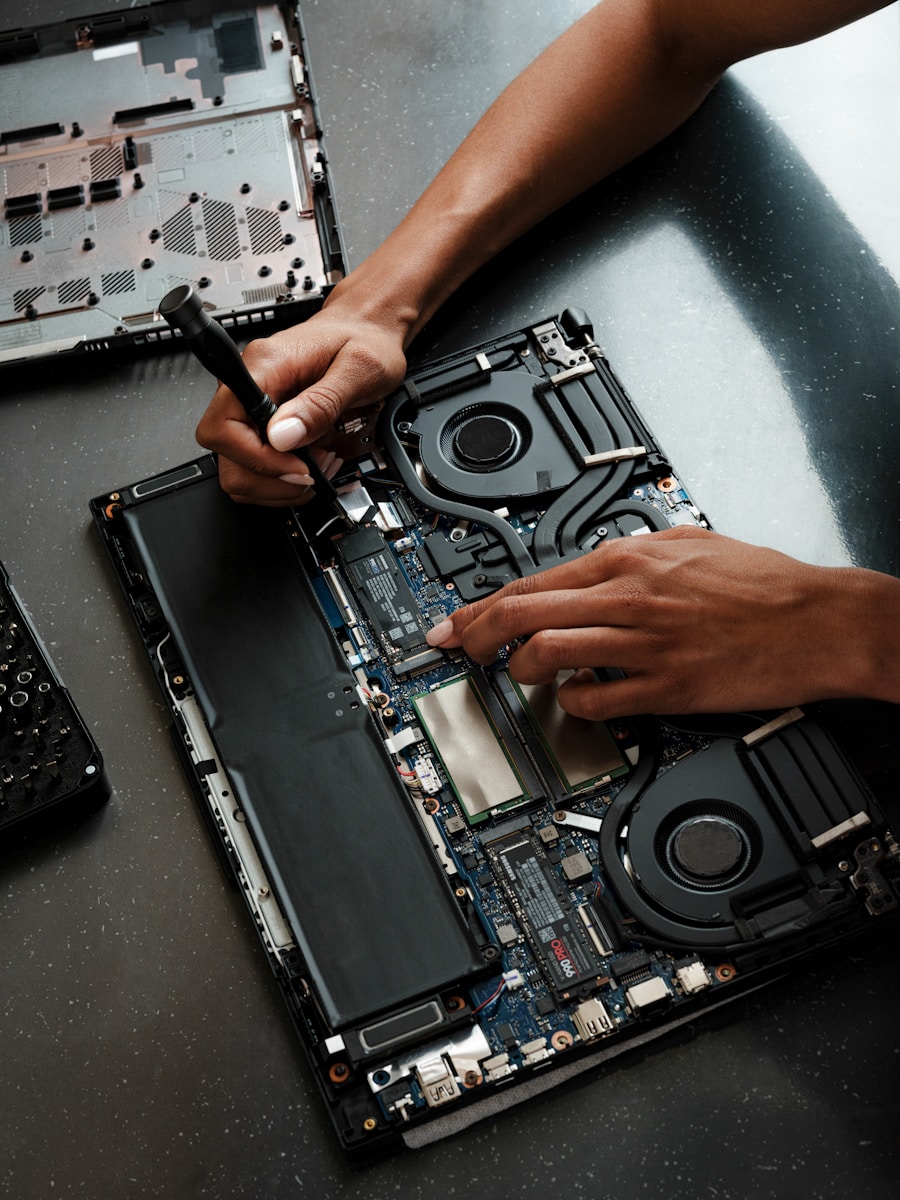
Only open if you’re comfortable with disassembly:
- Power off and unplug completely
- Remove back panel screws
- Carefully lift back panel
- Look at battery (don’t touch yet)
- Check for obvious swelling or deformation
Warning: If you see significant swelling, stop immediately and follow safe handling procedures below. Don’t attempt removal if uncomfortable.
Causes of Battery Swelling
1. Chemical Degradation (Normal Aging)
What happens:
- Lithium-ion batteries naturally degrade over time
- Chemical reactions inside create gas as byproduct
- Electrolyte breaks down with charge cycles
- More pronounced after 2-4 years of regular use
Contributing factors:
- Number of charge cycles (300-500+ cycles)
- Battery age (even with minimal use)
- Manufacturing variations
- Quality of battery cells
2. Overcharging
The problem:
- Keeping laptop plugged in constantly
- Charging beyond 100% capacity
- Poor charging circuit management
- Faulty charging controller
How it causes swelling:
- Excess electrical energy converts to heat
- Heat accelerates chemical breakdown
- Gases form faster than they can dissipate
- Battery management system failure
Modern protections:
- Most laptops have overcharge protection
- Still not 100% foolproof
- Degradation occurs over time even with protection
3. Overheating
Heat sources:
- High-performance tasks (gaming, video editing, rendering)
- Blocked ventilation vents
- Operating in hot environments
- Direct sunlight exposure
- Using laptop on soft surfaces (beds, couches)
- Faulty cooling system
Why heat matters:
- Accelerates chemical reactions in battery
- Weakens battery cell structure
- Increases internal pressure
- Reduces battery lifespan significantly
Critical temperatures:
- Optimal: 50°F – 95°F (10°C – 35°C)
- Concerning: Above 95°F (35°C)
- Dangerous: Above 113°F (45°C)
4. Physical Damage
Types of damage:
- Dropping laptop
- Sitting or stepping on laptop
- Puncturing battery
- Crushing or bending laptop
- Impact during transport
Results:
- Damaged battery cells
- Internal short circuits
- Separator damage between cells
- Immediate or delayed swelling
5. Manufacturing Defects
Quality issues:
- Poor quality control
- Defective battery cells
- Faulty battery management systems
- Inadequate safety mechanisms
- Contaminated materials during production
Notable examples:
- Samsung Galaxy Note 7 (phones, but same principle)
- Various laptop recalls over the years
- Budget/counterfeit batteries
6. Deep Discharge
What it means:
- Letting battery drain to 0% repeatedly
- Storing laptop with dead battery for extended periods
- Not charging for months
Chemical impact:
- Causes irreversible chemical changes
- Forms metallic lithium deposits
- Creates internal pressure
- Damages battery permanently
7. Using Incorrect Charger
Risks of wrong charger:
- Incorrect voltage delivery
- Wrong amperage
- Poor quality third-party chargers
- Counterfeit chargers with no safety features
Results:
- Overcharging
- Voltage spikes
- Excessive heat
- Accelerated degradation
8. High Charge Cycles in Short Time
The issue:
- Charging from 0-100% repeatedly
- Multiple charge cycles per day
- Intensive use while charging
- Fast charging repeatedly
Battery stress:
- Rapid chemical reactions
- Heat generation
- Faster degradation
- Earlier onset of swelling
Immediate Safety Measures
If You Discover a Swollen Battery
STOP using the laptop immediately. Follow these steps:
Step 1: Power Down Safely
- Save your work if laptop is on
- Shut down completely (not sleep or hibernate)
- Unplug charger from laptop
- Remove all peripherals (USB devices, external displays, etc.)
- Do NOT turn laptop back on
Step 2: Remove from Heat Sources
- Move laptop to cool, dry area
- Place on hard, non-flammable surface
- Keep away from:
- Direct sunlight
- Heaters or radiators
- Other electronic devices
- Flammable materials
- Ensure good ventilation
Step 3: Assess the Severity
Minor swelling:
- Slight bulge, trackpad slightly raised
- Laptop still closes normally
- No visible gaps or deformation
- Action: Remove battery within 24 hours
Moderate swelling:
- Obvious bulge, trackpad significantly raised
- Gaps visible between panels
- Screen doesn’t close properly
- Action: Remove battery immediately (same day)
Severe swelling:
- Major deformation, case splitting apart
- Battery visibly bulging out
- Screen cracked from pressure
- Hissing sounds or chemical smell
- Action: Call emergency services, evacuate area
Step 4: What NOT to Do
NEVER:
- ❌ Continue using laptop with swollen battery
- ❌ Charge the battery
- ❌ Puncture, compress, or apply pressure to battery
- ❌ Try to deflate battery
- ❌ Expose to open flame
- ❌ Submerge in water or liquid
- ❌ Attempt to disassemble battery
- ❌ Store in hot location
- ❌ Throw in regular trash
- ❌ Ignore the problem hoping it resolves itself
Emergency Situations
If battery is smoking or on fire:
- Evacuate immediately
- Call emergency services (911 in US)
- Do NOT attempt to extinguish with water
- If trained and safe, use:
- Class D fire extinguisher
- Sand or dirt
- CO2 extinguisher
- Alert others in building
- Wait for fire department
If battery ruptures or leaks:
- Evacuate area immediately
- Avoid breathing fumes
- Don’t touch leaked material
- Open windows for ventilation
- Call poison control if exposed: 1-800-222-1222 (US)
- Wash any skin contact with water immediately
- Seek medical attention if:
- Inhaled fumes
- Material contacted skin or eyes
- Feeling dizzy or nauseous
Safe Battery Removal
For Removable Batteries
Tools needed:
- None (just your hands)
Steps:
- Ensure laptop is powered off and unplugged
- Close laptop lid
- Flip laptop upside down on soft surface
- Locate battery release mechanism:
- Usually sliding latches
- Sometimes requires pressing button
- Slide latches to unlock position
- Gently lift battery out
- Support from underneath
- Don’t bend or flex battery
- Place battery on non-flammable surface
- Store away from laptop in cool area
If battery won’t release easily:
- Don’t force it
- Swelling may have jammed mechanism
- Proceed to professional removal
For Internal Batteries (Non-Removable)
Required tools:
- Precision screwdriver set (Phillips, Torx, or pentalobe depending on laptop)
- Plastic opening tools or guitar picks
- ESD wrist strap (recommended)
- Work gloves (optional, for protection)
Before starting:
- Review your laptop’s service manual
- Watch disassembly videos for your specific model
- Consider professional help if uncomfortable
Key Takeaways
- Unplug your laptop and power it off immediately if you detect a swollen battery to prevent potential fire hazards.
- Swollen batteries should be properly disposed of and never punctured or thrown in regular trash.
- You can often continue using your laptop without the swollen battery by running it directly from the power adapter while awaiting a replacement.
Understanding Battery Swelling
Battery swelling is a common issue with lithium-ion batteries that can affect laptops and other devices. This condition occurs when gases build up inside the battery, causing it to physically expand and potentially damage your device.
Causes of Battery Swelling
The most common cause of battery swelling is overcharging. When you keep your laptop battery at a high state of charge for extended periods, it puts stress on the battery cells, accelerating degradation.
High temperatures are another major culprit. Using your laptop in hot environments or blocking ventilation ports can cause the battery to overheat. The combination of heat and charging is particularly harmful to battery health.
Age is also a factor in battery swelling. As lithium-ion batteries get older, their internal components naturally break down. This breakdown process can release gases, causing the battery to swell even with normal use.
Poor manufacturing quality or damage to the battery can also lead to swelling issues. Even minor physical damage might compromise the battery’s structure.
Risks Associated With Swollen Batteries
Swollen batteries pose serious safety hazards. The expanding battery can damage internal components of your laptop, including the trackpad, keyboard, and chassis.
More critically, swollen batteries present a fire hazard and risk of explosion. The chemicals inside lithium-ion batteries are flammable, and a compromised battery cell can lead to thermal runaway—a dangerous chain reaction.
Health risks also exist. If a battery ruptures, it may release toxic chemicals that are harmful if touched or inhaled. Never puncture a swollen battery, as this can trigger an immediate chemical reaction.
Your data is at risk too. A swollen battery can cause sudden shutdowns, potentially resulting in data loss if you haven’t saved your work.
Warning signs of battery swelling include:
- Trackpad or keyboard bulging upward
- Difficulty closing your laptop lid
- Unusual gaps in the laptop case
- Device rocking when placed on flat surfaces
Identification and Diagnosis
Recognizing a swollen battery early can prevent damage to your laptop and potential safety hazards. The following information will help you identify battery swelling and properly assess your battery’s condition.
Signs of a Swollen Battery
A swollen laptop battery typically causes physical changes to your device that are often visible. You might notice your laptop no longer sits flat on surfaces or the touchpad feels unusually tight or difficult to click.
Look for these common indicators:
- Uneven bottom surface when placed on a flat table
- Difficulty closing the laptop completely
- Unusual gaps between parts of the device
- Bulging or distended case that wasn’t there before
- Trackpad popping up or not functioning properly
- Keyboard keys that feel raised or uneven
In some cases, you might notice your laptop’s back panel appears warped or the device feels thicker than usual.
Assessing Battery Condition
To properly assess your battery’s condition, you should regularly inspect your laptop for physical changes. Start by turning off your computer and disconnecting it from power sources.
Visual inspection steps:
- Place your laptop on a flat surface and check if it wobbles
- Look along the edges of the device for any unusual bulging
- Check if the keyboard has any raised areas, especially near the center
If you can safely access the battery, inspect the outside of your laptop carefully. A healthy lithium-ion battery should maintain its original shape without any swelling or deformation.
Pay attention to performance issues too. Rapid battery drain, unexpected shutdowns, or overheating can indicate battery problems even before visible swelling occurs.
Important: If you notice any signs of battery swelling, stop using the laptop immediately and contact professional assistance.
Preventing Battery Swelling
Taking proactive steps can significantly reduce the risk of laptop battery swelling. These preventative measures focus on how you charge your device and manage its exposure to different temperatures.
Proper Charging Practices
Don’t keep your laptop plugged in all the time. This constant charging puts unnecessary strain on the battery and can accelerate swelling. Instead, try to keep your battery charge between 20% and 80% for optimal battery health.
Use only the original charger that came with your laptop. Aftermarket or incompatible chargers may deliver incorrect voltage, leading to battery damage over time.
Avoid deep discharges where your battery completely drains to 0%. This puts additional stress on the battery cells. When you notice your laptop is running low on power (around 20%), connect it to a power source.
If you plan to store your laptop for an extended period, charge it to about 50% first. This prevents stress from complete discharge or overcharging during storage.
Temperature Control Measures
Keep your laptop in cool, dry environments. Heat is one of the biggest enemies of lithium-ion batteries. Avoid leaving your laptop in hot cars, direct sunlight, or near heating vents.
Make sure your laptop’s cooling system works properly. Clean dust from vents regularly and consider using a cooling pad if you notice your device getting unusually warm during use.
When working, place your laptop on hard surfaces rather than soft ones like beds or couches. Soft surfaces can block air vents and cause overheating.
Avoid extreme cold temperatures as well. If your laptop has been in a cold environment, allow it to warm to room temperature before charging or operating it.
Handling and Safety Precautions
A swollen laptop battery is a potential safety hazard that requires immediate attention and proper handling. Following the right steps can prevent dangerous situations like fires or chemical exposure.
Immediate Steps for Swollen Batteries
If you notice your laptop battery swelling, stop using the device immediately. Do not continue to charge or use the battery as this can increase the risk of rupture. Power down your laptop completely and unplug it from any power source.
When handling the device, wear eye protection and avoid poking, pressing, or puncturing the battery. These actions could damage the already compromised lithium-ion battery, potentially causing it to leak or ignite.
Important safety precautions:
- Keep the device away from direct sunlight and heat sources
- Place it on a non-flammable surface like concrete or stone
- Never attempt to remove the battery yourself unless you’re qualified
- Contact the manufacturer’s support for professional assistance
Disposal of Swollen Batteries
Proper disposal is crucial to prevent environmental contamination and fire hazards. Never throw a swollen battery in regular trash or recycling bins due to the risk of explosion or toxic chemical release.
Most electronic retailers and repair shops accept old batteries for recycling. Many cities also have hazardous waste collection sites specifically equipped to handle damaged lithium-ion batteries.
When transporting the battery for disposal:
- Place it in a fireproof container
- Keep it away from flammable materials
- Bring it to the disposal location as soon as possible
Check with your local waste management authorities for specific guidelines in your area. Some manufacturers like Dell offer battery replacement services that include proper disposal of the old battery.
Warranty and Tech Support
When dealing with a swollen laptop battery, understanding your warranty coverage and how to get help is crucial for a quick and safe resolution.
Understanding Warranty Policies
Most laptop manufacturers have specific policies about swollen batteries. Dell clearly states that swollen batteries should be replaced as soon as they’re detected, though they don’t consider it a safety hazard. HP also acknowledges this issue and will replace batteries under warranty according to their terms and conditions.
However, be aware that some companies might reject warranty claims. Some manufacturers may claim that battery swelling resulted from overcharging, which they consider user error. Lenovo has been known to deny replacement for swollen batteries on out-of-warranty laptops.
If you purchased your laptop from retailers like Best Buy, you might have additional protection through their extended warranty programs, which often cover battery issues beyond the manufacturer’s warranty period.
Contacting Support Services
Start by contacting your manufacturer’s tech support through their official website or support hotline. Prepare your device serial number and purchase information before calling. Be clear about the battery swelling issue and ask directly about your warranty coverage.
If you’re denied support but believe you have a valid claim, don’t give up immediately. Ask to speak with a supervisor or escalate your case. Document all communications with support representatives.
For out-of-warranty devices, consider third-party services. Platforms like JustAnswer connect you with tech experts who can provide advice on safe battery replacement options.
Remember that even without warranty coverage, many manufacturers offer paid battery replacement services that are safer than attempting DIY repairs. Overcharging is a common cause of battery swelling, so discussing proper battery care during your support call can help prevent future issues.
Replacement and Repair Options
When dealing with a swollen laptop battery, proper replacement is essential for both safety and device performance. Taking the right steps can extend your laptop’s life and prevent potential hazards.
When to Replace the Battery
If you notice your laptop battery is swollen or expanded, you should replace it immediately. Don’t continue using a device with a visibly swollen battery as it can damage internal components and pose safety risks.
Most experts recommend stopping use of the device until the battery is replaced. While some manufacturers claim swollen batteries don’t pose immediate safety issues, continued use isn’t worth the risk.
You can often still use your laptop plugged in without a battery while waiting for a replacement, though this varies by model.
For safe disposal, place the swollen battery in a fireproof container and take it to an electronics recycling center. Never puncture or discard it in regular trash.
Choosing the Right Replacement
When selecting a new battery, always prioritize OEM (Original Equipment Manufacturer) options when possible. These batteries are designed specifically for your device and offer the best compatibility and safety.
Battery capacity is measured in milliampere-hours (mAh) or watt-hours (Wh). Higher numbers typically mean longer runtime, but ensure any replacement matches your laptop’s specifications.
Third-party batteries can be more affordable but vary in quality. If choosing this route, select batteries from reputable manufacturers with positive reviews and warranty coverage.
For complex laptop models, consider professional installation if you’re uncomfortable opening the device yourself. Many repair shops offer battery replacement services for reasonable fees.
Check if your laptop has user-replaceable batteries (accessible from outside) or internal batteries (requiring case disassembly). This will determine the difficulty of replacement and tools needed.
Frequently Asked Questions
Laptop battery swelling happens for specific reasons and requires proper handling. Knowing the signs, causes, and safety practices can help you manage this issue effectively.
What are the signs that a laptop battery is swollen?
A swollen battery often causes visible physical changes to your laptop. You might notice the bottom case bulging or the touchpad raising above the palm rest.
Keys may feel tight or stop working properly as the swelling pushes against the keyboard.
Your laptop might not sit flat on surfaces anymore or the case might have gaps that weren’t there before.
Sometimes the battery door (if removable) won’t close properly or the laptop becomes thicker in the battery area.
What causes a laptop battery to swell?
The most common cause is overcharging your battery. Keeping your laptop plugged in constantly at a high state of charge creates stress on the battery cells.
Age is another factor. Lithium-ion batteries naturally degrade over time, and this degradation can lead to swelling.
Heat exposure accelerates battery deterioration. Using your laptop on soft surfaces that block ventilation can trap heat near the battery.
Manufacturing defects or damage to the battery management system can also cause swelling issues.
Is a swelling battery in a laptop a safety concern?
A swollen battery by itself is not immediately dangerous, but it requires prompt attention.
The real danger comes if the swollen battery gets punctured or damaged, which could lead to a fire or chemical leakage.
Dell confirms that while a swollen battery does not pose an immediate safety issue, it should be replaced as soon as it’s detected.
You should stop using the laptop immediately if you notice battery swelling to prevent further damage or safety risks.
How should one properly dispose of a swollen laptop battery?
Never throw a swollen battery in regular trash as it contains hazardous materials that can harm the environment.
Take the battery to a certified electronics recycling center that accepts damaged batteries. Many cities have special collection points.
Some retailers like Best Buy or office supply stores offer free battery recycling services regardless of where you purchased the original battery.
When transporting the battery, place it in a fireproof container and keep it away from flammable materials.
What is the estimated cost for replacing a swollen laptop battery?
Official replacement batteries from manufacturers typically cost between $50-$150 depending on your laptop model.
Third-party batteries may be cheaper ($30-$80) but Dell recommends using only Dell-authorized batteries for their laptops to ensure safety and compatibility.
Professional installation might add $20-$50 if you’re not comfortable replacing it yourself.
Some laptops have batteries glued or built into the case, which can increase replacement costs significantly ($150-$300) as more disassembly is required.
How can a swollen laptop battery be prevented?
Avoid keeping your laptop plugged in all the time. Try to maintain the battery charge between 20% and 80% for optimal battery health.
Use your laptop on hard, flat surfaces that allow proper airflow and cooling.
Consider using battery management software or BIOS settings that limit maximum charge to 80% if you primarily use your laptop while plugged in.
Replace aging batteries before they show signs of swelling. Most laptop batteries last 2-3 years before significant capacity loss occurs.
Keep your laptop away from extreme temperatures, especially heat, which accelerates battery deterioration.