Accidentally deleting contacts from an iPhone can be frustrating. Fortunately, there are ways to recover these lost connections. iCloud offers a simple method to restore deleted contacts on iPhones, allowing users to retrieve their important information quickly.
The process involves logging into iCloud.com, navigating to the Data Recovery section, and selecting the option to restore contacts. Users can choose from different archived versions of their contact list, picking the most recent one before the deletion occurred. This feature provides a safety net for those who have accidentally removed important phone numbers or email addresses.
For those who don’t use iCloud, alternative methods exist. These include checking other synced accounts like Google or using third-party recovery software. Regular backups of the iPhone can also prevent permanent loss of contacts, ensuring that users always have a recent copy of their important information.
Recently Deleted Contacts on iPhone: How It Works & How to Recover Them
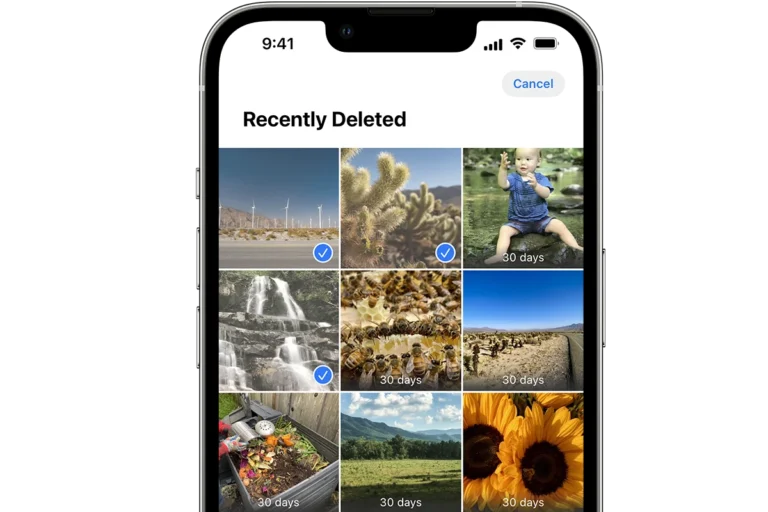
Accidentally deleting a contact on your iPhone can be frustrating—especially if it’s someone important. The good news? Apple provides several ways to recover deleted contacts, even though there isn’t a traditional “Recently Deleted” folder like there is for photos.
This guide explains how recently deleted contacts work on iPhone and the best ways to recover them.
Is There a “Recently Deleted Contacts” Folder on iPhone?
No.
Unlike Photos or Notes, iOS does not have a dedicated “Recently Deleted” section for contacts.
However, deleted contacts may still be recoverable depending on:
- Your iCloud settings
- Whether you use Gmail, Outlook, or another account for contacts
- How much time has passed since deletion
Method 1: Recover Deleted Contacts from iCloud (Best Option)
If Contacts sync is enabled in iCloud, Apple keeps an archive of your contacts that can be restored.
Steps:
- Go to https://www.icloud.com in a browser
- Sign in with your Apple ID
- Click your profile photo → Account Settings
- Scroll to Advanced
- Select Restore Contacts
- Choose an archive from before the contact was deleted
- Click Restore
✅ Your current contacts will be replaced with the selected archive
✅ The deleted contact should reappear within minutes
Method 2: Re‑enable Contacts Sync on iPhone
Sometimes contacts disappear instead of being permanently deleted.
Steps:
- Open Settings
- Tap your Apple ID
- Tap iCloud
- Toggle Contacts OFF
- Choose Keep on My iPhone
- Toggle Contacts back ON
- Select Merge
This forces a re‑sync and can restore missing contacts.
Method 3: Check Other Accounts (Gmail, Outlook, Yahoo)
If your contacts are synced with another service, they may still exist there.
Steps:
- Go to Settings → Contacts
- Tap Accounts
- Select each account (Gmail, Outlook, etc.)
- Ensure Contacts is enabled
You can also log in directly to:
- Google Contacts: https://contacts.google.com
- Outlook People: https://outlook.live.com/people
Method 4: Restore Contacts from an iPhone Backup
If you recently backed up your iPhone before deleting the contact:
Options:
- iCloud Backup
- Finder (Mac) or iTunes (Windows) backup
⚠️ Important:
Restoring a backup replaces all current data on your iPhone with the backup’s data.
Method 5: Ask the Contact to Re‑Share Their Info
If all else fails:
- Ask the person to send their contact card via Messages, AirDrop, or Email
- Or search your Messages, Call History, or Mail app for their number or email
How Long Are Deleted Contacts Recoverable?
There’s no fixed timeframe, but generally:
- iCloud contact archives may be available for several weeks
- The sooner you act, the higher the chance of recovery
How to Prevent Losing Contacts Again
✅ Enable iCloud Contacts Sync
✅ Use multiple contact accounts (iCloud + Gmail)
✅ Back up your iPhone regularly
✅ Avoid deleting contacts unless you’re certain
Summary
| Recovery Method | Works If |
|---|---|
| iCloud Restore | iCloud Contacts was enabled |
| Re‑sync iCloud | Contacts disappeared unexpectedly |
| Other Accounts | Contacts synced to Gmail/Outlook |
| Backup Restore | Backup exists before deletion |
| Manual Recovery | No backup available |
Key Takeaways
- iCloud offers a straightforward way to restore deleted iPhone contacts
- Alternative recovery methods exist for non-iCloud users
- Regular backups prevent permanent loss of contact information
Understanding iPhone Contact Deletion
The iPhone’s contact management system involves complex data associations and deletion processes. Users should be aware of how contacts are stored and what occurs when they are removed.
The Contacts App and Data Association
The iPhone Contacts app stores information in a centralized database. This database links contact details to various apps and services. Phone numbers, email addresses, and social media profiles are all connected to individual contact entries.
Contact data syncs across devices through iCloud. This ensures consistency between an iPhone, iPad, and Mac. Third-party apps can also access and modify contact information with user permission.
The iOS system uses unique identifiers for each contact. These IDs help maintain data integrity across different apps and services.
What Happens When You Delete Contacts
Deleting a contact on iPhone doesn’t immediately erase all data. The system moves deleted contacts to a “Recently Deleted” folder. This folder acts as a safeguard against accidental deletions.
Contacts remain in this folder for 30 days. During this period, users can easily restore them. After 30 days, the contacts are permanently removed from the device and iCloud.
When a contact is deleted, associated data in other apps may persist. Calendar events or message threads linked to the contact often remain intact. This can lead to orphaned data that requires manual cleanup.
iCloud’s web interface offers additional recovery options. Users can restore contacts from older backups through iCloud.com. This feature is useful for recovering contacts deleted more than 30 days ago.
Restoring Contacts via iCloud
iCloud offers two main methods to restore deleted contacts on your iPhone. These approaches allow you to recover lost contacts quickly and easily.
Using iCloud Backup
iCloud backup provides a straightforward way to restore deleted contacts. This method recovers all data from a specific backup, not just contacts.
To use iCloud backup:
- Go to Settings > General > Reset
- Select “Erase All Content and Settings”
- Follow setup steps until reaching “Apps & Data” screen
- Choose “Restore from iCloud Backup”
- Sign in to iCloud and select the desired backup
This process restores your entire iPhone to the chosen backup’s state. It’s important to select a backup from before the contacts were deleted.
Retrieving Contacts from an Earlier Version
iCloud.com allows users to restore contacts from a specific date without affecting other data. This method is useful for recovering accidentally deleted contacts.
Steps to retrieve earlier versions:
- Visit iCloud.com and sign in
- Scroll down and click “Data Recovery”
- Select “Restore Contacts”
- Choose a date before the contacts were deleted
- Click “Restore” to confirm
iCloud will replace your current contacts with the selected version. The process may take a few minutes to complete. Users receive a notification and email once the restore finishes.
Recovery Without iCloud
Retrieving deleted contacts on an iPhone without using iCloud is possible through alternative methods. These approaches offer solutions for users who don’t have iCloud backups or prefer other recovery options.
iTunes and Finder Backup Options
iTunes and Finder backups provide a way to restore deleted contacts on iPhones. Users with Windows computers can use iTunes, while Mac users can use Finder for backups created after macOS Catalina.
To restore contacts:
- Connect the iPhone to the computer
- Open iTunes or Finder
- Select the device
- Choose “Restore Backup”
- Pick the most recent backup before contact deletion
This method replaces all current data with the backup version. It’s crucial to create a new backup before proceeding to avoid losing recent data.
Utilizing Third-Party Software
Third-party recovery software offers another option for retrieving deleted iPhone contacts. These tools can scan the iPhone’s storage and recover deleted data without relying on backups.
Popular recovery software includes:
- Dr.Fone
- FoneDog
- EaseUS MobiSaver
Steps for using recovery software:
- Download and install the chosen software
- Connect the iPhone to the computer
- Run a scan for deleted contacts
- Select and recover the desired contacts
These programs often offer free trials but may require payment for full recovery features. Users should research and choose reputable software to ensure data security.
Prevention and Support
Protecting contacts and getting help with recovery are crucial for iPhone users. Taking proactive steps can prevent data loss, while knowing how to seek assistance ensures quick resolution of issues.
Preventative Measures
Regular backups are essential for safeguarding contacts. Users should enable iCloud Contacts sync in their iPhone settings. This automatically backs up contacts to iCloud. Alternatively, syncing contacts with Gmail provides an extra layer of protection.
It’s wise to export contacts periodically as a CSV file. This creates a local backup on a computer. Users can do this through iCloud.com or by syncing with a computer.
Updating iOS regularly is important. New versions often include improved data protection features. Users should also use a strong passcode or Face ID to prevent unauthorized access to their device.
Contacting Apple Support
Apple offers various support options for contact recovery issues. Users can start by visiting the Apple Support website. Here, they can access articles on contact management and recovery.
For personalized help, users can contact Apple Support directly. Options include phone support, online chat, or scheduling an in-person appointment at an Apple Store. Users should have their Apple ID and device information ready when seeking assistance.
The Apple Support app is another useful tool. It provides quick access to troubleshooting guides and support options. Users can download this app from the App Store for free.
Frequently Asked Questions
Recovering deleted contacts on an iPhone involves several methods. Users can explore options through iCloud, Google Contacts, or third-party applications.
How can I recover deleted contacts on my iPhone without a backup?
Recovering contacts without a backup is challenging. Users can check the Recently Deleted folder in the Contacts app. This folder keeps deleted contacts for up to 30 days.
If contacts aren’t there, third-party data recovery software might help. These tools scan the iPhone’s storage for deleted data.
What steps are involved in restoring contacts from iCloud to an iPhone?
To restore contacts from iCloud, users should sign in to iCloud.com. They can then select Data Recovery and choose Restore Contacts.
Users will see a list of contact archives. They should pick the archive from before the deletion and confirm the restoration.
Is there an application available that can recover deleted contacts on an iPhone?
Yes, several third-party applications can recover deleted contacts. Dr.Fone and PhoneRescue are popular choices.
These apps connect to the iPhone and scan for deleted data. They can often retrieve contacts even without a backup.
Can you retrieve contacts that have been recently removed from your iPhone?
Yes, recently removed contacts are often recoverable. The iPhone stores deleted contacts in the Recently Deleted folder for 30 days.
Users can open the Contacts app and scroll to the bottom to find this folder. They can then select and restore the desired contacts.
How should one restore their contacts on an iPhone using Google Contacts?
To restore contacts using Google Contacts, users should first visit contacts.google.com. They need to log in with their Google account.
In the left sidebar, they can click on ‘Trash’ to view deleted contacts. Google keeps these contacts for 30 days after deletion.
What is the process for recovering a contact that was recently deleted from an iPhone?
The process starts by opening the Phone app on the iPhone. Users should tap on Contacts and scroll to the bottom.
They’ll find the Recently Deleted folder. Opening this folder shows contacts deleted in the last 30 days. Users can select and restore desired contacts from here.