Is your Alexa suddenly silent? It can be frustrating when your helpful voice assistant stops responding just when you need it most. Many Echo device owners face this common issue, but the good news is that most Alexa response problems can be fixed with a few simple troubleshooting steps without requiring technical expertise.
When Alexa ignores your commands, the issue typically stems from power problems, internet connectivity issues, or microphone functionality. The first step is always to check if you’re using the correct power adapter that came with your device. Many users find that simply unplugging and replugging their Echo device resolves temporary response issues, though sometimes the fix only lasts a few hours.
For persistent problems, you’ll need to verify your internet connection is stable and that your device’s microphones aren’t muted. Sometimes speaking to Alexa in a clearer voice or repositioning the device away from noisy areas can make a significant difference in how well it responds to your commands.
Ways To Fix Alexa Not Responding
Is your Alexa device not responding to voice commands or acting sluggish? This is one of the most common Echo issues users face. Fortunately, there are several troubleshooting steps you can take to get your Alexa back up and running.
Quick Fixes to Try First
1. Check if Alexa Heard You
- Look for the blue light ring on your Echo device when you speak
- If the light doesn’t appear, Alexa isn’t hearing you
- Make sure you’re using the correct wake word (“Alexa,” “Echo,” “Amazon,” or “Computer”)
- Speak clearly and at a normal volume
(source: Amazon Customer Service)
2. Move Your Echo Device
- Move the device away from walls, other electronics, or objects that might block the microphones
- Keep it at least 8 inches away from walls or windows
- Avoid placing near TVs, speakers, or appliances that create noise
- Don’t place your Echo inside a cabinet or enclosed space
(source: Lifewire)
3. Check Your Internet Connection
Alexa requires a stable internet connection to function:
- Open the Alexa app and check if your device shows as online
- Test your Wi-Fi with other devices
- Move your Echo closer to your Wi-Fi router
- Restart your router by unplugging it for 30 seconds, then plugging it back in
- Check if your internet service is experiencing an outage
(source: Devicology)
Restart Your Alexa Device
A simple restart often fixes most issues:
Method 1: Unplug and Replug
- Unplug your Echo device from the power outlet
- Wait 30 seconds
- Plug it back in
- Wait for the light ring to turn blue, then orange
- Try your voice command again
Method 2: Using the Alexa App
- Open the Alexa app
- Go to Devices > Echo & Alexa
- Select your device
- Scroll down and tap Restart
(source: GearTrouble)
Check the Microphone
Unmute the Microphone
- Look for a red light ring on your Echo device
- This means the microphone is muted
- Press the microphone button (with a microphone icon crossed out) on top of the device
- The red light should turn off, indicating the microphone is active again
Clean the Microphones
- Dust and debris can block the microphones
- Use a soft, dry cloth to gently wipe the top of your Echo device
- Use compressed air to blow out any dust from the microphone holes
(source: iTech Hacks)
Update Your Alexa Device
Outdated software can cause responsiveness issues:
- Open the Alexa app
- Go to Devices > Echo & Alexa
- Select your device
- Check for available updates
- If an update is available, follow the prompts to install it
Note: Most Echo devices update automatically overnight, but you can force an update by saying “Alexa, check for software updates”
(source: Consumer Search)
Re-register Your Echo Device
If Alexa still isn’t responding, try de-registering and re-registering:
- Open the Alexa app
- Go to Devices > Echo & Alexa
- Select your problematic device
- Scroll down and tap Deregister
- Confirm deregistration
- Set up your Echo device again as if it were new
- Follow the in-app setup instructions
(source: Devicology)
Factory Reset Your Echo Device
As a last resort, perform a factory reset. Warning: This will erase all settings and you’ll need to set up the device from scratch.
For Echo Dot (3rd Gen and later):
- Press and hold the Action button (dot button) for 25 seconds
- The light ring will turn orange, then blue
- Wait for the light ring to turn off and on again
For Echo (4th Gen):
- Press and hold the Action button for 25 seconds
- Wait for the light ring to pulse orange
For Echo Show:
- Swipe down from the top
- Tap Settings > Device Options > Reset to Factory Defaults
(source: GearTrouble)
Check for Alexa Service Outages
Sometimes the problem isn’t with your device:
- Visit Amazon’s Alexa status page
- Check social media for reports of widespread issues
- Wait for Amazon to resolve service-side problems
Additional Troubleshooting Tips
Reduce Wi-Fi Interference
- Switch to a 5GHz Wi-Fi network if available (less congestion)
- Move away from devices that cause interference (baby monitors, microwaves)
- Consider using a Wi-Fi extender if your Echo is far from the router
Check for Too Many Connected Devices
- Alexa can become overloaded if managing too many smart home devices
- Try disconnecting some devices and see if performance improves
Disable Brief Mode
Sometimes Brief Mode causes confusion:
- Say “Alexa, turn off Brief Mode”
- Or go to Settings > Voice Responses in the Alexa app
(source: iTech Hacks)
When to Contact Amazon Support
If none of these solutions work, you may have a hardware issue:
- Your Echo device may be defective
- Contact Amazon Customer Service
- If under warranty, you may be eligible for a replacement
Prevention Tips
- Keep your Echo device updated
- Regularly clean the microphones
- Maintain a strong, stable Wi-Fi connection
- Avoid placing your Echo in problematic locations
- Periodically restart your Echo device to clear temporary glitches
Conclusion
Most Alexa responsiveness issues can be resolved with simple troubleshooting steps like checking your internet connection, restarting the device, or ensuring the microphones aren’t muted. Work through these fixes systematically, starting with the quickest solutions first. In most cases, your Alexa will be back to responding normally in no time.
Key Takeaways
- Check your power supply and internet connection first when Alexa stops responding to voice commands.
- A simple restart by unplugging your Echo device for 30 seconds often resolves most response issues.
- Ensure the microphone isn’t muted and speak clearly in a moderate volume when addressing your voice assistant.
Understanding Alexa’s Core Functions
Alexa devices operate through a combination of voice recognition technology and cloud-based processing. These systems work together to interpret commands and perform requested actions.
Voice Commands and Wake-Up Word
Alexa devices are designed to respond to specific voice commands that begin with a wake-up word. The default wake word is “Alexa,” but users can change it to “Echo,” “Amazon,” or “Computer” through the Alexa app settings.
When your device isn’t responding, first check if you’re using the correct wake word. Sometimes users accidentally change this setting or family members modify it. You can check the wake word in your Alexa app under Device Settings.
Voice commands work best when:
- You speak clearly and at a moderate volume
- You’re within 20 feet of the device
- Background noise is minimal
- The device’s microphone isn’t muted
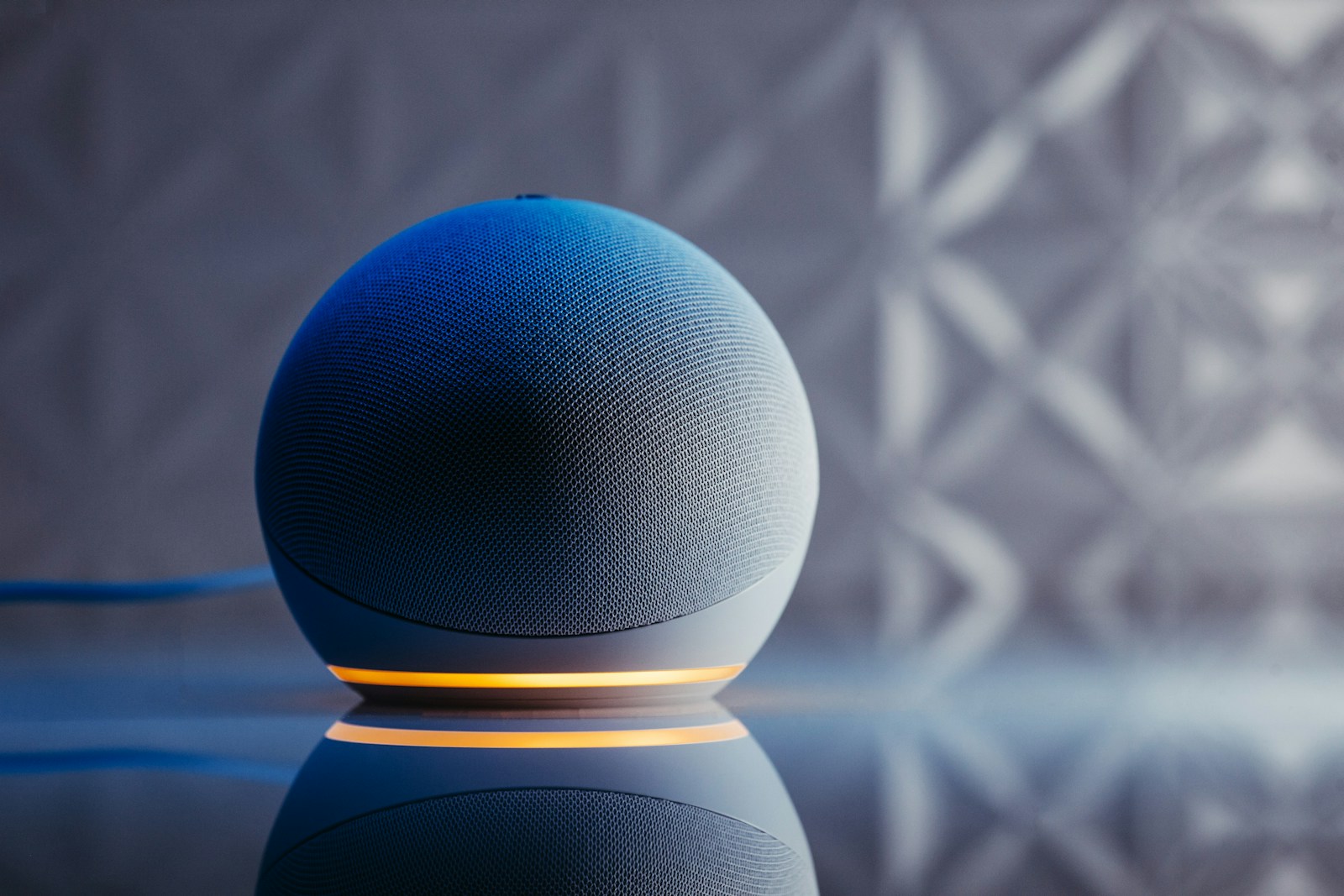
The blue light ring indicates Alexa is listening and processing your request. If you don’t see this light when speaking the wake word, there might be a connection or hardware issue.
Software Updates and Listening Feature
Alexa devices regularly receive software updates to improve functionality and add new features. These updates happen automatically when your device is connected to Wi-Fi, usually during periods of inactivity.
Outdated software can cause Alexa to become unresponsive. You can manually update Alexa through the Alexa app if you suspect your device hasn’t received recent updates.
The listening feature is crucial for Alexa’s operation. If your Alexa suddenly stops responding, check if “Background Mode” needs to be enabled. Some users have reported fixing issues by saying “turn on background mode.”
Key listening features include:
- Microphone functionality (physical button can mute/unmute)
- Follow-up Mode (allows multiple commands without repeating the wake word)
- Voice profiles (helps Alexa recognize different household members)
If Alexa still isn’t responding, the microphone might be obstructed or the device might need a restart.
Initial Setup and Configuration
Getting Alexa devices working properly starts with correct setup. The initial configuration lays the foundation for a responsive and functional voice assistant experience.
Connecting Alexa to Your Amazon Account
To begin using an Alexa device, it must be connected to an Amazon account. This connection enables personalized features and preferences.
First, download the Alexa app from the app store on a smartphone or tablet. The app is available for both iOS and Android devices. After installation, sign in with an existing Amazon account or create a new one.
Next, add the Alexa device by tapping the Devices icon in the app, then selecting the + icon. Choose “Amazon Echo” from the menu, then select the specific Echo model being set up.
Follow the on-screen instructions to complete the pairing process. When prompted, press the action button on the device to enter setup mode. The device’s light ring will typically change color to indicate it’s ready to connect.
Linking Alexa to the Wi-Fi Connection
A stable Wi-Fi connection is crucial for Alexa to function properly. Without it, the device may appear to work but won’t respond to voice commands.
During the setup process, the Alexa app will prompt for Wi-Fi credentials. Select the home network and enter the password carefully. If the Wi-Fi connection fails, try:
- Moving the Alexa device closer to the router
- Confirming the Wi-Fi password is correct
- Restarting the router before attempting setup again
For connectivity issues after initial setup, open the Alexa app and navigate to Devices > Echo & Alexa > (select device) > Change next to Wi-Fi Network. This allows reconnecting to a new or existing network.
The device’s light ring provides status information—blue indicates processing, orange means setup mode, and red indicates no Wi-Fi connection.
Setting Up Compatible Smart Home Devices
Expanding Alexa’s capabilities with smart home devices enhances its functionality and convenience. The setup process varies by device type but follows a general pattern.
First, install the smart home device according to the manufacturer’s instructions. Most require their own app for initial configuration and connection to Wi-Fi.
Next, in the Alexa app, tap Devices > Add Device and select the type of device being added. Follow the prompts to discover and link the device with Alexa.
For some devices, enabling a skill may be necessary. Navigate to Skills & Games in the Alexa app, search for the device manufacturer, and enable the appropriate skill.
After successful pairing, create logical device names that are easy to remember for voice commands. For example, “Living Room Lamp” instead of “Light 1.”
Test the connection by asking Alexa to control the device with commands like “Alexa, turn on the living room lamp.” If the device doesn’t respond, check its connection or try resetting it.
Troubleshooting Alexa Connectivity
When Alexa devices stop responding, connectivity issues are often the culprit. Addressing network problems and properly configuring device settings can resolve most unresponsive Alexa situations quickly.
Checking Internet Connection and Wi-Fi Settings
If your Alexa isn’t responding, start by verifying your internet connection. Make sure your Wi-Fi router is powered on and functioning properly. A quick way to test this is by connecting another device to the same network.
Check that your Alexa device is connected to the correct Wi-Fi network. Open the Alexa app, select Devices, choose your Echo device, and verify the Wi-Fi connection status.
Try these quick fixes for better connectivity:
- Reset your router by unplugging it for 30 seconds
- Move your Echo device closer to the router
- Reduce interference from other electronics
- Check for service outages in your area
Always make sure you’re using the power adapter that came with your device, as incorrect power supplies can cause connectivity issues.
Re-Adding Alexa to Your Smart Home Network
If connection checks don’t solve the problem, removing and re-adding your Alexa device often resolves persistent issues. This process essentially gives your device a fresh start on the network.
To remove your device:
- Open the Alexa app
- Go to Devices > Echo & Alexa
- Select your device
- Tap the gear icon for Settings
- Scroll down and select “Deregister”
After removing the device, set it up again as new. This process forces your Echo to establish fresh connections to both your Wi-Fi network and Amazon’s servers, often fixing response problems.
If you have smart home devices connected to Alexa, you may need to reconnect them after this process. Network congestion can sometimes cause Alexa to report that devices aren’t responding even when they’re working fine.
Hardware Issues and Microphone Functionality
Physical problems with Alexa devices can prevent them from hearing or responding to commands. These issues often involve the microphone or internal components.
Identifying Microphone Problems
When Alexa stops responding to voice commands, the microphone might be disabled or blocked. Check if the microphone button on top of your Echo device is illuminated red, which indicates the microphone is turned off. Press this button to turn the microphone back on.
Make sure nothing is covering or blocking the microphone holes on your device. Dust and debris can accumulate over time and affect microphone sensitivity.
Clean the microphone openings gently with a soft, dry cloth or compressed air. Avoid using liquids that could damage internal components.
Position your Alexa device away from walls, TV speakers, or other objects that might interfere with its ability to hear commands clearly. The ideal placement is in an open area at least 8 inches from walls.
Using the Action Button for Troubleshooting
The Action Button (typically a dot symbol) on Echo devices can help resolve many unresponsive issues. Press and hold this button for about 15 seconds until the light ring turns orange, which forces a device restart.
For persistent problems, try a factory reset using the Action Button. On most Echo devices, press and hold both the Action Button and the Microphone Off button for about 20 seconds.
The Action Button can also be used to stop Alexa when it’s stuck in a response loop. A quick press will interrupt whatever Alexa is doing or saying.
If your Echo device still doesn’t respond after using the Action Button, try unplugging it for 30 seconds before plugging it back in to fully reset the hardware.
Alexa App and Account Management
The Alexa app serves as a control center for your Echo devices and connected smart home products. Managing your app settings and linked accounts can resolve many common response issues.
Checking Alexa App for Device Status
When Alexa stops responding, the app can help identify the problem. Open your Alexa app and check the device status on the Devices tab. If your Echo shows “Offline,” this indicates a connection problem.
Try force stopping the app and restarting it. This simple step often resolves sluggish performance issues. If problems persist, you may need to clear the app data or reinstall completely.
The app will also display warning symbols next to devices experiencing issues. Tap on the device name to see specific error messages and troubleshooting options.
You can verify if Alexa is actually hearing your commands by checking the voice history section in the app. This helps determine if the problem is with voice recognition or command execution.
Managing Your Bose and Amazon Accounts
Proper account management ensures seamless integration between Amazon Alexa and Bose products. Users should verify that both their Amazon and Bose accounts are correctly linked in the Alexa app.
If Alexa isn’t responding to voice commands but works through the app, try disabling and re-enabling the Bose skill. This refreshes the connection between services.
Product sharing settings may also affect responsiveness. Check that your Bose devices are properly shared with household members who need access.
For persistent issues, try these steps:
- Sign out of both Alexa and Bose apps
- Restart your mobile device
- Sign back in to both apps
- Re-establish the connection between them
Sometimes, an app update may be required for either application to ensure compatibility.
Factory Reset and Restoring Factory Defaults
When your Alexa device stops responding, a factory reset often solves persistent issues that regular troubleshooting can’t fix. This process returns your device to its original state but means you’ll need to set it up again.
When and How to Perform a Factory Reset
A factory reset should be your last resort after trying simpler solutions. Consider using this method when your Echo device:
- Remains unresponsive after restarting
- Won’t connect to your network
- Has persistent voice recognition problems
- Shows unusual behavior that basic troubleshooting can’t fix
For most Echo devices, you can restart the device first by unplugging it for 10 seconds before attempting a full reset. If problems persist, the reset method varies by model. For Echo Dot (2nd-5th generations), press and hold the Action button for about 25 seconds until the light ring turns orange.
Some devices like Echo Show have on-screen options where users can select “Reset to Factory Defaults” through the settings menu.
Restoring Alexa to Factory Settings
To restore factory settings through the Alexa app:
- Open the Alexa app on your smartphone
- Go to Devices tab
- Select your specific Alexa device
- Tap Factory Reset and confirm your choice
After resetting, your device will need to be set up again as if it were new. During setup, ensure you’re using a stable internet connection and the correct power adapter that came with your device.
If your device won’t enter reset mode, try using a different power outlet or checking your internet connection. In some Echo models, you can choose to reset while retaining smart home device connections, which saves time reconnecting compatible devices.
Professional Tech Support and Additional Help
When self-troubleshooting fails to resolve Alexa issues, accessing expert assistance can save time and frustration. Professional support options provide specialized knowledge for complex problems that standard fixes cannot address.
Utilizing JustAnswer for Troubleshooting Assistance
JustAnswer offers a reliable resource for troubleshooting stubborn Alexa problems. This online platform connects users with certified technicians who specialize in smart home devices and voice assistants.
When facing persistent Alexa response issues, users can submit detailed questions about their specific situation. JustAnswer experts typically respond within minutes, eliminating the need for lengthy phone queues.
The service works through a straightforward process:
- Describe the Alexa problem in detail
- Upload photos or videos if needed
- Receive personalized troubleshooting steps
Technicians can help with complex issues like Wi-Fi connectivity problems, microphone malfunctions, or software bugs that standard troubleshooting hasn’t resolved.
JustAnswer offers both one-time assistance and subscription options, making it flexible for different user needs.
Frequently Asked Questions
Echo devices may encounter issues that prevent them from responding properly. Below are solutions to common Alexa response problems that many users experience.
Why is Alexa not responding to my voice commands?
Alexa might not respond to voice commands due to several common issues. First, check if your device has power problems or microphone malfunctions. The microphone might be muted, which is indicated by a red light on most Echo devices.
Internet connectivity issues often cause Alexa to stop responding. Ensure your Wi-Fi connection is stable and working correctly. Sometimes the device may appear connected but doesn’t have enough bandwidth to process commands.
Background noise can interfere with Alexa’s ability to hear commands clearly. Move the device away from televisions, air conditioners, or other noisy appliances.
How do I reset my Echo Dot when it stops responding?
Restarting an Echo Dot is the most effective first step when it becomes unresponsive. Unplug the power adapter from the wall outlet or from the device itself, wait for about 20 seconds, then plug it back in.
For more persistent issues, a factory reset may be necessary. Press and hold the Action button for about 25-30 seconds until the light ring turns orange, then blue. This indicates the device is resetting to factory settings.
After resetting, users will need to set up the device again using the Alexa app. The app will guide through reconnecting to Wi-Fi and logging into the Amazon account.
What should I do when my Alexa device has a red light and is unresponsive?
A red light on an Alexa device typically indicates that the microphone is turned off. Press the microphone button on top of the device to turn it back on. The red light should disappear once the microphone is activated.
If the red light persists after pressing the microphone button, try restarting the device. Unplug it, wait for about 20 seconds, and plug it back in.
For persistent red light issues, check if the device needs a software update. Ask another working Alexa device to “check for software updates” or use the Alexa app to verify if updates are available.
How can I troubleshoot an Echo device that’s lighting up but not answering?
When an Echo device lights up but doesn’t respond, first check the internet connection. The device may be receiving commands but cannot process them due to poor connectivity.
Verify that the correct wake word is being used. Sometimes the wake word might have been accidentally changed. Use the Alexa app to confirm the wake word setting.
Volume settings may also cause this issue. If the volume is too low, Alexa might appear unresponsive. Try adjusting the volume using the physical buttons on the device or the Alexa app.
What steps are involved in fixing a server unresponsive error on Alexa?
Server unresponsive errors typically stem from Amazon’s services rather than the device itself. First, wait a few minutes as temporary server issues often resolve themselves.
Check Amazon’s service status page to see if there are any reported outages. During widespread outages, patience is required until Amazon resolves the issue.
For persistent server errors, restart both your internet router and Echo device. Unplug them for about one minute, then plug in the router first, wait for it to fully connect, before plugging in the Echo device.
How can I address the issue of my Alexa-enabled device being unresponsive to the wake word?
If Alexa isn’t responding to its wake word, check for environmental factors like background noise. Position the device away from speakers, televisions, or air conditioners that might interfere with its microphones.
Try speaking the wake word more clearly and from a closer distance. Users should stand within 8 feet of the device for optimal recognition.
Checking for software updates is also important. Say “check for software updates” to a working Alexa device or use the Alexa app to ensure the device has the latest firmware.